
Kevin Brooks | IPTV Troubleshooting Australia
Published: 10 March 2026 · Last updated: August 2026
Quick Answer
IPTV EPG not working almost always comes down to one of three things: no guide source is configured, the guide is downloaded, but its channel identifiers do not match your playlist, or the time zone offset has not been set for Australia. The first two produce a blank or partly blank guide; the third produces a guide where every programme is hours out. For background on how IPTV delivery works, see the IPTV Australia guide.
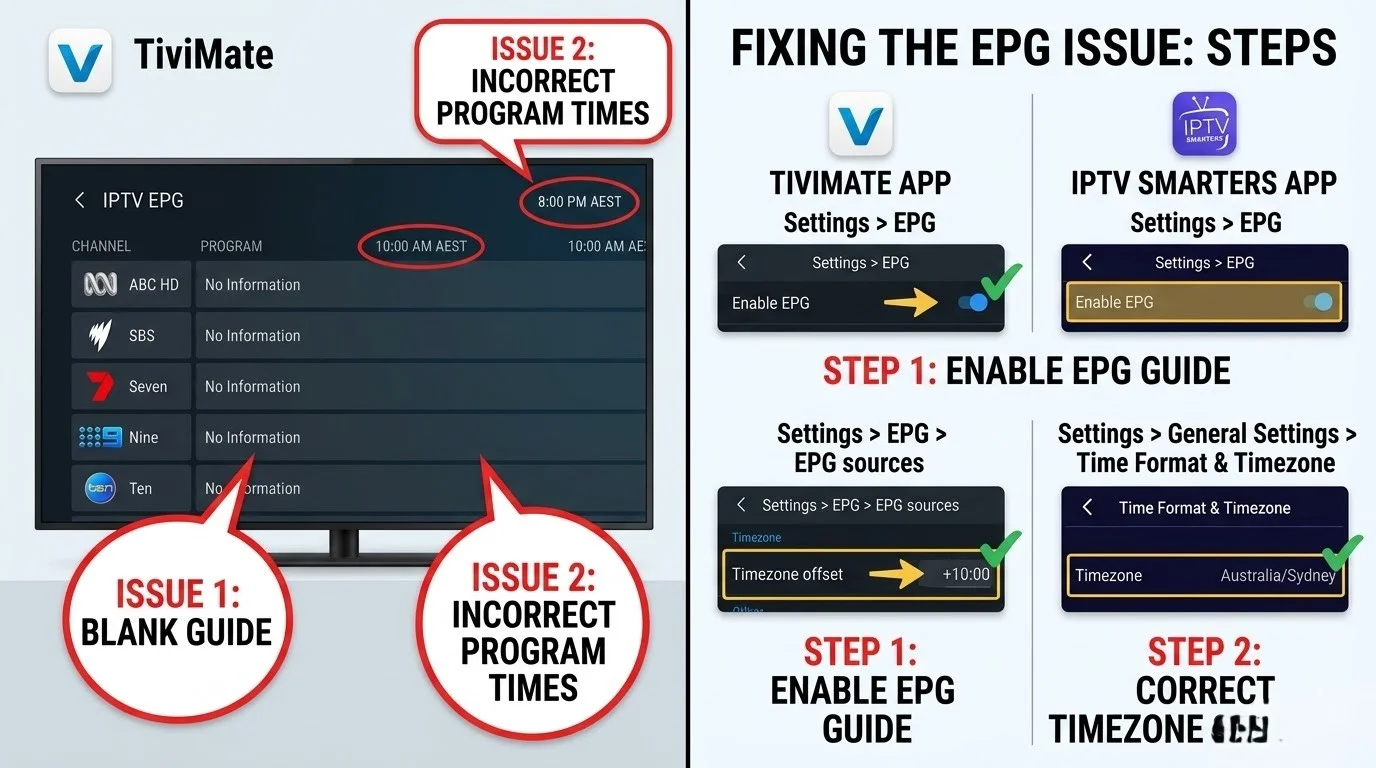
Why Does My IPTV Guide Say “No Information”?
This is the most common EPG question, and the answer surprises most people: it usually does not mean the guide failed to download.
“No Information” means the app has guide data but cannot find anything in it that belongs to that particular channel. The download worked. The matching did not.
Your playlist and your guide are two separate files from potentially different sources. The app connects them using identifiers, and if an identifier in the playlist has no counterpart in the guide file, that channel shows nothing, even though every other channel works perfectly.
That distinction matters because it changes what you should do. Refreshing the guide repeatedly won’t help if the problem is a mismatch, even though it’s the first thing most guides suggest.
Key takeaway: “No Information” usually means the guide downloaded correctly but contains nothing matching that channel’s identifier.
What This Guide Is Not
| If you see | Read instead |
|---|---|
| Channels will not play at all | Channel not loading |
| Login or authorisation error | Login failed |
| Buffering during playback | Buffering fixes |
| Setting up EPG for the first time | IPTV EPG setup Australia |
| What EPG is and why it matters | IPTV EPG explained |
This guide covers broken guides. It does not cover configuring one from scratch.
What Changed Just Before It Broke?
| What changed | Check first |
|---|---|
| New playlist | EPG source URL — Fix 2 |
| New provider | Channel identifiers — Fix 5 |
| New app | Guide settings — Fix 2 |
| Nothing changed | The provider’s guide file — Fix 8 |
Start Here — Match Your Symptom
| Symptom | Most likely cause | Start with |
|---|---|---|
| Guide completely blank, every channel | No source configured, or source failed | Fix 1–3 |
| Every programme wrong by hours | Time zone offset not set | Fix 4 |
| Some channels have data; others do not | Identifier mismatch | Fix 5, Fix 6 |
| Worked before, now showing old listings | The update stopped running | Fix 7, Fix 8 |
| Titles show but no descriptions | The source contains titles only | See What This Guide Cannot Fix |
How EPG Actually Works
Understanding the mechanism makes every fault below diagnosable rather than guesswork.
| Component | What it contains |
|---|---|
| M3U playlist | Your channels, each with an identifier |
| XMLTV guide file | Programme schedules, indexed by channel identifier |
| The identifier | What connects the two together |
XMLTV is the standard file format for television guide data, and an Xtream Codes connection usually retrieves it automatically while an M3U connection needs the URL entered by hand.
How Channel Identifiers Match the Guide
Each channel in an M3U playlist carries an identifier, usually written as ‘||’. The XMLTV file contains programme entries, each indexed against its own channel ID. When you open the guide, the app matches one against the other.
Where the two match, the programme data appears. Where they do not match, the channel shows “No Information”.
The identifiers must match exactly. If the playlist and guide use different channel identifiers, the application cannot associate programme data with that channel. A playlist listing a channel as ‘X’ channel.espn.au will not connect to a guide entry indexed as ‘Y’, even though a person reading both would recognise the same channel.
Most IPTV players — including TiviMate, IPTV Smarters Pro, and other XMLTV-compatible apps — match channels using identifiers supplied by the playlist and guide rather than by channel name.
Check Whether the Channel Has a Matching Entry
This process takes two minutes and tells you definitively whether a mismatch is your problem.
- Long-press a channel showing no information
- Open the edit channel and note its identifier value
- Open your EPG URL in a browser — it should return an XML file
- Search that file for the exact identifier string
- If it is not there, the guide has no entry for that channel
A result you can act on: if the identifier is missing from the file, no amount of refreshing will produce guide data. The solution is either manual assignment or a different guide source.
IPTV EPG Not Working: The Blank Guide
Start here if no channel has any programme data at all.
Fix 1 — Force a Manual Update
Automatic updates can fail silently, leaving the app holding nothing.
| App | Path |
|---|---|
| TiviMate | Settings → Playlists → → Update EPG |
| IPTV Smarters Pro | EPG section → pull to refresh |
A manual update does not repair the guide itself. It simply downloads the latest programme data from the configured source, replacing any incomplete or outdated copies stored by the application.
Allow the download to complete fully before judging the result. Guide files covering several days of listings across hundreds of channels take minutes rather than seconds, and interrupting the process leaves partial data behind.
Fix 2 — Confirm a Source Is Configured
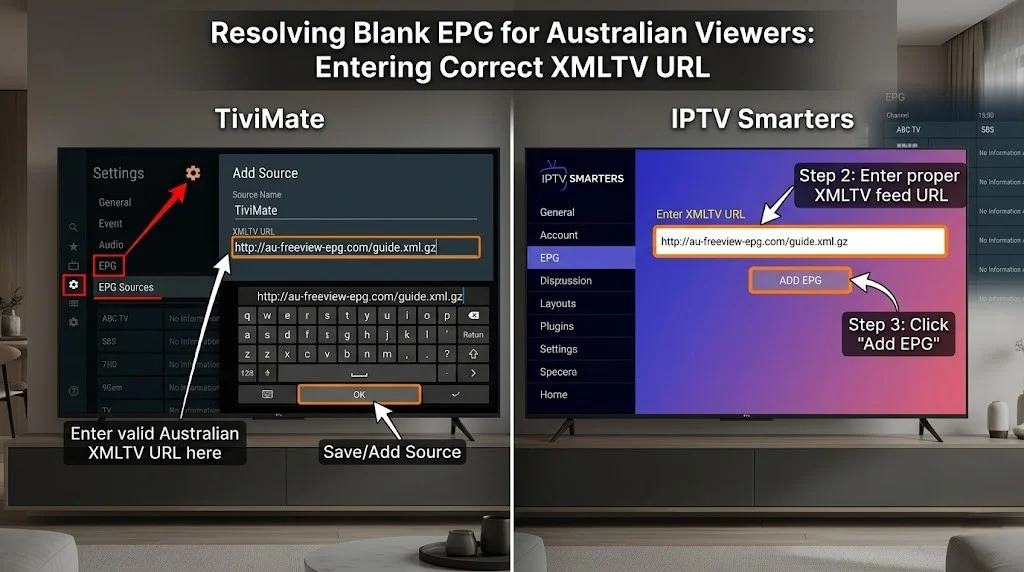
A blank guide on an M3U connection usually means no source was ever entered, because M3U playlists do not carry guide data themselves.
Check the EPG source field in your app’s playlist settings. If it is empty, that is your answer — request the XMLTV URL from your provider and enter it. It is a separate URL from your playlist link.
On an Xtream Codes connection, the source should populate automatically from the provider’s server. If that field is empty on an Xtream connection, the provider’s panel may not be supplying guide data at all.
For entering it correctly, see the EPG setup guide.
Step 3 — Does the EPG File Actually Open?
Paste your EPG URL into a browser address bar. This one test separates a source problem from an app problem.
| What the browser shows | What it means |
|---|---|
| XML data, or a file download | The source is working — the fault is in the app or the matching |
| 404 or Not Found | The URL is wrong or the file has been moved |
| Forbidden, or a login prompt | The URL requires credentials your app is not sending |
| Nothing loads; it times out | The guide server is unreachable |
If the browser cannot retrieve the guide file, changing player settings will not restore programme data, as the application has nothing to download.
Anything apart from the first row means the problem is the source itself. Ask your provider for a current URL.
When the Times Are Wrong
A guide that shows correct programme names at completely wrong times is not a data problem. It is a display problem, and it takes seconds to correct.
Fix 4 — Time Shift for Australian Time Zones
Some guide sources publish schedule data using a common reference time, with the player applying a local offset during display. Australian time zones sit well ahead of that reference, so without an offset every programme appears hours away from when it actually airs.
| Region | Standard | Daylight saving |
|---|---|---|
| NSW, VIC, ACT, TAS | UTC+10 | UTC+11, October to April |
| Queensland | UTC+10 | None observed |
| South Australia | UTC+9:30 | UTC+10:30, October to April |
| Northern Territory | UTC+9:30 | None observed |
| Western Australia | UTC+8 | None observed |
The setting is usually called ‘Time Shift’ or ‘Timezone Offset’ and sits in the app’s EPG settings. If you cannot locate it in your player, see the IPTV EPG setup guide for the location in supported applications.
Apply the value for your state, and the guide corrects immediately — no re-download is needed. If programmes appear earlier than they should, increase the offset. If later, decrease it. The correction is simply the difference between your time zone and the one the guide data was published in.
Key takeaway: Correct programme names at the wrong times are always an offset problem, never a guide data problem.
When Only Some Channels Have Data
Partial coverage is the most common EPG complaint and the one most often misdiagnosed as a broken app.
Why One Channel Has Data and Another Does Not
Different channels can use different identifiers. One channel may match the guide perfectly while another has no matching identifier at all — which is why part of the guide fills in and part stays empty.
This usually happens when the playlist and the guide come from different sources, or when a provider adds channels without updating the identifiers to match their guide file.
Fix 5 — Assign the Guide Entry Manually
Where a channel has no matching identifier, most players let you connect it by hand.
Long-press the channel with no information, look for an option to edit the channel or assign its guide entry, and search for the correct entry by name. Once assigned, programme data appears for that channel and stays assigned through future updates.
When Manual Assignment Is Worth Doing
Manual assignment makes sense when only one or two channels are missing guide data.
If dozens of channels are affected, the underlying identifier mapping is wrong, and fixing channels one by one is usually a temporary workaround rather than a real solution.
Fix 6 — Ask Your Provider About Channel Identifiers
If many channels are missing data, manual assignment is the wrong tool. The underlying issue is that your playlist and guide file do not share identifiers, and the provider is the only one who can align them.
Ask whether they supply a guide file matching their playlist identifiers. For a provider using their playlist and their own guide, the identifiers should already align — where they do not, that is a maintenance problem on their side rather than a configuration problem on yours.
When the Guide Stops Updating
A guide that worked and then went stale has a different cause from one that never worked.
Fix 7 — Clear the EPG Cache
Apps save guide data locally, and that stored copy can become corrupted after an interrupted update or an app update.
Clearing the EPG cache specifically — separate from clearing the app cache — removes the stored copy and forces a fresh download. In TiviMate this option sits under the EPG settings alongside the manual update option.
Please follow it with a manual update and allow the download to complete.
Fix 8 — Check the Last Update Timestamp
Most players record when the guide last updated successfully. If that timestamp is old, automatic updating has been failing silently rather than the guide being wrong.
Two things to check: whether automatic updates are enabled at all, and whether the source URL still works using the browser test in Section 3. A URL that expired weeks ago produces exactly this pattern — the guide keeps showing whatever it downloaded last.
Key takeaway: a guide showing old listings usually means updates stopped running, not that the guide data itself is wrong.
Preventing Future EPG Problems
- Leave automatic guide updates enabled instead of refreshing repeatedly through the day
- Refresh the playlist after your provider makes changes, since identifiers can change with it
- Avoid loading several guide sources at once unless you have a reason to
- Keep your player updated, since guide handling changes between versions
- Where possible, use a playlist and guide from the same provider so the identifiers align
Different applications and providers recommend different update intervals, and published guidance genuinely conflicts. Unless specified otherwise by your provider, you should use the application’s default automatic schedule instead of forcing frequent manual refreshes, as very short intervals create unnecessary strain on the guide server.
What This Guide Cannot Fix
Some channels have no guide data available anywhere. Guide files often lack regional and niche channels, so “No Information” is expected for them.
Titles appearing without descriptions is a data limitation too. If the source file contains only basic entries, no setting will produce new synopses.
And a provider whose guide file is consistently incomplete is a provider issue. No configuration on your side compensates for a source that lacks the data.
When to Contact Your Provider
Contact them when the browser test shows the URL failing, when many channels lack identifiers matching the guide, or when the guide file itself has stopped updating on their end.
Send the exact EPG URL you are using, what the browser returns when you open it, which channels are affected, and your app. That detail lets them check the source rather than sending you through steps you have already run.
Legal Considerations
IPTV technology is legal in Australia. What determines legality is the service behind the playlist and whether it holds appropriate content distribution licences — guide data is schedule information and carries no separate status.
ACMA, the Australian Communications and Media Authority, is the federal regulator for broadcasting and online content. Under the Copyright Act 1968 (Cth), it can direct internet providers to block sites that facilitate copyright infringement.
Full framework: Is IPTV legal in Australia, and what are the relevant Australian IPTV laws?
This article is for educational purposes only. Verify the licensing status of any streaming service and ensure compliance with Australian copyright law before subscribing.
Explore More
EPG
IPTV EPG setup Australia · IPTV EPG explained · TiviMate configuration
Related faults
Channel not loading · No signal on IPTV · Error codes explained
Playlists and setup
Xtream Codes vs M3U · How to use an M3U playlist · IPTV setup Australia
Reference
Troubleshooting hub
Bottom Line
If every channel shows “No Information”, check that a guide source is configured, then open the URL in a browser. If the file does not load, the source is the problem and your provider needs to supply a current one.
If only some channels are empty, the guide cannot match those channel identifiers. Assign them manually for a handful, or ask your provider to align their playlist and guide for more.
If the guide has stopped updating after functioning normally, please check when it last updated successfully. If that timestamp is old, it appears that updates have been failing silently — please clear the cache, force an update, and verify that the URL still works.
The symptom indicates where to start. Identifying whether the problem is the guide source, channel matching, or time display usually leads to the correct solution faster than repeatedly refreshing the guide.
For any other issues, please return to the IPTV Troubleshooting Australia hub.
Sources
- ACMA — website blocking powers and regulatory framework