
Kevin Brooks | IPTV Troubleshooting Australia
Published: 11 March 2026 · Last updated: August 2026
Quick Answer
IPTV buffering Australia problems usually have multiple causes, so the fastest route is to narrow the field before changing anything. Two questions do most of the work: does it affect every channel or only some, and does it happen even with a speed test that looks fine? In-app settings — buffer size and decoder — resolve a surprising share of cases that people assume are network faults. For background on how IPTV delivery works, see the IPTV Australia guide.
Before You Start — Match the Symptom
| If this happens… | Start here |
|---|---|
| Every channel buffers | Network and player checks |
| Only one channel buffers | Provider or stream issue |
| Live TV buffers; VOD is fine | Live stream diagnosis |
| VOD buffers, Live TV is fine | Device or app |
| Buffering starts after 20–30 minutes | Device overheating |
| The speed test looks good but IPTV buffers | Buffer size and decoder |
Restart the affected channel once and wait 20–30 seconds before changing settings. Brief stream interruptions sometimes clear on their own, and changing several things at once makes the real cause much harder to isolate afterwards.
Good Internet Speed but IPTV Still Buffers?
This question is the most common source of confusion, and it deserves answering before anything else. A speed test measures how fast a large file downloads over a few seconds. Live IPTV needs something different: a steady, uninterrupted delivery rate held for however long you watch.
A connection can pass a speed test comfortably and still fail that second requirement. The gap between the two explains most cases where the numbers look fine and the picture does not.
What sits in that gap:
- Player settings — buffer size and decoder handling, covered below
- Device strain — a streaming stick throttling as it heats up
- Wi-Fi instability — brief dropouts in speed Size and test averages over
- Provider server load — nothing at your end can influence this
- A single problem channel — while every other channel plays perfectly
Key takeaway: a speed test measures peak download rate, not the sustained stability that live streaming actually depends on.
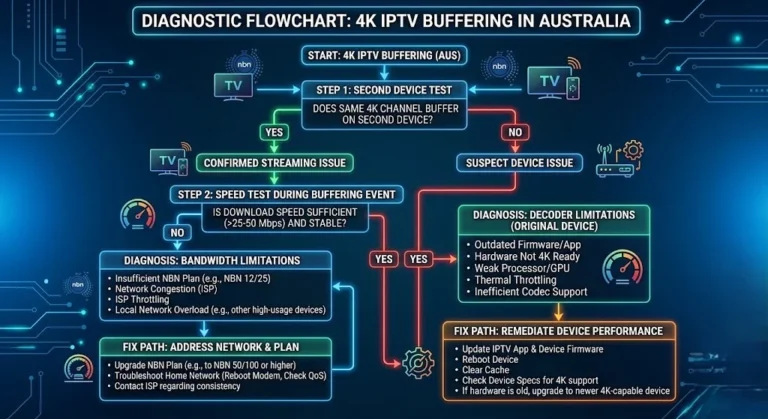
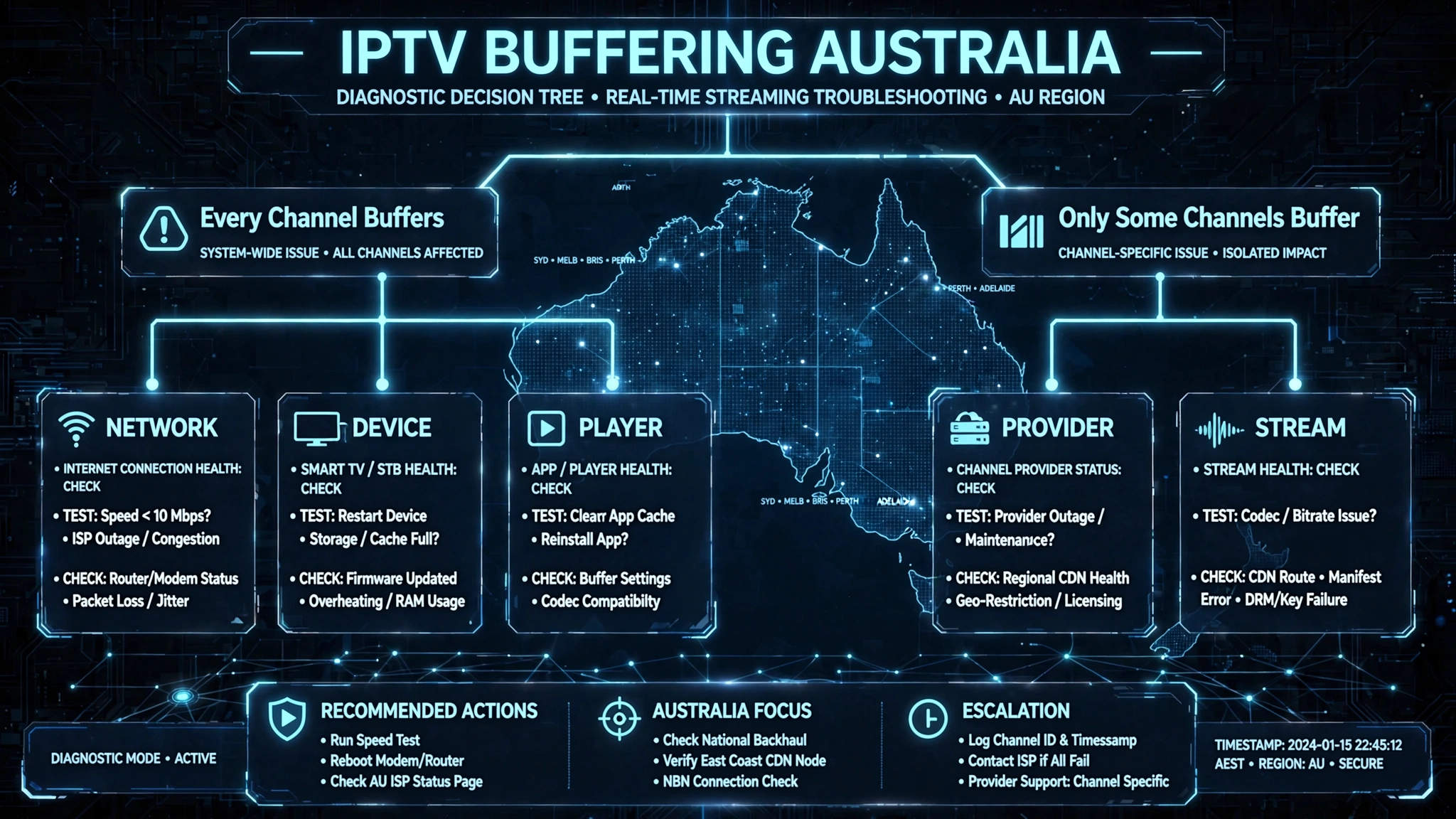
Every Channel or Only Some?
This single question splits the diagnosis in half, and answering it first saves working through fixes that were never going to apply.
        Does buffering affect every channel?
                    |
        +-----------+-----------+
        |                       |
       YES                      NO
        |                       |
  Network, device,      How many channels?
  or player settings           |
        |              +-------+-------+
        |              |               |
  Start with       One channel    A group
  buffer size      = that stream  = provider
  and decoder      is the issue     source
Live TV vs VOD — Different Diagnoses
Most guides treat these as one problem. They are not.
VOD content is stored and can be buffered well ahead of what you are watching. Live TV has no such luxury — it holds only a few seconds in reserve, which is why it is far less forgiving of a brief interruption.
If VOD plays perfectly while live channels buffer, your connection is probably adequate on average but not consistently steady. When VOD buffers but live TV is fine, the device or app is more likely the cause than the network.
IPTV Buffering Australia: In-App Fixes First
These four cost nothing, take minutes, and resolve more cases than the hardware advice most guides lead with. Please work through these steps before buying cables or changing plans.
Fix 1 — Adjust the Buffer Size
Adjusting the player’s buffer size is one of the quickest settings worth testing when buffering happens despite an otherwise usable connection. A larger buffer gives the player more time to absorb short network fluctuations, while a smaller buffer reduces channel change time but leaves less room to recover from brief interruptions.
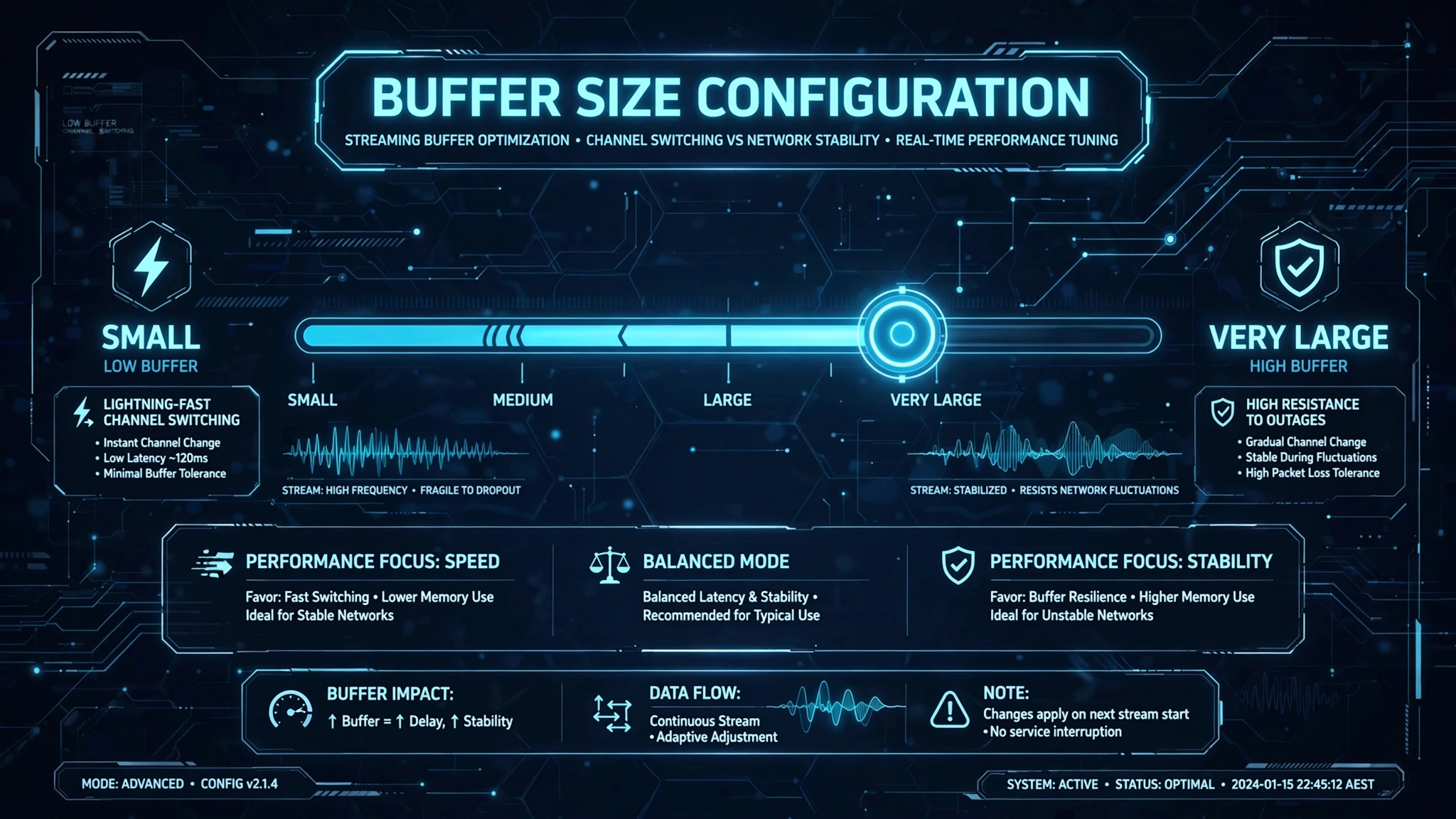
The buffer exists precisely for these reasons. Adobe’s own media documentation describes client-side buffering as the mechanism that lets a player maintain seamless playback and compensate for unfavourable network conditions, while also noting that increasing it increases perceived latency. That trade-off is the key point.
In Tivimate, the official user guide directs you to Settings → Playback → Buffer Size, where you can adjust it up or down and test.
Different IPTV apps expose similar buffering controls, although their names and locations vary by version.
There Is No Correct Value
Guidance on this issue is genuinely contradictory, and that is worth knowing before you go looking for a magic number.
TiViMate’s own guide simply says to adjust up or down and test. Some experienced guides recommend starting at None for the fastest channel switching and raising it only when buffering appears. Others recommend starting high, particularly for 4K.
The disagreement is itself the useful information: there is no universally correct value. The right setting depends on the stability of your connection, not on a figure someone else published. Change it one step at a time and test the same channel after each change.
Key takeaway: buffer size is a trade-off between channel-switching speed and tolerance for network dips, and the correct value differs by connection.
Fix 2 — Switch the Decoder
If your device struggles to decode a high-bitrate stream in real time, the symptom looks identical to a network problem.
Most players let you switch between hardware decoding, which offloads the work to the device’s dedicated media processor, and software decoding, which uses the general processor. Neither is universally better – it depends on your specific device and the codec a channel uses.
In TiviMate this option sits under the playback settings alongside the buffer control. Change it, retest the same channel, and change it back if nothing improves.
Fix 3 — Clear the App Cache
IPTV players accumulate temporary data that can slow the app down over time.
| Device | Path |
|---|---|
| Fire TV | Settings → Applications → Manage Installed Applications → [app] → Clear Cache |
| Android TV | Settings → Apps → [app] → Storage → Clear Cache |
Clear the cache, not the data — clearing data removes your login details. Follow it with a full device restart: power off completely, wait 30 seconds, power back on. That clears system memory that has been filling up across days of standby.
Fix 4 — Lower the Stream Quality
Where a provider offers the same channel at several quality tiers, dropping temporarily to a lower one is a fast diagnostic as much as a fix.
If buffering stops at a lower quality, your connection does not reliably support the higher bitrate. That tells you the problem is bandwidth rather than the app and points you at the network fixes below.
Live sport channels often run at higher bitrates than entertainment channels, which is why they are frequently the first to struggle.
Network Fixes
If the in-app fixes did not help, the network is the next layer.
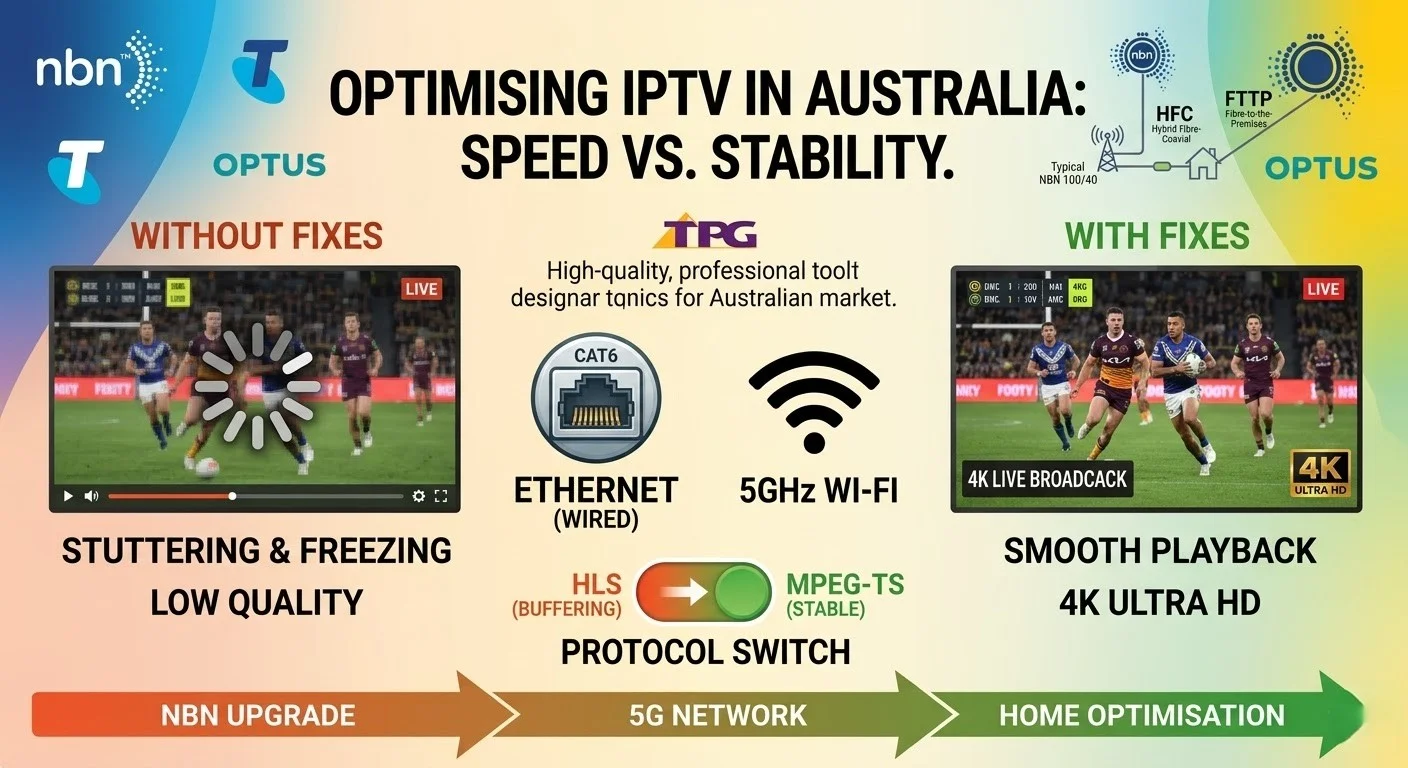
Fix 5 — Ethernet or 5 GHz
Wi-Fi in Australian suburbs is crowded, particularly on the 2.4 GHz band, where a household competes with every neighbouring network within range.
Ethernet removes that variable completely. Android TV boxes, Apple TV and smart TVs have built-in ports; a Fire TV Stick needs a USB Ethernet adapter. Where running a cable is impractical, a powerline adapter uses your existing electrical wiring and is generally steadier than Wi-Fi at peak times.
If Ethernet is not possible at all, connect to the 5 GHz band rather than 2.4 GHz. It carries less interference but has a shorter range, so it suits devices reasonably close to the router.
Fix 6 — Hotspot Isolation Test
This test separates a home network fault from everything else in about two minutes.
Connect the streaming device to your phone’s mobile hotspot and test the same channel.
- Still buffering → the problem is unlikely to be your home internet connection
- Plays cleanly on the hotspot → the difference points to something on the home network or ISP path rather than the app
If you use a VPN, disconnect it before running this test — it changes the network path and makes the comparison unreliable.
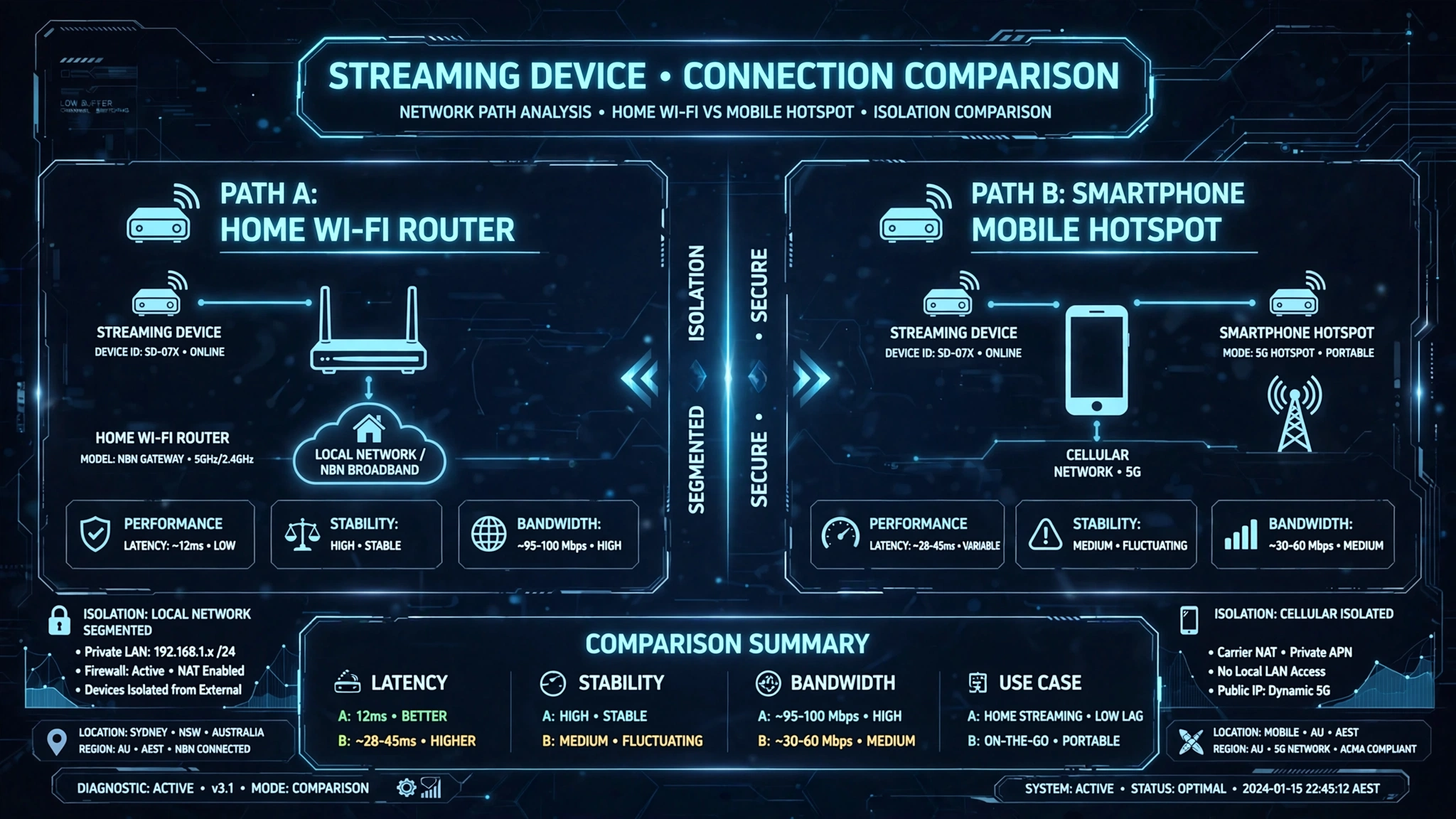
Before concluding your ISP is at fault, rule out router settings, DNS configuration, and firewall features, any of which produce the same result.
Fix 7 — Test Speed at Peak Hours
Testing at 2 PM tells you nothing about 8 PM. Run the same test at an off-peak time and again during the period when buffering actually occurs, on the same day.
A large gap between the two points of congestion on your connection rather than anything in your setup. A small gap with buffering still present means the cause lies elsewhere — return to the in-app fixes.
Why Australian Connections Buffer Differently
NBN, Australia’s national broadband network, delivers service over several different technologies, and they behave differently under load.
FTTP, fibre running directly to the premises, is the most consistent option because it does not share bandwidth with neighbouring households. HFC and FTTN share local infrastructure, so evening performance depends partly on what everyone nearby is doing. Fixed wireless, common across regional Australia, shares tower capacity and is the most variable of the three.
NBN Co’s guidance on network congestion explains why speeds drop as more households in an area come online at once. This is why evening-only buffering is such a common pattern here and why a midday speed test misleads so many people.
Device Overheating
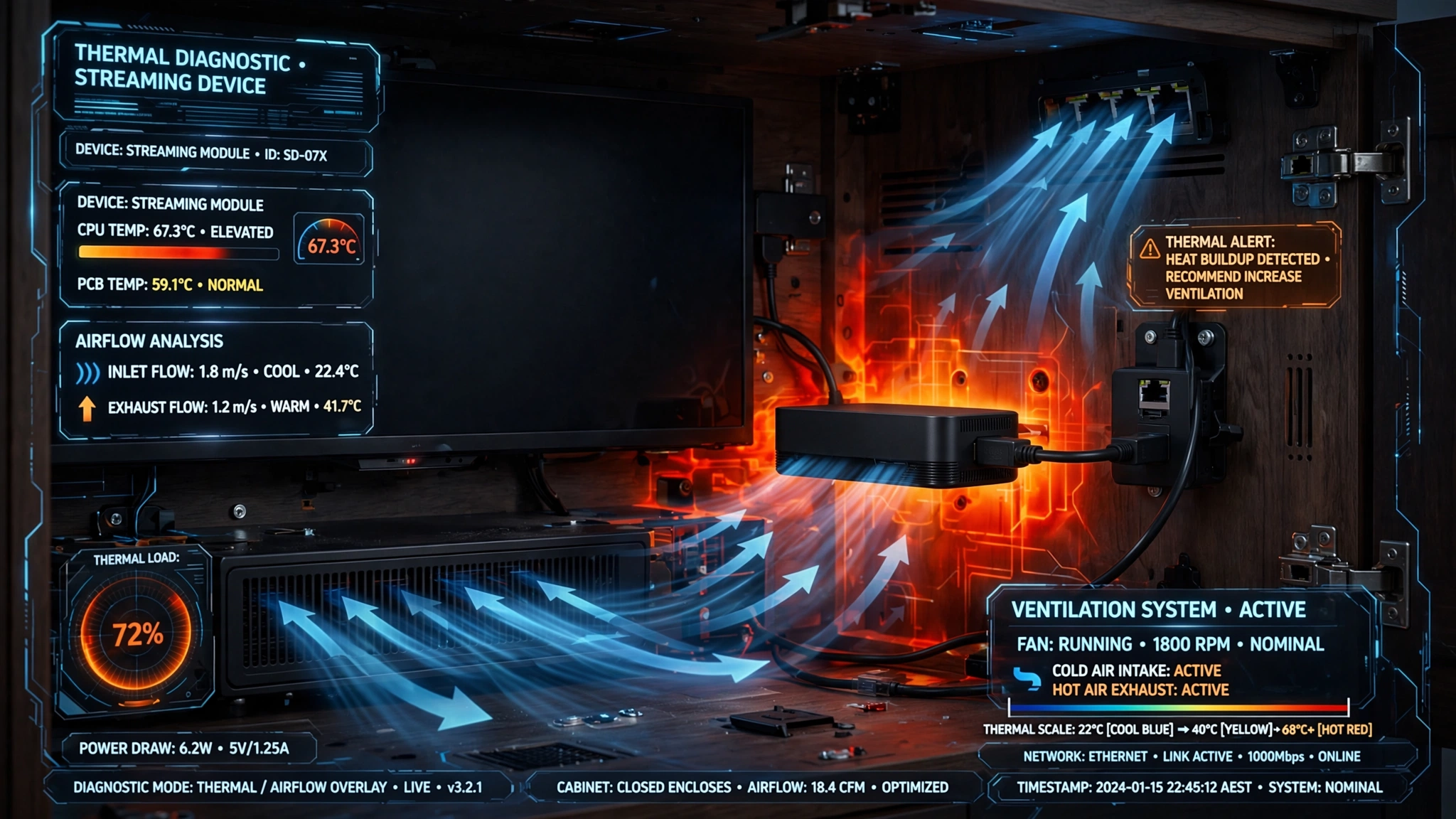
Streaming sticks and small Android boxes throttle their processors when they get too hot, which directly causes buffering — and it looks exactly like a network problem.
The pattern is distinctive: everything plays fine for the first twenty to thirty minutes, then buffering begins and worsens. The device feels hot.
What causes it:
- The device sits inside a closed cabinet or entertainment unit
- Ventilation openings are blocked
- A Fire TV Stick is plugged directly into the back of a TV, in the warmest air the set produces
- Summer heat, which raises the ambient temperature the device is already fighting
The fix is airflow. Use an HDMI extender cable to move a stick away from the TV chassis, and avoid enclosing any streaming device in a cabinet with the door closed.
Additional Checks
These help in narrower circumstances and are worth trying only after the sections above.
Router QoS. Quality of Service prioritises the devices you choose on your network. In a household with several devices active at once, giving the streaming device priority can help. It cannot increase your plan speed or affect congestion beyond your router.
DNS settings. Changing to a public DNS resolver occasionally helps where name resolution is slow. It is not a general buffering cure, and it is worth trying only after the network fixes above.
VPN. If you are currently using a VPN, please consider temporarily disabling it while testing. This step rules the VPN out as an additional variable rather than assuming it is the cause.
When the Provider Is the Cause
Some buffering cannot be fixed at your end, and recognising this early can prevent a wasted evening.
Signs It Is Probably Not Your Device
- The same channels buffer on multiple devices
- Other internet services work normally at the same time
- The problem affects a specific channel group while the rest of the list is fine
- It appeared suddenly without you changing anything
When several of these are true together, the fault sits upstream. Contact your provider with the affected channel names, which device and app you use, your connection type, and what you have already tested. That detail lets them verify the source rather than sending you back through steps you have already run.
Key takeaway: buffering confined to a specific channel group while everything else plays normally points to the provider’s source rather than your setup.
Where to Go Next
Work through in-app settings before network changes and hardware purchases – they cost nothing and resolve more cases than most guides suggest. If buffering persists on Ethernet with a healthy peak-hour speed test, the cause is upstream.
For other fault types, please return to the IPTV Troubleshooting Australia hub.
Related guides: slow IPTV streams · IPTV freezing solutions · peak hour performance · Wi-Fi vs Ethernet · speed requirements
This article is for educational purposes only. Verify the licensing status of any streaming service and ensure compliance with Australian copyright law before subscribing.
Sources
- TiViMate user guide — buffer size location and adjustment
- Adobe media documentation — how client-side buffering affects latency and quality
- NBN Co — network congestion guidance