
Kevin Brooks · IPTV Troubleshooting Australia
Quick Verdict: Looking for an IPTV Australia 4K buffering fix?
In many cases, buffering on channels labelled 4K is caused by device decoding limitations or bandwidth fluctuations rather than the resolution itself — often a Full HD stream marketed as 4K, hitting a device that was never going to decode true 4K smoothly. Genuine 4K IPTV exists but is rarer than channel lists suggest. It needs a hardware H.265 decoder and typically 25–50 Mbps sustained per stream, depending on bitrate and content type.
If either is missing, buffering follows — not a fault, just physics. No VPN required for this solution No subscription upgrade required either, in most cases.
Summary Box — 4K IPTV Buffering 2026
| Is “4K” IPTV always genuine 4K? | Not always — sometimes upscaled or compressed Full HD |
| Minimum speed for genuine 4K | 25–50 Mbps sustained, per stream, depending on bitrate and content type |
| Decoder needed | Hardware H.265 (HEVC) |
| Devices with hardware 4K decode | Fire TV Stick 4K/4K Max, Nvidia Shield, Apple TV 4K |
| Devices without hardware 4K decode | Older Android boxes, base Fire TV Stick (non-4K), early-generation sticks |
| How to confirm true 4K | Check the stream’s actual resolution in your player, not the channel name |
| Related general guide | IPTV Buffering Fixes Australia |
Who Is This Guide For?
- Viewers whose 4K-labelled IPTV channels buffer while HD channels on the same service run smoothly
- Anyone who subscribed expecting 4K and found the picture looks like their old Full HD setup
- Households trying to work out whether a buffering problem is their internet or their streaming device
- Readers who’ve already tried the general fixes in our main IPTV Buffering Fixes Australia guide and still see buffering specifically on 4K channels
⚖️ Scope Note: This guide covers buffering that occurs specifically on streams labelled 4K, distinct from general buffering (Wi-Fi interference, NBN peak-hour congestion, stream type settings) covered in our main buffering guide. If you’re also seeing buffering on HD content, start there instead.
“Does 4K IPTV Actually Exist?”
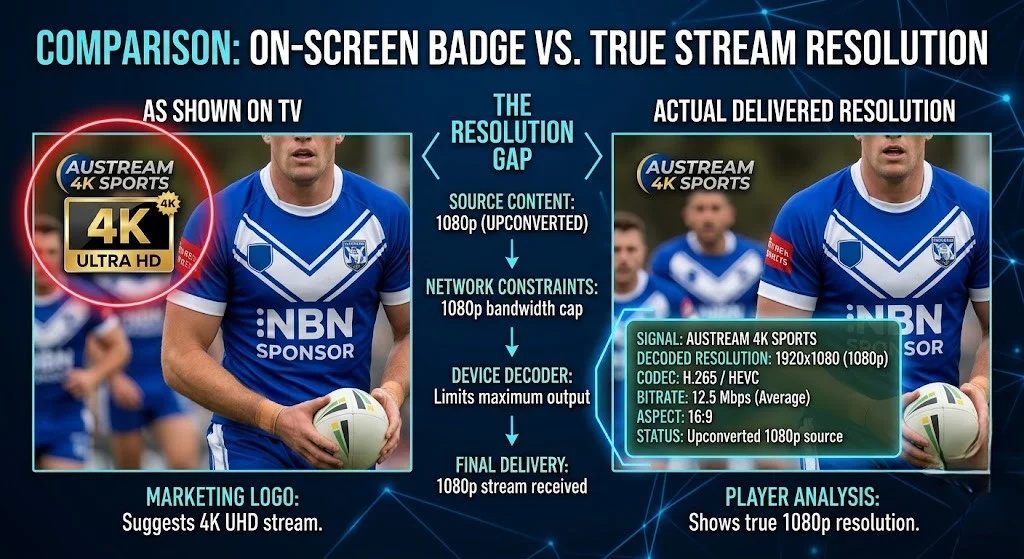
📊 Real Example: More customers than I can count have come to me after reading “4K” on a provider’s channel list, subscribed, tested the stream, and asked me why it looks exactly like their old Full HD setup. Some shrug it off. Others feel genuinely misled — and they’re not wrong to feel that way.
Genuine 4K UHD broadcasts do exist on IPTV — but they’re concentrated in a small number of premium sports fixtures and select on-demand content, not spread evenly across a channel list.
The catch is that some providers compress streams heavily to control bandwidth costs and reduce buffering on their end, which means the “4K” label on a channel can describe the source feed’s marketing rather than what actually reaches your screen.
screen, a field detail most guides won’t tell you: during some live sports broadcasts, an on-screen “4K” badge appears next to the channel logo in the corner of the screen, but the actual delivered picture is still full HD.
Only a small number of specific channels and specific matches carry a genuine 4K feed end-to-end; some providers then apply the “4K” label to the wider package to make the service sound more premium than the average stream actually is.
Why 4K Specifically Buffers More Than HD
Supposedly 4K isn’t just “HD but bigger” — it’s a fundamentally heavier processing job, and that’s where buffering on supposedly 4K streams comes from even when your internet connection is fine.
Shield and the decode bottleneck: Genuine 4K IPTV streams are almost always encoded in H.265 (HEVC) to keep file size manageable. H.265 decoding is significantly more processor-intensive than the H.264 used for most HD content. Devices with a hardware H.265 decoder (Fire TV Stick 4K and 4K Max, Nvidia Shield, and Apple TV 4K) handle this task with no issue.
Devices without a hardware H.265 decoder rely on software decoding, which means the device’s general-purpose processor performs the tasks that a dedicated chip should handle, leading to stuttering that is unrelated to your NBN speed.
Detail – may the bandwidth ceiling: Many genuine 4K IPTV streams operate at 15–35 Mbps using efficient H.265 encoding, while higher-bitrate feeds – live sport especially, with its fast motion and high detail – may require 40–50 Mbps or more. Either way, there’s very little tolerance for fluctuation. Australian NBN connections that comfortably handle HD can still buffer on true 4K if the connection dips even briefly during peak hours — the margin for error is much smaller at 4K bitrates.
The two problems look identical. Whether the cause is a decoder that can’t keep up or a bandwidth ceiling that’s been hit, the symptom on screen is the same: stuttering, freezing, the picture trying and failing to keep pace. Telling them apart is the first real step toward fixing it.
How to Tell If Your Buffering Is a Decoder Problem or a Bandwidth Problem
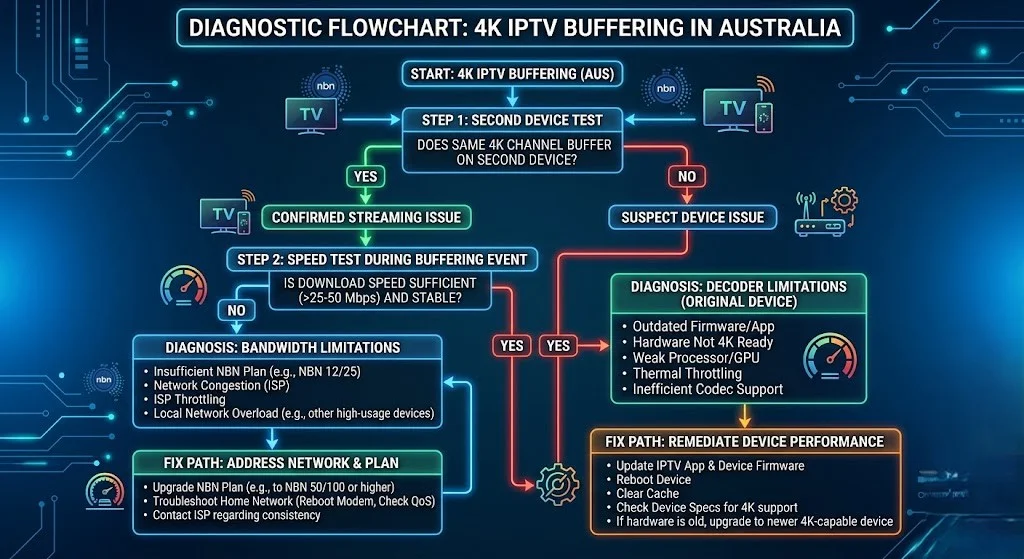
The right IPTV Australia 4K buffering fix depends entirely on which one you’re dealing with. Run this check before changing anything:
- laptop and test the same channel on two different devices — a phone or laptop and your TV/streaming box. If the phone plays smoothly but the TV box buffers, the issue is the box’s decoder, not your connection.
- Run a speed test during the buffering event, not before it. Open Speedtest.net or fast.com on the same network while the stream is actively buffering. If your speed is comfortably above the bitrate that stream would realistically need and it’s still stuttering, it’s a decode issue.
- channels – check whether the stuttering is constant or only on specific channels. A decoder limitation affects all 4K-labelled channels equally. A bandwidth limitation tends to get worse specifically during peak evening hours (7–10 PM AEST) and on the heaviest bitrate channels – live sport especially.
IPTV Australia 4K Buffering Fix: Step-by-Step
If the test above points to your device (decoder issue), your device’s processor – not your internet – is the bottleneck. The realistic fix is a device with hardware H.265 decode: a Fire TV Stick 4K or 4K Max (around AU$99), an Nvidia Shield, or an Apple TV 4K all resolve the issue immediately for most households, and any of the three is significantly cheaper than chasing software workarounds that won’t fix a hardware limitation.
, Fix 1: If the test above points to your connection (bandwidth issue): A genuine 4K stream leaves very little margin. Connect via Ethernet rather than Wi-Fi if at all possible — see our main buffering guide, Fix 1, for the full Ethernet setup steps by device. If you’re sharing the connection with other heavy users during peak hours, the 25–50 Mbps a 4K stream needs may simply not be consistently available; testing the same channel at 2 PM versus 9 PM confirms the point quickly.
If neither test points to a clear answer: There’s a strong chance the channel was never delivering genuine 4K in the first place, and you’re troubleshooting a Full HD stream’s normal buffering behaviour while expecting 4K-level demands. At that point, the most useful fix is recalibrating expectations rather than your setup.
Things to Know — 4K IPTV in Australia 2026
The “4K” label is not regulated or verified. Unlike Netflix or a Blu-ray disc, an IPTV channel list has no independent body confirming the resolution it claims. The label reflects what the source feed is marketed as, not a guaranteed delivered resolution.
Hardware decode is the dividing line, not the app. TiviMate and IPTV Smarters Pro both use the same underlying device hardware for decoding. Switching apps will not fix a decoder limitation — only switching devices will.
Specifically, live sport is where “fake 4K” is most visible. The on-screen 4K badge phenomenon is most common during major sporting broadcasts, specifically because that’s where providers most want the service to look premium.
The required speed is a range, not one fixed number. Many genuine 4K HEVC streams run comfortably at 15–35 Mbps; high-motion live sport feeds can need 40–50 Mbps or more. A connection that hits 60 Mbps on a speed test but drops to 20 Mbps during a single buffering event at 8 PM may still fall short, even though the headline plan speed looks sufficient.
How to Increase Quality on IPTV
difference. If the goal is the best picture quality your setup can reliably sustain — rather than chasing a 4K label specifically — a few adjustments make a measurable difference.
- Use a player with hardware decoding enabled — most apps (TiviMate and IPTV Smarters) have this as a toggle in player settings, and it’s on by default on capable devices.
- Match your buffer size to your connection stability. A slightly larger buffer trades a little extra start-up delay for fewer mid-stream interruptions.
- Prioritise Ethernet over Wi-Fi for any device handling high-bitrate content, 4K or otherwise.
Which IPTV Player Is Best for 4K Content?
TiviMate and IPTV Smarters Pro both support 4K playback equally well on capable hardware; neither has a meaningful decoding advantage over the other, since the actual decoding work is handled by the device, not the app. What matters more is whether hardware decoding is enabled in the app’s player settings and whether your device has a hardware decoder to enable it in the first place.
Common Misconceptions — 4K IPTV Buffering
“My provider is lying about every channel being 4K.” They are not necessarily lying; they are usually just applying a premium label to the whole package based on a small number of genuinely 4K fixtures. The label is marketing shorthand, not always deliberate deception.
More Mbps always fixes 4K buffering, but only if the cause is bandwidth. If the cause is decoder hardware, no amount of additional speed resolves it — the device simply cannot decode H.265 fast enough regardless of how much data arrives.
This requires the statement: “If HD works fine, my internet is definitely fast enough for 4K.” Not necessarily. HD’s lower bandwidth and lower decode demand mean a connection or device can comfortably handle HD while still falling short of what genuine 4K requires—the two have completely unique thresholds, not a simple scaled-up version of the same requirement.
Frequently Asked Questions
Does 4K IPTV actually exist?
Yes, genuine 4K UHD IPTV streams exist, but they’re concentrated in specific premium sports broadcasts and select on-demand content rather than spread across an entire channel package. Some providers label channels as “4K” when the actual delivered stream is upscaled or compressed Full HD — sometimes with an on-screen “4K” badge that doesn’t reflect the real delivered resolution.
Why does my 4K IPTV buffer when my internet speed is fine?
If your measured speed is comfortably above the bitrate that stream would realistically need during the buffering event and it’s still stuttering, the bottleneck is almost certainly your device’s decoder, not your connection.
Devices without hardware H.265 decoding fall back to software decoding, which struggles to keep pace with genuine 4K streams regardless of how fast your internet is.
What’s the minimum NBN speed for 4K IPTV in Australia?
25–50 Mbps sustained per stream, depending on bitrate and content type, is the practical range – efficient on-demand HEVC content sits at the lower end, while high-motion live sport feeds need the upper end. If your household runs multiple devices simultaneously, each additional 4K stream adds roughly the same requirement on top.
How do I know if a channel is genuinely 4K or just labelled that way?
Check the actual stream resolution shown in your player’s playback info, rather than relying on the channel name. In Tivimate, long-press or tap the screen during playback and select the info/stats icon – the resolution and bitrate appear in the overlay.
In IPTV Smarters Pro, tap the screen during playback and look for the player stats icon in the corner — it shows the same live resolution readout. A channel showing 1080p in either app’s own stats is Full HD, regardless of what it’s labelled in the guide.
Bottom Line
The right fix starts with one question: is it the device or the connection?
In many cases, “4K IPTV buffering” in Australia isn’t a 4K problem at all — it’s a Full HD stream marketed as 4K or a genuine 4K stream hitting a decoder or bandwidth limit it was always going to hit.
Test whether the issue follows the device or the connection before changing anything, and you’ll know within a few minutes which one you’re actually dealing with.
This guide expands specifically on the “buffers only on 4K streams” symptom from our main IPTV buffering guide — see that guide for general buffering causes unrelated to 4K. For audio sync issues that share a similar H.265 decode root cause, see our IPTV audio out-of-sync guide.
Return to the full IPTV Troubleshooting Australia hub for every other error type.
Sources
- On-device hardware decode capability: device manufacturer specifications (Amazon, Apple, Nvidia)
- H.265/HEVC compression efficiency vs H.264: Ant Media — H.265 Codec Guide; GetStream.io — H.264 vs H.265
- Field observation of on-screen 4K badges during live sport: first-hand testing, Kevin Brooks