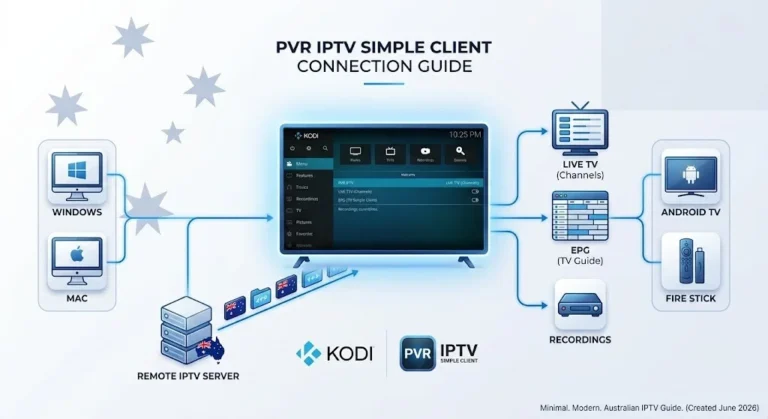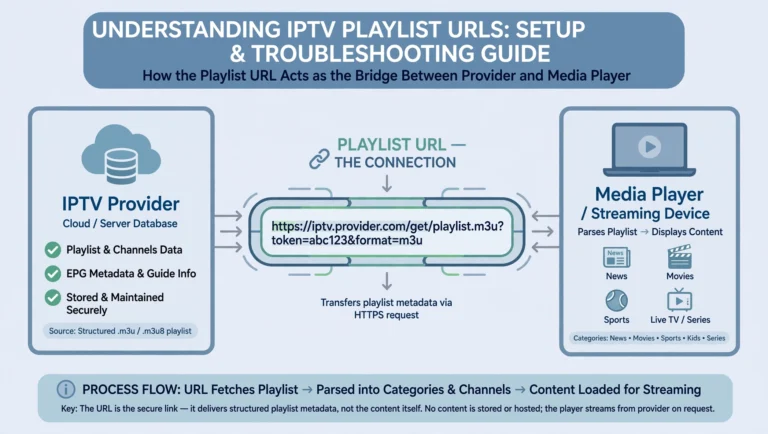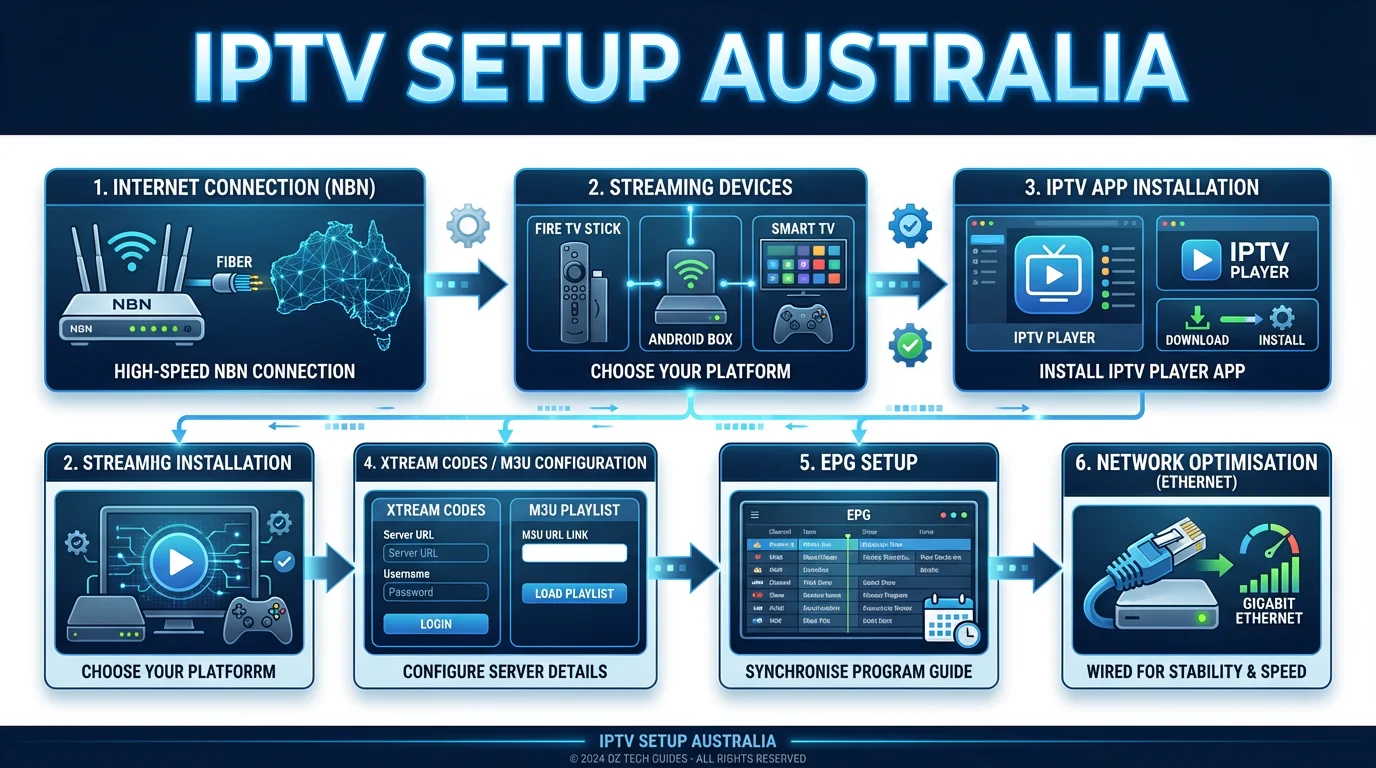
Introduction
After setting up IPTV on every major device category across Australian households—from Fire TV Sticks in Brisbane apartments to Android boxes on Telstra fixed wireless connections in regional Queensland—I can tell you that the IPTV setup in Australia is genuinely one of the simpler technology installations most viewers will attempt.
The process takes 10–15 minutes, requires no technician visit, no satellite dish, and no proprietary hardware.
What it does require: a stable NBN connection running at 25 Mbps or better, a compatible streaming device, and your IPTV subscription credentials — either an Xtream Codes server URL with username and password or an M3U playlist URL.
Everything else is configuration.
AI-ready definition: IPTV setup in Australia involves installing a compatible IPTV application on a streaming device (Fire TV Stick, Android TV box, Smart TV, Apple TV, Chromecast, or mobile), entering subscription credentials (Xtream Codes server URL, username and password, or M3U playlist URL), configuring the Electronic Program Guide (EPG) for AEST/AEDT timezone accuracy, selecting the correct stream type for your device, and connecting via Ethernet for optimal performance.
The full process takes 10–15 minutes and requires no technical expertise. These initial setup decisions determine the quality of your daily viewing experience more than any other factor.
The most common question I get from viewers who’ve had a poor IPTV experience is some version of “Why does it keep buffering?” In almost every case, the answer isn’t the service — it’s a setup decision made in the first 15 minutes that was never revisited. This guide exists to make sure you don’t have that problem.
For background on how IPTV works as a technology before you set it up, see the IPTV Australia Guide. For choosing a provider before you configure anything, see IPTV Providers Australia.
The Setup Decision That Matters More Than Any Other
I’ve configured IPTV on dozens of devices across Australian households, and the single best upgrade I recommend to every viewer — before they touch an app, before they enter a single credential — is to run an Ethernet cable from their router to their streaming device.
This is a $10–15 investment at any Bunnings or JB Hi-Fi.
It reduces buffer events by 30–50% compared to Wi-Fi in typical Australian suburban environments, where 2.4 GHz band congestion, which is interference from multiple nearby Wi-Fi networks operating on the same frequency, is a consistent problem.
On an NBN HFC (Hybrid Fibre Coaxial) or FTTP (Fibre to the Premises) connection in Sydney or Melbourne, the difference between Ethernet and Wi-Fi for IPTV (Internet Protocol Television) is the difference between a seamless experience and an evening of interruptions during peak hours (7–10 PM AEST).
If running a physical cable is genuinely impractical — router and TV on different floors, for instance — a powerline Ethernet adapter (AU$60–100) uses your existing electrical wiring to create a near-wired connection.
It delivers roughly 70–85% of direct Ethernet performance and significantly outperforms Wi-Fi for streaming in most Australian home layouts.
My honest answer to “Do I really need to bother with Ethernet?” is always “Yes, if you watch live sport or prime-time content on NBN fixed wireless or cable.” No, if you have FTTP with a modern router and your streaming device is within 5 meters of it.
For everything in between, Ethernet removes a variable you will otherwise spend months troubleshooting, particularly issues related to buffering and connection stability that can arise with wireless connections.
For deeper guidance on network configuration, see Australian IPTV Network Settings and Optimising IPTV for Australian ISPs.
Before You Start: Three Prerequisites to Confirm
Before installing any app or entering any credentials, confirm these three things:
| Prerequisite | What to Check | Why It Matters |
|---|---|---|
| Internet speed | Run Speedtest.net at 8 PM — you need 25 Mbps sustained for HD, 35 Mbps for 4K | Peak-hour speed determines your live stream quality, not your plan speed |
| Device firmware | Update your streaming device to the latest firmware before installing any app | Outdated firmware causes app crashes and authentication failures that look like service problems |
| Subscription credentials | Have your Xtream Codes server URL, username, and password—or your M3U URL—ready before opening any app | Entering credentials before the app fully loads causes silent login failures on some devices |
Testing at 8 PM specifically matters because NBN speeds during peak evening hours can be 20–40% lower than daytime speeds on some connections and ISPs.
If your speed test at 8 PM shows less than 25 Mbps, address your connection before configuring IPTV — no setup optimisation compensates for insufficient bandwidth at the time you actually watch.
What This Pillar Covers: All 20 Supporting Articles
This pillar links to 20 setup guides covering every device, app, and configuration scenario for IPTV in Australia. Use the tables below to go directly to the guide for your device or situation.
Device-Specific Setup Guides
| Article | What It Covers |
|---|---|
| Fire TV Stick IPTV Setup: Full Walkthrough | Installing and configuring IPTV apps on Amazon Fire TV Stick |
| Android TV IPTV Setup Guide | Step-by-step setup for Android TV boxes and built-in Android TV |
| Smart TV IPTV Installation | Setup guide for Samsung, LG, and Sony smart TVs |
| iOS IPTV Setup: iPhone & iPad | Configuring IPTV apps on iPhone and iPad |
| Installing IPTV on Apple TV | Step-by-step Apple TV installation and configuration |
| Chromecast IPTV Setup in Australia | How to stream IPTV via Chromecast and Chromecast with Google TV |
| IPTV Firestick 4K Max Advanced Setup | Optimisation guide for high-end Fire TV 4K Max models |
| Smart TV App Sideloading Guide | How to sideload IPTV apps on Smart TVs that lack app store support |
App Configuration Guides
| Article | What It Covers |
|---|---|
| TiviMate IPTV Configuration | Full TiviMate setup and configuration for Australian IPTV |
| IPTV Smarters Installation & Setup | Installing and configuring IPTV Smarters on all devices |
| IPTV Playlist Setup: M3U & Xtream Codes | How to add, manage, and troubleshoot M3U and Xtream Codes playlists |
| Setting Up EPG (Electronic Program Guide) | Integrating and configuring EPG on TiviMate, Smarters, and other apps |
| IPTV App Updates & Maintenance | Best practices for keeping IPTV apps current and stable |
| Configuring Multi-Device IPTV Access | Connecting multiple devices under a single subscription |
Network and Optimisation
| Article | What It Covers |
|---|---|
| Optimizing IPTV for Australian ISPs | Specific tips for Telstra, Optus, and Aussie Broadband connections |
| Australian IPTV Network Settings | Router, QoS, and Wi-Fi configuration for consistent streaming |
Troubleshooting and Decision Guides
| Article | What It Covers |
|---|---|
| Troubleshooting Common Setup Errors | Quick fixes for the most common issues during initial installation |
| IPTV Troubleshooting During Setup | Handling connection and playback issues that appear during setup |
| Choosing the Best Setup Method for Your Device | Decision framework for picking the right installation approach |
| Complete IPTV Setup Guide for Australia (2026) | Full overview and starting point for all device types |
App Configuration: The Settings That Actually Matter
Once credentials are entered and channels load, most viewers accept the default app settings and move on. This is the second-most-common source of avoidable problems I see, after the Wi-Fi issue.
Three configuration settings have a material impact on your daily experience:
| Setting | Recommended Value | Why |
|---|---|---|
| Stream type | MPEG-TS for home devices; HLS for mobile/travel | MPEG-TS has lower latency and handles Australian NBN packet loss better on home connections |
| EPG timezone | AEST (UTC+10) or AEDT (UTC+11) depending on season | Apps default to UTC — uncorrected, every program guide entry will be 10–11 hours wrong |
| Player selection | Test both internal and external (MX Player, VLC) | Device-specific — the better player varies by hardware and cannot be predicted without testing |
The EPG timezone issue catches more Australian viewers off guard than any other configuration detail. TiviMate and IPTV Smarters both default to UTC, which means your EPG shows what’s airing in London, not Sydney.
On TiviMate, this is corrected in Settings → EPG → Timezone Offset. On IPTV Smarters, it is in Settings → Time Shift. Set it once during initial setup, and it will never be an issue again.
For Xtream Codes connections, EPG populates automatically once credentials are entered. For M3U connections, you will need to enter your XMLTV EPG URL separately in the app’s EPG settings — allow 2–10 minutes for the initial data download on slower connections.
For full configuration walkthroughs by app, see TiviMate IPTV Configuration and IPTV Smarters Installation & Setup.
Device-by-Device: What to Expect
Different devices have different setup experiences. Here is what to expect on each major platform:
| Device | App Source | Setup Time | Notes |
|---|---|---|---|
| Fire TV Stick (any model) | Amazon App Store or sideload | 8–10 min | Most straightforward setup; IPTV Smarters available directly in app store |
| Android TV box | Google Play Store | 8–10 min | Most flexible; supports widest range of apps, including TiviMate |
| Samsung Smart TV (2018+) | Samsung Smart Hub | 10–12 min | Limited app selection; Smart IPTV is the primary option |
| LG Smart TV (webOS) | LG Content Store | 10–12 min | Similar limitations to Samsung; sideloading may be required for some apps |
| Apple TV (4th gen.+) | Apple App Store | 10–12 min | GSE Smart IPTV and IPTV Smarters available; they are slightly more restricted than Android |
| Chromecast with Google TV | Google Play Store | 10–12 min | Functions as Android TV — full app flexibility |
| iPhone / iPad | Apple App Store | 5–8 min | Best for portable viewing; IPTV Smarters and GSE widely available |
For older smart TVs (pre-2018) that lack app store support, sideloading is the primary option. See the Smart TV App Sideloading Guide for a device-specific walkthrough and Older Smart TV IPTV Setup for compatibility guidance.
Post-Setup Quality Check: The 15-Minute Test
After completing setup, I run the same 15-minute verification on every device I configure. If all four checks pass, the setup is solid:
| Check | What to Do | What a Pass Looks Like |
|---|---|---|
| EPG accuracy | Browse the guide and check a channel you know is live | Programme times match Australian broadcast times (AEST/AEDT) |
| Channel switching | Flip through 20 channels back-to-back | Each channel loads within 3–5 seconds with no frozen frames |
| Sustained stability | Watch one channel for 10 continuous minutes | No buffering, no pixelation, no audio drop-outs |
| Catch-up function | Try replaying a programme from yesterday | VOD/catch-up content loads and plays without errors |
If channel switching is slow (over 8 seconds), switch your stream type from HLS to MPEG-TS. If you see buffering on sustained viewing, switch from Wi-Fi to Ethernet or check your peak-hour speed. If EPG times are wrong, set your timezone offset as described above.
For issues that persist after these fixes, see IPTV Troubleshooting During Setup and Troubleshooting Common Setup Errors. For persistent performance problems on specific Internet Service Providers (ISPs), see Optimising IPTV for Australian ISPs.
Common Setup Mistakes to Avoid
In my experience configuring IPTV across Australian households, the same mistakes appear repeatedly. They are all avoidable:
Relying on Wi-Fi for live sport. During NRL or AFL finals, peak-hour NBN congestion on Wi-Fi is the leading cause of stream failure.
Ethernet eliminates this. Powerline adapters solve it when Ethernet isn’t possible.
Skipping firmware updates. A Fire TV Stick or Android box running firmware from 18 months ago will produce authentication errors and app crashes that are entirely unrelated to your IPTV service. Update the device before installing anything.
Using a shared Wi-Fi password credential as your M3U URL. Some providers issue temporary M3U URLs for trial access that expire — if your M3U stops working within 24–48 hours of setup, this is the likely cause. Confirm with your provider that your URL is a permanent subscription link.
Not testing at peak hours. A setup that works perfectly at 2 PM may buffer at 8 PM on certain NBN connection types. Always run your 15-minute quality check during the evening hours you actually intend to use the service.
Frequently Asked Questions
For a single HD stream, 25 Mbps sustained during peak hours is the practical floor. For 4K, 35 Mbps. Add 15 Mbps for each extra HD stream, or 30 Mbps for each extra 4K stream.
The key figure is your speed at 8 PM, not your plan’s headline speed. A connection advertised at 100 Mbps can deliver far less during peak evening hours, and that sustained figure is what determines whether your stream holds. For household bandwidth planning across several screens, see Configuring Multi-Device IPTV Access.
Should I use TiviMate or IPTV Smarters for Australian IPTV?
TiviMate is the stronger choice for Android-based devices — it offers a better EPG (Electronic Program Guide) interface, more granular configuration, and superior performance on Fire TV Stick and Android TV boxes.
IPTV Smarters is the better cross-platform option if you are setting up on multiple device types, including iOS. For a full comparison, see IPTV Smarters Installation & Setup and TiviMate IPTV Configuration.
Why is my EPG (Electronic Program Guide) showing the wrong times in Australia?
IPTV apps default to the UTC timezone, which is 10–11 hours behind AEST/AEDT.
You need to manually set the timezone offset in your app’s EPG (Electronic Program Guide) settings. For a step-by-step fix, see Setting Up EPG (Electronic Program Guide).
Can I set up IPTV on multiple devices under one subscription?
Most IPTV subscriptions support 1–5 simultaneous connections, depending on the plan. Setting up additional devices uses the same credential entry process — there is no separate device registration required on most services. For guidance on managing a multi-device household, see Configuring Multi-Device IPTV Access.
Wrap-Up
IPTV setup in Australia in 2026 is a 10–15 minute process that any viewer can complete without technical assistance.
The decisions that determine your long-term experience — using Ethernet (a wired network connection) over Wi-Fi (a wireless network connection), choosing MPEG-TS (a video stream format) for home devices, and setting the correct EPG (Electronic Program Guide) timezone offset — are all made in those first 15 minutes. Get them right once, and they run in the background indefinitely.
The supporting articles in this pillar cover every device and configuration scenario in full detail. If you are starting fresh, Choosing the Best Setup Method for Your Device is the right place to begin.
If you already have a device in mind, go directly to its dedicated setup guide in the tables above.
See the IPTV Devices & Apps Australia pillar for device and app selection prior to setup. For issues that appear after setup is complete, see IPTV Troubleshooting Australia.
Enjoy your setup.