
Marcus Reed | IPTV Setup in Australia
Published: 5 March 2026 · Last updated: August 2026
Quick Answer
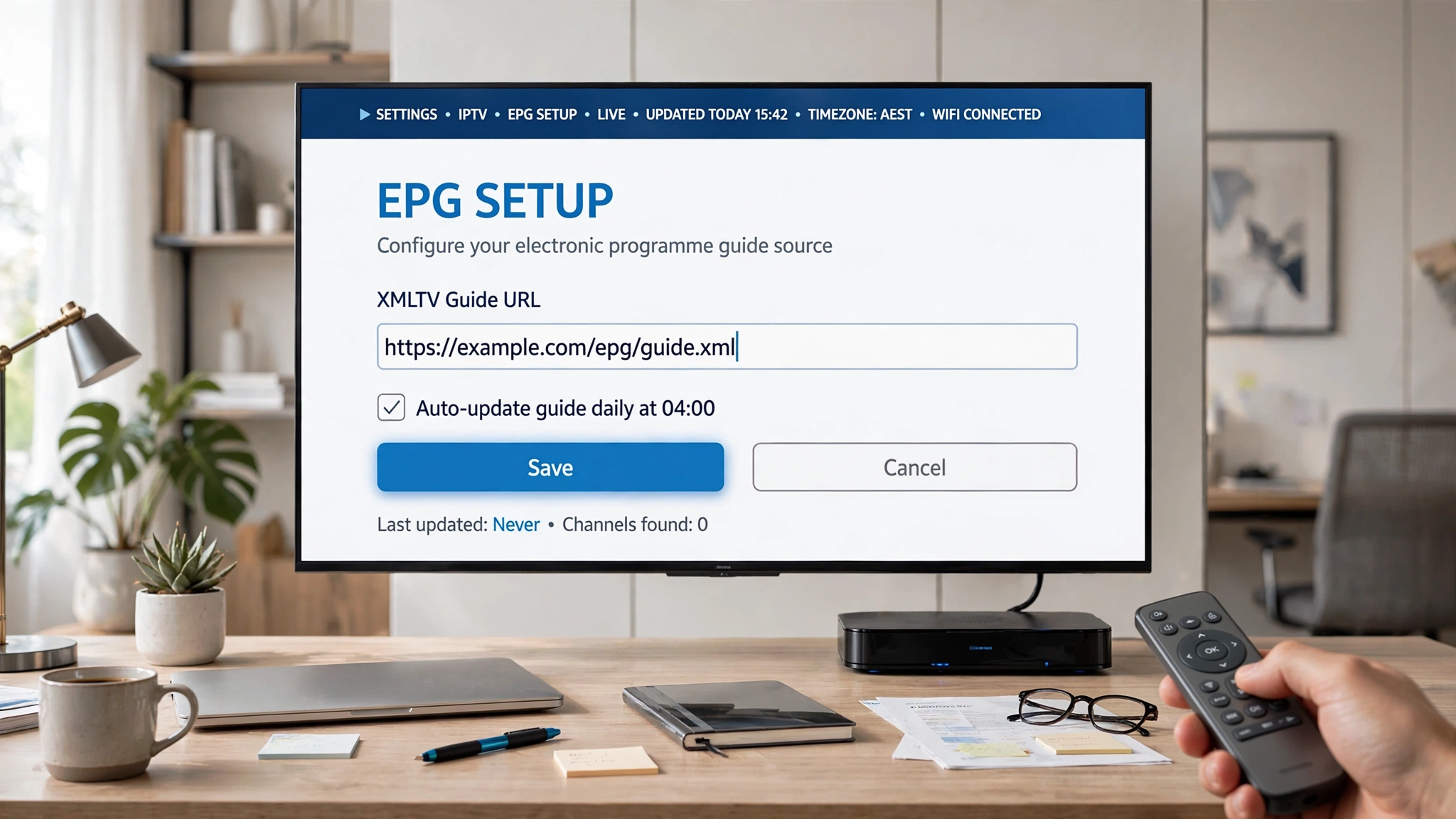
How to add EPG to IPTV involves two actions that many guides present as one: add the guide source, then assign it to your playlist. If you miss the second step, the app will hold guide data that it never displays. On an Xtream Codes connection the assignment usually happens automatically; on an M3U playlist it rarely does. For the wider setup picture, see the IPTV setup Australia guide.
Before You Start — What You Need
| Item | Required? | Notes |
|---|---|---|
| A working playlist | Yes | Channels must load before guide data will |
| An EPG URL in XMLTV format | Depends | Needed for M3U, usually automatic on Xtream Codes |
| An app that supports EPG | Yes | TiviMate, IPTV Smarters, Smart IPTV, GSE, Kodi |
| A stable connection | Yes | The first download is larger than people expect |
If your channels are not loading yet, start with the playlist setup guide before touching guide settings.
Where to Find Your EPG URL
Providers supply this separately from your playlist link, and it typically ends in .xml, .xml.gz, or /xmltv.php.
Three places to look, in order:
Your welcome email. Most providers include the XMLTV URL alongside your playlist credentials when you first sign up. Search your inbox and spam folder for the original message.
Your customer dashboard. Services with an online panel usually list the guide URL alongside your subscription details, and the panel is the most reliable source because it reflects any changes since you signed up.
Support. If neither of the above has it, ask directly: request the XMLTV EPG URL for your account. This is a standard request that takes only seconds.
How to Add EPG to IPTV: The Two-Step Principle
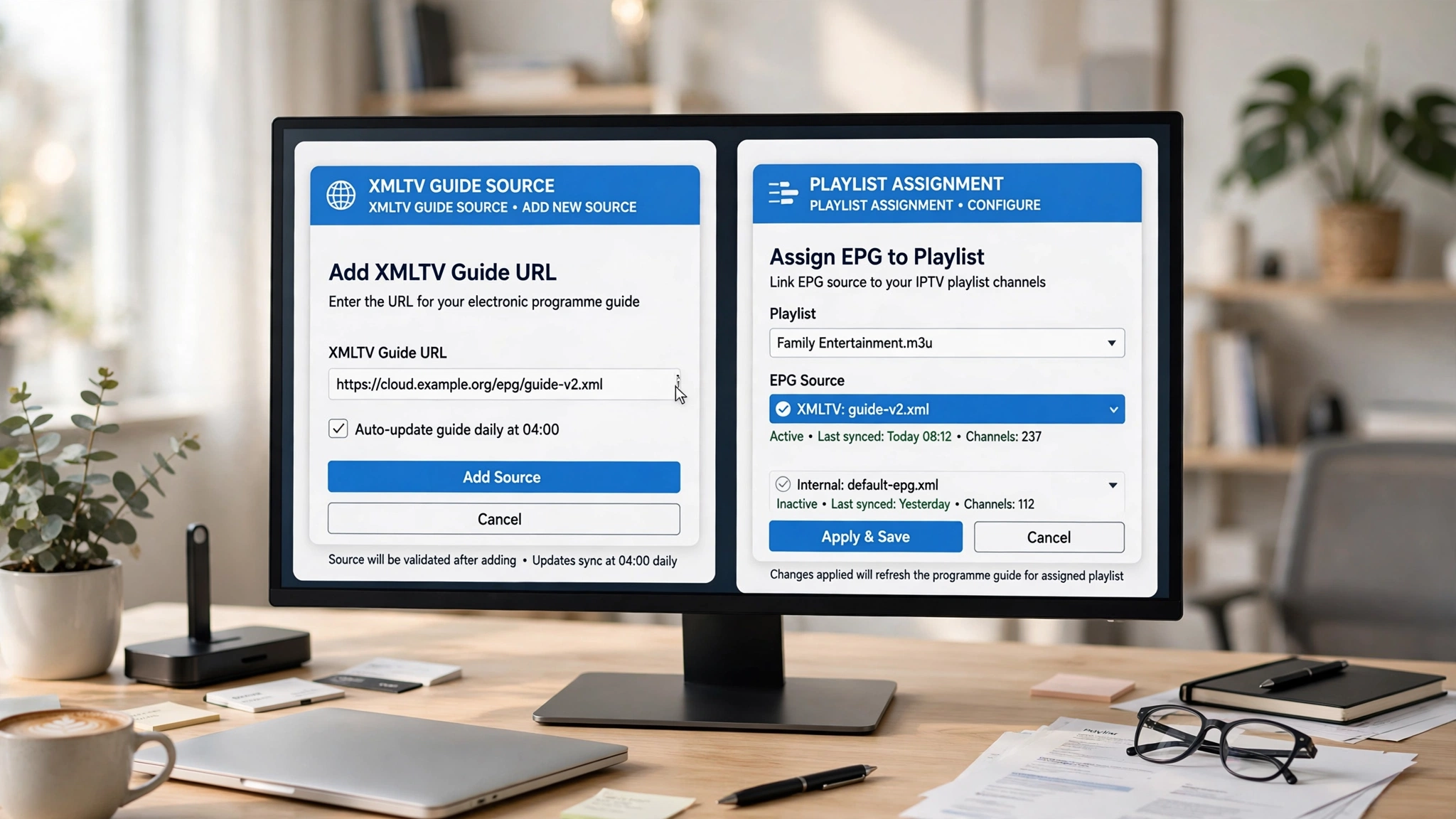
Most guides skip the step that causes the most confusion. Adding a guide source and connecting it to your playlist are two separate actions in several apps, and doing only the first leaves the guide empty.
Step one: add the source. The app downloads the file and stores it.
Step two: assign that source to your playlist. Without this, the app has guide data it isn’t using.
In Tivimate these live in different menus entirely — sources under Settings → EPG and assignments under Settings → Playlists. On Xtream Codes connections the assignment usually happens automatically, which is why people who switch from Xtream to M3U hit a wall and cannot work out what has changed.
| Connection type | Do you usually enter an EPG URL? |
|---|---|
| Xtream Codes | Usually no — the provider supplies it automatically |
| M3U playlist | Usually yes — enter the XMLTV URL manually |
Check which one you are on before following the app steps below. It determines whether you have one step or two.
IPTV EPG Setup Guide by App
The principle is identical everywhere; only the menu names change.
Add EPG to Tivimate.
TiviMate separates the two steps more clearly than any other app, which is both its strength and the source of most confusion.
Adding the source:
- Settings → EPG → EPG sources → Add source
- Paste the XMLTV URL
- Give it a name you will recognise
- Save
Assigning it to your playlist:
- Settings → Playlists → select your playlist
- Find the EPG source field
- Select the source you just added
- Return to the main screen and refresh
On an Xtream Codes connection, the source populates on its own, and you can skip straight to checking whether programme data appears.
For the wider app configuration, see the TiviMate configuration guide.
IPTV Smarters Pro
Smarters folds the guide setup into the playlist itself rather than separating it.
On Xtream Codes: enter your server URL, username and password. Guide data loads automatically with the channel list — nothing further to configure.
On M3U: look for the EPG URL field when adding or editing the playlist, and paste the XMLTV URL there. Some versions place this under Settings → EPG instead, depending on how the app was built.
Allow it a minute or two after saving before checking. The download runs in the background.
Configure EPG for Smart IPTV
Smart IPTV on Samsung and LG televisions handles the EPG through its web interface rather than on the TV itself.
Add the EPG URL on the settings page alongside your playlist, save, then restart the app on the television. The TV app reads the configuration on launch rather than continuously, which is why the restart matters.
The large screen makes the guide grid genuinely useful here — more so than on a phone.
GSE Smart IPTV
- Open the side menu and select EPG
- Tap the plus icon and choose XMLTV Source
- Paste the URL and name the source
- Set auto-refresh
- Save and refresh
GSE is the strongest option on iPad, where the landscape grid shows a wide time span across all channels at once.
How to Add EPG to Kodi
Kodi works differently from the dedicated IPTV apps because guide handling belongs to the PVR add-on rather than to Kodi itself.
- Install the PVR IPTV Simple Client add-on if it is not already present
- Open its configuration and find the EPG settings section
- Enter the XMLTV URL or point it at a local file
- Save and restart Kodi
The restart is not optional — Kodi loads guide data on startup. The guide then appears under the TV section of the main menu.
Kodi rewards patience more than the other apps here. It is more configurable and less forgiving, so expect setup to take longer than TiviMate or Smarters.
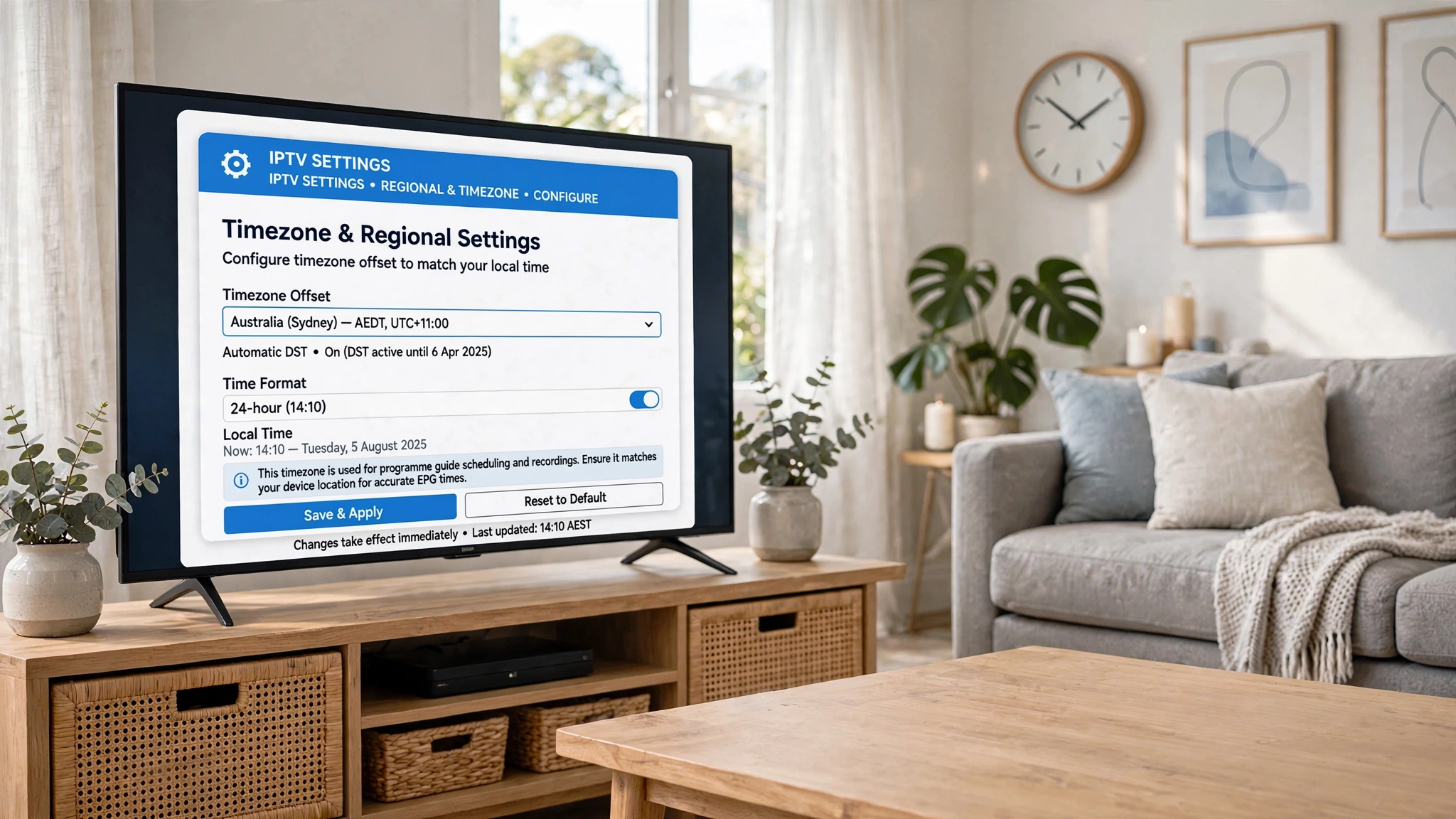
Set the Australian time zone.
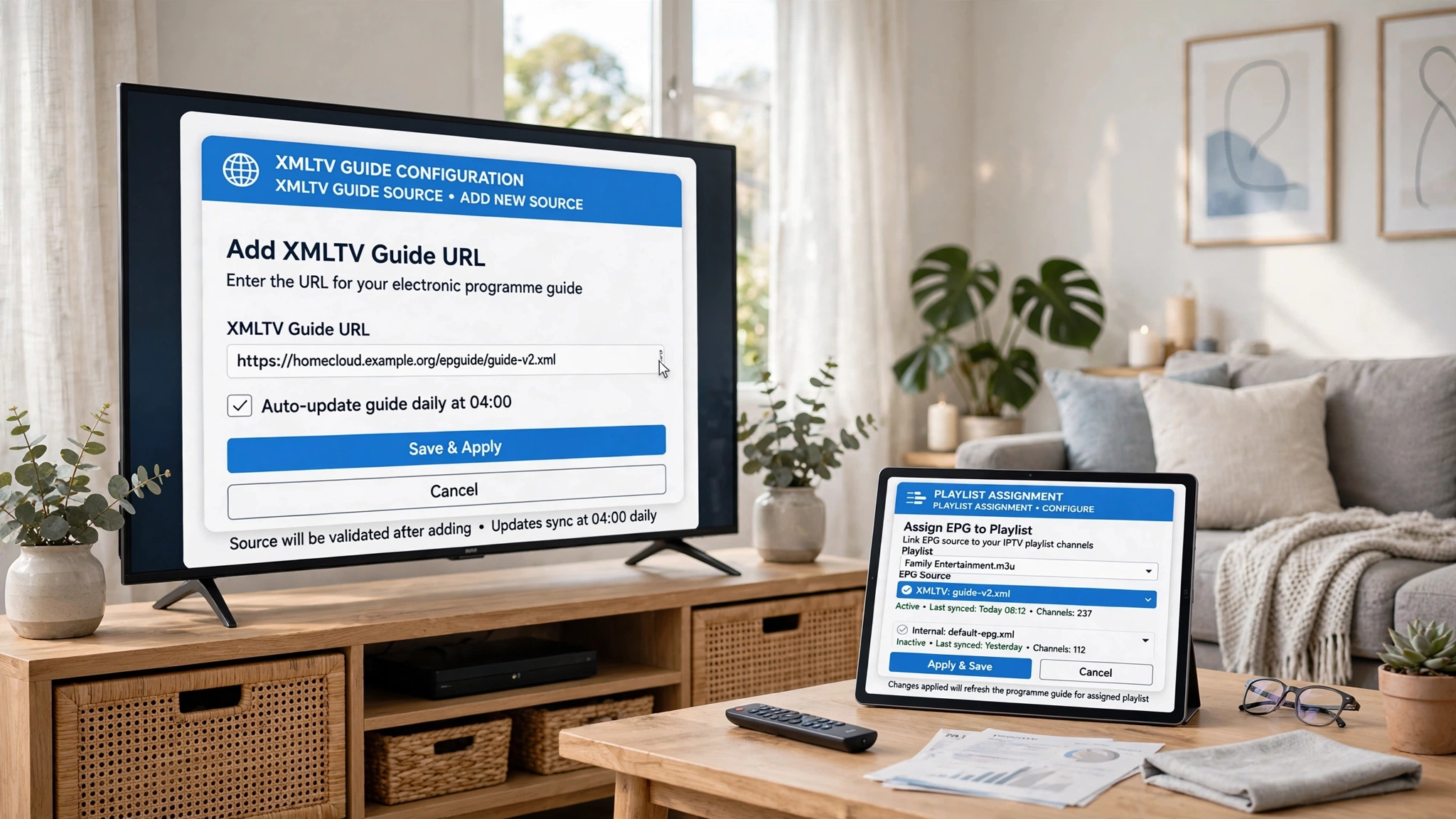
Guide data is published against a reference time that is usually not local. Without an offset, every programme appears hours off from when it actually airs — and this is the single most common complaint after setup.
| Region | Standard | Daylight saving |
|---|---|---|
| NSW, VIC, ACT, TAS | UTC+10 | UTC+11, October to April |
| Queensland | UTC+10 | None observed |
| South Australia | UTC+9:30 | UTC+10:30, October to April |
| Northern Territory | UTC+9:30 | None observed |
| Western Australia | UTC+8 | None observed |
The setting is usually called ‘Time Shift’ or ‘Timezone Offset’ and is found in the app’s EPG settings. Apply the value for your state, and the guide corrects immediately – no re-download needed.
If you are in a state that observes daylight saving time, this needs revisiting twice a year unless your app handles it automatically.
Why the First Download Sometimes Fails
Guide files are larger than people expect — commonly tens of megabytes for a week of listings across hundreds of channels. The initial download needs a connection that stays stable throughout, and an interruption partway leaves partial data that looks like a failed setup.
If the guide populates for some channels and not others immediately after setup, wait for the download to finish before concluding anything. On a slower connection, the process takes several minutes instead of seconds.
Two things help: run the first download over Ethernet if you can, and avoid closing the app while it runs.
Using Multiple EPG Sources
Some apps, TiviMate among them, accept more than one guide source and merge them automatically. This is useful if your channels span regions your provider’s guide does not cover fully.
Using more than one EPG source can improve coverage for specific channels, but it can also create duplicate or conflicting programme entries if the sources use different channel identifiers. The app has no way to know which entry is correct when two sources both claim the same channel.
Add a second source only when a specific gap needs filling, and verify the affected channels afterwards rather than assuming the merge worked cleanly.
How to Update EPG on IPTV
Guide data goes stale as broadcasters change schedules, so updating matters as much as the initial setup.
| Update type | When to use it |
|---|---|
| Manual update | Immediately after adding a new source, or when listings look wrong |
| Automatic update | Everyday use — set it and leave it |
Most apps place both under the EPG settings. Enable automatic updating and let it run on the app’s default schedule; published guidance on the ideal interval conflicts, and forcing frequent manual refreshes puts unnecessary load on the guide server without improving accuracy.
Where an app offers it, updating on playlist changes is worth enabling — it keeps the guide aligned when your provider adjusts the channel lineup.
Catch-Up TV Through the Guide
Once the guide is working, catch-up becomes accessible on channels where your provider supports it.
Navigate backwards in the guide grid to a programme that has already aired, then select it. Where catch-up is available, playback starts; where it is not, nothing happens.
Two things worth knowing. Catch-up is a provider feature, not an app feature — a working guide does not mean catch-up exists on your subscription. And the available window varies, typically covering the past day or two rather than indefinitely.
If the Guide Stays Blank
A guide that fails to populate after correct setup has its own diagnostic sequence, and it is beyond the scope of this document.
The most common causes are a source that fails to download or channel identifiers in your playlist that do not match those in the guide file. Both are covered in the IPTV EPG not working guide.
For what EPG is and how the data reaches your screen, see IPTV EPG explained.
Legal Considerations
IPTV technology is legal in Australia. Guide data is schedule information and carries no separate legal status — what determines legality is the service behind the playlist and whether it holds appropriate content distribution licences.
ACMA, the Australian Communications and Media Authority, is the federal regulator for broadcasting and online content. Under the Copyright Act 1968 (Cth), it can direct internet providers to block sites that facilitate copyright infringement.
Full framework: Is IPTV legal in Australia?
This article is for educational purposes only. Verify the licensing status of any streaming service and ensure compliance with Australian copyright law before subscribing.
Explore More
EPG
IPTV EPG explained · IPTV EPG not working · TiviMate configuration
Setup
IPTV setup Australia · IPTV playlist setup · How to use an M3U playlist · Xtream Codes vs M3U
Apps and devices
IPTV devices and apps Australia · Smart TV IPTV setup · IPTV Smarters setup
Reference
IPTV Australia guide · Troubleshooting hub
Bottom Line
If you are setting up an M3U playlist, add the XMLTV source first, then assign it to the playlist. Both steps are needed, and doing only the first is the most common reason a guide stays empty after what looked like a successful setup.
If you are using Xtream Codes, the guide is usually configured automatically. Check only if programme data is missing — there is normally nothing to enter.
If the guide remains blank, please refer to the IPTV EPG not working guide. Setup and diagnosis are different problems, each requiring a different fix.
Set the time zone offset before you judge whether the setup worked. A guide showing the correct programme names at the wrong times is configured correctly and is simply displaying against the wrong reference.
Sources
- ACMA — regulatory framework