
Last updated: August 2026
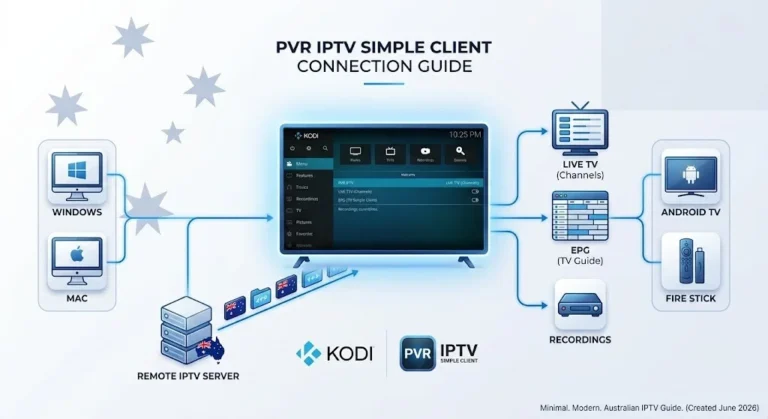
Smart TV IPTV setup depends less on your subscription than on what your television can install. Samsung, LG and Sony each run different software with different app stores, and the honest first question is not how to set IPTV up but whether your particular set can run it at all. If you are still weighing IPTV against other options in Australia, the IPTV Australia guide covers that decision first.
Quick Answer
Most smart TVs sold in Australia since around 2016 can run IPTV directly, using an app from the television’s own store plus credentials from your provider. The exception is when no compatible player appears in your store — availability varies by model, model year and region. In that case an inexpensive HDMI streaming device turns any television into an IPTV screen. Check compatibility before paying for a subscription, and if you have not yet chosen a player, the smart TV IPTV app comparison covers that first.
Can You Watch IPTV on a Smart TV?
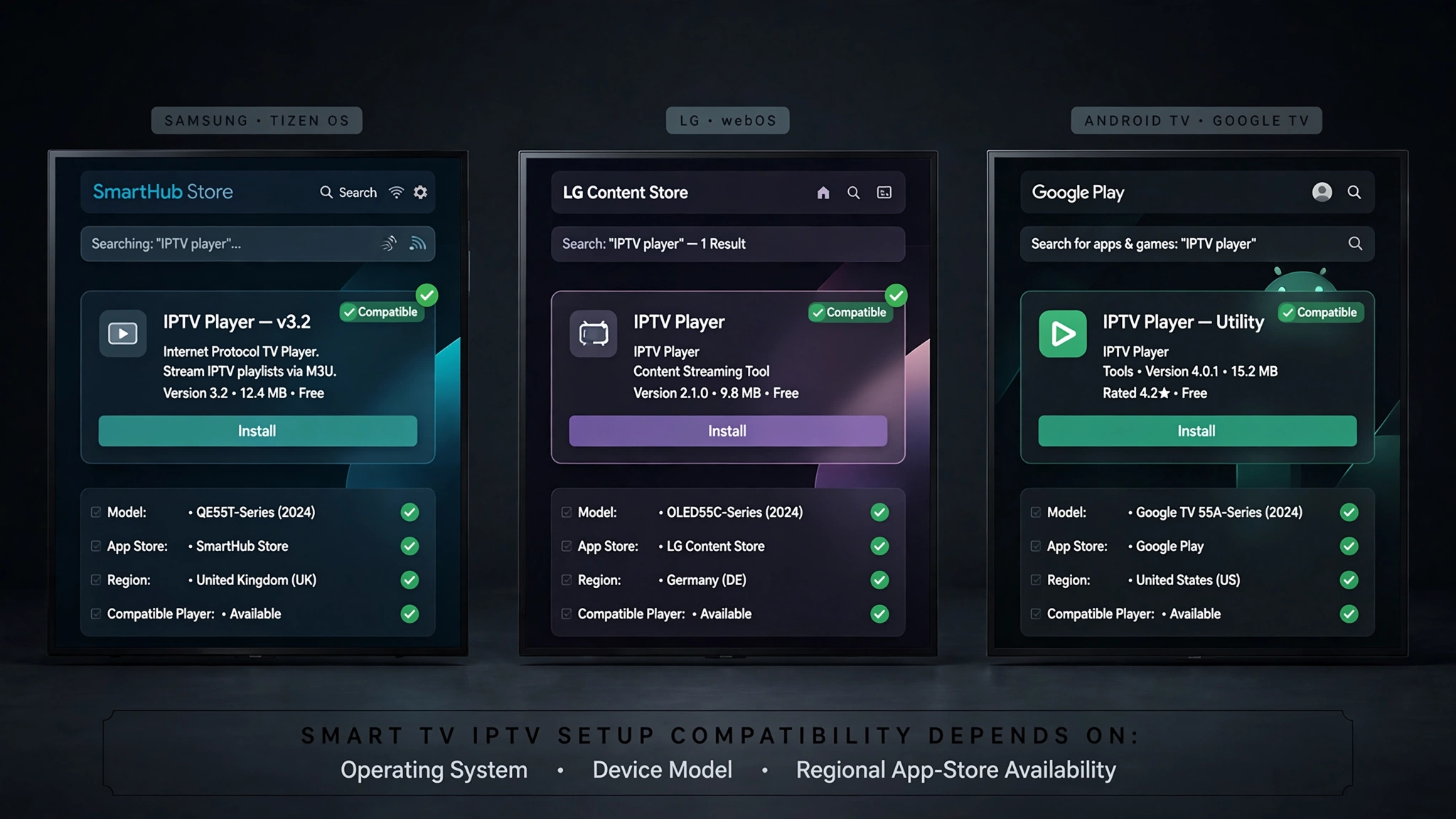
Usually yes, but “smart TV” is not one thing. Four different operating systems dominate Australian living rooms, and each has its app store with its own rules.
IPTV, or Internet Protocol Television, delivers channels over your internet connection rather than through an aerial or satellite dish. Your television needs three things to display it: a player app, credentials from a provider, and a connection steady enough to sustain video.
The player app is where compatibility is decided.
| Platform | What to check | Built-in setup possible? | When an external device may be needed |
|---|---|---|---|
| Samsung Tizen | Open Samsung App Store and search for an IPTV player | Usually, on sets from roughly 2016 onward | No compatible player listed for your model |
| LG webOS | Open LG Content Store and search for an IPTV player | Usually, on sets from roughly 2018 onward | Older sets, or no player listed |
| Android TV / Google TV | Open Google Play Store | Yes — widest app selection | Rarely |
| Hisense VIDAA | Open the VIDAA app gallery | Sometimes a smaller selection | Player not listed in the gallery |
| Roku | Check the Roku Channel Store | Limited | Commonly |
This table does not promise a specific app for a specific brand. Samsung, LG, and the platform owners control the store contents, which differ by model year and market. A guide written for the UK may list an app that never appears on an Australian set.
This is why the check comes first. Five minutes with your remote, before any money changes hands, tells you which column you are in.
Key takeaway: Most smart TVs in Australia can run IPTV natively, but confirm a compatible player exists in your television’s own store before subscribing.
What You Need Before Smart TV IPTV Setup
Four things, and one of them is worth more attention than the others.
| Item | Notes |
|---|---|
| A smart TV with a working app store | The compatibility check above |
| An active subscription | Verify licensing status before subscribing |
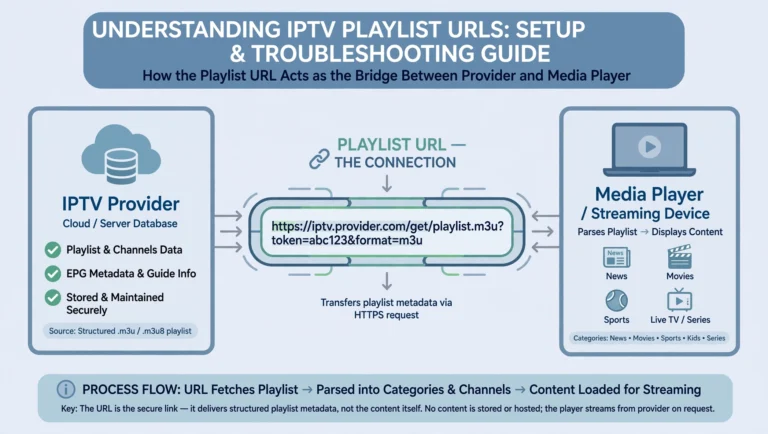
| M3U URL or Xtream Codes details | Server URL, username and password, or a single long link |
| A stable connection | Roughly 25–50 Mbps depending on stream quality |
The connection matters more than the number suggests. A speed test measures peak download rate, but live streaming depends on sustained steadiness. A connection that tests at 100 Mbps and dips briefly every few minutes will buffer, while a steady 30 Mbps will not.
This phenomenon is also why I recommend Ethernet on televisions specifically, more strongly than on other devices. Smart TVs often carry weaker wireless components than a dedicated streaming stick, because the manufacturer allocated the budget to the panel. If your set has a LAN port and you can reach it with a cable, use it.
M3U or Xtream Codes? Your provider supplies one or the other, sometimes both. An M3U is a single long address containing everything. Xtream Codes splits the same information into three fields. Neither is better – but entering one into the other’s screen is a common cause of setup failure, as covered in the IPTV playlist setup guide.
Smart TV IPTV Setup by Platform
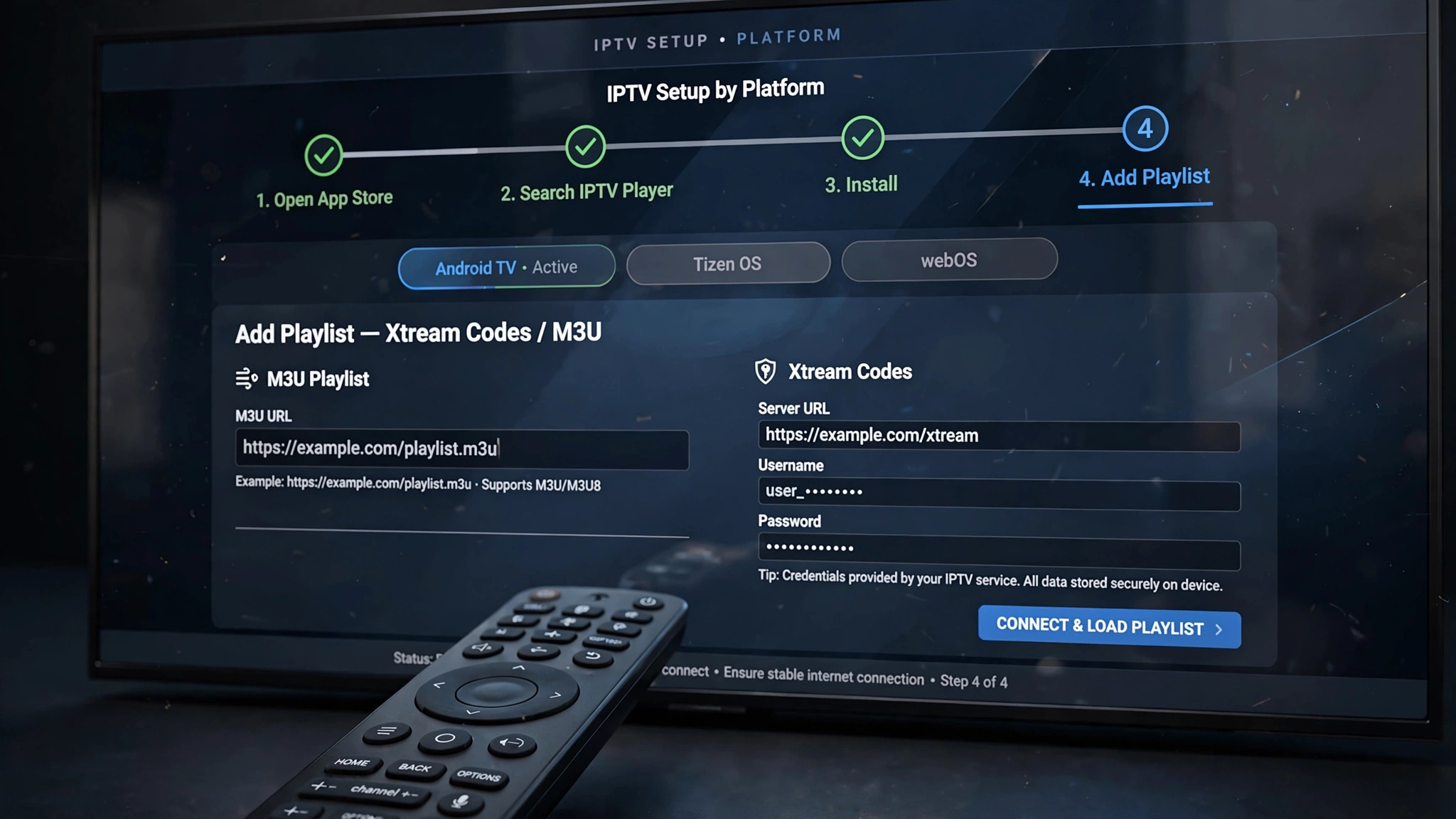
The pattern is identical everywhere: find a player, install it, feed it your credentials. What changes is where you find the player and how it takes the credentials.
Samsung Tizen
Samsung televisions run Tizen, and the Samsung App Store is the only official source of apps.
- Press the apps button on your remote and open the store
- Search for an IPTV player — Smart IPTV and IPTV Smarters Pro are both commonly listed in Australia
- Install and open it
- Follow the app’s prompt for credentials
Smart IPTV takes a different route worth knowing about. Instead of entering the playlist on the television, the app displays your set’s MAC address, and you enter the playlist on the Smart IPTV website using a phone or computer. The app then reads it.
That sounds like an extra step. In practice, it removes the hardest part of smart TV setup — typing a long address with a remote — which is why it remains popular despite its plain interface.
If nothing suitable appears in your store: app availability on Tizen varies by model year and market, and Samsung controls the outcome rather than the app developer. Some guides suggest changing your television’s country setting to reveal more apps. I would avoid that. On many Samsung models, changing the country resets installed applications, and reverting is not always clean. The safer option is to use an HDMI streaming device.
LG webOS
LG televisions run webOS, with the LG Content Store as the official source.
- Press Home and open the LG Content Store
- Search for an IPTV player — IPTV Smarters Pro and Smart IPTV are commonly available, and SS IPTV may also appear depending on model and region
- Install and open it
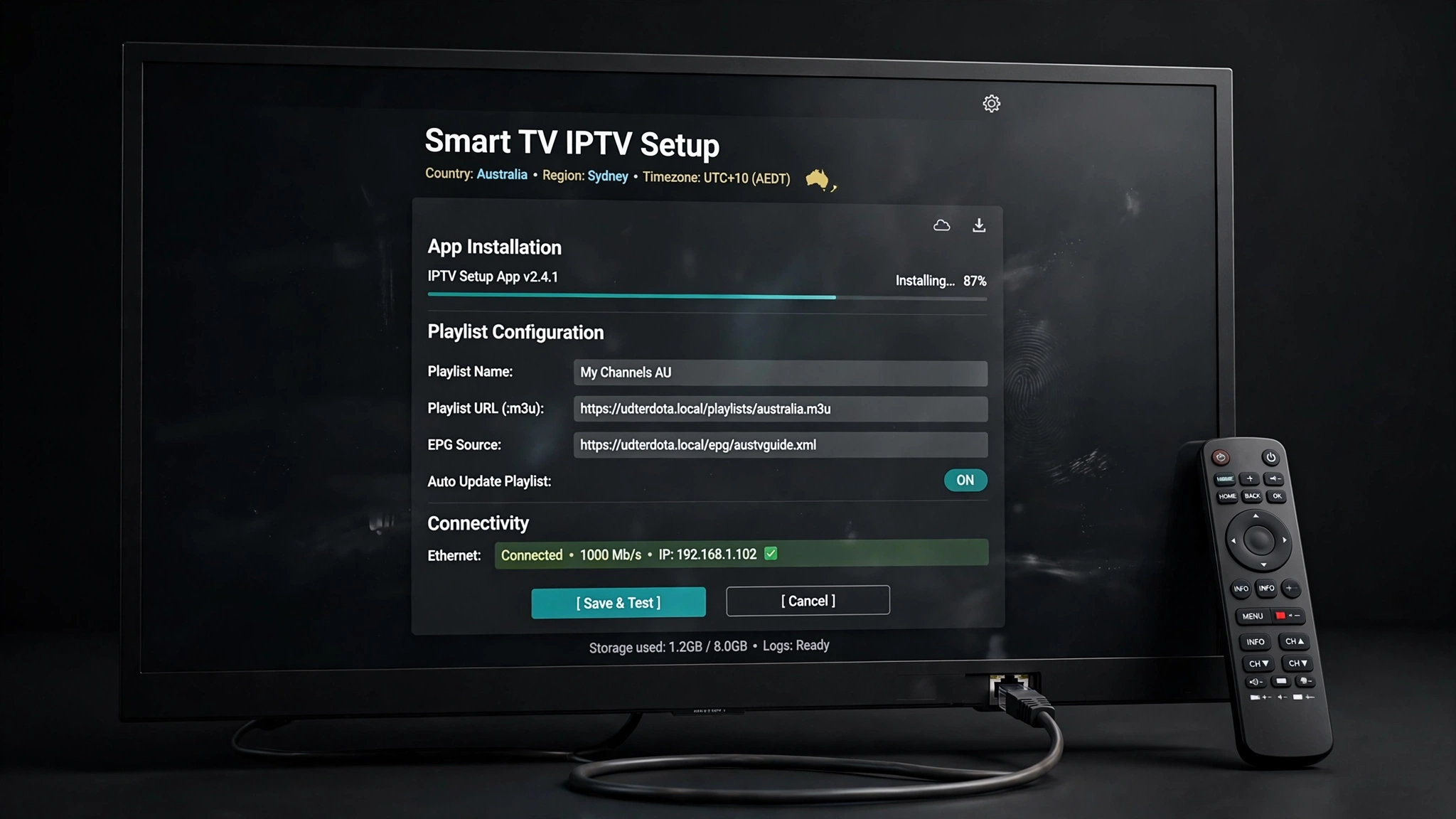
- Enter your M3U URL, or choose the Xtream Codes screen and enter server, username and password
If the app hangs while loading: webOS processes large playlists slowly, particularly on older sets. Give it a few minutes before assuming failure. If it times out repeatedly, the playlist is likely larger than the television’s memory can comfortably handle. Ask your provider for a filtered version that contains only the channel groups you watch.
Android TV and Google TV
Sony, TCL, Philips and others build on Android, which means the full Google Play Store.
- Open the Play Store
- Search for TiviMate, IPTV Smarters Pro, or another player
- Install and add your playlist
This is the least complicated path, because the app selection is unrestricted. TiviMate, in particular, offers a level of configuration depth that the built-in Samsung and LG players do not match, as covered in the TiviMate configuration guide.
One trap: some Hisense televisions advertise Android TV but actually run VIDAA. If your store does not look like standard Google TV, you are on VIDAA and should use the app gallery instead.
If you are still choosing between players rather than installing one, the smart TV IPTV apps comparison covers that decision separately.
Key takeaway: Every platform follows the same three steps — install a player, enter your provider’s credentials, and wait for the channel list — and only the store and the entry method differ.
How to Set Up IPTV Without an External Box
For most households the answer is simply yes, and this section exists because the question deserves a direct answer rather than an upsell.
You can run IPTV entirely on the television if three conditions hold:
- A compatible player exists in your store. The compatibility check above settles the issue.
- Your set is recent enough to handle the playlist. Televisions from roughly the last eight years generally manage. Older sets struggle with huge channel lists, which is a memory limit rather than a software one.
- Your needs are straightforward. You want live channels and a programme guide, without heavy customisation.
Meet those three and you need nothing else. One remote, one device, no extra HDMI input occupied.
The reason this information is worth stating plainly: most setup guides published online are written by IPTV providers, and a guide that concludes “you need nothing further” ends the sales conversation. But for a household that wants live television without additional hardware, the built-in path genuinely works.
Key takeaway: A compatible player in your store, a reasonably recent set, and ordinary viewing needs are enough to run IPTV with no additional hardware.
When You Need an External Streaming Device
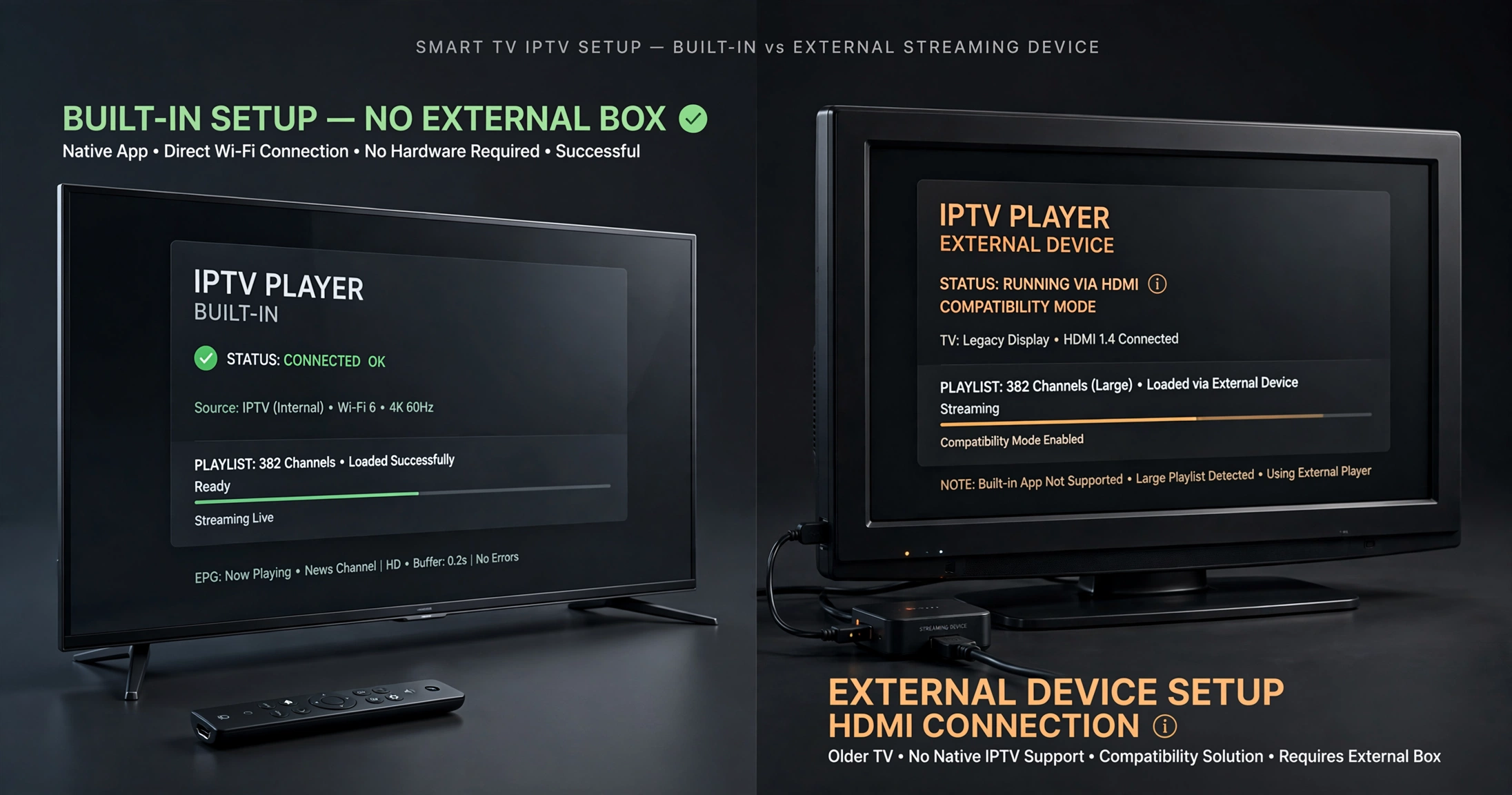
This section is the honest counterpart to the one above. Add a device when:
- No compatible player is listed for your model. Store availability is not something you can work around.
- The television is old enough to struggle. If IPTV runs noticeably worse on the television than on a phone connected to the same network, the processor is the constraint, and no setting will fix it.
- Your playlist is huge. Dedicated devices handle thousands of channels more comfortably than television firmware does.
- You want an app that is not on your platform. TiviMate, for instance, is Android-only and has no Tizen or webOS version.
The trade is real on both sides: a streaming stick costs money, occupies an HDMI port and adds a second remote. But it typically outperforms the television’s built-in software, and it replaces a compatibility problem you cannot solve with hardware you control.
Key takeaway: An external device is the answer when the store lacks a compatible player, the set is too old, or the playlist is too large — not simply because someone recommends one.
Adding Your Playlist: M3U or Xtream Codes
Whichever platform you are on, the loading logic is the same:
- Have your credentials ready from your provider
- In the app, find Settings → Playlist or Add Playlist
- Choose the screen matching what you were given — M3U link, or Xtream Codes fields
- Enter carefully; one wrong character fails
- Wait. Loading takes from thirty seconds to a few minutes depending on playlist size
The most common failure is a typing error, not a subscription problem. Entering a long mixed-case address with a remote on an on-screen keyboard, viewed from across the room, invites mistakes — and the error message is identical no matter which character is wrong. The prefix causes the most trouble: an address beginning with http is not the same as one beginning with https, and the two are nearly indistinguishable on a television screen.
To test whether the address itself is valid, paste it into a browser on your phone. If it downloads a file or displays channel text, the address works and the problem is in what you typed on the television.
After Your Playlist Loads: EPG
The Electronic Programme Guide is the on-screen schedule that shows what is currently playing and what is coming next. With an Xtream Codes login, it usually arrives automatically. With an M3U you generally need a separate XMLTV address from your provider.
Allow it time on first load — guide data for a large channel list can take several minutes, and closing the app mid-sync leaves it incomplete. If the guide shows the wrong programmes against the wrong channels, that is a channel-matching problem rather than a connection failure. The IPTV EPG setup guide covers matching, refreshing and time zone correction in full.
Common Smart TV Setup Problems
Three patterns cover most of what goes wrong:
| Symptom | Most likely cause |
|---|---|
| App installs but no channels appear | Credentials entered on the wrong screen, or a typing error |
| Channels load but buffer constantly | Connection steadiness, or television processor limits |
| The guide is empty or mismatched | EPG source missing or channel IDs not matching |
Each has more depth than a table allows. The IPTV Troubleshooting Australia hub provides thorough coverage of diagnosis.
Legal Considerations in Australia
IPTV as a technology is legal in Australia, and player applications are legitimate software that supply no content of their own.
What determines legality is the service behind your credentials and whether it holds appropriate content distribution licences. The Australian Communications and Media Authority (ACMA) regulates broadcasting and online content federally, and under the Copyright Act 1968 internet providers can be directed to block sites facilitating copyright infringement.
This article is for educational purposes only. Verify the licensing status of any streaming service and ensure compliance with Australian copyright law before subscribing.
Explore More
Choosing apps and devices
Smart TV IPTV apps compared · IPTV devices and apps Australia · Fire TV Stick compatibility
Setup and configuration
IPTV playlist setup · IPTV EPG setup · TiviMate configuration
When something goes wrong
IPTV Troubleshooting Australia
Background
IPTV Australia guide
Bottom Line
If your television runs Android TV or Google TV, install a player from the Play Store, and you are finished. This is the least complicated path and needs no additional hardware.
If you own a Samsung or LG set and a player appears in your store, install it; enter your credentials carefully from a phone-based portal where the app offers one; and expect the first load to take a few minutes. This works well for ordinary live viewing.
If no compatible player appears or your set is old enough to struggle, stop trying to force the television and add an HDMI streaming device. It costs a little and adds a remote, but it solves a compatibility problem you cannot solve any other way.
Sources
- ACMA — broadcasting and online content regulation
- Copyright Act 1968 (Cth) — site-blocking provisions
- Smart IPTV — MAC-based playlist portal method
Freshness plan: review February 2027, or sooner if app store availability changes materially.