
Kevin Brooks | IPTV Troubleshooting Australia
Published: 11 March 2026 · Last updated: 2 August 2026
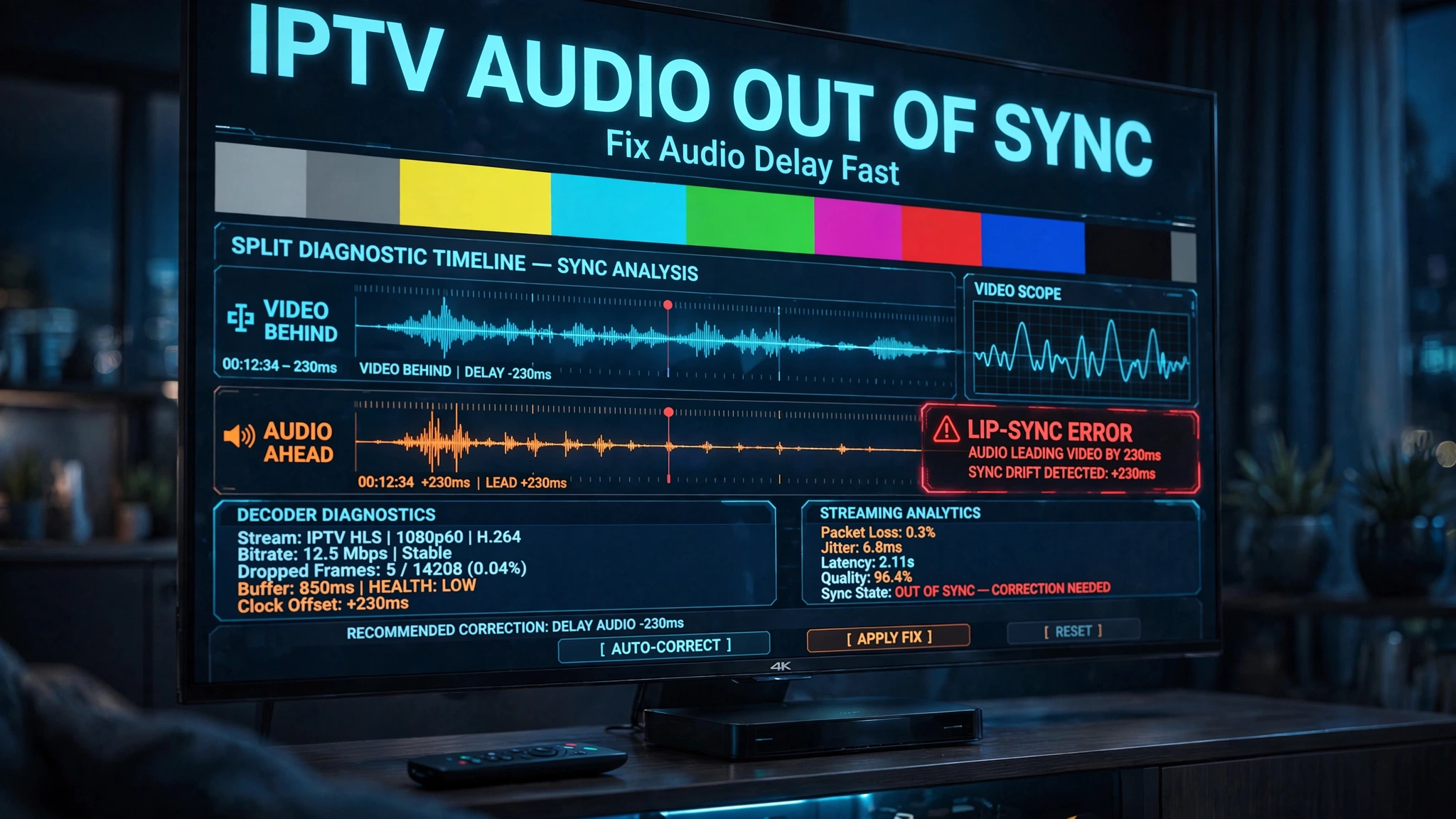
Quick Answer: IPTV audio out of sync usually traces back to one of three places: the player, the device’s audio output path, or the provider’s stream. Start by switching the decoder in your app between hardware and software, then adjust the audio delay if a gap remains. Trying another player is worth doing early, since apps decode the same stream differently. If several channels in the same group are affected while the rest of your list plays normally, the fault points upstream. For other fault types, start at the IPTV troubleshooting hub.
Start Here — Match Your Symptom
| If this happens… | Start here |
|---|---|
| Audio ahead of video | Switch decoder, then adjust audio delay |
| Audio behind video | Check TV or soundbar audio settings |
| Only one channel affected | Try another player, then contact your provider |
| All channels affected | Decoder, player, then device settings |
Is the Issue Really an Audio Sync Problem?
Audio sync is a specific symptom: picture and sound both play normally, but they do not line up. Dialogue arrives before or after the lips move. Applying sync fixes to a buffering problem wastes an evening, so please confirm the symptom first.
Symptoms That Are Not Sync Faults
| What you notice | Is it an audio sync problem? |
|---|---|
| Voices do not match lip movements | Yes |
| The picture pauses while audio continues | No buffering or freezing |
| Video becomes blocky or smeared | No — pixelation |
| No sound at all | No — audio output or track selection |
If any row apart from the first describes your situation, start with the diagnostic hub instead.
Which Direction Is the Offset?
The direction points at different parts of the chain, and establishing it first saves you from testing fixes that were never going to apply.
| Pattern | Usually means | Start with |
|---|---|---|
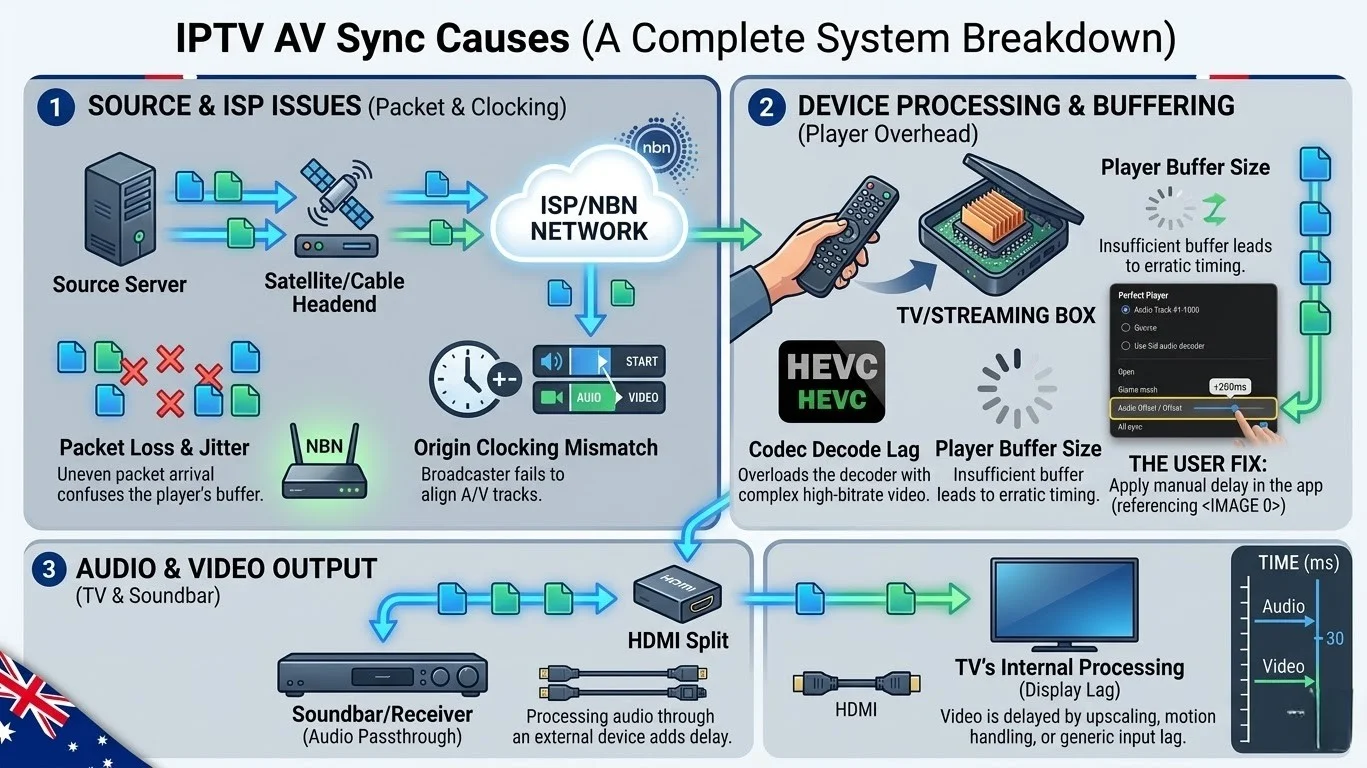
| Audio arrives before the picture | The player is decoding video slower than audio | Decoder switch, then audio delay |
| Audio arrives after the picture | Device or soundbar adding processing delay | TV and audio output settings |
| Starts synced, drifts over the session | Player pipeline or stale cached timing | Clear cache, change decoder |
| Only some channels are fine; others fine | Stream-side encoding at the provider | See the provider section below |
| Every channel on every device | Device or app configuration | Decoder switch |
Audio arriving ahead of the picture is the more common direction. That points at the player before anything else.
IPTV Audio Out of Sync: Player-Side Fixes
These three come first because they are the most common causes and the quickest to test. Work through them in order.
Fix 1 — Switch the Decoder
The first thing to try, and the most commonly overlooked, is the decoder setting, which is located inside the app you are already using.
TiviMate’s own troubleshooting documentation directs users to change the decoder from hardware to software or the reverse, noting the switch often resolves playback problems. Sync issues frequently appear after an app update changes decoder behaviour, which is why this step is worth checking first when a setup that worked yesterday does not today.
Where to Find the Setting
| App | Path |
|---|---|
| TiviMate | Settings → Playback → Decoder → HW / HW+ / SW |
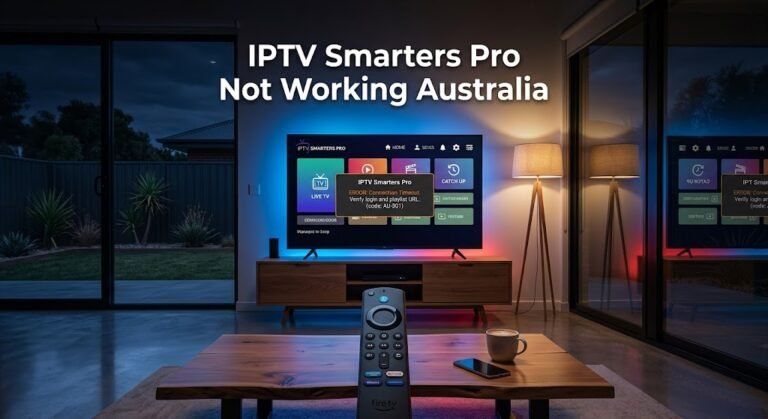
| IPTV Smarters Pro | Player Settings → HW Decoder → toggle |
| Kodi | Settings → Player → Video → hardware acceleration |
Test the affected channel after each change rather than switching everything at once. There is no universally correct setting — which decoder performs best depends on your device and the codec that the channel uses. On Android TV and Fire TV, HW+ is often the more stable option, though some older hardware does better on plain HW.
Fix 2 — Adjust the Audio Delay
If a gap remains after changing the decoder, correct it directly. Most players expose a millisecond offset.
Where to Find the Setting
| App | Path |
|---|---|
| TiviMate | During playback → playback options → Audio Delay slider |
| VLC | Press J to shift audio back 50 ms and K to shift forward |
| IPTV Smarters Pro | Player settings — location varies by version |
How to Calibrate It
Watch a news presenter or a close-up interview — anything with clear lip movement. Adjust in small steps and retest after each one. Positive values delay the audio; negative values advance it.
Two things worth knowing. Use the smallest offset that works, because an oversized correction creates problems on channels that were previously fine. And most players apply the offset globally, so a value that fixes one channel can break another. Where your player allows per-channel adjustment, use it and leave the global setting at zero.
Fix 3 — Try Another Player
The player itself is a genuine cause, not just a fallback. Different apps decode the same stream differently, and a channel that drifts badly in one can play cleanly in another with no other change.
More useful still is what a second player tells you. Installing one costs nothing and separates an app problem from a stream problem in a couple of minutes.
| Player | When to try it |
|---|---|
| Your built-in player | Default starting point |
| VLC | Confirm whether the app is the cause |
| MX Player | Persistent decoder issues on Android |
| Just Player | Android TV hardware decoding |
The test that matters: if a channel plays in sync in VLC but not in your usual app, the fault is the app’s decoding. If it is out of sync in VLC too, the problem lies further upstream — either in your device’s audio path or in the stream itself.
Device and Audio Path Fixes
Work through this section when audio arrives after the picture, which usually means something in the audio chain is adding delay.
Fix 4 — Change the Audio Output Format
Dolby and passthrough formats add an encoding step before sound reaches your speakers. Switching to PCM stereo removes it.
| Device | Path |
|---|---|
| Fire TV Stick | Settings → Display & Sounds → Audio → Audio Format → Stereo |
| Android TV | Settings → Sound → Audio Output → PCM Stereo |
| Apple TV | Settings → Video and Audio → Audio Format → Stereo |
Fix 5 — Check the Soundbar and HDMI ARC Path
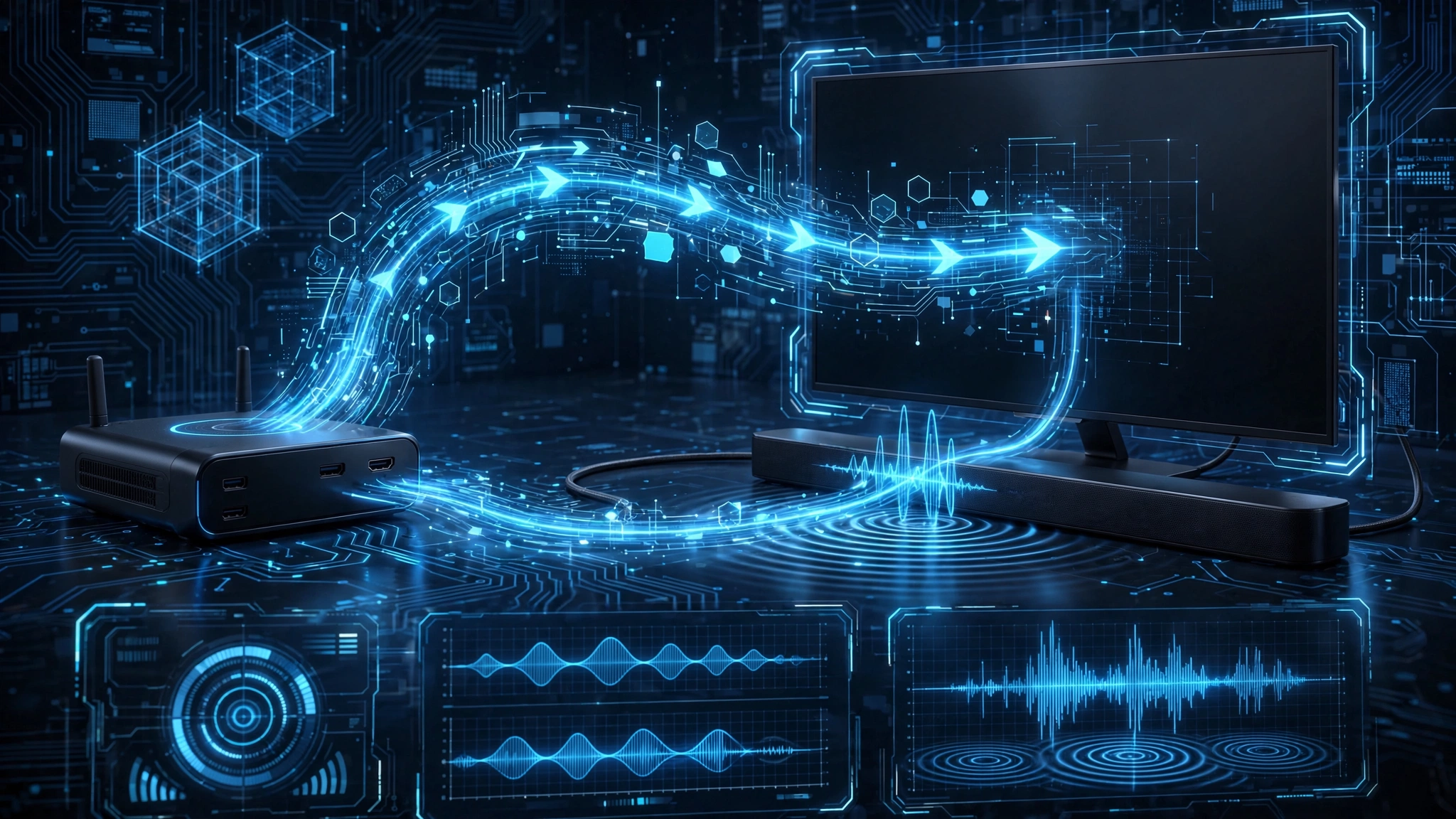
When sound routes from your streaming device through the TV and back out to a soundbar, that round trip adds a delay that the video signal never experiences.
To confirm: disconnect the soundbar and play the same channel through the TV speakers. If sync returns, the audio path is the cause.
TV-Side Sync Correction
Most televisions include a correction for exactly this issue. Samsung’s support documentation directs users to Settings → Sound → Expert Settings → Digital Output Audio Delay, where they can adjust the slider until the sound matches the picture, and notes that streaming audio wirelessly transmits more slowly and can cause sync delays on its own. LG places the equivalent control under AV sync adjustment.
Optical audio bypasses the ARC round trip entirely and is worth testing if your soundbar supports it. Bluetooth speakers are the worst option for live viewing, since the wireless link adds a delay that no setting can fully remove.
Fix 6 — Clear the App Cache
Cached timing data can degrade, producing sync that starts fine and drifts across a session rather than being wrong from the first second.
| Device | Path |
|---|---|
| Fire TV | Settings → Applications → Manage Installed Applications → [app] → Clear Cache |
| Android TV | Settings → Apps → [app] → Storage → Clear Cache |
Relaunch the app afterwards. If drift returns within an hour on the same device, treat clearing the cache as routine maintenance before viewing rather than a one-time repair.
When the Fault Is Not on Your Side
Some sync problems cannot be fixed locally, and recognising them early can save you a wasted evening.
The Channel Group Pattern
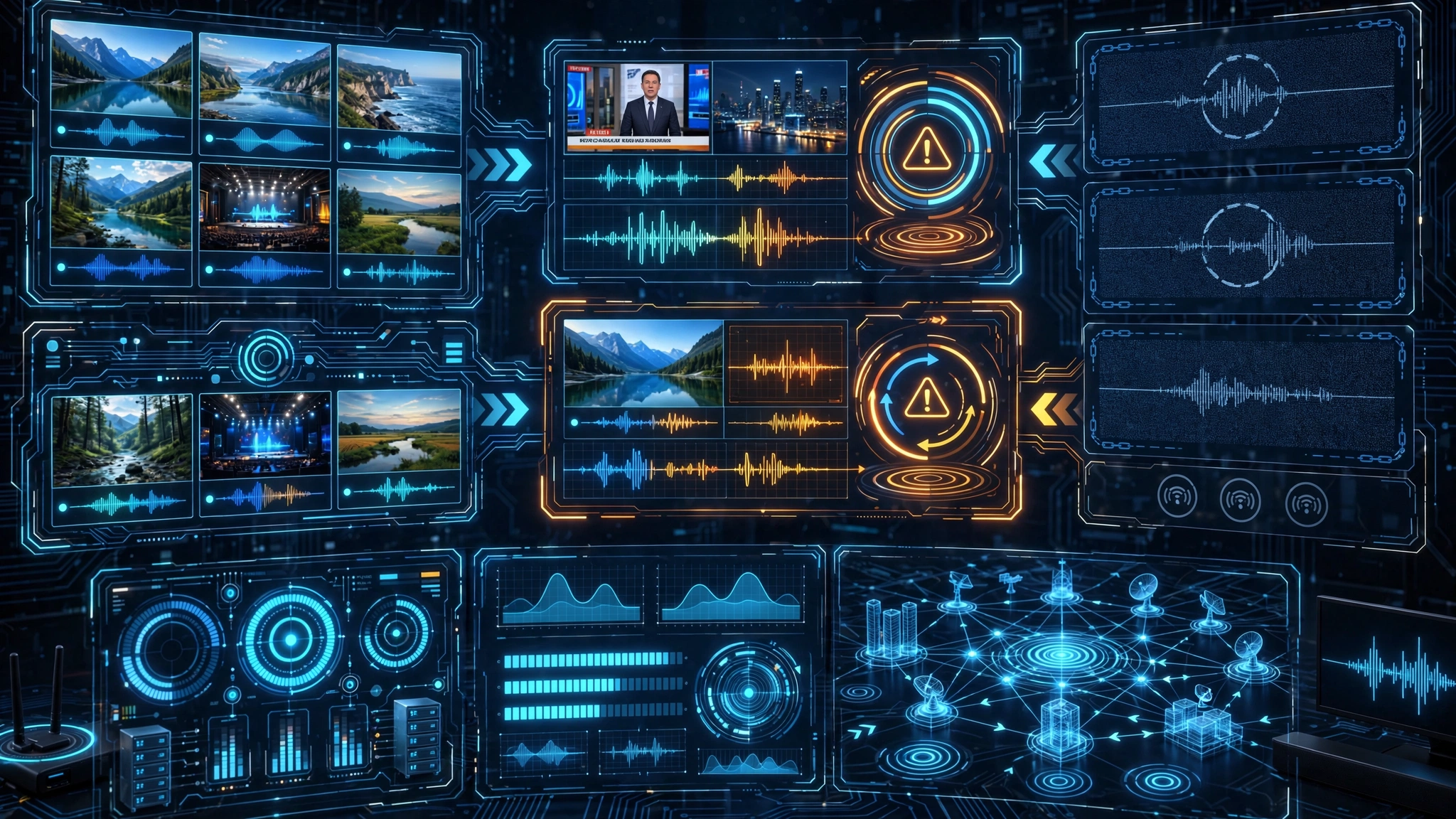
Where this shows up in practice, the giveaway is the grouping. A group of channels where some develop audio sync problems while others fail to load entirely, and the rest of the playlist behaves normally, points away from your device and towards the source feeds. No local player or audio setting normally creates that pattern.
In situations like these, it is worth contacting your provider with the affected channel names, as they can check whether the issue originates from the source stream rather than your setup.
When Contacting Support Is the Right Next Step
Three conditions together point upstream:
- The same problem appears on more than one device
- It affects a specific set of channels rather than all of them
- It persists after the decoder, the audio delay, and a second player have all been tried
Without all three, the fault is more likely local, and support will send you back through steps you have already run.
If Only One Channel Is Affected
A single channel out of sync while everything else plays normally is its case, and it is quick to diagnose.
- Test two or three other channels in the same category — if they are fine, the fault is specific to that stream
- Test the same channel in a different player — this rules out your app’s decoding
- If it remains out of sync in every player while other channels are fine, report it to your provider with the channel name
Nothing you change locally will fix a single badly encoded stream. Correcting it is the provider’s responsibility.
Limitations and Prevention
What This Guide Cannot Fix
A stream encoded badly at source stays out of sync regardless of your player. If one channel has been consistently offset for weeks while everything else is fine, that channel’s encoding is the problem.
Ancient hardware also has limits. A device struggling to decode a high-bitrate stream may drift no matter what you configure, and no offset compensates reliably for a decoder that cannot keep pace.
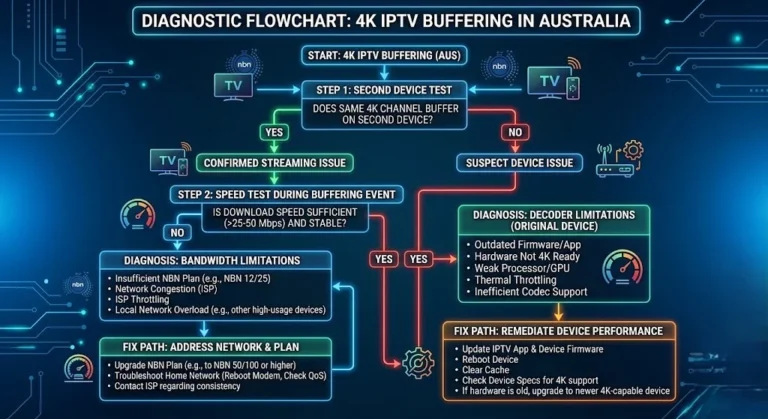
Network problems severe enough to cause visible buffering will disturb sync as a side effect. In that case, the sync symptom is secondary — see buffering fixes for Australian ISPs first.
Preventing It Coming Back
- Note the decoder setting that works on each device, so you can restore it after app updates
- Clear the app cache periodically rather than only when something breaks
- Keep your player updated, since decoder handling changes between versions
- When a fix works, record which one — the same cause tends to recur on the same device
Where to Go Next
If changing the decoder, adjusting the audio delay, trying another player, and checking your device settings do not resolve it, return to the IPTV Troubleshooting Australia hub to work out whether the problem sits with your player, your device, your network, or your provider before contacting support.
Related guides: IPTV app crashes · playback failed · smart TV troubleshooting · channel not loading
Sources
- TiviMate troubleshooting documentation — decoder options and audio delay slider
- Samsung support — Digital Output Audio Delay