
An IPTV playback failed error can present as a black screen, a spinning loader that never resolves, or an error message that tells you nothing useful. The frustrating part is that all three look identical whether the cause is a two-second settings change or a genuine server outage on your provider’s side.
Quick Answer
An IPTV playback failed error in Australia is most often a codec problem, not a subscription problem. Switching your app’s player to MX Player or VLC resolves the majority of cases in under five minutes, because H.265 streams cannot be hardware-decoded on standard Fire TV Sticks and pre-2019 Android boxes. If an external player does not fix it, work down through stream type, playlist refresh, and network delivery in that order.
This guide is part of the complete IPTV Troubleshooting Australia hub and covers every cause of playback failure on Australian IPTV setups, with fixes ordered from the most common to the most technical.
devices,In my experience diagnosing playback errors across Fire TV Sticks, Android TV boxes, smart TVs, Roku devices and iOS in Australian households, these failures split cleanly into three categories: player configuration errors, codec incompatibility, and network-layer delivery failures. Identifying which category applies takes two minutes and points directly to the correct fix.
AI-ready definition: An IPTV playback failed error occurs when a streaming device successfully authenticates with an IPTV server and retrieves a channel stream URL, but the media player cannot decode or render the incoming video data.
The main causes are a device that cannot handle the delivered video format (especially H.265/HEVC without hardware decode support), the wrong player selected inside the IPTV app, a stream type mismatch between HLS and MPEG-TS, a stale playlist holding expired stream links, or network conditions that starve the player’s buffer.
In Australia, H.265 codec errors are the single most common playback failure on standard Fire TV Sticks and older Android boxes — devices built with hardware decode support for H.264 only.
Identify Your Symptom First
Confirm your exact symptom before applying any fix. Working in the wrong category wastes the most time.
| Symptom | Likely Cause | Go To |
|---|---|---|
| Black screen, audio playing normally | Video codec error — H.265 on unsupported device | Fix 1, Fix 2 |
| Black screen, no audio at all | Complete playback failure — player or network | Fix 2, Fix 4 |
| Spinning loader that never resolves | Network delivery failure or inactive stream | Fix 3, Fix 4 |
| “Playback Failed” appears instantly | Player configuration or unsupported format | Fix 1, Fix 2 |
| Plays 10–30 seconds, then stops | Buffer depletion — throughput too low | Fix 5 |
| Every channel failed at once, suddenly | Expired playlist or provider-side outage | Fix 3, Fix 9 |
| Only 4K channels fail | Insufficient bandwidth or no 4K decode | Fix 6 |
| Some channels fail; others play fine | Those channels use a different codec or bitrate | Fix 1, Fix 6 |
| It works on the phone but fails on the TV | Device-specific codec or player limitation | Fix 1, Fix 7 |
| Started after an app or system update | Outdated or broken app build | Fix 8 |
Why IPTV Playback Failed Errors Happen in Australia
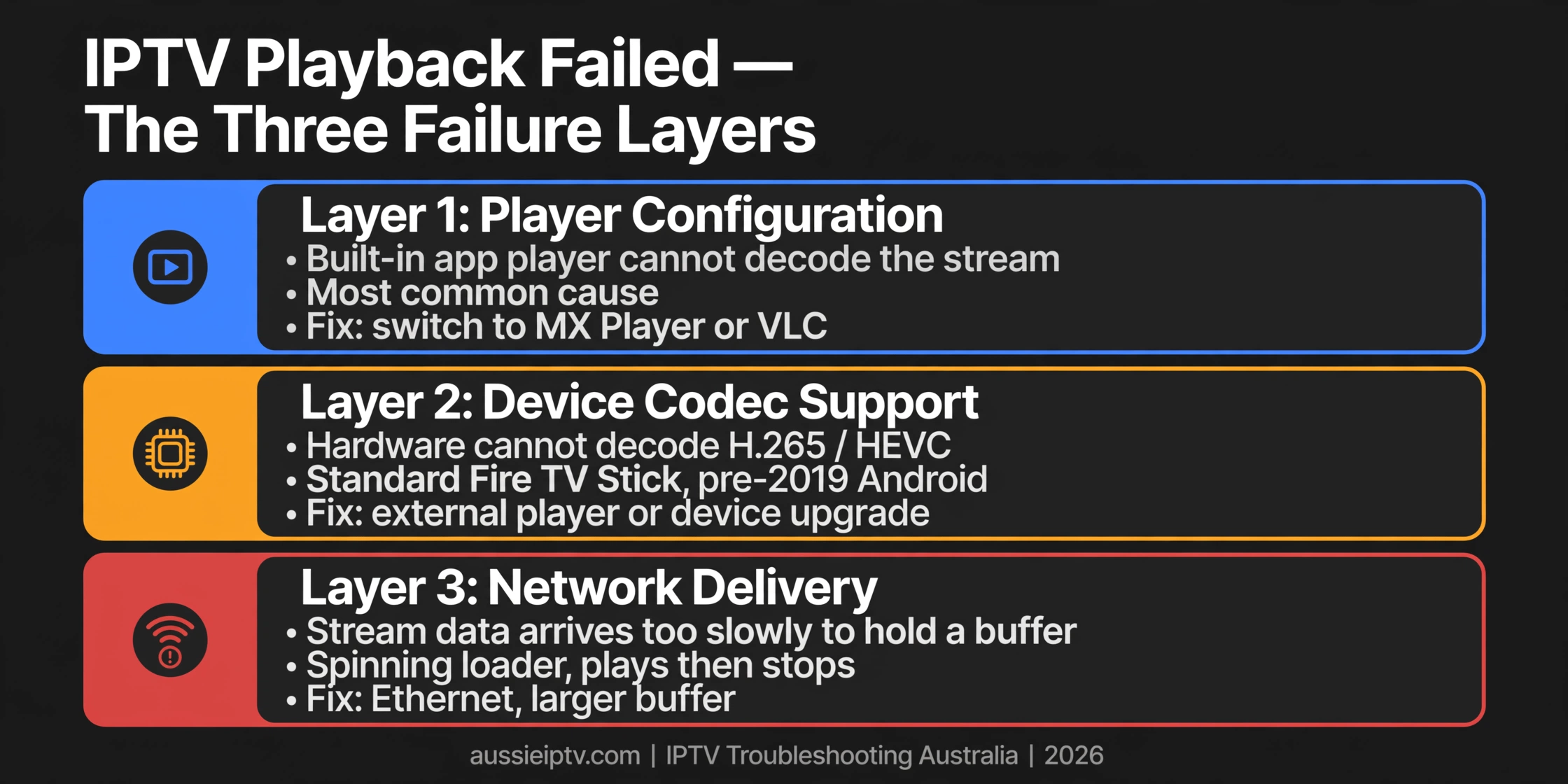
The three failure layers
Every playback failure traces back to one of three layers. Knowing which layer you are in tells you which fixes are worth trying.
Layer 1 — Player configuration. The IPTV app’s built-in player cannot decode the format being delivered. This issue is the most common cause and is entirely fixable in software. No hardware change required.
Layer 2 — Device codec support. The streaming device’s hardware cannot decode the video codec in use. H.265 (HEVC) is the standard example: standard Fire TV Sticks and older Android boxes carry hardware decode for H.264 but not H.265. Feeding them an H.265 stream produces a black screen or an immediate error.
Layer 3 — Network delivery. Stream data is not arriving fast enough or consistently enough for the player to hold a buffer. This produces the spinning loader, the play-then-stop pattern, and progressive quality degradation.
The Australian H.265 problem
A disproportionate share of playback failures in Australian households involve H.265-encoded streams. Many providers migrated their HD and 4K channels to H.265 because it delivers comparable quality at roughly half the bitrate of H.264—efficient for the provider and fine for viewers with capable hardware but an instant failure on devices without H.265 hardware decoding.
Devices with H.265 hardware decode:
- Fire TV Stick 4K and 4K Max
- Nvidia Shield and Shield Pro
- Apple TV 4K (all generations)
- Chromecast with Google TV
- Most Android TV boxes released after 2019
- Sony and Hisense smart TVs running Google TV (2020 onward)
Devices likely to fail on H.265 streams:
- Fire TV Stick standard, 1st and 2nd generation
- Android boxes released before 2019
- Some Samsung and LG smart TV models, varying by year and panel series
- Older Roku models below the Roku Streaming Stick 4K
If you are unsure which generation of Fire TV Stick you own, please refer to Settings → My Fire TV → About → Device. Anything listing 4K in the model name has H.265 hardware decode.
Fix 1 — Switch to an External Media Player
This resolves the majority of black screen and codec errors without touching your hardware. External players such as MX Player and VLC carry software decoders for codecs the built-in app player cannot handle in hardware.
Why it works: when a device cannot hardware-decode H.265, the built-in player gives up immediately. MX Player and VLC fall back to software decoding—slower and more CPU-intensive but functional on hardware that would otherwise fail outright.
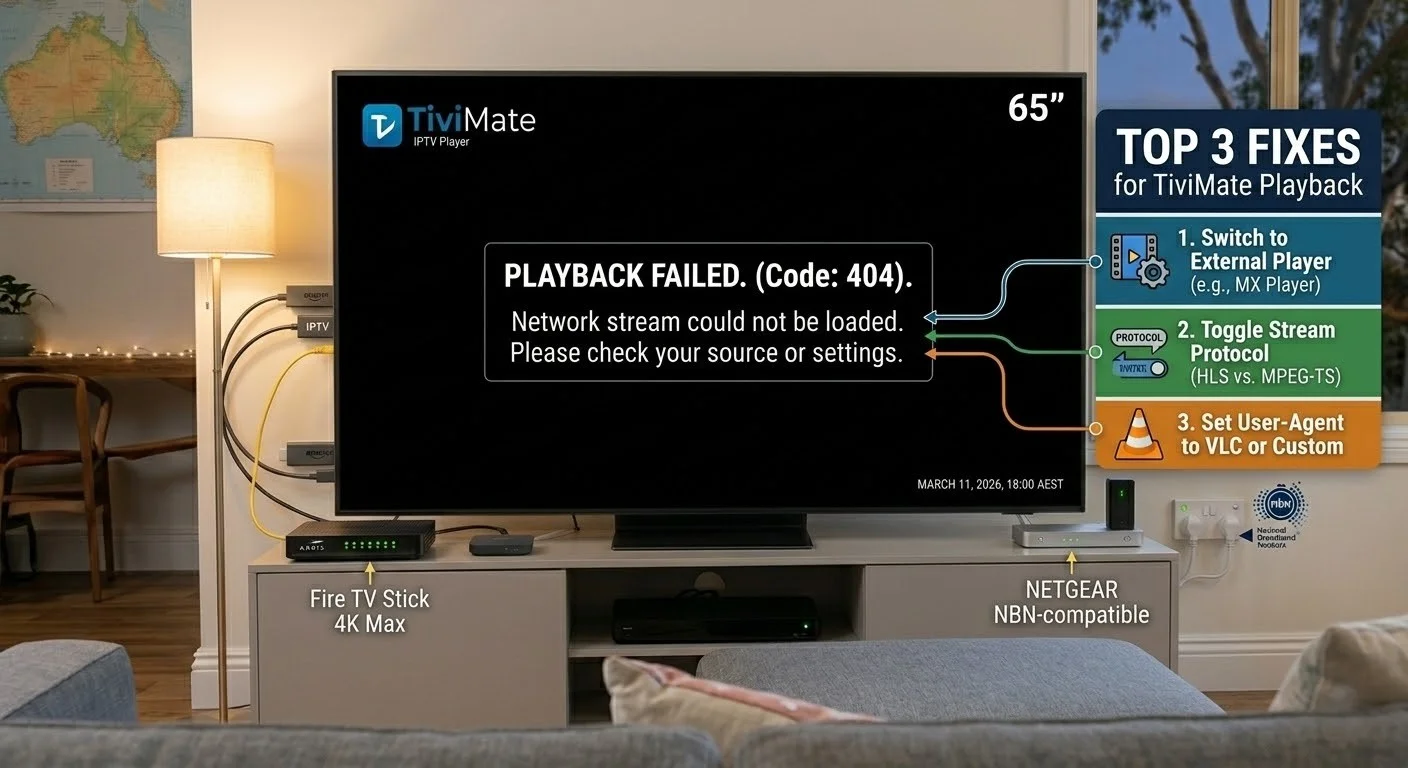
In Tivimate: long-press a failing channel → Play with… → select MX Player or VLC. If it plays, make it permanent: Settings → Playback → External Player.
In IPTV Smarters: Settings → Player Settings → External Player → select MX Player or VLC, then retry the failing channel.
MX Player is free on the Amazon App Store and Google Play Store. VLC is available on both, plus iOS and Apple TV.
When this fixes the issue, it does so immediately on any channel that was previously failing due to codec incompatibility. H.265 streams that produced a black screen will play through MX Player’s software decoder.
When it doesn’t, and if MX Player also fails, the problem is unrelated to the codec. Move to Fix 3 or Fix 4.
If audio drifts out of sync afterwards (see the full IPTV audio out-of-sync fixes), go to MX Player → Audio → Audio Delay and adjust the offset until the two align. Software decoding introduces a small processing lag on weaker hardware.
Fix 2 — Change Stream Type Between HLS and MPEG-TS
Stream type mismatch is the second most common cause. Some streams are packaged for HLS delivery, others for MPEG-TS. An app set to one while receiving the other produces an instant failure or a black screen with no audio.
In TiviMate: Settings → Playlists → [your playlist] → Stream Type → toggle between HLS and MPEG-TS.
In IPTV Smarters, go to Settings → Player Settings → Stream Format and toggle between HLS and MPEG-TS.
| Your Connection | Recommended Stream Type |
|---|---|
| Home Ethernet or stable Wi-Fi | MPEG-TS — lower latency, better for live TV |
| Mobile data or unstable connection | HLS—TCP retransmission absorbs packet loss |
| 4K channels | HLS—more reliable at high bitrates |
| Standard HD home viewing | MPEG-TS — faster channel switching |
When this fixes it, instantly. A stream type mismatch fails immediately, so correcting it succeeds right away. If the channel plays, set your choice as the app-wide default.
Fix 3 — Refresh Your Playlist and Clear the App Cache
This step is the fix most guides skip, and it is the one to reach for when every channel stopped working at the same time rather than a handful failing individually.
IPTV apps cache your channel list locally, including the stream URLs behind each channel. Providers rotate those URLs—sometimes weekly, sometimes after a server migration. When they rotate, your cached playlist still points at addresses that no longer serve anything, and every channel returns a playback failure even though your subscription is perfectly valid.
If you are unsure how your playlist is configured in the first place, see the IPTV playlist setup guide for Australia.
To refresh the playlist in Tivimate, go to Settings → Playlists, select your playlist, and then choose Reload playlist. Do not delete and re-add unless the reload fails; deleting will wipe your favourites and custom channel groups.
Refresh in IPTV Smarters: Settings → Refresh Playlist, or log out and log back in with the same credentials.
Clear the app cache on Fire TV: Settings → Applications → Manage Installed Applications → [your IPTV app] → Clear cache. Clear cache only. A clear data wipe clears your login and playlist entirely and forces a full re-setup.
Clear the app cache on Android TV: Settings → Apps → [your IPTV app] → Storage → Clear cache.
If a full reinstall becomes necessary and your credentials are then rejected, that is a different error—see IPTV login failed fixes.
When this fixes it immediately, it is the correct first move whenever the failure appears suddenly across all channels with no change on your end. Refresh the playlist before you start blaming your hardware—a cached expired link produces the exact same error as a codec fault.
Fix 4 — Verify Network Delivery to the Device
If a player swap, a stream type change, and a playlist refresh all fail, the problem sits in the network layer: stream data is not arriving reliably enough for the player to hold a buffer.
A two-minute diagnosis: open a browser on the same device and play a YouTube video.
- If YouTube also stutters or fails, the device’s network connection is the problem, not IPTV.
- If YouTube plays smoothly but IPTV still fails, the problem is specifically between your device and your provider’s server.
If the device’s connection is at fault:
- Switch from Wi-Fi to Ethernet — the highest-impact change available. See Wi-Fi vs. Ethernet for IPTV devices.
- If Ethernet is not immediately possible, move the device closer to the router and off the 2.4 GHz band.
- Power cycle both the router and the streaming device, waiting a full 30 seconds between off and on. For router-level tuning, see IPTV network settings for Australia.
If YouTube works but IPTV does not, three causes account for almost all cases:
- Peak-hour congestion on the route to your provider’s server is common on Australian connections during peak-hour congestion between 7pm and 11pm. See IPTV buffering fixes for Australian ISPs and IPTV peak hour performance.
- The specific channel’s stream URL being temporarily inactive at the source—see IPTV channel failing to load.
- Your provider’s CDN node experiencing a fault or overload.
Fix 5 — Resolve Buffer Depletion (Plays, Then Stops)
If playback runs for 10–30 seconds and then halts—rather than failing at launch—you are looking at buffer depletion. The player fills a small buffer, starts playing, and drains it faster than new data arrives.
Increase buffer size in Tivimate: Settings → Playback → Buffer Size → Raise from the default (typically 10–30 seconds) to 60 seconds or more.
In IPTV Smarters: Settings → Player Settings → Buffer Size → select the maximum available option.
Additional measures that work on Australian connections:
- Move to Ethernet, which removes the packet loss that creates buffer gaps in the first place.
- Drop to a lower quality tier if your provider publishes multiple versions of the channel. Persistent stalling, rather than a clean stop, points to IPTV freezing solutions instead.
- Test the same channel at 2 PM and again at 9 PM. If it is stable in the afternoon and unstable at night, you are seeing congestion, not a fault.
Why a larger buffer helps: it provides the player more tolerance for momentary dips in delivery speed. On Australian HFC connections with moderate evening congestion, a 60-second buffer absorbs short spikes that would otherwise stop playback outright. The trade-off is a slower channel change, since the player must fill a deeper buffer before it starts.
Fix 6 — Address 4K Playback Failures
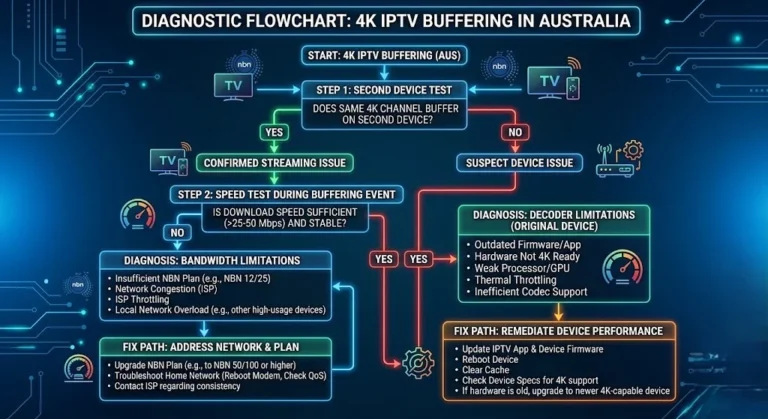
When 4K channels fail while HD channels play normally, there are only two possible causes: bandwidth or decode capability.
Bandwidth. Run a speed test at 9 PM AEST, not at midday. Stable 4K IPTV needs a sustained 50 Mbps — see the full IPTV speed requirements for Australia. If your peak-hour result sits below that, 4K streams will fail or silently degrade. Compare your result against published NBN speed tiers and typical evening speeds to see whether your plan is underperforming or simply undersized.
Decode capability.
| Device | 4K H.265 Decode |
|---|---|
| Fire TV Stick 4K / 4K Max | Yes |
| Fire TV Stick standard (1st/2nd gen) | No |
| Nvidia Shield / Shield Pro | Yes |
| Apple TV 4K | Yes |
| Chromecast with Google TV | Yes |
| Mecool KM2 Plus | Yes |
| Roku Streaming Stick 4K | Yes |
| Roku Express (HD models) | No |
If your device cannot decode 4K H.265, switch to the HD version of the channel where your provider offers one. For upgrade guidance, see 4K IPTV devices for Australia, and for 4K-specific stalling, see IPTV Australia 4K buffering fix.
Fix 7 — Device-Specific Failures
Some failures occur on one device and nowhere else on the same subscription.
Samsung smart TVs. Samsung’s Tizen platform has a long-documented memory handling issue in its built-in media player that causes IPTV apps to crash after roughly 45–90 minutes of continuous playback. A subscriber cannot patch this issue. The practical workaround is to add a Fire TV Stick 4K and run TiviMate rather than relying on the TV’s own app. See smart TV IPTV troubleshooting for the full sequence.
Roku. Roku does not permit sideloading, so your app options are limited to what is published in the Roku Channel Store. Most IPTV apps available there support HLS but not MPEG-TS. If a Roku shows a playback error while the same channel plays fine on another device, set your playlist to HLS (Fix 2) before assuming anything is broken. Older HD-only Roku models also lack H.265 decode entirely.
Standard Fire TV Stick (non-4K). The 1 GB of RAM on older models runs out during extended sessions, and the app fails once memory is exhausted. To prevent issues during long viewing sessions, users should clear the app cache as a short-term measure; upgrading to a Fire TV Stick 4K provides a more durable solution. See Fire TV Stick IPTV troubleshooting.
Android boxes from before 2019. These can often play H.265 through MX Player’s software decoder, but expect visible frame drops at higher bitrates. Ask your provider whether H.264 versions of the channels exist or move to a current box. See Android box IPTV troubleshooting.
If the app closes itself rather than failing to play, that is a separate fault—see IPTV app crashes: solutions and tips.
Fix 8 — Rule Out an Outdated App or Device
If playback was working and broke after an update—or after a long period without one—the build itself may be the fault.
Check whether your Fire TV is outdated: Settings → My Fire TV → About → Check for Updates. Amazon stopped issuing feature updates for 1st and 2nd generation Sticks, so if yours has not received anything in over a year, it has reached the end of support rather than being broken.
Check your IPTV app version. Sideloaded APKs do not auto-update. A build that is two or three versions behind can lose compatibility when a provider changes its stream packaging — see IPTV app updates and compatibility. Reinstall using the current APK supplied by your provider or from the official store listing, if one exists.
Reinstall only if necessary. Uninstalling and reinstalling clears corrupted app data that a cache clear does not touch. Before you do so, please record your server URL, username, and password, as a reinstall will wipe them.
9 — Is It Your Provider, or Is It You? 9 — Is It Your Provider, or Is It You?
Before spending an evening on settings, check whether the fault is yours to fix.
Test on an entirely different network. Turn off Wi-Fi on your phone, connect the IPTV app over mobile data, and play a channel that was failing.
- Works on mobile data, fails on home Wi-Fi → the issue is your home network or your ISP’s route, not your provider.
- Fails on both → the fault is at the provider’s end, and no amount of local troubleshooting will fix it.
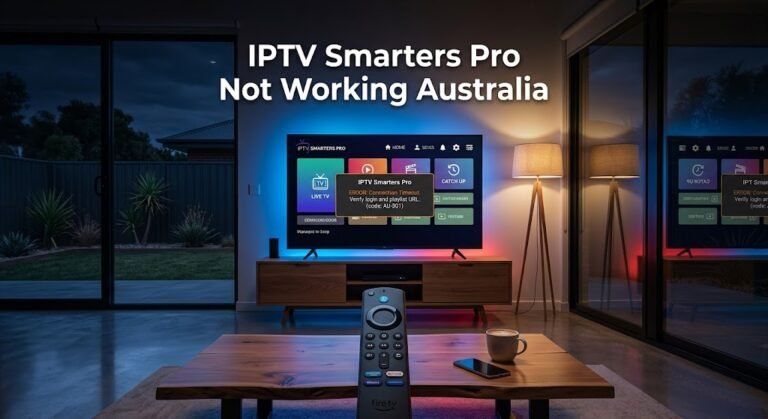
If your app returns a numbered code rather than a plain message, match it against the IPTV error codes guide for Australia. For IPTV Smarters Pro specifically, see IPTV Smarters Pro not working in Australia.
Test a second channel from a different group. If one sports channel fails while general entertainment channels play, that single stream is down. If everything fails, the server or your playlist is the issue—refresh the playlist per Solution 3 before contacting support.
Live event channels are a special case. Many are only active during scheduled broadcast windows and return a playback error at all other times. This is normal behaviour, not a fault, and it is the single most misdiagnosed cause of “stream failed to load” reports I see.
When Your ISP Is the Obstacle
A recurring question from Australian viewers is whether their internet provider is blocking IPTV traffic outright. The accurate answer is more specific than most sources make it sound.
Australian ISPs do not block IPTV as a category, and they only inspect or throttle streaming protocols when required by law. What does happen is domain-level blocking: under section 115A of the Copyright Act 1968, rights holders can apply to the Federal Court for orders requiring ISPs to block access to specific overseas domains found to facilitate copyright infringement.
Telstra, Optus, TPG, Vodafone, and others then block those named domains at the DNS level. You can find more in-depth coverage of this topic in ISP blocking of IPTV in Australia and in IPTV laws in Australia.
The practical implication is straightforward. If a service’s domain has been blocked under a court order, that is a legal outcome, not a technical fault—and it is not something a settings change is meant to resolve.
If you find your service unreachable while every other site loads normally, the appropriate response is to raise it with your provider and, if the service is not operating lawfully, to move to one that is—see how to identify a legal IPTV provider and if IPTV is legal in Australia. This site does not provide guidance on circumventing court-ordered blocks.
This section is general information about Australian law, not legal advice.
Resolution Summary
| Fix | Root Cause | Primary Symptom | Time |
|---|---|---|---|
| 1 — External player | Codec incompatibility (H.265) | Black screen or instant error | 3–5 min |
| 2 — Stream type | HLS/MPEG-TS mismatch | Instant failure | 1 min |
| 3 — Refresh playlist | Expired cached stream URLs | All channels fail at once | 2 min |
| 4 — Network delivery | Network layer failure | Loader that never resolves | 5 min |
| 5 — Buffer size | Buffer depletion | Plays 10–30 sec, stops | 2 min |
| 6 — 4K requirements | Bandwidth or decode limit | Only 4K channels fail | 5 min |
| 7 — Device-specific | Hardware or firmware limit | One device fails, others fine | 5–15 min |
| 8 — Outdated app | Version incompatibility | Broke after an update | 5 min |
| 9 — Provider check | Server-side or scheduled stream | Nothing local changes it | 3 min |
Wrap-Up
The majority of IPTV playback failure errors in Australia in 2026 are resolved by Fix 1—switching from the built-in player to MX Player or VLC. H.265 codec incompatibility on standard Fire TV Sticks and pre-2019 Android boxes remains the single most common cause, and an external player clears it in under five minutes with no hardware change.
The second most valuable habit is refreshing your playlist before assuming anything is broken. A cached expired stream URL produces an error indistinguishable from a codec fault, and it costs two minutes to rule out.
If a failure survives every fix above, check whether the affected channels are live event streams that only go active during broadcast windows—a pattern that produces the same message as no signal on IPTV. Return to the complete IPTV Troubleshooting Australia hub for every other error type, or work through the IPTV troubleshooting checklist from the top.
Please work through the fixes in order, and you should resolve most IPTV playback failure errors within ten minutes.