
Kevin Brooks | IPTV Troubleshooting Australia
Published: 10 March 2026 · Last updated: August 2026
Quick Answer
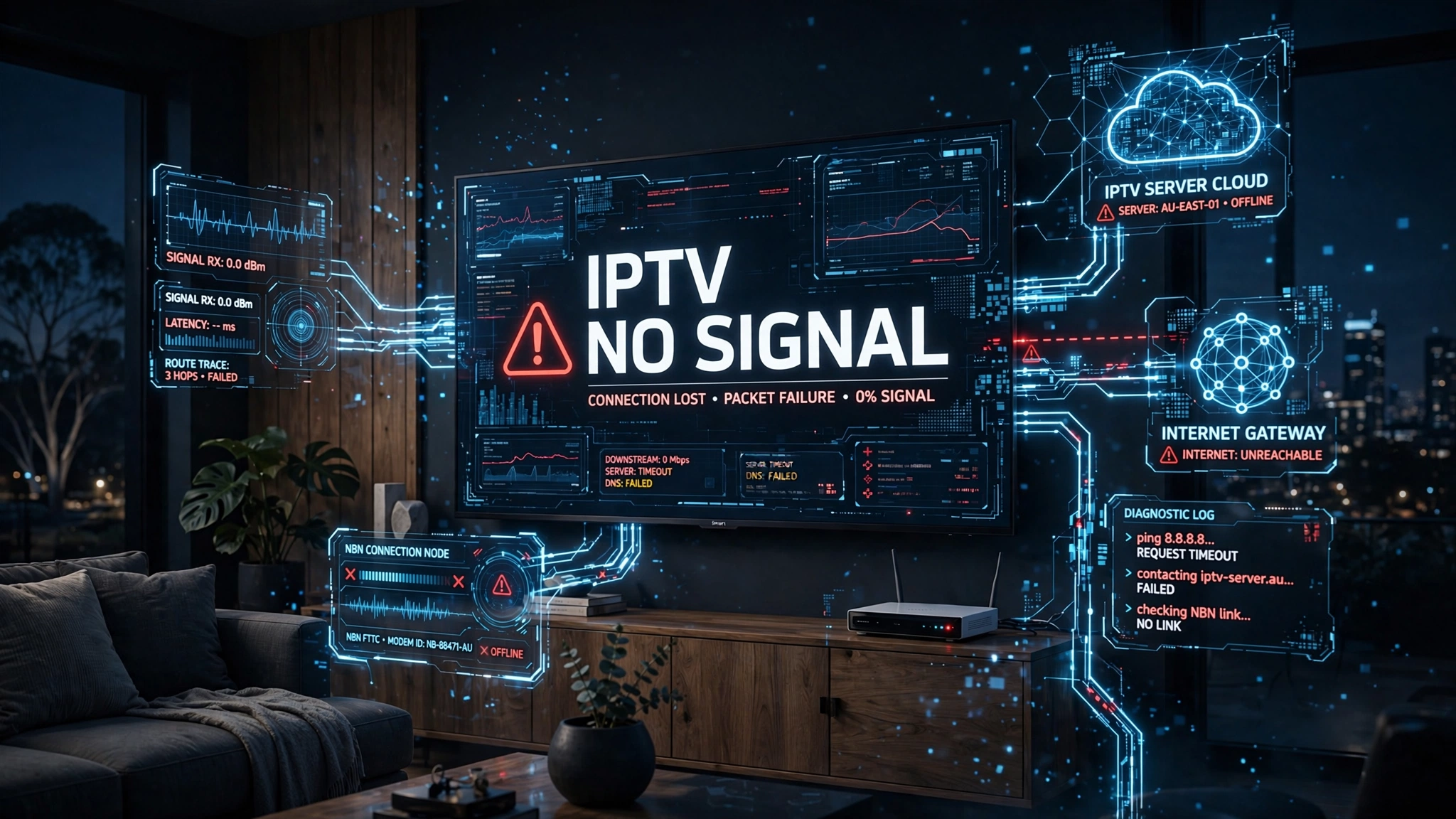
IPTV No Signal Australia errors split into two questions, and answering them in order saves most of the work. First, is the message coming from your television or from inside the app? Second: does it affect every channel or only some? Universal failure points at your connection or your provider’s server. Selective failure points at individual streams. For background on how IPTV delivery works, see the IPTV Australia guide; for other fault types, start at the troubleshooting hub.
Before You Change Anything
Restart the affected channel once and wait 20–30 seconds before changing any settings. Temporary stream interruptions sometimes clear on their own, and changing several settings at once makes the real cause much harder to identify afterwards.
Which “No Signal” Are You Seeing?
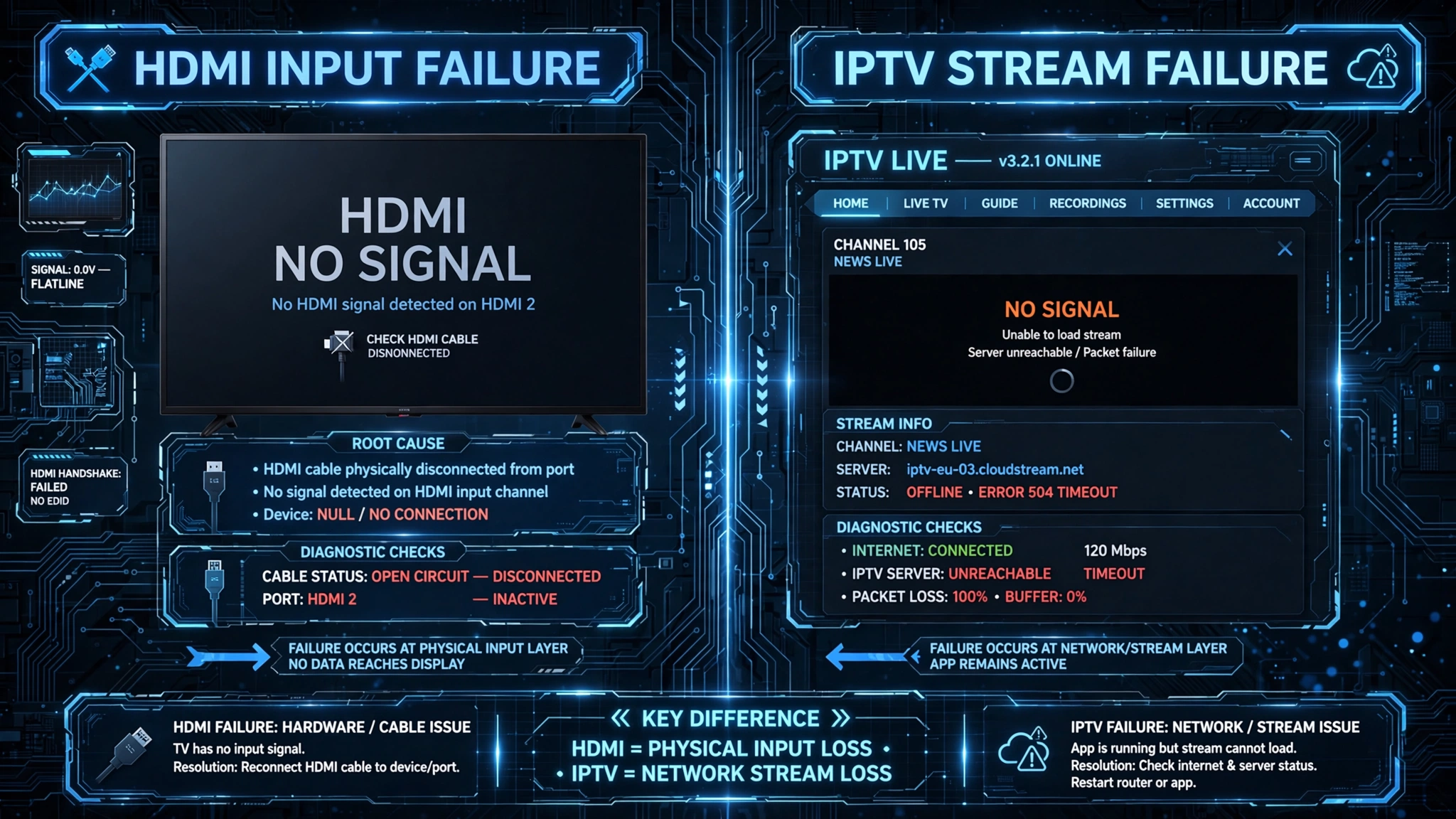
There are two entirely different “No Signal” messages, and they have nothing to do with each other.
If your TV displays No Signal on a blank screen, it is not receiving any HDMI video input. Check the HDMI cable, try another HDMI port, or restart the streaming device before troubleshooting your IPTV app at all.
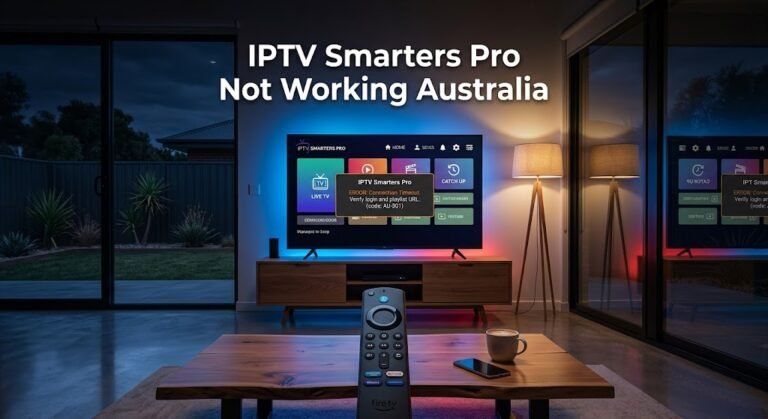
If the IPTV app displays No Signal while the interface is still visible, the app is running but cannot play the stream. In that case, continue with the checks in this guide.
| What you see | Usually means |
|---|---|
| Black screen, TV says “No Signal” | HDMI cable, input, or device connection |
| IPTV app opens but shows “No Signal” | Playlist, stream, or provider issue |
Key takeaway: a ‘No Signal’ message on a blank screen is a hardware connection problem, while the same words inside a working app point to the stream.
What “No Signal” Actually Means on IPTV
Unlike satellite or aerial television, no physical signal is involved. IPTV arrives over your internet connection as data packets, so “No Signal” is the app’s way of saying it connected to a stream address and received nothing back.
That distinction shapes the entire diagnosis:
- Nothing comes back from every stream — the problem sits before the streams: your connection, your provider’s authentication server, or an expired playlist
- Nothing comes back from specific streams — those particular sources are inactive, their CDN node is down, or the URL in your playlist has changed
A CDN (Content Delivery Network) is the distributed server network that carries the stream from the provider to you. An M3U playlist is the text file listing every channel and its stream address; Xtream Codes is the alternative login method using a server URL, username and password.
Start Here — Match Your Symptom
| Symptom | Most likely cause | Start with |
|---|---|---|
| Every channel, all at once | Internet outage or provider server down | Fix 1, Fix 3 |
| Most channels work, a few work | Partial provider outage | Fix 3, Fix 4 |
| Sport channels only | Event stream not activated yet | Fix 6 |
| One channel, others fine | Dead or changed stream URL | Fix 7 |
| Started after switching provider | Old playlist still loaded | Fix 8 |
| Started after a device restart | The app lost its server connection | Fix 5 |
| Smart TV only; phone works | Device network or app state | Fix 9 |
| Comes and goes | Network or stream instability | Fix 10 |
IPTV No Signal Australia: When Every Channel Fails
Universal failure narrows the field quickly. Work through these five in order.
Fix 1 — Confirm the Internet Is Working
An internet outage produces exactly the same display as a provider outage. They are indistinguishable from inside the app, so rule the internet out first.
On the same device showing No Signal, open YouTube or a browser. If that also fails, your connection is down.
Restarting an NBN Connection Properly
Order matters on NBN, and most people get it wrong:
- Unplug the NBN Connection Box (NCB/NTD) power
- Wait 30 seconds
- Unplug the router power
- Wait 30 seconds
- Replug the NCB/NTD first and wait for the connection light to stabilise — up to two minutes
- Only then replug the router, and wait until it is fully online
Restarting the router alone while the NTD stays in a faulted state achieves nothing. If the connection stays down afterwards, check NBN Co’s service status or your ISP’s outage page.
Fix 2 — Quick Network Isolation Test (Hotspot Check)
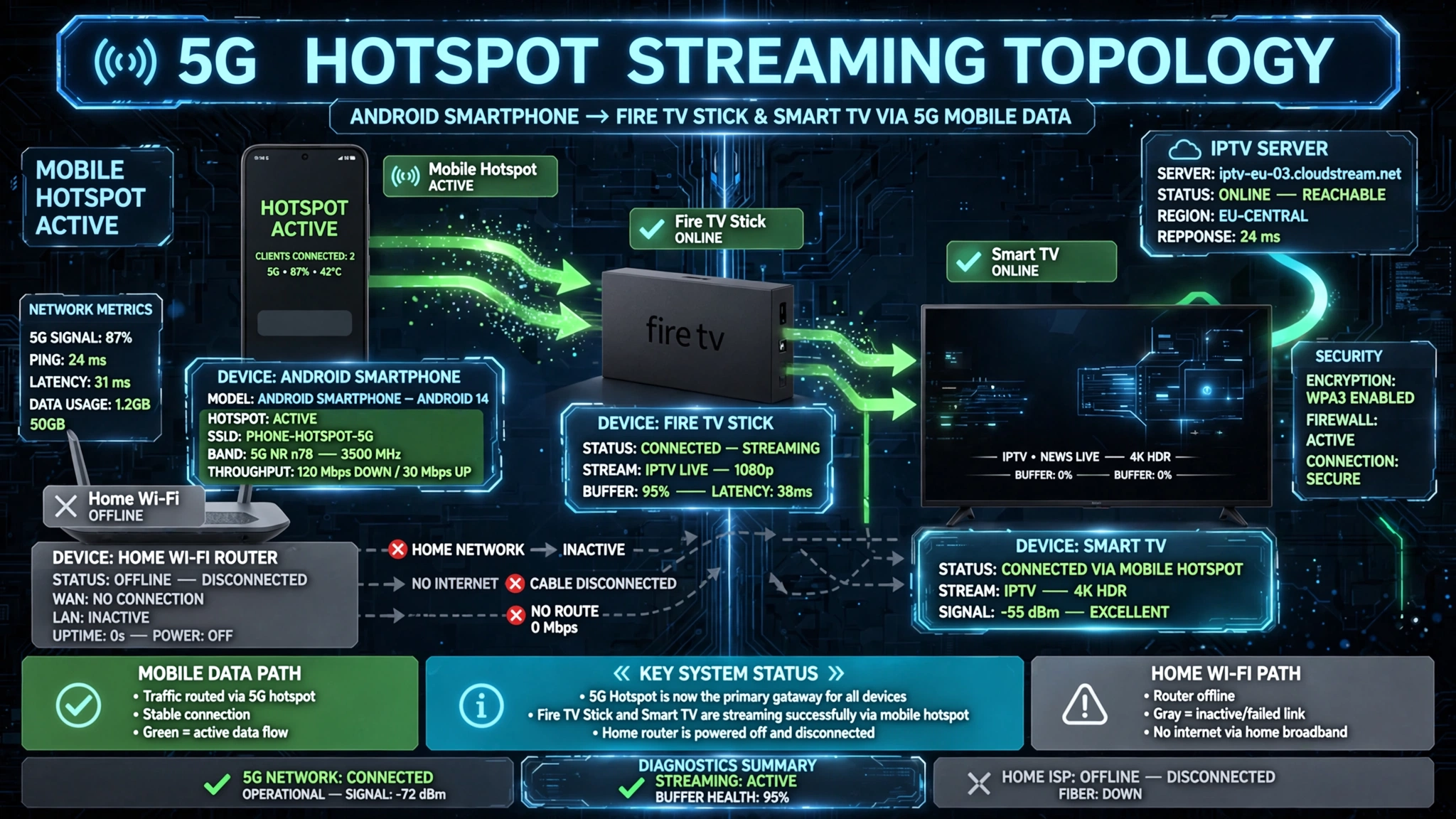
This is the fastest way to separate a home network problem from everything else, and it takes two minutes.
Connect your streaming device to your phone’s mobile hotspot and test the same channel again.
- If it still shows No Signal, the problem is unlikely to be your home internet connection
- If it works on the hotspot but not on your home Wi-Fi: the difference points to something on the home network or ISP path rather than the IPTV app itself
If you normally use a VPN, disconnect it before repeating the hotspot test. A VPN changes the network path and makes the comparison unreliable.
Before assuming ISP filtering, rule out router settings, DNS configuration, VPN software, and firewall features that could affect streaming. Any of these can produce the same result.
Key takeaway: a two-minute hotspot test separates a home network fault from an app, subscription or provider fault before you change a single setting.
Fix 3 — Check Provider Server Status
If your connection is fine but every channel fails, the provider’s server may be down.
The browser test: open a browser and navigate to it http://[your-server]:[port]/player_api.php?username=[user]&password=[pass] using your own credentials.
- Page does not load, or returns an error → the server is unreachable
- Page loads showing your account details → the server is up, and the fault is in your app or playlist
Most providers announce outages through whichever channel they normally use for updates. Check there before spending time on local troubleshooting.
A provider outage cannot be fixed at your end. Note when it started, and contact them if it runs past a few hours.
Fix 4 — Force a Playlist Refresh
Providers update stream URLs periodically, sometimes after server migrations. A playlist you last refreshed weeks ago may hold addresses that no longer return anything.
| App | Path |
|---|---|
| TiviMate | Settings → Playlists → → Update |
| IPTV Smarters Pro | Settings → Playlists → → Reload |
Refreshing takes between 30 seconds and two minutes depending on playlist size. In TiviMate you can set this to happen automatically: Settings → Playlists → → Update Interval → Every Day.
Fix 5 — Reconnect After a Device Restart
Some apps lose their server connection when a device reboots and do not reconnect on their own. Every channel then shows ‘No Signal’ despite a working connection and a working server.
Force-close the app through your device settings, wait ten seconds, relaunch, and allow up to a minute for the channel list to reload. If channels still fail after the list loads, run a playlist update to force a fresh server connection.
When Only Some Channels Fail
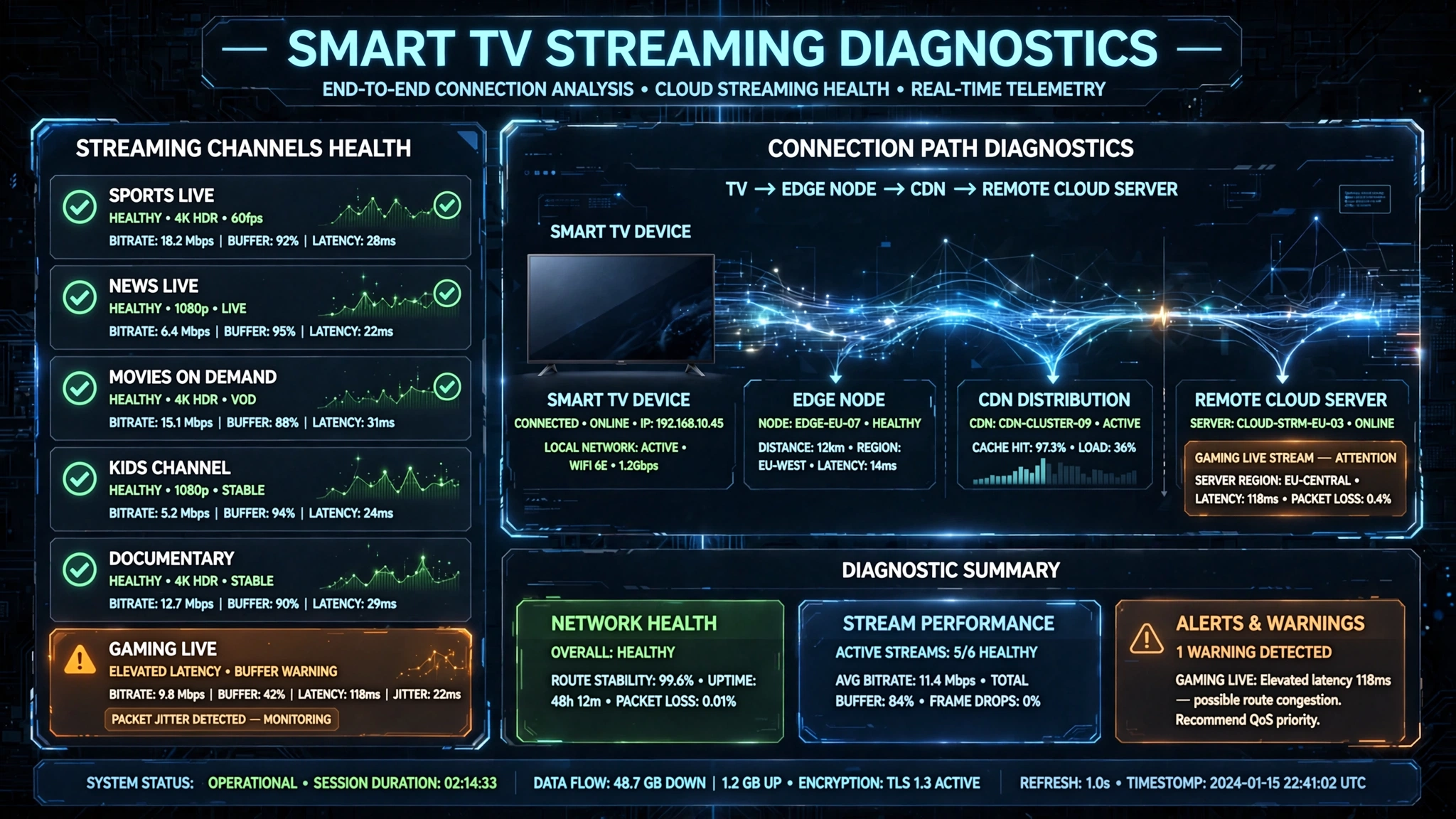
Selective failure is a different problem entirely, and the fixes above will not touch it.
Fix 6 — Live Event Channels Before Kick-Off
Sport and event channels are not continuously active. The provider switches them on when the event begins and off when it ends, so opening one outside its broadcast window produces a ‘No Signal’ error that is entirely expected.
You are looking at this case if sport or event channels fail while news and entertainment play normally, the channel name references a specific fixture, and the scheduled start time has not arrived.
Event streams typically activate shortly before the scheduled start. Nothing needs fixing — the error clears when the provider activates the stream.
Key takeaway: a sport channel showing No Signal hours before the fixture is normal behaviour, not a fault.
Fix 7 — Dead or Changed Channel URLs
When one non-sport channel consistently fails while everything else works, the stream address has changed on the provider’s side while your local playlist still holds the old one.
- Force a full playlist refresh — always the first step for a single-channel failure
- If it still fails, search your provider’s current channel list; it may have been renamed or moved category
- If it has gone entirely, confirm with your provider whether it remains part of your package
Channels do get removed when licensing arrangements change. That is a package question, not a technical one.
Fix 8 — After Switching Provider
If you recently changed providers or received a new server URL, the old playlist still points at a server that no longer recognises your account.
Enter the new credentials as a fresh playlist, confirm it loads, then delete the old one. With an M3U connection, the new URL replaces the old one entirely — M3U links contain your credentials inside the address, so there is nothing to merge.
Device-Specific Causes
Fix 9 — Smart TV Only, Phone Works
When the same account works on a phone but not the television, the fault is the TV’s network or app state rather than your subscription.
| Cause | Fix |
|---|---|
| Weak 2.4 GHz Wi-Fi | Switch to 5 GHz, or use the TV’s Ethernet port |
| Corrupted app cache | TV Settings → Apps → [IPTV app] → Clear Cache |
| DNS configuration | Change the TV’s DNS to a public resolver such as 8.8.8.8 |
| OS update broke app compatibility | Reinstall the app, or use an external streaming device via HDMI |
Built-in smart TV apps are consistently more limited than dedicated streaming devices. Where a TV app keeps failing after these steps, an external device on the same screen is usually the more durable answer than continued troubleshooting. See smart TV IPTV troubleshooting for the full diagnosis.
Fix 10 — Intermittent Signal Loss
When the signal appears, drops, and then recovers, the cause is instability rather than a clean outage.
- Provider CDN instability — if the node serving Australian subscribers is struggling, streams from it drop unpredictably. Ask your provider whether an alternative server is available
- Network packet loss — on HFC and fixed wireless connections at peak hours, loss can be heavy enough that the app reads it as signal loss. Test on Ethernet
- Router overheating — Australian summers are hard on routers in enclosed entertainment units. Poor ventilation produces exactly this pattern of intermittent drops
For deeper network diagnosis, see buffering fixes for Australian ISPs.
When to Contact Your Provider
Some causes cannot be resolved locally, and recognising them saves an evening.
What to Tell Support
Providing this upfront avoids being sent back through steps you have already tried:
- Which channels are affected, by name
- Whether every channel fails or only some
- Which app and which device
- Connection type: Wi-Fi, Ethernet, or hotspot
- What you have already tested
When Support Is the Right Next Step
Contact them when the browser test in Fix 3 fails, when a specific channel stays dead after a full playlist refresh, when the fault appears on more than one device on the same account, or when everything above passes and channels still fail. That last combination often points to an account-level issue such as expiry, suspension, or an IP restriction — none of which show a distinct error message.
Key takeaway: universal failure with a working internet connection and a working browser test usually means an account-level problem rather than a technical one.
Where to Go Next
If the message came from your TV rather than the app, the fix is at the HDMI connection, not in your playlist. If it came from the app, work through the universal checks first, then the channel-specific ones.
For every other fault category, return to the IPTV Troubleshooting Australia hub.
Related guides: channel not loading · playback failed · login failed · error codes explained
This article is for educational purposes only. Verify the licensing status of any streaming service and ensure compliance with Australian copyright law before subscribing.
Sources
- NBN Co network status — outage and service checks
- ACMA — regulatory framework