
Kevin Brooks | IPTV Troubleshooting Australia
Published: 11 March 2026 · Last updated: August 2026
Quick Answer
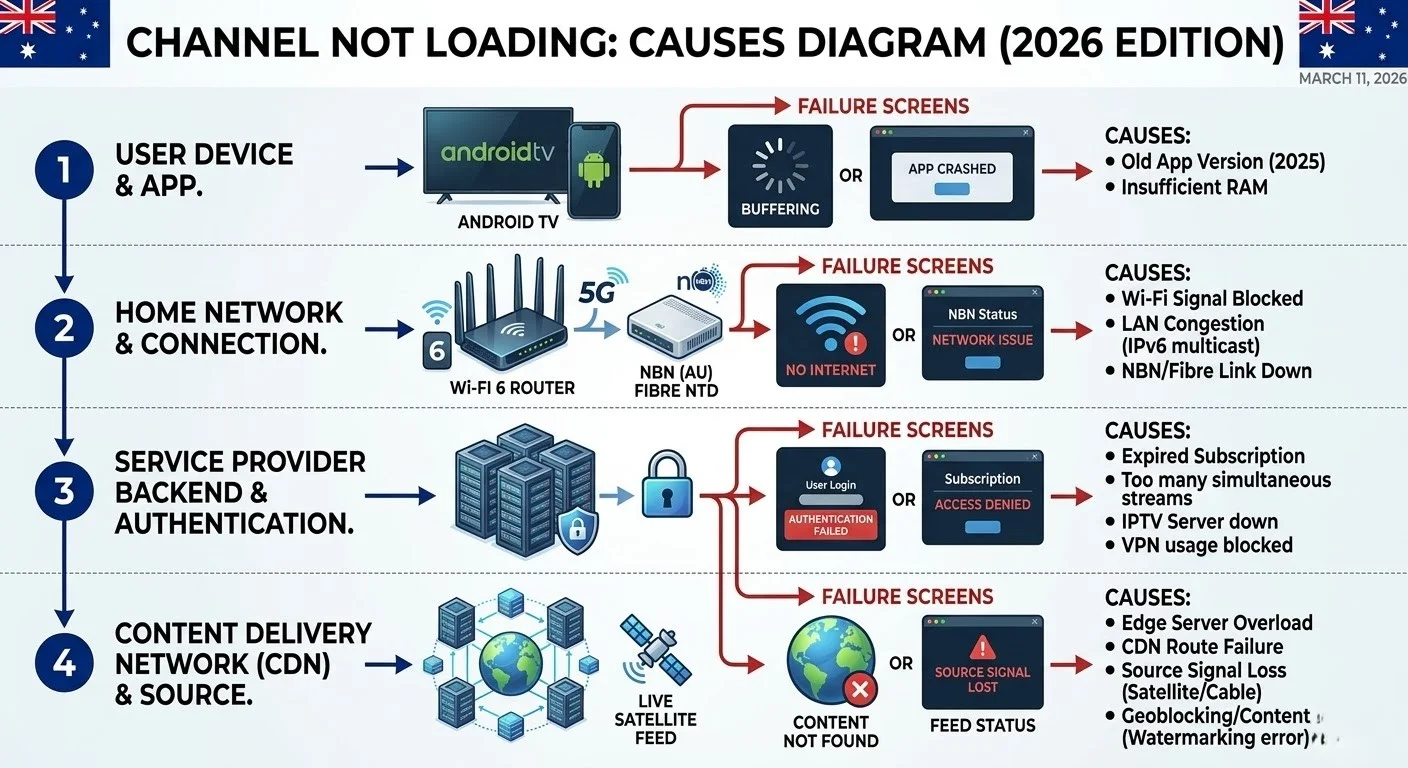
IPTV channel not loading problems are split into three unrelated faults, and applying the wrong set of fixes is why people spend an evening getting nowhere. A channel list that will not load at all is an account problem. A channel that opens then stutters is a network problem. A channel that never opens is a stream problem. Establish which one you have before changing a single setting. For background on how IPTV delivery works, see the IPTV Australia guide.
What Changed Just Before It Broke?
| What changed | Check first |
|---|---|
| New subscription | Playlist and credentials |
| The trial ended | Server URL — Fix 2 |
| New device | App settings and cache |
| New router or ISP | Network — Fix 6 |
| Nothing changed | Provider or the channel itself |
The last row matters. When genuinely nothing changed on your end, something changed on theirs.
Which Problem Do You Actually Have?
This is the section that most guides skip, and when they skip it, they waste so much troubleshooting time.
The symptom itself is the first diagnostic tool. Before changing settings, identify whether the problem affects the playlist, the stream, or the network.
Three Different Faults, Three Different Fixes
| What you see | This is | Where to go |
|---|---|---|
| The channel list empty or will not load at all | Playlist or account problem | Fix 1–3 |
| List loads, channel opens, then stutters | Network or stream delivery | Buffering guide |
| List loads, channel never opens | Stream or channel problem | Fix 4–11 |
| Some channels missing from the list entirely | Data or display problem | Fix 4 |
There is a practical difference between a channel that plays badly and a channel that never opens. A channel that opens and then stutters has a working stream and a delivery problem. A channel that never opens has a broken stream behind it.
Those are not variations of one fault. They are separate problems, and buffer settings will not help a channel that never appears.
Key takeaway: a channel that opens then stutters is a network problem; a channel that never opens is a stream problem. The fixes do not overlap.
What This Guide Is Not
| If you see | Read instead |
|---|---|
| Buffering or stuttering during playback | Buffering fixes |
| Login failed or authorisation error | Login failed |
| No signal message | No signal on IPTV |
| Playback failed error | Playback failed |
| Audio ahead of or behind picture | Audio out of sync |
Before You Change Anything
Try the same channel twice, waiting twenty seconds between attempts. Streams do drop briefly and recover on their own, and changing five settings at once makes the actual cause impossible to identify afterwards.
Then note two things: whether other channels work and whether the failing channels share anything — the same category, the same region, or the same quality tier.
Start Here — Match Your Symptom
| Symptom | Most likely cause | Time | Start with |
|---|---|---|---|
| Every channel fails | Account, server URL, or outage | 2 min | Fix 1–3 |
| Most work; some do not | Stale link or dead channel | 1 min | Fix 1 |
| I worked yesterday, not today | The stream address changed | 1 min | Fix 1 |
| Started after a trial ended | Trial server URL still in use | 2 min | Fix 2 |
| Channels missing from the list | Group or display issue | 1 min | Fix 4 |
| Works on mobile data, not home Wi-Fi | Network path | 2 min | Fix 6 |
| Sport channels only, during a fixture | Stream load or event timing | — | Fix 9 |
| Fails on TV, works on phone | Device or player | 3 min | Fix 11 |
IPTV Channel Not Loading: Playlist and Account Checks
Start here when every channel fails or when channels that worked yesterday stop today.
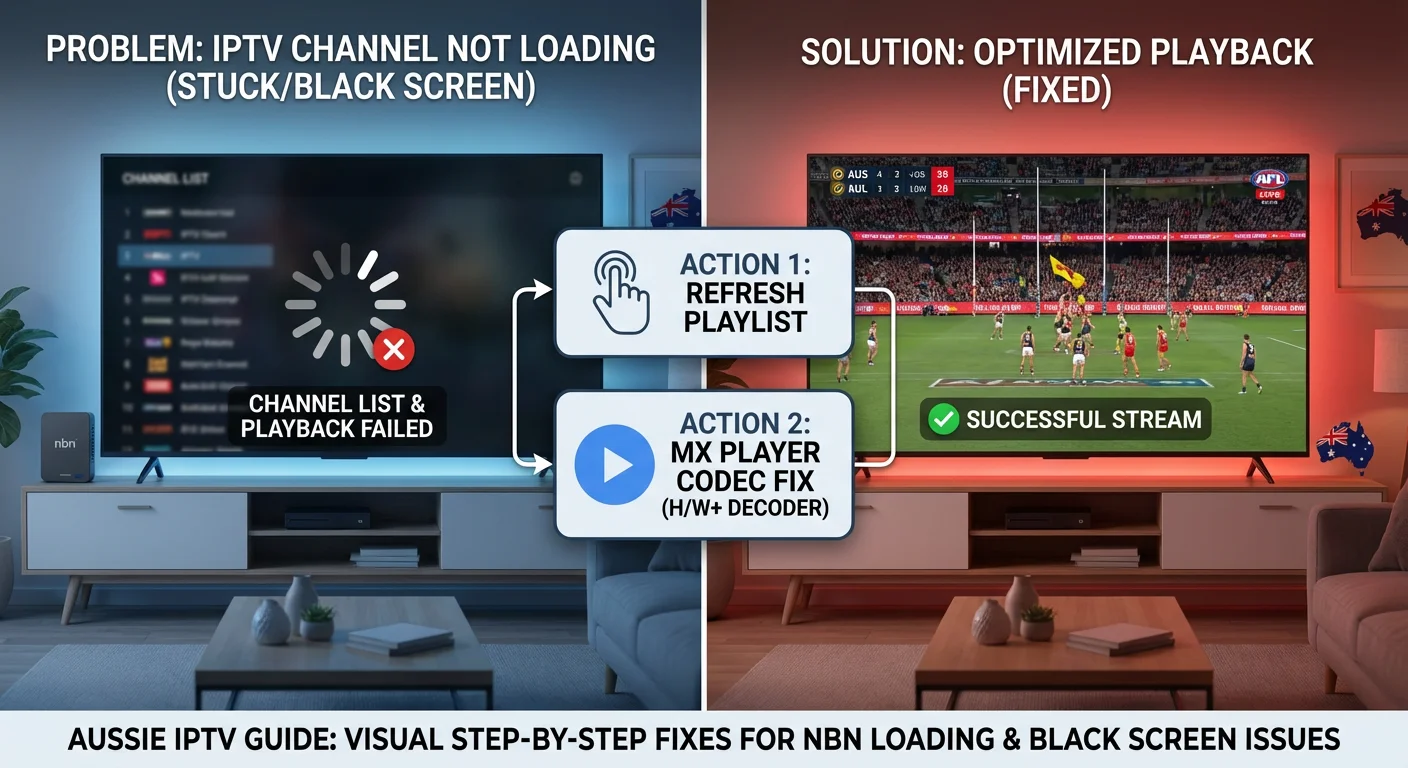
Fix 1 — Refresh the Playlist
Providers change stream addresses periodically, usually after server work. Your app holds whatever it downloaded last time, so a playlist you refreshed weeks ago may point at addresses that no longer exist.
| App | Path |
|---|---|
| TiviMate | Settings → Playlists → → Update |
| IPTV Smarters Pro | Settings → Playlists → → Reload |
| GSE Smart IPTV | Remote Playlists → pull down to refresh |
Refreshing does not repair the stream itself. It downloads the current channel list and stream addresses from your provider, so if a channel has moved to a new address, your app starts using the new location instead of the old one.
This is the first thing to try for any channel failure, and it resolves a large share of them outright. Refreshing takes between thirty seconds and two minutes depending on list size.
In Tivimate, you can automate this: Settings → Playlists → → Update Interval → Every Day. That keeps addresses current without you thinking about it.
Fix 2 — Is Your Server URL Still Valid?
A trial link is not the same as a subscription link, and this catches people out regularly.
Free trial credentials are issued with an expiry. Once past it, channels stop loading while everything else looks completely normal — the app opens, the channel list appears, and nothing plays. There is no error explaining why.
If you started on a trial and later subscribed, check that you replaced the trial server URL with the permanent one. Continuing on the trial link after subscribing produces exactly this pattern, and no amount of playlist refreshing will fix it because the refresh is reaching a server that no longer recognises the account.
Compare the server URL in your app against the one in your subscription message. If they differ, that is your answer.
Key takeaway: an expired trial URL fails silently — the list loads, nothing plays, and refreshing changes nothing because the address itself is no longer valid.
Fix 3 — Ask Your Provider for an Updated Link
Where a refresh does not help and the URL matches what you were issued, the next step is asking your provider whether the server address has changed.
Providers sometimes move servers and issue new links, and the notification is easy to miss. They can also confirm whether the account is active and whether the specific channels you are missing are still in your package.
There is no single IPTV status page, because thousands of independent providers operate separately — an outage affecting one has nothing to do with another. The only reliable check is your provider’s own communication channel. The No Signal guide covers how to tell a provider outage from a local fault.
When the Channels Exist but Do Not Appear
This is a different problem from a channel that will not play, and it has a different fix.
Fix 4 — The Search Test
If channels are missing from the list rather than failing to open, use your app’s search function and type the exact name of a channel you know should be there.
If the search finds the channel, it is downloaded correctly but may be hidden due to a blank group title or an unrenderable character. Check your category filters and hidden groups in app settings.
If search does not find it, the channel genuinely is not in your playlist. Refresh, and if it still does not appear, ask your provider whether it remains in your package.
This test takes fifteen seconds and separates a display problem from a data problem, which no amount of restarting will do on its own.
Fix 5 — Restart the App Fully
Force-close the app rather than backing out of it, wait ten seconds, and relaunch. This clears active memory and forces a fresh load of the channel list on launch.
Where that does not help, clear the cache, which removes temporary files while keeping your login. Clearing data resets everything, including credentials, so treat it as a later step rather than an early one.
When the Network Is Blocking the Stream
Some networks interfere with streaming traffic in ways that look exactly like a provider problem.
Fix 6 — Hotspot Isolation Test
Connect your streaming device to your phone’s mobile hotspot and try the same channel.
- Still fails → the problem is unlikely to be your home network
- Works on hotspot → something on the home network or ISP path is involved
If it works on the hotspot, continue with the ISP blocking IPTV guide for additional network checks.
This takes two minutes and rules out an entire category. If you use a VPN, disconnect it first — it changes the network path and makes the comparison meaningless.
Fix 7 — Change Your DNS
If the hotspot test pointed at your home network, DNS is worth trying before anything more complicated.
In some cases, DNS settings can prevent a device from resolving the server address correctly. Switching temporarily to a public resolver such as Cloudflare (1.1.1.1) or Google Public DNS (8.8.8.8) is a simple diagnostic step that helps determine whether name resolution is contributing to the problem.
You can change this on the device or the router. Device-level is easier to reverse if it makes no difference.
Key takeaway: if IPTV works on mobile data but not on your home connection, changing DNS is a quick way to determine whether name resolution is part of the problem before changing more complex network settings.
Fix 8 — Router Filtering
Some routers, and most parental control or security suites, block hosts they do not recognise. Look for content filtering or firewall rules in your router’s admin panel and check whether streaming traffic is affected.
This is worth checking specifically if the problem started after you changed routers, changed internet providers, or enabled a security feature.
When Only Some Channels Fail
Selective failure narrows things considerably, because whatever is wrong is not affecting your account or your connection.
Fix 9 — Sport Channels Under Load
Live sports channels often experience heavier demand than regular entertainment channels during major events. If only those channels are affected while others continue to play normally, the issue may be related to temporary stream load rather than your device or home network.
Two things follow from that. A sport channel failing during a major fixture and working normally afterwards points at demand rather than a fault. And event channels are frequently not active outside their broadcast window at all — the provider switches them on when the event begins, so opening one hours early produces a failure that is expected behaviour.
Key takeaway: sport channels failing during a fixture while everything else plays normally usually reflects stream demand, not a fault in your setup.
Fix 10 — A Dead Channel or a Stale Link?
For a single channel that consistently fails while everything else works:
- Refresh the playlist — this replaces a stale address if that is the cause
- Test the same channel on another device on the same account — if it fails there too, the channel is the problem rather than your device
- If it still fails everywhere after a refresh, the channel is either gone or its source is down
Channels do disappear when licensing arrangements change, and that is a package question for your provider rather than something to troubleshoot.
Fix 11 — Try a Different Player
Where a channel opens in one app and not another, the app’s handling of that stream is the limitation rather than the stream itself.
| Player | When to try it |
|---|---|
| Your built-in player | Default starting point |
| VLC | Confirm whether the app is the cause |
| MX Player | Alternative decoder on Android |
| Just Player | Android TV |
When a Different Player Helps
If the same channel plays in another player using the same playlist, the stream itself is probably working. The difference lies in how the original player handles decoding or playback.
Installing a second player costs nothing and separates an app problem from a stream problem in a couple of minutes. Some channels are encoded in formats older hardware cannot decode, which produces a black screen or an immediate return to the list — a player with software decoding sometimes handles these where the built-in one cannot.
Preventing It Coming Back
- Set the playlist to refresh automatically rather than only when something breaks
- Replace a trial server URL the moment you subscribe, not later
- Note which channels failed and when — a pattern across fixtures or times of day tells you more than any single incident
- Keep a second player installed purely for testing, so you can rule out the app in a minute
What This Guide Cannot Fix
A channel removed from your provider’s lineup will not come back regardless of what you configure. If a refresh does not restore it and your provider confirms it is gone, that is the end of it.
Very old hardware also has limits — a device that cannot decode a stream format will fail on those channels consistently, and no setting compensates for a decoder that lacks the capability.
And a provider whose channels fail regularly across the board is a provider problem rather than a technical one.
When to Contact Your Provider
Contact them when a refresh has not helped, the server URL matches what you were issued, the channel fails on more than one device, and other channels play normally. Those four together point upstream.
What to Send Support
- The exact channel names affected
- Whether every channel fails or only some
- What you have already tried, including whether you refreshed
- Your device and app
- Whether it works on mobile data
That detail lets them check the source rather than sending you back through steps you have already run.
Legal Considerations
IPTV technology is legal in Australia. What determines legality is the service behind the playlist and whether it holds appropriate content distribution licences.
ACMA, the Australian Communications and Media Authority, is the federal regulator for broadcasting and online content. Under the Copyright Act 1968 (Cth), it can direct internet providers to block sites that facilitate copyright infringement.
On VPNs: using one may carry terms-of-service implications depending on the service involved. In a diagnostic context it is worth disconnecting to rule it out as a variable, not as a workaround.
Full framework: Is IPTV legal in Australia, and what are the relevant Australian IPTV laws?
This article is for educational purposes only. Verify the licensing status of any streaming service and ensure compliance with Australian copyright law before subscribing.
Explore More
Playback and streams
Playback failed · No signal on IPTV · IPTV freezing solutions
Network and performance
Buffering fixes · Slow IPTV streams · ISP blocking IPTV
Account and setup
Login failed · Xtream Codes vs M3U · How to use an M3U playlist · IPTV free trials
Reference
Error codes explained · Troubleshooting hub
Bottom Line
If every channel fails: the fault is your account, your server URL, or the provider. Refresh the playlist, check that you are not still on an expired trial link, then contact your provider. Nothing on the device needs touching.
If most channels work and some do not, refresh first, then test the failing channel on a second device. If it fails everywhere, the channel is the problem, and only your provider can restore it.
If it works on mobile data but not at home, the network path is involved. Try a different DNS resolver before assuming anything about your subscription.
The symptom tells you where to start. Identifying the right fault first usually solves the problem faster than trying every fix in sequence.
For every other fault category, return to the IPTV Troubleshooting Australia hub.
Sources
- ACMA — website blocking powers and regulatory framework