

VPN IPTV issues have a diagnostic problem before they have a technical one. Search the symptom, and you get the same list of fixes everywhere — change server, change protocol, clear cache — with nothing telling you which one applies to your situation. So people work through all of them, and often the fix that finally works was the third one they tried and undid. This guide reverses that: identify the cause first, then apply the one fix that matches. For background on how these connections work, see our IPTV Australia guide.
Quick Answer
VPN IPTV issues come from three distinct causes: your IPTV provider refusing the VPN server’s IP address, added routing distance degrading the stream, or your VPN’s kill switch cutting traffic during reconnection. A two-minute test identifies which one you have before you change any setting.
What a VPN is: A VPN (Virtual Private Network) routes your internet traffic through an intermediary server, encrypting it and replacing your home IP address with the server’s. Both of those effects — the encryption and the substituted address — can interact badly with IPTV in ways covered below.
Which Symptom Do You Have?
Match what you’re actually seeing before reading further. The three patterns have different causes and share almost no fixes.
| What you see | Most likely cause | Section |
|---|---|---|
| Login fails the moment the VPN connects; works fine without it | Likely the IPTV provider refusing the VPN server’s IP address | Is Your VPN Actually Blocking It? |
| Stream plays but buffers, stutters, or drops quality on VPN | Likely added routing distance between you and the provider’s server | The Distance Problem |
| The stream cuts out for several seconds at random, then recovers | Possibly a kill switch severing traffic during VPN reconnection | When the VPN Is the Solution |
| Everything fails on VPN and without it | Not a VPN problem at all | IPTV Login Failed |
| Streams degrade only in the evening, VPN or not | Possible ISP-side congestion, traffic management, or peak-hour network conditions | When the VPN Is the Solution |
If more than one row matches, run the test in the next section — overlapping symptoms are exactly what it’s designed to separate.
The Two-Minute Test That Narrows Down the Cause

Every fix below depends on knowing which side of the connection is failing, and there is one test that establishes it. Do this before changing any setting, because changing settings first destroys the evidence you need.
Step 1 — Disconnect the VPN completely. Not paused, not split-tunnelled. Confirm the app reads disconnected.
Step 2 — Force-close the IPTV app and reopen it. This matters. Some players may retain a failed connection state until the app is restarted, so an app left running can give you a false result.
Step 3 — Attempt login and play a channel for two full minutes. Two minutes, not ten seconds — buffering problems often don’t surface immediately.
Then read the result:
| Without VPN | Conclusion | Where to go |
|---|---|---|
| Everything works normally | The VPN is the cause | Is Your VPN Actually Blocking It? |
| Login works, but it still buffers | The VPN was making an existing problem worse, not creating it | The Distance Problem |
| Login still fails | The VPN is not involved — this is a credential, subscription or provider issue | IPTV Login Failed |
| Worse without VPN than with it | Your ISP is likely the limiting factor | When the VPN Is the Solution |
That last row is the one people miss. If the stream is better with the VPN active, the VPN isn’t your problem — it’s compensating for something else, and disabling it permanently would make things worse.
Key takeaway: disconnect the VPN, restart the IPTV app, and test for two minutes — the result narrows the cause to one of three areas before you change any setting.
Why Is IPTV Not Working with VPN?

IPTV usually stops working with a VPN because the provider’s server sees the VPN’s IP address instead of your home one, and rejects it. Many services maintain lists of known VPN address ranges to limit account sharing. The rejection surfaces as a login failure, which looks identical to a wrong password.
That confusion is the practical difficulty. The error your app displays is generated by the app, not the provider, and players generally have one failure message covering every rejected connection. A refused IP and a mistyped password produce the same screen.
Two details separate them. A credential error fails identically with and without the VPN — the test above catches this immediately. And an IP rejection often appears suddenly on a setup that worked for months, because address ranges get added to blocklists over time without anything changing on your end.
There is a third possibility worth ruling out: some players may retain a failed authentication state and keep presenting it even after the underlying cause is fixed. If you’ve changed a setting and the same error persists, clear the app’s cache and try again before assuming the change didn’t work.
Is NordVPN Actually Blocking Your IPTV?
No — a VPN service does not block IPTV. NordVPN, ExpressVPN and other providers route your traffic; they do not inspect it or decide which services you may reach. When IPTV fails on a VPN, the refusal is coming from the IPTV provider’s server, which is rejecting the address the VPN assigned you.
This is a common enough search that it’s worth stating plainly, because the assumption sends people in the wrong direction entirely. If you believe your VPN is blocking the stream, the logical response is to change VPN provider — and the new one will very likely fail the same way, since its address ranges are equally identifiable.
The mechanism is straightforward. Your IPTV provider’s server receives a connection request and can see the source address. Commercial VPN IP ranges can often be identified by services using IP reputation or VPN-detection databases. A provider limiting account sharing has an obvious incentive to refuse connections from addresses that thousands of unrelated users share simultaneously — from their side, a VPN address looks exactly like an account being passed around.
Which means the problem is not your VPN’s quality. It’s that the connection is arriving from an address the provider has decided not to accept, and paying more for a different VPN does not change that.
Key takeaway: a VPN service does not block IPTV — the refusal comes from the IPTV provider rejecting the VPN’s IP address, so switching VPN provider rarely resolves it.
VPN IPTV Issues on Australian Connections: The Distance Problem

There’s a contradiction in the standard advice worth examining, because following both halves of it is impossible.
The usual guidance says two things. First: choose a VPN server geographically close to you, to minimise added latency. Second: if the provider is blocking you, try a server in a different city or country. Those instructions point in opposite directions, and no article explaining them tells you which takes priority.
They point in opposite directions because they solve different problems. Moving to a distant server changes the address you present, which may get you past a block. It also lengthens the physical path every packet travels, which adds delay. You cannot optimise both at once — the choice depends entirely on which problem you actually have, which is why the test above comes first.
This matters more from Australia than most places. A connection routed through Europe or North America travels a very long way before reaching the provider’s server, and the delay is a function of distance and the speed of light through fibre — no VPN can engineer it away. On a video-on-demand service the delay is invisible, because the player buffers ahead. Live IPTV has far less buffer to work with, and authentication has a timeout that a long round trip can exceed.
So the priority order is: if your symptom is a login failure, the address matters and distance is a cost you accept. If your symptom is buffering, distance is the problem and moving further away will make it worse.
Protocol choice sits underneath both. VPN protocols differ in how much overhead they add — WireGuard is a modern protocol designed for lower overhead than older options such as OpenVPN over TCP, which adds retransmission handling that live streaming does not benefit from. If your VPN app offers a protocol choice and you’re troubleshooting buffering, this is worth testing. Published comparisons vary in their conclusions, so treat it as something to try on your own connection rather than a setting with one correct value.
When the VPN Is the Solution, Not the Problem
Sometimes the VPN is what’s holding the stream together, and this is where the “just turn it off” advice does real damage.
Some internet connections apply different handling to different traffic types, and video streaming is a common target during busy evening periods. Because a VPN encrypts traffic before it leaves your device, traffic-type identification becomes harder — which is why some users find streams more stable with the VPN active than without it.
This is exactly the scenario the two-minute test catches with its last row. If the stream degrades when you disconnect the VPN, the VPN is compensating for something upstream. Removing it does not fix anything.
The kill switch is a separate matter and a genuine source of trouble. A kill switch severs all internet traffic if the VPN connection drops, which protects privacy but guarantees that any brief VPN reconnection becomes a visible stream interruption. If your symptom is a stream that cuts out for several seconds at random intervals and then recovers on its own, this is the likely mechanism — and it explains why the drops seem unrelated to anything you’re doing.
You can disable the kill switch, but that trades away the protection you presumably enabled it for. The next section covers a better option.
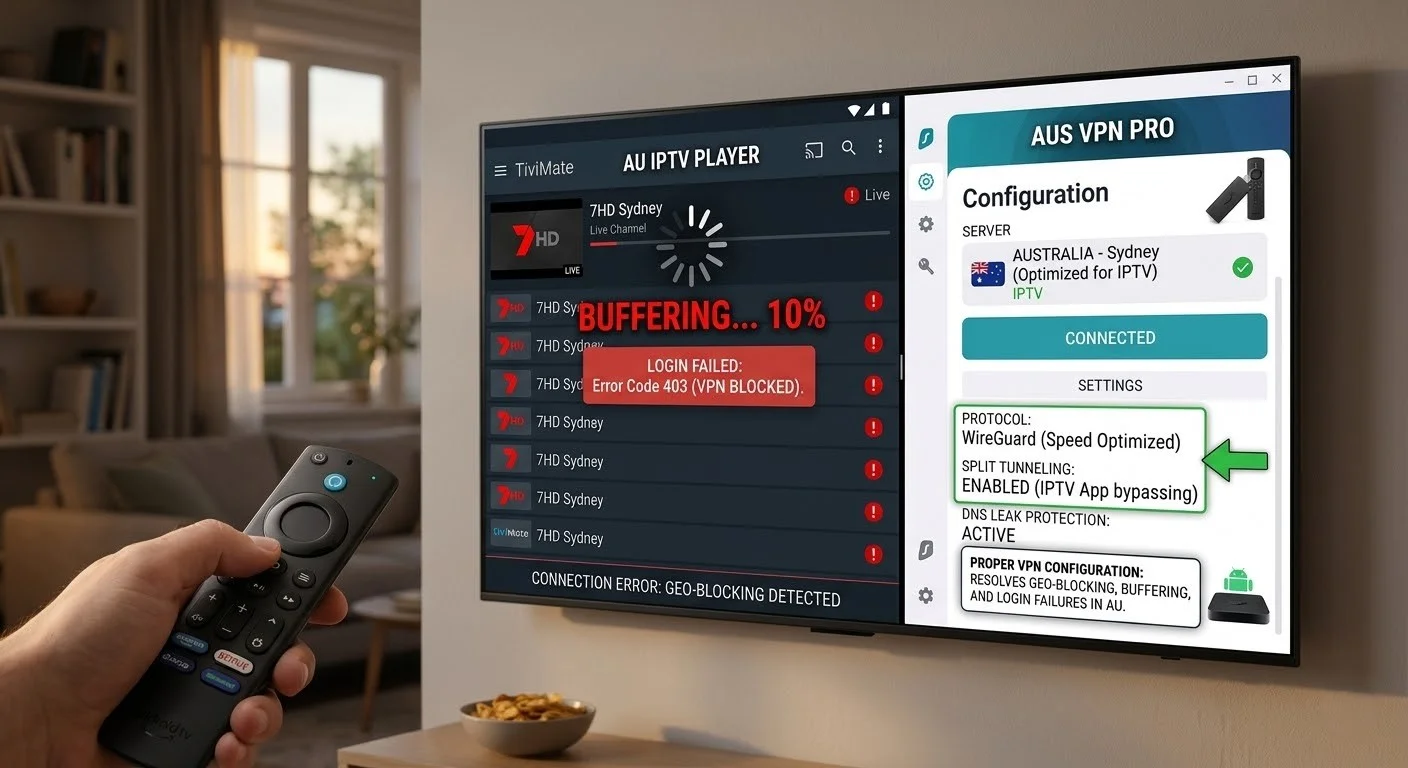
Split Tunnelling: Why It Can Address Both Problems
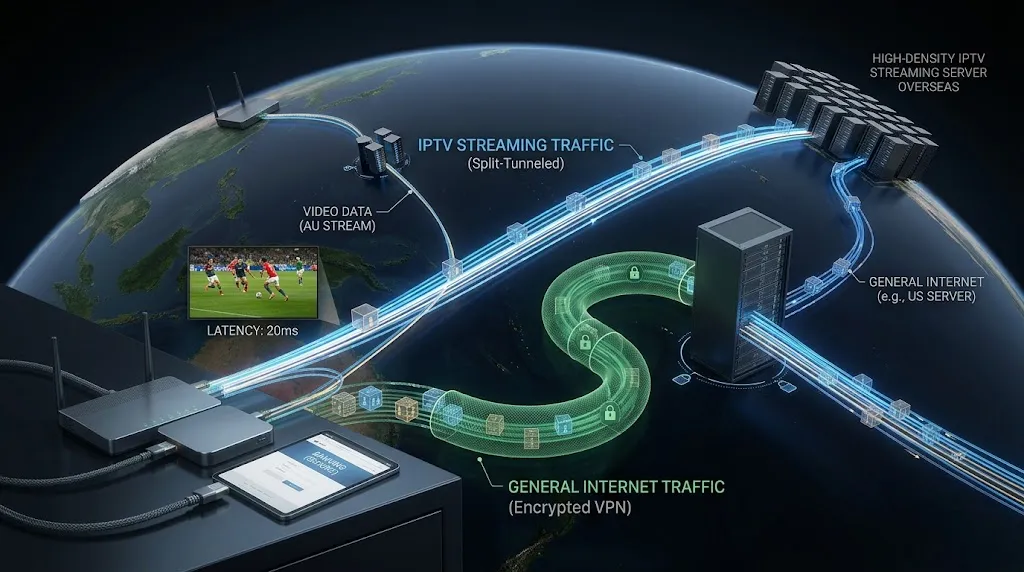
Split tunnelling lets you choose which applications use the VPN and which connect directly. Understanding why that helps here explains why it addresses two symptoms that otherwise need opposite fixes.
Route the IPTV app outside the tunnel and it connects using your home address — so the provider’s IP rejection no longer applies. The traffic also takes the direct path to the provider’s server rather than detouring through the VPN, removing the added distance. And because the app is outside the tunnel entirely, a VPN reconnection no longer interrupts it, so the kill switch can stay enabled for everything else.
That is why split tunnelling can address both routing conflicts and unnecessary latency, rather than forcing a choice between them.
Where to find the setting. These are examples of configuration paths, not recommendations or a ranking:
- ExpressVPN — Settings → Split Tunnelling
- NordVPN — Settings → Split Tunnelling
- Surfshark — Settings → VPN Settings → Bypasser
Add the IPTV player to the excluded list, then restart the app so it establishes a fresh connection on the new route.
The limitation: split tunnelling depends on VPN app support for your specific platform, and support on TV operating systems is less consistent than on phones and desktops. Check your VPN’s feature list for the platform you’re actually streaming on before relying on this. Some routers offer device-level equivalents, which our IPTV network settings guide covers.
One consequence to understand: traffic routed outside the tunnel is not VPN-protected. That’s the point of the technique, and it’s a deliberate trade — you’re choosing to protect general browsing while letting the stream connect directly.
Preventing It From Recurring
Two habits prevent most repeat occurrences.
Run the two-minute test before changing anything. The instinct when something breaks is to start adjusting settings, and each adjustment obscures what was originally wrong. Diagnose first, change one thing, retest.
Expect blocklists to shift. A setup that works today can fail in three months because an address range was added to a list, with nothing changed on your end. If a working configuration fails suddenly and nothing else changed, this is the first thing to check rather than the last.
When to Stop Troubleshooting
Not every VPN IPTV problem is solvable from your end, and continuing past that point wastes time.
Stop if the two-minute test shows failure both with and without the VPN. The VPN is not involved. Continuing to adjust VPN settings cannot help.
Stop if split tunnelling isn’t available on your platform and the provider refuses VPN addresses. You are choosing between running the VPN and using the service, and no setting resolves that.
Stop if a working setup failed at the same moment for other people. Provider-side problems look like local ones. Before another hour of adjustment, check whether the service is having a wider outage.
Be cautious about escalating. The previous version of this article suggested contacting a provider to request that a VPN address be permitted. That advice has been removed. Routing account details and IP information to informal contact channels carries risks that outweigh the convenience, and a service reachable only through anonymous messaging is itself a warning sign — see our IPTV provider red flags guide.
Key takeaway: if the two-minute test shows the same failure with and without the VPN, no VPN setting will fix it — the cause is elsewhere.
The Legal Position in Australia
Using a VPN is lawful in Australia. It is a standard privacy and security tool used across business and personal contexts, and nothing in this article concerns its legality.
What a VPN does not change is the legal standing of the services you connect to. The Copyright Act 1968 governs this area and the ACMA (Australian Communications and Media Authority) is the federal regulator responsible for enforcement, including website blocking measures. A VPN alters how your traffic is routed; it does not alter whether a service holds rights to the content it distributes.
Our guide to VPNs and IPTV law in Australia covers the distinction properly, and is IPTV legal in Australia covers the wider position.
This article is for educational and comparison purposes only. Verify the licensing status of any streaming service and ensure compliance with Australian copyright law before subscribing.
Bottom Line
If login fails only when the VPN is on: the provider is refusing the VPN’s address. Split tunnelling is the cleanest fix. Changing VPN provider generally is not.
If the stream buffers on VPN but plays without it: distance is the cause. Choose the closest available server and test a lower-overhead protocol — and don’t follow advice to try a distant country, which addresses a different problem and worsens this one.
If the stream is better with the VPN than without it: leave it on. Something upstream is limiting your connection, and the VPN is compensating. Investigate the connection itself rather than the VPN.