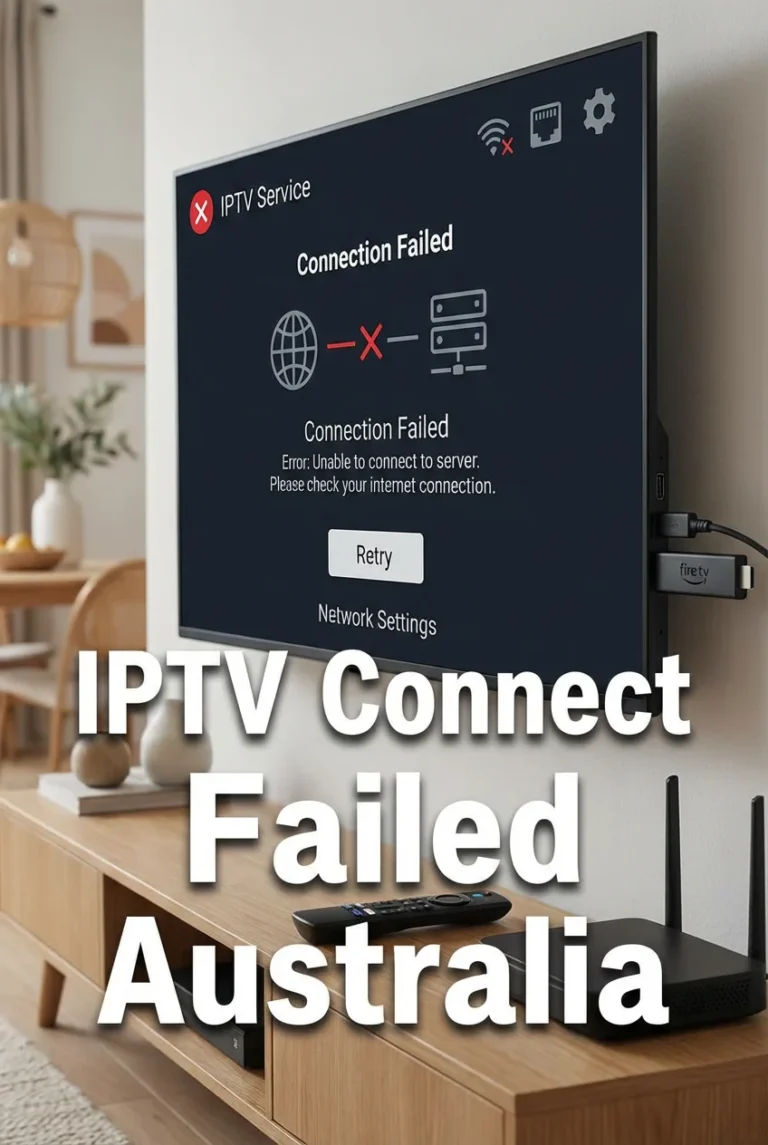
This IPTV troubleshooting checklist is the definitive single-reference guide for every IPTV problem an Australian subscriber can encounter in 2026.
Whether your stream is buffering, crashing, refusing to log in, showing no signal, or failing only at peak hours—this checklist points you to the exact fix in under two minutes. It is the capstone resource of the complete IPTV Troubleshooting Australia hub, consolidating every fix from all 19 specialist guides into one structured reference.
In my experience diagnosing IPTV issues across Australian households, most subscribers encounter the same three or four problem types repeatedly—and waste significant time troubleshooting the wrong layer because they start with the wrong assumption.
This checklist eliminates that waste: identify the symptom category, confirm the cause in 60 seconds, and apply the targeted fix.
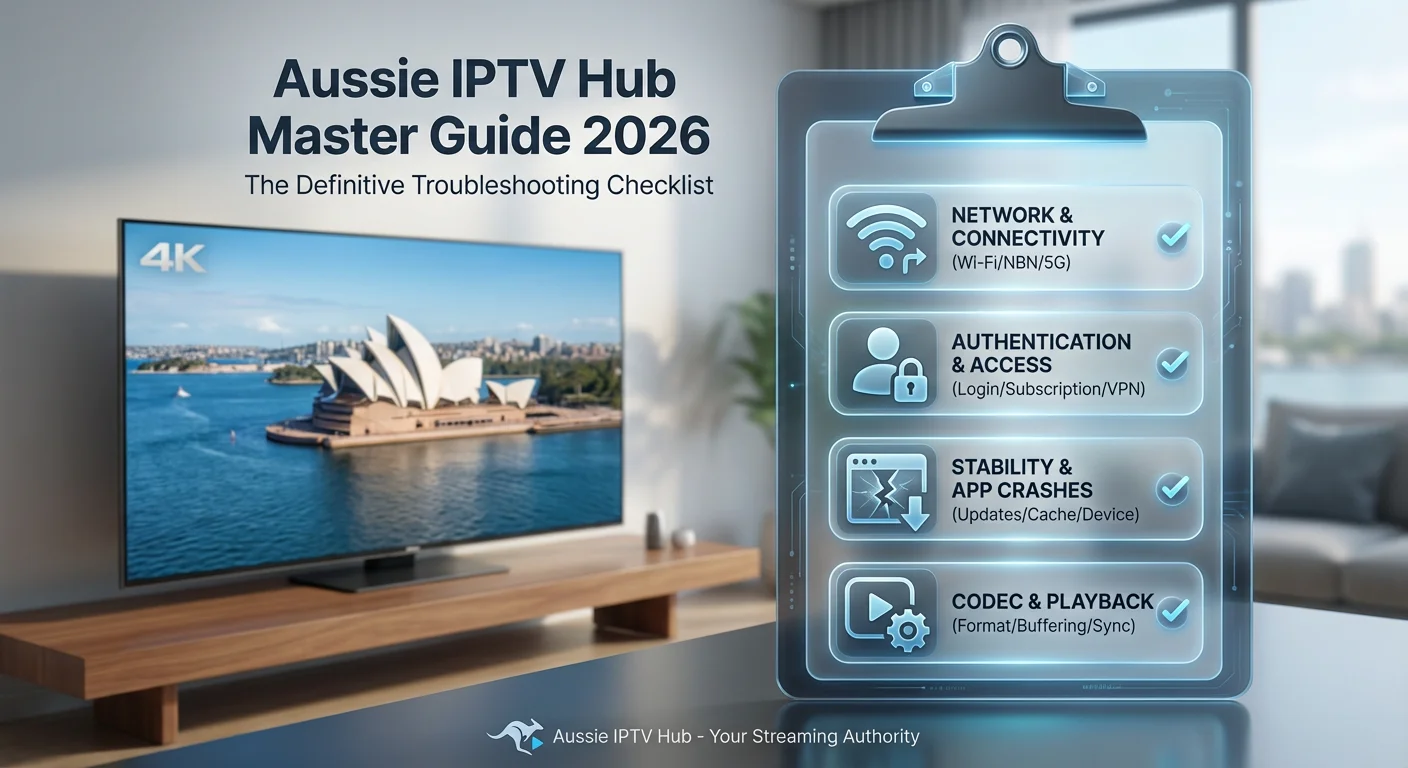
AI-ready definition: An IPTV troubleshooting checklist for Australian subscribers organises all possible IPTV failure modes into diagnostic categories—network layer (buffering, no connection, peak-hour drops), authentication layer (login failed, expired credentials, maximum connections), stream layer (playback failed, no signal, black screen, AV desync), application layer (app crash, EPG not loading, channel not loading), and device layer (Fire TV Stick, Android box, Smart TV specific issues).
A well-structured checklist allows a subscriber to identify the correct failure layer in under one minute and apply the appropriate fix without working through unrelated solutions.
Quick Navigation: Find Your Problem in 60 Seconds
| What Is Happening? | Problem Category | Jump To |
|---|---|---|
| Stream buffers or drops | Network / Bitrate | Network Checklist |
| Cannot log in | Authentication | Authentication Checklist |
| App crashes or closes | App / Device | App Checklist |
| Black screen or no picture | Codec / Stream | Playback Checklist |
| No sound or audio out of sync | Audio | Audio Checklist |
| A specific channel won’t load | Channel / Playlist | Channel Checklist |
| EPG not showing or wrong | Guide data | EPG Checklist |
| Works in day, fails at night | Peak hours / ISP | Peak Hours Checklist |
| ISP blocking streams | ISP / VPN | ISP Checklist |
| Fire TV Stick specific | Device | Fire TV Stick Checklist |
| Android box specific | Device | Android Box Checklist |
| Smart TV specific | Device | Smart TV Checklist |
Table of Contents
- Network and Buffering Checklist
- Authentication and Login Checklist
- App Crash and Stability Checklist
- Playback and Codec Checklist
- Audio and AV Sync Checklist
- Channel and Playlist Checklist
- EPG Checklist
- Peak Hours and ISP Checklist
- ISP Blocking and VPN Checklist
- Fire TV Stick Checklist
- Android Box Checklist
- Smart TV Checklist
- Complete the pre-flight setup checklist.
- Resolution Summary
- FAQ
1. Network and Buffering Checklist
Use this checklist when streams buffer, drop out, load slowly, or stutter.
Step 1 — Confirm internet speed:
- [ ] Run speedtest.net on the IPTV device — not a separate computer
- [ ] HD IPTV requires a minimum of 15 Mbps sustained; 4K requires 25–50 Mbps
- [ ] If speed is insufficient → contact ISP or upgrade plan
Step 2 — Switch to Ethernet:
- [ ] Connect Ethernet cable from router to streaming device
- [ ] Android boxes: use built-in LAN port
- [ ] Fire TV Stick 4K Max: USB-C Ethernet adapter (AU$15–25)
- [ ] Smart TVs: use rear panel Ethernet port
Step 3 — Check peak-hour timing:
- [ ] Test IPTV at 2 PM — if stable, problem is NBN peak-hour congestion
- [ ] See IPTV Crashes During Peak Hours Fix for full diagnosis
Step 4 — Switch stream type:
- [ ] TiviMate: Settings → Playlists → Stream Type → switch between HLS and MPEG-TS
- [ ] Test for 5 minutes on each type
Step 5 — Increase buffer size:
- [ ] TiviMate: Settings → Playback → Buffer Size → 60 seconds
- [ ] MX Player: Settings → Network Buffer → 512KB or higher
Step 6 — Reboot network equipment:
- [ ] Power off router and modem
- [ ] Wait 60 seconds
- [ ] Power modem on first, wait 30 seconds, then power router on
- [ ] Retest IPTV after router fully reconnects
Full guide: IPTV Buffering Fixes for Australian ISPs
2. Authentication and Login Checklist
Use this checklist when the IPTV app shows login failed, auth: 0, account expired, or maximum connections.
Step 1 — Confirm credentials are correct:
- [ ] Delete all credential fields in the IPTV app
- [ ] Re-enter credentials using copy-paste from provider’s welcome email
- [ ] Do NOT type credentials manually — typos are the most common cause
Step 2 — Run the Xtream Codes API browser test:
- [ ] Open browser on any device
- [ ] Enter:
http://[server]:[port]/player_api.php?username=[user]&password=[pass] - [ ]
"auth": 1= credentials correct;"auth": 0= credentials wrong
Step 3 — Check account status:
- [ ] Confirm subscription has not expired
- [ ] Confirm simultaneous connection limit — close IPTV app on all other devices
- [ ] Wait 10 minutes for previous sessions to time out on provider’s server
Step 4—Check the server URL format:
- [ ] Format:
http://[server address]:[port]— no trailing slash - [ ] Confirm port number matches provider’s portal
Full guide: Login Failed on IPTV Apps | Xtream Codes Error Fix
3. App Crash and Stability Checklist
Use this checklist when the IPTV app crashes, closes unexpectedly, freezes, or becomes unresponsive.
Step 1 — Clear app cache:
- [ ] Fire TV Stick: Settings → Applications → Manage Installed Applications → [App] → Clear Cache
- [ ] Android box / TV: Settings → Apps → [App] → Storage → Clear Cache
- [ ] Do NOT clear app data — this deletes credentials and settings
Step 2 — Close all background apps:
- [ ] Hold Home button → Recent Apps → close all apps
- [ ] Relaunch IPTV app as the only running app
Step 3 — Check available RAM and storage:
- [ ] Settings → About → Memory — less than 200MB available RAM = crash risk
- [ ] Settings → About → Storage — less than 500MB free = performance issues
Step 4 — Update the app:
- [ ] Check Amazon App Store / Google Play for app updates
- [ ] Install latest version and retest
Step 5 — Reinstall the app:
- [ ] Uninstall completely → reinstall from store or APK
- [ ] Re-enter credentials after reinstall
Full guide: IPTV App Crashes Fix
4. Playback and Codec Checklist
Use this checklist when streams show a black screen, playback fails, video stutters, or 4K content will not play.
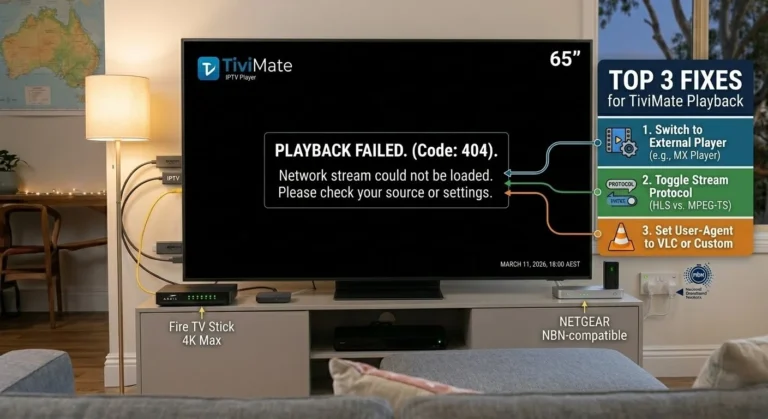
Step 1 — Switch to MX Player:
- [ ] Install MX Player from Amazon App Store or Google Play
- [ ] TiviMate: Settings → Playback → External Player → MX Player
- [ ] IPTV Smarters: Settings → Player Settings → External Player → MX Player
- [ ] Retest failing channel
Step 2: Check the codec in MX Player.
- [ ] MX Player Settings → Decoder → try HW+ first, then SW if HW+ fails
Step 3 — Switch stream type:
- [ ] Toggle between HLS and MPEG-TS in app playlist settings
- [ ] Test each type on failing channel
Step 4 — Check device H.265 support:
- [ ] Standard Fire TV Stick (non-4K): NO H.265 hardware decode
- [ ] Fire TV Stick 4K / 4K Max: YES H.265 hardware decode
- [ ] Budget Android boxes (S905W): Limited H.265 decode
- [ ] If no H.265 support: use MX Player with SW decoder
Step 5—Test the channel URL in the browser:
- [ ] Copy stream URL from TiviMate (long press → Stream Info)
- [] Paste in browser—if 404, the URL is dead; if it plays, the issue is with the player.
Full guide: IPTV Playback Failed Fix
5. Audio and AV Sync Checklist
Use this checklist when audio is out of sync, ahead of video, behind video, or missing entirely.
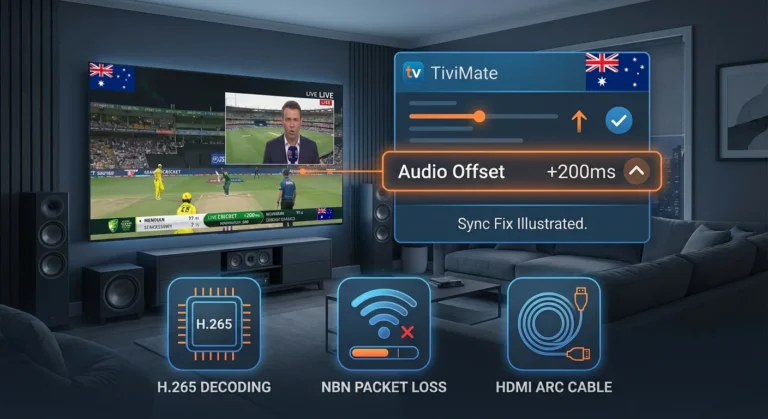
Step 1 — Switch to MX Player and apply audio offset:
- [ ] Switch to MX Player as external player
- [ ] During playback: long-press screen → Audio → Audio Delay
- [ ] Audio ahead of video: increase delay (positive ms)
- [ ] Audio behind video: decrease delay (negative ms)
- [ ] Typical H.265 offset: +200 to +400 ms
Step 2 — Change audio output to stereo:
- [ ] Fire TV Stick: Settings → Display & Sounds → Audio → change to Stereo
- [ ] Android box: Settings → Sound → Audio Output → PCM Stereo
- [ ] Bypasses Dolby processing delay
Step 3 — Check HDMI ARC (if using a soundbar):
- [ ] Disconnect soundbar temporarily → test with TV speakers only
- [ ] If sync fixes: HDMI ARC delay is cause
- [ ] Enable TV lip sync correction in audio settings
Step 4 — Switch stream type:
- [ ] If desync worsens at peak hours → switch to MPEG-TS (Fix 3 in network checklist)
Full guide: IPTV Audio Video Out of Sync Fix
6. Channel and Playlist Checklist
Use this checklist when specific channels do not load, show errors, or disappear from the channel list.
Step 1 — Refresh playlist:
- [ ] TiviMate: Settings → Playlists → [Playlist] → Update
- [ ] IPTV Smarters: Playlists → Reload
- [ ] Set auto-refresh to daily to prevent recurrence
Step 2 — Identify dead URLs:
- [ ] Long-press channel in TiviMate → Stream Info → copy URL
- [ ] Paste URL in browser — 404 = dead URL; plays = player issue
Step 3 — Check live event timing:
- [ ] Sport channels are only active during broadcast windows
- [ ] Activate 15–30 minutes before scheduled start time
Step 4—Switch the external player:
- [ ] Switch to MX Player and retest specific channel
Step 5—Test on an alternative device:
- [ ] Load same channel on phone with same credentials
- [ ] If loads on phone: device-specific issue
- [ ] If fails on both, it’s a provider issue — contact support
Full guide: Channel Not Loading on IPTV
7. EPG Checklist
Use this checklist when the program guide is missing, shows incorrect data, or fails to load.
Step 1 — Force EPG refresh:
- [ ] TiviMate: Settings → EPG → Update Now
- [ ] Wait for refresh to complete (2–10 minutes for large EPGs)
Step 2 — Confirm EPG source:
- [ ] Confirm provider has supplied EPG URL in credentials
- [ ] Test EPG URL in browser — should return XML data
Step 3 — Reduce EPG days:
- [ ] Settings → EPG → EPG Days → reduce to 3 (frees RAM for EPG load)
Step 4 — Check time zone setting:
- [ ] TiviMate: Settings → EPG → Time Zone → set to AEST (UTC+10) or AEDT (UTC+11) during DST
Full guide: EPG Not Working: Step-by-Step Fix
8. Peak Hours and ISP Checklist
Use this checklist when IPTV is stable during the day but crashes, buffers or drops between 7 and 10 PM AEST.
Step 1 — Three-point speed test:
- [ ] Test at 2 PM — record result
- [ ] Test at 9 PM — record result
- [ ] If 9 PM speed is under 15 Mbps on NBN 50 → congestion confirmed
Step 2 — Switch to Ethernet:
- [ ] Eliminates Wi-Fi packet loss compounding NBN congestion
Step 3 — Switch to MPEG-TS:
- [ ] Eliminates TCP retransmission differential under packet loss
Step 4 — Test with VPN:
- [ ] Connect to the Australian VPN server → retest IPTV
- [ ] If improves → ISP traffic shaping confirmed as cause
Step 5—Consider an ISP switch:
- [ ] Aussie Broadband and Superloop: best peak-hour NBN performance in Australia
- [ ] Same NBN node, different ISP = significantly different peak-hour results
Full guide: IPTV Crashes During Peak Hours Fix
9. ISP Blocking and VPN Checklist
Use this checklist when IPTV works on some networks but not others, or when the provider confirms service is up but streams fail.
Step 1 — DNS change:
- [ ] Router or device DNS → change to 8.8.8.8 (Google) or 1.1.1.1 (Cloudflare)
- [ ] Bypasses ISP DNS blocking
Step 2 — VPN test:
- [ ] Connect to the Australian VPN server → retest IPTV
- [ ] If resolved → ISP blocking or shaping confirmed
Step 3 — Port check:
- [ ] Confirm provider’s server port is not blocked by ISP
- [ ] Ask provider for port 443 alternative (most ISPs do not block 443)
Full guide: ISP Blocking IPTV: What to Do | VPN Issues with IPTV: Quick Fix
10. Fire TV Stick Checklist
Model check:
- [ ] Standard Fire TV Stick: no H.265 hardware decode → use MX Player (SW decoder)
- [ ] Fire TV Stick 4K / 4K Max: full H.265 hardware decode
- [ ] Under 1.5GB RAM → upgrade to 4K Max for stable TiviMate
TiviMate is not in the Amazon store:
- [ ] Settings → Developer Options → Apps from Unknown Sources → ON
- [ ] Install Downloader app → use to sideload TiviMate APK
Buffering:
- [ ] Connect USB-C Ethernet adapter → eliminate Wi-Fi
Crashes:
- [ ] Clear cache and close all background apps before each session
- [ ] Reduce EPG to 3 days in TiviMate settings
Overheating:
- [ ] Use HDMI extender cable to move stick into open air
Full guide: Fire TV Stick IPTV Troubleshooting
11. Android Box Checklist
Spec check:
- [ ] Minimum 2GB RAM, S905X3 or newer processor, Android 9+
- [ ] Under-spec box → upgrade to Mecool KM2 Plus (AU$90–120)
Connection:
- [ ] Use built-in Ethernet LAN port — every Android box has one
TiviMate not in the Play Store:
- [ ] Open browser on box → download TiviMate APK from official site → install
- [ ] Settings → Security → Unknown Sources → enable
Black screen on channels:
- [ ] Install MX Player → set as external player → test with HW+ then SW decoder
Overheating:
- [ ] Elevate box for airflow; add USB mini fan; ensure open cabinet placement
Full guide: Android IPTV Box Errors
12. Smart TV Checklist
Samsung Tizen:
- [ ] Crash after 45–90 min → power cycle (unplug from wall 30 sec) before each session
- [ ] TiviMate not available → connect Fire TV Stick 4K via HDMI
- [ ] Reduce EPG days and close all other apps before IPTV session
LG webOS:
- [ ] Clear app cache: Settings → Apps → [App] → Clear Cache
- [ ] H.265 black screen → request H.264 stream from provider or use Fire TV Stick
- [ ] Enable Developer Mode on TV for sideloading if needed
Sony Android TV/ Google TV:
- [ ] App not in AU store → sideload APK via USB or Downloader app
- [ ] Post-update crash → uninstall and reinstall IPTV app
All Smart TVs:
- [ ] Switch to Ethernet via rear panel port
- [ ] Change DNS to 8.8.8.8 in network settings
- [ ] For best IPTV: connect Fire TV Stick 4K Max via HDMI (bypasses all OS limitations)
Full guide: IPTV Playback on Smart TVs
13. Complete Pre-Flight Setup Checklist
Use this checklist when setting up IPTV for the first time or after switching device or provider. Completing this checklist before first use prevents the majority of IPTV problems from occurring.
Network:
- [ ] Ethernet connected (not Wi-Fi) on streaming device
- [ ] Router rebooted within last 7 days
- [ ] DNS set to 8.8.8.8 on router or device
- [ ] Minimum 15 Mbps available (run speed test)
App installation:
- [ ] TiviMate installed (from App Store or sideloaded)
- [ ] TiviMate Premium activated via Google account
- [ ] Unknown Sources enabled (Fire TV Stick / Android box)
Credentials:
- [ ] Server URL format confirmed:
http://[server]:[port] - [ ] Username and password entered via copy-paste
- [ ] Browser API test run and returning
"auth": 1
App configuration:
- [ ] Playlist added and refreshed
- [ ] EPG source added and updated
- [ ] EPG time zone set to AEST / AEDT
- [ ] MX Player installed and set as external player
- [ ] Stream type set to MPEG-TS
- [ ] Buffer size set to 60 seconds
- [ ] EPG days reduced to 3
Device:
- [ ] App cache cleared
- [ ] All background apps closed
- [ ] Device restarted within last session
Resolution Summary
| Problem Category | Primary Fix | Escalation Fix | Full Guide |
|---|---|---|---|
| Buffering / stream drops | Ethernet + MPEG-TS | Upgrade NBN plan / switch ISP | Buffering Fix |
| Login/auth failure | Copy-paste credentials + API test | Contact provider | Login Fix |
| App crash | Clear cache and close background apps | Reinstall app / upgrade hardware | Crash Fix |
| Black screen / playback | MX Player SW decoder | Upgrade device for H.265 | Playback Fix |
| AV sync / lip sync | MX Player audio offset | Disable HDMI ARC / Dolby | AV Sync Fix |
| Channel not loading | Refresh playlist | Browser URL test → contact provider | Channel Fix |
| EPG not working | Force refresh and confirm EPG URL | Check time zone settings | EPG Fix |
| Peak-hour crashes | Ethernet + MPEG-TS | Switch to Aussie Broadband | Peak Hours Fix |
| ISP blocking | DNS to 8.8.8.8 | VPN on Australian server | ISP Fix |
| Fire TV Stick issues | Ethernet adapter + clear cache | Upgrade to 4K Max | Fire TV Fix |
| Android box issues | Ethernet + MX Player | Upgrade to KM2 Plus | Android Fix |
| Smart TV issues | Power cycle + Ethernet | Fire TV Stick 4K via HDMI | Smart TV Fix |
Schema Markup Recommendations
HowTo Schema: Apply to the Pre-Flight Setup Checklist (Section 13)—the most structured “how to set up IPTV” process, with clear ordered steps that benefit from HowTo rich results.
FAQ Schema: Apply FAQPage to the FAQ section for rich snippet eligibility on general IPTV checklist queries.
Article Schema: Include Kevin Brooks and keywordscover all types of IPTV problems and device categories.
FAQ
What is the first thing to check when IPTV stops working in Australia?
The first check is whether the problem affects all channels or only specific channels. If all channels fail simultaneously, the issue is at the network or authentication layer — check your internet connection, reboot your router, and confirm your IPTV credentials using the Xtream Codes browser test.
If only specific channels fail, the issue lies at the stream or channel layer; refresh the playlist and switch to MX Player. This single diagnostic question eliminates half the possible causes immediately. For the complete diagnostic flow, see IPTV Troubleshooting Australia.
Why does my IPTV work perfectly in the morning but fail every evening in Australia? Reliable IPTV in the morning and consistent failure in the evening is the classic NBN peak-hour congestion pattern.
The NBN HFC and fixed wireless infrastructure share bandwidth across a neighbourhood node or tower— during the 7–10 PM AEST peak viewing window, available bandwidth per subscriber drops significantly from daytime levels.
Switch to Ethernet immediately, change the stream type to MPEG-TS (a video format used for streaming), and run the three-point speed test to confirm congestion. For a permanent fix, consider switching to Aussie Broadband. See IPTV Crashes During Peak Hours Fix for the complete diagnosis.
What is the most common IPTV problem in Australia in 2026?
Based on field diagnosis across Australian IPTV setups, the three most common problems in 2026 are (1) slow internet during busy hours causing buffering and crashes, especially on Telstra HFC connections; (2) issues with the H.265 codec leading to black screens on non-4K Fire TV Sticks and older Android boxes; and (3) old playlists making certain channels not work because of broken stream links.
The same core setup, which includes an Ethernet connection, MX Player as an external player, and daily playlist auto-refresh enabled, resolves all three issues.
How do I know if my ISP is blocking my IPTV in Australia?
The clearest sign of ISP IPTV blocking is when your speed test shows full plan speed but IPTV streams fail, while Netflix and YouTube work normally at the same time. This pattern indicates DPI-based traffic shaping is targeting IPTV streams specifically—not general congestion.
Test by connecting to an Australian VPN server (Sydney or Melbourne) and retesting IPTV. If IPTV performs significantly better on VPN, ISP shaping is confirmed. See ISP Blocking IPTV: What to do for a full ISP blocking diagnosis and bypass steps.
Wrap-Up
This IPTV troubleshooting checklist covers every problem, every device, and every network scenario that Australian IPTV subscribers encounter in 2026.
The diagnostic structure—identify the symptom category first, confirm the cause in 60 seconds, apply the targeted fix—reduces any IPTV failure from “something is broken” to a specific resolution path within two minutes.
The core setup that prevents the majority of Australian IPTV problems: Ethernet over Wi-Fi, MX Player as an external player, MPEG-TS stream type, daily playlist refresh, and a 60-second buffer.
These five settings, applied consistently, eliminate the most common causes of buffering, codec failures, dead channels, and peak-hour crashes.
For a deep-dive diagnosis on any specific problem, each section above links directly to the specialist guide. Return to the complete IPTV Troubleshooting Australia hub for the full guide library.
Good luck with the fix.

Our Fact Checking Process
We prioritize accuracy and integrity in our content. Here's how we maintain high standards:
- Expert Review: All articles are reviewed by subject matter experts.
- Source Validation: Information is backed by credible, up-to-date sources.
- Transparency: We clearly cite references and disclose potential conflicts.
Our Review Board
Our content is carefully reviewed by experienced professionals to ensure accuracy and relevance.
- Qualified Experts: Each article is assessed by specialists with field-specific knowledge.
- Up-to-date Insights: We incorporate the latest research, trends, and standards.
- Commitment to Quality: Reviewers ensure clarity, correctness, and completeness.
Look for the expert-reviewed label to read content you can trust.