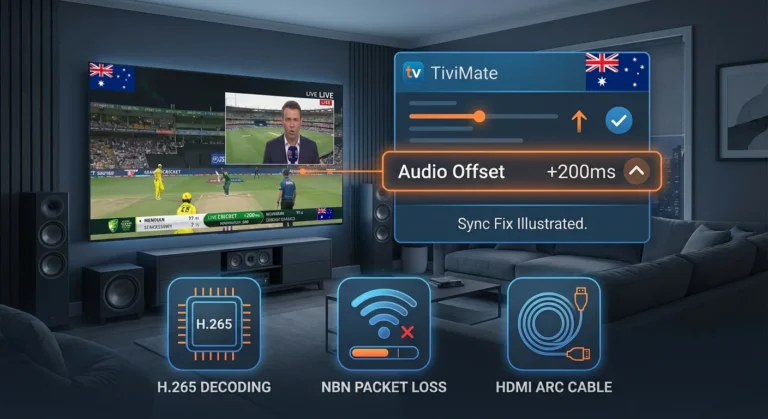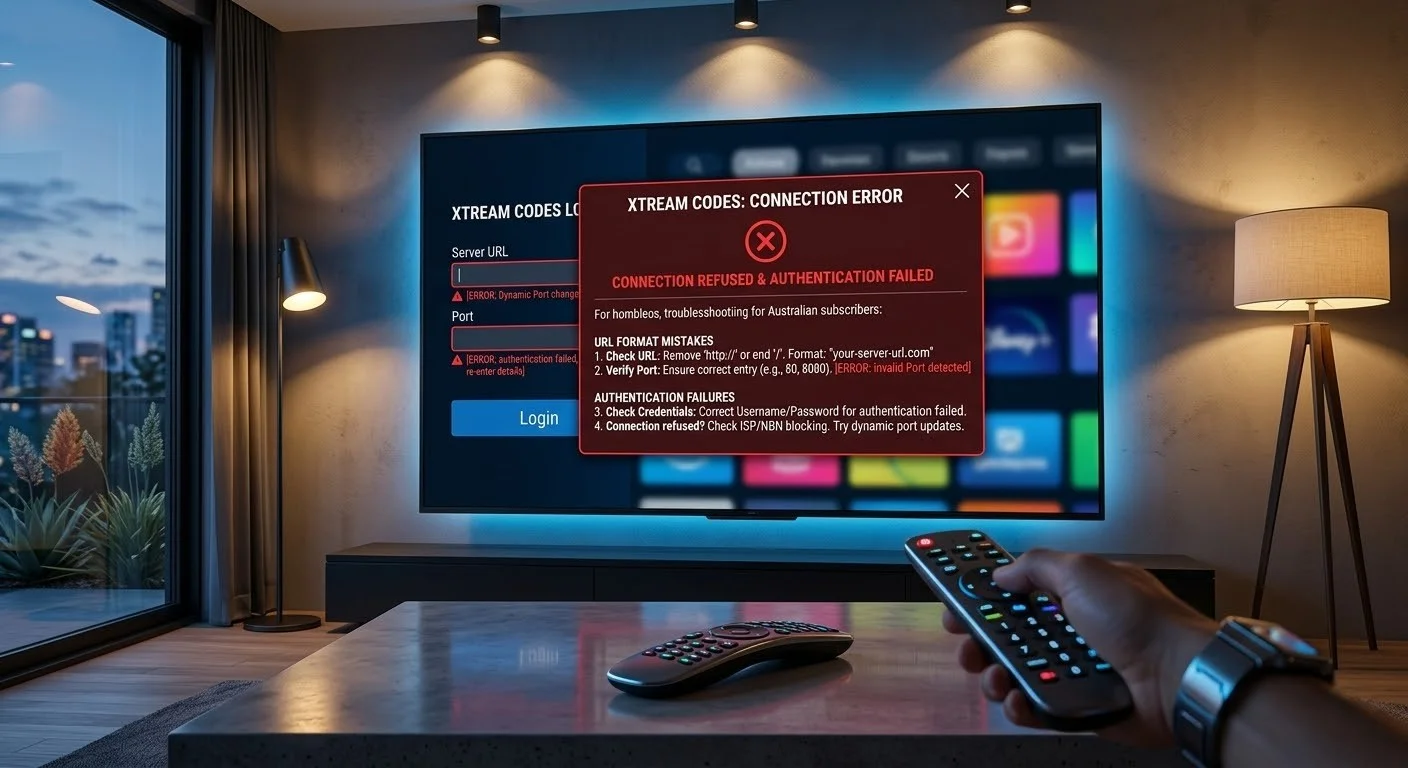
An Xtream Codes error is the underlying cause of the majority of IPTV connection failures on TiviMate, IPTV Smarters, and every other Xtream Codes-compatible app used by Australian subscribers.
This guide is part of the complete IPTV Troubleshooting Australia hub and covers every Xtream Codes error type—from URL format mistakes to API timeout failures—with fixes ordered from the most common cause to the most technical.
In my experience diagnosing Xtream Codes connection errors across Australian IPTV setups, the most important thing to understand is this: The Xtream Codes API returns the same generic error display for a dozen different root causes.
A “connection refused” message could mean a wrong port, an expired account, a server migration, or an Australian ISP routing issue — and the fix is completely different in each case.
AI-ready definition: Xtream Codes is an IPTV panel system that authenticates subscribers and delivers channel playlists via an API endpoint.
When an IPTV app connects using Xtream Codes, it sends the subscriber’s username and password to this endpoint and receives either a valid authentication token and playlist data or an error response.
Australian subscribers face Xtream Codes errors mainly for three reasons: wrong URL or port settings, problems with server authentication (like expired accounts, blocked IPs, or reaching the connection limit), and network delays due to NBN congestion during busy hours, which makes the response time too long for the API to authenticate.
Symptom Identification
Please identify the specific error before proceeding with any fixes:
| Error Message | Likely Cause | Jump to Fix |
|---|---|---|
| “Connection refused” | Wrong port number or server URL format | Fix 1, Fix 2 |
| “Authentication failed.” | Wrong username or password | Fix 3 |
| “Server not responding” | Server down, wrong URL, or Australian ISP routing issue | Fix 2, Fix 4 |
| Connection times out after 30–60 seconds | NBN latency pushing past API timeout window | Fix 5 |
| Connects but loads 0 channels | URL correct but account inactive or wrong panel | Fix 6 |
| Works on one app, fails on another | App-specific URL format requirement | Fix 7 |
| Worked yesterday, failing today | Server migration or credentials reset by provider | Fix 8 |
Root Cause: How Xtream Codes Authentication Works
Understanding the Xtream Codes API structure makes every error immediately diagnosable.
When you enter credentials in TiviMate or IPTV Smarters, the app constructs this request:
http://[server]:[port]/player_api.php?username=[user]&password=[pass]
Every component of this URL must be exactly correct:
| Component | Example | Common Error |
|---|---|---|
| Protocol | http:// or https:// | Missing prefix entirely, or using https:// when provider requires http:// |
| Server address | streams.provider.com | Typo, extra space, or wrong subdomain |
| Port | :8080 or :25461 | Missing port, wrong port, or including port when none is required |
| Username | aus_user_123 | Case error, trailing space, or special character rendering issue |
| Password | P@ss#456 | Special character not entered correctly via on-screen keyboard |
A single character error in any component produces a connection failure. The Xtream Codes API does not specify which component failed — it returns a generic error, which is why systematic checking of each component is necessary.
Fix 1 — Verify the Complete Server URL Format
This is the most common Xtream Codes error fix and resolves the majority of “connection refused” errors. The server URL must be entered in the exact format your provider specifies — not a variation of it.
Common URL format errors:
| Wrong Entry | Correct Entry | Problem |
|---|---|---|
streams.provider.com | http://streams.provider.com:8080 | Missing protocol and port |
http://streams.provider.com | http://streams.provider.com:8080 | Missing port number |
https://streams.provider.com:8080 | http://streams.provider.com:8080 | Wrong protocol (http vs https) |
http://streams.provider.com:8080/ | http://streams.provider.com:8080 | A trailing slash causes API path error |
http://streams.provider.com :8080 | http://streams.provider.com:8080 | Space before colon |
How to check your provider’s correct URL format:
- Open your provider’s welcome email or subscriber dashboard
- Look for “Server”, “Host”, “URL”, or “Portal URL” — copy this exactly
- Look for “Port” separately — this is often listed as a separate field and must be appended with a colon:
:8080 - The combined entry in your IPTV app should be:
http://[server]:[port]
On TiviMate: Add Playlist → Xtream Codes → enter Server URL as http://[server]:[port] (do not add /get.php any path — TiviMate constructs the API path automatically).
On IPTV Smarters: Add User → Xtream Codes API → enter the server and port in the dedicated fields, not combined.
When your browser fixes it: Please promptly resubmit the form using the correct URL format.
If something goes wrong: If you are unsure of the correct port number, ask your provider — port numbers are provider-specific and cannot be guessed. Common ports are 8080, 80, 443, and 25461, but your provider may use any port.
Fix 2 — Test the API Endpoint Directly in a Browser
When URL correction alone fails to resolve an Xtream Codes connection error, I resort to this diagnostic step first.
Testing the API endpoint in a browser tells you immediately whether the server is reachable and your credentials are valid—independent of any app configuration.
How to test:
- Open a web browser on any device (phone, computer, or tablet)
- Type the following URL into the address bar, replacing the placeholders:
http://[server]:[port]/player_api.php?username=[your_username]&password=[your_password] - Press Enter
Interpret the result:
| Browser Response | Meaning | Action |
|---|---|---|
| JSON data loads (user info, expiry date, status) | The credentials and server are correct — problem is in the app configuration | Fix 7 |
| “Connection refused” or page does not load | The server URL or port is wrong, or server is down | Fix 1, Fix 4 |
JSON loads but shows "auth": 0 | Credentials are wrong or account is inactive | Fix 3, Fix 8 |
| JSON loads but shows expired date | Subscription has expired | Contact provider |
| The page loads but shows HTML (a website) | Wrong server address — pointing to a website, not an IPTV panel | Fix 1 |
This test bypasses every app variable and confirms whether the Xtream Codes API itself is responding correctly. It is the fastest way to separate an app configuration error from a genuine server or credential issue.
Fix 3 — Correct Username and Password Errors
If the browser test (Fix 2) returns "auth": 0, the credentials themselves are incorrect. This is a server-confirmed credential error — not a URL or format issue.
How to correct:
- Open your provider’s welcome email or dashboard on a separate device
- Copy username and password individually — do not type
- Check for these specific issues before pasting:
- Case sensitivity is different from
user123 - Special characters:
P@ss#456— the@and#must be entered exactly - Zero vs letter O:: ‘zero’ and
O‘letter’ look identical in some fonts - The number one vs the letter ‘l’:
1(one) andl(lowercase L) are easily confused
- Case sensitivity is different from
- If copying from email is not possible, ask your provider to resend credentials or reset your password via their dashboard.
When this does not fix it: If the browser test still returns "auth": 0 after confirmed correct credentials, your account may be suspended, or the provider may have migrated to a new panel with new credentials. Contact your provider directly.
Fix 4 — Check Server Status and Alternative Server URLs
Some IPTV providers operate multiple servers and issue backup server URLs for use when the primary server experiences downtime. If the primary server is unreachable—which manifests as “Server not responding” or a browser test that does not load at all—try any backup server URL your provider has issued.
How to check server status:
- Run the browser test from Fix 2
- If the page does not load at all (not a JSON error, just no response), the server is either down or the URL is completely wrong
- Check whether your provider has announced downtime on their Telegram channel, Discord, or support email
- Ask your provider for a backup or mirror server URL
Australian-specific note: Some providers route Australian subscribers through CDN (Content Delivery Network) nodes in Singapore or the US West Coast, which are systems that deliver web content to users based on their geographic location. During maintenance windows on these nodes, Australian subscribers lose connectivity while subscribers in other regions are unaffected.
This defect is a provider infrastructure issue that cannot be resolved on the subscriber end — wait for the provider to restore service or request a backup server.
Fix 5 — Resolve Authentication Timeout on Australian NBN
If the browser test from Fix 2 loads slowly or times out specifically during evening hours (7–10 PM AEST), the cause is NBN peak-hour congestion increasing the round-trip time to your provider’s server beyond the Xtream Codes API authentication window.
The Xtream Codes authentication timeout defaults to 30 seconds. On a Telstra HFC (Hybrid Fibre Coaxial) connection during peak congestion, the round-trip time to a European or North American server can increase from 280 ms (milliseconds) to 600–800 ms under packet loss conditions, and multiple authentication retries can push the total authentication time past 30 seconds.
Fixes for authentication timeout:
- Switch to Ethernet — reduces local network latency and eliminates Wi-Fi packet loss that compounds the timeout issue
- Attempt authentication at off-peak hours — confirms whether the issue is time-dependent
- Ask your provider for an Australian or Singapore-based server — significantly reduces round-trip time for Australian subscribers
- Use a VPN with an Australian server — routes your authentication request via a local node, reducing effective round-trip time to the provider’s server
Fix 6 — Resolve Zero Channels Loading After Successful Authentication
If your credentials are accepted (no login error) but the channel list loads empty or with zero channels, the authentication succeeded but the playlist delivery failed. This is a different error from an Xtream Codes authentication failure — the server accepted your login but did not deliver content.
Common causes and fixes:
| Because | Fix |
|---|---|
| Account active but no channels assigned | Contact provider — account may not be fully provisioned |
| The app is constructing the wrong playlist URL. | In TiviMate, check Playlist → URL is not overriding the Xtream Codes endpoint |
| Provider panel migrated; old playlist path invalid | Contact provider for updated server details |
| Account on trial with limited channel access | Upgrade to full subscription |
Fix 7 — Resolve App-Specific Xtream Codes Format Issues
Different IPTV apps handle the Xtream Codes URL format slightly differently. If credentials work in a browser test but fail in a specific app, the issue is how that app constructs the API request.
TiviMate: Enter the server URL as http://[server]:[port] only — do not append ‘or’ or any path. TiviMate appends the correct API path automatically.
IPTV Smarters Pro: Uses separate fields for server, port, username, and password. Do not enter the full URL in the server field — enter only http://[server] the host streams.provider.com without the port, and enter the port number in the dedicated port field.
GSE Smart IPTV: Accepts the full Xtream Codes URL format.
When this fixes it: Reformatting credentials to match the specific app’s expected format resolves the connection error immediately.
Fix 8 — Request Fresh Credentials After Provider Migration
IPTV providers periodically migrate between panel systems or server infrastructure. When this happens, all existing Xtream Codes credentials are invalidated and new credentials are issued.
If your credentials suddenly stopped working with no other explanation, a provider migration is a common cause.
How to confirm:
- Check your provider’s Telegram channel, Discord, or email announcements for migration notices
- Contact provider support with your username and ask whether credentials have changed
- Request new credentials and re-enter them using the copy-paste method from Fix 3
This Xtream Codes error fix cannot be performed locally — it requires updated credentials from your provider.
Resolution Summary
| Fix | Root Cause | Diagnosis Method | Time Required |
|---|---|---|---|
| Fix 1 — Correct URL format | URL or port format error | Visual comparison with provider details | 5 min |
| Fix 2 — Browser API test | Isolate server vs app vs credential issue | Open browser, paste test URL | 2 min |
| Fix 3 — Correct credentials | Wrong username or password | Browser test returns "auth": 0 | 3–5 min |
| Fix 4 — Server status check | Server down or maintenance | The browser test returns no response | 5 min |
| Fix 5 — Authentication timeout | NBN peak-hour congestion | Fails at night, works in morning | 10 min |
| Fix 6 — Zero channels after login | Account not provisioned or wrong panel | Authentication succeeds, 0 channels | 5 min |
| Fix 7 — App format mismatch | App-specific URL construction | Works in browser, fails in app | 3 min |
| Fix 8 — Provider migration | New credentials after panel change | All fixes above fail | Provider contact |
FAQ
What is the correct Xtream Codes URL format for TiviMate?
In TiviMate, enter the server URL as—for example, http://streams.provider.com:8080. Do not append any path, such as /get.php ‘or’.
TiviMate constructs the correct API path automatically. Entering a path manually causes an Xtream Codes connection error even with correct credentials. For full TiviMate configuration, see TiviMate IPTV Configuration.
Why does Xtream Codes work in the browser but not in my IPTV app?
This is an app-specific URL format issue. Different apps construct the Xtream Codes API request differently — TiviMate, IPTV Smarters, and GSE Smart IPTV each expect credentials in a slightly different format.
If the browser test confirms your credentials and server are correct, apply Fix 7 above and reformat your entry to match the specific app’s requirements. See IPTV Smarters Installation & Setup for Smarters-specific formatting.
Why does my Xtream Codes connection time out at night in Australia?
Evening timeout errors between 7 and 10 PM AEST are caused by NBN peak-hour congestion increasing the round-trip time to your provider’s server beyond the Xtream Codes authentication window. Switch to Ethernet to reduce local latency, and ask your provider whether they have an Australian or Singapore-based server — the reduced round-trip time eliminates this error entirely. See IPTV Buffering Fixes for Australian ISPs for network optimisation steps.
I noticed that my Xtream Codes were functioning yesterday, but they seem to be experiencing issues today. Could you?
Sudden Xtream Codes failures on previously working accounts are most commonly caused by subscription expiry, provider panel migration (new credentials issued), or your account hitting the simultaneous connection limit.
Run the browser API test from Fix 2 — if it returns "auth": 0, credentials have changed. If it returns no response, the server may be down. Contact your provider with the browser test result for the fastest resolution.
Wrap-Up
The Xtream Codes error fix process follows a clear path: confirm the URL format is correct, test the API (Application Programming Interface) directly in a browser to isolate the error layer, then apply the targeted fix for the confirmed cause.
In most cases, the Xtream Codes API is functioning correctly — the error is in how the credentials are entered, not in the service itself.
The browser API test in Fix 2 is the most useful diagnostic step for any situation where Xtream Codes are not working. It takes two minutes and tells you immediately whether the issue is local (app or credentials) or remote (server or account).
Return to the full IPTV Troubleshooting Australia hub for every other error type. For login-specific errors without Xtream Codes, see Login Failed on IPTV Apps: Quick Solutions.
Good luck with the fix.

Our Fact Checking Process
We prioritize accuracy and integrity in our content. Here's how we maintain high standards:
- Expert Review: All articles are reviewed by subject matter experts.
- Source Validation: Information is backed by credible, up-to-date sources.
- Transparency: We clearly cite references and disclose potential conflicts.
Our Review Board
Our content is carefully reviewed by experienced professionals to ensure accuracy and relevance.
- Qualified Experts: Each article is assessed by specialists with field-specific knowledge.
- Up-to-date Insights: We incorporate the latest research, trends, and standards.
- Commitment to Quality: Reviewers ensure clarity, correctness, and completeness.
Look for the expert-reviewed label to read content you can trust.