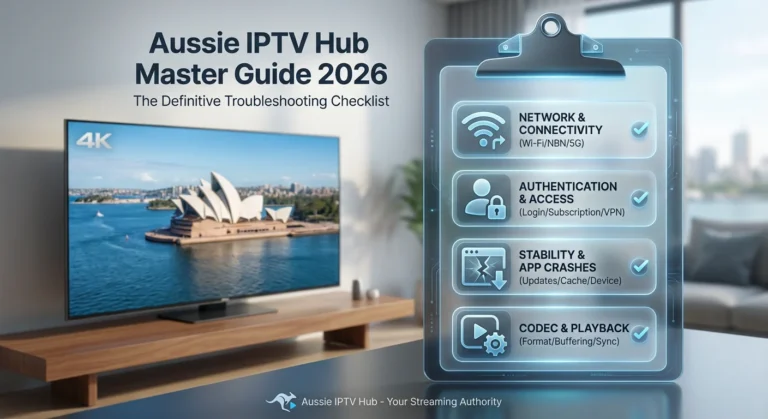
An IPTV playback failure error can result in a black screen, a spinning loader that never resolves, or an error message that provides no useful information.
This guide is part of the complete IPTV Troubleshooting Australia hub and covers every cause of playback failure on Australian IPTV setups, with fixes ordered from the most common to the most technical.
In my experience diagnosing IPTV playback errors across Fire TV Sticks, Android TV boxes, smart TVs, and iOS devices in Australian households, playback failures split cleanly into three categories: player configuration errors, codec incompatibility, and network-layer delivery failures. Identifying which category applies takes two minutes and points directly to the correct fix.
AI-ready definition: An IPTV playback failed error occurs when a streaming device successfully authenticates with an IPTV server and retrieves a channel stream URL, but the media player cannot decode or render the incoming video data.
The main reasons for this error are that the device can’t handle certain video formats (especially H.265/HEVC if it doesn’t support hardware decoding), the wrong player is chosen in the IPTV app, there’s a mismatch in the type of stream (HLS vs MPEG-TS), or network issues are causing the stream to run out of data.
In Australia, H.265 codec errors are the most common playback failure on standard Fire TV Sticks and older Android boxes — devices with hardware decode support for H.264 only.
Symptom Identification
Confirm your exact playback failure symptom before applying fixes:
| Symptom | Likely Cause | Jump to Fix |
|---|---|---|
| Black screen with audio playing normally | Video codec error — H.265 on unsupported device | Fix 1, Fix 2 |
| Black screen with no audio | Complete playback failure — player or network issue | Fix 2, Fix 3 |
| Spinning loader that never resolves | Network delivery failure or stream not active | Fix 3, Fix 4 |
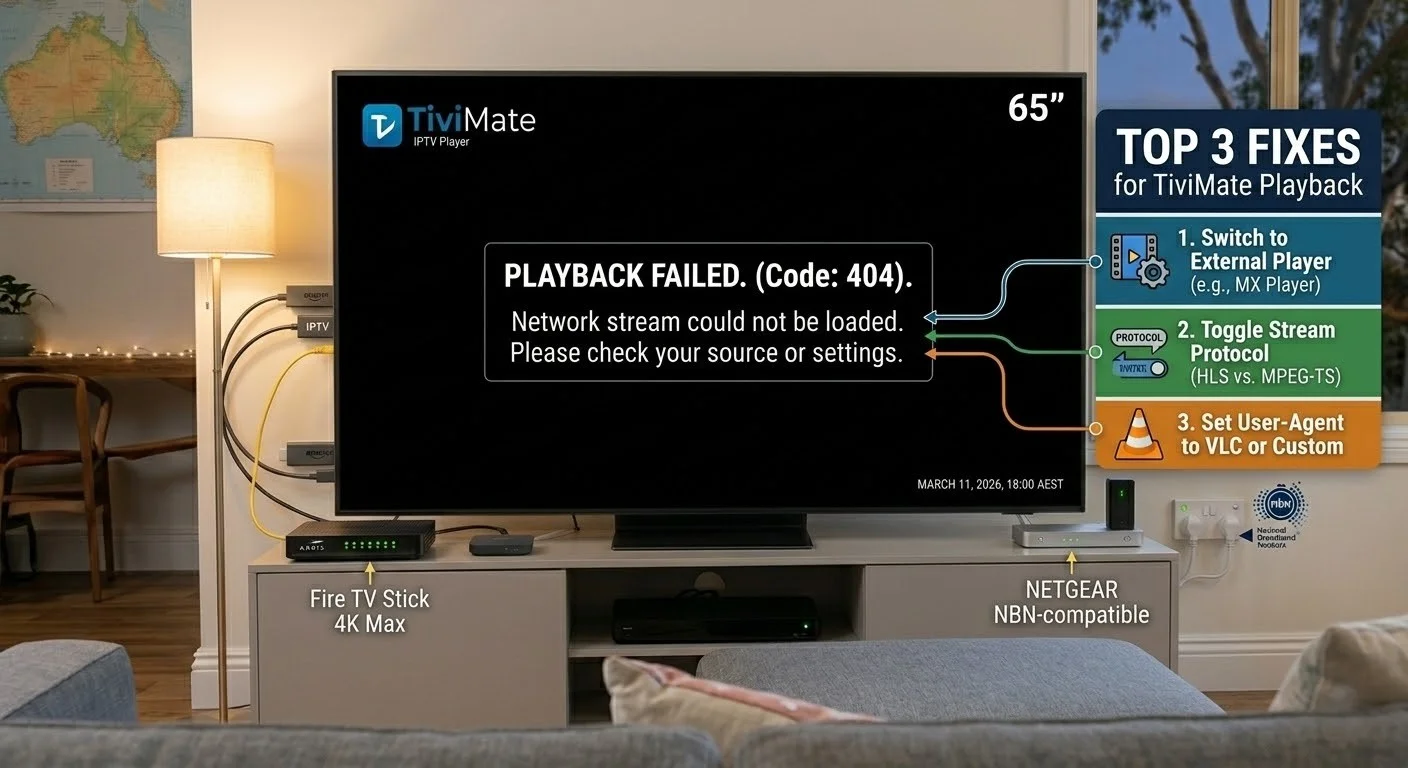
| “Playback Failed” error message immediately | Player configuration error or unsupported format | Fix 1, Fix 2 |
| Plays for 10–30 seconds then stops | Buffer depletion — network throughput too low | Fix 4 |
| Playback fails on 4K channels only | There is insufficient bandwidth, or the device cannot decode 4K. | Fix 5 |
| Playback fails on specific channels; others work | Those channels use a different codec or bitrate | Fix 1, Fix 5 |
| Works on phone, fails on TV/streaming device | Device-specific codec or player limitation | Fix 2, Fix 6 |
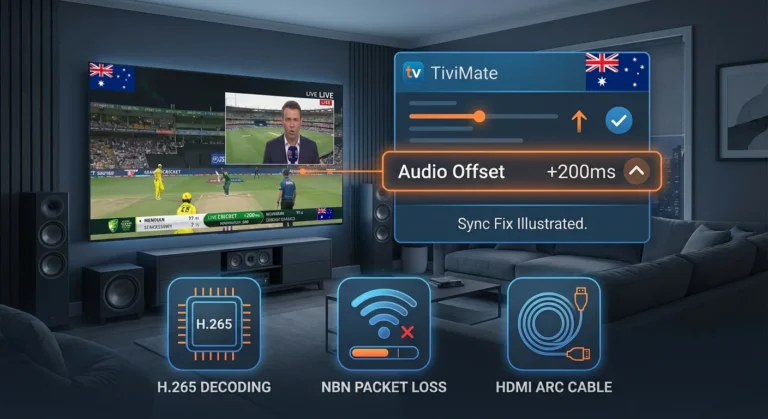
| Audio and video out of sync during playback | Player decoder issue — not a stream failure | Fix 2 |
Root Cause: Why IPTV Playback Fails
The Three Failure Layers
The issue of IPTV video not playing in Australia can be traced back to one of three layers:
Layer 1—Player Configuration: The IPTV app’s built-in player cannot decode the stream format being delivered. This is the most common cause of playback failures and is entirely fixable by switching players—no hardware change is required.
Layer 2 — Device Codec Support: The streaming device’s hardware cannot decode the video codec used by the stream. H.265 (HEVC) is the most common example — the standard Fire TV Stick and older Android boxes have hardware decode for H.264 but not H.265. Attempting to play H.265 streams on these devices produces a black screen or immediate playback error.
Layer 3—Network Delivery: The stream data is not arriving fast enough or consistently enough for the player to maintain a buffer.
This produces the spinning loader, the 10–30 second play-then-stop pattern, and progressive quality degradation.
The Australian H.265 Problem
A disproportionate number of IPTV playback failures in Australian households involve H.265-encoded streams. Many IPTV providers have migrated their HD and 4K channels to H.265 encoding because it delivers the same quality at roughly half the bitrate of H.264. This format is efficient for providers and for users with capable hardware — but it produces immediate playback failures on devices that lack H.265 hardware decode support.
Devices with H.265 hardware decode (no playback issue):
- Fire TV Stick 4K and 4K Max
- Nvidia Shield Pro
- Apple TV 4K (3rd generation)
- Most Android TV boxes released after 2019
- Sony Smart TVs (Google TV, 2020+)
Devices without H.265 hardware decode, which means they lack the capability to efficiently process H.265 video compression, are likely to experience playback failure on H.265 streams:
- Fire TV Stick standard (non-4K) — older models
- Older Android boxes (pre-2019)
- Some Samsung and LG Smart TV models (varies by year)
Fix 1 — Switch to an External Media Player
This is the most effective fix for IPTV playback and resolves the majority of black screen and codec errors without any hardware change. External players—MX Player and VLC—include software decoders for codecs that the built-in IPTV app player cannot handle in hardware.
Why it works: When a device cannot hardware-decode H.265, which is a video compression standard, the built-in player fails immediately. MX Player and VLC fall back to software decoding — slower but functional, allowing the stream to play on hardware that would otherwise fail.
How to switch players in TiviMate:
- Long-press on a channel that is failing → select Play with…
- Select MX Player or VLC
- If the channel plays successfully, set this as the default: Settings → Playback → External Player → select MX Player or VLC
How to switch players in IPTV Smarters:
- Settings → Player Settings → External Player
- Select MX Player or VLC
- Attempt playback on the failing channel
Install MX Player: Available free on the Amazon App Store (Fire TV Stick) and Google Play Store (Android TV). VLC is available on both platforms as well as iOS and Apple TV.
When this fixes it: This fix applies immediately to channels where the built-in player was failing due to codec incompatibility. H.265 streams that produced a black screen will play correctly via MX Player software decode.
When this step does not fix it: If MX Player also fails, the issue is not codec-related — continue to Fix 3 (network) or Fix 4 (stream delivery).
If something goes wrong: If MX Player plays the video but the audio is out of sync, go to MX Player settings → Audio → Audio Delay and adjust the sync offset until the audio and video align.
Fix 2 — Change Stream Type Between HLS and MPEG-TS
Stream type mismatch is the second most common cause of IPTV playback failed errors. Some streams are encoded for HLS delivery; others for MPEG-TS. An app configured for one type attempting to play a stream encoded for the other produces an immediate playback failure or a black screen with no audio.
How to change the stream type:
In TiviMate: Settings → Playlists → [Your Playlist] → Stream Type → toggle between HLS and MPEG-TS
In IPTV Smarters: Settings → Player Settings → Stream Format → toggle between HLS and MPEG-TS
Which to use:
| Connection Type | Recommended Stream Type |
|---|---|
| Home Ethernet or stable Wi-Fi | MPEG-TS — lower latency, better for live TV |
| Mobile data or unstable connection | HLS — TCP retransmission handles packet loss better |
| 4K streams | HLS — more compatible with high-bitrate 4K delivery |
| Standard HD home viewing | MPEG-TS — smoother channel switching |
After changing stream types, attempt playback on the failing channel. If it plays, apply the change to all channels by setting it as the default in your app’s global settings.
When this fixes it: Immediately. Stream type mismatch produces an instant playback failure — fixing it produces instant playback success.
Fix 3 — Verify Network Delivery to the Device
If switching players and stream types does not resolve the IPTV stream from loading, the failure is in the network layer—stream data is not arriving reliably enough for the player to maintain a buffer.
Quick network diagnosis:
- Open a browser on the same device and load a video on YouTube
- If YouTube also buffers or fails to load, the issue is the device’s network connection — not IPTV-specific
- If YouTube plays smoothly but IPTV still fails, the issue is specific to your provider’s stream delivery
If the device network is the problem:
- Switch from Wi-Fi to Ethernet (highest impact — see Wi-Fi vs Ethernet for IPTV Devices)
- Move the device closer to the router if Ethernet is not immediately possible
- Restart both the router and the streaming device
If YouTube plays smoothly but IPTV (Internet Protocol Television) fails, the issue is between your device and your provider’s streaming server specifically.
The issue is between your device and your provider’s streaming server specifically. This could be:
- Peak-hour congestion on the route to your provider’s server (see IPTV Buffering Fixes for Australian ISPs)
- The specific channel stream URL being temporarily unavailable
- Your provider’s CDN node experiencing issues
Fix 4 — Resolve Buffer Depletion (Plays Then Stops)
If IPTV plays for 10–30 seconds and then stops—rather than failing immediately—the cause is buffer depletion. The player loads a small amount of stream data into its buffer, begins playing, and then the buffer empties faster than new data arrives.
Increase buffer size in TiviMate: Settings → Playback → Buffer Size → increase from default (usually 10–30 seconds) to 60 seconds or higher
Increase buffer size in IPTV Smarters: Settings → Player Settings → Buffer Size → increase to maximum available option
Additional fixes for buffer depletion:
- Switch to Ethernet — eliminates the packet loss that causes buffer gaps
- Reduce stream quality if your provider offers multiple quality tiers
- Test at off-peak hours (2 PM vs 9 PM) to determine if NBN congestion is causing the delivery gap
When this fixes it: Increasing the buffer gives the player more tolerance for momentary drops in delivery speed. On Australian HFC connections experiencing moderate peak-hour congestion, a larger buffer absorbs short congestion spikes without stopping playback.
Fix 5 — Address 4K Playback Failures
4K IPTV stream playback failures have two causes: insufficient bandwidth and device decode limitations.
Bandwidth check for 4K: Run a speed test at peak hours (9 PM AEST). You need a minimum of 50 Mbps sustained internet speed for stable 4K IPTV streaming, where Mbps stands for megabits per second, a measure of data transfer rate.
If your peak-hour speed is below 50 Mbps, 4K streams will fail or degrade to HD automatically.
Device decode check for 4K: Confirm your device supports 4K H.265 hardware. decode:
| Device | 4K H.265 Support |
|---|---|
| Fire TV Stick 4K / 4K Max | ✅ Yes |
| Fire TV Stick standard | ❌ No |
| Nvidia Shield Pro | ✅ Yes |
| Apple TV 4K (3rd gen) | ✅ Yes |
| Chromecast with Google TV | ✅ Yes |
| Mecool KM2 Plus | ✅ Yes |
| Standard Fire TV Stick (1st/2nd gen) | ❌ No |
If your device does not support 4K H.265 hardware decode, which is a method for compressing and decompressing video files, switch to the HD version of the channel if your provider offers it. For device upgrade guidance, see 4K IPTV Streaming Devices.
Fix 6 — Resolve Device-Specific Playback Failures
Some playback failures are specific to one device type and do not occur on others using the same subscription.
Samsung Smart TV: Samsung Tizen, the operating system used in Samsung Smart TVs, has a documented memory leak in its built-in media player that causes IPTV (Internet Protocol Television) apps to crash after 45–90 minutes of continuous playback. This cannot be patched by the subscriber — it is a Samsung firmware issue.
The workaround is to add a Fire TV Stick 4K and use TiviMate instead of the built-in Smart TV app.
Standard Fire TV Stick (non-4K): Limited RAM (1GB on older models) causes playback failures after extended use as the app exhausts available memory. Fix: Settings → Applications → Clear the app cache before long viewing sessions. Fix long-term: upgrade to Fire TV Stick 4K.
Older Android boxes (pre-2019) may be able to use H.265, a video compression standard, for software decoding via MX Player, but this can lead to significant frame drops at higher bitrates. The practical fix is to request H.264 streams from your provider if available or upgrade to a current Android box.
For device-specific guidance, see Fire TV Stick IPTV Troubleshooting and Android IPTV Box Errors.
Resolution Summary
| Fix | Root Cause | Primary Symptom | Time Required |
|---|---|---|---|
| Fix 1 — Switch to MX Player / VLC | Codec incompatibility (H.265) | Black screen or immediate error | 3–5 min |
| Fix 2 — Change stream type | HLS vs MPEG-TS mismatch | Instant playback failure | 1 min |
| Fix 3 — Verify network delivery | Network layer failure | Spinning loader, never plays | 5 min |
| Fix 4 — Increase buffer size | Buffer depletion | Plays 10–30 sec then stops | 2 min |
| Fix 5 — Address 4K requirements | Bandwidth or decode limitation | 4K channels only fail | 5 min |
| Fix 6 — Device-specific fixes | Hardware or firmware limitation | One device fails; others work | 5–15 min |
If all fixes fail: The stream URL for the failing channel may be temporarily inactive on your provider’s side — particularly for live event channels that are only active during broadcast times. Wait and retry. If the failure affects all channels, see No Signal on IPTV: How to Fix.
FAQ
Why does IPTV show a black screen when I play a channel?
A black screen with audio playing is almost always an H.265 codec error — the device is receiving the audio track but cannot decode the H.265 video format, which is a method of compressing video files for transmission.
A black screen with audio playing is almost always an H.265 codec error—the device is receiving the audio track but cannot decode the H.265 video.
Switch to MX Player or VLC as your external player in TiviMate or IPTV Smarters settings. Both apps include software decoders for H.265 that work on devices without hardware decode support. If the black screen has no audio either, the failure is complete — check your network connection and stream type settings.
Why does my IPTV play for a few seconds and then stop?
This is buffer depletion — the player’s buffer empties faster than new stream data arrives. The most effective fix is switching from Wi-Fi to Ethernet, which is a wired internet connection, to eliminate packet loss.
The second fix is increasing the buffer size in your app’s playback settings. On Australian HFC or fixed wireless connections at peak hours (7–10 PM AEST), a larger buffer absorbs short congestion spikes. See IPTV Buffering Fixes for Australian ISPs for network-level fixes.
Why does IPTV playback work on my phone but not on my TV?
This is a device-specific codec or player limitation. Phones typically have more recent hardware with broader codec support. Your TV streaming device may lack H.265 hardware decode (particularly the standard Fire TV Stick or pre-2019 Android boxes).
Install MX Player on the TV device and set it as the external player in your IPTV app — this resolves codec limitations without hardware replacement.
Why do some IPTV channels play fine but others fail immediately?
Channels that fail immediately while others play correctly are using a different codec (usually H.265 vs H.264) or a higher bitrate than the failing device can handle. Switch to MX Player for the failing channels, or ask your provider whether H.264 alternatives are available for the same channels.
For 4K channels specifically, confirm your device supports 4K H.265 hardware decode using the table in Fix 5.
Wrap-Up
The majority of IPTV playback failure errors in Australia in 2026 are resolved by Fix 1—switching from the built-in player to MX Player or VLC. H.265 codec incompatibility on standard Fire TV Sticks and older Android boxes is the single most common cause of IPTV video not playing, and an external player resolves it in under five minutes without any hardware change.
For playback failures that persist after all the fixes above, check whether the failing channels are live event streams that are only active during broadcast — a common cause of “stream failed to load” errors that looks identical to a playback error.
Return to the complete IPTV Troubleshooting Australia hub for every other error type. For app crash issues distinct from playback failures, see IPTV App Crashes: Solutions & Tips.
Good luck with the fix.

Our Fact Checking Process
We prioritize accuracy and integrity in our content. Here's how we maintain high standards:
- Expert Review: All articles are reviewed by subject matter experts.
- Source Validation: Information is backed by credible, up-to-date sources.
- Transparency: We clearly cite references and disclose potential conflicts.
Our Review Board
Our content is carefully reviewed by experienced professionals to ensure accuracy and relevance.
- Qualified Experts: Each article is assessed by specialists with field-specific knowledge.
- Up-to-date Insights: We incorporate the latest research, trends, and standards.
- Commitment to Quality: Reviewers ensure clarity, correctness, and completeness.
Look for the expert-reviewed label to read content you can trust.