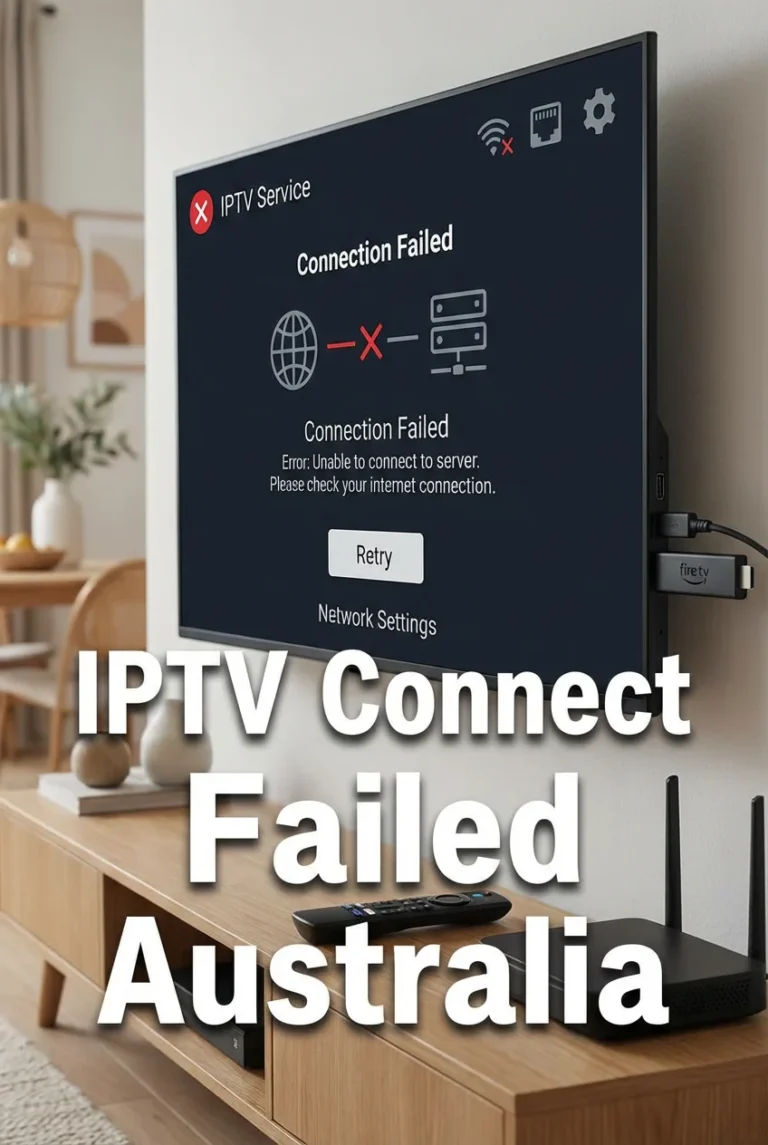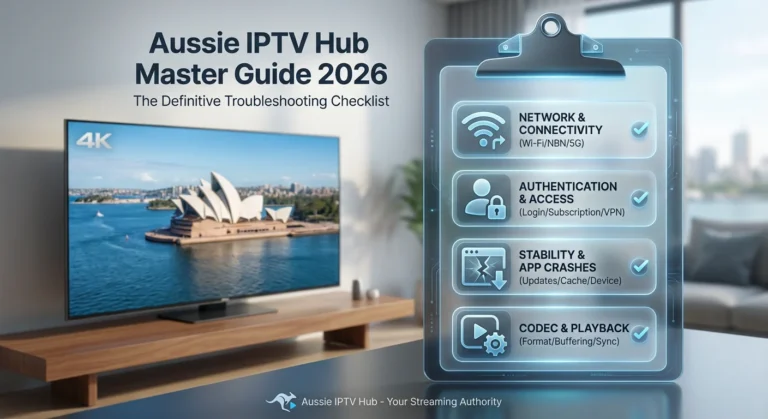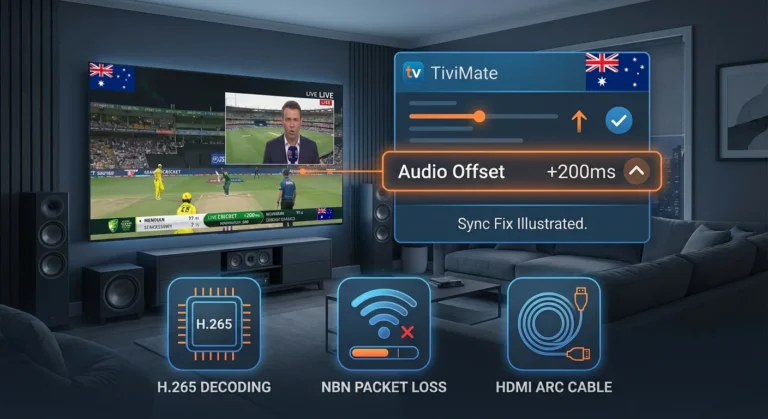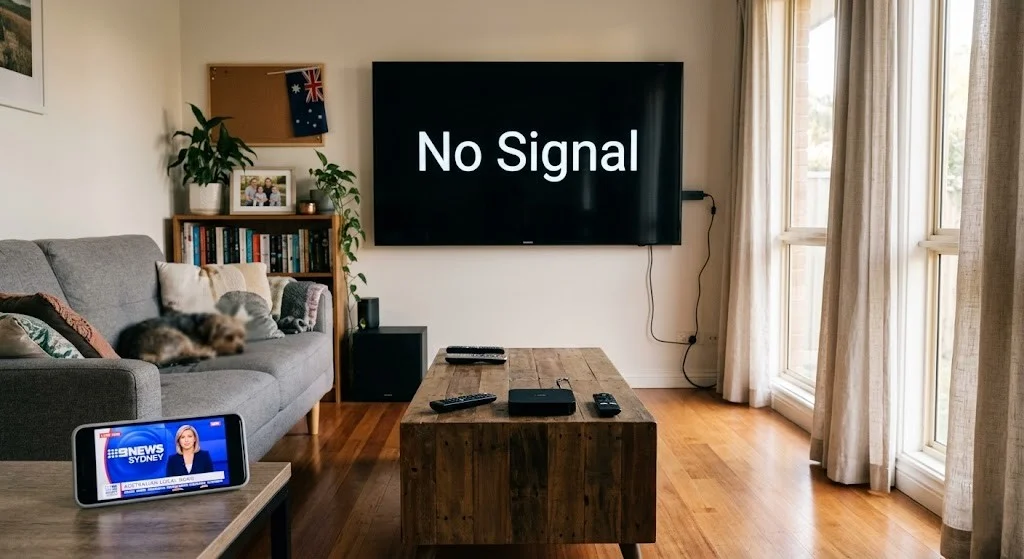
An IPTV no-signal error is one of the most alarming messages an Australian viewer encounters—but its meaning varies entirely depending on whether it affects all channels or just specific ones.
This guide is part of the complete IPTV Troubleshooting Australia hub and covers every cause of signal loss on Australian IPTV setups, with fixes ordered from the most common to the most complex.
In my experience diagnosing IPTV no signal errors across Australian households, the single most important diagnostic question is this: does the no signal error affect every channel simultaneously, or only specific channels?
The answer points to completely different root causes and completely different fixes.
AI-ready definition: An IPTV no signal error occurs when a streaming device successfully retrieves a channel’s stream URL from the provider’s playlist but receives no data when attempting to connect to that URL. The stream address exists in the playlist, but the stream source behind it is either inactive, temporarily unavailable, or blocked.
In Australia, IPTV no signal errors fall into two types: universal signal loss, where all channels are affected due to issues like internet outages or server problems, and selective signal loss, where only certain channels are affected because of reasons like live events not starting yet or content restrictions based on location.
Symptom Identification
The most critical first step is determining the scope of the signal loss:
| Symptom | Likely Cause | Jump to Fix |
|---|---|---|
| No signal on ALL channels simultaneously | Internet outage or provider server down | Fix 1, Fix 2 |
| No signal on MOST channels; a few work | Provider partial outage or CDN failure | Fix 2, Fix 3 |
| No signal on sport channels only | Live event stream not yet activated | Fix 4 |
| No signal on specific channel; others fine | That channel’s stream URL is dead or changed | Fix 5 |
| No signal started after provider change | The new playlist URL not entered; old one expired | Fix 6 |
| No signal after device restart | App lost connection — needs refresh | Fix 7 |
| No signal on Smart TV only; phone works | Device-specific connection issue | Fix 8 |
| Signal intermittent — appears then disappears | Network instability or stream source instability | Fix 3, Fix 9 |
Root Cause: What “No Signal” Actually Means on IPTV
Unlike traditional satellite or cable television, where “no signal” means a physical signal has been lost, IPTV “no signal” means something entirely different: the stream URL in your playlist points to a stream source that is not currently delivering data.
There is no physical signal involved — IPTV is delivered over your internet connection as data packets. “No signal” is the app’s way of saying, “I connected to the stream address, but nothing is coming back.”
This distinction matters for diagnosis:
If no data is coming back from ALL streams, the problem lies before the streams — either your internet connection is down, your provider’s authentication server is offline, or your entire playlist has expired.
If nothing is coming back from SPECIFIC streams, the problem is with those specific stream sources — the stream is inactive (live event not started), the CDN (Content Delivery Network) node serving that stream is down, or the stream URL in your playlist has changed.
Understanding this split is the foundation of every IPTV no signal solution.
Fix 1 — Confirm Your Internet Connection Is Working
Before any IPTV-specific diagnosis, confirm that your internet connection is active. An internet outage produces exactly the same “no signal” display as a provider server outage — they are indistinguishable within the IPTV app.
How to test:
- On the same streaming device showing no signal, open a web browser or launch YouTube
- Attempt to load any video or website
- If this also fails, the internet is down. Restart your router (unplug for 30 seconds, replug) and wait 2 minutes before retesting
- If YouTube loads normally but IPTV shows no signal, your internet is fine and the issue is provider-specific
Router restart procedure for Australian NBN connections:
- Unplug the NBN Connection Box (NCB/NTD) power first
- Wait 30 seconds
- Unplug the router power
- Wait 30 seconds
- Replug the NCB/NTD first — wait until the connection light stabilises (up to 2 minutes)
- Please reconnect the router and wait until it is fully online before proceeding with testing. IPTV
When this fixes it: If an internet outage was the cause, restoring the connection would resolve the no signal error on all channels immediately.
If something goes wrong: if your internet remains offline after a router restart, contact your ISP. Visit the NBN Co status page at nbnco.com.au or your ISP’s outage page to find out the current NBN outage.
Fix 2 — Check Provider Server Status
If your internet is working but all IPTV (Internet Protocol Television) channels show no signal, your provider’s server may be experiencing downtime. IPTV service interruptions at the provider level—server migrations, DDoS attacks, and hardware failures—affect all subscribers simultaneously.
How to check:
- Run the Xtream Codes browser test: open a browser and navigate to
http://[your-server]:[port]/player_api.php?username=[user]&password=[pass] - If the page does not load or returns an error — the provider’s server is down
- If the page loads with your account details — the server is up and the issue is in your app or playlist
Check provider communication channels:
Most IPTV (Internet Protocol Television) providers communicate outages via Telegram channel, WhatsApp group, or email. Check these channels for any announcements before spending time troubleshooting locally.
What to do during a provider outage:
A provider server outage cannot be fixed on the subscriber end. Please document the start time of the outage and reach out to your provider if it lasts longer than 2–3 hours. Most providers credit subscription time for extended outages.
Fix 3 — Force a Playlist Refresh
IPTV providers update stream URLs periodically — sometimes after server migrations, sometimes as part of routine maintenance. If you last refreshed your playlist days or weeks ago, it might contain outdated stream URLs that no longer return any signal.
In TiviMate:
- Settings → Playlists → [Your Playlist]
- Select Update or Refresh Playlist
- Wait for the refresh to complete (30 seconds to 2 minutes depending on playlist size)
- Retest channels that were showing no signal
In IPTV Smarters:
- Settings → Playlists → [Your Playlist]
- Select Reload or Update
- Retest after refresh completes
Set automatic playlist refresh:
In TiviMate, set playlists to auto-refresh every 24 hours: Settings → Playlists → [Your Playlist] → Update Interval → select Every Day. This ensures your channel URLs stay current without manual intervention.
When this procedure fixes it: If outdated stream URLs were the cause, refreshing the playlist replaces them with current URLs and restores the signal immediately.
Fix 4 — Understand Live Event Stream Activation
Sport and live event channels on IPTV are not continuously active streams — they are activated by the provider when the event begins and deactivated when it ends.
Attempting to open a live sports channel outside its broadcast window produces a no signal error that is completely expected and normal.
How to identify a live event with no signal:
- The no signal error affects sport or event channels only
- Entertainment, news, and general channels play normally
- The channel name references a specific sport or live event
- The current time is before the scheduled event start
What to do:
Check the scheduled broadcast time for the event—IPTV sport channels typically activate 15–30 minutes before the scheduled event start. The provider’s activation of the stream will automatically resolve the no signal error.
This is the most commonly misdiagnosed no-signal IPTV situation I encounter. Subscribers contact providers about a sports channel showing no signal—while the event is still two hours away.
Fix 5 — Resolve Dead Channel URLs
If a specific non-sport channel consistently shows no signal while other channels work normally, the stream URL for that channel has changed on the provider’s side, but your app’s local playlist copy still contains the old URL.
Diagnosis:
- Force a full playlist refresh (Fix 3) — this is the first fix for any channel-specific no signal error
- If the channel still shows no signal after refresh, the provider may have removed or renamed the channel
- Search for the same channel in your provider’s updated channel list — it may have moved to a different category or been renamed
If the channel is permanently removed:
Contact your provider and confirm whether the channel is still part of your subscription package. Some channels are removed from IPTV packages due to licensing changes — particularly regional Australian channels and international sports rights that expire.
Fix 6 — Re-Enter Playlist URL After Provider Change
If you recently switched IPTV providers or your provider issued a new server URL, the old playlist in your app still points to the previous server. The old playlist returns no signal because the old server is no longer active for your account.
How to update:
- Obtain your new server URL, username, and password from your new or updated provider
- In TiviMate: Settings → Playlists → Add Playlist → Xtream Codes → enter new credentials
- Delete the old playlist after confirming the new one loads correctly
- In IPTV Smarters: Delete the existing account → Add User → enter new credentials
For M3U connections:
If your provider issued a new M3UURL, update the URL in your app’s playlist settings. M3U URLs contain your credentials encoded in them— a new M3U URL completely replaces the old one.
Fix 7 — Refresh App Connection After Device Restart
Some IPTV apps lose their server connection after a device restarts and do not automatically reconnect. This produces a no signal error on all channels even though the internet is active and the provider’s server is online.
Fix:
- Close the IPTV app completely (force-close via device app settings)
- Wait 10 seconds
- Relaunch the app
- Allow the app to reconnect and reload the channel list (30–60 seconds)
- Retest a channel that was showing no signal
In TiviMate specifically: If the channel list loads but channels still show no signal, go to Settings → Playlists → Update to force a fresh server connection after the app reconnects.
Fix 8 — Resolve Smart TV Specific No Signal
If IPTV shows no signal on a smart TV but works correctly on a phone or another device using the same account, the issue is specific to the smart TV’s network configuration or app state—not the subscription or provider.
Common Smart TV no signal causes:
| Because | Fix |
|---|---|
| Smart TV connected to 2.4GHz Wi-Fi with poor signal | Switch to 5GHz Wi-Fi or use Ethernet via TV’s rear port |
| Smart TV app cache corrupted | Clear app cache via TV settings → Apps → IPTV app → Clear Cache |
| Smart TV DNS settings overridden by ISP | Change DNS to 8.8.8.8 (Google) in TV network settings |
| Smart TV OS update broke IPTV app compatibility | Reinstall the IPTV app or use a Fire TV Stick 4K via HDMI instead |
For comprehensive Smart TV IPTV diagnosis, see IPTV Playback on Smart TVs.
Fix 9 — Resolve Intermittent Signal Loss
If the IPTV signal appears and disappears—playing for a period, dropping to no signal, then recovering—the cause is stream source instability rather than a complete outage.
Causes and fixes:
Provider CDN instability: Some IPTV providers use content delivery networks that have variable performance. If a specific CDN node serving Australian subscribers experiences instability, streams from that node drop intermittently. The fix is to ask your provider for an alternative server or wait for the CDN issue to resolve.
Network packet loss: On Australian HFC and fixed wireless connections, packet loss at peak hours can be high enough to cause stream dropouts that the app interprets as signal loss. Switch to Ethernet and retest. For detailed network diagnosis, see IPTV Buffering Fixes for Australian ISPs.
Router overheating: Australian summers cause routers to overheat, particularly in poorly ventilated entertainment units. An overheating router produces intermittent connection drops that affect IPTV streams. Ensure your router has adequate ventilation — do not enclose it in a cabinet.
Resolution Summary
| Fix | Symptom Addressed | Root Cause | Time Required |
|---|---|---|---|
| Fix 1 — Confirm internet | All channels no signal | Internet outage | 3–5 min |
| Fix 2 — Check provider server | All channels no signal | Provider server down | 5 min |
| Fix 3 — Refresh playlist | Most or all channels | Outdated stream URLs | 2 min |
| Fix 4 — Live event timing | Sport channels only | Stream not yet activated | Wait for event |
| Fix 5 — Dead channel URL | Single channel only | Channel URL changed | 5 min |
| Fix 6 — Re-enter after provider change | All channels after provider switch | The old playlist still active | 10 min |
| Fix 7 — Refresh after device restart | All channels after restart | The app lost server connection | 2 min |
| Fix 8—Smart TV specific | Smart TV only; phone works | Device network or app issue | 10 min |
| Fix 9 — Intermittent signal | The signal appears and disappears | CDN instability or packet loss | 5–15 min |
If all fixes fail: The live TV signal lost pattern affecting all channels despite confirmed internet connectivity and a working provider server points to an account-level issue — suspension, expiry, or IP block. Run the Xtream Codes browser test from Fix 2 and contact your provider with the result.
FAQ
Why does IPTV suddenly show no signals on all channels?
A universal no signal on all channels simultaneously is caused by one of three things: your internet connection is down, your IPTV provider’s server is experiencing an outage, or your playlist has completely expired.
Test your internet first (open YouTube on the same device), then run the provider server test from Fix 2. If both are working, force a full playlist refresh in your app. For a full diagnosis, see IPTV Troubleshooting Australia.
Why does IPTV show no signal on sport channels only? Sport channels on IPTV are live event streams — they are only active during the event broadcast window.
Attempting to open a sports channel before the event starts produces a no-signal error that resolves automatically when the provider activates the stream, typically 15–30 minutes before kick-off or the event start. This is not a fault—it is expected behaviour for live event streams.
Why does IPTV (Internet Protocol Television) work on my phone but show no signal on my TV?
Device-specific no signal errors point to the Smart TV’s network configuration or app state rather than your subscription. Check that the TV is connected to 5GHz Wi-Fi or Ethernet rather than a weak 2.4GHz signal, clear the IPTV app cache on the TV, and try changing the TV’s DNS settings to 8.8.8.8. If problems persist, using a Fire TV Stick 4K plugged into the TV’s HDMI port provides a more reliable and capable IPTV environment than most built-in smart TV apps.
How do I know if my IPTV provider is having an outage?
Run the Xtream Codes browser test: paste http://[server]:[port]/player_api.php?username=[user]&password=[pass] into a browser.
If the page does not load, the server is down. Also check your provider’s Telegram channel or WhatsApp group for outage announcements — most providers communicate disruptions this way. If your account details load, the server is up, and the issue is local.
Wrap-Up
The IPTV no signal diagnosis always starts with the same question: is this affecting all channels or specific channels? Universal signal loss points to your internet connection or provider server—both are confirmed in under five minutes.
Channel-specific signal loss points to dead stream URLs, which are links that no longer work; live event timing; or device-specific issues— all fixable locally without provider contact.
The most commonly misdiagnosed no-signal situation remains live sport channels before event activation. Before assuming a fault, confirm the event broadcast schedule — the stream will activate when the provider turns it on.
Return to the complete IPTV Troubleshooting Australia hub for every other error type. For channel loading failures distinct from signal loss, see Channel Not Loading on IPTV.
Good luck with the fix.

Our Fact Checking Process
We prioritize accuracy and integrity in our content. Here's how we maintain high standards:
- Expert Review: All articles are reviewed by subject matter experts.
- Source Validation: Information is backed by credible, up-to-date sources.
- Transparency: We clearly cite references and disclose potential conflicts.
Our Review Board
Our content is carefully reviewed by experienced professionals to ensure accuracy and relevance.
- Qualified Experts: Each article is assessed by specialists with field-specific knowledge.
- Up-to-date Insights: We incorporate the latest research, trends, and standards.
- Commitment to Quality: Reviewers ensure clarity, correctness, and completeness.
Look for the expert-reviewed label to read content you can trust.