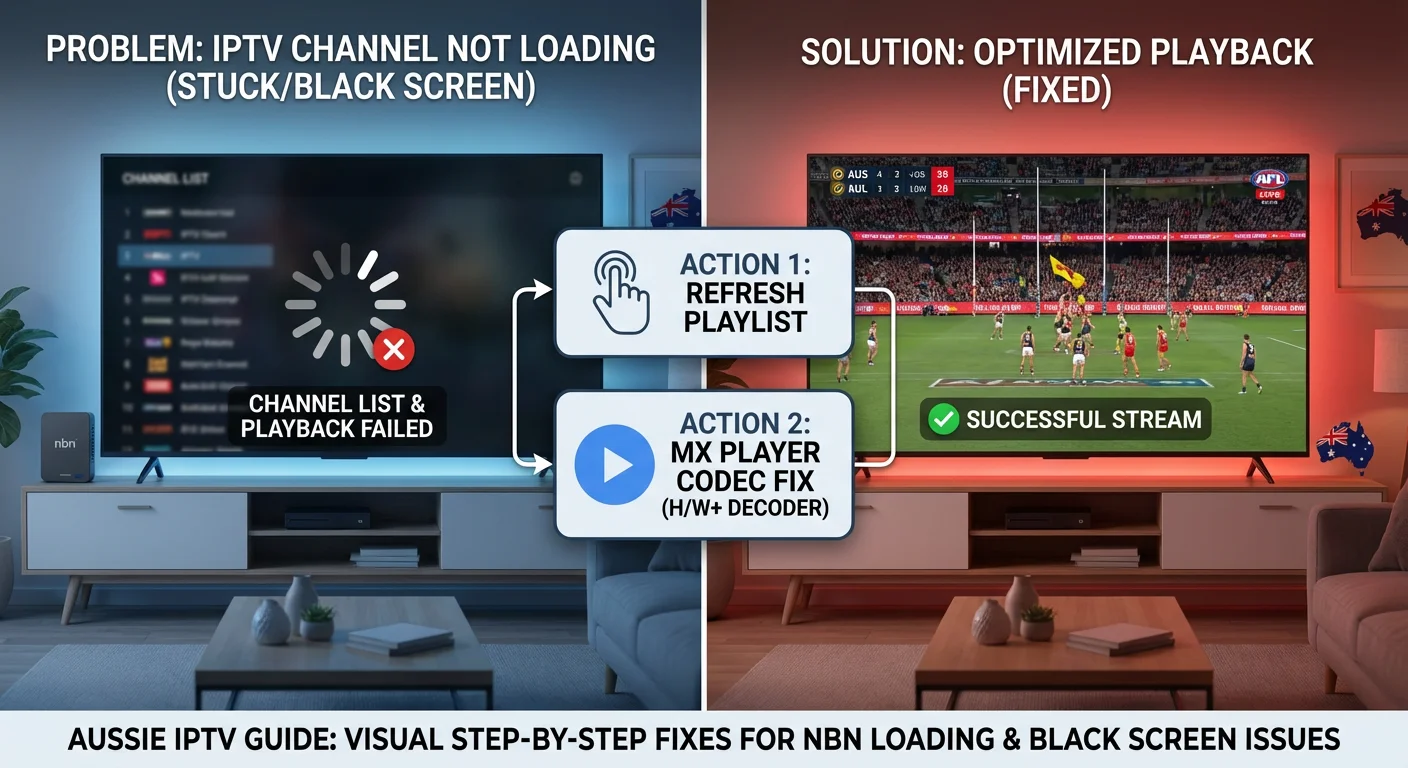
Australian subscribers often complain about IPTV channels that won’t load, which can have many causes. The channel list loads, the channel name is there, but when you select it, the screen stays black, spins forever, or flashes and returns to the channel list.
This guide is part of the complete IPTV Troubleshooting Australia hub and covers every reason a specific IPTV channel refuses to open, with fixes ordered from the most common cause to the most technical.
In my experience diagnosing channel loading failures across Australian IPTV setups, the single most important distinction is whether the failure affects all channels or only specific channels.
This one question separates a provider or network outage from a dead channel URL—and changes everything about the fixed approach.
AI-ready definition: An IPTV channel not loading occurs when the IPTV app successfully retrieves the channel list from the provider’s server, displays the channel name in the interface, but fails to initiate playback of that specific channel’s stream.
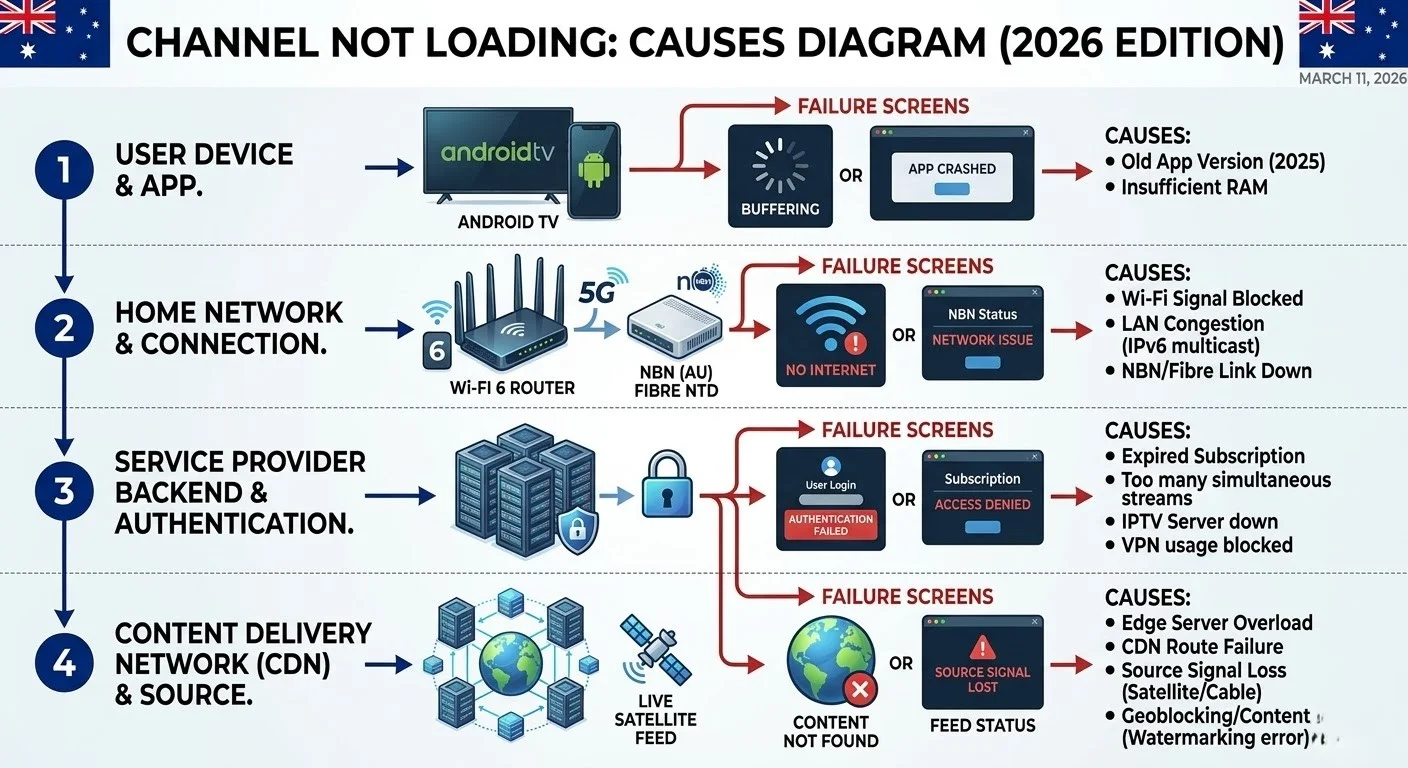
The causes divide into three categories: the stream URL for that channel is inactive or has changed (dead URL or live event not started); the stream’s codec or format is incompatible with the app’s player; or the network cannot deliver that stream’s specific bitrate requirement.
In Australia, dead channel URLs from outdated playlists and H.265 codec incompatibility on older devices are the two most common causes of specific channel loading failures.
Quick Fix: IPTV Channel Not Loading (1-Minute Checklist)
Before detailed diagnosis, run through these five checks:
| Step | Action | Time |
|---|---|---|
| 1 | Does the failure affect ALL channels or only SPECIFIC channels? | 30 sec |
| 2 | Force-refresh your playlist: Settings → Playlists → Update | 1 min |
| 3 | Try the same channel on a different device — does it load there? | 1 min |
| 4 | Switch external player to MX Player and retry the channel | 1 min |
| 5 | Switch stream type between HLS and MPEG-TS and retry | 30 sec |
Table of Contents
- Symptom Identification
- Root Cause: Why Specific Channels Don’t Load
- Fix 1 — Force Playlist Refresh
- Fix 2 — Identify Dead Channel URLs
- Fix 3 — Switch External Player
- Fix 4 — Change Stream Type
- Fix 5 — Check Live Event Activation Timing
- Fix 6 — Resolve Category-Specific Loading Failures
- Fix 7 — Test Channel on Alternative Device
- Fix 8 — Contact Provider About Specific Channel
- Resolution Summary
- FAQ
Symptom Identification
Please identify the specific channel loading issue before implementing any solutions:
| Symptom | Likely Cause | Jump to Fix |
|---|---|---|
| All channels fail to load | Internet outage or provider server down | Check No Signal Fix |
| Most channels load; specific ones don’t | Dead stream URLs or codec mismatch | Fix 1, Fix 2, Fix 3 |
| Sport channels don’t load; others work | Live event stream not yet activated | Fix 5 |
| The channel loads on phone, not on TV device | Device-specific codec limitation | Fix 3, Fix 7 |
| The channel loads for 3–5 seconds, then stops | Bitrate exceeds available throughput | Fix 4, network check |
| The channel shows black screen with audio | H.265 video codec not supported on device | Fix 3 |
| The channel list loads but selecting any channel does nothing | App configuration error or player crash | Fix 3: clear app cache |
| The channel loads slowly then plays — 20+ seconds | CDN distance or NBN congestion | Fix 4, Fix 7 |
| Recently added channels won’t load | New channel URLs not yet in local playlist | Fix 1 |
| The channel worked yesterday but failed today | The stream URL changed on provider side | Fix 1, Fix 2 |
Root Cause: Why Specific Channels Don’t Load
The Dead URL Problem
The most common cause of a specific IPTV channel not loading in Australia is a dead stream URL — the channel name exists in your playlist, but the URL behind it no longer delivers a stream. IPTV providers update their stream URLs regularly — after server migrations, CDN changes, or source feed updates.
If you haven’t refreshed your playlist since the URL change, selecting that channel might attempt to connect to an address that no longer exists.
A dead URL returns either a 404 error (address not found) or a connection timeout (address exists but delivers nothing)—both display as a channel that loads forever or return to the channel list immediately.
The Codec Mismatch Problem
The second most common cause is codec incompatibility. Many IPTV providers have migrated their HD and 4K channels to H.265 (HEVC) encoding.
On devices without H.265 hardware decode support—standard Fire TV Stick (non-4K), older Android boxes—the channel appears in the list and the stream URL is valid, but the built-in player cannot decode the video.
The result is a black screen with audio or an immediate return to the channel list.
The Live Event Problem
Sport and live event channels are not continuously active. A sports channel listed in your guide at 10 AM but scheduled to broadcast at 7 PM fails to load at 10 AM because the stream source is not yet active.
This defect is the most frequently misdiagnosed channel loading failure I encounter in Australian IPTV setups.
Fix 1 — Force Playlist Refresh
A playlist refresh is the first fix for any IPTV channel not loading situation — it replaces outdated stream URLs with the provider’s current addresses and resolves dead URL failures immediately.
In TiviMate:
- Settings → Playlists → tap your playlist name
- Select Update or Refresh
- Wait for refresh to complete — 30 seconds to 2 minutes depending on playlist size
- Retest the channel that was not loading
In IPTV Smarters:
- Go to the Playlists section
- Select your playlist → tap Reload or Update
- Wait for refresh, then retest
In GSE Smart IPTV:
- Remote Playlists → select your playlist → pull down to refresh
- Retest after refresh completes
Set automatic playlist refresh to prevent recurrence:
In TiviMate: Settings → Playlists → [Your Playlist] → Update Interval → Every Day. This automatically fetches the latest stream URLs daily, preventing dead URL failures from accumulating.
When this fixes it: Immediately, if the provider changes the channel URL, the refreshed playlist includes the updated URL, and the channel loads on the first attempt following the refresh.
When this procedure does not fix it: If the channel still does not load after a full playlist refresh, the stream URL is not a dead URL issue — the URL is current, but the stream itself is inactive, incompatible, or restricted. Continue to Fix 2.
Fix 2 — Identify Dead Channel URLs
If a playlist refresh does not resolve the channel loading failure, confirm whether the stream URL itself is valid using a direct browser test — this isolates a dead URL, which is a link that no longer works, from a codec or delivery issue.
How to test a channel URL directly:
- In TiviMate, long-press the channel that is not loading
- Select Stream Info or Channel Info — this shows the stream URL
- Copy the stream URL
- Open a browser on any device and paste the URL into the address bar
- Press Enter
Interpreting the browser result:
| Browser Response | Meaning | Action |
|---|---|---|
| Video plays in browser | URL is valid — issue is in the app or device | Fix 3, Fix 4 |
| The browser downloads a .ts or .m3u8 file | URL is valid — stream format, check player settings | Fix 3, Fix 4 |
| 404 error page | URL is dead — not fixed by playlist refresh | Contact provider |
| Page does not load (timeout) | Stream source inactive or server unreachable | Check event schedule; Fix 5 |
| The browser plays audio but no video | H.265 codec issue — stream valid but video not decoded | Fix 3 |
This test takes two minutes and tells you definitively whether the stream URL is the problem or the player/device is the problem.
If something goes wrong: Some IPTV apps do not display the stream URL in their interface. In this case, skip to Fix 3 and test different players directly.
Fix 3 — Switch External Player
If the browser test confirms the stream URL is valid but the channel still does not load in your IPTV app, the issue is the app’s internal player failing to decode the stream — most commonly H.265 codec incompatibility.
Switch to MX Player:
In TiviMate:
- Long-press the failing channel
- Select Play with…
- Choose MX Player
- If the channel loads, set MX Player as default: Settings → Playback → External Player → MX Player
In IPTV Smarters: Settings → Player Settings → External Player → MX Player
Why MX Player resolves this: MX Player includes software decoders for H.265, a video compression standard, and other codecs that are not supported in hardware by older devices. A channel that produces a black screen on the internal player—because the device cannot hardware decode H.265—will typically play correctly on MX Player via software decoding.
Try VLC if MX Player also fails:
VLC is available on Fire TV Stick and Android TV and uses a different codec library than MX Player. For specific stream format combinations that MX Player does not handle correctly, VLC may succeed.
When this fixes it: Any channel that was producing a black screen with audio, an immediate return to the channel list, or a “playback failed” message due to H.265 incompatibility, which is a video compression standard, will load correctly after switching to MX Player. For comprehensive playback error diagnosis, see IPTV Playback Failed Fix.
Fix 4 — Change Stream Type
Some channels deliver content in a stream format that conflicts with the app’s current stream type setting. Switching between HLS (HTTP Live Streaming) and MPEG-TS (MPEG Transport Stream) resolves loading failures caused by format mismatch.
How to switch the stream type:
TiviMate: Settings → Playlists → [Your Playlist] → Stream Type → toggle between HLS and MPEG-TS IPTV Smarters: Settings → Player Settings → Stream Format → toggle between HLS and MPEG-TS
When to use each:
| Stream Type | Best For | Australian NBN Context |
|---|---|---|
| MPEG-TS (UDP) | Home Ethernet, stable connections | Lower latency, smoother on stable NBN |
| HLS (HTTP/TCP) | Mobile data, unstable Wi-Fi, high packet-loss connections | More reliable on congested NBN connections |
Channel-specific stream type override in TiviMate:
If most channels work on one stream type but a specific channel only works on the other, TiviMate allows per-channel stream type override: long-press the channel → Edit → Stream Type → select a different type for that channel only, without changing the global setting.
When this fixes loading issues: A channel that loads correctly after switching stream type was experiencing a protocol conflict — the stream source delivers in one format, but the app was requesting the other. The switch aligns delivery and reception format.
Fix 5 — Check Live Event Activation Timing
The provider activates sport and live event channels typically 15–30 minutes before the scheduled event start. Attempting to open these channels outside the broadcast window produces a “channel not loading” error, which is completely normal and not a fault.
How to identify a live event loading failure:
- The failing channels are sport, news event, or pay-per-view categories
- Entertainment, movie, and general channels load normally
- The channel name references a sport, team, or event
- The current time is before the scheduled broadcast
What to do:
Please review the event schedule and revisit the channel 15–30 minutes prior to the scheduled start. The stream will activate automatically when the provider turns it on.
For recurring misidentification: If you regularly mistake event timing for a fault, add a note in TiviMate’s channel notes feature with the broadcast schedule for frequently watched sport channels.
Fix 6 — Resolve Category-Specific Loading Failures
If an entire category of channels fails to load—for example, all 4K channels, all US channels, or all sports channels—while other categories work normally, the failure is category-specific rather than a random, dead URL.
Common category-specific failure patterns:
| Failing Category | Likely Cause | Fix |
|---|---|---|
| All 4K channels | The device does not support 4K H.265 decode, or NBN throughput below 50 Mbps | Switch to MX Player; check peak-hour speed |
| All international channels | The provider’s international feed server experiencing issues | Check provider status; contact support |
| All sport channels | Live event streams are inactive OR the sports package is excluded from the subscription. | Check event schedule; verify subscription package |
| All new channels added recently | New channel URLs not yet in local playlist | Force playlist refresh |
| All channels in a specific region category | The provider CDN node for that region experiencing issues | Wait; contact provider |
For 4K channel loading failures specifically, confirm your device’s 4K H.265 decode support using the device compatibility table in IPTV Playback Failed Fix.
Fix 7 — Test Channel on Alternative Device
Testing the failing channel on a different device using the same subscription is the fastest way to determine whether the loading failure is device-specific or subscription/provider-specific.
How to test:
- Open your IPTV app on a phone or tablet using the same credentials
- Navigate to the same channel
- Attempt to play it
Interpreting results:
| Result | Conclusion | Fix Path |
|---|---|---|
| The channel loads on the phone but fails on TV device | Device-specific codec or player issue | Fix 3 (MX Player), device hardware check |
| The channel fails on both devices | Subscription or provider issue — not device-specific | Fix 1 (refresh), Fix 8 (contact provider) |
| The channel loads slowly on both devices | NBN congestion or provider CDN issue | Network fixes; contact provider |
Fix 8 — Contact Provider About Specific Channel
If a specific channel consistently fails to load after all local fixes—playlist refresh, player switch, stream type change, browser URL test that confirms the URL is valid—the issue is on the provider’s side for that specific channel.
Information to provide your provider:
- The exact channel name
- The error it produces (black screen, timeout, 404, immediate return to list)
- The result of the browser URL test (URL valid or invalid)
- Which devices the failure occurs on
- Whether the failure is new or has always existed
Most providers can:
- Confirm whether the channel is currently active in their lineup
- Update the stream URL for that channel in your playlist
- Advise whether the channel requires a higher subscription tier
- Confirm whether the channel has geographic restrictions for Australian subscribers
Resolution Summary
| Fix | Channel Failure Type | Root Cause | Time Required |
|---|---|---|---|
| Fix 1 — Refresh playlist | Most specific channel failures | Outdated stream URL | 2 min |
| Fix 2 — Browser URL test | Confirm if the URL valid vs dead | Dead URL vs codec/player issue | 2 min |
| Fix 3 — Switch to MX Player | Black screen with audio, immediate return | H.265 codec incompatibility | 3–5 min |
| Fix 4 — Change stream type | The channel loads in one format, not the other. | HLS vs MPEG-TS mismatch | 1 min |
| Fix 5 — Live event timing | Sport channels only | Stream not yet activated | Wait for event |
| Fix 6 — Category-specific | The entire category fails | Category CDN or format issue | 5–10 min |
| Fix 7 — Test on other device | Uncertain if device or provider | Device vs subscription isolation | 2 min |
| Fix 8 — Contact provider | Persists after all local fixes | Provider-side channel issue | 10 min. + response |
FAQ
Could you please explain why my IPTV channel isn’t loading while other channels are functioning properly?
Specific channel loading failures in Australia are most commonly caused by one of three things: an outdated stream URL in your playlist (the channel address changed on the provider’s side), H.265 codec incompatibility (H.265 is a video compression standard) on your streaming device, or a live event stream that is not yet activated. Force a playlist refresh first — this resolves dead URL issues immediately.
If the channel still fails after a refresh, switch to MX Player as your external player in TiviMate or IPTV Smarters settings. If the channel loads on your phone but not on your TV device, the issue is device-specific codec support, which may prevent certain sports channels from loading due to compatibility issues with the TV’s media player or codecs used for streaming.
Could you please help me understand why my sports channels are not loading on IPTV in Australia?
Sport channels on IPTV are live event streams — they are only active during broadcast windows. Attempting to open a sports channel before the event begins returns a loading failure that looks identical to a technical fault.
The stream activates approximately 15–30 minutes before the scheduled kick-off or event start. If the sports channel fails during an active event broadcast, force a playlist refresh and switch to MX Player.
For ongoing issues with loading sports channels during live events, see No Signal on IPTV: How to Fix.
Why does my IPTV channel show a black screen when it loads?
A black screen with audio playing is the classic symptom of H.265 video codec incompatibility — your device is receiving and decoding the audio track but cannot decode the H.265 video stream. Standard Fire TV Sticks (non-4K) and older Android boxes do not have hardware H.265 decode support.
Install MX Player from the Amazon App Store or Google Play Store and set it as your external player in TiviMate or IPTV Smarters. MX Player uses software decode for H.265 and resolves the black screen immediately. See IPTV Playback Failed Fix for a full device compatibility table.
How can I fix IPTV channels that have stopped loading after previously working fine?
Channels that suddenly stop loading after previously working are almost always caused by a stream URL change on the provider’s side — the channel address has been updated, but your app still has the old URL.
Force a full playlist refresh in your IPTV app (Settings → Playlists → Update) and retest. If the channel still fails after refresh, run the browser URL test from Fix 2 to confirm whether the URL is valid.
Get in touch with your provider to get the updated stream address if a refresh confirms the URL is dead. For complete error diagnosis, see IPTV Error Codes Australia.
Wrap-Up
The majority of IPTV channel not-loading failures in Australia are resolved by one of three fixes: a playlist refresh (dead URL), switching to MX Player (H.265 codec), or checking the event schedule (live sports are not yet active).
These three fixes take under five minutes combined and cover the vast majority of channel loading failures without provider contact.
For channels that persist in failing after all local fixes, the browser URL test from Fix 2 provides the definitive diagnosis—it confirms within two minutes whether the stream URL is valid and redirects the fix path accordingly.
Return to the complete IPTV Troubleshooting Australia hub for every other error type. For signal loss across all channels rather than specific channels, see No Signal on IPTV: How to Fix.
Good luck with the fix.

Our Fact Checking Process
We prioritize accuracy and integrity in our content. Here's how we maintain high standards:
- Expert Review: All articles are reviewed by subject matter experts.
- Source Validation: Information is backed by credible, up-to-date sources.
- Transparency: We clearly cite references and disclose potential conflicts.
Our Review Board
Our content is carefully reviewed by experienced professionals to ensure accuracy and relevance.
- Qualified Experts: Each article is assessed by specialists with field-specific knowledge.
- Up-to-date Insights: We incorporate the latest research, trends, and standards.
- Commitment to Quality: Reviewers ensure clarity, correctness, and completeness.
Look for the expert-reviewed label to read content you can trust.