
By Kevin Brooks | IPTV Australia Guide | Last updated: July 2026
If you’ve been told to “just download GSE Smart IPTV” and you’re staring at an app that opens to an empty screen, you’re not missing something obvious. GSE Smart IPTV app download and setup catches out more Australian users than almost any other player in our IPTV Australia guide, mostly because nobody explains the one thing that actually matters: the app itself does not come with channels.
For background on how GSE compares with other players once you’re set up, see our IPTV app comparison for Australia.
Quick Answer: GSE Smart IPTV is free to download on both the Apple App Store and Google Play. On Android, the free version carries ads. On iOS, the base app is free to install, but unlocking full functionality requires an in-app auto-renewing subscription (pricing varies by listing — check the current price on the App Store before subscribing, since more than one app uses the “GSE Smart IPTV” name).
The app itself doesn’t provide channels — you’ll need Xtream Codes login details or an M3U playlist URL from your subscription provider to actually watch anything.
Before You Start
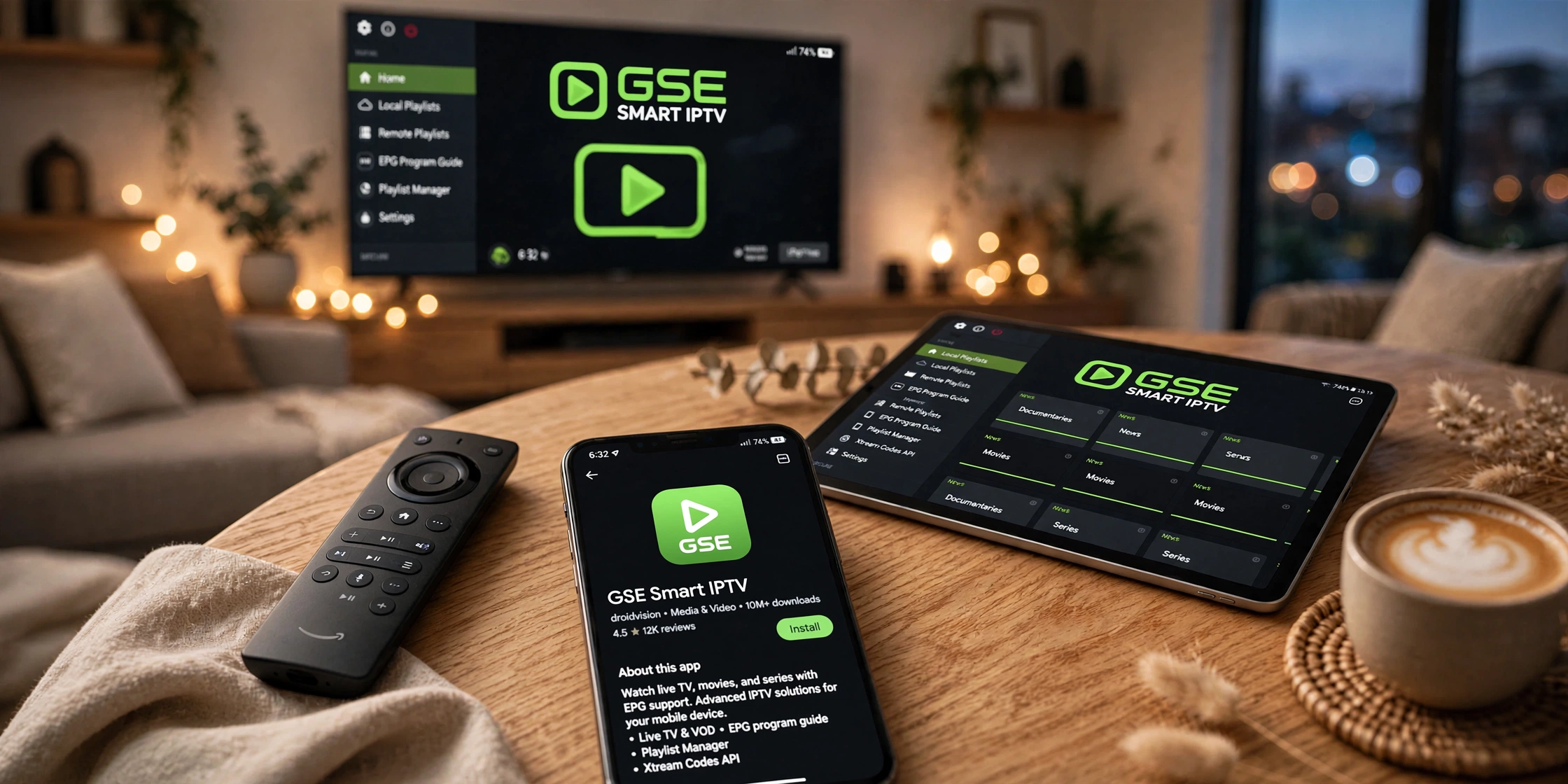
GSE Smart IPTV is a player, not a service. It renders whatever stream you point it at – it doesn’t source, host, or guarantee any channel. Before you download it, you should already have one of the following from your provider:
- An Xtream Codes login (server URL, username, password), or
- An M3U playlist URL, usually with a separate XMLTV link for the programme guide (EPG, or Electronic Programme Guide)
If you don’t have either of these yet, installing the app first is fine — you just won’t see anything until you add a playlist. And whatever you do, keep those login details somewhere private. More on that below, because it’s the single most common mistake I see.
GSE Smart IPTV App Download and Installation by Device
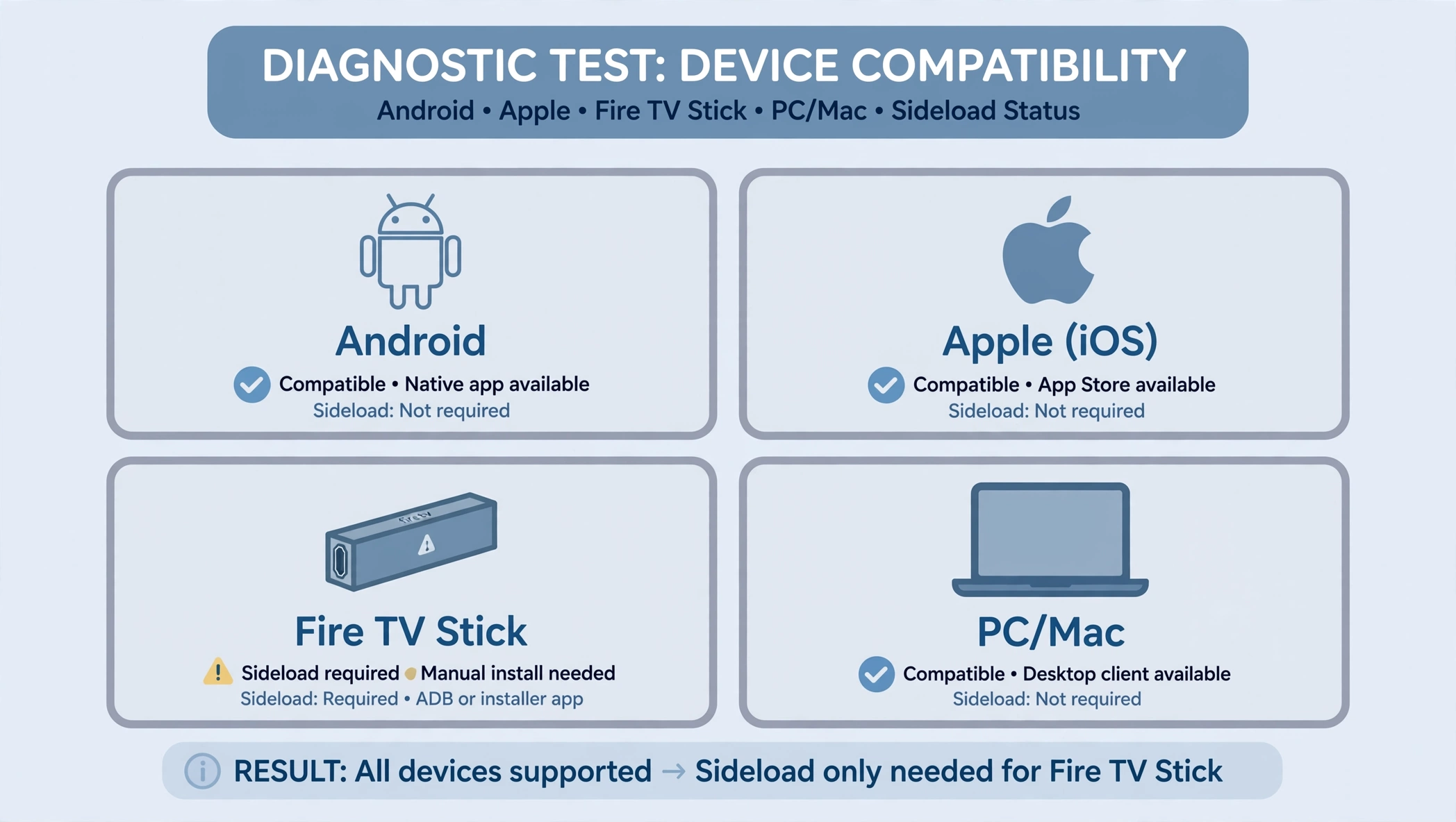
I’ve set the app up on all four device types Australian households actually use — Android phones and boxes; iPhone and Apple TV; Fire TV Stick; and a Windows PC — and each has its quirks.
Android (phone, tablet, Android TV box): Open Google Play and search for “GSE Smart IPTV.” Note that the original GSE Smart IPTV listing (by developer droidvision) was pulled from Google Play in 2022 — the actively maintained listing you’ll find today is GSE IPTV Player by Xerxes Information Systems, which is what most current guides (including this one) mean when they say “GSE Smart IPTV” on Android.
Install directly — no sideloading is required, and it updates automatically through the Play Store.
iPhone, iPad, Apple TV: Open the App Store on the relevant device and search for “GSE Smart IPTV Player Live TV.” It installs like any other App Store app. Apple’s review process is stricter than Google’s, so listings can occasionally shift. If you can’t find it, check that your App Store region is set to Australia under Settings → General → Language & Region, and confirm you’re searching the correct developer name rather than a similarly named alternative.
Amazon Fire TV Stick: This option is the one that causes confusion, because GSE isn’t reliably available through the Amazon Appstore search on Fire TV in Australia. The workaround is sideloading: install the free “Downloader” app from the Amazon Appstore, enable Apps from Unknown Sources under Settings → My Fire TV → Developer Options, then use Downloader to fetch the APK.
Use a trusted source and verify that the developer name matches before installing any APK; this is the step where fake or modified copies are most commonly installed by mistake. Type the URL carefully — a mistyped address in the downloader is the most common reason this step fails.
Windows PC / Mac: GSE has a desktop build available through the same channels as the mobile apps. Functionally, it’s identical — same playlist options, same EPG behaviour — just running on a bigger screen with a mouse instead of a remote. This is also the easiest way to test whether a new playlist actually works before committing to setting it up on a Fire Stick or Smart TV, since you can add and remove playlists without going through a remote-control interface.
Key takeaway: GSE Smart IPTV installs natively on Android and Apple platforms via their official stores, but Fire TV Stick users in Australia typically need to sideload it — that’s the step most likely to go wrong.
Xtream Codes vs M3U — Which One Do You Have?
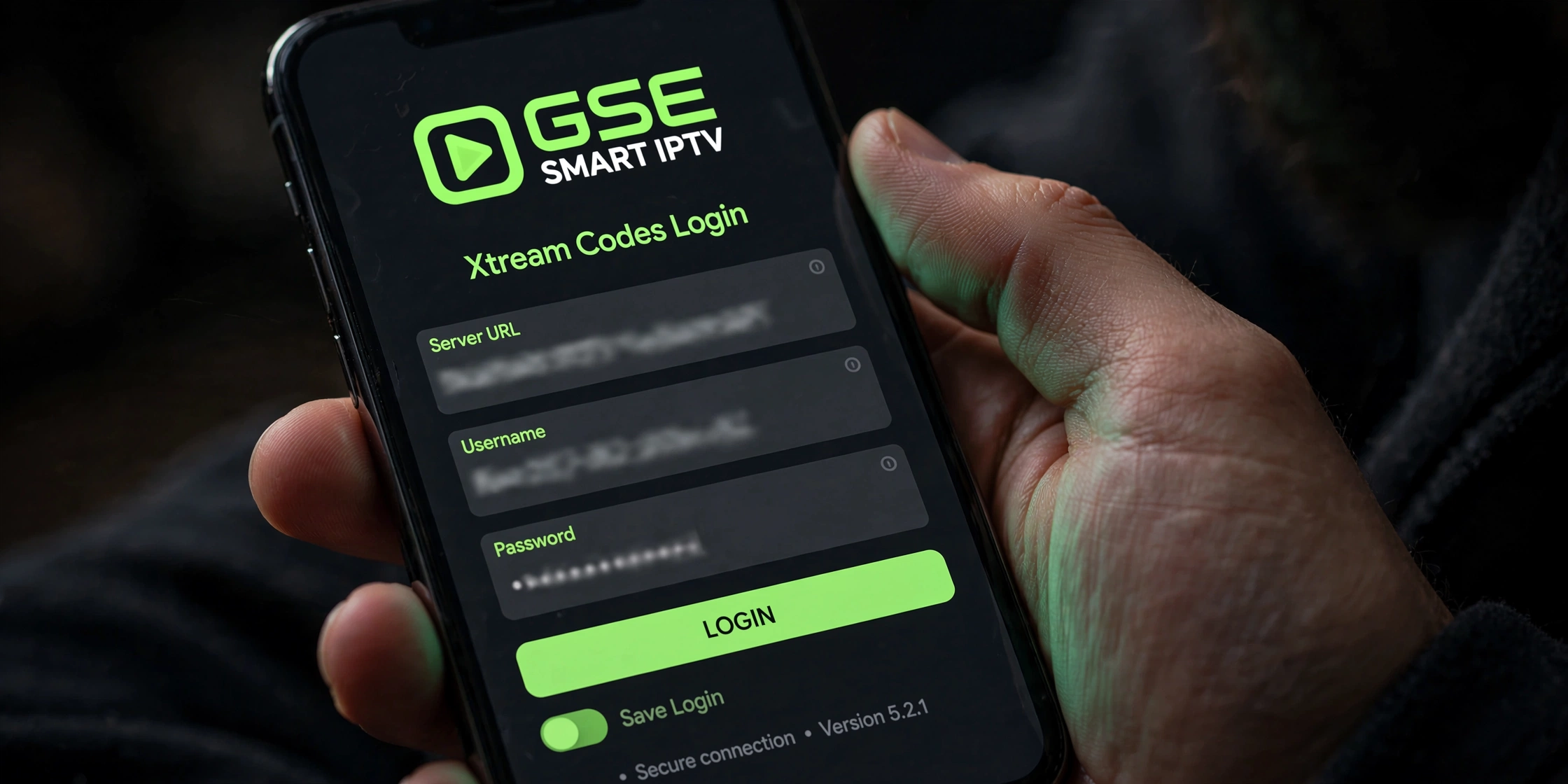
Your subscription provider will have given you one of these two, not both, and the app treats them differently:
- Xtream Codes: You enter a server URL, username, and password. GSE pulls the channel list and EPG automatically. This is the easier option for most people because there’s less manual configuration.
- M3U playlist: You enter a single playlist URL (and often a separate EPG/XMLTV URL). It’s more flexible if your provider only offers this format, but you may need to add the EPG link yourself as a second step.
If you’re not sure which one you have, check your provider’s welcome email — Xtream Codes logins list a server address, username, and password separately, while an M3U link is one long URL, usually ending in ‘.m3u’ or ‘.m3u8’.
A Real Security Warning: Don’t Search Your Login Details
Here’s something that doesn’t come up in most setup guides. One setup mistake that comes up repeatedly is typing an Xtream Codes username and password into Google to “check if it was working” instead of entering them into the app itself.
That’s an easy mistake to make when you’re troubleshooting under pressure, but it means your login details get logged by your browser history and search provider — you’re handing your login details to third parties and losing control over who can access them.
Your Xtream Codes or M3U credentials should only ever go into the GSE Smart IPTV app’s own playlist entry screen — never into a search bar, a forum post, or a support chat window with someone you can’t verify. If you’ve already searched for your credentials, treat them as compromised and ask your provider for a reset.
Setting Up EPG (Programme Guide)
If your Xtream Codes playlist already includes EPG data, GSE typically loads it automatically once the playlist is added—you shouldn’t need to do anything extra. For M3U users, or anyone whose guide is empty:
- Open GSE Smart IPTV → Settings → EPG Settings
- Add your XMLTV EPG URL (this is separate from your playlist URL)
- Give it a minute to download and match channels — large playlists take longer
If programme times look wrong afterwards, it’s almost always a timezone mismatch rather than a broken EPG. Check that your device’s timezone is set correctly for your state (AEST or AEDT depending on the time of year, or AWST in Western Australia).
Setting Up an External Player
GSE has its own built-in player, but you can route playback through an external app instead — this option is useful on older Android boxes that struggle with certain stream formats. In Settings → Player, there’s an option to select an external player if one is installed on your device (such as VLC or MX Player).
This isn’t necessary for most setups, but it’s worth knowing if you’re getting playback errors that the built-in player can’t resolve.
Key takeaway: EPG issues are usually a timezone setting, not a broken guide — check your device clock before assuming the playlist is at fault.
Common Setup Mistakes
Before troubleshooting playback problems, it’s worth ruling out these—they account for a large share of the “it’s not working” messages I see about this app:
- Downloading a fake or unofficial app. The “GSE Smart IPTV” name has been used by more than one listing across app stores over the years — the original Android version was discontinued in 2022, and several similarly named apps from different developers exist on iOS. Confirm the developer name in the listing before installing, especially on Android, where sideloaded APKs from unofficial sites carry more risk.
- Enter the provider details into a search engine instead of the app, as covered above.
- This step assumes the app itself provides channels. GSE is a player only – without a valid playlist from a provider, there is nothing to watch, and no setting in the app can change that.
- Installing on the wrong device profile. On Fire TV Sticks shared across a household, it’s particularly straightforward to install GSE under one Amazon profile and then try to open it from another — it won’t appear if you’re signed into a different profile than the one you installed it on.
Fixing Buffering on GSE Smart IPTV
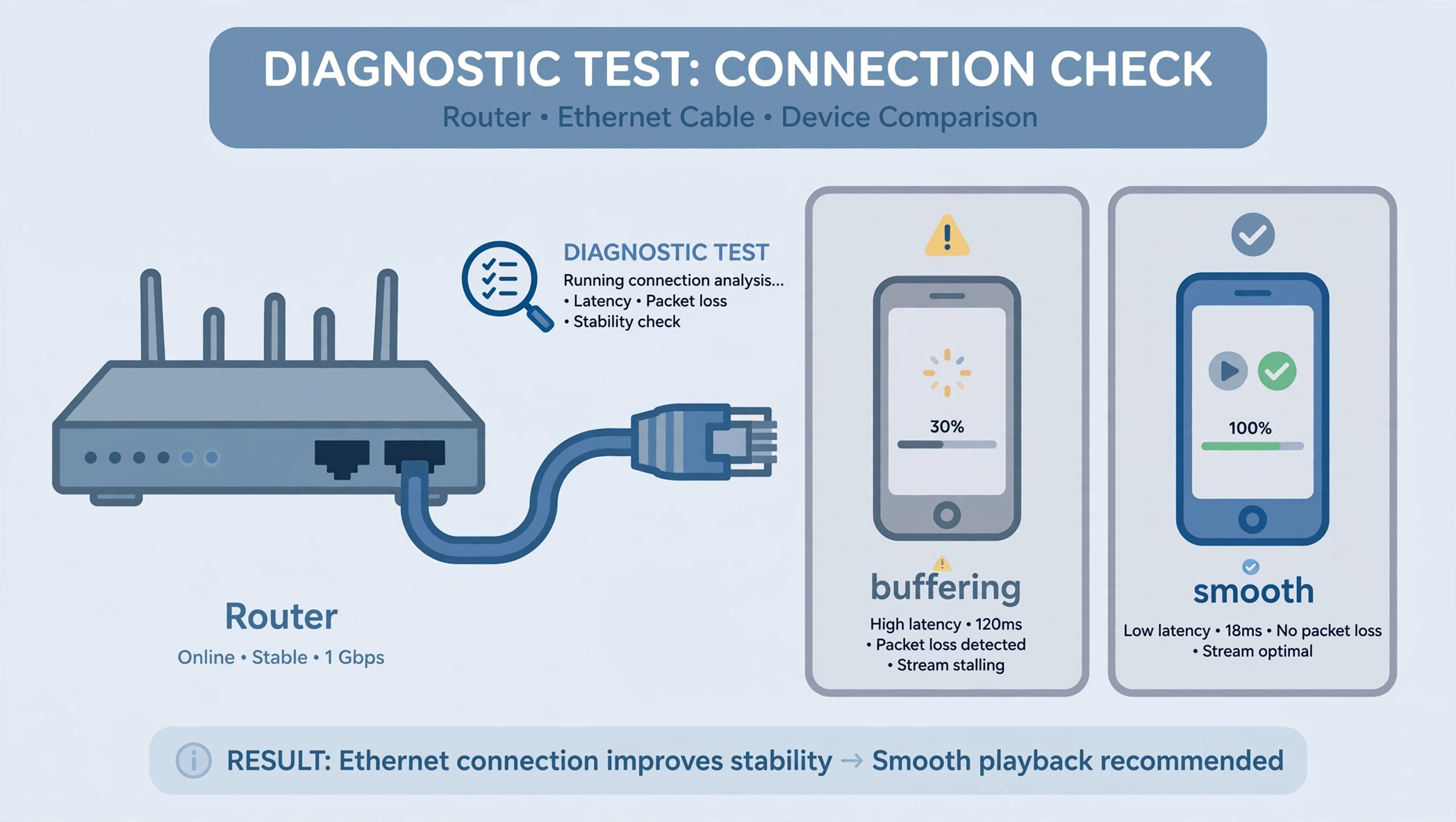
Symptom: Channels load but freeze or stutter every few seconds, particularly during peak evening hours.
Cause: In most cases, the problem is due to one of three things: your home network (Wi-Fi congestion or an overloaded router), your service’s server load, or under-provisioned hardware decoding on the device itself. It’s rarely the GSE app misbehaving.
Diagnostic test: Try the same playlist on a different device on the same network. If it buffers everywhere, the problem sits with your connection or provider. If it’s fine elsewhere and only stutters on one device, the issue is local to that device.
Quick fix: Switch from Wi-Fi to a wired Ethernet connection if your device supports it — this is the single change most likely to help on IPTV setups generally, not just GSE specifically. Also check that Settings → Player → Hardware Decoding is turned on.
Comprehensive fix: If a wired connection doesn’t resolve it, check for other devices on your network competing for bandwidth during the same viewing window (downloads, backups, and other streams), and contact your subscription provider to confirm there isn’t a known server issue at that time of day.
Prevention: Keep the app updated, and avoid running multiple heavy playlists or VOD downloads on the same connection during peak hours.
When to Contact Your Provider Instead of Troubleshooting Further
If playback fails on all devices or your credentials stop working entirely, contact your provider, as this indicates an issue on their end rather than with GSE Smart IPTV.
At that point, further device-side troubleshooting won’t help — reach out to your provider’s support channel directly, and have your username (never your password, over an unverified channel) and the approximate time the issue started ready, since that speeds up their diagnosis considerably.
Legal Note
This article is for educational and setup-comparison purposes only. GSE Smart IPTV is a legal media player; the legality of any content you stream through it depends entirely on your subscription provider and the source of the playlist. Australian copyright law applies regardless of the app used to view the content, and the Australian Communications and Media Authority has powers to act against unlicensed streaming services. Verify the licensing status of any IPTV service — see our guide to legal IPTV apps in Australia — before you subscribe.
Explore More
- IPTV App Comparison Australia — how GSE stacks up against TiviMate and IPTV Smarters
- Xtream Codes vs M3U — a deeper look at both playlist formats
- IPTV Playlist Setup Australia — general playlist configuration guidance
- Fire TV Stick IPTV Setup — full Fire Stick setup walkthrough
- Apple TV IPTV Setup — Apple ecosystem setup guide
- IPTV Troubleshooting Australia — broader fault-finding beyond GSE specifically
Bottom Line
- If you’re on Apple devices (iPhone, iPad, Apple TV): GSE installs cleanly from the App Store and is one of the more reliable options across that ecosystem — no sideloading needed.
- If you’re on a Fire TV Stick or an Android box: Expect to sideload via Downloader on Fire TV specifically; Android boxes can usually install directly from Google Play.
- If your household mixes device types: GSE’s cross-platform support means the same provider credentials work across all of them, but budget extra time for the Fire Stick sideload step the first time you set it up.