Introduction
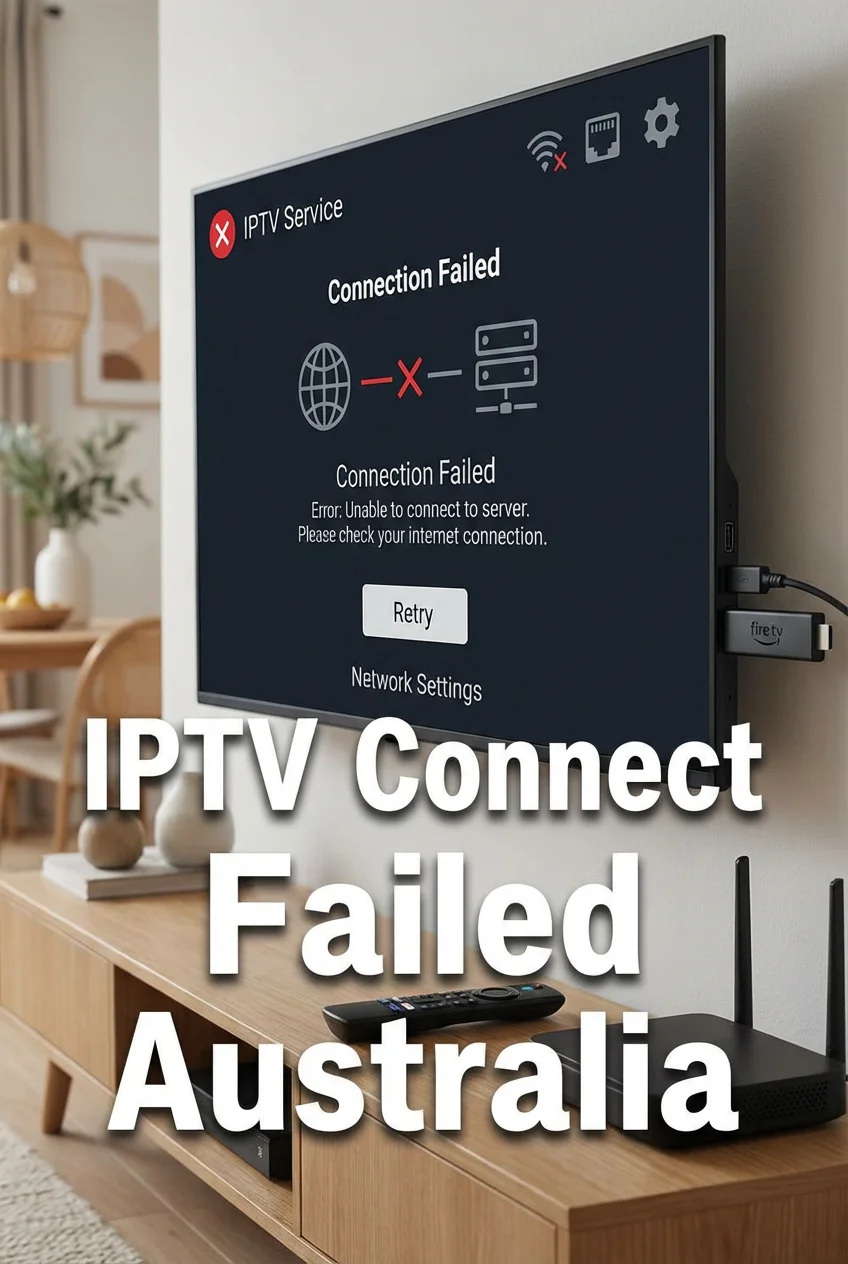
Experiencing an IPTV connect failed error can be incredibly frustrating, especially when you’re ready to watch your favourite shows or live sports. This connection error is one of the most common issues Australian IPTV users face, often appearing as cryptic error messages like ‘Connection Failed’, ‘Unable to Connect to Server’, or ‘Authentication Failed’ across various IPTV applications and devices.
This detailed guide looks at IPTV connection problems from both a technical and practical angle, specifically designed for Australian users who are dealing with NBN infrastructure, local ISP settings, and challenges specific to their region.
Whether you’re using TiviMate on a Fire TV Stick, IPTV Smarters on Android TV, or any other setup, this troubleshooting resource will help you diagnose and resolve connection issues systematically.
For those new to IPTV setups in Australia, we recommend starting with our IPTV Setup Australia guide to understand the foundational elements of a proper IPTV configuration before diving into troubleshooting.
Understanding IPTV Connection Architecture
Before troubleshooting connection failures, it’s essential to understand how IPTV connections function. Unlike traditional cable or satellite television, IPTV relies entirely on internet connectivity to stream content from remote servers to your viewing device.
The IPTV Connection Chain
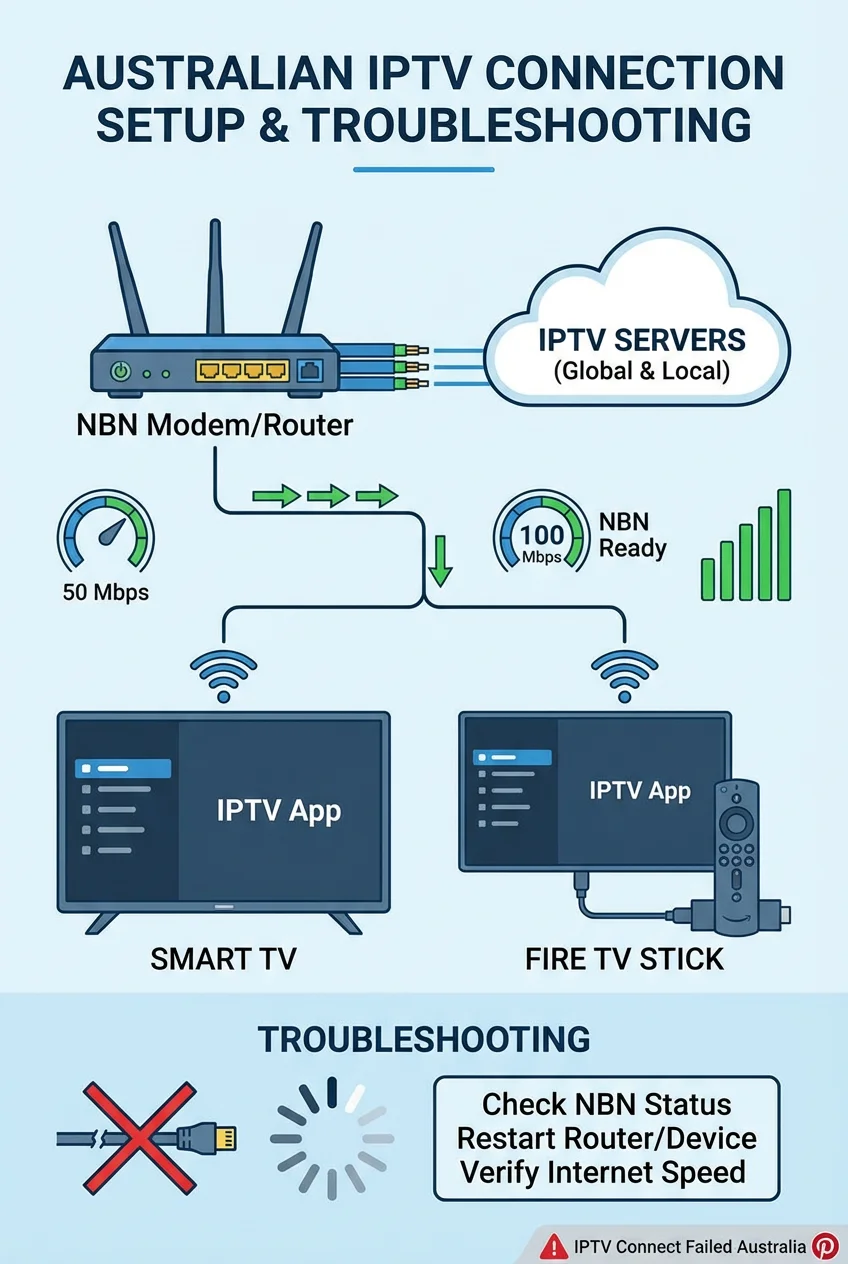
An IPTV connection involves multiple components working together:
- Your Device: The IPTV application runs on your Smart TV, Android box, Fire TV Stick, or mobile device
- Local Network: Your home WiFi router or Ethernet connection that links your device to the internet
- Internet Service Provider (ISP): Your NBN provider (Telstra, Optus, TPG, etc.) that routes traffic to the broader internet
- IPTV Server Infrastructure: The provider’s content delivery network that hosts and streams channels
A failure at any point in this chain results in connection errors. Australian users face additional complexity due to geographic distance from many IPTV servers, NBN infrastructure variations, and local ISP traffic management policies.
Common IPTV Connect Failed Error Messages
IPTV applications display various error messages when connections fail. Understanding what each message indicates helps narrow down the root cause. For a comprehensive overview of error codes, consult our IPTV Error Codes Australia guide.
Connection Timeout Errors
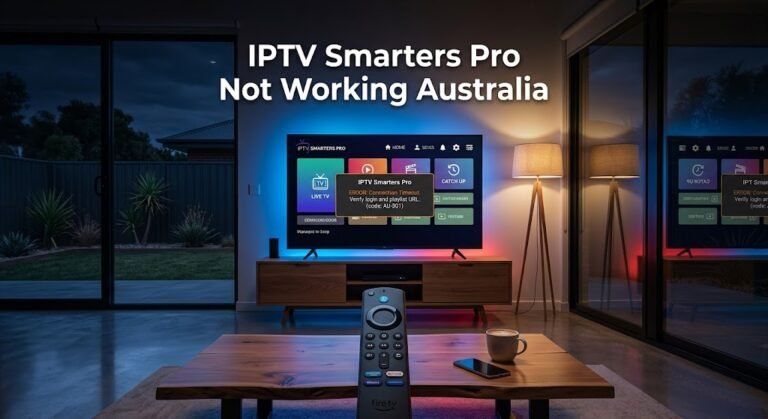
Messages like ‘Connection Timeout’ or ‘Server Not Responding’ indicate that your device attempted to reach the IPTV server but received no response within the allotted time. This typically points to network connectivity issues, server downtime, or firewall blocking.
Authentication Failed Errors
‘Authentication Failed’, ‘Invalid Credentials’, or ‘Login Error’ messages suggest problems with your subscription credentials. This could mean incorrect username/password entry, expired subscriptions, or account restrictions from your IPTV provider. For detailed troubleshooting of login issues, see our IPTV Login Failed Solutions article.
Playlist Load Failures
Errors stating ‘Failed to Load Playlist’, ‘Invalid M3U URL’, or ‘Playlist Not Found’ indicate issues with the playlist’s URL or file structure. This is particularly common when using M3U or Xtream Codes authentication methods.
Primary Causes of IPTV Connection Failures in Australia
Internet Speed and Stability Issues
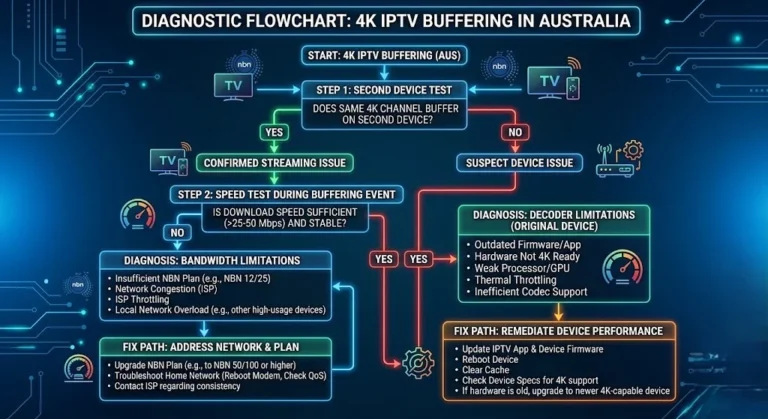
Insufficient internet bandwidth is the leading cause of IPTV connection problems. Standard definition streams require approximately 3-5 Mbps, HD content needs 8-10 Mbps, and 4K streams demand 25+ Mbps. Australian NBN connections can deliver these speeds, but actual performance varies by NBN technology type (FTTP, FTTC, FTTN, HFC) and network congestion during peak hours.
To verify if speed is your issue, test your connection speed during IPTV usage times using Speedtest or your ISP’s diagnostic tools. For comprehensive guidance on speed requirements, refer to our IPTV Speed Requirements Australia article.
ISP Blocking and Throttling
Some Australian ISPs implement traffic shaping or actively block connections to known IPTV servers, particularly those associated with unlicensed services. The Australian Communications and Media Authority (ACMA) has worked with ISPs to enforce website blocking orders, which can affect IPTV connectivity. According to acma, these blocking measures target services that infringe copyright laws.
For solutions specific to ISP blocking, consult our detailed guide on ISP Blocking IPTV Solutions.
Server-Side Problems
IPTV provider server outages, maintenance periods, or overloaded infrastructure can cause widespread connection failures. During major sporting events like AFL Grand Finals or NRL State of Origin matches, server capacity can be overwhelmed by simultaneous viewer demand. Unfortunately, these issues are outside user control and require patience or provider communication.
Device and Application Configuration
Incorrectly configured IPTV applications, outdated app versions, or device firmware issues frequently cause connection failures. Each IPTV app (TiviMate, IPTV Smarters Pro, GSE Smart IPTV) has specific setup requirements for playlist URLs, Xtream Codes credentials, and network settings.
Step-by-Step Troubleshooting Guide for IPTV Connect Failed
Follow this systematic troubleshooting process to identify and resolve connection failures. For a comprehensive troubleshooting framework, reference our IPTV Troubleshooting Checklist.
Step 1: Verify Internet Connectivity
Before investigating IPTV-specific issues, confirm your internet connection is operational:
- Open a web browser on the same device and navigate to a website
- Run a speed test to verify download speeds meet IPTV requirements
- Check if other streaming services (Netflix, YouTube) function properly
- Restart your NBN modem/router by unplugging for 30 seconds
If basic internet connectivity fails, contact your ISP before proceeding with IPTV troubleshooting. For NBN-specific optimisation, see our guide on Optimising IPTV for Australian ISPs.
Step 2: Verify IPTV Credentials and Subscription Status
Authentication errors often stem from credential issues:
- Double-check your username, password, and server URL for typos
- Confirm your subscription is active and hasn’t expired
- Check if you’ve exceeded simultaneous connection limits
- Verify the playlist URL or M3U link is current (providers sometimes update URLs)
- Contact your IPTV provider’s support to verify account status
For detailed playlist configuration guidance, review our IPTV Playlist Setup Australia article.
Step 3: Test with Alternative Devices and Apps
Isolate whether the issue is device-specific or account-wide:
- Attempt connection on a different device (smartphone, tablet, PC)
- Try a different IPTV application if using a third-party player
- Test on mobile data instead of WiFi to rule out local network issues
If the connection succeeds on one device but fails on another, the problem lies with device configuration, app settings, or hardware limitations. Device-specific troubleshooting guides are available for Fire TV Stick, Smart TVs, and Android Boxes.
Step 4: Check Network Configuration
Network settings can interfere with IPTV connectivity:
- Switch from WiFi to Ethernet: Wired connections provide more stable IPTV performance
- Change DNS servers: Use Google DNS (8.8.8.8, 8.8.4.4) or Cloudflare DNS (1.1.1.1)
- Disable VPN temporarily: Test connection without VPN to rule out VPN-related issues
- Check firewall settings: Ensure IPTV traffic isn’t blocked by router or device firewall
- Enable UPnP: Universal Plug and Play can help with port forwarding for IPTV
For comprehensive network optimisation, see our IPTV Network Settings Australia guide and our comparison of WiFi vs Ethernet for IPTV.
Step 5: Update Applications and Device Firmware
Outdated software causes compatibility and connection issues:
- Update your IPTV application to the latest version
- Check for device firmware updates (Fire TV, Android TV, Smart TV)
- Clear app cache and data, then reconfigure from scratch
- Uninstall and reinstall the IPTV application
Application update procedures vary by platform. Consult our IPTV App Updates Australia guide for platform-specific instructions.
Step 6: Address VPN-Related Connection Issues
VPNs can both help and hinder IPTV connections. If you’re using a VPN and experiencing connection failures:
- Try different VPN server locations
- Switch VPN protocols (OpenVPN, WireGuard, IKEv2)
- Disable split tunneling if enabled
- Temporarily disable VPN to test raw connection
For detailed VPN troubleshooting, see our VPN IPTV Issues Fix article. Additionally, understanding the legal implications of VPN usage with IPTV is important; refer to IPTV VPN Australia Legal.
Advanced Troubleshooting for Persistent Connection Failures
Port Forwarding and Router Configuration
Certain IPTV services necessitate the opening of specific ports to ensure proper connectivity. Access your router’s admin panel (typically at 192.168.1.1 or 192.168.0.1) and configure port forwarding for commonly used IPTV ports:
- UDP ports: 1234, 5000-5500
- TCP ports: 80, 443, 8080
Consult your IPTV provider’s documentation for their specific port requirements. Router configuration varies by model; most Australian NBN modems from Telstra, Optus, and TPG provide web-based configuration interfaces.
Multicast and Unicast Configuration
IPTV can use either multicast (one-to-many) or unicast (one-to-one) streaming protocols. Connection issues may arise from router multicast configuration. For in-depth information, reference our Multicast Unicast IPTV Fix guide.
Testing with External Tools
Diagnostic utilities can help identify connection bottlenecks:
- Ping tests: Check latency to IPTV server (if server IP is known)
- Traceroute: Identify where connection packets are being dropped
- Network monitoring apps: Monitor bandwidth usage and identify network congestion
Legal Considerations and IPTV Legitimacy in Australia
Connection failures sometimes result from enforcement actions against unlicensed IPTV services. Australian law enforcement and regulatory bodies actively combat copyright infringement in the streaming space.
Understanding IPTV Laws in Australia
The Australian Communications and Media Authority (ACMA) oversees broadcasting regulations and works with copyright holders to identify and block illegal IPTV services. According to acma, ISPs can be ordered to block access to services that provide unauthorised access to copyrighted content.
If your IPTV service suddenly stops connecting and no troubleshooting resolves it, the service may have been blocked or shut down. For comprehensive information on IPTV legality, consult our IPTV Laws Australia guide and our article on Is IPTV Legal in Australia.
Identifying Legitimate IPTV Providers
Legitimate IPTV services have proper licensing agreements with content owners. Reputable providers in Australia include licensed streaming platforms and authorised IPTV operators. The Australian Copyright Council provides resources on understanding copyright compliance in digital streaming.
For guidance on identifying trustworthy providers, review our IPTV Provider Checklist and IPTV Provider Red Flags articles.
When to Contact Your IPTV Provider
After exhausting troubleshooting steps, provider support becomes necessary. Contact your IPTV provider. when:
- The connection works on other devices but not yours
- You receive specific error codes requiring provider intervention
- Your subscription status appears active but authentication still fails
- Multiple users report similar connection issues (indicating server problems)
- You need updated playlist URLs or server addresses
Quality IPTV providers offer responsive customer support through multiple channels (email, live chat, and support tickets). Lack of accessible support is a warning sign about provider legitimacy. Review our IPTV Customer Support Standards for expectations.
Preventive Measures to Avoid Future Connection Failures
Maintain Updated Software
Regular updates prevent compatibility issues:
- Enable automatic updates for IPTV applications when available
- Check for device firmware updates monthly
- Keep router firmware current for security and performance
Optimize Your Network
Network optimisation reduces connectivity problems:
- Use wired Ethernet connections for primary IPTV devices
- Position WiFi routers centrally and away from interference
- Consider upgrading to a higher NBN speed tier if bandwidth is consistently insufficient
- Implement Quality of Service (QoS) rules prioritizing IPTV traffic
Choose Reliable IPTV Providers
Provider reliability directly impacts connection stability. Research providers thoroughly before subscribing; consider:
- Uptime guarantees and service level agreements
- Server infrastructure and content delivery network quality
- Australian user reviews and testimonials
- Trial periods allowing testing before long-term commitment
Our Best IPTV Australia guide evaluates providers based on reliability, performance, and Australian infrastructure compatibility.
Conclusion
IPTV connection failure errors are frustrating but usually resolvable through systematic troubleshooting.
This guide has covered the most common causes of connection failures in Australia, from basic internet connectivity issues to advanced network configuration problems.
By following the step-by-step troubleshooting process outlined above, most users can identify and resolve connection problems without professional assistance.
Remember that IPTV connectivity relies on multiple factors working together: your internet connection, network configuration, device setup, application settings, and provider infrastructure. Approaching troubleshooting methodically—starting with basic checks and progressing to advanced solutions—typically reveals the root cause efficiently.
For Australian users, additional considerations include NBN infrastructure variations, ISP traffic management policies, and local regulatory enforcement against unlicensed services. Choosing legitimate IPTV providers with proper licensing not only ensures legal compliance but also typically provides more reliable connectivity and customer support.
If you continue to experience persistent connection failures after exhausting these troubleshooting steps, explore our comprehensive IPTV Troubleshooting Australia resources or contact your IPTV provider’s support team for specialised assistance.
Frequently Asked Questions (FAQ)
- Why does my IPTV say ‘connection failed’ even though my internet works?
This usually indicates an issue specific to the IPTV service rather than general internet connectivity. Common causes include incorrect login credentials, expired subscriptions, server maintenance or downtime, ISP blocking of IPTV traffic, or firewall restrictions. Test by trying to connect from a different device or network to isolate whether the issue is account-related or network-specific.
- How do I fix Xtream Codes connection errors in Australia?
Xtream Codes errors often stem from authentication issues. Verify your server URL, username, and password are exactly as provided by your IPTV service. Ensure the server URL includes http:// or https:// and the correct port number. Check your subscription status and simultaneous connection limits. If credentials are correct, contact your provider, as the server may be experiencing technical difficulties. See our Xtream Codes Error Solution for detailed troubleshooting.
- Can my Australian ISP block IPTV connections?
Yes, Australian ISPs can implement blocking measures for specific IPTV services, particularly those identified as providing unauthorised access to copyrighted content. ACMA has authority to request ISPs block access to infringing services. If you suspect ISP blocking, test your connection using mobile data or a VPN. However, ensure you’re using a legally compliant IPTV service, as attempting to circumvent blocks for illegal services may violate Australian law.
- Why does my IPTV work on WiFi but not on Ethernet (or vice versa)?
This indicates network configuration differences between connection types. Check if your router has separate settings for WiFi and Ethernet connections, particularly regarding DNS servers, IP address assignment (DHCP vs static), or firewall rules. Some devices have network adapter settings that need adjustment.
Try manually configuring identical DNS servers for both connection types and ensure both network interfaces are using automatic IP configuration unless you have specific static IP requirements.
- How can I tell if my IPTV connection failure is due to slow internet speed?
Run a speed test during your typical IPTV viewing time. If speeds consistently fall below 10 Mbps for HD content or 25 Mbps for 4K, bandwidth is likely the issue. Watch for buffering and quality degradation rather than complete connection failure—insufficient speed typically causes buffering, not ‘connection failed’ errors. For detailed guidance, see our Slow IPTV Streams Fix and IPTV Buffering Fixes Australia articles.
- What should I do if my IPTV connects but channels won’t load?
Successful authentication but channel loading failures indicate issues with the streaming infrastructure or content delivery.
This may be server-side problems with specific channels, geographic restrictions blocking certain content, or player codec compatibility issues. Try different channels to see if the problem is widespread or specific to certain content. Review our IPTV Channel Not Loading Fix for comprehensive solutions.
- Is using a VPN recommended to fix IPTV connection issues in Australia?
VPNs can help if ISP blocking or geographic restrictions cause connection failures, but they’re not a universal solution and may introduce new problems like increased latency or VPN server blocking.
Test the connection without VPN first to establish a baseline. If a VPN resolves the issue, then your ISP or geographic location is likely the problem. Ensure you understand the legal implications of VPN usage with IPTV services in Australia by reviewing our IPTV VPN Australia Legal guide.
- My IPTV worked fine yesterday but won’t connect today—what changed?
Sudden connection failures after previously working service suggest recent changes: your subscription may have expired, the provider may have updated playlist URLs or server addresses, automatic app updates could have introduced bugs, your IP address may have changed, triggering provider restrictions, or the service may be experiencing temporary downtime.
Verify your subscription status first, then test if resetting the app or device restores connectivity. If these steps don’t resolve the issue, please reach out to your provider to enquire about any known issues or necessary configurations.