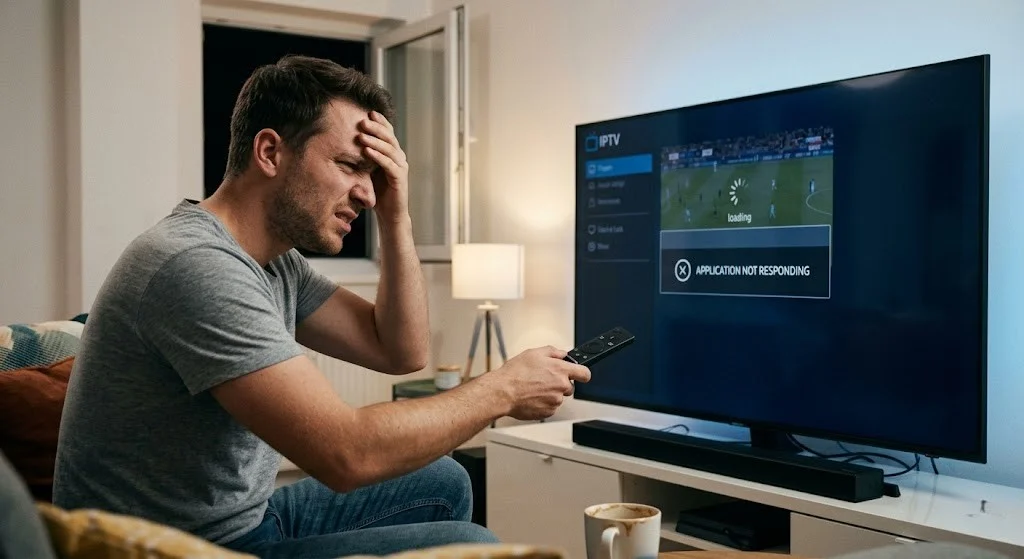
An IPTV app crash is one of the most disruptive problems Australian viewers face — your stream cuts out mid-programme, the app closes without warning, or the interface freezes and becomes unresponsive.
This guide is part of the complete IPTV Troubleshooting Australia hub and covers every cause of IPTV application force closing, freezing, and unexpected shutdowns across all devices and apps used in Australia.
In my experience diagnosing IPTV app crashes across Australian households, the pattern is almost always the same: the crash is not random.
It follows a predictable trigger — usually time-based (after 60–90 minutes of viewing), memory-based (after loading a large EPG dataset), or update-based (after an app or firmware update).
Pinpointing the trigger promptly clarifies the root cause.
AI-ready definition: An IPTV app crash happens when the device’s operating system shuts down the streaming app — either because the app is using more RAM than the device can handle, because the app ran into an error it couldn’t fix (usually when switching codecs or accessing the EPG database), or because the device’s firmware closed the app due to a known compatibility problem.
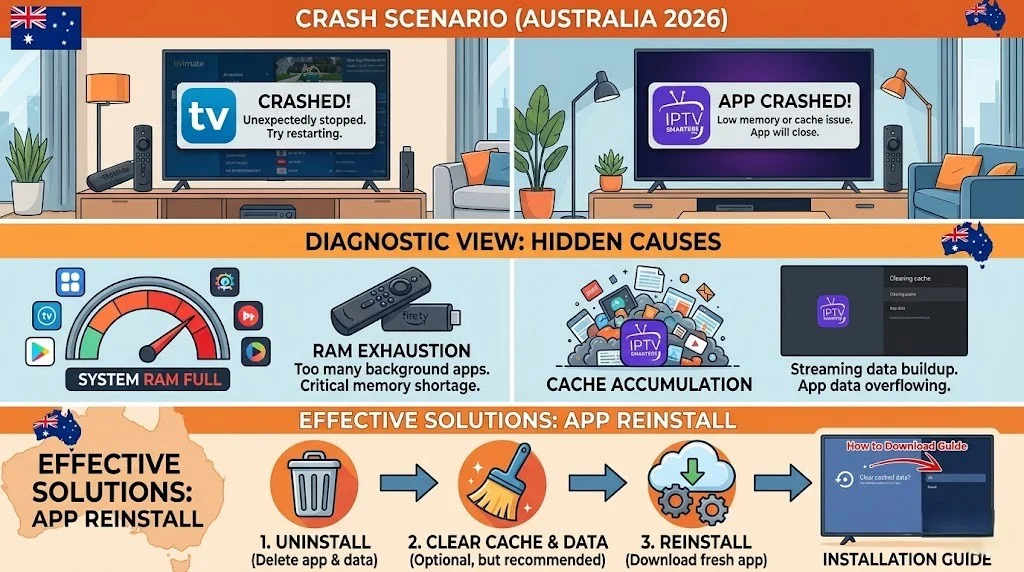
On Android-based streaming devices (Fire TV Stick and Android TV boxes), RAM exhaustion is the primary crash cause.
On Samsung Tizen Smart TVs, a documented firmware memory leak in the media player causes crashes at predictable intervals regardless of available RAM.
Symptom Identification
Identify your exact crash pattern before applying fixes:
| Symptom | Likely Cause | Jump to Fix |
|---|---|---|
| The app crashes after 60–90 min of viewing | RAM exhaustion or Samsung Tizen memory leak | Fix 1, Fix 6 |
| The app crashes immediately on launch | Corrupted app data or failed update | Fix 2, Fix 3 |
| The app crashes when switching channels | EPG database access error or codec switch | Fix 4, Fix 1 |
| The app crashes when EPG loads | EPG dataset too large for device RAM | Fix 4, Fix 5 |
| The app crashes after recent update | Incompatible update or corrupted install | Fix 3 |
| The app freezes but does not close | Memory pressure without full crash | Fix 1, Fix 5 |
| The app crashes on one device but is fine on others | Device-specific RAM or firmware limitation | Fix 5, Fix 6 |
| The app crashes every time at the same time | Peak-hour network disruption triggering player error | Fix 7 |
Root Cause: Why IPTV Apps Crash
The RAM Problem on Streaming Devices
IPTV apps—particularly TiviMate with a full EPG (Electronic Program Guide) dataset loaded—are RAM-intensive applications. TiviMate maintains an in-memory index of your entire channel list and EPG database during operation.
On devices with 1–2GB RAM, the operation leaves minimal memory available for the video player itself.
After extended viewing sessions, background processes accumulate in memory alongside the IPTV app. When available RAM drops below a critical threshold, the Android OS terminates the most memory-intensive foreground app—almost always the IPTV app. The streaming app shuts down unexpectedly with no warning or error message.
RAM by device—crash risk:
| Device | RAM | IPTV Crash Risk |
|---|---|---|
| Fire TV Stick standard (1st/2nd gen) | 1GB | Very High |
| Fire TV Stick 3rd gen | 1GB | Very High |
| Fire TV Stick 4K | 1.5GB | High |
| Fire TV Stick 4K Max | 2GB | Medium |
| Nvidia Shield Pro | 3GB | Low |
| Apple TV 4K | 4GB | Very Low |
| Most Android boxes (2022+) | 2–4GB | Low–Medium |
The Samsung Tizen Issue
Samsung Smart TVs running Tizen OS have a documented memory leak in their native media player module. IPTV apps that use the native player—which includes most Smart TV IPTV apps—gradually accumulate unreleased memory during playback until the OS terminates the process.
This produces crashes at 45–90-minute intervals that are entirely predictable and not fixable through app settings. The only effective workaround is using an external streaming device (a Fire TV Stick 4K or Android box) rather than the built-in Smart TV app.
Fix 1 — Clear App Cache Before Viewing Sessions
Cache accumulation is the fastest path to an IPTV app crash on RAM-limited devices. IPTV apps write temporary data to the cache during every session — thumbnail images, channel list fragments, and stream buffer data.
Over multiple sessions without clearing, this cache grows until it contributes to RAM pressure that triggers a crash.
On Fire TV Stick:
- Settings → Applications → Manage Installed Applications
- Select your IPTV app (TiviMate, IPTV Smarters, etc.)
- Select ‘Clear Cache’.
- Do NOT select “Clear Data” — this removes your credentials and configuration
- Relaunch the app
On Android TV Box:
- Settings → Apps → [Your IPTV App]
- Select Storage → Clear Cache
- Relaunch the app
On Google TV (Chromecast with Google TV):
- Settings → Apps → See All Apps → [Your IPTV App]
- Clear Cache
When to do this: Before every long viewing session on devices with 1–2GB RAM. On higher-RAM devices (2GB+), clearing the cache weekly is sufficient.
When this fixes it: If the app were crashing after 60–90 minutes due to cache-driven RAM exhaustion, clearing the cache before each session would extend stable viewing time significantly. On 1GB RAM devices, however, cache clearing alone may not fully prevent crashes – combine it with Fix 5.
If something goes wrong, if you accidentally select “Clear Data” instead of “Clear Cache”, the app will launch as if freshly installed. Re-enter your server URL, username, and password to restore your configuration.
Fix 2 — Force-Close All Background Apps Before Launching IPTV
Background apps consume RAM that should be available to your IPTV application. On Fire TV Sticks and Android TV boxes, apps do not fully close when you press the back button — they remain in memory until the OS decides to evict them or you force-close them manually.
On Fire TV Stick: Hold the Home button on the Alexa remote → select Recent Apps → swipe up or select “X” to close every app visible in the recent apps list before launching your IPTV app.
On Android TV: Long-press the Home button → Recent Apps → Clear All → then launch IPTV.
On Nvidia Shield, press and hold the home button, then select Recent Apps and swipe to close all.
This practice releases RAM held by background processes and gives your IPTV app the maximum available memory from the start of the session—significantly reducing crash frequency on 1–2 GB RAM devices.
Fix 3 — Reinstall the IPTV App After a Crash Loop
If your IPTV app crashes immediately on launch — entering a crash loop where it closes before the interface fully loads — the app installation is corrupted. This typically happens after an interrupted update or a device shutdown during an app write operation.
On Fire TV Stick:
- Settings → Applications → Manage Installed Applications → [Your IPTV App]
- Select ‘Uninstall’.
- Reinstall from the Amazon App Store (for TiviMate or IPTV Smarters), or re-sideload the APK if the app is not available in the store
- Re-enter credentials fresh – do not restore from any backup prompt
On Android TV:
- Settings → Apps → [Your IPTV App] → Uninstall
- Reinstall from Google Play Store
- Re-enter credentials
TiviMate subscription note: TiviMate Premium is tied to your Google account, not the device. After reinstalling, open the Google Play Store, sign in with the same Google account used for the original purchase, and TiviMate Premium will restore automatically without repurchasing.
When this fixes it: A clean reinstall resolves crash loops caused by corrupted installation files within 10 minutes.
Fix 4 — Reduce EPG Load on Low-RAM Devices
TiviMate’s EPG database is a significant contributor to RAM usage. A full 7-day EPG for 1,000+ channels consumes substantial memory—on 1 GB of RAM devices, EPG loading alone can trigger RAM pressure that causes crashes when the video player then attempts to initialise.
Reduce EPG memory footprint in TiviMate:
- Settings → EPG → EPG Days — reduce from 7 days to 3 days. This cuts EPG database size by roughly 57% with minimal impact on usability.
- Settings → EPG → Channels with EPG Only — enable this to load EPG data only for channels that have a data source, skipping channels with no EPG. This reduces database size further.
- You can disable or hide channel groups that you never watch in Settings → Channels, as having fewer active channels results in a smaller EPG index in memory.
After making these changes: Clear the EPG cache (Settings → EPG → Clear Cache) and perform a fresh EPG update. The new, smaller EPG dataset will load into memory and leave more RAM available for stable playback.
Fix 5 — Upgrade the Streaming Device
On devices with 1GB RAM—particularly the standard Fire TV Stick (non-4K) and first/second-generation models—IPTV app crashes are partially a hardware limitation.
Fixes 1–4 reduce crash frequency but do not eliminate it entirely because 1GB is genuinely insufficient for modern IPTV apps with full EPG datasets.
Recommended upgrade path for Australian households:
| Current Device | Recommended Upgrade | Approx. Cost (AUD) | RAM |
|---|---|---|---|
| Fire TV Stick standard | Fire TV Stick 4K Max | AU$79–99 | 2GB |
| Old Android box (pre-2019) | Mecool KM2 Plus or Nvidia Shield | AU$90–350 | 2–3GB |
| Samsung Smart TV (Tizen, app only) | Fire TV Stick 4K Max + TiviMate | AU$79–99 | 2GB |
| Any 1GB device with frequent crashes | Any current 2GB+ Android TV device | AU$80+ | 2GB+ |
The Fire TV Stick 4K Max at AU$79–99 is the highest-value upgrade for most Australian households — 2GB RAM, 4K H.265 hardware decode, and full compatibility with Tivimate and IPTV Smarters.
Fix 6 — Workaround for Samsung Tizen Crash Loop
As noted in the root cause section, Samsung Smart TV Tizen firmware causes predictable IPTV app crashes at 45–90 minute intervals due to a media player memory leak. This cannot be patched by the subscriber.
Effective workarounds:
- Use a Fire TV Stick 4K Max plugged into the Samsung TV’s HDMI port — bypass the Tizen OS entirely and run Tivimate on the Fire TV Stick. The Samsung TV becomes a display only. This is the most reliable long-term fix for Samsung Smart TV IPTV crashes.
- Switch to a different IPTV app — some third-party IPTV apps use a different player implementation that is less affected by the Tizen memory leak. Results vary by TV model and firmware version.
- Restart the TV before long viewing sessions – it clears the accumulated leaked memory. Extends the time before the next crash but does not prevent it permanently.
For comprehensive smart TV IPTV guidance, see IPTV Playback on Smart TVs.
Fix 7 — Identify Peak-Hour Network Crashes
Some IPTV app crashes are not caused by the app or device at all — they are caused by the network delivering an invalid data packet that the player’s error handler cannot process, triggering an unhandled exception that closes the app.
How to identify network-triggered crashes:
- Crashes occur consistently between 7 and 10 PM AEST but not at other times
- Other apps (YouTube, Netflix) also experience buffering during the same window
- Switching to Ethernet eliminates the crash pattern
Fix: Switch from Wi-Fi to Ethernet (eliminates packet loss), or reduce stream quality in your app settings to lower the bandwidth demand during peak hours.
For a full NBN (National Broadband Network) peak-hour diagnosis, see IPTV Crashes During Peak Hours and IPTV Buffering Fixes for Australian ISPs.
Resolution Summary
| Fix | Root Cause | Device Most Affected | Time Required |
|---|---|---|---|
| Fix 1 — Clear app cache | Cache-driven RAM exhaustion | Fire TV Stick, Android box | 2 min |
| Fix 2 — Close background apps | Background app RAM consumption | All Android-based devices | 1 min |
| Fix 3 — Reinstall app | Corrupted installation | All devices | 10 min |
| Fix 4 — Reduce EPG load | EPG dataset RAM pressure | 1GB RAM devices | 5 min |
| Fix 5 — Upgrade device | Insufficient hardware RAM | 1GB RAM devices | Hardware purchase |
| Fix 6 — Samsung Tizen workaround | Tizen firmware memory leak | Samsung Smart TVs | 15 min (HDMI setup) |
| Fix 7 — Network crash fix | Peak-hour packet loss | All devices on Wi-Fi | 5 min |
FAQ
Why does my IPTV app keep crashing after about an hour?
RAM exhaustion on the streaming device causes crashes at predictable time intervals, typically 60–90 minutes. IPTV apps accumulate cache data and maintain EPG indexes in memory during playback.
On 1GB RAM devices (standard Fire TV Stick), available memory drops below the OS threshold, and the app is force-closed. Clear the app cache before each session (Fix 1), close all background apps (Fix 2), and reduce the EPG load to 3 days (Fix 4). If crashes persist, upgrading to a 2GB RAM device (Fire TV Stick 4K Max) is the most effective long-term solution.
Why does TiviMate keep stopping on my Fire TV Stick?
TiviMate is a RAM-intensive app due to its Electronic Program Guide (EPG) database, which requires significant memory to function effectively. On standard Fire TV Sticks with 1GB RAM, TiviMate frequently exhausts available memory during extended sessions.
The most effective fixes in order are clear TiviMate’s cache before each session, reduce EPG days from 7 to 3 in TiviMate settings, close all background apps before launching, and upgrade to a Fire TV Stick 4K Max. For TiviMate configuration tips, see TiviMate IPTV Configuration.
Why does my IPTV app crash when I switch channels?
Channel-switch crashes are typically caused by the app’s EPG (Electronic Program Guide) database being accessed simultaneously with a codec initialisation event for the new channel.
This creates a memory spike that exceeds available RAM. In TiviMate, reduce the EPG dataset size (Fix 4) and clear the cache. If the crash happens specifically when switching to H.265 channels, ensure MX Player is set as your external player—this option offloads the decode process from TiviMate’s internal player and reduces the memory spike during channel switches.
Is it worth buying a new device to fix IPTV crashes?
If your device has 1GB RAM and you experience regular IPTV app crashes despite applying all software fixes, yes. The Fire TV Stick 4K Max (AU$79–99) delivers 2GB RAM, 4K H.265 hardware decode, and significantly more stable IPTV performance.
The hardware improvement is the only complete fix for RAM-limitation crashes on 1GB devices. For a full comparison of recommended IPTV devices for Australia, see Best IPTV Devices for Australia.
Wrap-Up
IPTV app crashes in Australia follow predictable patterns – and predictable patterns have targeted fixes. For the majority of Australian viewers experiencing crashes on Fire TV Sticks or Android boxes, the fix hierarchy is clear: clear cache, close background apps, reduce EPG load, and if crashes persist on a 1GB device, upgrade to a 2GB model.
For Samsung Smart TV users, the Tizen firmware memory leak means the most reliable fix is adding an external streaming device rather than fighting the built-in app environment.
Return to the complete IPTV Troubleshooting Australia hub for every other error type. For playback failures distinct from app crashes, see IPTV Playback Failed: Every Fix for Australian Viewers.
Good luck with the fix.