
By Marcus Reed, IPTV Installation & Configuration Specialist · IPTV Australia Guide · Last updated: September 2026
Quick Answer
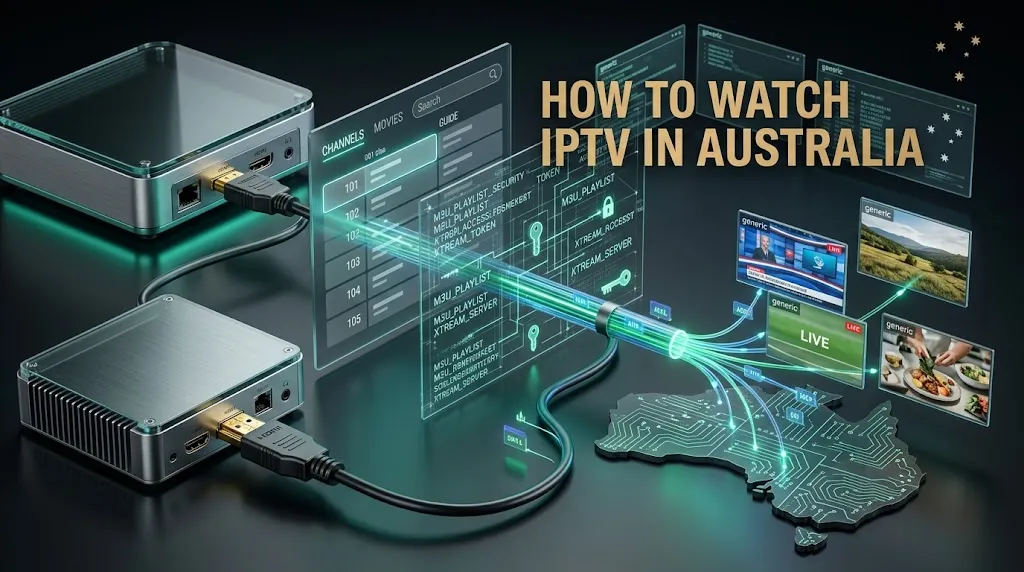
How to watch IPTV in Australia comes down to five steps in the right order: check what your device can run, install a player app, enter your service details exactly as supplied, confirm your connection holds up in the evening, and test your own channels before you pay for anything.
The first question I ask anyone who contacts me for the first time is whether they already have an IPTV app on their screen. The answer tells me almost everything. Someone who names their app has done this before. Someone who asks what an app is has not, and that is who this guide is for.
Most walkthroughs start with the subscription and treat the device as an afterthought. That is backwards, and it is where first-timers give up. The apps available to you are decided entirely by the platform your television or streaming stick runs, so that is where this starts. For the wider picture of what IPTV is and where it sits in the Australian market, the IPTV Australia guide covers the background this article assumes.
Before Anything: The Licensed Options Already on Your TV
Australia’s free-to-air broadcasters stream their own channels legally through their own apps, at no cost and with no setup beyond signing in. ABC iview, SBS On Demand, 7plus, 9Now and 10 play cover a large share of what most households actually watch, including a meaningful amount of live sport.
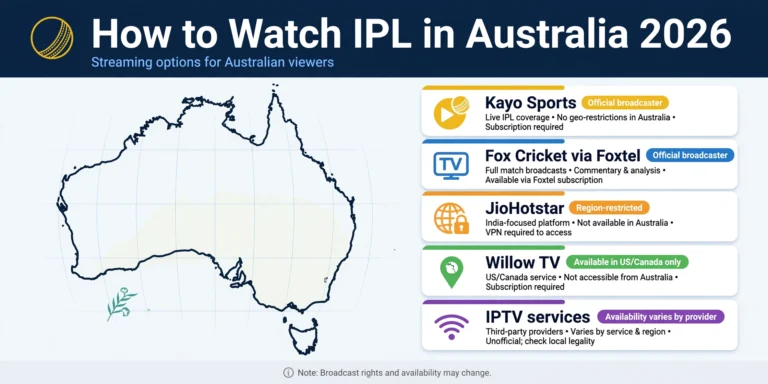
For subscription sport, Kayo Sports is Foxtel’s dedicated streaming platform and carries the major Australian codes. Foxtel itself remains the traditional licensed pay TV service. If what you want sits on one of these, you do not need anything in this guide, and I would rather tell you that at the top than let you spend an afternoon on a setup you did not need. The licensed alternatives guide lists what each one covers.
What follows applies if you have looked at those and decided IPTV suits your situation better.
Step 1 — How to Watch IPTV in Australia Starts With Your Device
Streaming devices split into two groups, and which group yours falls into decides everything that comes after.
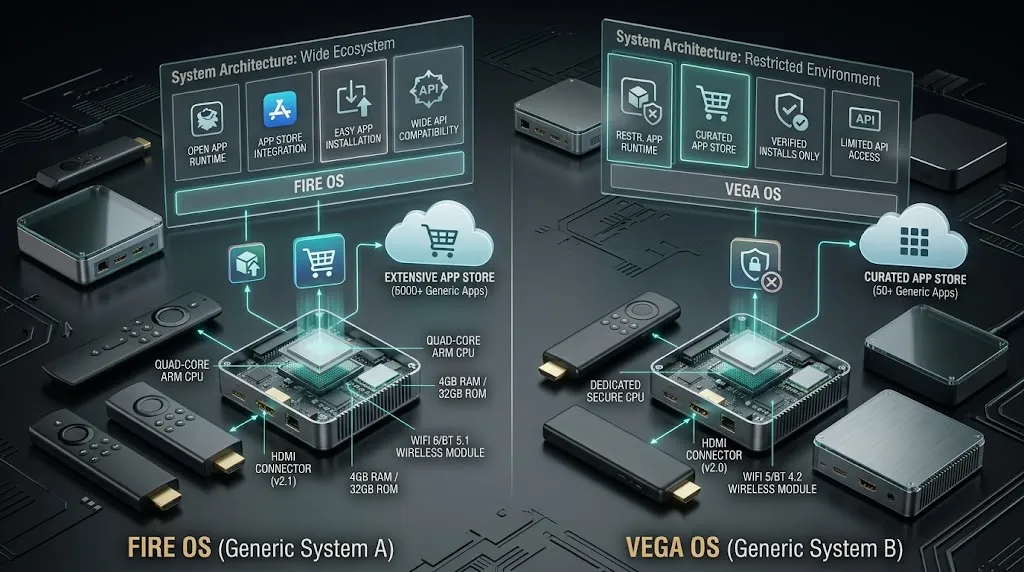
Open platforms, which include Android TV, Google TV and Fire OS devices, allow a broader choice of players because apps can be installed from outside the built-in store. Closed platforms only run what their own store offers, and that covers Samsung’s Tizen system, LG’s webOS, Apple TV, and the newer Fire TV sticks running Vega OS.
Neither group is better in the abstract. The distinction matters because it decides your app options, and that is the part most guides skip straight past. If you are still choosing hardware, the devices and apps guide compares what each platform can run.
The Fire TV Stick Trap
Fire TV sticks are the device I see most often, and they are also where buyers most easily end up with the wrong model. Amazon now ships two different operating systems under names that look almost identical on a shelf.
The simple rule: if the model name contains the word Select, it runs Vega OS, which is Amazon’s Linux-based system and does not accept apps from outside the Amazon store. The Fire TV Stick HD is harder, because two versions share the name. The one that accepts outside apps has Wi-Fi 5 printed on the box, squared corners, and no “Fire TV” text on the stick itself. The newer one has Wi-Fi 6, rounded corners, and the words printed on the stick.
| Model | System | Apps from outside the store |
|---|---|---|
| Fire TV Stick 4K Select | Vega OS | No |
| Fire TV Stick HD (Wi-Fi 6, rounded, branded) | Vega OS | No |
| Fire TV Stick HD (Wi-Fi 5, squared, unbranded) | Fire OS | Yes |
| Fire TV Stick 4K, 4K Max, 4K Plus | Fire OS | Yes |
| Fire TV Cube, TVs with Fire TV built in | Fire OS | Yes |
If you already own one, Settings, then My Fire TV, then About will tell you which system it runs. Amazon has said future Fire TV Stick models will move to Vega OS, so treat this table as current rather than permanent. AFTVnews maintains a running list of which models run which system, and it is worth checking before you buy. The Fire TV compatibility guide goes through the models in more detail.
If You Have a Samsung, LG or Apple TV
Open your television’s own app store first and search for an IPTV player. Samsung and LG sets usually have a few, and if one of them handles your playlist properly you are finished and you have spent nothing extra. The smart TV apps guide covers what tends to be available on each system.
If nothing in the store suits you, or the one you find keeps crashing, a small open device in the HDMI port is the simpler path. That is the advice I give most often to people with a closed television, because fighting the set rarely ends well and the device costs less than the time spent trying.
Step 2 — Install a Player App
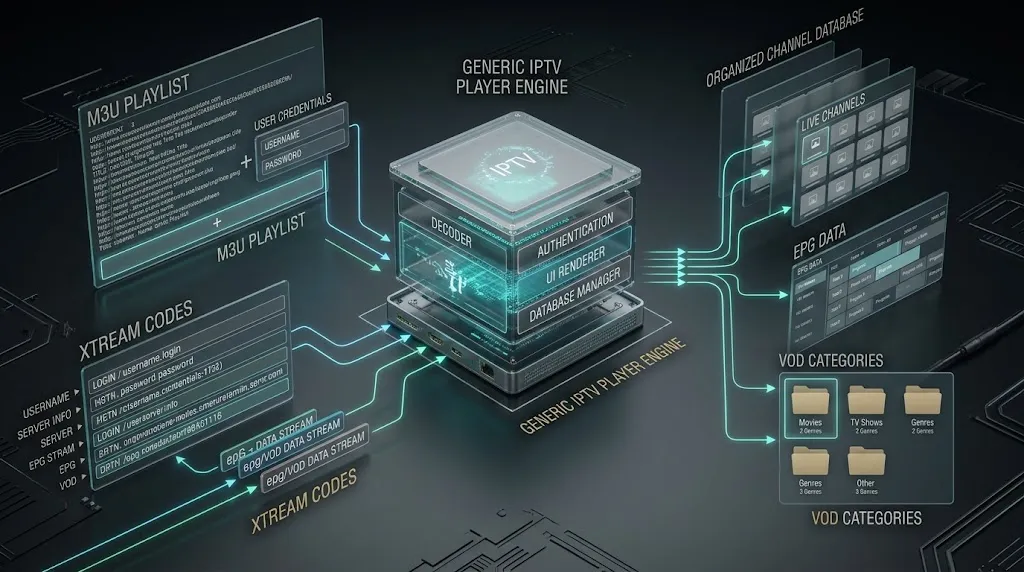
An IPTV app is a player and nothing more. It stores your login details and draws the channel list on screen; it does not supply any channels itself. That catches out a lot of first-time users who install an app expecting to find television inside it, which is why the difference between an app and a service is worth being clear on before you start.
Free players are enough to get going and to confirm a service works on your hardware. Paid versions may offer a more polished guide and easier navigation, depending on the app, but paying for a player changes nothing about how the stream itself behaves. That is decided at the other end.
On open devices, TiviMate and XCIPTV are the two players people ask me about most. TiviMate is Android-only, so it will not appear on a Samsung, an LG or an Apple TV, and it cannot be installed on a Vega OS stick either. On closed platforms your choice is whatever the store carries, which often means players such as IBO Player or IPTV Smarters Pro. The TiviMate setup guide and the IPTV Smarters guide cover each one.
Step 3 — Enter Your Details Exactly as They Are
With the app installed, you add your service details. There are two common formats. An M3U playlist is a single link containing the channel list. Xtream Codes is a server address with a separate username and password, and it updates the channel list automatically rather than needing a fresh file.
This step produces more failed logins than every other step combined, and almost always for something small. Server addresses get copied and pasted, and an address that starts with http:// can arrive as https:// by the time it is saved. The app then reports a login failure, which reads as though the credentials are wrong when the only difference is one letter. It happens because the copy step alters the text rather than the app, so check the start of the address before you change anything else.
The other frequent culprit is an invisible space picked up at the end of a username or password when the text was selected. The app treats that space as part of the password and rejects it, and nothing on screen shows you it is there. Retyping the field by hand rules it out in seconds. The login failure guide covers the less obvious causes if neither of those is it.
Step 4 — Check Your Connection Before You Blame the Stream
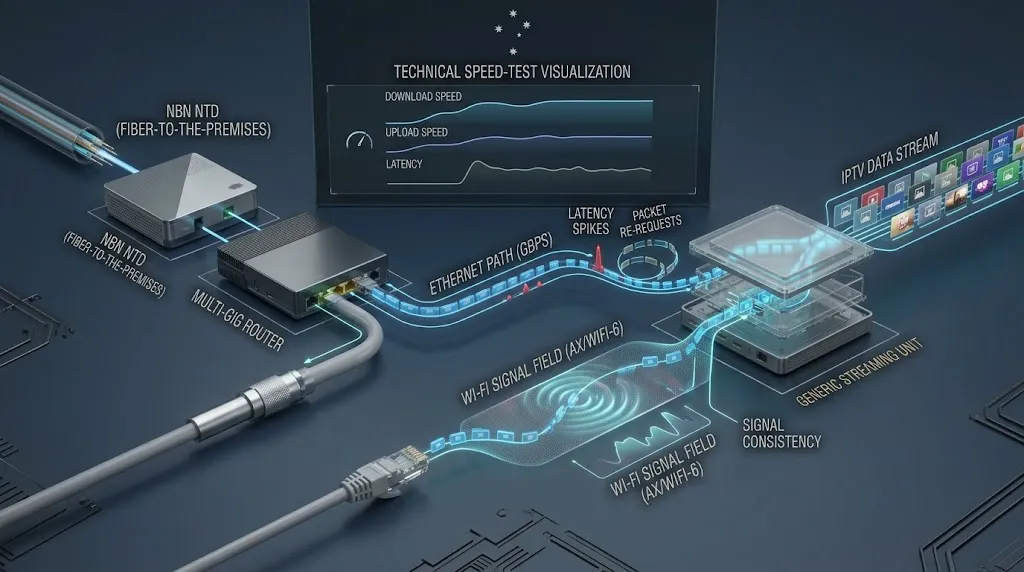
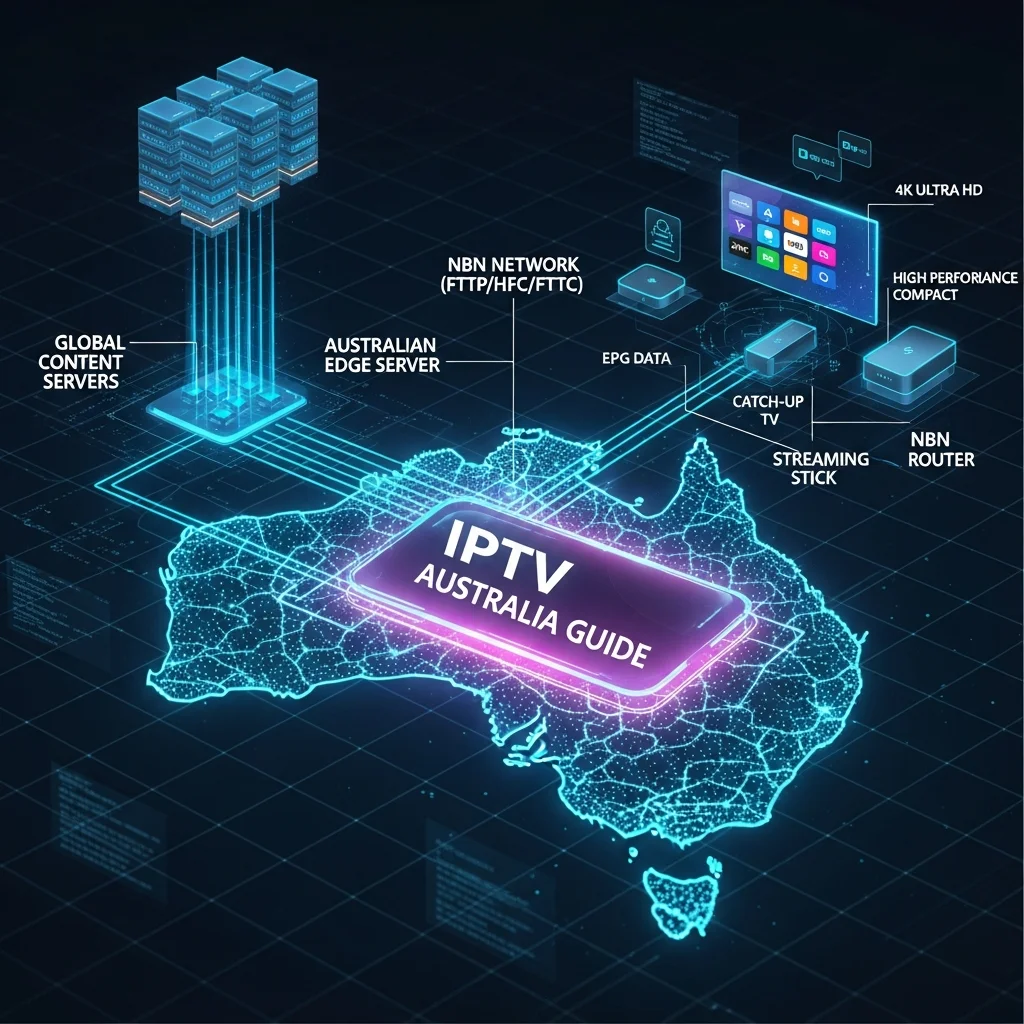
IPTV shares your home connection with everything else, so a stream that stutters is not automatically the service’s fault. Three things decide how it behaves: your NBN connection type, the speed you actually receive rather than the number on your plan, and the quality of your Wi-Fi where the device sits.
Run a speed test during the hours you normally watch, if you can. A connection that tests well at ten in the morning tells you very little about a weeknight when the whole street is streaming, and evening congestion is what live television runs into. The speed requirements guide sets out what different qualities need.
Where the device is close enough to the router, a cable instead of Wi-Fi removes wireless interference from the equation. That matters because a speed test measures peak download rate, while live streaming depends on steadiness, and it is the steadiness that interference disturbs. Taking it out of the picture also makes anything still going wrong far easier to diagnose.
Step 5 — Test Your Own Channels Before You Pay
If a service offers a trial, use it properly. The regret I hear most often is not about picture quality or price. It comes from people who subscribed, then found the one channel they actually cared about was missing or unwatchable.
Do not test only whether the app opens and something plays. Open the specific channels you intend to watch, and open them at the time of day you would normally be watching. If sport is the reason you are setting this up, that means during an actual match rather than on a quiet afternoon, because live events put the most simultaneous load on any service.
Check the programme guide fills in properly and shows Australian times as well. A guide sitting on the wrong timezone makes live television awkward to navigate, and it is easier to notice during a trial than after. The free trial guide sets out a fuller list of checks, and what makes a service worth keeping covers the criteria behind them.
Key takeaway: a trial tests whether a service carries your channels at your viewing time, not whether the app installs.
Is It Legal to Watch IPTV in Australia?
The technology is legal. IPTV is a method of delivering television over an internet connection, and licensed Australian services use it every day. The legal question is never the method. It is whether a particular service holds the rights to the channels it streams.
Under section 115A of the Copyright Act 1968, Australian courts can order internet providers to block services that infringe copyright, and they have issued those orders. The IPTV laws guide explains how the blocking regime works, and whether IPTV is legal in Australia covers where viewers stand.
One question comes up constantly: does IPTV need a VPN? A licensed service available in Australia should not need one to function. If a service only works through a VPN, that is a question to put to the service rather than a problem to engineer around.
This article is for educational and comparison purposes only. Verify the licensing status of any streaming service and ensure compliance with Australian copyright law before subscribing.
What Usually Goes Wrong on Day One
Two situations account for most of the messages I get on someone’s first day.
The first is a channel list that looks wrong or out of date. Reloading the playlist inside the app is the usual fix, because an M3U file is a snapshot taken at the moment it was loaded rather than a live feed, so it only reflects changes when you refresh it. If reloading changes nothing, the credentials are worth rechecking, or the service has altered something at its end. The channel loading guide works through the sequence.
The second is a stream that fails on your home connection but works elsewhere. Switching the device to a phone hotspot for a minute separates the two possibilities cleanly: if it plays on the hotspot, the fault is somewhere in your own network or with your provider’s routing, and if it fails on both, it is further along than your house. The no signal guide covers what to do with each answer, and the troubleshooting hub collects the rest.
Neither of these means the setup was done wrong. They are ordinary first-day faults with ordinary fixes.
The Bottom Line
If you already own an Android TV box, a Google TV device or an older Fire TV stick, you have the widest choice of players and the shortest path ahead of you. Install a player, enter the details carefully, and use a trial to check your own channels at your own viewing time.
If your television is a Samsung, an LG or an Apple TV, look in its store first, because something there may do the job with no extra hardware. If it does not, a small open device on the HDMI port is simpler than working around the television.
If you are buying a device specifically for this, check which operating system it runs before you pay rather than after. The setup itself is quick when the device and the app suit each other, and slow in every case where they do not. For a fuller walkthrough of the installation on each platform, see the IPTV setup guide.