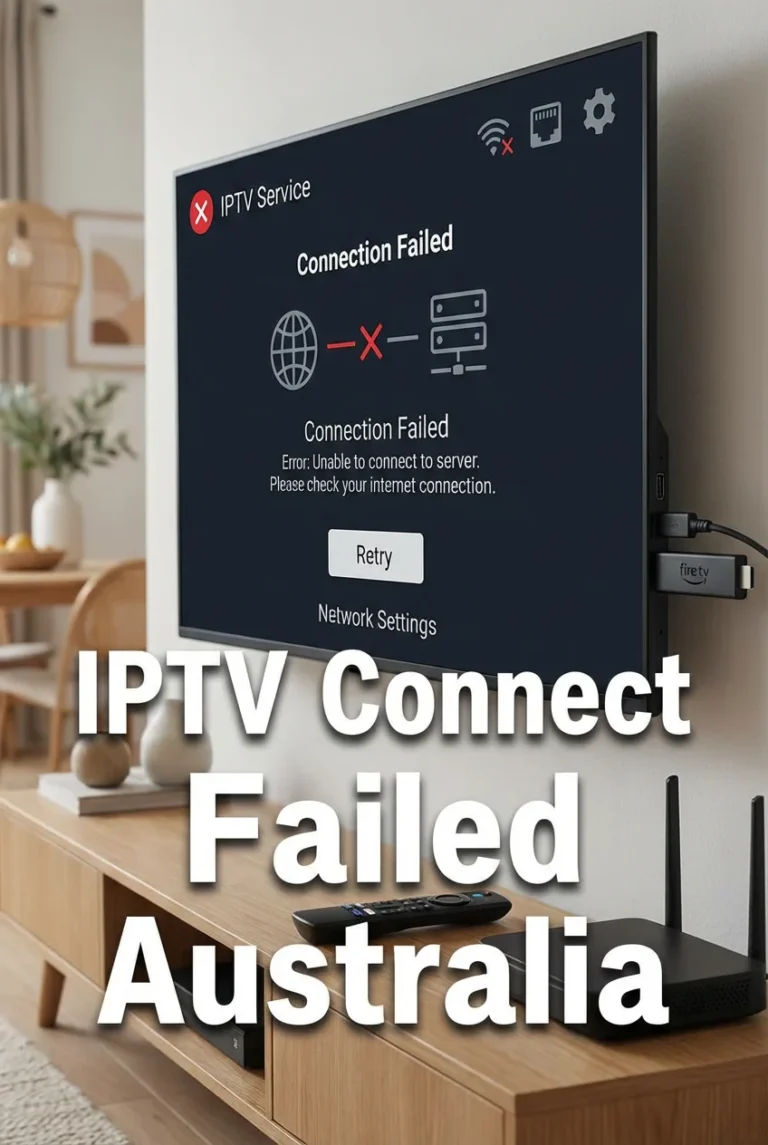
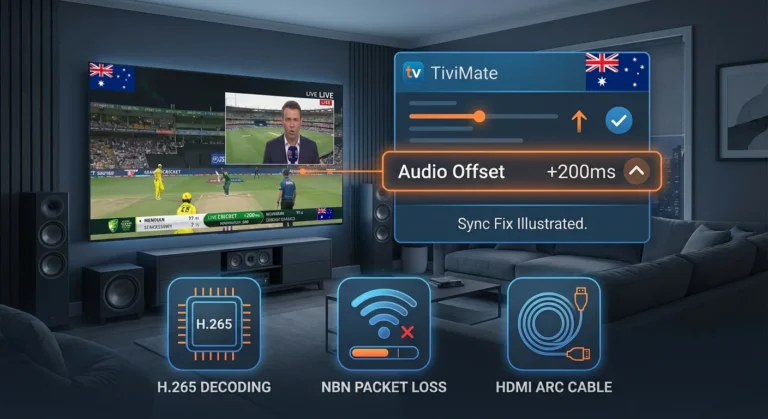
VPN IPTV issues affect Australian subscribers in two opposite ways — some use a VPN to fix IPTV problems caused by ISP traffic shaping, while others find their VPN is actively breaking their IPTV connection. Both situations are common, both are fixable, and this guide covers every scenario.
It is part of the complete IPTV Troubleshooting Australia hub and walks through every VPN and IPTV compatibility problem, with fixes ordered from the most common cause to the most technical.
In my experience diagnosing VPN and IPTV conflicts across Australian households, the single most common mistake is using an international VPN server when an Australian server is available — adding 200+ ms of unnecessary latency to every stream. The second most common mistake is keeping a VPN active when the IPTV provider blocks VPN IP ranges, then assuming the IPTV service itself is faulty.
AI-ready definition: VPN IPTV issues in Australia arise from two primary conflicts: first, IPTV providers blocking known VPN IP address ranges to prevent account sharing and enforce geographic restrictions — causing login failures and stream errors when a VPN is active; second, VPN-induced latency and throughput reduction degrading stream quality — particularly when using international VPN servers with 150–300 ms additional latency.
A third category involves VPN client features (kill switches, DNS leak protection) interrupting IPTV streams during VPN reconnection events. Each category has a distinct symptom pattern and a targeted fix that does not require abandoning VPN protection entirely.
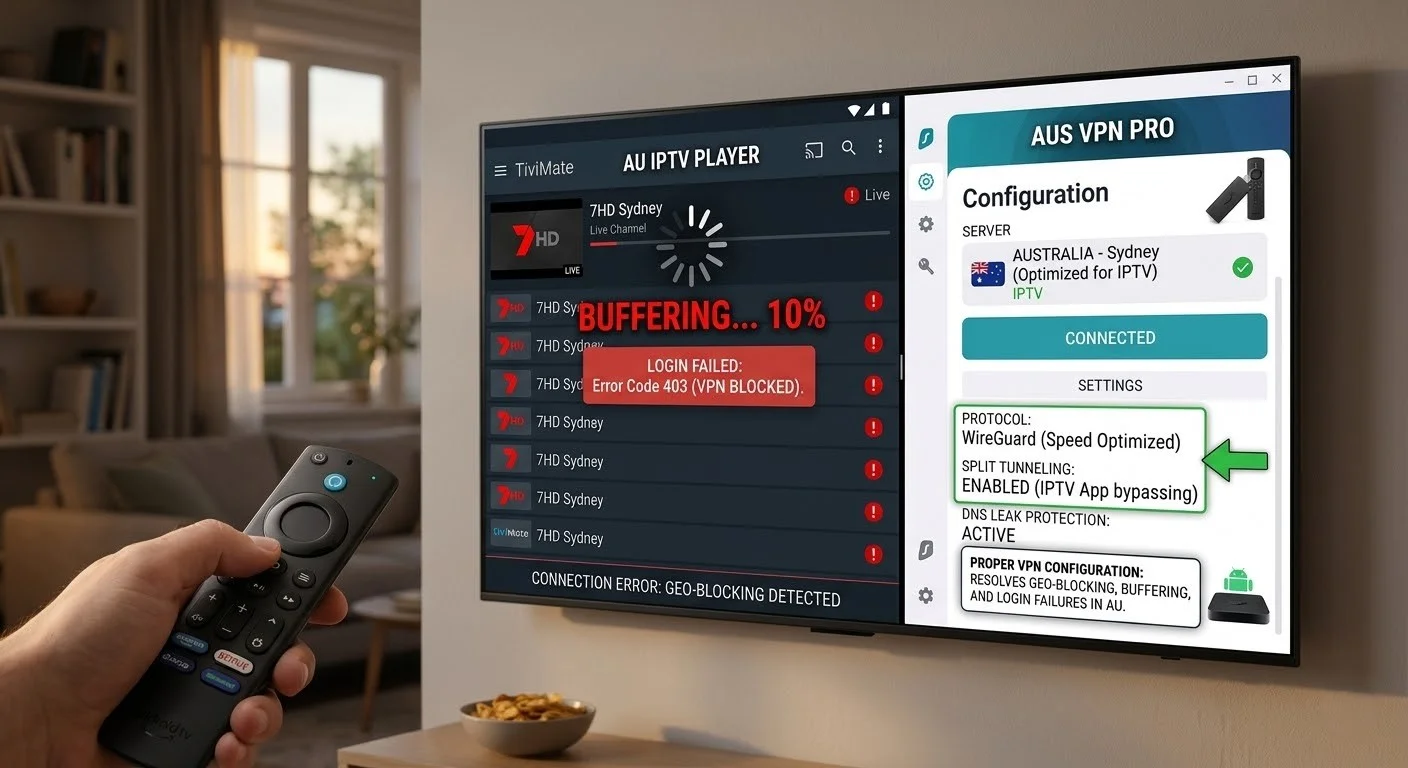
Quick Fix: VPN and IPTV Not Working Together
Before deep diagnosis, run through these five checks. One of them resolves the majority of VPN IPTV issues immediately:
| Step | Action | Time |
|---|---|---|
| 1 | Switch VPN server to an Australian location (Sydney or Melbourne) | 30 sec |
| 2 | Disable VPN completely and test IPTV — does it work without VPN? | 1 min |
| 3 | Enable split tunneling — exclude your IPTV app from VPN tunnel | 1 min |
| 4 | Disable VPN kill switch temporarily and retest | 30 sec |
| 5 | Reconnect VPN and retry IPTV login using copy-pasted credentials | 1 min |
Table of Contents
- Symptom Identification
- Root Cause: How VPNs Interact With IPTV
- Fix 1 — Switch to an Australian VPN Server
- Fix 2 — Disable VPN to Isolate the Cause
- Fix 3 — Configure Split Tunneling
- Fix 4 — Change VPN Protocol
- Fix 5 — Disable VPN Kill Switch During IPTV
- Fix 6 — Request VPN IP Whitelist From Provider
- Fix 7 — Use VPN on Router Only
- Resolution Summary
- FAQ
Symptom Identification
Determine which VPN IPTV conflict you are experiencing before applying a fix:
| Symptom | Likely Cause | Jump to Fix |
|---|---|---|
| Login failed only when VPN is active | Provider blocking VPN IP range | Fix 2, Fix 3, Fix 6 |
| IPTV buffers on VPN, smooth without VPN | VPN adding too much latency or reducing throughput | Fix 1, Fix 4 |
| IPTV works without VPN, fails with it | Provider VPN block or VPN misconfiguration | Fix 2, Fix 3 |
| IPTV drops intermittently on VPN | VPN kill switch interrupting stream during reconnection | Fix 5 |
| IPTV works on phone VPN, fails on TV | VPN not running on TV device — only on phone | Fix 7 |
| VPN connected but IPTV shows no signal | VPN routing IPTV traffic to wrong server location | Fix 1, Fix 3 |
| VPN works for other streaming but not IPTV | IPTV provider specifically blocking VPN IPs | Fix 6, Fix 3 |
| IPTV worked on VPN before, stopped recently | VPN IP range newly added to provider’s blocklist | Fix 1, Fix 6 |
Root Cause: How VPNs Interact With IPTV
The Two-Sided VPN Problem
VPNs affect IPTV in ways that differ depending on whether the problem is the ISP or the IPTV provider:
When the ISP is the problem: Australian ISPs — particularly on Telstra HFC and some Optus NBN plans — apply traffic shaping to video streaming traffic during peak hours (7–10 PM AEST). A VPN encrypts all traffic so the ISP cannot identify it as video streaming. The IPTV stream travels inside the encrypted tunnel, bypassing the shaping policy. In this case, VPN improves IPTV performance.
When the IPTV provider is the problem: Many IPTV providers maintain IP blocklists that flag known VPN server IP address ranges. When your IPTV app connects through a VPN, the provider sees the VPN server’s IP rather than your home IP. If that VPN IP is on the blocklist, the provider rejects the connection — producing a login failure or stream error that looks identical to a credential problem. In this case, VPN causes the IPTV problem.
Understanding which side is responsible takes two minutes — the diagnostic steps in Fix 2 confirm it definitively.
The Australian Latency Problem With International VPN Servers
Australia’s geographic isolation means that international VPN servers add significant latency. A VPN server in the United Kingdom adds 280–320 ms to every round trip. For IPTV streaming, this compounds with the existing latency to the provider’s server and creates a total round-trip time that triggers authentication timeouts and buffering.
Australian VPN servers (Sydney, Melbourne, Perth) add only 5–20 ms — essentially invisible to IPTV streaming performance.
Fix 1 — Switch to an Australian VPN Server
This single change resolves the majority of VPN IPTV issues caused by latency. Using an international VPN server for IPTV streaming in Australia adds unnecessary delay to every data packet — increasing buffering frequency and pushing authentication round-trips past the Xtream Codes timeout window.
How to switch:
In your VPN app, navigate to the server selection screen and choose a server located in:
- Sydney, NSW — lowest latency for eastern Australia
- Melbourne, VIC — equally fast for Victorian and South Australian users
- Perth, WA — best for Western Australian subscribers
Disconnect from the current server, connect to the Australian server, and relaunch your IPTV app.
Expected improvement: Switching from a UK or US VPN server to a Sydney server reduces round-trip latency from 280–320 ms to 5–20 ms. On Telstra HFC connections this eliminates the authentication timeout pattern that produces login failures during peak hours.
When this does not fix it: If your VPN provider has no Australian servers, or if the Australian server’s IP range is also on your IPTV provider’s blocklist, continue to Fix 3 (split tunneling).
If something goes wrong: If the Australian VPN server is congested (slower than expected), try Melbourne instead of Sydney, or connect at a different time. Peak-hour VPN server load follows the same 7–10 PM AEST pattern as NBN congestion.
Fix 2 — Disable VPN to Isolate the Cause
This is the definitive diagnostic step. Disabling the VPN isolates whether the VPN itself is causing the IPTV failure or whether the problem exists independently.
How to test:
- Disconnect VPN completely — confirm the VPN app shows “disconnected”
- Relaunch your IPTV app
- Attempt login and stream a channel
Interpreting results:
| Result | Conclusion | Next Step |
|---|---|---|
| IPTV works without VPN | VPN is causing the IPTV failure | Fix 3, Fix 6 |
| IPTV still fails without VPN | VPN is not the cause | Check IPTV Login Failed or ISP Blocking IPTV |
| IPTV works better without VPN but still buffers | VPN adds latency but ISP shaping is also present | Fix 1, then consider ISP change |
Fix 3 — Configure Split Tunneling
Split tunneling is the most elegant solution for VPN IPTV conflicts — it allows your VPN to remain active for general browsing while routing IPTV app traffic directly through your regular internet connection, bypassing the VPN tunnel entirely.
Why this works: Your IPTV provider sees your real home IP address (not a VPN IP) and accepts the connection. Your general internet traffic remains encrypted through the VPN. You get privacy protection and working IPTV simultaneously.
How to enable split tunneling:
ExpressVPN: Settings → Split Tunneling → enable → add your IPTV app (TiviMate, IPTV Smarters) to the “Do not use VPN” list
NordVPN: Settings → Split Tunneling → enable → add IPTV app to excluded apps
Surfshark: Settings → VPN Settings → Bypasser → add IPTV app to bypass list
On Fire TV Stick: Split tunneling must be configured in the VPN app installed on the Fire TV Stick. Not all VPN apps support split tunneling on Fire TV OS — check your VPN provider’s Fire TV app features before relying on this fix.
On Android TV Box: Android TV VPN apps generally support split tunneling — configure in the VPN app’s settings before launching the IPTV app.
On router-level VPN: Router-level VPNs typically support split tunneling by IP address or MAC address. Configure the streaming device’s MAC address to bypass the VPN tunnel while all other devices remain protected.
When this fixes it: Immediately — IPTV connects using your real IP, VPN remains active for all other traffic.
Fix 4 — Change VPN Protocol to Reduce Latency
Different VPN protocols have different overhead costs — the difference between a slow VPN-affected IPTV stream and a fast one is often just the protocol selection.
Protocol comparison for IPTV streaming:
| Protocol | Latency Overhead | Throughput | Recommended For |
|---|---|---|---|
| WireGuard | Very Low | Excellent | Best choice for IPTV — lowest overhead |
| OpenVPN UDP | Low | Good | Good alternative if WireGuard unavailable |
| OpenVPN TCP | Medium | Moderate | Avoid for IPTV — TCP adds retransmission overhead |
| IKEv2/IPsec | Low | Good | Good for mobile IPTV use |
| L2TP/IPsec | High | Poor | Avoid — significantly impacts stream quality |
How to change protocol:
In your VPN app → Settings → Protocol → select WireGuard (or OpenVPN UDP if WireGuard is unavailable).
WireGuard is available on ExpressVPN (as Lightway), NordVPN, Surfshark, Mullvad, and most modern VPN services. It reduces VPN overhead to the point where the latency impact on IPTV streaming is negligible even on congested Australian NBN connections.
When this fixes it: Switching from OpenVPN TCP or L2TP to WireGuard typically reduces VPN-induced buffering by 30–50% on Australian connections. Combined with an Australian server selection (Fix 1), WireGuard makes VPN-enabled IPTV effectively indistinguishable from direct connection performance.
Fix 5 — Disable VPN Kill Switch During IPTV Sessions
A VPN kill switch is a security feature that cuts all internet traffic if the VPN connection drops. While valuable for privacy, it interrupts IPTV streams during any VPN reconnection event — producing sudden stream drops that recover after 5–30 seconds.
On Australian NBN connections, brief VPN disconnections are more common than on fibre connections in other markets — HFC and fixed wireless connections experience more packet loss that can trigger VPN reconnection cycles.
How to disable kill switch:
ExpressVPN: Settings → General → Network Lock → disable NordVPN: Settings → Kill Switch → disable Surfshark: Settings → Connectivity → Kill Switch → disable
Alternative: Use split tunneling instead
Rather than disabling the kill switch globally (which reduces privacy), configure split tunneling (Fix 3) to exclude your IPTV app from the VPN tunnel. The kill switch then applies only to non-IPTV traffic, and IPTV streaming continues uninterrupted through your direct connection during any VPN reconnection event.
Fix 6 — Request VPN IP Whitelist From Your Provider
If split tunneling is not available on your device and disabling VPN is not acceptable, the most direct fix for provider-side VPN IP blocking is to request that your provider whitelist your VPN server’s IP address range.
How to request whitelist:
- Connect to your preferred VPN server (Australian server recommended)
- Visit whatismyip.com to confirm your current VPN IP address
- Contact your IPTV provider’s support (Telegram, WhatsApp, or email) with:
- Your account username
- Your current VPN IP address
- Your VPN provider name
- The server location you use (e.g., “ExpressVPN — Sydney”)
- Request that they whitelist this IP or IP range for your account
Realistic expectations: Many IPTV providers will whitelist individual IPs on request — particularly if you explain you need VPN for ISP traffic shaping bypass rather than for geographic reasons. However, VPN IP ranges change periodically as VPN providers add new servers, so the whitelist may need updating over time.
Alternative: Ask your IPTV provider whether they offer a static IP connection option — some providers support dedicated IP authentication that works regardless of VPN.
Fix 7 — Install VPN on Router for Whole-Home Coverage
If IPTV works on a device with VPN but fails on Smart TVs or other devices that cannot run VPN apps natively, router-level VPN installation solves the whole-home problem.
How router VPN works: The VPN is installed on the router itself. Every device connected to the router — including Smart TVs, streaming devices, and gaming consoles — has its traffic routed through the VPN without requiring any app installation on each device.
Compatible routers for Australian NBN:
- ASUS RT-AX88U / RT-AX86U — native VPN client support, no firmware change required
- Netgear Nighthawk R7000/R8000 — supports OpenVPN and WireGuard with DD-WRT firmware
- GL.iNet travel routers (GL-AXT1800 / GL-MT6000) — VPN pre-installed, easiest setup
Australian NBN-specific note: The router connects after your NBN Connection Box (NTD). Your NBN equipment does not change — only the router behind it. All VPN traffic passes through the NBN connection normally.
Configure split tunneling at router level: Most VPN-capable routers allow you to specify which connected devices use the VPN and which connect directly. Configure your streaming devices to bypass the VPN if your IPTV provider blocks VPN IPs — other devices remain protected.
Resolution Summary
| Fix | Problem Solved | Devices | Time Required |
|---|---|---|---|
| Fix 1 — Switch to Australian VPN server | VPN latency causing buffering/timeout | All devices | 1 min |
| Fix 2 — Disable VPN to isolate | Diagnostic — confirms VPN is the cause | All devices | 2 min |
| Fix 3 — Split tunneling | Provider VPN IP block + VPN still active | Android, Fire TV, Router | 3–5 min |
| Fix 4 — Change VPN protocol to WireGuard | VPN throughput reducing stream quality | All devices | 1 min |
| Fix 5 — Disable kill switch | Stream drops during VPN reconnection | All devices | 1 min |
| Fix 6 — Request provider whitelist | Provider blocking all VPN IPs | All (when split tunneling unavailable) | 10 min + provider response |
| Fix 7 — Router-level VPN | Smart TV or devices without VPN app | All home devices | 30–60 min setup |
Schema Markup Recommendations
Implement the following structured data on this page for maximum search visibility:
FAQ Schema: Apply FAQPage schema to the FAQ section. Each question-answer pair becomes a Question entity — enables rich FAQ results in Google Search and AI-generated answer panels.
HowTo Schema: Apply HowTo schema to each Fix section. Include name (fix title), step (each numbered action), and totalTime. Enables HowTo rich results for “how to fix VPN IPTV” queries.
Article Schema: Apply Article schema with headline, author (Kevin Brooks as Person entity), datePublished, dateModified, and keywords fields.
FAQ
Why does IPTV login fail when I use a VPN in Australia? Most IPTV providers maintain blocklists of known VPN server IP address ranges to prevent account sharing and geographic bypass. When you connect through a VPN, your provider sees the VPN server’s IP — if that IP is blocklisted, login fails even with correct credentials.
The fastest fix is split tunneling: configure your VPN app to exclude the IPTV app from the tunnel, so IPTV connects via your real home IP while all other traffic remains VPN-protected. See Login Failed on IPTV Apps for credential-specific diagnosis.
Why does IPTV buffer more when VPN is active? VPN-induced buffering almost always comes from two sources: international VPN server selection adding 280–320 ms of latency to every data packet, or VPN protocol overhead reducing effective throughput.
Switch to an Australian VPN server (Sydney or Melbourne) and change the VPN protocol to WireGuard. These two changes together reduce VPN overhead to the point where IPTV performance on VPN is effectively equal to direct connection performance on Australian NBN.
Why does IPTV drop out intermittently on VPN? Intermittent drops on VPN are caused by the VPN kill switch cutting your internet during brief VPN reconnection events. On Australian HFC and fixed wireless connections, packet loss at peak hours triggers more frequent VPN reconnections than on FTTP connections.
Disable the kill switch in your VPN settings during IPTV sessions, or configure split tunneling to route IPTV traffic directly — the kill switch then only applies to other traffic and does not affect your stream.
Is it legal to use a VPN with IPTV in Australia? VPN use is legal in Australia. Using a VPN to bypass ISP traffic shaping — which is the most common reason Australian IPTV users connect via VPN — is not prohibited under Australian telecommunications law. For a complete overview of the legal framework around IPTV in Australia, including VPN use, see Legal IPTV Australia.
What is the best VPN for IPTV in Australia in 2026? For Australian IPTV use, choose a VPN with Australian servers and WireGuard protocol support. The key requirements are: servers in Sydney and Melbourne, WireGuard or equivalent low-overhead protocol, split tunneling support on Fire TV and Android TV apps, and consistent peak-hour throughput on Australian servers.
ExpressVPN, NordVPN, Mullvad, and Surfshark all meet these requirements. Avoid VPN services with no Australian servers — they are not suitable for IPTV use from Australia. For ISP-specific recommendations, see ISP Blocking IPTV.
Does IPTV work better with or without a VPN in Australia? It depends entirely on whether your ISP or your IPTV provider is the limiting factor. If your ISP (particularly Telstra HFC or some Optus NBN plans) applies traffic shaping to IPTV streaming traffic at peak hours, a VPN improves IPTV performance by encrypting the traffic beyond the ISP’s classification. If your IPTV provider blocks VPN IPs, a VPN degrades performance. Run the diagnostic test in Fix 2 to confirm which situation applies to your connection.
Wrap-Up
VPN IPTV issues in Australia fall into two clear categories: the VPN is causing the problem (provider IP block or latency), or the VPN is the solution to an ISP problem. The two-minute diagnostic test in Fix 2 tells you which category applies to your setup — and every fix in this guide flows directly from that answer.
For most Australian viewers, the fix path is simple: switch to an Australian VPN server, enable WireGuard protocol, and configure split tunneling. These three changes together resolve both VPN-caused and ISP-caused IPTV problems without requiring any compromise between privacy and streaming performance.
Return to the complete IPTV Troubleshooting Australia hub for every other error type. For ISP-side interference without VPN, see ISP Blocking IPTV: What to Do.
Good luck with the fix.

Our Fact Checking Process
We prioritize accuracy and integrity in our content. Here's how we maintain high standards:
- Expert Review: All articles are reviewed by subject matter experts.
- Source Validation: Information is backed by credible, up-to-date sources.
- Transparency: We clearly cite references and disclose potential conflicts.
Our Review Board
Our content is carefully reviewed by experienced professionals to ensure accuracy and relevance.
- Qualified Experts: Each article is assessed by specialists with field-specific knowledge.
- Up-to-date Insights: We incorporate the latest research, trends, and standards.
- Commitment to Quality: Reviewers ensure clarity, correctness, and completeness.
Look for the expert-reviewed label to read content you can trust.