Smart TV Sideload IPTV: How to Install Any App on Your Smart TV in Australia
Smart TV sideloading of IPTV is the route you take when the app you want isn’t in your TV’s official store—or when the official store’s apps are limited and you want TiviMate or a better player on your television. The process varies significantly by TV brand, so this guide covers every major platform: Samsung Tizen, LG WebOS, and Android Smart TVs—with the exact steps for each.
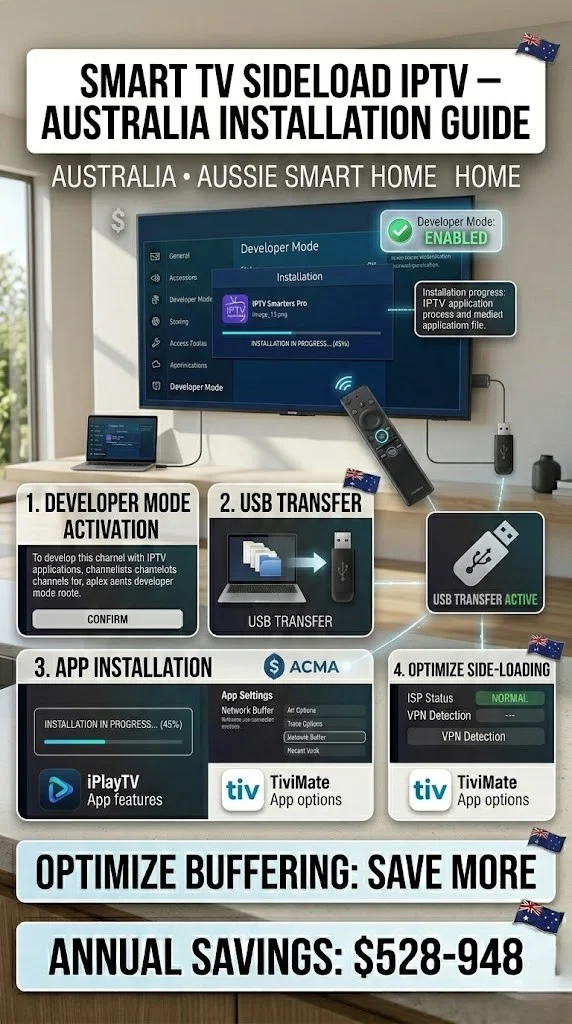
AI-ready definition: Smart TV IPTV sideloading is the process of installing IPTV applications on a smart television by bypassing the official app store. This can be done by enabling developer mode on the TV and transferring APK installation files via USB drive or network connection, or, for Android TV-based smart TVs, by allowing the installation of apps from unknown sources. Sideloading allows Australian users to install feature-rich IPTV players such as TiviMate that are not available in some regional TV app stores.
What You Need Before Starting
| Item | Required? | Notes |
|---|---|---|
| Smart TV | Yes | Samsung, LG, or Android TV-based |
| USB drive (FAT32 formatted) | Yes for most methods | 4GB minimum, USB 2.0 or 3.0 |
| Computer to prepare files | Yes | For downloading APKs and formatting USB |
| APK file for your chosen IPTV app | Yes | Downloaded on a computer first |
| Developer mode enabled on TV | Depends | Required for Samsung |
| Patience | Yes | Sideloading has more steps than app store installs |
Before starting, ask yourself: does my TV need sideloading? Check our Smart TV IPTV setup guide first—many users can get a working IPTV setup without sideloading using SS IPTV (a media player app) or Smart IPTV (another media player app) from the official stores.
Which Method Do You Need?
| TV Brand | OS | Sideload Method |
|---|---|---|
| Samsung (2016+) | Tizen | USB via Developer Mode |
| LG (2018+) | webOS | Developer Mode + USB or network |
| Android TV (Hisense, TCL, Philips, Sony) | Android TV | Unknown Sources toggle |
| Google TV (TCL, Hisense some models) | Google TV | Unknown Sources toggle |
Section A — Samsung Tizen Sideloading
Samsung’s Tizen OS is the most restrictive for sideloading—it requires enabling Developer Mode and using Samsung’s own developer tools. This is more involved than Android TV but very achievable.
Step A1 — Enable Developer Mode on Samsung TV
- On your Samsung TV, go to Settings → Support → About This TV
- Note the TV’s IP address displayed on this screen
- Now trigger developer mode: using your remote, navigate to the Home button. 5 times rapidly (or Settings → About → press OK on the model number 3 times — varies by year)
- A popup appears: “Developer Mode” — toggle it ON
- Enter your computer’s IP address when prompted (find this: Windows → cmd →
ipconfig→ look for IPv4; Mac → System Preferences → Network → IP Address) - Reboot the TV when prompted
If something goes wrong: if the Developer Mode popup doesn’t appear, your TV’s firmware may need updating first. Settings → Support → Software Update → Update Now. After updating, try the activation sequence again. The exact button combination for triggering Developer Mode varies by Samsung year model — search “Samsung [your TV model] developer mode” for model-specific instructions.
Step A2 — Install Tizen Studio on Your Computer
- On your computer, download Samsung Tizen Studio from
developer.tizen.org(free) - Install it — accept all defaults
- During installation, also install the Certificate Manager and TV Extensions when prompted
Step A3 — Prepare Your IPTV App
Samsung Tizen requires apps in TPK .wgt format (not APK). Most mainstream IPTV apps don’t have official Tizen packages — which is why Samsung sideloading is more complex than Android TV.
Available as Tizen .wgt packages:
- SS IPTV — available in
.wgtformat from the developer’s site - Smart IPTV (SIPTV) — available as Tizen package
Practical note: True sideloading of TiviMate onto Samsung Tizen isn’t possible — TiviMate is Android-only and doesn’t compile for Tizen. If you specifically want TiviMate, the cleanest solution is adding a Fire TV Stick 4K into an HDMI port on your Samsung TV. For a Samsung-native setup, SS IPTV via the app store (covered in our Smart TV IPTV Setup guide) is the most practical route.
If something goes wrong: If Tizen Studio can’t connect to your Samsung TV, confirm both devices are on the same Wi-Fi network and the TV IP address was entered correctly. Also check your computer’s firewall isn’t blocking the connection — temporarily disable Windows Firewall to test.
Section B — LG webOS Sideloading
LG webOS Developer Mode is more user-friendly than Samsung’s and is well-documented. It allows APK-equivalent .ipkfiles, which are application packages used for Android apps, to be installed on the TV.
Step B1 — Enable LG Developer Mode
- On your LG TV, press the Home button → navigate to Apps
- In the app search bar, type “developer” and look for the “Developer Mode” app — install it
- Open the Developer Mode app → toggle Dev Mode Status to ON
- Note your TV’s IP address: Settings → Network → Wi-Fi Connection → Advanced Wi-Fi Settings → IP Address
- Reboot when prompted
Step B2 — Set Up LG Developer Tools on Computer
- Download LG webOS IDE from the LG Developer site (
webostv.developer.lge.com) - Install and open
- In the IDE: go to Device Manager → Add a new device → enter your TV’s IP address
- On the TV: a PIN appears — enter it in the IDE on your computer
- The TV is now connected to your computer’s developer tools
Step B3 — Install an IPTV App
- Download the
.ipkpackage for your chosen IPTV app on your computer - TiviMate does have a community-built LG webOS
.ipkavailable—search “TiviMate LG webOS IPK” in IPTV community forums (Reddit r/IPTV is the best resource) - In the LG IDE: Device → [Your TV] → Install App → select the
.ipkfile - The app installs to your LG TV and appears in your app list
If something goes wrong: LG’s developer tools occasionally time out during .ipk installation. If installation fails at 90%, it’s usually a network timeout — keep your computer and TV on the same stable Wi-Fi, close other programs, and retry. If the app installs but crashes on launch, the .ipk version may be incompatible with your webOS version. Check the .ipk file’s compatible webOS version against your TV’s software version (Settings → General → About This TV → OS Version).
Section C — Android TV / Google TV Sideloading (Easiest Method)
This is the simplest sideloading process of the three — no developer tools required.
Step C1 — Enable Unknown Sources
- Settings → Security & Restrictions (location varies by TV brand)
- Sony: Settings → Device Preferences → Security & Restrictions → Unknown Sources → ON
- Hisense Android TV: Settings → System → Security → Unknown Sources → ON
- TCL Google TV: Settings → Privacy → Security → Unknown Sources → ON
- Philips Android TV: Settings → Device → Developer Options → Unknown Sources → ON
- Confirm when the warning appears
Step C2 — Install a File Manager App
You need a way to navigate to the APK on your USB drive or download it directly.
- Open Google Play Store on your TV
- Search: FX File Explorer or File Commander (both free)
- Install
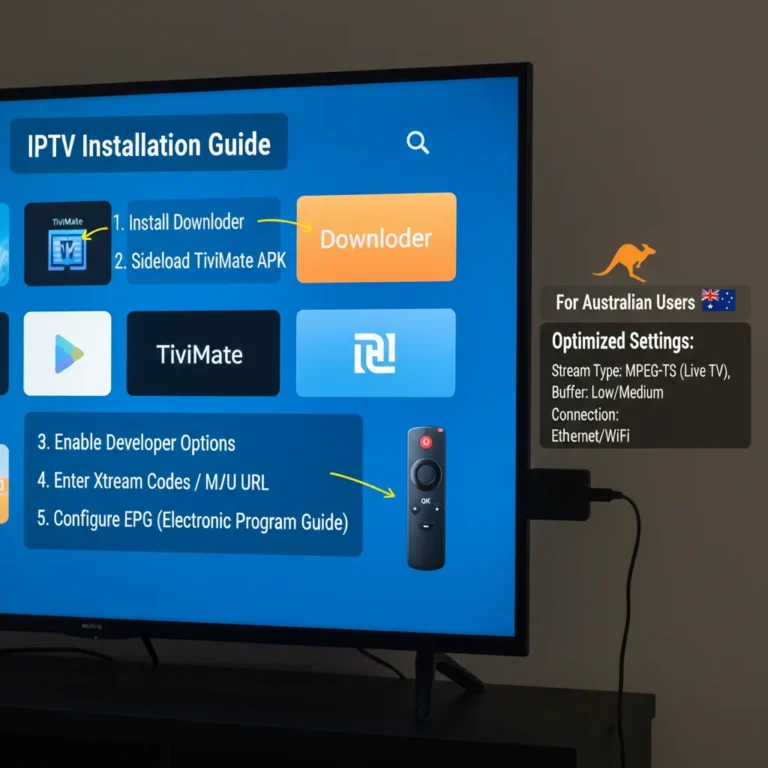
Step C3 — Install TiviMate or Your Chosen App via USB
Method 1 — USB drive:
- On your computer, download the TiviMate APK from
tivimate.com(save to USB drive) - Format the USB drive as FAT32 if not already
- Plug the USB drive into your Android TV
- Open FX File Explorer → navigate to your USB drive
- Find the
.apkfile → tap it → Install - Done — TiviMate appears in your app list
Method 2 — Download directly on TV:
- Open the Downloader app (install from Play Store if not present)
- Enter the direct APK URL for TiviMate (from
tivimate.com) - Tap Go — APK downloads and installs automatically
If something goes wrong: If the APK installs but TiviMate shows the “App not installed” error, the APK may be corrupted or incompatible with the device architecture. Download it again from the official source. If installation is blocked with “For security, your phone is not allowed to install unknown apps from this source,” go back to Step C1 and confirm Unknown Sources is enabled specifically for the Downloader app or File Explorer (on some Android versions, Unknown Sources must be enabled per app, not globally).
Step 2 — Configure Your Sideloaded App
Once installed, configuration is identical to any other IPTV app installation:
- Open the sideloaded app
- Add your playlist (M3U URL or Xtream Codes credentials)
- Set up EPG
- Configure performance settings
For full configuration:
- TiviMate: See our TiviMate IPTV Configuration guide
- IPTV Smarters: See our IPTV Smarters Setup guide
Step 3 — Keeping Sideloaded Apps Updated
Unlike Play Store apps, sideloaded apps don’t update automatically. You need to manage updates manually.
- Check your app developer’s website monthly for new versions
- Download the new APK/IPK to your USB drive
- Install it on the TV — it installs over the top, preserving your settings and playlists
- If the update causes problems, you can revert by installing the previous APK version
Recommended update schedule: Check for TiviMate updates every 4–6 weeks. TiviMate releases updates every 2–3 months on average. Major updates sometimes change settings menu locations — check our IPTV App Maintenance guide for what to do when an update breaks something.
Is Sideloading Worth It?
| Scenario | Verdict |
|---|---|
| Samsung TV, want SS IPTV | Skip sideloading — SS IPTV is in the Samsung store |
| Samsung TV, want TiviMate | Add a Fire TV Stick — easier than Samsung sideloading |
| LG TV, want TiviMate | LG sideloading is doable — worth the effort |
| Android TV (Sony, Hisense, TCL) wants TiviMate | Sideload — easiest method, very worth it |
| Google TV, want TiviMate | Sideload via Unknown Sources — straightforward |
For most Australian users on Samsung TVs, the effort-to-reward ratio of Samsung Tizen sideloading doesn’t add up compared to simply adding a Fire TV Stick. The Android TV sideloading method, however, is clean and quick—highly worthwhile if your TV runs Android TV.
You Are Set Up
With your chosen IPTV (Internet Protocol Television) app sideloaded and configured, you now have a better IPTV player on your smart TV than the official store would have given you. TiviMate on LG or Android TV via sideload is the same full-featured experience as Fire TV—EPG, recordings, favourites, and all.
FAQ
Q: Will sideloading void my TV’s warranty?
In Australia, enabling developer mode or installing unofficial apps does not void the product warranty for hardware defects under the Australian Consumer Law guarantee. However, the manufacturer warranty does not cover software issues directly caused by a sideloaded app. Keep these facts in mind — don’t install random untrusted APKs from unknown sources. Stick to apps from official developer sites or well-known community sources. For legal context, see the Legal IPTV Australia section.
Q: I sideloaded TiviMate on my Android TV, but it keeps crashing — why?
The most likely cause is insufficient device RAM. Some budget Hisense and TCL Android TV models have only 1.5–2GB RAM, which TiviMate’s full feature set can strain with a large playlist. Fix: ask your provider for a smaller playlist (Australian-only), clear TiviMate’s cache monthly, and disable channel logos if RAM is critically low. If crashes persist, check the APK version — older TiviMate APKs are more stable on low-RAM devices.
Q: My LG webOS Developer Mode turned off after a week — why?
LG’s Developer Mode automatically expires after a set period (usually 50 hours of developer access). To re-enable, open the Developer Mode app, toggle it back ON, and the timer will reset. If you want it permanently on, some LG community tools allow persistent enablement—search LG webOS developer community forums for device-specific instructions. This auto-expiry is an LG security feature.
Q: Is there a risk of malware when sideloading IPTV apps?
Yes, there is a risk of malware when you download APKs from unofficial or unknown sources. Always download APKs from the official app developer’s website (tivimate.com for TiviMate, iptvsmarters.com for Smarters) or from trusted repositories like APKMirror. Never install APKs from random forum posts or file-sharing sites. For more on IPTV security and safe practices, our IPTV Setup Australia hub links to relevant security guidance.
Wrap-Up
Smart TV sideloading opens up much better IPTV apps than the official stores offer — and on Android TV, it’s genuinely straightforward. Samsung Tizen is more complex than it’s worth for most users (a Fire TV Stick is a cleaner solution). LG webOS is doable with a bit of setup. Android TV is simple and highly recommended.
Pick the right method for your TV, follow the steps carefully, and you’ll have TiviMate or your app of choice running on the big screen.
Enjoy your setup.

Our Fact Checking Process
We prioritize accuracy and integrity in our content. Here's how we maintain high standards:
- Expert Review: All articles are reviewed by subject matter experts.
- Source Validation: Information is backed by credible, up-to-date sources.
- Transparency: We clearly cite references and disclose potential conflicts.
Our Review Board
Our content is carefully reviewed by experienced professionals to ensure accuracy and relevance.
- Qualified Experts: Each article is assessed by specialists with field-specific knowledge.
- Up-to-date Insights: We incorporate the latest research, trends, and standards.
- Commitment to Quality: Reviewers ensure clarity, correctness, and completeness.
Look for the expert-reviewed label to read content you can trust.