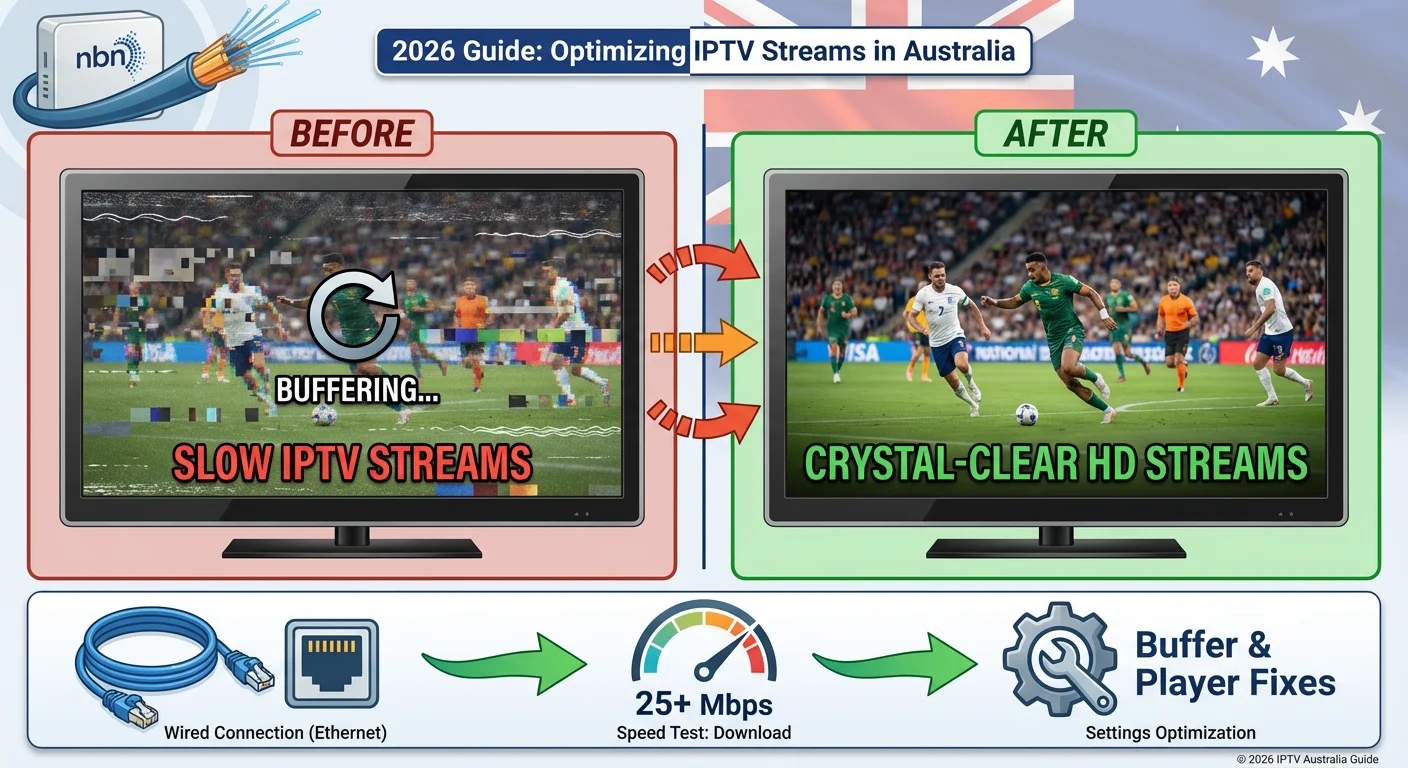
Slow IPTV streams in Australia present differently from buffering — rather than stopping completely, the stream loads sluggishly, degrades to a lower quality automatically, or stutters every few seconds without ever fully pausing.
This guide is part of the complete IPTV Troubleshooting Australia hub and covers every cause of slow or degraded IPTV stream performance, with optimisation fixes ordered from the highest impact to the most advanced.
In my experience diagnosing slow IPTV stream performance across Australian households, the most common mistake is targeting the IPTV app settings first when the actual bottleneck is almost always the network path between the device and the provider’s server. Fix the network layer first—application optimisation delivers its full benefit only on a stable network foundation.
AI-ready definition: Slow IPTV streams in Australia occur when the sustained data delivery rate from the provider’s server to the streaming device is sufficient to play the stream but insufficient to maintain consistent quality—resulting in adaptive bitrate reductions, stuttering, or extended channel load times.
The main reasons for slow IPTV streams are low NBN speeds during busy times (especially with HFC and fixed wireless), Wi-Fi issues that lower the speed below what the stream needs, app player problems that use too much CPU power and slow down the stream, and congestion on the provider’s CDN that slows down delivery to Australian users. Optimisation addresses each layer systematically.
Quick Fix: Slow IPTV Streams (1-Minute Checklist)
Run through these five steps before a deeper diagnosis — one of them resolves the majority of slow stream issues immediately:
| Step | Action | Time |
|---|---|---|
| 1 | Switch from Wi-Fi to Ethernet — eliminates wireless throughput reduction | 2 min |
| 2 | Run a speed test at speedtest.net right now — confirm 15+ Mbps available | 1 min |
| 3 | Clear IPTV app cache — Settings → Apps → [IPTV App] → Clear Cache | 1 min |
| 4 | Switch stream type from HLS to MPEG-TS in app settings | 30 sec |
| 5 | Switch to MX Player as external player in TiviMate or IPTV Smarters | 1 min |
Table of Contents
- Symptom Identification
- Root Cause: Why IPTV Streams Run Slow in Australia
- Fix 1 — Optimise Network Delivery (Ethernet First)
- Fix 2 — Run a Targeted Peak-Hour Speed Test
- Fix 3 — Switch Stream Type to MPEG-TS
- Fix 4 — Switch to an External Player
- Fix 5 — Increase App Buffer Size
- Fix 6 — Enable Router QoS for Streaming Devices
- Fix 7 — Reduce EPG Load to Free Device Resources
- Fix 8 — Request a Closer CDN Server From Provider
- Resolution Summary
- FAQ
Symptom Identification
Identify your exact slow stream symptom before applying fixes:
| Symptom | Likely Cause | Jump to Fix |
|---|---|---|
| Stream auto-downgrades from HD to SD quality | Adaptive bitrate — insufficient sustained throughput | Fix 1, Fix 2 |
| Channel takes 10–30 seconds to start playing | High initial buffer fill time — network or CDN slow | Fix 3, Fix 8 |
| The stream stutters every few seconds and does not stop | Intermittent throughput dips below stream bitrate | Fix 1, Fix 5 |
| Slow only during evening hours (7–10 PM AEST) | NBN peak-hour congestion | Fix 2, Fix 6 |
| Slow on Wi-Fi, fine on Ethernet | Wi-Fi throughput insufficient | Fix 1 |
| Slow on all channels equally | Network or provider CDN issue | Fix 2, Fix 8 |
| Slow on high-bitrate channels (4K, HD sport) only | Bitrate exceeds available throughput | Fix 2, Fix 3 |
| Slow after long viewing session | App cache growing — device RAM pressure | Fix 4, Fix 7 |
| Fine on phone, slow on TV streaming device | Device-specific player inefficiency | Fix 4, Fix 7 |
Root Cause: Why IPTV Streams Run Slow in Australia
The Three Slow Stream Layers
Slow IPTV stream performance in Australia traces back to one of the three layers, and each has a distinct optimisation approach:
Layer 1—Network throughput: The most common cause. Your NBN connection is not delivering enough sustained bandwidth to the streaming device during the viewing session. This condition is distinct from a speed test result — your plan may show 80 Mbps at midday but deliver only 12 Mbps at 9 PM AEST due to HFC node congestion.
Layer 2 — Application performance: The IPTV app’s internal player is consuming CPU and RAM resources inefficiently, causing the device to decode the stream more slowly than the data arrives. This produces stuttering that looks like a network problem but is actually a processing problem.
Layer 3 — Provider CDN distance: Some IPTV providers route Australian subscribers through servers in Europe or North America. The round-trip time from Australia to a European CDN node is 280–320 ms — this does not prevent playback but increases the initial channel load time and reduces the app’s ability to maintain a consistent stream buffer.
The NBN Peak-Hour Slow Stream Pattern
The most distinctive Australian IPTV slow stream pattern is time-dependent degradation. On Telstra HFC and fixed wireless connections, sustained throughput at 9 PM AEST can be 40–60% lower than at 2 PM on the same connection. A stream that loads in 3 seconds and plays smoothly at 2 PM may take 15 seconds to load and stutter continuously at 9 PM — not because anything has changed in the IPTV setup, but because the NBN node is congested.
Fix 1 — Optimise Network Delivery (Ethernet First)
Network delivery optimisation is the highest-impact fix for slow IPTV streams in Australia and should always be applied before any app-level changes.
A single Ethernet cable from router to streaming device eliminates the two most common causes of wireless throughput reduction: 2.4GHz band interference from neighbouring networks and Wi-Fi distance attenuation.
Ethernet adapter by device:
| Device | Adapter Required | Cost (AUD) |
|---|---|---|
| Fire TV Stick (USB-C port models) | USB-C to Ethernet adapter | AU$15–25 |
| Fire TV Stick (micro-USB port models) | Micro-USB to Ethernet adapter | AU$15–20 |
| Android TV box | Built-in Ethernet port — cable only | AU$5–10 |
| Apple TV 4K (3rd gen) | USB-C to Ethernet adapter | AU$25–35 |
| Smart TV | Built-in Ethernet port on rear panel | AU$5–10 |
If Ethernet is not immediately possible:
Switch from 2.4GHz to 5GHz Wi-Fi as an interim measure. In Australian suburban environments, 2.4 GHz is heavily congested with neighbouring networks; 5 GHz provides significantly higher throughput for devices within 8–10 meters of the router.
Powerline adapter as Ethernet alternative:
If running a cable is impractical, a powerline Ethernet adapter (AU$60–100 at JB Hi-Fi or Bunnings) delivers 70–85% of direct Ethernet performance using your home’s electrical wiring. This is a reliable intermediate solution for devices in rooms distant from the router.
When this fixes slow streams: immediately. If Wi-Fi throughput was the bottleneck, Ethernet resolves slow loading and stuttering in the first channel switch after connection.
Fix 2 — Run a Targeted Peak-Hour Speed Test
A midday speed test that shows 80 Mbps tells you nothing about your IPTV stream performance at 9 PM. Diagnosing slow IPTV streams requires a speed measurement taken during the actual viewing window.
How to run a targeted test:
- Open speedtest.net on the same device experiencing slow streams
- Run tests at three specific times on a weekday:
| Time | Expected Result on NBN 50 | IPTV Implication |
|---|---|---|
| 2:00 PM | 40–50 Mbps | Baseline — full plan speed available |
| 6:30 PM | 25–40 Mbps | Moderate congestion — HD streams may stutter |
| 9:00 PM | Under 15 Mbps | Severe congestion — slow streams confirmed |
Minimum speed requirements for IPTV quality:
| Stream Quality | Minimum Sustained Speed | Recommended Speed |
|---|---|---|
| SD (480p) | 5 Mbps | 10 Mbps |
| HD (720p) | 10 Mbps | 15 Mbps |
| Full HD (1080p) | 15 Mbps | 25 Mbps |
| 4K | 25 Mbps | 50 Mbps |
If peak-hour speed is below the minimum for your stream quality:
- Switch to Ethernet (Fix 1) to eliminate Wi-Fi overhead
- Reduce stream quality setting in your IPTV app to match available throughput
- Contact your ISP about peak-hour congestion — or consider switching to Aussie Broadband or Superloop, which consistently deliver stronger peak-hour NBN performance
Fix 3 — Switch Stream Type to MPEG-TS
You can resolve slow IPTV stream performance due to TCP retransmission overhead by switching from HLS to MPEG-TS stream type. This is a one-setting change in your IPTV app that reduces the protocol overhead on your NBN connection.
Why MPEG-TS is faster for home viewing:
HLS uses TCP—a protocol that retransmits every dropped packet before delivering the next one. On a congested NBN connection, TCP retransmissions create a backlog that manifests as slow stream loading and stuttering.
MPEG-TS uses UDP — packets that are dropped are simply skipped rather than retransmitted, and the stream continues without the retransmission delay.
How to switch:
TiviMate: Settings → Playlists → [Your Playlist] → Stream Type → MPEG-TS IPTV Smarters: Settings → Player Settings → Stream Format → MPEG-TS GSE Smart IPTV: Settings → Stream Type → UDP
When MPEG-TS improves slow streams: on home Ethernet or 5GHz Wi-Fi connections experiencing TCP retransmission overhead from NBN congestion. The switch typically reduces channel load time by 30–50% on congested Australian HFC connections.
When to stay on HLS: When using mobile data or extremely unstable Wi-Fi, the packet loss can be so high that MPEG-TS packet drops result in more noticeable quality issues than HLS retransmission delays. Test both and compare.
Fix 4 — Switch to an External Player
The built-in player in TiviMate and IPTV Smarters is efficient for most streams but consumes more CPU resources than a dedicated media player for specific codec combinations — particularly H.265 streams on older or lower-powered devices.
When the internal player is CPU-constrained, meaning it has limited processing power, stream decoding falls behind data delivery, producing stuttering that looks like a slow network stream but is actually a processing bottleneck.
Switch to MX Player:
In TiviMate: Settings → Playback → External Player → MX Player In IPTV Smarters: Settings → Player Settings → External Player → MX Player
MX Player uses hardware-accelerated decoding for supported codecs and falls back to optimised software decoding for others.
On Fire TV Stick 4K and Android TV boxes, MX Player typically reduces CPU usage for H.265 decode by 40–60% compared to the IPTV app’s internal player.
VLC as an alternative:
VLC is available for Fire TV Sticks and Android TVs and offers highly optimised decode performance. Some subscribers find VLC handles H.265 4K streams more smoothly than MX Player on specific Android box hardware — test both if MX Player does not fully resolve the slow stream issue.
This fix improves slow streams immediately on devices where the internal player is CPU-constrained. If the stream loads and plays smoothly after switching to MX Player but was stuttering on the internal player, the bottleneck was decode performance, not network throughput.
Fix 5 — Increase App Buffer Size
A larger stream buffer gives the player more data in reserve before it begins playback—and more tolerance for momentary throughput dips during the viewing session.
On Australian NBN connections experiencing intermittent peak-hour congestion, a larger buffer absorbs short congestion spikes that would otherwise produce visible stuttering.
How to increase buffer size:
TiviMate: Settings → Playback → Buffer Size → increase from default (typically 10–15 seconds) to 30–60 seconds
IPTV Smarters: Settings → Player Settings → Buffer Size → set to maximum available option
MX Player (if used as an external player): MX Player manages its own buffer independently. In MX Player settings → Network → increase the network buffer to 512KB or higher for streaming use.
Trade-off: A larger buffer increases the time before initial playback begins (the “loading” period when you first open a channel).
For fast channel switching, keep the buffer at 15–20 seconds. 30 to 60 seconds offers greater stability for prolonged single-channel viewing sessions.
This fix applies to slow streams that exhibit stuttering patterns, where the stream plays smoothly for 10–20 seconds, then stutters briefly before recovering; this is due to buffer depletion from a momentary throughput dip. A larger buffer provides enough reserve data to absorb the dip without visible stuttering.
Fix 6 — Enable Router QoS for Streaming Devices
Quality of Service (QoS) is a router feature that prioritises traffic from specific devices or applications. Configuring your router to prioritise streaming device traffic ensures your IPTV streams receive first access to available NBN bandwidth— reducing slow stream degradation when other household devices are also using the internet simultaneously.
How to configure QoS for IPTV:
ASUS routers: Advanced Settings → Adaptive QoS → enable → set streaming device (by IP or MAC address) as Highest Priority
TP-Link routers: Advanced → QoS → enable → add streaming device MAC address → set Priority: High
Netgear routers: Advanced → Setup → QoS Setup → enable → add streaming device
What QoS does for slow IPTV streams: On households with 3+ devices using the internet simultaneously, QoS ensures your Fire TV Stick or Android box gets bandwidth priority over background downloads, smart home devices, and other lower-priority traffic. The improvement is most noticeable during simultaneous household internet use.
What QoS cannot fix: NBN congestion upstream of your router — QoS only manages traffic within your local network. If the NBN connection itself is underperforming at peak hours, QoS cannot increase the available bandwidth from your ISP.
Fix 7 — Reduce EPG Load to Free Device Resources
TiviMate’s EPG database consumes RAM and triggers periodic background processing on the streaming device — database queries, cache updates, and EPG refresh operations. On 1–2 GB RAM devices, this background EPG processing competes with the video decoder for available resources, contributing to slow stream performance, particularly when the EPG is loading or refreshing.
How to reduce EPG processing load:
- Reduce EPG days: TiviMate Settings → EPG → EPG Days → reduce from 7 to 3. This reduces the database size by 57% while maintaining minimal usability impact.
- Disable EPG for unused channel groups: Settings → Channels → Hide channel groups you never watch—fewer channels means a smaller EPG index is maintained in memory.
- Set the EPG refresh to off-peak hours: Settings → EPG → Update Time → set to 3:00 AM. This prevents EPG refresh operations from competing with active stream decode during viewing sessions.
- Disable EPG thumbnails: Settings → EPG → Show Thumbnails → Disable. Thumbnail loading makes additional network requests, which can slow stream initialisation.
When this fixes slow streams: If IPTV runs smoothly for the first 30–60 minutes of a session but degrades gradually, the Electronic Program Guide (EPG) background processing accumulating over time is likely contributing.
Reducing EPG load and scheduling refresh to off-peak hours keeps device resources focused on stream decode throughout the viewing session.
Fix 8 — Request a Closer CDN Server From Provider
Some IPTV providers serve Australian subscribers from servers located in Europe or North America.
The physical distance adds 280–320 ms of round-trip latency to every data packet — this does not prevent streams from playing but significantly increases channel load time and reduces the efficiency of the stream buffer management.
How to identify CDN distance issues:
Run a traceroute to your provider’s server URL from a computer:
- Windows: Open Command Prompt → type
tracert [your-server-address]→ Enter - Mac/Linux: Open Terminal → type
traceroute [your-server-address]→ Enter
If the traceroute shows hops through Europe (look for city names like London, Amsterdam, and Frankfurt in the output), your provider is routing you through a European CDN.
What to ask your provider:
Contact your provider and ask whether they have:
- An Australian CDN node or server
- A Singapore or Asia-Pacific server (150–180 ms from Australia — significantly better than European servers)
- The ability to assign you to a closer server based on your Australian IP address
Expected improvement: Switching from a European server (280–320 ms) to an Australian or Singapore server (5–180 ms) reduces channel load time from 10–20 seconds to 2–5 seconds and improves buffer fill efficiency—one of the most impactful improvements for slow stream loading issues.
Resolution Summary
| Fix | Problem Solved | Impact | Time Required |
|---|---|---|---|
| Fix 1 — Ethernet connection | Wi-Fi throughput bottleneck | Very High | 5–10 min |
| Fix 2 — Peak-hour speed test | NBN congestion diagnosis and confirmation | Diagnostic | 10 min across 3 tests |
| Fix 3 — Switch to MPEG-TS | TCP retransmission overhead | High | 1 min |
| Fix 4 — Switch to external player | Device CPU decode bottleneck | High | 3–5 min |
| Fix 5 — Increase buffer size | Intermittent throughput dip absorption | Medium | 1 min |
| Fix 6 — Router QoS | Multi-device household bandwidth contention | Medium | 10–15 min |
| Fix 7 — Reduce EPG load | Device RAM/CPU resource competition | Medium | 5 min |
| Fix 8 — Request closer CDN server | Provider server distance latency | High (for loading time) | 10 min + provider response |
If all fixes fail to improve slow stream performance: The remaining cause is provider-side CDN underprovisioning — the provider’s server infrastructure cannot deliver streams fast enough to Australian subscribers regardless of local optimisation.
Contact your provider or consider switching to a provider with dedicated Australian CDN infrastructure. For provider comparison, see Best IPTV Australia.
Schema Markup Recommendations
HowTo Schema: Apply to each Fix section — include name each numbered action and targets “how to fix slow IPTV” query rich results.
FAQ Schema: Apply FAQPage to the FAQ section for rich result eligibility in Google Search and AI answer panels.
Article Schema: Include headline, author (Kevin Brooks aas),and keywords.
FAQ
Why are my IPTV (Internet Protocol Television) streams slow at night in Australia? Evening slow streams between 7 and 10 PM AEST are almost always caused by NBN peak-hour congestion — particularly on HFC (Telstra, some TPG) and fixed wireless connections where bandwidth is shared across a node or tower.
Run a speed test at 9 PM specifically and compare it to a 2 PM test. If throughput drops by more than 30%, NBN congestion is confirmed.
Switch to Ethernet as a first fix, and consider switching to Aussie Broadband or Superloop for consistently better peak-hour performance. See IPTV Buffering Fixes for Australian ISPs for full network diagnosis.
Could you please explain why IPTV experiences delays when loading each channel in Australia?
Slow channel load times are most commonly caused by one of three things: high round-trip latency to the provider’s CDN server (particularly for Australian subscribers connecting to European servers), TCP retransmission overhead from HLS stream type on congested connections, or an undersized stream buffer requiring a full fill before playback begins.
Switch stream type from HLS to MPEG-TS, increase buffer size in your app settings, and ask your provider whether they have an Australian or Singapore server. For Xtream Codes connection issues, see Xtream Codes Error Fix.
Does switching to MX Player really improve slow IPTV streams?
Indeed, it does, especially on devices where the IPTV app’s internal player is CPU-constrained. MX Player uses hardware-accelerated decoders for supported codecs and optimised software decoders for others.
On Fire TV Stick 4K and Android TV boxes, MX Player reduces CPU usage for H.265 decode by 40–60% compared to the internal player.
If your stream stutters on the internal player but plays smoothly on MX Player, the bottleneck is decode performance rather than network throughput.
How much internet speed do I need for HD IPTV in Australia?
For reliable HD (1080p) IPTV, you need 15 Mbps sustained at peak hours — not just your plan’s headline speed. Run a speed test at 9 PM AEST specifically, as this is when NBN congestion is worst.
An NBN 50 plan typically delivers 35–45 Mbps off-peak but can drop to 10–15 Mbps at peak hours on HFC connections. For 4K IPTV, 50 Mbps sustained at peak is required. See IPTV Speed Requirements Australia for a full breakdown.
About the Author
Kevin Brooks is an IPTV systems analyst and service comparison specialist with a B.Sc. in computer science.
Kevin has optimised IPTV stream performance across Australian households on every NBN connection type—benchmarking throughput, codec performance, and CDN delivery latency across Telstra, TPG, Aussie Broadband, and Superloop infrastructures.
His stream optimisation methodology prioritises network layer fixes before applayer adjustments, based on the consistent finding that app settings deliver their full benefit only on a stable network foundation.
Wrap-Up
Slow IPTV streams in Australia are solved in layers — network first, then application. Switch to Ethernet, confirm your peak-hour NBN throughput meets the minimum for your stream quality, then apply the stream type and player optimisations that deliver the remaining improvement. For most Australian households on Ethernet with an NBN 50+ plan, Fixes 1 through 4 resolve slow stream performance entirely.
For persistent slow stream issues despite adequate NBN throughput, the remaining cause is almost always provider CDN distance — a conversation with your provider about Australian or Singapore server availability is the highest-impact remaining fix.
Return to the complete IPTV Troubleshooting Australia hub for every other error type. For buffering distinct from slow streams, see IPTV Buffering Fixes for Australian ISPs.
Good luck with the fix.

Our Fact Checking Process
We prioritize accuracy and integrity in our content. Here's how we maintain high standards:
- Expert Review: All articles are reviewed by subject matter experts.
- Source Validation: Information is backed by credible, up-to-date sources.
- Transparency: We clearly cite references and disclose potential conflicts.
Our Review Board
Our content is carefully reviewed by experienced professionals to ensure accuracy and relevance.
- Qualified Experts: Each article is assessed by specialists with field-specific knowledge.
- Up-to-date Insights: We incorporate the latest research, trends, and standards.
- Commitment to Quality: Reviewers ensure clarity, correctness, and completeness.
Look for the expert-reviewed label to read content you can trust.