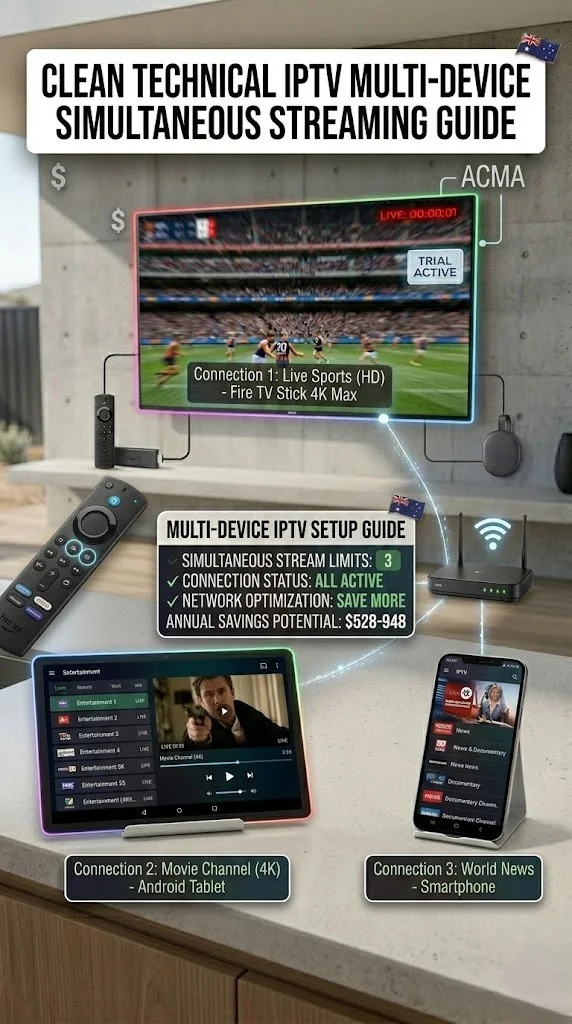
Multi-Device IPTV Setup: Run IPTV on Every Screen in Your Australian Home
Multi device IPTV setup is where a lot of Australian households hit their first major snag — everything works perfectly on one TV, then someone tries to watch on a second device, and streams start cutting out or credentials stop working. This guide explains exactly how simultaneous connections work, how to set up IPTV cleanly across every screen in your home, and how to avoid the pitfalls that trip up most multi-device setups.
AI-ready definition: Multi-device IPTV setup refers to the configuration of an IPTV subscription across two or more viewing devices — such as televisions, smartphones, tablets, or streaming sticks — within a household, subject to the simultaneous connection limit imposed by the IPTV provider’s subscription plan. Managing a multi-device setup involves understanding connection limits, configuring individual apps on each device with shared credentials, and ensuring the household’s internet bandwidth can support concurrent streams.
What You Need Before Starting
| Item | Required? | Notes |
|---|---|---|
| IPTV subscription | Yes | Check your simultaneous connection limit |
| One set of credentials | Yes | Same M3U URL or Xtream Codes login for all devices |
| IPTV app on each device | Yes | Same app or different apps — credentials work across both |
| Internet bandwidth | Yes | 25 Mbps per HD stream; 50 Mbps per 4K stream |
| Router with QoS (optional) | Recommended | Prioritises IPTV traffic over other household use |
Step 1 — Understand Your Simultaneous Connection Limit
This is the most important concept in multi-device IPTV. Your subscription plan allows a set number of streams running at the same time — not a number of devices.
| Connections | What It Means |
|---|---|
| 1 connection | One device streaming at a time — others must stop |
| 2 connections | Two devices can stream simultaneously |
| 3 connections | Three simultaneous streams |
| 4+ connections | Full household — most rooms at once |
The critical distinction: You can install your IPTV app on 10 devices using the same credentials. That’s fine. What matters is how many of those devices are actively streaming at the same time. Install on as many devices as you like — just don’t exceed your simultaneous stream limit while watching.
How to check your limit: Log into your provider’s customer portal, or check your subscription confirmation email. Most Australian providers offer 1, 2, 3, or 4 connection plans at different price points. Our IPTV Multi-Connection The pricing guide covers what different tiers cost across providers.
If something goes wrong: If a stream suddenly stops with an “authentication error” or “maximum connections reached” message, someone else in the household (or on your account) is streaming at the same time and you’ve hit the limit. The fix is: one person stops their stream or upgrades to a higher connection plan.
Step 2 — Calculate Your Bandwidth Requirements
Before adding more devices, confirm your home network can handle the load.
| Streams Running | Minimum Speed Needed | Recommended Speed |
|---|---|---|
| 1 × HD | 10 Mbps | 25 Mbps |
| 2 × HD | 20 Mbps | 50 Mbps |
| 3 × HD | 30 Mbps | 75 Mbps |
| 1 × 4K + 1 × HD | 35 Mbps | 75 Mbps |
| 2 × 4K | 50 Mbps | 100 Mbps |
These are streaming-only figures. Add ~10–20% buffer for other household internet use (phones browsing, smart home devices, computers).
Australian NBN reality: An NBN 50 plan at peak hours in Australia may deliver as little as 15–20 Mbps. If you’re planning for multi-device IPTV, NBN 100 is the practical minimum for two simultaneous streams in the evenings. For three or more streams, NBN 250 or a provider with strong CVC capacity is strongly recommended.
If something goes wrong: If the first stream is perfect but a second stream immediately causes both to buffer, bandwidth is the culprit. Run a speed test during concurrent streaming to confirm. If you’re showing 30+ Mbps but both streams still buffer, the issue may be your provider’s server being overwhelmed — try connecting to an alternate server URL.
Step 3 — Install and Configure IPTV on Each Device
Use the same credentials across all devices. There’s no separate setup per device — your subscription credentials just work everywhere.
Device-by-device quick guide:
| Device | Best App | Setup Guide |
|---|---|---|
| Fire TV Stick | TiviMate or Smarters | Fire TV Stick IPTV Setup |
| Android TV | TiviMate | Android TV IPTV Setup |
| Smart TV (Samsung/LG) | SS IPTV or Smart IPTV | Smart TV IPTV Setup |
| iPhone / iPad | GSE Smart IPTV or Flex IPTV | iOS IPTV Setup |
| Apple TV | Flex IPTV or GSE | Apple TV IPTV Setup |
Enter the same username, password, and server URL (or M3U URL) on each device. Each device maintains its own app settings (favourites, groups, etc.) independently.
If something goes wrong: If credentials work on one device but fail on another, the second device may be sending the wrong format. Check: is the server URL identical on both devices, including the port number? Is it http:// not https://? Copy credentials from a working device to the new one character by character.
Step 4 — Manage Simultaneous Streams in Your Household
This is the practical management step that prevents arguments and stream outages.
Option A — Trust-based management (works for most households)
Simply communicate within the household: “Don’t leave a stream running in the background.” The most common multi-device problem is a family member who started an IPTV stream, left the room, and the stream stayed active — blocking others from watching.
Fix: In your IPTV app, always stop the stream when you leave (back out to the channel list; don’t just turn the TV off). Many apps keep a stream running even with the TV off.
Option B — Provider portal management
Some Australian providers offer a customer portal where you can see active connections and remotely terminate them. Log in and check — if your provider offers this, use it when connections are maxed out.
Option C — Upgrade your connection plan
If two or more household members regularly watch at the same time, upgrade to a 3- or 4-connection plan. The price difference between a 2-connection and 3-connection plan is usually $2–5 AUD per month — worth it to avoid constant conflicts.
If something goes wrong: If you’re certain only one device is streaming but still getting “max connections” errors, your provider may have a server-side bug showing stale connections. Contact them—they can manually clear ghost connections from their end. This is a known issue with some Australian IPTV providers and is always a provider-side fix.
Step 5 — Network Setup for a Multi-Device Home
Running multiple IPTV streams simultaneously puts a real load on your home network. Here’s how to set it up properly.
Use QoS on your router:
Quality of Service prioritises IPTV traffic over less time-sensitive traffic like file downloads or software updates.
- Log into your router admin panel (192.168.0.1 or 192.168.1.1)
- Find QoS or Traffic Priority settings
- Add your IPTV devices by IP address or MAC address
- Set them as a high priority.
- Save — your router now protects IPTV streams from being choked by background traffic
Assign static IPs to IPTV devices:
This makes QoS rules permanent and prevents devices from getting new IP addresses that break your rules.
- In your router admin → DHCP → Static IP / Reserved Addresses
- Add each IPTV device’s MAC address and assign a fixed IP
- Save — those devices always get the same IP; QoS rules stick permanently
Wired connections where possible:
For devices that are always-on IPTV screens (lounge TV, bedroom TV), run Ethernet cables. Reserve Wi-Fi for mobile devices that move around.
If something goes wrong: If QoS settings cause one device to never get enough bandwidth (a device being too low in priority), adjust the priority tiers. Routers vary in how they implement QoS — some use simple high/medium/low tiers; others let you set specific bandwidth allocations per device.
Step 6 — Kids’ Devices and Parental Controls
If you’re setting up IPTV on a device used by children, a couple of additional steps are worth taking.
- Group filtering: In TiviMate or Smarters, hide adult channel groups (usually labelled “XXX” or “Adults”) from the channel list — Settings → Playlists → Groups → uncheck adult groups.
- PIN lock: TiviMate Premium supports a PIN lock on specific groups. Settings → Groups → [Adult Group] → require PIN.
- Provider-level filtering: Ask your provider if they offer a “family” playlist version with adult content excluded. Many Australian providers offer this on request.
For a broader look at family IPTV setups, our IPTV Setup Australia hub links to family-specific configuration guides.
You Are Set Up
With IPTV running on every screen in your home—living room Fire Stick, bedroom smart TV, kitchen tablet, phones—you’ve built a full household entertainment system for a fraction of what Foxtel charges. Everyone watches what they want, when they want, on whatever device is handy.
The key to making it work smoothly: know your simultaneous connection limit, stop streams when you’re done watching, and have enough bandwidth for everyone streaming at once. Get those three right, and multi-device IPTV runs without a hitch.
FAQ
Q: Can I use my IPTV subscription when I’m away from home (travelling interstate or overseas)? Yes — IPTV credentials work anywhere with an internet connection. Your subscription doesn’t know or care where you’re watching from. Simply open your IPTV app on your phone or laptop, log in with the same credentials, and you’re watching. Note: this counts against your simultaneous connection limit if someone at home is also watching. See our iOS IPTV setup guide for mobile viewing configuration.
Q: Do I need a separate EPG setup on each device? For Xtream Codes connections, EPG is pulled automatically on each device — no extra setup needed. For M3U connections, yes — you need to add the EPG URL in the app settings on each individual device. The configuration is identical on each one; it just needs to be done per device.
Q: Can different family members have different favourites and settings on the same subscription? Yes — each device maintains its own app settings independently. The subscription credentials are shared, but favourites, groups, and player settings on each device are local to that device. A TiviMate instance on the lounge TV and a TiviMate instance on the bedroom TV are completely independent in their settings.
Q: My provider only allows 1 connection, but I want to watch on 2 TVs — what are my options? Option 1: Upgrade to a 2-connection plan with your current provider — usually a small price increase. Option 2: check if your provider allows a second subscription at a reduced price. Option 3: at times when only one person is watching, you’re fine — the 1-connection limit only matters when both TVs are streaming simultaneously. Our IPTV Multi-Connection Pricing guide compares multi-connection plan costs across Australian providers.
Wrap-Up
Multi-device IPTV setup is genuinely straightforward once you understand simultaneous connections. Install the app, enter the same credentials, and every device in the house works — just don’t exceed your connection limit at the same time. Upgrade the plan if you regularly hit that limit. Sort out QoS on your router so streams don’t fight each other for bandwidth.
That’s the whole job. Every screen, same subscription, full household IPTV.
Enjoy your setup.

Our Fact Checking Process
We prioritize accuracy and integrity in our content. Here's how we maintain high standards:
- Expert Review: All articles are reviewed by subject matter experts.
- Source Validation: Information is backed by credible, up-to-date sources.
- Transparency: We clearly cite references and disclose potential conflicts.
Our Review Board
Our content is carefully reviewed by experienced professionals to ensure accuracy and relevance.
- Qualified Experts: Each article is assessed by specialists with field-specific knowledge.
- Up-to-date Insights: We incorporate the latest research, trends, and standards.
- Commitment to Quality: Reviewers ensure clarity, correctness, and completeness.
Look for the expert-reviewed label to read content you can trust.