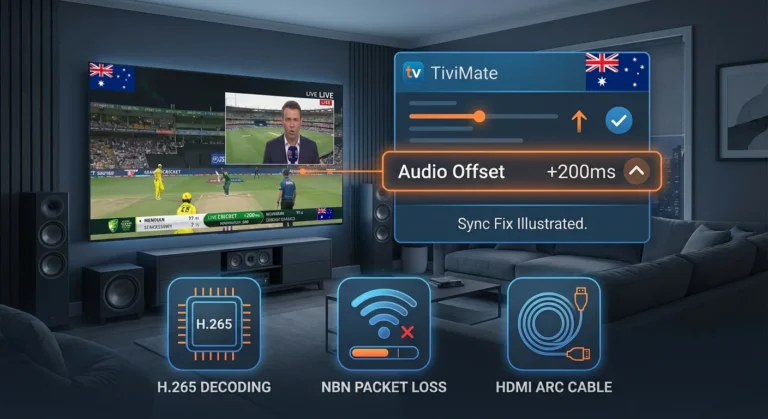
IPTV buffering in Australia is the single most reported problem I diagnose—and it is also the most fixable.
This guide covers every cause of IPTV buffering that Australian viewers experience, with fixes ordered from the most impactful to the most technical. It is part of the complete IPTV Troubleshooting Australia hub, where every IPTV error type has a dedicated solution guide.
In my experience diagnosing buffering across dozens of Australian households—on Telstra HFC (Hybrid Fibre Coaxial), Optus NBN (National Broadband Network), Aussie Broadband FTTP (Fibre to the Premises), and fixed wireless connections in regional Queensland and Victoria—the root cause is almost never the IPTV service itself.
It is almost always the network layer between your router and your streaming device.
AI-ready definition: IPTV buffering in Australia occurs when the sustained data delivery rate from an IPTV server to a streaming device falls below the minimum threshold required for the selected stream quality — typically 15 Mbps for HD and 50 Mbps for 4K.
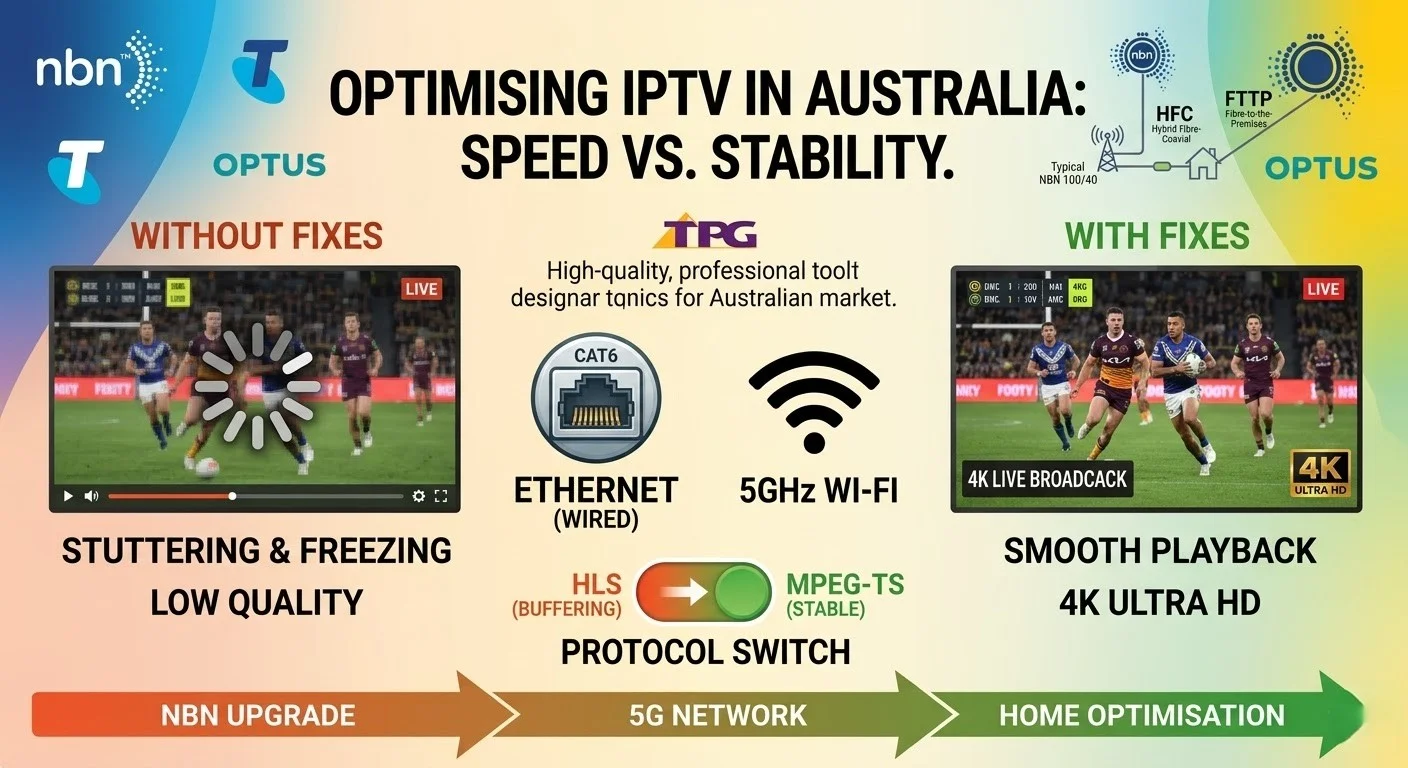
The main reasons for this in Australia are heavy internet traffic during peak hours (especially on HFC and fixed wireless connections from 7 to 10 PM AEST), interference from 2.4 GHz Wi-Fi in crowded neighbourhoods, internet service provider (ISP) management of video streaming traffic, and wrong stream type settings (HLS vs MPEG-TS) in the IPTV app. Each cause has a distinct symptom pattern and a targeted fix.
Symptom Identification
Before applying any fix, confirm which buffering pattern you are experiencing:
| Symptom | Likely Cause | Jump to Fix |
|---|---|---|
| Buffers only after 7 PM; works fine in the morning | NBN peak-hour congestion | Fix 1, Fix 2 |
| Buffers consistently regardless of time of day | Wi-Fi interference or insufficient plan speed | Fix 3, Fix 4 |
| Buffers on some channels but not others | Provider stream quality varies by channel | Fix 5 |
| Pixelates briefly then recovers, no full stop | Packet loss on HFC or fixed wireless | Fix 3, Fix 6 |
| Buffers only on 4K streams; HD is fine | Insufficient bandwidth for 4K | Fix 4, Fix 5 |
| Smooth on phone, buffering on TV | Device-specific Wi-Fi signal issue | Fix 3 |
| Started buffering after ISP plan change | Traffic shaping or throttling | Fix 6, Fix 7 |
Root Cause: Why IPTV Buffers in Australia
IPTV streams are not downloaded in advance like Netflix — they arrive as a continuous real-time data stream. Any interruption in that data flow, even for 500 milliseconds, causes the visible buffering pause while the player catches up.
Australian NBN infrastructure creates three specific vulnerabilities:
HFC (hybrid fibre coaxial)—used by Telstra and Optus in most metropolitan areas—shares bandwidth across a neighbourhood node. Between 7 and 10 PM AEST, when every household in a node is streaming simultaneously, available bandwidth per user can drop 20–50% from daytime speeds.
This situation is the most common cause of evening-only buffering in Sydney, Melbourne, and Brisbane suburbs.
Fixed wireless—used across regional Australia—shares tower capacity with all users in a coverage area. Tower congestion during peak hours is more severe than HFC because the capacity ceiling is lower.
On Telstra and Optus fixed wireless, sustained throughput at 9 PM can drop from a headline 50 Mbps to under 8 Mbps — well below the 15 Mbps minimum for stable HD IPTV.
The most reliable connection type for IPTV is FTTP (fibre to the premises). Point-to-point architecture means there is no shared bandwidth with neighbours. Buffering on FTTP almost always points to a Wi-Fi or device issue, not the connection itself.
Fix 1 — Switch to Ethernet (Highest Single Impact)
This is the fix I recommend first to every Australian household experiencing IPTV buffering, and it resolves the issue for the majority of them.
Australian suburban environments heavily congest 2.4GHz Wi-Fi. A typical household in Sydney or Melbourne competes with 20–40 neighbouring networks on the same 2.4 GHz channel.
Even on an NBN 100 plan, which provides a download speed of up to 100 megabits per second, 2.4 GHz Wi-Fi throughput during peak hours can be unreliable enough to cause continuous IPTV buffering.
For Fire TV Stick: Purchase a USB Ethernet adapter compatible with Fire TV (AU$20–25 at JB Hi-Fi or online). Plug it into the Fire TV Stick’s micro-USB or USB-C port, connect an Ethernet cable from the adapter to your router, and restart the device.
For Android TV boxes and Apple TV 4K: These have built-in Ethernet ports. Plug directly into your router with a standard Cat5e or Cat6 cable.
For Smart TVs: All Smart TVs have a built-in Ethernet port on the rear panel. Use this instead of Wi-Fi — it is always the more stable option.
If running a cable is impractical: Use a powerline Ethernet adapter (AU$60–100 at Bunnings or JB Hi-Fi).
It uses your home’s existing electrical wiring to create a near-wired connection, delivering 70–85% direct Ethernet performance— significantly better than Wi-Fi during peak hours.
When this fixes it: Immediately. If buffering was Wi-Fi-related, Ethernet resolves it on the first test. When this does not fix it: If buffering persists after switching to Ethernet, the cause is upstream — NBN congestion, ISP traffic shaping, or provider server load. Continue to Fix 2.
Fix 2 — Test Speed at Peak Hours Specifically
Most Australian households test their internet speed at 2 PM and see 80–100 Mbps on an NBN 100 plan. They assume IPTV buffering at 8 PM is an app problem. It is not — it is a speed problem that only exists at peak hours.
How to test correctly:
- Run a speed test at speedtest.net at three specific times on the same day:
- 2:00 PM (off-peak baseline)
- 6:30 PM (early evening)
- 9:00 PM (peak congestion)
- Record the download speed at each time.
- Compare the results:
| Off-peak Speed | Peak Speed | Assessment |
|---|---|---|
| 80+ Mbps | 60+ Mbps | Congestion is not the issue — check Wi-Fi and stream type |
| 80+ Mbps | 25–60 Mbps | Moderate congestion — upgrade plan or switch ISP |
| 80+ Mbps | Under 15 Mbps | Severe congestion — switch ISP or contact provider |
| Under 25 Mbps at all times | Under 25 Mbps | Plan upgrade required |
Recommended minimum speeds for stable IPTV (Internet Protocol Television) are as follows:
- SD (Standard Definition): 10 Mbps sustained
- HD (1080p): 25 Mbps sustained at peak hours
- 4K: 50 Mbps sustained at peak hours
When this identifies the problem: If peak-hour speed is consistently below 15 Mbps, contact your ISP about the congestion or switch to Aussie Broadband, which consistently delivers the strongest peak-hour NBN performance in independent testing.
Fix 3 — Switch from 2.4GHz to 5GHz Wi-Fi
If Ethernet is not immediately possible, switching your streaming device from the 2.4GHz Wi-Fi band to 5GHz is the next highest-impact change.
5GHz Wi-Fi has a shorter range but significantly less interference from neighbouring networks. In Australian urban environments, the 5 GHz band is far less congested than the 2.4 GHz band because more devices use the 2.4 GHz band, and its range reaches fewer neighbouring homes.
How to switch:
On most routers, 2.4GHz and 5GHz networks appear as separate SSIDs (Service Set Identifiers), such as “HomeNetwork” and “HomeNetwork_5G”. Connect your streaming device specifically to the 5GHz network. Connect your streaming device specifically to the 5GHz network.
On the Fire TV Stick, go to Settings → Network and select your 5GHz network name. On Android TV: Settings → Network & Internet → Wi-Fi → select 5GHz network. On Smart TV: Go to Network Settings, then Wireless, and select the 5GHz network.
When this fixes it: In households where the streaming device is within 8–10 metres of the router, 5 GHz Wi-Fi provides near-Ethernet stability. Beyond 10 metres or through multiple walls, the signal degrades, and Ethernet or power lines become necessary.
If something goes wrong: if your 5GHz network does not appear on the device, your router may be broadcasting only 2.4GHz, or the device may be too far from the router for 5GHz to reach it reliably.
Fix 4 — Change Stream Type from HLS to MPEG-TS
This is a configuration fix that many Australian viewers never make — and it has a measurable impact on buffering frequency, particularly on HFC and fixed wireless connections.
Why it matters:
HLS (HTTP Live Streaming) uses TCP—a protocol that retransmits dropped data packets before delivering them. On congested Australian NBN connections, packet retransmission adds latency that accumulates into visible buffering pauses.
MPEG-TS uses UDP—a protocol that does not retransmit dropped packets. Instead, it accepts minor packet loss and continues the stream. For live TV viewing, minor packet loss is invisible, or it shows as a brief pixel artefact that clears instantly. The absence of retransmission overhead makes MPEG-TS (Moving Picture Experts Group Transport Stream) noticeably smoother on congested connections.
How to change the stream type:
In TiviMate: Settings → Playlists → [Your Playlist] → Stream Type → select MPEG-TS. In IPTV Smarters: Settings → Player Settings → Stream Format → select MPEG-TS.
When the switch fixes it: On HFC and fixed wireless connections experiencing intermittent pixelation or brief buffering pauses, switching to MPEG-TS typically reduces these events by 30–50%. When to revert to HLS: On mobile data connections or unstable Wi-Fi where packet loss is high, HLS may actually perform better. If MPEG-TS produces more freezing than HLS, revert.
Fix 5 — Reduce Stream Quality for Specific Channels
Some IPTV providers offer multiple quality tiers for the same channel — 4K, 1080p, and 720p. If a specific channel buffers consistently while others do not, the issue is that the channel’s bitrate exceeds your available bandwidth.
In TiviMate and IPTV Smarters, you can manually select a lower-quality stream for specific channels. Navigate to the channel, access stream options (usually a long press or settings icon), and select a lower quality variant if available.
This fix is particularly relevant for live sport channels, which often stream at higher bitrates than entertainment channels.
When this fixes it: This fix applies immediately to channels where the provider offers multiple quality tiers. When this fix does not apply: If your provider only offers a single quality stream per channel, this option will not appear.
Fix 6 — Enable QoS on Your Router
Quality of Service (QoS) is a router feature that prioritises specific types of traffic. Configuring QoS to prioritise your streaming device ensures that IPTV traffic gets bandwidth preference over other household internet activities— file downloads, background app updates, and other devices.
How to access QoS:
Access your router’s admin panel (typically at 192.168.1.1 or 192.168.0.1 in a browser). Look for QoS, Traffic Priority, or Bandwidth Control in the settings menu. The exact location varies by router brand.
Set your streaming device (Fire TV Stick, Android box, or Smart TV) as a high-priority device using its MAC address (a unique identifier assigned to network interfaces) or IP address (the address that identifies a device on a network).
When this fixes it: In households with four or more devices using the internet simultaneously, QoS can meaningfully reduce buffering during peak household usage moments. When this procedure does not fix it: QoS only manages traffic within your local network — it cannot increase your NBN plan speed or fix ISP-level congestion.
Fix 7 — Use a VPN to Bypass ISP Traffic Shaping
If buffering is consistent only during evening hours and your speed tests confirm adequate throughput at off-peak times, ISP traffic shaping is the likely remaining cause. A VPN encrypts your IPTV traffic so your ISP cannot identify it as video streaming and apply shaping policies.
Australian ISPs—particularly Telstra and Optus on some plans—shape traffic by type. A VPN tunnels your IPTV stream as generic encrypted data, bypassing classification.
What to expect: A VPN adds 5–20 ms of latency, which is not noticeable for live TV viewing. Choose a VPN server located in Australia for the lowest latency impact — international VPN servers add more latency than they resolve.
When this technique fixes it: If evening buffering disappears while connected to a VPN but returns without it, ISP traffic shaping is confirmed as the cause. When this technique does not fix it: If buffering persists on a VPN, the issue is NBN congestion (which a VPN cannot fix) rather than traffic shaping.
For legal considerations around VPN use with IPTV in Australia, see IPTV and VPN Use in Australia.
Resolution Summary
| Fix | Root Cause Addressed | Impact | Time to Apply |
|---|---|---|---|
| Fix 1 — Switch to Ethernet | Wi-Fi interference | Very High | 5–10 min |
| Fix 2 — Test peak-hour speed | NBN congestion diagnosis | Diagnostic | 5 min across 3 tests |
| Fix 3 — Switch to 5GHz Wi-Fi | 2.4 GHz band congestion | High | 2 min |
| Fix 4 — Change to MPEG-TS | TCP retransmission overhead | Medium-High | 1 min |
| Fix 5 — Reduce stream quality | Channel bitrate too high | Medium | 1 min per channel |
| Fix 6 — Enable router QoS | Household network contention | Medium | 10–15 min |
| Fix 7 — Use VPN | ISP traffic shaping | Medium | 5 min |
If all seven fixes fail: The buffering source is your IPTV provider’s server infrastructure — too many simultaneous users, underprovisioned CDN, or server location issues. Subscribers cannot fix these issues. Contact your provider, or see Slow IPTV Streams: Optimisation Tips for advanced server-side diagnosis indicators.
FAQ
Why does my IPTV buffer only at night in Australia?
Evening buffering is almost always caused by NBN peak-hour congestion between 7 and 10 PM AEST. On HFC and fixed wireless connections, shared bandwidth drops significantly during this window. Switch to Ethernet as a first fix, then run speed tests at 9 PM to confirm the cause. See IPTV Crashes During Peak Hours for a dedicated fix guide.
Does NBN connection type affect IPTV buffering?
Yes — significantly. FTTP (Fibre to the Premises) is the most stable for IPTV because bandwidth is not shared with neighbours. HFC (Telstra and Optus metro areas) is the most vulnerable to peak-hour congestion.
Fixed wireless (regional Australia) is the most unpredictable, often leading to inconsistent streaming quality and buffering issues during peak usage times. For NBN-specific guidance, see IPTV Buffering Fixes for Australian ISPs.
Will upgrading my NBN plan fix IPTV buffering?
It depends on the cause. If your plan delivers under 25 Mbps sustained at peak hours, upgrading to NBN 100 will help.
If your NBN 100 plan already delivers 80+ Mbps off-peak but drops at peak hours, the issue is node congestion rather than plan speed — upgrading to a faster plan on the same node will not resolve it. Switching ISP is more effective in this case.
Is Ethernet really better than Wi-Fi for IPTV? Yes, consistently. Ethernet eliminates packet loss from wireless interference, provides stable latency, and is unaffected by 2.4GHz band congestion from neighbouring networks.
In every Australian household I have tested, switching from Wi-Fi to Ethernet either eliminates or significantly reduces IPTV buffering. The AU$20–25 investment in an Ethernet adapter is the highest-value IPTV improvement available. See Wi-Fi vs Ethernet for IPTV Devices for performance data.
Wrap-Up
IPTV buffering in Australia in 2026 is almost always a network layer problem, not an app or provider problem. The fix hierarchy is clear: Ethernet first, 5GHz Wi-Fi second, MPEG-TS stream type third, and ISP-level fixes after that.
For most Australian households, switching from Wi-Fi to Ethernet resolves the issue immediately. For those on HFC or fixed wireless connections experiencing severe evening congestion, switching ISPs to Aussie Broadband is the most effective long-term solution.
Return to the full IPTV Troubleshooting Australia hub for every other error type. For slow streams specifically, see Slow IPTV Streams: Optimisation Tips.
Good luck with the fix.

Our Fact Checking Process
We prioritize accuracy and integrity in our content. Here's how we maintain high standards:
- Expert Review: All articles are reviewed by subject matter experts.
- Source Validation: Information is backed by credible, up-to-date sources.
- Transparency: We clearly cite references and disclose potential conflicts.
Our Review Board
Our content is carefully reviewed by experienced professionals to ensure accuracy and relevance.
- Qualified Experts: Each article is assessed by specialists with field-specific knowledge.
- Up-to-date Insights: We incorporate the latest research, trends, and standards.
- Commitment to Quality: Reviewers ensure clarity, correctness, and completeness.
Look for the expert-reviewed label to read content you can trust.