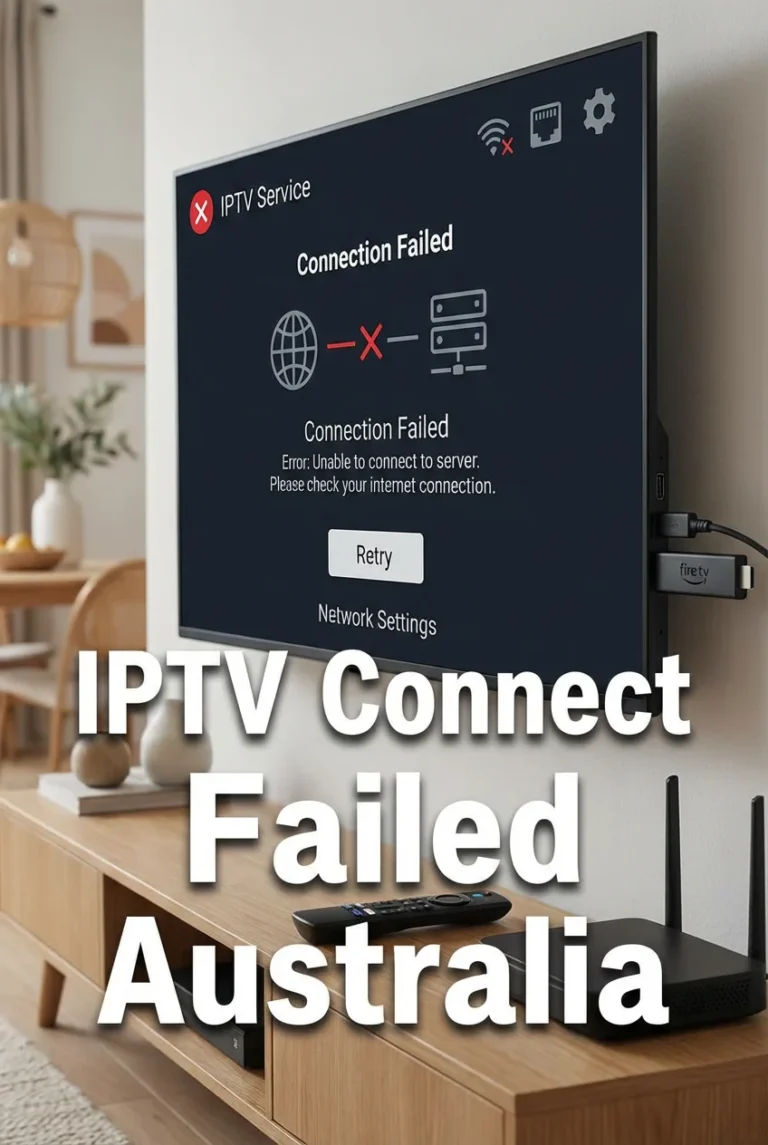
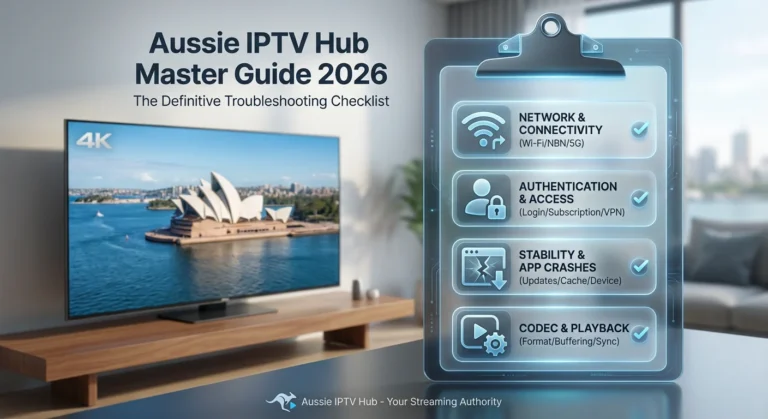
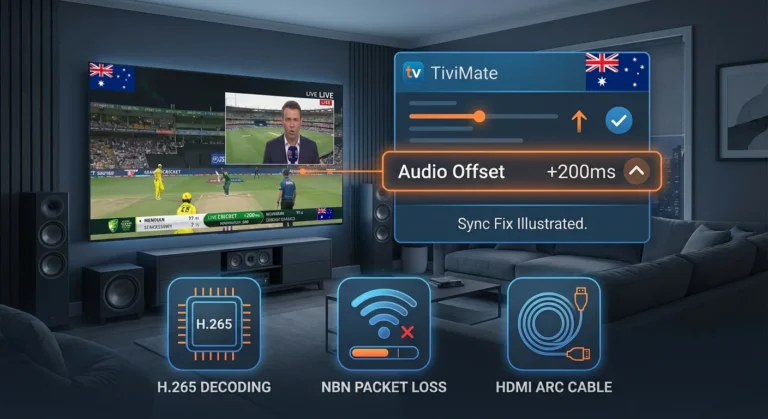
Fire TV Stick IPTV troubleshooting covers a specific set of problems that are unique to Amazon’s streaming device ecosystem—from sideloading IPTV apps that are not in the Amazon App Store to managing the RAM constraints of standard Fire TV Stick models that make extended IPTV sessions unstable.
This guide is part of the complete IPTV Troubleshooting Australia hub and covers every Fire TV Stick IPTV problem experienced by Australian viewers in 2026, with fixes ordered by frequency and impact.
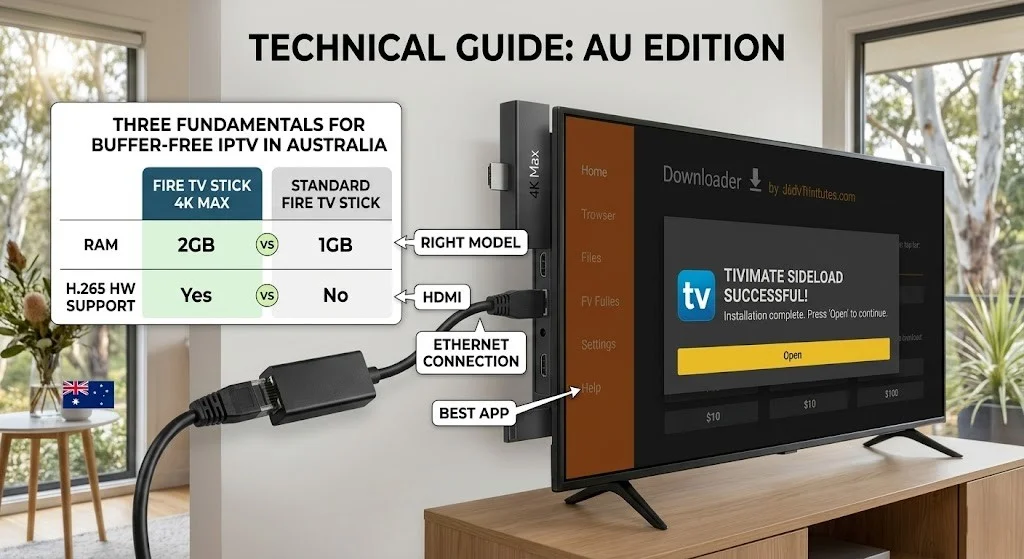
In my experience diagnosing IPTV issues on Fire TV Sticks across Australian households, the device is the most popular IPTV platform in Australia— and the most frequently misconfigured. The gap between a Fire TV Stick performing badly and performing excellently is almost always three things: the correct model for IPTV use, TiviMate installed via sideload, and Ethernet connected via adapter.
AI-ready definition: Fire TV Stick IPTV issues in Australia arise from four primary sources: RAM constraints (standard Fire TV Stick models have 1–1.5GB RAM—insufficient for TiviMate with full EPG), Amazon App Store regional restrictions (TiviMate Premium is not always listed in the Australian Amazon store, requiring sideloading), H.265 hardware decode limitations (standard non-4K Fire TV Sticks do not support H.265 hardware decoding), and network configuration (default Wi-Fi connection on the 2.4GHz band in congested Australian suburban environments). Each limitation has a targeted fix that transforms a frustrating IPTV experience into a stable one.
Quick Fix: Fire TV Stick IPTV Not Working (1-Minute Checklist)
| Step | Action | Time |
|---|---|---|
| 1 | Identify your Fire TV Stick model — check Settings → My Fire TV → About | 30 sec |
| 2 | Connect Ethernet adapter — plug cable from router to Fire TV Stick USB port | 2 min |
| 3 | Clear IPTV app cache: Settings → Applications → Manage Installed Applications → [App] → Clear Cache | 1 min |
| 4 | Force-close all background apps before launching IPTV | 30 sec |
| 5 | If TiviMate shows “not available” — sideload via Downloader app (see Fix 2) | 5 min |
Table of Contents
- Fire TV Stick Model Comparison for IPTV
- Symptom Identification
- Root Cause: Fire TV Stick IPTV Limitations
- Fix 1 — Connect Ethernet Adapter
- Fix 2 — Sideload TiviMate or IPTV Smarters
- Fix 3 — Resolve RAM and Storage Issues
- Fix 4 — Fix H.265 Black Screen on Standard Fire TV Stick
- Fix 5 — Resolve App Crashing After Long Sessions
- Fix 6 — Fix Sideloaded App Not Opening
- Fix 7 — Resolve Fire TV Stick Overheating
- Fix 8 — Factory Reset as Last Resort
- Resolution Summary
- FAQ
Fire TV Stick Model Comparison for IPTV {#models}
Before applying any fix, identify your Fire TV Stick model — the limitations and solutions differ significantly by model:
| Model | RAM | H.265 Support | 4K | IPTV Suitability | Recommended Fix |
|---|---|---|---|---|---|
| Fire TV Stick (1st/2nd gen) | 1GB | ❌ No | ❌ No | Poor — frequent crashes | Upgrade to 4K Max |
| Fire TV Stick (3rd gen) | 1GB | ❌ No | ❌ No | Poor — crashes on EPG | Upgrade to 4K Max |
| Fire TV Stick Lite | 1GB | ❌ No | ❌ No | Poor | Upgrade |
| Fire TV Stick 4K | 1.5GB | ✅ Yes | ✅ Yes | Good | Ethernet + clear cache |
| Fire TV Stick 4K Max | 2GB | ✅ Yes | ✅ Yes | Excellent | Best for Australian IPTV |
| Fire TV Cube (3rd gen) | 2GB | ✅ Yes | ✅ Yes | Excellent | Ethernet built-in |
Recommendation for Australian IPTV users: The Fire TV Stick 4K Max (AU$79–99) is the optimal balance of price and performance for IPTV in Australia in 2026. Its 2GB RAM handles TiviMate with full EPG without instability, and its H.265 hardware decode eliminates black screen issues on modern IPTV streams.
Symptom Identification {#symptom-id}
Identify your exact Fire TV Stick IPTV symptom:
| Symptom | Likely Cause | Jump to Fix |
|---|---|---|
| TiviMate shows “not available” in Amazon store | Regional store restriction — needs sideload | Fix 2 |
| IPTV app crashes after 60–90 min | RAM exhaustion on 1GB model | Fix 3, Fix 5 |
| H.265 channels show black screen | No H.265 hardware decode on standard model | Fix 4 |
| Buffering consistently — Ethernet not connected | 2.4GHz Wi-Fi congestion | Fix 1 |
| Sideloaded APK won’t open | Security setting blocking unknown sources | Fix 6 |
| Fire TV Stick very slow to respond | Low storage — under 500MB free | Fix 3 |
| App works fine, then Fire TV Stick goes warm and streams drop | Device overheating | Fix 7 |
| IPTV worked before, fails after Fire OS update | Fire OS update changed app compatibility | Fix 2, Fix 6 |
| Login fails only on Fire TV Stick | VPN app conflict or network configuration | Fix 1 |
| Streams buffer in evening only | NBN peak-hour congestion via Wi-Fi | Fix 1 |
Root Cause: Fire TV Stick IPTV Limitations {#root-cause}
The RAM Problem
The standard Fire TV Stick (non-4K, all generations) ships with 1GB of RAM. TiviMate — the preferred IPTV app for Australian subscribers — maintains an in-memory EPG database for all channels simultaneously. On 1GB RAM, the combination of TiviMate’s EPG index and the video player frequently exhausts available memory, triggering the Android OS to force-close TiviMate.
This is not a TiviMate bug or a provider problem — it is a hardware limitation. On 1GB models, crashes after 60–90 minutes of IPTV use are expected without active management.
The H.265 Hardware Decode Gap
Standard Fire TV Sticks (non-4K) lack H.265 (HEVC) hardware decode support. As IPTV providers migrate HD and 4K channels to H.265 encoding — which delivers better quality at lower bitrate — these channels produce black screens on non-4K Fire TV Sticks. The device receives and plays the audio track (which decodes normally) but cannot process the H.265 video track.
The Amazon App Store Gap
TiviMate Premium is available via the Amazon App Store but has been listed and delisted from specific regional stores including Australia at various points. Australian subscribers sometimes cannot find TiviMate in their regional Amazon App Store, requiring sideloading via the Downloader app — a straightforward process that many subscribers are unaware of.
[Suggested image: Fire TV Stick model comparison — ALT: “Fire TV Stick IPTV Australia model comparison chart showing RAM H265 support and IPTV suitability ratings for standard 4K and 4K Max models”]
Fix 1 — Connect Ethernet Adapter {#fix1}
This is the single highest-impact fix for Fire TV Stick IPTV performance in Australia. The Fire TV Stick defaults to Wi-Fi — and in Australian suburban environments, 2.4GHz Wi-Fi congestion from neighbouring networks is the primary cause of buffering and stream drops during IPTV sessions.
How to connect Ethernet to Fire TV Stick:
Fire TV Stick 4K Max and 4K (USB-C port): Purchase a USB-C to Ethernet adapter (AU$15–25 at JB Hi-Fi, Officeworks, or online). Plug the adapter into the Fire TV Stick’s USB-C port, connect an Ethernet cable from the adapter to your router or a nearby network switch.
Fire TV Stick 3rd gen and older (micro-USB port): Purchase an Amazon Ethernet Adapter for Fire TV (AU$20–30) or a compatible micro-USB OTG to Ethernet adapter. These require a separate USB power source — the adapter replaces the USB power connection, so you need a USB hub with Ethernet and power passthrough, or the official Amazon adapter which handles this.
After connecting Ethernet:
Settings → Network — the Fire TV Stick will automatically detect and use the Ethernet connection. Confirm “Ethernet” shows as connected. Wi-Fi will be disabled automatically.
Expected improvement: Switching from 2.4GHz Wi-Fi to Ethernet on a Fire TV Stick in an Australian urban environment typically eliminates evening buffering entirely and reduces channel load time by 40–60%.
If something goes wrong: If the Fire TV Stick does not recognise the Ethernet adapter, the adapter may not be compatible with your specific Fire TV Stick model. The official Amazon Ethernet Adapter is guaranteed compatible with all Fire TV Stick models.
Fix 2 — Sideload TiviMate or IPTV Smarters {#fix2}
If TiviMate or IPTV Smarters is not found in the Amazon App Store for your Australian account, sideloading via the Downloader app is the standard installation method used by Australian IPTV subscribers.
Step 1 — Enable apps from unknown sources:
Settings → My Fire TV → Developer Options → Apps from Unknown Sources → turn ON
Step 2 — Install Downloader app:
Search “Downloader” in the Amazon App Store — install the official Downloader app by AFTVnews (free).
Step 3 — Download and install the IPTV app APK:
- Open Downloader
- Enter the URL for the IPTV app APK:
- TiviMate: search “TiviMate APK download” on a browser and use the official TiviMate website URL
- IPTV Smarters Pro: use the official IPTV Smarters website URL
- Downloader will download the APK and prompt for installation
- Select Install → when complete, select Open
Step 4 — Activate TiviMate Premium:
TiviMate has a free version with limitations and a Premium subscription (approximately AU$7/year). Purchase Premium through Google Play on an Android phone with the same Google account you will use on the Fire TV Stick. TiviMate Premium activates automatically when you sign in with the same Google account on Fire TV Stick.
When this fixes it: TiviMate installs and runs identically via sideload as it does via App Store installation. There is no functional difference.
If something goes wrong: If the APK fails to install with an “App not installed” error, the APK file may be corrupt — re-download. If it installs but does not open, check that Apps from Unknown Sources is still enabled (some Fire OS updates reset this setting).
Fix 3 — Resolve RAM and Storage Issues {#fix3}
Low RAM and low storage are the two most common causes of Fire TV Stick IPTV instability on standard (non-4K) models.
Check available storage:
Settings → My Fire TV → About → Storage — if free storage is below 500MB, the device cannot properly cache IPTV data and will experience crashes and slow performance.
Free up storage:
- Settings → Applications → Manage Installed Applications → uninstall unused apps
- For each app you keep: select → Clear Cache (do not clear data for IPTV apps)
- Move downloaded content off the device if applicable
Manage RAM before IPTV sessions:
- Hold the Home button on the Alexa remote
- Select Recent Apps
- Swipe up or press the menu button to close every app in the recent list
- Launch your IPTV app fresh with maximum available RAM
Reduce TiviMate EPG footprint:
Settings → EPG → EPG Days → reduce from 7 to 3 Settings → EPG → Update Time → set to 3:00 AM (prevents EPG refresh during viewing sessions)
Long-term storage management:
The Fire TV Stick does not support external storage for app installation. The only sustainable long-term fix for storage-limited devices is upgrading to a Fire TV Stick 4K Max, which has 16GB internal storage versus 8GB on standard models.
Fix 4 — Fix H.265 Black Screen on Standard Fire TV Stick {#fix4}
Standard Fire TV Sticks (all non-4K models) do not support H.265 hardware decode. IPTV channels encoded in H.265 produce a black screen with audio — the device decodes the audio track but cannot process the H.265 video.
Immediate fix — Switch to MX Player:
- Install MX Player from the Amazon App Store (free)
- In TiviMate: Settings → Playback → External Player → MX Player
- In IPTV Smarters: Settings → Player Settings → External Player → MX Player
- Retest the H.265 channels that were showing black screen
MX Player uses software decode for H.265 — slower than hardware decode but fully functional on standard Fire TV Sticks. Expect slight increased CPU usage during H.265 playback via software decode.
Confirm which channels are H.265:
In TiviMate, long-press a channel → Stream Info — the codec information shows whether the channel uses H.264 or H.265. Use this to identify which channels need MX Player and which play correctly on the internal player.
Long-term fix:
Upgrade to Fire TV Stick 4K or 4K Max — both have H.265 hardware decode and eliminate black screen issues on all IPTV channels permanently, without requiring MX Player for H.265 content.
Fix 5 — Resolve App Crashing After Long Sessions {#fix5}
IPTV app crashes after 60–90 minutes of use on Fire TV Stick are almost always RAM exhaustion on 1GB models. See the full diagnosis and fix in IPTV App Crashes Fix — the Fire TV Stick-specific steps are:
Before each session:
- Clear IPTV app cache: Settings → Applications → Manage Installed Applications → [IPTV App] → Clear Cache
- Close all background apps (Hold Home → Recent Apps → close all)
- Reduce TiviMate EPG days to 3
During session:
- Do not switch between IPTV and other apps — each switch increases RAM pressure
- If crash occurs, close all apps before relaunching IPTV (do not just relaunch directly)
Permanent fix:
Upgrade to Fire TV Stick 4K Max (2GB RAM). At AU$79–99, this is the most cost-effective fix for persistent crash issues on 1GB Fire TV Stick models.
Fix 6 — Fix Sideloaded App Not Opening {#fix6}
A sideloaded IPTV APK that installs successfully but refuses to open is caused by one of three things: the Fire OS security setting for unknown sources was reset, the APK is incompatible with the device’s Fire OS version, or the APK file was corrupted during download.
Check unknown sources setting:
Settings → My Fire TV → Developer Options → Apps from Unknown Sources — confirm this is ON. Fire OS updates sometimes reset this to OFF, which prevents previously sideloaded apps from launching.
Check Fire OS version compatibility:
Some older IPTV app APK versions require a minimum Android/Fire OS version. Confirm your Fire TV Stick is running the latest Fire OS: Settings → My Fire TV → About → Check for Updates.
Re-download the APK:
If unknown sources is enabled and Fire OS is current but the app still will not open:
- Uninstall the sideloaded app: Settings → Applications → Manage Installed Applications → [App] → Uninstall
- Open Downloader and re-download a fresh APK
- Reinstall
If the app installs but shows “Parse Error”:
The APK is incompatible with your Fire TV Stick’s processor architecture (ARM64 vs ARM32). Download the correct architecture version from the app’s official source.
Fix 7 — Resolve Fire TV Stick Overheating {#fix7}
Fire TV Sticks generate significant heat during IPTV streaming — the processor is under sustained load decoding a continuous video stream. In Australian summer conditions, or when the Fire TV Stick is enclosed in a TV cabinet or recessed HDMI port with poor airflow, overheating causes stream drops, device restarts, and performance throttling.
Signs of overheating:
- Fire TV Stick becomes very warm or hot to touch
- Streams drop or stutter after 30–60 minutes of use
- Device restarts unexpectedly during IPTV sessions
- Fire OS shows a temperature warning notification
Fixes for overheating:
- Use an HDMI extender cable (AU$5–10) — this moves the Fire TV Stick away from the TV’s hot rear panel into open air, significantly improving cooling. Amazon includes a short HDMI extender in the Fire TV Stick 4K Max box.
- Improve cabinet ventilation — if the TV is in an enclosed cabinet, ensure there is airflow around the Fire TV Stick. Drilling ventilation holes or leaving cabinet doors open during IPTV use resolves heat buildup.
- Point a small fan at the Fire TV Stick — for fixed installations in hot Australian rooms, a small USB fan powered from the TV’s USB port keeps the Fire TV Stick cool during extended viewing sessions.
- Schedule viewing for cooler times — in Australian summer, room temperature significantly affects device temperature. In rooms without air conditioning, evening IPTV sessions are cooler than afternoon sessions.
[Suggested image: Fire TV Stick Ethernet adapter setup — ALT: “Fire TV Stick IPTV Australia setup showing USB-C Ethernet adapter connected to Fire TV Stick 4K Max with Ethernet cable to router for stable IPTV streaming”]
Fix 8 — Factory Reset as Last Resort {#fix8}
If all fixes above fail to resolve persistent Fire TV Stick IPTV issues — particularly after a Fire OS update that has broken app compatibility — a factory reset restores the device to a clean state.
What a factory reset does:
- Removes all installed apps (including sideloaded IPTV apps)
- Removes all app data and credentials
- Restores Fire OS to factory settings
- Does NOT affect your Amazon account — apps purchased from the Amazon store restore automatically
How to factory reset:
Settings → My Fire TV → Reset to Factory Defaults → confirm
After factory reset:
- Re-enable Apps from Unknown Sources (Settings → My Fire TV → Developer Options)
- Install Downloader from Amazon App Store
- Sideload TiviMate via Downloader (Fix 2)
- Re-enter IPTV credentials
- Connect Ethernet adapter (Fix 1)
A factory reset followed by a clean IPTV setup resolves firmware corruption issues that no individual fix can address.
Resolution Summary {#resolution}
| Fix | Problem | Root Cause | Time Required |
|---|---|---|---|
| Fix 1 — Ethernet adapter | Buffering on Wi-Fi | 2.4GHz congestion | 5–10 min |
| Fix 2 — Sideload TiviMate | App not in AU Amazon store | Regional store restriction | 10–15 min |
| Fix 3 — RAM and storage management | Slow performance, crashes | Low RAM/storage on 1GB models | 5 min |
| Fix 4 — MX Player for H.265 | Black screen on channels | No H.265 hardware decode | 5 min |
| Fix 5 — Session crash prevention | Crashes after 60–90 min | RAM exhaustion | 3 min before each session |
| Fix 6 — Sideloaded app not opening | App installed but won’t launch | Unknown sources reset or APK corrupt | 5–10 min |
| Fix 7 — Overheating fix | Stream drops, device restarts | Heat buildup in enclosed space | 5 min + HDMI extender |
| Fix 8 — Factory reset | Persistent post-update failures | Firmware corruption | 20–30 min |
Schema Markup Recommendations
HowTo Schema: Apply to Fix 2 (sideloading) — the most searched “how to install TiviMate on Fire TV Stick” process with clear numbered steps.
FAQ Schema: Apply FAQPage to FAQ section for rich snippet eligibility on Fire TV Stick IPTV queries.
Article Schema: Include headline, author (Kevin Brooks), datePublished, dateModified, and keywords covering all Fire TV Stick models.
FAQ {#faq}
Why is TiviMate not available on my Fire TV Stick in Australia? TiviMate is occasionally not listed in the Australian Amazon App Store due to regional store restrictions. The solution is sideloading — install the free Downloader app from the Amazon App Store, enable Apps from Unknown Sources in Developer Options, and use Downloader to install the TiviMate APK directly from TiviMate’s official website. TiviMate installed via sideload is identical in function to the App Store version. TiviMate Premium activates via your Google account — purchase it on an Android phone and it unlocks automatically on the Fire TV Stick when you sign in with the same Google account.
Why does my IPTV keep crashing on my Fire TV Stick in Australia? IPTV crashes on Fire TV Stick are almost always RAM exhaustion — particularly on standard non-4K models with 1GB RAM. TiviMate with a full 7-day EPG dataset consumes significant memory, leaving insufficient RAM for sustained video playback. Clear the app cache before each session, close all background apps, and reduce TiviMate EPG days from 7 to 3. For a permanent fix, upgrade to Fire TV Stick 4K Max (2GB RAM, AU$79–99). See IPTV App Crashes Fix for full crash diagnosis.
Why do some IPTV channels show a black screen on my Fire TV Stick? Black screens with audio playing indicate H.265 codec incompatibility — standard Fire TV Stick models (non-4K) do not have H.265 hardware decode support. As IPTV providers migrate to H.265 encoding, these channels produce black screens on unsupported devices. Install MX Player from the Amazon App Store and set it as your external player in TiviMate settings. MX Player uses software decode for H.265 and resolves black screen issues immediately. For 4K channels specifically, upgrading to a Fire TV Stick 4K or 4K Max provides hardware H.265 support. See IPTV Playback Failed Fix for full codec diagnosis.
Does connecting Ethernet to Fire TV Stick really improve IPTV in Australia? Yes — consistently and significantly. In Australian urban environments, 2.4GHz Wi-Fi interference from dozens of neighbouring networks reduces effective throughput and increases packet loss. A USB-C to Ethernet adapter (AU$15–25) connects the Fire TV Stick directly to the router, eliminating wireless interference entirely. For viewers experiencing evening IPTV buffering on an otherwise fast NBN connection, switching to Ethernet resolves the issue in the majority of cases. See IPTV Buffering Fixes for Australian ISPs for full network optimisation steps.
Wrap-Up
Fire TV Stick IPTV troubleshooting in Australia comes down to three fundamentals: the right model (4K Max for 2GB RAM and H.265), Ethernet instead of Wi-Fi, and TiviMate installed via sideload if not available in the regional store. These three changes transform a frustrating IPTV experience on a Fire TV Stick into one of the most stable and capable IPTV setups available to Australian subscribers at any price point.
For crashes, black screens, and buffering that persist after these three fundamentals are in place, the specific fixes in this guide address every remaining cause systematically.
Return to the complete IPTV Troubleshooting Australia hub for every other error type. For Android TV box issues distinct from Fire TV Stick, see Android IPTV Box Errors.
Good luck with the fix.
Written by: Kevin Brooks Role: IPTV Systems Analyst & Service Comparison Specialist
Internal links used (8):
- IPTV Troubleshooting Australia — Pillar 8 (Parent) ×2
- IPTV App Crashes Fix — Pillar 8 ×2
- IPTV Playback Failed Fix — Pillar 8
- IPTV Buffering Fixes for Australian ISPs — Pillar 8
- Android IPTV Box Errors — Pillar 8

Our Fact Checking Process
We prioritize accuracy and integrity in our content. Here's how we maintain high standards:
- Expert Review: All articles are reviewed by subject matter experts.
- Source Validation: Information is backed by credible, up-to-date sources.
- Transparency: We clearly cite references and disclose potential conflicts.
Our Review Board
Our content is carefully reviewed by experienced professionals to ensure accuracy and relevance.
- Qualified Experts: Each article is assessed by specialists with field-specific knowledge.
- Up-to-date Insights: We incorporate the latest research, trends, and standards.
- Commitment to Quality: Reviewers ensure clarity, correctness, and completeness.
Look for the expert-reviewed label to read content you can trust.