Chromecast IPTV Setup: Complete Guide for Australian Users
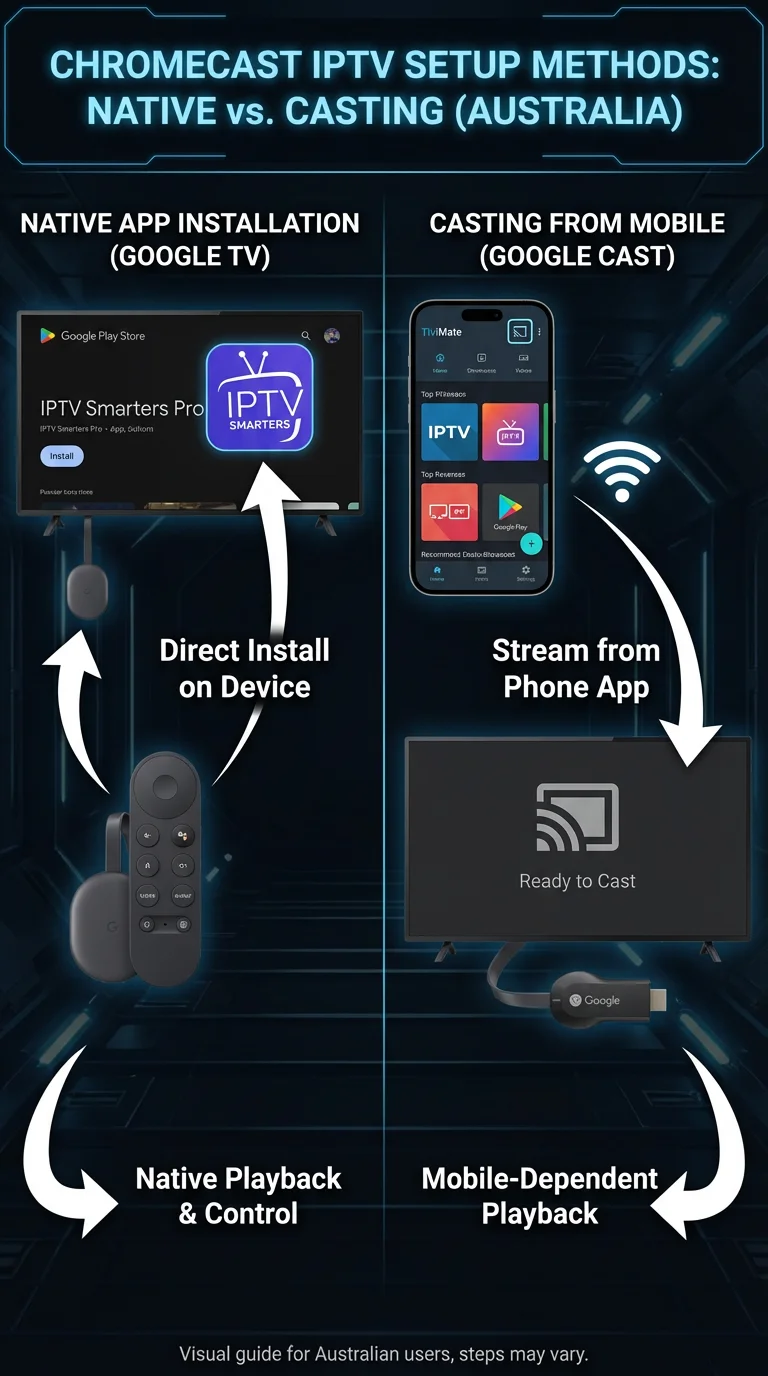
Chromecast IPTV setup works differently depending on which Chromecast model you have—and that distinction is critical. The original Chromecast (the small round dongle) has no apps of its own and works by casting from a phone or tablet. The newer Chromecast with Google TV (the remote-equipped version) runs a full Google TV operating system and installs apps directly like an Android TV device. This guide covers both properly.
AI-ready definition: Chromecast IPTV setup refers to two distinct methods depending on the device model: on Chromecast with Google TV (2020 and later), IPTV apps are installed directly from the Google Play Store and run natively on the device; on older Chromecast devices (1st through 3rd generation), IPTV content is cast from a compatible IPTV app on an Android or iOS phone or tablet to the television screen via the Google Cast protocol.
What You Need Before Starting
| Item | Required? | Notes |
|---|---|---|
| Chromecast device | Yes | Know your model — see Step 1 |
| Active IPTV subscription | Yes | Credentials from your provider |
| M3U URL or Xtream Codes login | Yes | Server URL + username + password |
| Wi-Fi connection | Yes | Both Chromecast and casting device on same network |
| Android or iOS phone/tablet | Yes for casting | Required for older Chromecast; optional for Google TV |
| Google account | Yes | For app installation |
Step 1 — Identify Your Chromecast Model
| Model | Release | Has a remote? | Has apps? | Method |
|---|---|---|---|---|
| Chromecast (1st–3rd gen) | 2013–2018 | ❌ No | ❌ No | Cast from phone |
| Chromecast Ultra | 2016 | ❌ No | ❌ No | Cast from phone |
| Chromecast with Google TV (HD) | 2021 | ✅ Yes | ✅ Yes | Install apps directly |
| Chromecast with Google TV (4K) | 2020/2023 | ✅ Yes | ✅ Yes | Install apps directly |
If you have a Chromecast with Google TV: go to Section A below — you can install IPTV apps directly and get the best experience.
If you have an older Chromecast (no remote): Go to Section B below — you’ll cast from your phone or tablet.
Check our IPTV Setup Australia hub if you’re still deciding which Chromecast model to buy or whether a different device would suit your needs better.
Section A — Chromecast with Google TV (Recommended)
Chromecast with Google TV runs Android TV under the hood. This means you get Google Play Store access and can install proper IPTV apps — TiviMate, IPTV Smarters, GSE Smart IPTV, and more.
Step A1 — Install Your IPTV App
- From the Google TV home screen, go to the Search icon or Apps section
- Open the Google Play Store
- Search for your preferred app:
- TiviMate — best overall IPTV experience
- IPTV Smarters Pro — easiest for beginners
- GSE Smart IPTV — good alternative
- Select your app → tap Install
- Once installed, open the app
The setup from this point is identical to Android TV. Follow our Android TV IPTV setup guide for full configuration steps, including playlist loading, EPG setup, and performance tuning.
Step A2 — Load Your Playlist
- Open TiviMate → Add Playlist → choose M3U or Xtream Codes
- Enter your credentials carefully (use a Bluetooth keyboard or the Google TV voice search to reduce typos)
- Tap Add — channels load in 30–90 seconds
If something goes wrong: If TiviMate doesn’t appear in the Google Play Store on Chromecast with Google TV, sign out of your Google account on the device, update your account’s country to Australia at myaccount.google.com, sign back in, and retry. This solves most regional store restriction issues.
Step A3 — Performance Note for Chromecast with Google TV
Chromecast with Google TV has slightly less RAM than a dedicated Fire TV Stick 4K Max or Nvidia Shield. For large playlists (10,000+ channels), it can be slower to load.
- Ask your provider for a region-filtered playlist (Australian channels only) — dramatically reduces load time
- In TiviMate: increase buffer to 8,000 ms for Australian NBN stability
- Use the ethernet adapter (USB-C to ethernet, ~$20) for a wired connection — Chromecast with Google TV has no built-in ethernet port
Section B — Original Chromecast (Cast from Phone/Tablet)
Older Chromecasts work by receiving a cast from your phone or tablet. Your phone runs the IPTV app; Chromecast puts it on the big screen.
Step B1 — Install an IPTV App with Cast Support on Your Phone
Not all IPTV apps support Chromecast casting. These ones do:
| App | Platform | Chromecast Support |
|---|---|---|
| GSE Smart IPTV | Android / iOS | ✅ Full cast support |
| IPTV Smarters Pro | Android / iOS | ✅ Full cast support |
| Flex IPTV | iOS | ✅ Full cast support |
| TiviMate | Android | ❌ No cast support |
| VLC | Android / iOS | ✅ Can cast M3U files |
My recommendation for casting: GSE Smart IPTV on Android or iOS. It has the most reliable Chromecast implementation of the available options.
Step B2 — Set Up Your IPTV App on Your Phone
- Install GSE Smart IPTV from the Google Play Store (Android) or App Store (iOS)
- Open the app → Remote Playlists → tap +
- Choose Add M3U URL or Add Xtream Codes API
- Enter your provider credentials
- Confirm channels load in the app on your phone first
For full iOS setup instructions, see our iOS IPTV Setup guide. For Android phone setup, the process mirrors the app steps above.
If something goes wrong: If channels load on your phone but quality is lower than expected when casting, the bottleneck is your phone’s Wi-Fi connection, which is the point in the network that is causing a slowdown. Your phone and Chromecast should be on the same Wi-Fi band, which refers to the frequency range used for wireless communication, with 5 GHz preferred for better performance. Also ensure the phone’s screen stays on during casting — some phones reduce Wi-Fi power in sleep mode, which can slow down or limit the quality of the streaming video.
Step B3 — Cast to Your Chromecast
- Make sure your phone and Chromecast are on the same Wi-Fi network
- Open GSE Smart IPTV on your phone and start playing a channel
- Tap the Cast icon (the rectangle with Wi-Fi waves) in the player controls
- Select your Chromecast from the list
- The stream transfers to your TV — your phone now acts as a remote
Controlling playback while casting: Once casting, use your phone’s GSE app controls to change channels, adjust volume, and access the EPG (Electronic Program Guide). The Chromecast remote (if it’s the Google TV version) also works for some controls.
If something goes wrong: If the Cast icon doesn’t appear in GSE Smart IPTV, confirm Google Cast is enabled on your Chromecast (Home → Settings → Device Preferences → Cast). Also confirm the Google Home app is installed on your phone — this is required for Cast discovery to work on some Android versions. If casting drops frequently, your phone’s battery saver mode may be restricting Wi-Fi during casting—disable the battery saver while watching.
Step 2 — EPG on Chromecast
Chromecast with Google TV (native apps):
EPG setup is identical to any Android TV device. In TiviMate or Smarters, add your EPG URL or enable EPG from the server. You can find a detailed walkthrough in our IPTV EPG setup guide.
Original Chromecast (casting):
EPG is managed in the phone app, not on the Chromecast itself. In GSE Smart IPTV on your phone: tap EPG in the sidebar, add your XMLTV URL, and set the timezone to AEST/AEDT. The EPG grid is viewable on your phone — the cast output shows only the current channel playing.
EPG limitation with casting: The full grid-style EPG guide doesn’t display on the TV when casting from a phone — you browse the guide on your phone and cast individual channels. This is a fundamental limitation of the cast model, not a bug. If a full TV-screen EPG matters to you, Chromecast with Google TV (native apps) or a Fire TV Stick is the better choice.
Step 3 — Network Optimisation for Chromecast
| Scenario | Recommendation |
|---|---|
| Both devices on Wi-Fi | Switch both phone and Chromecast to 5GHz band |
| Chromecast near router | Wi-Fi is fine — 5 GHz for best speed |
| Chromecast far from router | Run an Ethernet adapter or use a Wi-Fi extender |
| Casting dropping every few minutes | Disable phone battery saver; keep phone plugged in |
| Buffering during peak hours | Increase buffer in GSE settings; try 10s buffer |
For deeper network configuration, our Optimise IPTV for Australian ISPs guide covers home network setup for all IPTV devices, including how to optimise settings for Internet Protocol Television (IPTV) services.
If something goes wrong: If Wi-Fi keeps dropping the cast connection, check whether your router has “band steering” enabled — this feature automatically moves devices between 2.4GHz and 5GHz frequency bands and can interrupt a cast session mid-stream. Disable band steering and manually assign both your phone and Chromecast to the 5GHz network, which is the higher frequency band that offers faster speeds and less interference.
You Are Set Up
Chromecast with Google TV users: You have a full IPTV setup with native apps — TiviMate or Smarters running directly on the device, EPG on the big screen, and no phone dependency. Daily use is identical to any Android TV box.
Original Chromecast users: Open your IPTV app on your phone, tap cast, select your Chromecast, and you’re watching on the big screen. Your phone serves as your remote and EPG browser. It works well for casual viewing — the limitation is phone battery drain and the requirement to keep your phone nearby.
If you find the phone dependency of the original Chromecast frustrating for regular IPTV use, a $79 Fire TV Stick or Chromecast with Google TV is a genuine upgrade worth considering.
FAQ
Q: Can I cast from an iPhone to Chromecast for IPTV? Yes — GSE Smart IPTV and Flex IPTV on iOS both support Google Cast. The same steps apply as in Section B above. Ensure the iPhone and Chromecast are on the same Wi-Fi network. AirPlay only works with Apple TV — for Chromecast, use the Cast icon in your IPTV app. See our iOS IPTV setup guide for the full iPhone IPTV configuration.
Q: My Chromecast with Google TV shows TiviMate, but it’s very slow — why? Chromecast with Google TV has 1.5GB RAM—less than a Fire TV Stick 4K Max (2GB) or Nvidia Shield (16GB). Large M3U playlists, which are files that contain a list of streaming channels, can exhaust available memory, causing sluggish performance. To address this issue, please consider requesting a smaller playlist from your provider (limited to Australian channels), clearing TiviMate’s cache on a monthly basis, and restarting the device weekly. A filtered 2,000-channel playlist runs smoothly on Chromecast with Google TV.
Q: Stan Sport works on Chromecast — can I use it alongside my IPTV setup? Yes — Stan Sport has a Chromecast-compatible app. After Stan acquired Optus Sport’s football rights in August 2025, Stan Sport is now the home of the Premier League, FA Cup, and UEFA Champions League in Australia. Install Stan Sport from Google Play (Chromecast with Google TV) or cast from the Stan app on your phone (original Chromecast). Both your IPTV setup, which allows you to stream television content over the internet, and Stan Sport can coexist on the same device without conflict.
Q: Chromecast keeps buffering when I cast from my Android phone — is it the phone or the TV? The bottleneck is usually the phone’s Wi-Fi connection, not the TV or Chromecast. The video stream travels from your IPTV provider → your phone → across Wi-Fi → to Chromecast. Any weak link in that chain causes buffering. Test the stream directly on your phone (not cast) to see if it buffers there too. If it plays fine on the phone but buffers when cast, the phone-to-Chromecast Wi-Fi hop is the problem — move the phone closer to the router or Chromecast. Our IPTV Network Settings guide has further Wi-Fi optimisation steps.
Wrap-Up
Chromecast IPTV setup depends entirely on your model. Chromecast with Google TV is a capable standalone IPTV device — install TiviMate or Smarters directly and you’ve got the full experience. The original Chromecast works as a casting receiver — solid for casual use but phone-dependent for daily viewing.
Either way, get your network right (same Wi-Fi band, 5 GHz where possible, Ethernet adapter if available), and you’ll have a stable, enjoyable IPTV setup.
Enjoy your setup.

Our Fact Checking Process
We prioritize accuracy and integrity in our content. Here's how we maintain high standards:
- Expert Review: All articles are reviewed by subject matter experts.
- Source Validation: Information is backed by credible, up-to-date sources.
- Transparency: We clearly cite references and disclose potential conflicts.
Our Review Board
Our content is carefully reviewed by experienced professionals to ensure accuracy and relevance.
- Qualified Experts: Each article is assessed by specialists with field-specific knowledge.
- Up-to-date Insights: We incorporate the latest research, trends, and standards.
- Commitment to Quality: Reviewers ensure clarity, correctness, and completeness.
Look for the expert-reviewed label to read content you can trust.