Android Box IPTV Troubleshooting addresses a device category that offers the most flexible IPTV experience available to Australian subscribers—but also the widest variety of error types because Android Boxes span a huge range of hardware quality, Android versions, and regional configurations.
This guide is part of the complete IPTV Troubleshooting Australia hub and covers every Android TV box IPTV error experienced by Australian viewers in 2026, with fixes ordered by frequency and impact.
In my experience diagnosing IPTV issues on Android boxes across Australian households, the most common mistake is purchasing an underpowered Android box (under AU$50) and expecting it to handle modern IPTV streams reliably.
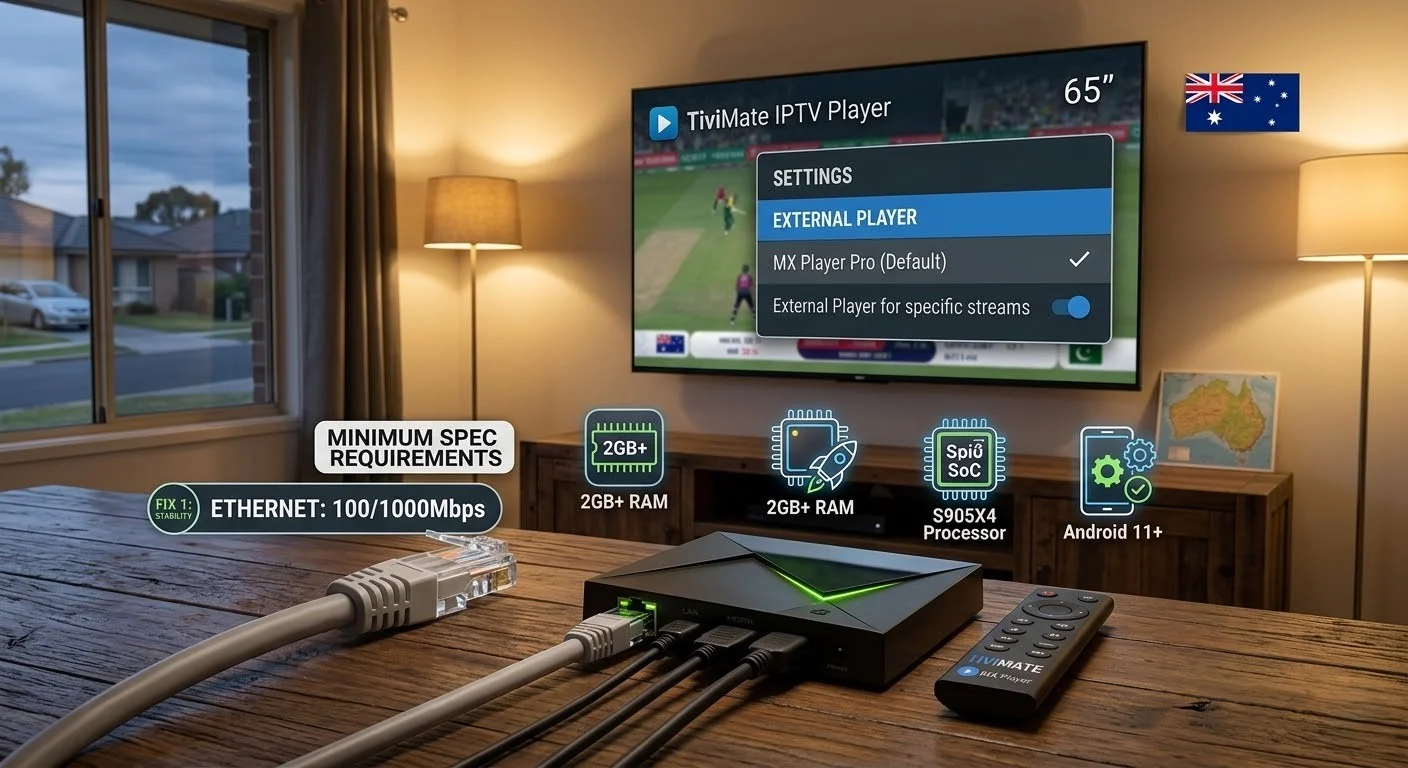
The hardware floor for stable IPTV use in 2026 is 2GB RAM and an S905X3 or newer processor — anything below this threshold will produce persistent issues that no software fix can fully resolve.
Android TV box IPTV errors in Australia arise from four primary categories: hardware limitations (insufficient RAM or processor for H.265 decode and EPG management), Google Play regional restrictions (TiviMate and some IPTV apps not available in Australian Google Play, requiring APK sideloading), Android version fragmentation (older boxes running Android 7–8 have compatibility issues with current IPTV app versions), and network configuration (default Wi-Fi on underpowered 2.4GHz radios in cheap Android boxes). Boxes meeting the 2026 minimum specification — 2GB RAM, S905X3 or Amlogic S905W2/S928X processor, Android 10+ — deliver stable IPTV performance with straightforward configuration.
Quick Fix: Android Box IPTV Not Working (1-Minute Checklist)
| Step | Action | Time |
|---|---|---|
| 1 | Check Android box specs: Settings → About → RAM and Android version | 30 sec |
| 2 | Connect Ethernet — plug cable from router to Android box’s built-in LAN port | 1 min |
| 3 | Clear IPTV app cache: Settings → Apps → [IPTV App] → Storage → Clear Cache | 1 min |
| 4 | Install MX Player from Google Play and set as external player in TiviMate | 2 min |
| 5 | If TiviMate not in Google Play AU store — sideload APK via browser or USB | 5 min |
Table of Contents
- Android Box Minimum Specifications for IPTV
- Symptom Identification
- Root Cause: Android Box IPTV Limitations
- Fix 1 — Connect Ethernet (Built-In LAN Port)
- Fix 2 — Sideload TiviMate on Android Box
- Fix 3 — Fix H.265 Black Screen and Codec Errors
- Fix 4 — Resolve RAM and Performance Issues
- Fix 5 — Fix Google Play Compatibility Errors
- Fix 6 — Resolve Android Version Incompatibility
- Fix 7 — Fix Overheating on Budget Android Boxes
- Fix 8 — Recommended Android Boxes for Australian IPTV (2026)
- Resolution Summary
- FAQ
Android Box Minimum Specifications for IPTV
Before troubleshooting, confirm your Android box meets the minimum specifications for reliable IPTV in 2026:
| Spec | Minimum for IPTV | Recommended | Why It Matters |
|---|---|---|---|
| RAM | 2GB | 4GB | TiviMate EPG + video player needs 1.5GB+ |
| Processor | S905X3 / MT8695 | S928X / S905X4 | H.265 hardware decode + 4K support |
| Android Version | Android 9 | Android 11+ | App compatibility with current IPTV versions |
| Storage | 8GB | 16GB | App installs + EPG cache |
| Network | 100 Mbps Ethernet | Gigabit Ethernet | Stable wired connection for HD/4K IPTV |
| Wi-Fi | 2.4 GHz + 5 GHz | Wi-Fi 6 | 5GHz fallback if Ethernet not available |
Boxes below minimum spec: Any Android box with 1GB RAM or an older Amlogic S905 (original), S905W, or Rockchip 3229 processor will experience persistent IPTV issues that software fixes cannot fully resolve. Upgrade guidance is in Fix 8.
| Symptom | Likely Cause | Jump to Fix |
|---|---|---|
| IPTV app crashes after 30–60 min | Insufficient RAM (1GB box) | Fix 4, Fix 8 |
| H.265 channels show black screen | No H.265 hardware decode on older processor | Fix 3 |
| TiviMate not found in Google Play | Australian regional restriction | Fix 2 |
| IPTV app shows “App not installed” after APK install | Android version incompatibility | Fix 6 |
| Buffering on all channels despite fast internet | Wi-Fi congestion or box Wi-Fi radio weak | Fix 1 |
| Android box overheats, streams drop after 1 hour | Passive cooling insufficient for sustained decode | Fix 7 |
| IPTV worked on old box but failed on new Android 11+ box | App incompatibility with newer Android | Fix 5, Fix 6 |
| Google Play shows “not available in your country” | Regional Play Store restriction | Fix 2, Fix 5 |
| Box very slow to navigate IPTV menus | Underpowered processor or full storage | Fix 4 |
| 4K channels buffer or fail entirely | The box does not support 4K decode or NBN too slow | Fix 3, Fix 1 |
Root Cause: Android Box IPTV Limitations
The Hardware Quality Spectrum
Android boxes sold in Australia range from AU$30 budget units to AU$300+ premium devices. The IPTV experience difference between these extremes is enormous — and the issues on budget boxes are structural, not configurable.
An AU$35 Android box with 1GB RAM and an S905W processor will:
- Crash TiviMate after 30–60 minutes of use (RAM exhaustion)
- Show black screens on H.265 channels (no hardware decode)
- Struggle with EPG loading (processor too slow for SQLite queries)
- Run hot and throttle performance (passive cooling on cheap housing)
These are not fixable by software configuration. They are hardware limitations.
An AU$90–120 Android box with 2GB RAM and an S905X3 processor handles all of these tasks without issues — and the price difference is AU$55–85.
The Google Play Regional Gap
The Australian Google Play Store does not always list every IPTV app available in other regional stores. TiviMate appears and disappears from the Australian Play Store periodically. When it is not listed, sideloading is the standard solution — straightforward on Android boxes because they run standard Android, not a locked ecosystem like Fire OS or Tizen.
The Android Version Fragmentation Problem
Android boxes in Australia run Android versions from Android 7 (on very old units) to Android 13 (on 2024+ hardware). IPTV apps developed for Android 10+ sometimes refuse to install or run on Android 7–8 devices. Conversely, some older IPTV app versions that worked on Android 7 break on Android 12+ due to stricter permission requirements.
Fix 1 — Connect Ethernet (Built-In LAN Port)
Unlike Fire TV Sticks, every Android TV box has a built-in Ethernet (LAN) port. This is the most underutilised feature on Australian Android box IPTV setups — the majority of users connect via Wi-Fi despite having a superior wired option available.
How to connect:
- Run a standard Cat5e or Cat6 Ethernet cable from your router (or a network switch) to the Android box’s LAN port
- The Android box detects Ethernet automatically — no settings change required
- Confirm connection: Settings → Network → Ethernet — shows as connected with IP address
Wi-Fi vs Ethernet performance in Australia:
| Connection | Typical Throughput | Packet Loss | Peak-Hour Stability |
|---|---|---|---|
| 2.4 GHz Wi-Fi (urban) | 15–40 Mbps effective | 1–5% common | Poor interference |
| 5GHz Wi-Fi (close range) | 50–150 Mbps | Under 0.5% | Good |
| Ethernet (Cat5e/6) | 100–1000 Mbps | Near 0% | Excellent |
For budget boxes with poor Wi-Fi radios: Many AU$30–60 Android boxes have single-band 2.4 GHz Wi-Fi radios that max out at 20–30 Mbps effective throughput even when the NBN connection delivers 80+ Mbps. Ethernet bypasses the poor Wi-Fi radio entirely and provides full NBN throughput to the box.
Fix 2 — Sideload TiviMate on Android Box
Android boxes run standard Android — sideloading APKs is simpler than on Fire TV Stick because there is no locked ecosystem restriction.
Method 1 — Browser download (easiest):
- Open a browser on the Android box (Chrome or any pre-installed browser)
- Navigate to the TiviMate official website
- Download the TiviMate APK directly to the box
- When download completes, open the APK file from the Downloads folder
- If prompted “Install from unknown sources” — tap Settings → enable for the browser app → return and install
Method 2 — USB transfer:
- Download the TiviMate APK on a computer
- Copy to a USB flash drive
- Insert USB drive into Android box USB port
- Open a file manager app (ES File Explorer or similar)
- Navigate to the USB drive → tap the APK → install
Method 3 — Downloader app (same as Fire TV Stick):
- Install Downloader from Google Play
- Open Downloader → enter the TiviMate APK URL
- Download and install
Enable unknown sources for installation:
Settings → Security → Unknown Sources → enable (Android 7–8) Settings → Apps → Special App Access → Install Unknown Apps → enable for your browser or file manager (Android 9+)
TiviMate Premium activation:
Same as the Fire TV Stick — purchase via Google Play on any Android device with the same Google account, and it activates automatically on the Android box when signed in with the same account.
Fix 3 — Fix H.265 Black Screen and Codec Errors
H.265 black screen errors on Android boxes have the same root cause as on Fire TV Sticks — no H.265 hardware decode support — but Android boxes have an additional layer of complexity: some boxes claim H.265 support in their specifications but only support it for local file playback, not for real-time IPTV stream decode.
Immediate fix — MX Player:
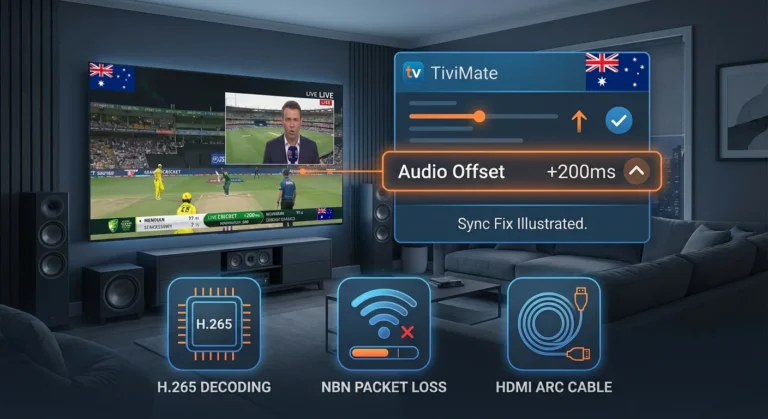
Install MX Player from Google Play and set it as the external player in TiviMate or IPTV Smarters. MX Player’s software decode handles H.265 for IPTV streams on boxes that have no or partial hardware H.265 support.
Verify hardware H.265 support for IPTV streams:
- Open MX Player → Settings → Decoder → select HW+ (hardware acceleration)
- Play an H.265 channel
- If it plays smoothly — hardware decode is working for IPTV
- If it shows black screen or crashes MX Player — switch decoder to SW (software) in MX Player settings
For 4K H.265 specifically:
4K H.265 decode requires VP9 or HEVC Main10 hardware support. Confirm your box’s processor supports 4K HEVC — budget boxes with S905W only support 4K H.265 at 30 fps, not 60 fps. 4K IPTV streams at 60 fps will stutter on S905W boxes regardless of the player used.
Fix 4 — Resolve RAM and Performance Issues
Check available RAM:
Settings → About → Memory — if available RAM during IPTV use drops below 200MB, crashes are imminent.
Free RAM before IPTV sessions:
- Hold Home button → Recent Apps → close all apps
- Clear IPTV app cache (Settings → Apps → [App] → Storage → Clear Cache)
- Disable automatic app updates during viewing: Google Play → Settings → Auto-update apps → Over Wi-Fi only → change to “Don’t auto-update”
Reduce the TiviMate memory footprint:
- EPG Days: reduce to 3
- Disable EPG thumbnails: Settings → EPG → Show Thumbnails → off
- Schedule EPG update: Settings → EPG → Update Time → 3:00 AM
- Hide unused channel groups: Settings → Channels → manage group visibility
Disable background services on the Android box:
Settings → Apps → see all apps → for each system app that is running and unnecessary (weather, analytics, update services) → Force Stop and Disable if possible
When performance issues persist despite RAM management:
The processor is the bottleneck, not RAM. An S905W or older processor performing EPG database queries and video decode simultaneously reaches CPU saturation. This is a hardware limitation — Fix 8 covers upgrade options.
Fix 5 — Fix Google Play Compatibility Errors
Android boxes sometimes show “Your device isn’t compatible with this version” or “Not available in your country” for IPTV apps in Google Play.
“Not available in your country” fix:
This is a regional restriction. The quickest fix is sideloading (Fix 2). Alternatively:
- On a computer, go to play.google.com
- Sign in with the same Google account used on the Android box
- Search for the IPTV app and click Install — select your Android box as the target device
- The app installs remotely to the Android box even if it is not visible in the on-device Play Store
“Device not compatible” fix:
This indicates the app targets a minimum Android version higher than your box’s Android version. Check the app’s Play Store page for “Requires Android X.X” — if your box runs an older version, sideload an earlier APK version of the app that supports your Android version.
Google Play Services errors on non-certified Android boxes:
Some budget Android boxes are not certified by Google — they run Android without official Google certification, which means Google Play Services may be limited or absent. If your box cannot install or run Google Play at all:
- Use Aurora Store (an open-source Google Play alternative) to download apps without Google account
- Sideload all IPTV apps via APK (Fix 2)
Fix 6 — Resolve Android Version Incompatibility
Check your Android version:
Settings → About → Android Version
Compatibility reference for IPTV apps (2026):
| Android Version | TiviMate | IPTV Smarters | OTT Navigator |
|---|---|---|---|
| Android 7 (Nougat) | Limited — older APK versions only | Older versions only | Basic support |
| Android 8 (Oreo) | Works with APK v4.x | Works | Works |
| Android 9 (Pie) | Full support | Full support | Full support |
| Android 10+ | Full support | Full support | Full support |
| Android 12+ | Full support — stricter permissions | Full support | Full support |
If running Android 7–8:
Download older APK versions of TiviMate (v4.x series) and IPTV Smarters from reputable APK archives. These older versions are compatible with Android 7–8 and provide full IPTV functionality, though they lack some features of current versions.
Update Android version:
Some Android boxes receive OTA (over-the-air) firmware updates. Settings → About → Check for Updates. If an update to Android 10+ is available, install it — newer Android improves app compatibility and security.
If no OTA update is available and the box is stuck on Android 7–8, the firmware is end-of-life. Upgrade to a current Android box (Fix 8) for the best long-term solution.
Fix 7 — Fix Overheating on Budget Android Boxes
Budget Android boxes with passive cooling (no fan) are particularly vulnerable to overheating during sustained IPTV decoding in Australian summer conditions. When the processor throttles due to heat, IPTV streams stutter, and the box may restart unexpectedly.
Signs of thermal throttling:
- The box runs hot to touch after 30–45 minutes
- IPTV stream stutters progressively over a session without buffering
- Settings → About → CPU Temperature (on boxes that display this) exceeds 80°C
Fixes for Android box overheating:
- Ensure adequate airflow — do not stack other devices on top of the Android box. Place it on an open surface or wall-mount it.
- Elevate the box on small feet — lifting the box 10–15 mm off the surface it sits on dramatically improves passive cooling by allowing airflow under the unit.
- Add a USB fan — a small USB-powered fan (AU$5–15) positioned near the box keeps ambient temperature down during long viewing sessions. The box’s USB port typically provides sufficient power for a mini fan.
- Reapply thermal paste (advanced) — on older boxes where thermal paste has dried out, reapplying quality thermal compound between the processor and heatspreader can reduce CPU temperature by 10–15°C. Requires opening the box.
- Upgrade to a fanless box with better thermal design — premium Android boxes (Nvidia Shield, Mecool KM2 Plus) have significantly better thermal management than budget units despite also being fanless or near-silent.
Fix 8 — Recommended Android Boxes for Australian IPTV (2026)
If your current Android box cannot be fixed by software configuration, upgrading to a capable model is the most cost-effective long-term solution. All boxes below support H.265 hardware decode, run Android 10+, and have been tested for IPTV performance on Australian NBN connections:
| Device | Price (AUD) | RAM | Processor | Android | Notes |
|---|---|---|---|---|---|
| Mecool KM2 Plus | AU$90–120 | 2GB | S905X4 | Android 11 | Dedicated streaming box, Netflix certified |
| Mecool KM7 Plus | AU$110–140 | 4GB | S905Y4 | Android 11 | Best value 4GB RAM option |
| Ugoos AM7 | AU$130–160 | 4GB | S905X4-B | Android 11 | Strong IPTV and gaming performance |
| Nvidia Shield TV (2019) | AU$199–249 | 2GB | Tegra X1+ | Android 11 | Best streaming performance available |
| Nvidia Shield TV Pro | AU$299–349 | 3GB | Tegra X1+ | Android 11 | Maximum performance, USB 3.0 storage |
| Chromecast with Google TV | AU$79–99 | 2GB | Amlogic S905D3G | Android 10 | Excellent value, Google ecosystem |
Budget recommendation for Australian IPTV: Mecool KM2 Plus at AU$90–120 delivers reliable IPTV performance — 2GB RAM, H.265 hardware decode, built-in Ethernet, Android 11, and Netflix certification (useful for mixed streaming households).
Performance recommendation: Nvidia Shield TV Pro at AU$299–349 is the best Android streaming device available. Its Tegra X1+ processor handles 4K H.265 without breaking a sweat and supports AI upscaling for HD content.
Resolution Summary
| Fix | Problem | Root Cause | Time Required |
|---|---|---|---|
| Fix 1 — Connect Ethernet | Buffering despite fast NBN | Wi-Fi radio limitation or interference | 2 min |
| Fix 2 — Sideload TiviMate | The app is not in Australian Play Store | Regional restriction | 10 min |
| Fix 3 — MX Player for H.265 | Black screen on channels | No H.265 hardware decode | 5 min |
| Fix 4 — RAM and performance | Crashes, slow menus | Insufficient RAM or CPU | 5 min |
| Fix 5 — Google Play compatibility | App not compatible or not available | Regional or version restriction | 10–15 min |
| Fix 6 — Android version fix | The app won’t install or run | Android version incompatibility | 5–20 min |
| Fix 7 — Overheating fix | Stuttering, unexpected restarts | Thermal throttling | 5 min + fan |
| Fix 8 — Upgrade box | Persistent hardware limitations | Below minimum spec | Hardware purchase |
Schema Markup Recommendations
HowTo Schema: Apply to Fix 2 (sideloading) — the most searched Android box IPTV setup process with clear numbered steps.
FAQ Schema: Apply FAQPage to the FAQ section for rich snippet eligibility.
Article Schema: Include (Kevin Brooks) and keywords cover all Android box models and error types.
FAQ
Why is my Android TV box IPTV buffering even though my internet is fast?
Fast internet speed does not guarantee stable IPTV on Android boxes — the bottleneck is often the box’s Wi-Fi radio, not the NBN connection.
Budget Android boxes have weak 2.4 GHz-only Wi-Fi radios that max out at 20–30 Mbps effective throughput even when your NBN delivers 80+ Mbps. Connect the Ethernet cable from your router to the Android box’s built-in LAN port — every Android box has one.
This bypasses the Wi-Fi radio entirely and provides your full NBN throughput to the device. See IPTV Buffering Fixes for Australian ISPs for full network diagnosis.
Why does TiviMate not appear in Google Play on my Android box in Australia?
TiviMate appears and disappears from the Australian Google Play Store due to regional listing policies. The standard fix is sideloading: download the TiviMate APK directly in the Android box’s browser from TiviMate’s official website.
Android boxes run standard Android and do not have the locked ecosystem restrictions of Fire TV Stick or Samsung Tizen — sideloading is straightforward. Enable Unknown Sources in Settings → Security, then install the downloaded APK. TiviMate Premium activates via your Google account purchase.
Why do IPTV channels show a black screen on my Android box?
Screens on specific channels indicate H.265 codec incompatibility—the channel is encoded in H.265, but your Android box’s processor does not support H.265 hardware decode.
Install MX Player from Google Play and set it as the external player in TiviMate settings. In MX Player, test with the HW+ decoder first; if the black screen persists, switch to the SW (software) decoder. Software H.265 decode works on all processors but uses more CPU. For 4K H.265 specifically, an S905X3 or newer processor is required. See IPTV Playback Failed Fix for full codec diagnosis.
What is the best Android box for IPTV in Australia in 2026?
For most Australian households, the Mecool KM2 Plus (AU$90–120) is the best value Android box for IPTV in 2026 — 2GB RAM, S905X4 processor with H.265 hardware decode, Android 11, built-in Ethernet, and Netflix certification.
For heavy IPTV users who also want the best 4K streaming performance available, the Nvidia Shield TV Pro (AU$299–349) is unmatched. For budget-conscious buyers, the Chromecast with Google TV (AU$79–99) provides a capable IPTV environment via TiviMate sideload. See Best IPTV Devices for Australia for a full device comparison.
Wrap-Up
Android box IPTV troubleshooting in Australia follows a clear path: connect Ethernet first, sideload TiviMate if it is not in the Play Store, install MX Player for H.265 channels, and manage RAM before each session.
For boxes with 1GB RAM or pre-2019 processors, these fixes improve stability significantly — but upgrading to a 2GB RAM box with an S905X3 or newer processor delivers the reliable IPTV experience that budget hardware cannot consistently provide.
The Mecool KM2 Plus at AU$90–120 is the hardware floor for confident IPTV use in Australia in 2026. Everything above that specification level delivers a stable experience out of the box.
Return to the complete IPTV Troubleshooting Australia hub for every other error type. For Fire TV Stick-specific issues, see Fire TV Stick IPTV Troubleshooting.
Good luck with the fix.

Our Fact Checking Process
We prioritize accuracy and integrity in our content. Here's how we maintain high standards:
- Expert Review: All articles are reviewed by subject matter experts.
- Source Validation: Information is backed by credible, up-to-date sources.
- Transparency: We clearly cite references and disclose potential conflicts.
Our Review Board
Our content is carefully reviewed by experienced professionals to ensure accuracy and relevance.
- Qualified Experts: Each article is assessed by specialists with field-specific knowledge.
- Up-to-date Insights: We incorporate the latest research, trends, and standards.
- Commitment to Quality: Reviewers ensure clarity, correctness, and completeness.
Look for the expert-reviewed label to read content you can trust.