
Quick Answer
Here’s how to set up IPTV on Kodi in Australia: use Kodi’s built-in PVR IPTV Simple Client add-on with an M3U playlist URL — no third-party add-ons required. This is the official, supported method, and it’s a meaningfully different (and safer) path than the third-party “Kodi IPTV addons” that show up in most search results, which we’ll explain below.
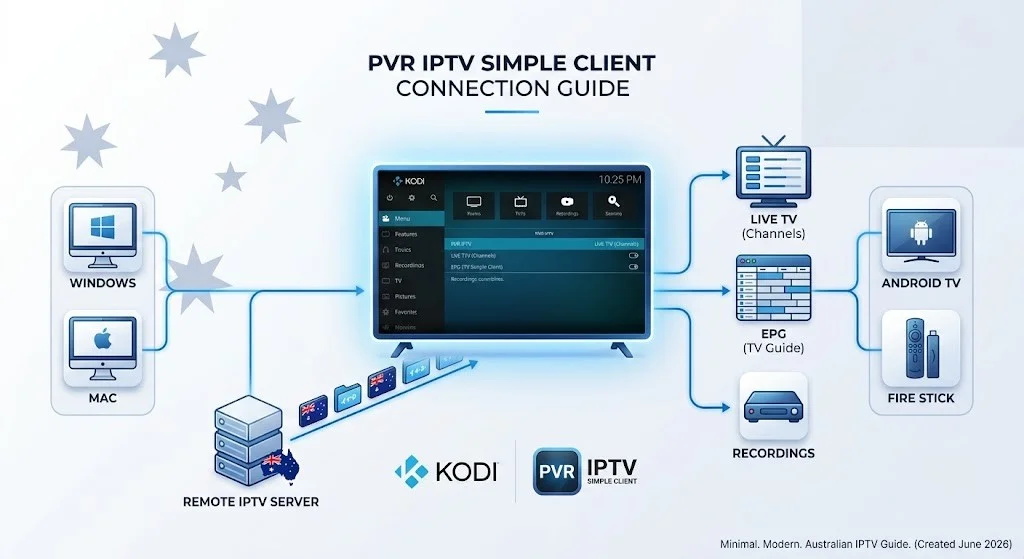
At a Glance
✔ Method: PVR IPTV Simple Client (built into Kodi)
✔ Cost: Free (Kodi itself has no fee)
✔ Third-Party Add-ons Required: No
✔ M3U Playlist Needed: Yes
✔ EPG (TV Guide) Support: Yes, via XMLTV
✔ Works On: Windows, Mac, Android, Fire Stick, Android TV, Linux
Key Takeaways
- Kodi itself is completely free, open-source, and legal — the legal question is entirely about what M3U source you point it at
- PVR IPTV Simple Client is Kodi’s own official add-on, distinct from the third-party “Kodi IPTV add-ons” most search results push
- You’ll need an M3U playlist URL from somewhere — either a licensed provider or a legitimate free/public source
- Kodi handles one M3U source at a time per add-on instance, which is worth knowing before you start
- Watching Australian TV through Kodi while overseas still runs into the same geo-blocking issue covered in our legal breakdown of bypassing geo-blocking
In This Guide
- What Is Kodi, Exactly?
- Kodi vs Third-Party “Kodi IPTV Addons”: Know the Difference
- What You’ll Need
- How to Set Up IPTV on Kodi: Step by Step
- Where to Get an M3U Playlist
- Is This Legal and Safe?
- Common Problems and How to Fix Them
- FAQ
What Is Kodi, Exactly?
If you’ve never used it, Kodi is a free, open-source media player application — think of it as an empty entertainment hub that you organise and fill yourself, rather than a pre-loaded streaming app like Netflix. It runs on practically anything: Windows and Mac computers, Android phones and tablets, Fire Sticks, Android TV boxes, and more.
On its own, straight out of the box, Kodi has no content at all. What it’s genuinely good at is organising and playing video, whether that’s your own personal media files, internet radio, or – relevant to this guide – live TV channels delivered via IPTV once you connect it to a source. That last part is what the rest of this guide covers.
Kodi vs Third-Party “Kodi IPTV Addons”: Know the Difference
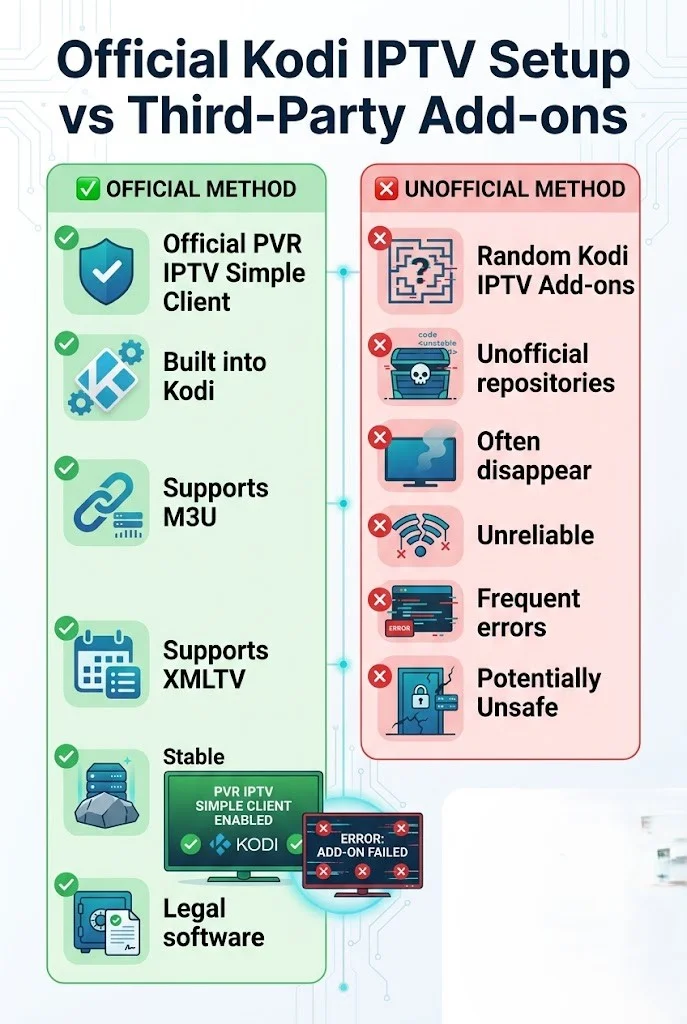
This distinction matters more than almost anything else in this guide. Kodi itself, as explained above, has no built-in content. PVR IPTV Simple Client is Kodi’s own official add-on, maintained by the Kodi project, designed specifically to load M3U playlists and XMLTV programme guides. It doesn’t scrape, host, or bundle any content itself.
That’s a fundamentally different thing from the third-party “Kodi IPTV add-ons” that dominate most search results for this topic: community-built add-ons that typically aggregate unlicensed streams from scattered sources, often without any rights to the content they serve.
Those addons carry real copyright and reliability risks (they get shut down constantly, which is why so many people search for “why isn’t my Kodi addon working anymore”). This guide sticks entirely to the official, built-in method.
What You’ll Need
- Kodi version 20 (“Nexus”) or later, downloaded from the official kodi.tv website
- An M3U playlist URL (from a licensed IPTV subscription or a legitimate free source)
- Optionally, an XMLTV EPG URL for a proper TV guide
No third-party add-on installs, no unofficial repositories, and no sideloading anything outside of Kodi itself.
How to Set Up IPTV on Kodi: Step by Step
Step 1: Install Kodi from the official source.
Download it directly from kodi.tv or from the Google Play Store on Android. Avoid pre-loaded “Kodi builds” from unofficial sites — these often bundle the third-party add-ons we’re specifically avoiding here.
Step 2: Enable PVR & Live TV.
Go to Settings → PVR & Live TV → General, and ensure it’s enabled.
Step 3: Install PVR IPTV Simple Client.
Go to Settings → Add-ons → Install from repository → Kodi Add-on Repository → PVR Clients → PVR IPTV Simple Client. Click Install.
Step 4: Configure your M3U playlist.
Go to Settings → Add-ons → My Add-ons → PVR Clients → PVR IPTV Simple Client → Configure. On the General tab, set Location to “Remote Path” and paste your M3U playlist URL.
Step 5: Add your EPG (optional but recommended).
On the EPG Settings tab, set Location to “Remote Path” and paste your XMLTV URL if you have one. This gives you a proper, scrollable program guide instead of just a bare channel list.
Step 6: Restart Kodi and browse to TV.
Kodi will download and process the playlist (this can take a few minutes for large lists). Once done, the TV section on the home screen shows your channels, grouped by category.
Where to Get an M3U Playlist
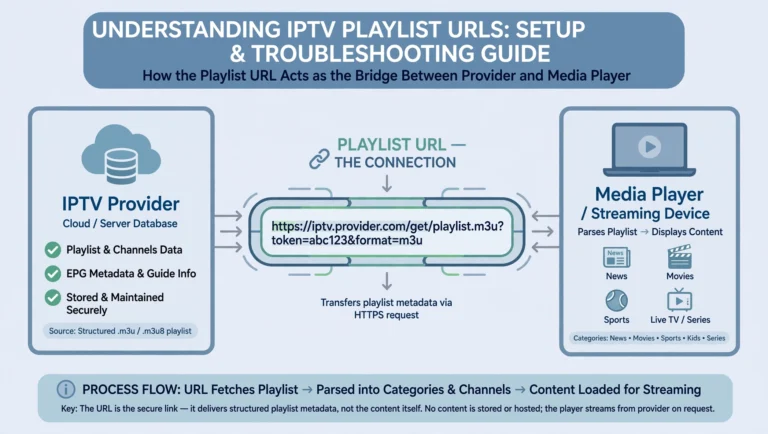
This procedure is the step that determines whether your setup is solid or shaky, since PVR IPTV Simple Client has no content of its own — it only plays whatever the M3U file points to. Two legitimate paths:
- A licensed IPTV subscription: Reputable providers issue you a personal M3U URL (and usually an XMLTV EPG URL) as part of your subscription. This is the most reliable option for Australian channels specifically.
- Legitimate free/public playlists: There are genuinely free, publicly available M3U sources covering free-to-air and public-domain content. See our guide to free public IPTV playlists for what’s actually available and how to evaluate a source before using it.
Avoid playlists shared anonymously through forums or Pastebin-style links promising “1000s of premium channels for free” — these are almost always built from unlicensed sources and tend to disappear (or get you nowhere) within weeks.
Is This Method Legal and Safe?
Kodi itself and the PVR IPTV Simple Client method described here are entirely legal — you’re using open-source software with an official add-on. The legal question shifts entirely to the M3U source you point it at: a licensed provider or a legitimate free source keeps you on solid ground, while unlicensed playlists (the kind bundled into most third-party “Kodi IPTV addons”) carry genuine copyright risk for the parties distributing them.
If you’re trying to use this setup to watch Australian channels from overseas, the geo-blocking and VPN legal questions are entirely separate from the Kodi question — our complete legal breakdown of bypassing geo-blocking covers that distinction in full.
Common Problems and How to Fix Them
Channels load, but the EPG (TV guide) is empty:
Double-check your XMLTV URL is entered correctly and matches your M3U source’s channel IDs — mismatched tvg-id values between the two files are the most common cause.
“Add-on installed” but no channels appear:
Restart Kodi fully after configuring the M3U URL — the PVR system only populates channels on restart, not live while you’re still in the settings menu.
The playlist takes a long time to load:
Normal for large playlists (20,000+ channels can take 5–15 minutes on first load). Subsequent restarts are faster since Kodi caches the data locally.
Buffering once channels are playing:
This problem is a connection issue rather than a Kodi-specific one — our general IPTV buffering fixes guide applies equally here.
Frequently Asked Questions
How do I add IPTV to Kodi?
Install the official PVR IPTV Simple Client add-on for Kodi (Settings → Add-ons → Install from repository → PVR Clients), then configure it with an M3U playlist URL in its settings.
Can you watch IPTV through Kodi?
Yes — Kodi’s built-in PVR IPTV Simple Client is specifically designed for IPTV, turning any valid M3U playlist into a live TV experience with a program guide.
Is the Kodi IPTV player the same as Kodi?
Kodi is the overall media player application. PVR IPTV Simple Client is a specific add-on within Kodi that adds IPTV/live TV functionality — Kodi has no live TV features without it.
Can Kodi record IPTV?
Yes, if your M3U source supports timeshift or catch-up features, Kodi’s PVR system can use them for recording-like functionality, configurable under the PVR Clients settings.
Can I watch Australian TV on Kodi with a VPN if I’m overseas?
Yes, the same geo-blocking principles that apply to apps like 9Now or SBS On Demand apply here too—if your M3U source streams geo-restricted Australian content, you’d need an Australian VPN connection. We cover the legal side of this issue separately in our VPN and geo-blocking legal guide.
Conclusion
Setting up IPTV on Kodi in Australia doesn’t require any of the third-party add-ons that dominate most search results — Kodi’s own PVR IPTV Simple Client, paired with an M3U playlist from a licensed provider or a legitimate free source, does the job cleanly and legally. The real decision that matters isn’t which add-on to install; it’s which M3U source you trust enough to point it at.
🔗 Explore More — Australian IPTV Overseas
to the following: Browse the full Australian IPTV Overseas hub for every guide in this category, or jump straight to the following:
- ✅ Watch Australian TV Overseas: The Complete Guide for Expats and Travellers
- ✅ Is It Legal to Bypass Geo-Blocking in Australia? (linked above)
- ✅ How to Watch Channel 9 (9Now) Overseas
- ✅ Stream SBS On Demand Outside Australia