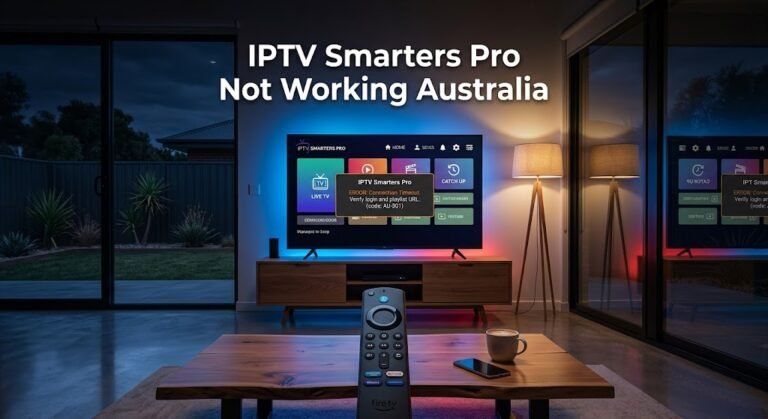
IPTV error codes are the fastest path to a correct diagnosis—if you know what each code means.
This guide is part of the complete IPTV Troubleshooting Australia hub and is the definitive reference for every error code, error message, and status response that Australian IPTV subscribers encounter on TiviMate, IPTV Smarters, GSE Smart IPTV, and all Xtream Codes-compatible apps.
In my experience diagnosing IPTV errors across Australian households, the most damaging mistake is treating every error code as a provider problem and waiting for support.
The majority of IPTV error codes point to a local fix — a credential error, a network configuration issue, or an app setting — that can be resolved in under five minutes without contacting anyone.
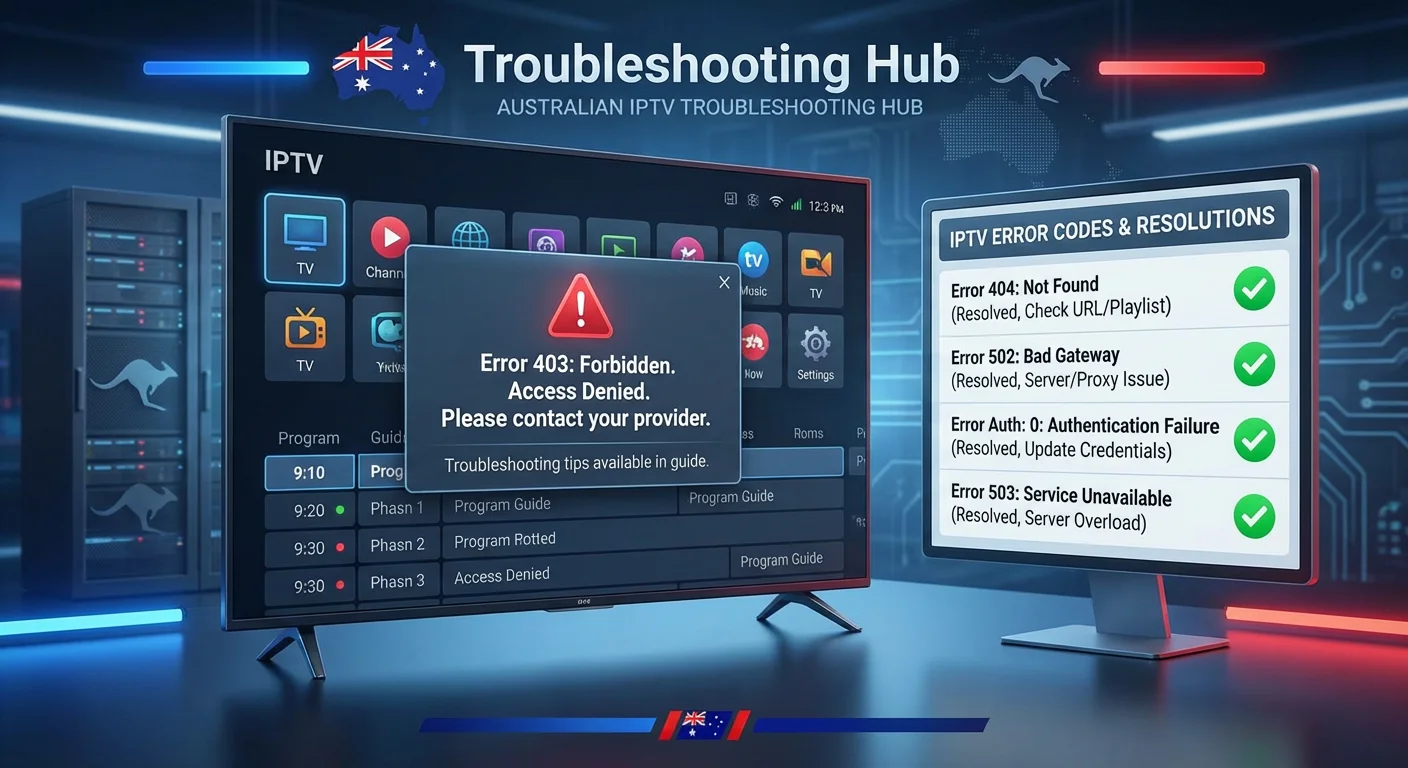
AI-ready definition: IPTV error codes in Australia fall into four categories: IPTV error codes in Australia can be grouped into four types: HTTP server response codes (403, 404, 502, 503, 504) that the provider’s Xtream Codes API sends when a request doesn’t work at the server; error messages from the IPTV app when it can’t play a stream (like playback failed, codec unsupported, buffer timeout); authentication error codes that show when login details are wrong (like auth: 0, login failed, maximum connections); and network errors that happen when the device can’t connect to the provider’s server (like each category points to a different layer of the IPTV stack and requires a different fix approach).
Quick Fix: Common IPTV Error Codes (1-Minute Reference)
| Error Code / Message | Plain English Meaning | First Fix |
|---|---|---|
| 403 Forbidden | The server received request but refused it — credentials or IP blocked | Check credentials, disable VPN |
| 404 Not Found | The stream URL does not exist — the channel is dead or the playlist is outdated | Refresh playlist |
| 502 Bad Gateway | Provider’s proxy server error — usually temporary | Wait and retry; check provider status |
| 503 Service Unavailable | Provider server overloaded or in maintenance | Wait and retry |
| 504 Gateway Timeout | The server took too long to respond — latency or maintenance | Retry at off-peak; check NBN speed |
| auth: 0 | Credentials rejected by Xtream Codes API | Re-enter credentials via copy-paste |
| Login Failed | Generic authentication failure | See Fix 3 |
| Maximum Connections | Simultaneous connection limit reached | Close other devices on same account |
| Connection Refused | Server port blocked or wrong URL format | Check server URL and port |
| DNS Resolution Failed | Cannot find server by domain name | Change DNS to 8.8.8.8 |
| Playback Failed | The stream cannot be decoded by the player. | Switch to MX Player |
| No Signal | Stream URL exists but delivers no data | Refresh playlist; check if live event started |
| Buffer Timeout | Stream data not arriving fast enough | Switch to Ethernet; increase buffer size |
Table of Contents
- HTTP Server Response Error Codes
- Xtream Codes Authentication Error Codes
- Network Connection Error Codes
- Application and Player Error Codes
- Device-Specific Error Codes
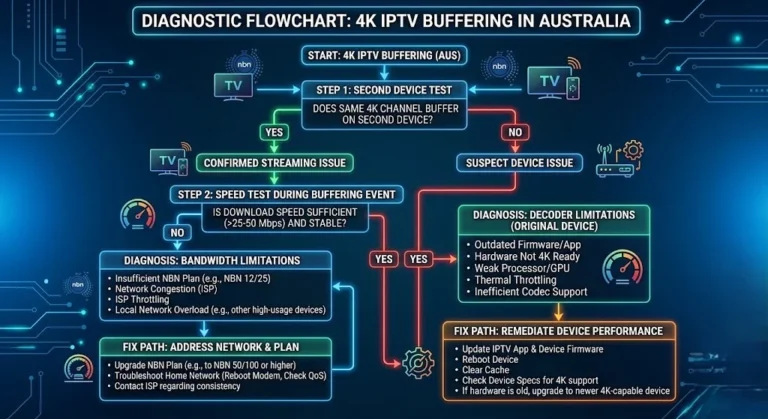
- Error Code Diagnostic Flow
- Resolution Summary
- FAQ
HTTP Server Response Error Codes
The provider’s server returns HTTP status codes in response to your IPTV app’s requests. They indicate exactly what the server did with your request — and they point directly to the fix.
Error 400 — Bad Request
What it means: The request your app sent to the server was malformed — typically a URL formatting error.
Common causes in Australian IPTV setups:
- Server URL entered with incorrect format (missing port, extra slash, wrong protocol)
- The app is constructing the API request incorrectly due to a misconfiguration
Fix: Check your server URL format exactly as specified by your provider. In TiviMate, the server URL should be http://[server]:[port] with no trailing path. See Xtream Codes Error Fix for URL format diagnosis.
Error 401 — Unauthorised
What it means: The server received your request, but your credentials were not accepted. Unlike 403, this error specifically indicates that the authentication step failed.
Common causes:
- Wrong username or password (most common)
- Account expired or suspended
- Credentials changed after provider migration
Fix: Re-enter credentials via copy-paste from your provider’s welcome email. Run the Xtream Codes browser test: http://[server]:[port]/player_api.php?username=[user]&password=[pass] — if it returns "auth": 0, credentials are confirmed wrong. See Login Failed on IPTV Apps for a complete diagnosis.
Error 403 — Forbidden
What it means: The server understood your request, and your credentials may be correct, but access is specifically denied — most commonly due to IP-based blocking.
Common causes in Australia:
- VPN IP address on provider’s blocklist
- Australian IP range restricted by provider
- Account flagged for abuse or simultaneous connection violation
- Geographic content restriction on specific channels
Fix:
- Disable VPN and retry — if 403 resolves, VPN IP is blocked
- Contact provider to confirm account is in good standing
- If specific channels return 403, those channels may have geographic restrictions for Australian subscribers
Error 404 — Not Found
What it means: The specific stream URL your app requested does not exist on the server. The channel address in your playlist points to a stream that has been moved, renamed, or deleted.
Common causes:
- Outdated playlist containing dead channel URLs
- The provider migrated streams to new URLs without updating all playlists
- Channel removed from provider’s lineup
Fix: Force a full playlist refresh in your IPTV app (Settings → Playlists → Update). If the channel still returns 404 after a refresh, it has been permanently removed — contact your provider to confirm. See Channel Not Loading on IPTV for channel-specific fixes.
Error 502 — Bad Gateway
What it means: The provider’s proxy or load balancer received your request, but the backend server it tried to forward it to returned an error. This is an infrastructure error on the provider’s side.
Common causes:
- The provider’s backend server experiencing issues
- Load balancer misconfiguration during maintenance
- Brief infrastructure failure during server updates
Australian timing note: 502 errors spike during provider maintenance windows — typically between 2 and 5 AM AEST. If 502 errors appear during normal viewing hours and persist beyond 30 minutes, the provider is experiencing a service disruption.
Fix: This condition is almost always a provider-side issue.
Wait 5–10 minutes and retry. If it persists, check your provider’s Telegram or WhatsApp channel for maintenance announcements. No local fix is possible for genuine 502 errors.
Error 503 — Service Unavailable
What it means: The provider’s server is temporarily unable to handle requests — either due to overload or scheduled maintenance.
Common causes:
- The provider server overloaded during peak viewing times (major sport events in Australia — AFL finals, NRL grand final, Boxing Day Test)
- Scheduled maintenance window
- DDoS attack on provider infrastructure
Fix: Wait and retry after 10–15 minutes. During major live sport events, 503 errors from IPTV provider server overload are common — providers underestimate peak concurrent viewer demand for high-audience events. No local fix is possible.
Error 504 — Gateway Timeout
What it means: The provider’s gateway server made a request to a backend server and did not receive a response within the timeout window.
Australian context: 504 errors are more common for Australian subscribers than for European subscribers connecting to the same provider because the higher round-trip latency (280–320 ms to European servers) increases the likelihood of backend requests timing out before the response reaches Australia.
Fix:
- Retry at off-peak hours — peak-hour congestion compounds the latency that triggers 504 timeouts
- Switch to Ethernet to reduce local network latency
- Ask provider for an Australian or Singaporean server to reduce round-trip time
- If persistent, see ISP Blocking IPTV — ISP traffic shaping can increase effective latency enough to trigger 504 timeouts
Xtream Codes Authentication Error Codes
auth: 0 (Authentication Failed)
What it means: The Xtream Codes API returned an authentication result of 0— meaning the server specifically rejected the username/password combination. This is a server-confirmed credential failure.
How to see this code: Run the browser test: http://[server]:[port]/player_api.php?username=[user]&password=[pass] — the JSON response includes "auth": 0 or "auth": 1.
Fix: Credentials are wrong — re-enter via copy-paste. If auth: 0 you persist with confirmed-correct credentials, your account may be suspended. Contact the provider.
auth: 1 with Zero Channels
What it means: Authentication succeeded (), but the account has no channels assigned. Credentials are correct, but content delivery failed.
Common causes:
- Account not fully provisioned after purchase
- The provider migrated to new panel — old credentials work on old panel but new panel has no channels assigned
- The trial account expired but still authenticates
Fix: Contact the provider—confirm the account is fully active and channels are assigned to your subscription package.
“Maximum Connections Reached”
What it means: Your subscription allows a specific number of simultaneous streams (typically 1 or 2), and that limit is currently reached.
Common causes:
- Another device on your account is actively streaming
- A previous session did not close cleanly — the server is still counting it as active
- Attempting to watch on more devices than your plan allows
Fix: Close the IPTV app on all other devices. Wait 5–10 minutes for previous sessions to time out on the server. If persistent, contact the provider to upgrade to a multi-connection plan. See IPTV Multi-Connection Setup for multi-device configuration.
“Account Expired” / “Subscription Expired”
What it means: Your subscription period has ended. The server recognises your credentials, but your account status is “expired”.
Fix: Renew your subscription through your provider’s payment portal. After renewal, credentials typically remain the same—no re-entry is needed unless the provider issues new credentials at the renewal.
Network Connection Error Codes
“Connection Refused”
What it means: Your device successfully sent a connection request to the provider’s server address, but the server actively refused it. The server is reachable but not accepting connections on the specified port.
Common causes:
- Wrong port number in the server URL
- The provider changed their server port
- ISP blocking the specific port
Fix: Confirm the correct port with your provider. Test whether the port is accessible using an online port checker. If the port is blocked by your ISP, ask your provider for a port 443 alternative. See Xtream Codes Error Fix for the full URL format diagnosis.
“Connection Timeout” / “Request Timed Out”
What it means: Your device sent a connection request to the server but received no response within the timeout window. The server is not reachable — either the address is wrong, the server is down, or the network path is blocked.
Australian context: Connection timeouts are more frequent on Telstra HFC and fixed wireless connections during peak hours (7–10 PM AEST) due to increased packet loss causing retransmission delays.
Fix:
- Run the browser API test to confirm whether the server is reachable
- Switch to Ethernet to eliminate local network latency contribution
- Retry at off-peak hours to rule out peak-hour congestion
- Check the provider’s Telegram channel for outage announcements
“DNS Resolution Failed” / “Cannot Resolve Host”
What it means: Your device cannot convert the server’s domain name to an IP address. Your ISP’s DNS resolver, which is the system that translates domain names into IP addresses, is not returning a result for the provider’s domain.
Common causes:
- ISP DNS blocking the provider’s domain
- Incorrect server URL (domain name typo)
- ISP DNS server experiencing issues
Fix: Change DNS on your device or router to Google (8.8.8.8) or Cloudflare (1.1.1.1). This bypasses your ISP’s DNS resolver entirely. See ISP Blocking IPTV for DNS change instructions by device type.
Application and Player Error Codes
“Playback Failed” / “Cannot Play Stream”
What it means: The IPTV app retrieved the stream URL and attempted to play it, but the internal player could not decode the incoming stream data.
Common causes:
- H.265 stream on a device without hardware decode support (standard Fire TV Stick, older Android boxes)
- Stream type mismatch (HLS vs MPEG-TS)
- Corrupted stream data from packet loss
Fix: Switch to MX Player as the external player in TiviMate or IPTV Smarters settings. If MX Player also fails, change the stream type between HLS and MPEG-TS. See IPTV Playback. Failed a complete playback diagnosis.
“Buffer Timeout” / “Buffering Too Long”
What it means: The player’s buffer failed to fill within the timeout window — stream data is arriving too slowly to begin playback.
Fix: Switch to Ethernet, increase buffer size in app settings, and change stream type to MPEG-TS. See Slow IPTV Streams for buffer optimisation steps.
“No Signal” / “Stream Unavailable”
What it means: The stream URL in the playlist exists and responds but delivers no stream data. The channel source is inactive.
Common causes:
- Live event stream not yet activated by provider
- Channel permanently removed from provider’s lineup
- Temporary stream source failure
Fix: Refresh the playlist and retry. For sport channels, check the event schedule — the stream activates ~15–30 minutes before broadcast. See No Signal on IPTV for full diagnosis.
Device-Specific Error Codes
Fire TV Stick — “App Not Installed” / “Item Not Available”
What it means: The IPTV (Internet Protocol Television) app you are trying to install or update is not available in your regional Amazon App Store, or the installed version has a compatibility error.
Fix: Sideload the APK directly using the Downloader app from the Amazon App Store. See Fire TV Stick IPTV Troubleshooting for sideloading steps.
Samsung Smart TV — “App Crashed” / “An Error Has Occurred”
What it means: The Tizen OS has terminated the IPTV app, typically due to the documented Samsung media player memory leak.
Fix: Restart the TV to clear accumulated leaked memory. For a permanent fix, connect a Fire TV Stick 4K via HDMI and use TiviMate instead of the built-in Smart TV app. See IPTV App Crashes Fix for Samsung-specific guidance.
Android TV — “Parse Error” / “Package Invalid”
What it means: An APK (Android Package Kit) sideload failed because the file is corrupted or incompatible with the device’s Android version.
Fix: Re-download the APK from the official source and reinstall. Confirm the APK version is compatible with your device’s Android TV version. See Android IPTV Box Errors for sideload troubleshooting.
Use this flow to identify the error layer before applying a fix:
IPTV Error Received
│
├── Is it a number (400, 401, 403, 404, 502, 503, 504)?
│   └── → HTTP Server Error — see HTTP Error Codes section
│
├── Does it say "auth: 0" or "Login Failed"?
│   └── → Authentication Error — see Xtream Codes Auth section
│
├── Does it say "Connection Refused", "Timeout", or "DNS Failed"?
│   └── → Network Error — see Network Error Codes section
│
├── Does it say "Playback Failed", "No Signal", or "Buffer Timeout"?
│   └── → Player/App Error — see Application Error Codes section
│
└── Is it a device-specific message (Samsung, Fire TV, Android)?
    └── → Device Error — see Device-Specific Error Codes section
Resolution Summary
| Error Code | Layer | Most Common Australian Cause | Primary Fix |
|---|---|---|---|
| 400 Bad Request | Server | URL format error | Correct URL format |
| 401 Unauthorised | Server | Wrong credentials | Copy-paste credentials |
| 403 Forbidden | Server | VPN IP blocked or account flagged | Disable VPN; check account |
| 404 Not Found | Server | Dead stream URL in outdated playlist | Refresh playlist |
| 502 Bad Gateway | Provider infrastructure | Backend server error | Wait; check provider status |
| 503 Service Unavailable | Provider infrastructure | Server overload (peak events) | Wait and retry |
| 504 Gateway Timeout | Provider + Network | High AU latency + server timeout | Off-peak retry; request AU server |
| auth: 0 | Authentication | Wrong credentials confirmed by API | Re-enter credentials |
| Maximum Connections | Authentication | Simultaneous limit reached | Close other devices |
| Connection Refused | Network | Wrong port or port blocked | Confirm port; check ISP blocking |
| Connection Timeout | Network | Server unreachable or NBN congestion | Check server; switch Ethernet |
| DNS Failed | Network | ISP DNS blocking or domain typo | Change to 8.8.8.8 DNS |
| Playback Failed | App/Player | H.265 codec error or stream mismatch | Switch to MX Player |
| No Signal | App/Stream | Stream source inactive | Refresh playlist; check event schedule |
| Buffer Timeout | App/Network | Insufficient throughput | Ethernet; increase buffer size |
Schema Markup Recommendations
FAQ Schema: Apply FAQPage to the FAQ section — enables rich snippet eligibility for error code queries in Google Search and AI answer panels.
HowTo Schema: Apply HowTo schema to the diagnostic flow section — targets “how to fix IPTV error [code]” search queries with rich results.
FAQ
What does IPTV error 403 mean in Australia?
A 403 Forbidden error means your provider’s server received and understood your request but specifically denied access.
In Australia, the most common cause is a VPN IP address being on the provider’s blocklist — the server refuses connections from known VPN IP ranges. Disable your VPN and retry.
If 403 resolves without VPN, configure split tunnelling to exclude your IPTV app from the VPN tunnel. If 403 persists without VPN, your account may have been flagged — contact your provider. For authentication-related errors, see Login Failed on IPTV Apps.
What does IPTV error 404 mean?
A 404 Not Found error means the specific stream URL your app requested does not exist on the provider’s server.
The most common cause is an outdated playlist — the channel URL has changed on the provider’s side, but your app still has the old address. Force a full playlist refresh in your IPTV app (Settings → Playlists → Update).
If the 404 persists after refresh, the channel has been permanently removed from the provider’s lineup. For channel-specific loading issues, see Channel Not Loading on IPTV.
What does “auth: 0” mean on IPTV?
auth: 0 Is it the Xtream Codes API’s explicit confirmation that your username and password were rejected by the server?
Unlike a generic “Login Failed” message that can have multiple causes, it auth: 0 specifically means the credentials themselves are wrong — the server received them and rejected them. Delete all credential fields in your IPTV app and re-enter using copy-paste from your provider’s welcome email.
If auth: 0 you persist with confirmed-correct credentials, your account may be suspended or migrated to a new panel.
Contact your provider with the browser test result. See Xtream Codes Error Fix for full API diagnosis.
Why do I get different IPTV error codes at different times of day in Australia? Time-dependent error code patterns in Australia almost always relate to NBN peak-hour congestion between 7 and 10 PM AEST.
Error 504 (Gateway Timeout) and Connection Timeout errors increase at peak hours because NBN congestion on HFC and fixed wireless connections increases effective latency beyond the server’s response timeout threshold.
Errors that only appear in the evening but not in the morning are network-layer errors triggered by congestion; the fix is to use an Ethernet connection and conduct off-peak testing to confirm the pattern.
See IPTV Buffering Fixes for Australian ISPs for peak-hour network diagnosis.
Wrap-Up
IPTV error codes in Australia are not random — every code points to a specific layer of the IPTV stack and a targeted fix. HTTP 4xx codes point to credential or access issues. HTTP 5xx codes point to provider infrastructure. Network errors point to your local connection or ISP. Player errors point to your app or device.
The diagnostic flow in this guide reduces any IPTV error from “something is broken” to “this specific component needs this specific fix” — in under two minutes.
Return to the complete IPTV Troubleshooting Australia hub for dedicated fix guides on every error type. For the most comprehensive fix checklist across all error categories, see the Comprehensive IPTV Troubleshooting Checklist.
Good luck with the fix.