Kevin Brooks | IPTV Troubleshooting Australia
Published: 10 March 2026 · Last updated: August 2026
Quick Answer
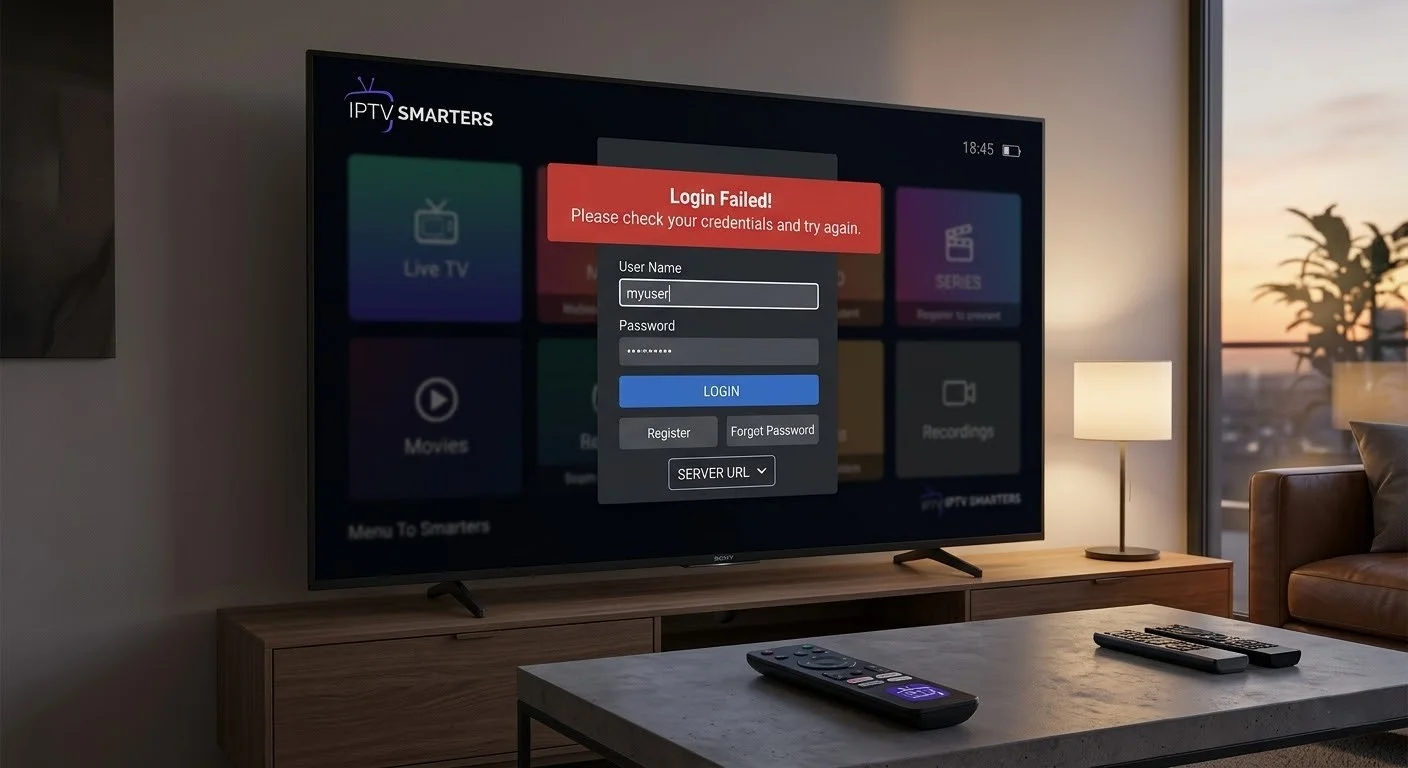
IPTV login failed errors look identical whether the cause is a single mistyped character or an expired subscription, which is why the exact wording of the message matters more than most guides suggest. Start by reading the error precisely, then verify your server URL character by character, including the protocol prefix, which is where pasted text most often goes wrong. For background on how IPTV delivery works, see the IPTV Australia guide.
Before You Change Anything
| Test | Why it helps |
|---|---|
| Try logging in on another device | Separates a device fault from an account fault |
| Note whether the error appears instantly or after loading | Separates authentication from connection problems |
| Write down the exact wording of the message | Two similar-looking messages point to different causes |
That last one matters more than it sounds. “Login doesn’t work” is not diagnostic. “Authorisation failed” is.
Before You Start — Match Your Error Message
Apps use different wording for what is often the same underlying problem, and the differences are diagnostic. Read the message exactly as it appears before changing anything.
What the Exact Wording Tells You
| Message | Usually means | Start with |
|---|---|---|
| Authorization failed | The server received the request and rejected it | Fix 1 |
| Login invalid | Username or password not accepted | Fix 1, Fix 2 |
| Invalid URL / Portal error | The server address is wrong or malformed | Fix 1 |
| Connection error | The app cannot reach the server at all | Fix 3, then network checks |
| Server not found | The URL is wrong, or the server is down | Fix 1, Fix 4 |
| Too many connections | Credentials fine, connection limit reached | Fix 6 |
| Subscription expired | The plan has ended | Fix 4, Fix 5 |
The two most frequently reported in Australian setups are ‘authorisation failed’ and ‘login invalid’. Both point at the credentials before anything else.
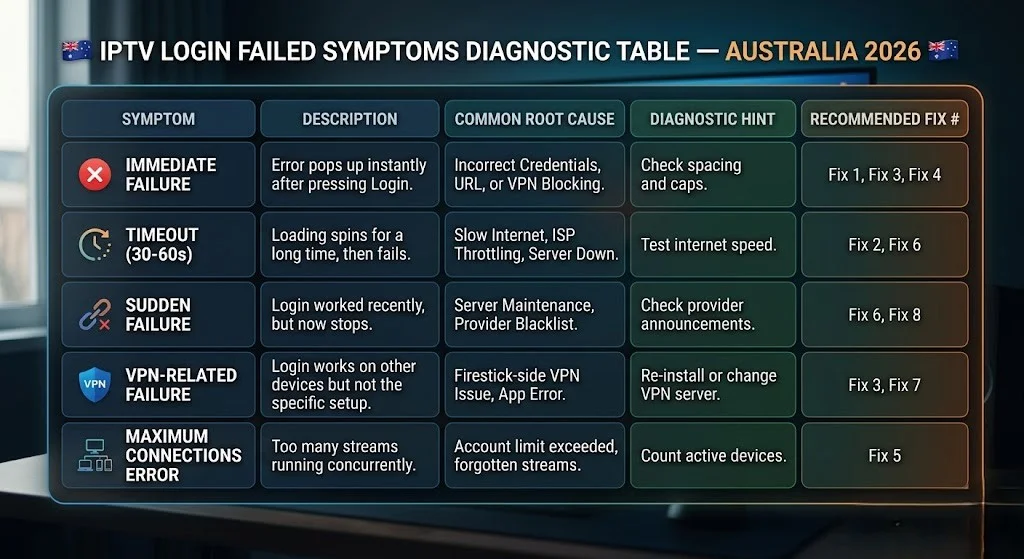
Same message, different cause. The same “Login Failed” wording can be triggered by entirely different problems. That is why this guide starts with the exact message, when it appears, and whether it affects one device or every device, instead of assuming the password is wrong.
When It Fails Tells You Something Too
| When it fails | Usually means |
|---|---|
| Immediately on submit, | Credentials |
| After a loading delay | Network or server unreachable |
| Randomly, on a setup that worked | Session timeout or connection limit |
Confirm the Problem First
Before applying login fixes, please confirm that what you are seeing is actually a login failure.
| What you see | Is it really a login problem? |
|---|---|
| An error appears immediately on submit | Usually yes |
| Loading spinner, then a timeout | Usually network |
| The app opens, but channels fail to play | No — login succeeded |
| Subscription expired message | Account status, not credentials |
If the app opened and showed your channel list, authentication worked. A channel that will not play afterwards is a different fault entirely.
What This Error Is Not
| If you are seeing | Use this guide instead |
|---|---|
| Playback failed | Playback failed |
| No signal | No signal on IPTV |
| Buffering | Buffering fixes |
| Audio out of sync | Audio and video out of sync |
| Channels missing from the list | Channel not loading |
Why the Same Message Covers So Many Causes
When you submit credentials, the app sends a request to your provider’s server. The server either accepts it and returns an authentication token, or it does not.
Most apps display a single generic message for every unsuccessful response. A wrong password, a malformed URL, an expired account, a blocked address and an unreachable server all produce roughly the same display. The app is not hiding the reason — it usually does not receive one.
Xtream Codes is the login method using a separate server URL, username and password; an M3U playlist is the alternative single-link format that carries credentials inside the address itself.
This is why working through causes in order matters more here than in most troubleshooting. There is no error code to shortcut the process.
Key takeaway: the error message tells you the login did not succeed, but it does not explain why — the sequence below helps narrow it down.
What Changed Just Before It Broke?
| What changed | Check first |
|---|---|
| New app | Login method |
| New device | App settings and cached data |
| Password changed | Credentials |
| Subscription renewed | Account status |
| Nothing changed | Provider or server |
The last row is important. When genuinely nothing changed on your end, the change happened on theirs.
IPTV Login Failed: Credential Checks First
Credentials account for more of these failures than every other cause combined. Start here even when you are confident they are correct.
Fix 1 — Copy, Paste, Then Verify Character by Character
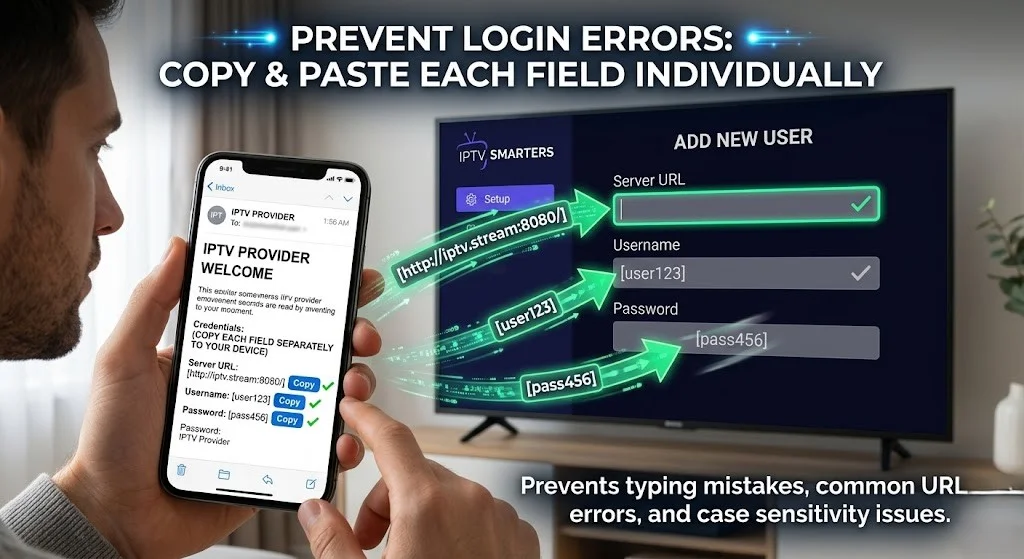
Typing credentials manually on a television remote is where most errors begin. A single wrong character causes a failure, with no indication of which character it was.
- Open your provider’s welcome message on a phone or computer
- Copy each field separately: server URL, username, password
- Delete the existing entries in the app completely before pasting
- Paste each one and read it back before saving
Step 4 is the one people skip, and it is the one that matters.
A server URL has three parts, and an error in any one of them produces the same failure:
http://— the protocolexample.com— the domain:8080— the port
Check all three separately. The port is the most commonly dropped.
The Paste Trap
Pasting is safer than typing, but it introduces a problem of its own that few guides mention.
On some devices and keyboards, pasted text or automatic formatting can unexpectedly alter the server URL. The most common form is http becoming https — two characters, easy to miss on a television screen, and the connection fails with exactly the same generic message as a wrong password.
The protocol prefix is the most common casualty, but it is not the only one. Other frequent copy-and-paste failures:
| Mistake | Where it shows |
|---|---|
| Missing first character | Start of the username or URL |
| Hidden trailing space | End of the password |
| Smart quotes replacing straight ones | Passwords containing punctuation |
| Missing port number | End of the server URL |
| Deleted final slash | End of the server URL |
All five produce the same generic error, which is why reading the field back matters more than pasting carefully.
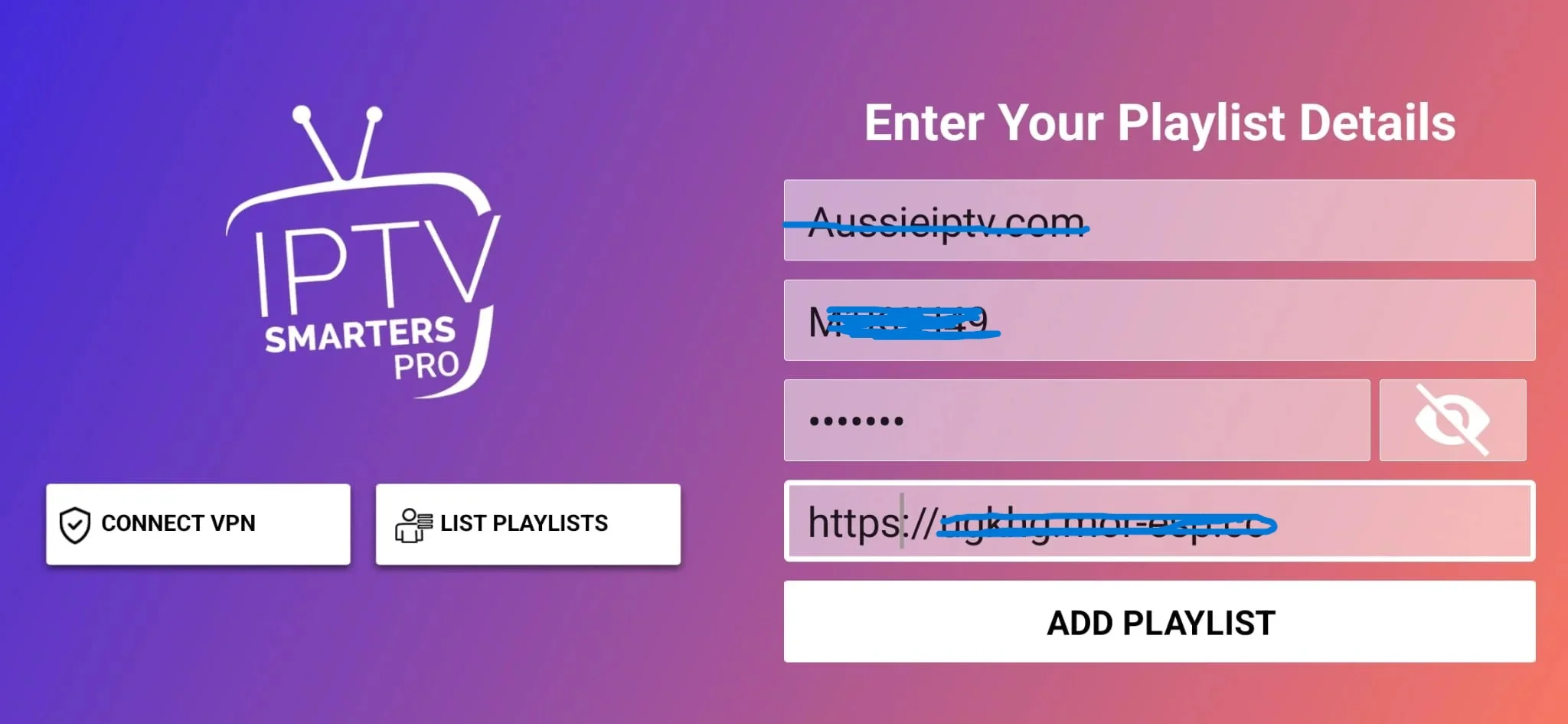
On a Fire TV Stick, the Fire TV mobile app lets you type from your phone’s keyboard, which avoids the on-screen keyboard entirely.
Key takeaway: after pasting a server URL, read it back character by character — the protocol prefix and the port number are where pasted text most often goes wrong.
Your Username Is Not Always Your Email
Many services issue a username that differs from the email address you signed up with. Entering the email instead produces the same generic error as a wrong password.
Compare the username in your subscription message against what is entered in the app before changing anything else.
Fix 2 — Trailing Spaces and Capitalisation
Two invisible problems account for a large share of rejected credentials, and XtremeHD’s troubleshooting documentation identifies both as leading causes.
Trailing spaces. Copying text from an email frequently grabs a space at the end. Most apps treat that space as part of the password, which makes it wrong.
Case sensitivity. Credentials are case-sensitive and mypassword are different strings. On-screen keyboards sometimes auto-capitalise the first character of a field without any visible indication.
Retype the first and last character of each field manually after pasting. It takes seconds and catches both problems.
Fix 3 — Confirm You Are Using the Right Login Method
Providers issue credentials for one of several methods, and entering valid details into the wrong screen fails exactly like invalid details.
| Method | What you enter | Where it fails |
|---|---|---|
| Xtream Codes | Server URL, username, password | Entering these into an M3U field |
| M3U | One long URL containing your credentials | Splitting it into three fields |
| Stalker Portal | Portal URL and device MAC address | Using it in an Xtream Codes screen |
If your provider gave you three separate fields, you need the Xtream Codes screen. If they gave you a single long link, you need the M3U option. Mixing them produces an immediate failure with no useful message.
For how the first two differ in practice, see Xtream Codes vs M3U.
When Credentials Are Confirmed Correct
If you have verified all three fields character by character and the login still fails, the cause is elsewhere.
Fix 4 — Check Account Status
Sudden failures on a setup that worked yesterday usually trace to the account rather than the app. Three situations produce these results:
- The subscription reached its end date
- The provider issued new credentials after a server migration and the notification was missed
- The account was flagged or suspended
Contact your provider with your username and ask them to confirm the account state. This takes minutes and rules out an entire category before you spend time on the device.
Fix 5 — Login Failed After Renewing Your Subscription
A renewal that went through successfully can still leave the app using an older session, which then fails as though the subscription had lapsed.
Restart the app completely first. If that does not resolve it, refresh the playlist, then sign out and back in. Clearing app data is the last step here rather than the first.
If the renewal completed only minutes ago, allow a short time for the server to update before testing again. The payment and the account state do not always update simultaneously.
Fix 6 — Too Many Connections
A “Too many connections” message is not a login failure at all. The credentials are correct and the server accepted them — it is refusing the session because the plan’s simultaneous connection limit is already in use.
Two situations produce it. Another device on the account is genuinely streaming, or a previous session did not close cleanly and the server still counts it as active. The second is easy to miss, because switching off a television does not always end the session running behind it.
Close the app on every other device, then wait several minutes before trying again. Restarting the app alone does not always release an active session immediately — the server needs time to time out the stale one.
If this recurs regularly, the plan’s connection allowance is the limitation rather than anything technical. See IPTV multi-connection policy for how these limits are structured.
Key takeaway: a connection-limit message means your credentials worked — closing other sessions and waiting is the fix, not re-entering details.
Fix 7 — Clear Data, Not Just Cache
App data corruption produces persistent login failures that survive every credential correction, and the distinction between the two options matters here.
Clearing cache removes temporary files and keeps your login intact. Clearing data resets the app completely, including saved credentials — which is exactly what you want when a stored session token has become invalid.
| Device | Path |
|---|---|
| Fire TV | Settings → Applications → Manage Installed Applications → [app] → Clear Data |
| Android TV | Settings → Apps → [app] → Storage → Clear Data |
Re-enter credentials from scratch afterwards. Do not restore from a backup if the option appears — that reinstates the corrupted state you have just cleared.
Fix 8 — Works on One Device but Not Another
When the same credentials succeed on one device and fail on another, the pattern itself tells you where to look.
| Works on phone? | Works on TV? | Usually means |
|---|---|---|
| Yes | No | TV app configuration or cached session |
| No | Yes | Device-specific cached data |
| No | No | Credentials, server, or account |
Where only one device fails, the usual cause is a stored session token that is no longer valid. Clear data on that device, as above, and enter the credentials fresh.
Also check that both devices are on the same network. A device connected to a guest network sometimes behaves differently, and that difference alone can produce a failure that looks like a credential problem.
Additional Checks
These help in narrower circumstances and are worth trying after the sections above rather than before them.
App version. Outdated versions can fall out of step with a provider’s authentication changes. Update before assuming the account is at fault.
DNS settings. Where name resolution fails, the app cannot reach the server and reports a connection error. Switching to a public resolver occasionally helps, though it is not a fix for rejected credentials.
VPN. If you already use one, disconnect it and retry. Some providers restrict access from addresses associated with VPN services, so this rules the VPN out as a variable rather than assuming it is the cause.
Time of day. If login succeeds during the day and fails in the evening, the pattern points at connection quality rather than credentials. See peak hour performance.
Avoid These Mistakes
| Mistake | Better approach |
|---|---|
| Typing credentials manually | Paste them, then read back |
| Pasting without verifying | Check protocol, domain and port separately |
| Using your email as the username | Check the subscription message |
| Changing several settings at once | Change one, test, then move on |
| Reinstalling the app first | Verify the account status first |
When to Contact Your Provider
Some causes cannot be resolved at your end — a server migration, a panel update, an account issue, or infrastructure work.
What to Send Support
| Include | |
|---|---|
| Username | Yes |
| Password | Never |
| Server URL | Yes |
| Device | Yes |
| App and version | Yes |
| Exact error message, word for word | Yes |
| Screenshot | Yes |
| When the problem started | Yes |
No legitimate support team needs your password to check an account. Send everything else along with the exact wording of the message — a real error message often identifies the cause immediately where a paraphrase does not.
Legal Considerations
IPTV technology is legal in Australia. What determines legality is the service behind the credentials and whether it holds appropriate content distribution licences — not the app, and not the login method.
ACMA, the Australian Communications and Media Authority, is the federal regulator for broadcasting and online content. Under the Copyright Act 1968 (Cth), it can direct internet providers to block sites that facilitate copyright infringement.
Can a subscriber be fined? Enforcement in Australia has focused on operators and distributors rather than individual viewers. That is the pattern to date rather than a guarantee, and it does not make an unlicensed service lawful.
On VPNs: using one may carry terms-of-service implications depending on the service involved. In a login context it is worth disconnecting simply to rule it out as a variable, not as a workaround.
Full framework: Is IPTV legal in Australia and Australian IPTV laws.
This article is for educational purposes only. Verify the licensing status of any streaming service and ensure compliance with Australian copyright law before subscribing.
Explore More
Login and authentication
Xtream Codes errors · IPTV connect failed · IPTV Smarters Pro not working
Setup and configuration
Xtream Codes vs M3U · IPTV setup Australia · How to use an M3U playlist
Related faults
Error codes explained · Channel not loading · Troubleshooting hub
Subscription
Multi-connection policy · IPTV free trials
Bottom Line
If the error appeared the first time you set up: the credentials or the login method are almost certainly the cause. Paste each field rather than typing it, read the server URL back character by character, and confirm you are using the screen that matches what your provider issued.
If it worked yesterday and failed today: the credentials are unlikely to have changed on their own. Check account status and whether your provider issued new details after a migration, before touching anything on the device.
If it works on one device but not another, the account is fine. Clear data on the failing device — not just cache — and enter the credentials fresh.
For every other fault category, return to the IPTV Troubleshooting Australia hub.
Sources
- XtremeHD IPTV knowledge base — error message meanings and credential handling
- ACMA — website blocking powers and regulatory framework