Marcus Reed | IPTV Setup & Configuration
Last updated: July 2026
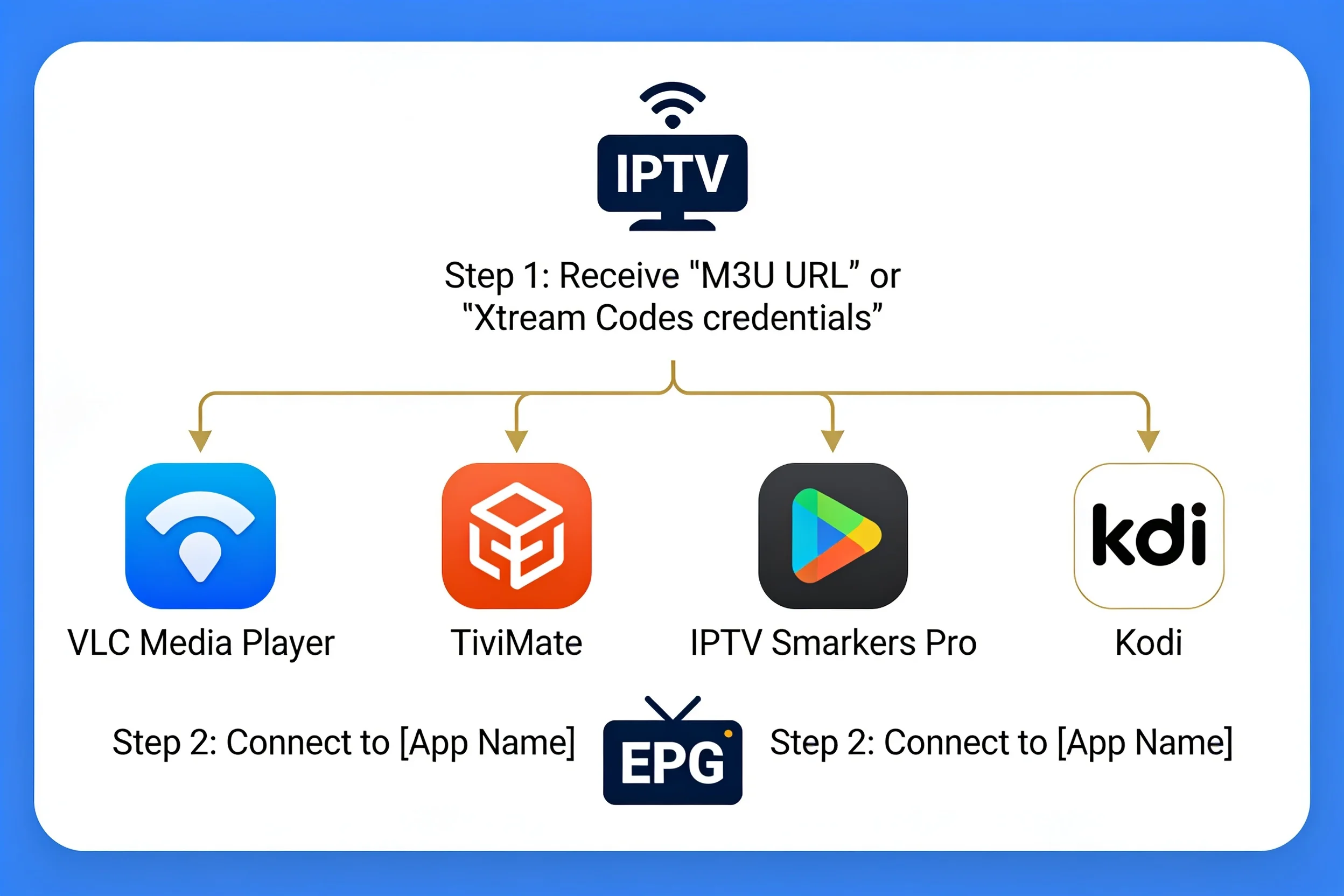
Setting up an IPTV playlist in Australia involves three steps, no matter which app or device you use: get your playlist URL (M3U or Xtream Codes) from your provider, open the “add playlist” option in your chosen player, and enter your credentials or URL exactly as supplied. Where most Australian users get stuck isn’t the concept – it’s small details like using the wrong login type for their device or entering a URL with invisible characters from copy-paste. This guide walks through setup on VLC, TiviMate, and IPTV Smarters, plus the errors that trip up Australian users most often.
Where Do You Get a Playlist for IPTV?
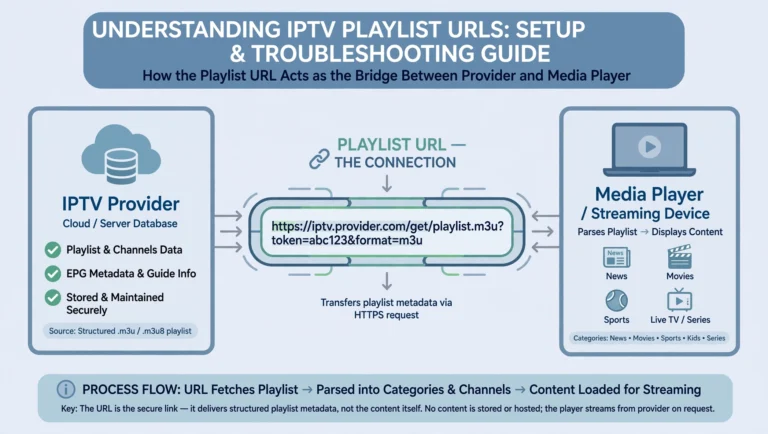
Your playlist comes from your IPTV provider, not from Aussie IPTV or any third-party guide site. When you subscribe to a service, you’ll receive one of two credential types:
- M3U URL — a single web link containing your entire channel list
- Xtream Codes login — a username, password, and server URL entered separately
Free, legal alternatives also exist. Publicly available IPTV playlists provide access to free-to-air and public broadcaster streams where available. For a detailed breakdown of legitimate playlist sources, their availability, and limitations, see our guide: Public IPTV Playlist: 5 Free Sources, see Public IPTV Playlist: 5 Free Sources.
What Is the M3U Playlist Format for IPTV?
M3U is a plain-text playlist format that lists stream URLs along with channel names, logos, and group categories. An M3U8 file is the same format as UTF-8 encoding, which handles special characters (like non-English channel names) more reliably — most modern IPTV apps treat M3U and M3U8 identically.
A basic M3U entry looks like this:
#EXTM3U
#EXTINF:-1 tvg-id="ABC.au" tvg-logo="logo.png" group-title="Australia",ABC
http://example-server.com:8080/live/username/password/12345.ts
You don’t need to edit the playlist manually — your IPTV app reads the file structure automatically once you provide the URL.
How to Set Up an IPTV Playlist on VLC
VLC is the simplest way to test whether a playlist URL actually works, since it requires no account and keeps everything local to your device.
- Open VLC Media Player
- Go to Media → Open Network Stream (or press Ctrl+N)
- Paste your M3U URL directly into the URL field
- Click Play
VLC will load the playlist and display channels in the sidebar. If a stream is buffering or won’t load, go to Tools → Preferences → Input/Codecs and increase the network caching to 2000 ms.
Download VLC directly from the official VideoLAN website — avoid third-party download sites, which sometimes bundle unwanted software with the installer.
How to Set Up an IPTV Playlist on TiviMate
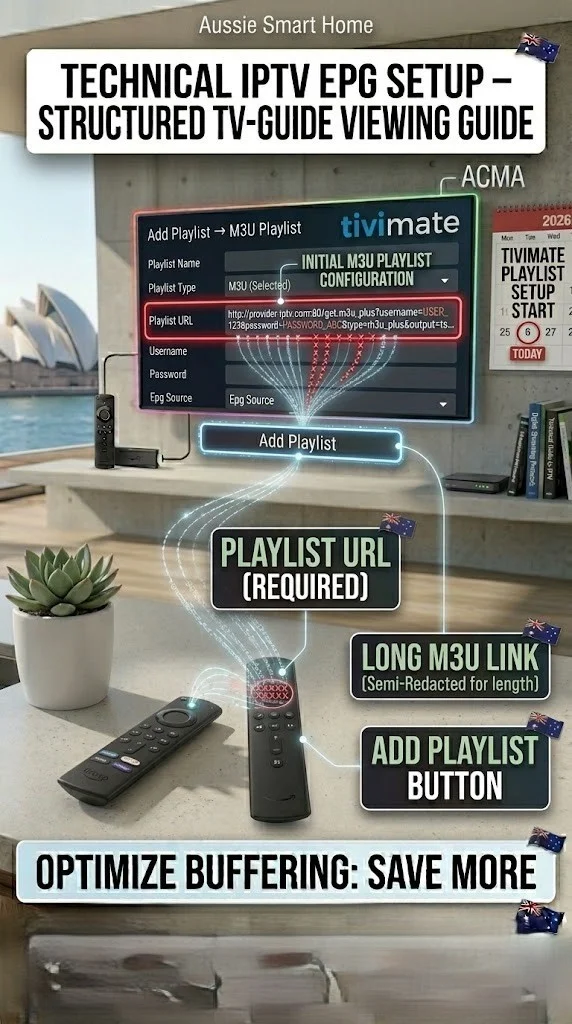
TiviMate is the most widely used player among Australian Firestick and Android TV users, largely because of its EPG-focused interface.
- Open TiviMate
- Tap the gear icon → Playlists → Add Playlist
- Select M3U Playlist
- Paste the URL and give it a name
- Optionally add an EPG URL if your provider supplies one separately
- Save and wait for the playlist to load
TiviMate handles large playlists (several thousand channels) more efficiently than most competing apps, so loading a full country-wide index generally won’t cause performance issues.
For full EPG configuration, including Australian timezone correction, see IPTV EPG Explained.
Smarters IPTV Setup Guide Australia
IPTV Smarters is one of the most common apps used by Australian subscribers, and it’s also where setup confusion happens most often – specifically, mixing up the Xtream Codes and M3U login screens.
- Open IPTV Smarters Pro
- Tap Add New User
- Select Login with Xtream Codes API (if your provider gave you a username, password, and server URL) — or Load Your Playlist or File/URL (if your provider gave you a single M3U link instead)
- Enter the exact details your provider supplied
- Tap Add User
Entering Xtream Codes details into the M3U screen (or the reverse) is one of the most common reasons for a “No streams available” error immediately after setup. If you experience that error, please double-check that you used the login type that matches what your provider actually gave you.
For a complete breakdown of Smarters-specific setup issues, including lookalike apps in the Play Store, see IPTV Smarters Pro Not Working Australia.
How to Find Your IPTV Playlist URL
If you’ve lost or can’t locate your playlist URL, check these places in order:
- Your provider’s welcome email — most send the M3U link or Xtream Codes credentials at signup
- Your provider’s member portal — many services host a dashboard where you can view or regenerate your URL
- Your app’s existing configuration — if the playlist was working before, the URL is often still stored in the app’s playlist settings, even if the stream itself has stopped working
If none of these apply and you genuinely can’t recover the URL, you’ll need to contact your provider directly — no third-party guide, including this one, can retrieve credentials tied to a private subscription.
Why is my IPTV playlist not working?
Once a playlist stops loading after previously working, the cause is almost always one of these:
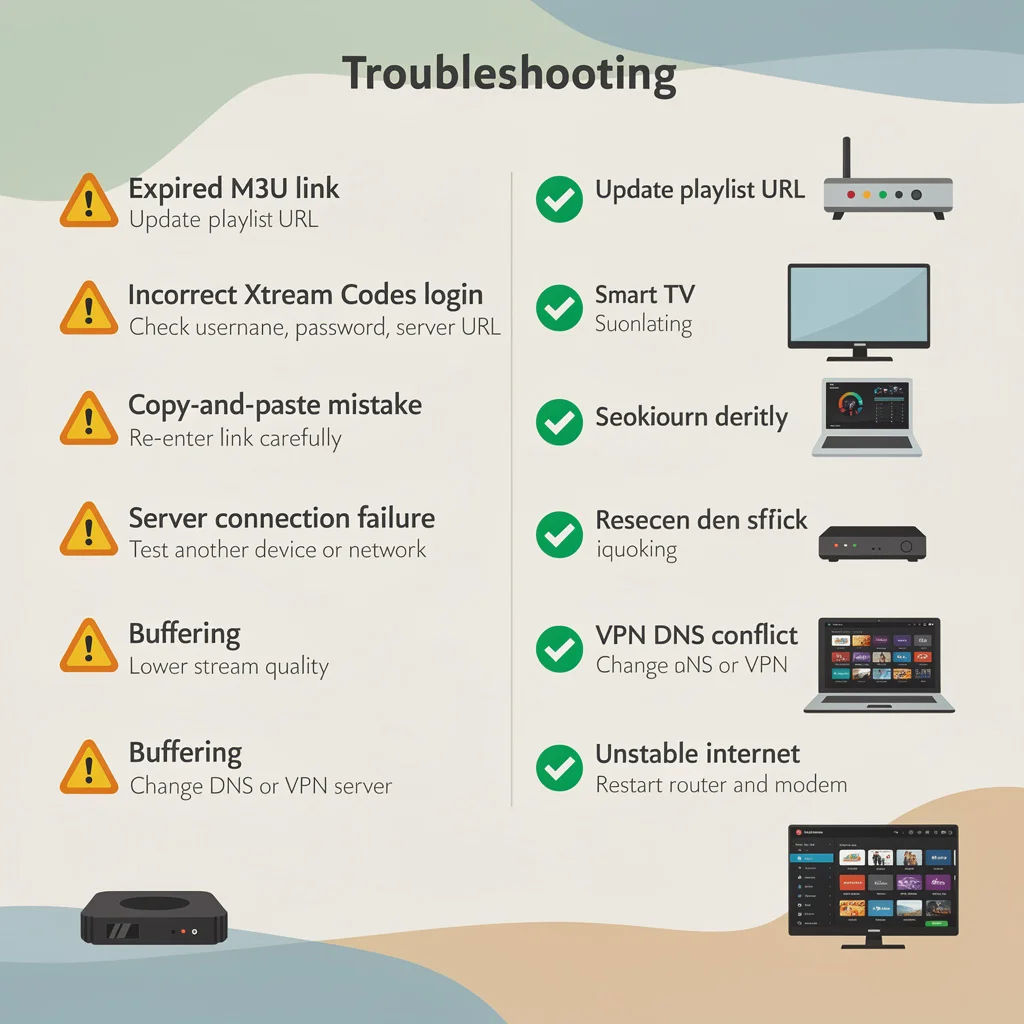
- Expired token — many playlist URLs contain time-limited authentication tokens that expire after a set period, returning a 403 Forbidden error
- Wrong login type used — Xtream Codes details entered into an M3U field, or vice versa
- Copy-paste errors — clipboard content sometimes carries invisible characters that break the URL
- Provider server issue — the playlist source itself may be temporarily down, unrelated to your setup
For a complete diagnostic process covering every one of these causes, see IPTV Troubleshooting Australia.
How to Set Up Xtream Codes on IPTV Smarters
If your provider gave you Xtream Codes credentials rather than an M3U link, the setup screen asks for three separate fields instead of one URL:
- Server URL — your provider’s base address, usually including a port number (e.g.,
http://provider-server.com:8080) - Username — provided at signup
- Password — provided at signup
A common mistake is pasting the full M3U-style URL into the server URL field or including /get.php parameters that belong in an M3U link rather than the plain server address Xtream Codes expects. If your provider’s documentation shows a URL containing and password= as part of the string, you likely have an M3U-style link — use the ‘Load Your Playlist or File/URL’ option instead, not the Xtream Codes screen.
Samsung and LG smart TVs often need a separate, platform-specific server URL from the same provider account, distinct from the general link used for Android and Fire Stick apps. If your TV shows a different result than your phone using the same login, check with your provider whether they issue a TV-specific endpoint.
How to Set Up an IPTV Playlist on Kodi
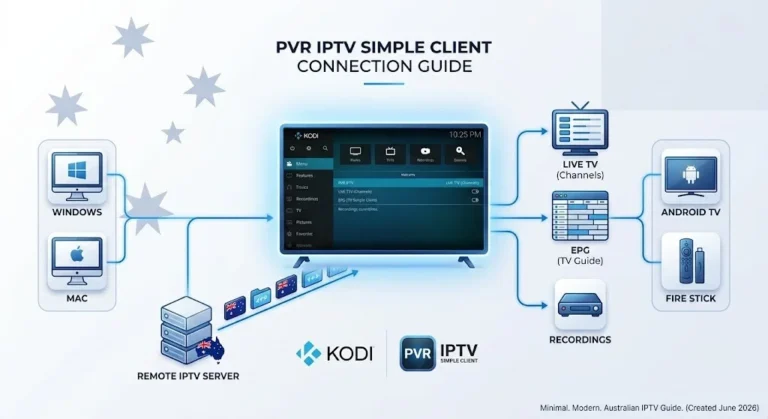
Kodi remains popular among Australian users who prefer an open-source, highly customisable player, typically via the PVR IPTV Simple Client add-on.
- Open Kodi and go to Settings → Add-ons → My Add-ons → PVR Clients
- Select PVR IPTV Simple Client and enable it
- Open its configuration and choose M3U Playlist URL as the location
- Paste your M3U URL into the field
- If your provider supplies a separate EPG XML URL, add it under the EPG Settings tab
- Save and restart Kodi when prompted, then enable the PVR client from the main menu
Kodi handles huge playlists less gracefully than Tivimate or Smarters — if you’re loading a full countrywide index rather than a filtered Australian list, expect longer load times on first launch.
For a full breakdown of Kodi-specific IPTV setup, including common add-on issues, see ‘Kodi IPTV M3U Australia’.
Setting Up IPTV on Android TV and Firestick Specifically
The setup steps above are largely identical across devices, but a few Australian-specific details are worth knowing before you start:
Firestick sideloading: If your chosen app isn’t available directly through the Amazon Appstore, you’ll need to sideload it using an app like Downloader. This requires enabling apps from unknown sources in Settings → My Fire TV → Developer Options first.
Android TV app availability: Google Play listings for IPTV apps vary by region and device — the same app name sometimes appears as multiple separate listings from different developers. Confirm the publisher name matches what your provider’s documentation specifies before installing, since several near-identical apps exist under similar names.
NBN connection type matters more than the app you choose. A correctly configured playlist will still buffer on an underpowered connection. Before troubleshooting app settings, confirm your speed meets the minimum for your target quality — see IPTV Speed Requirements Australia for the exact figures by resolution.
For complete device-specific walkthroughs including screenshots, see IPTV Setup Australia: Complete Device-by-Device Guide.
VPN Considerations for IPTV Playlist Setup
Some Australian users run a VPN alongside their IPTV setup, generally for one of two reasons: to prevent ISP-level traffic shaping of streaming data, or because their provider’s server performs better when accessed via specific regions.
If you’re setting up a playlist and it fails only when your VPN is active, the most common cause is the VPN’s DNS settings conflicting with your provider’s server resolution — try switching your VPN’s DNS to a public resolver like Cloudflare (1.1.1.1) or Google (8.8.8.8) before troubleshooting further. Note that using a VPN doesn’t change the legal status of any given content — see the legal section below.
For a complete diagnostic guide to VPN-related IPTV connection issues, see VPN Issues with IPTV: Quick Fix.
| Step | What to Check |
|---|---|
| 1 | Confirm your login type — M3U URL or Xtream Codes |
| 2 | Copy credentials manually rather than via clipboard where possible |
| 3 | Choose your app based on device — VLC (testing), TiviMate (Firestick/Android TV), Smarters (multi-device) |
| 4 | Enter details exactly as supplied – no added spaces |
| 5 | Test on a stable Wi-Fi or Ethernet connection, not mobile data |
Managing Multiple Playlists and Favourites
Most Australian IPTV users end up running more than one playlist source over time — a paid provider plus a free public list, for example, or separate playlists for different family members’ preferences.
Adding multiple playlists: TiviMate, Smarters, and most modern apps support adding several playlist sources simultaneously, each shown as a separate profile or merged into a combined channel list depending on the app’s settings.
Creating a favourites list: Once your playlist loads, most apps let you mark individual channels as favourites, usually via a long-press or a star icon next to the channel entry in the guide. This creates a filtered view so you’re not scrolling through hundreds of channels to reach the handful you actually watch. In TiviMate specifically, favourites sync automatically across the EPG and channel list views once configured.
Sorting and organising channels: Some apps allow manual drag-and-drop reordering; others rely entirely on the group-title categories embedded in the original M3U file — in which case, reorganising requires asking your provider for a differently sorted playlist rather than adjusting it within the app.
Setup Checklist Before You Start
| Step | What to Check |
|---|---|
| 1 | Confirm your login type — M3U URL or Xtream Codes |
| 2 | Copy credentials manually rather than via clipboard where possible |
| 3 | Choose your app based on device — VLC (testing), TiviMate (Firestick/Android TV), Smarters (multi-device), Kodi (customisation) |
| 4 | Enter details exactly as supplied – no added spaces |
| 5 | Test on a stable Wi-Fi or Ethernet connection, not mobile data |
| 6 | Confirm your NBN speed meets the minimum for your target quality |
Is IPTV legal in Australia?
IPTV technology itself is completely legal — what determines legality is whether your specific provider holds proper content licensing. This guide covers the technical setup process only and doesn’t address licensing status. For the full legal breakdown, see Is IPTV Legal in Australia?
Frequently Asked Questions
Where do you get playlists for IPTV?
Your playlist comes directly from your IPTV provider as either an M3U URL or Xtream Codes login. Free, legal alternatives are also available through publicly accessible IPTV playlists that include free-to-air and public broadcaster streams where available.
How do I find my IPTV playlist URL?
First, check your provider’s welcome email, then their member portal if available, and finally your app’s existing playlist configuration if it was previously working. If you still can’t find it, please contact your provider directly.
What could be causing my IPTV playlist to not work?
The most common causes are an expired authentication token, using the wrong login type (Xtream Codes vs M3U), invisible characters from copy-pasting the URL, or a temporary issue on the provider’s server.
What is the M3U playlist format for IPTV?
M3U is a plain-text format listing channel names, logos, categories, and stream URLs. M3U8 is the same format with UTF-8 encoding for better special-character support. Most IPTV apps support both interchangeably.
How do I add an M3U playlist to an IPTV player?
In most apps, go to the playlist or “add source” section, select M3U as the input type, and paste your URL. The exact menu path varies slightly by app — see the VLC, TiviMate, and Smarters steps above for the most common players used in Australia.
Can I have multiple playlists on the same IPTV app?
Yes—most modern apps, including TiviMate and Smarters, support adding several playlist sources at once, either as separate profiles or merged into one combined channel list, depending on the app’s settings.
How do I create a favourites list on IPTV?
Most apps let you mark individual channels as favourites via a long-press or star icon in the channel guide, creating a filtered shortlist so you don’t need to scroll through the full channel index each time.
Bottom Line
IPTV playlist setup in Australia is the same core process across every app: get your correct credentials, choose the matching login type, and enter them exactly as supplied. Most setup failures come down to a mismatched login type or a copy-paste error — not a fault with your device or connection. Start with VLC to confirm your playlist actually works before committing to a full setup in TiviMate or Smarters.
For device-by-device setup instructions beyond playlist configuration, see IPTV Setup Australia: Complete Device-by-Device Guide.