TiviMate IPTV Australia setups fail at the payment stage more often than at the playback stage. The app itself is straightforward — load a playlist, point it at an EPG source, done. What catches people out is Premium: you cannot buy it inside the app you are looking at, the licence covers a fixed number of devices, and the option most guides call “lifetime” is not what Tivimate calls it.
This guide covers the payment structure first, then the configuration, in the order people actually get stuck. If you are new to IPTV generally, start with our IPTV Australia guide for the wider picture.
Quick Answer
TiviMate IPTV Australia users buy Premium through a separate phone app called TiviMate Companion, not through the player on the TV. Premium covers up to five devices and comes as either an annual subscription with a seven-day free trial or a single one-time payment.
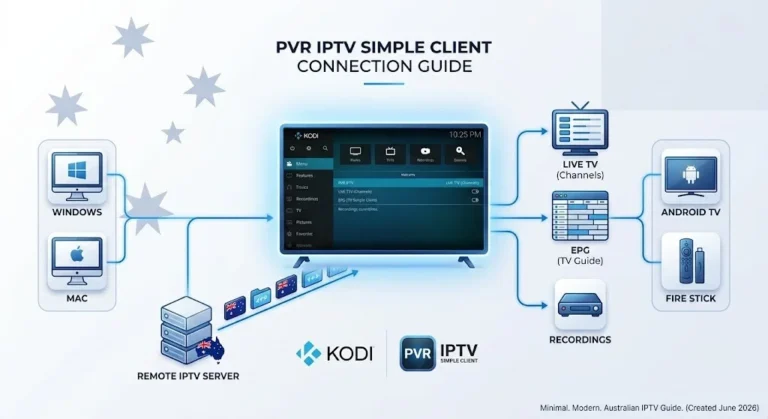
What TiviMate is: TiviMate is an IPTV player application for Android TV and Fire TV devices that connects to a provider’s playlist via an M3U URL or Xtream Codes credentials. It supplies the interface, the programme guide and the recording features — it does not supply channels, and it is not an IPTV service.
Why You Can’t Buy TiviMate Premium Inside the App
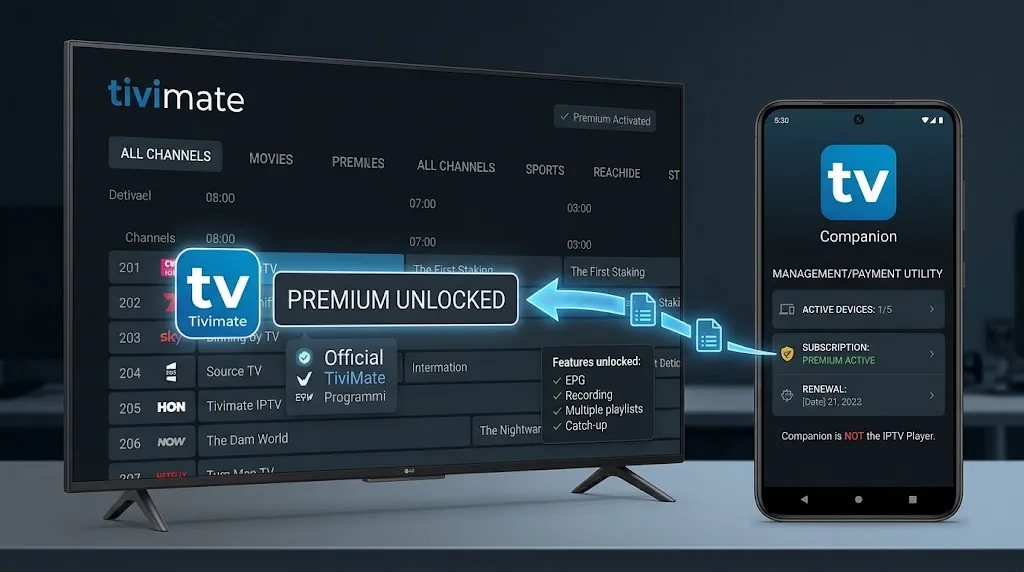
You cannot buy TiviMate Premium inside the TiviMate player because Android TV has limited support for Google Play subscription billing. Payment is handled instead by a separate Android phone app, TiviMate Companion, where full Play Store billing works normally. You then sign into the same account on your TV to unlock it.
This is the single most common point of confusion, and it is worth understanding rather than just following. Google Play’s billing on television devices has never supported the full subscription flow that phones and tablets do. The Companion app exists specifically to work around this, handling the payment on a phone where the full Play Store billing is available.
The practical consequence matters for Australian Fire TV owners in particular. Fire TV runs Amazon’s fork of Android and has no Google Play Store at all, so there is no billing path on the device whatsoever.
TiviMate Companion’s own description states plainly that it exists to unlock Premium on devices that don’t have Google Play, naming Fire TV as the example.
Note also that Companion is a management utility, not a second player. It shows your account, your registered devices and your subscription. It does not play anything, and it will not manage your playlists.
Key takeaway: TiviMate Premium is purchased on an Android phone through the Companion app, then activated on the TV by signing into the same account.
The Two Payment Options — and Why “Lifetime” Is the Wrong Word
TiviMate Premium has exactly two payment options: an annual subscription that includes a seven-day free trial or a single upfront charge. TiviMate labels the second option “one-time payment” in the Companion app.
It does not use the word “lifetime” anywhere in its own interface, despite that being the term almost every guide and forum post uses.
This distinction is not pedantry, and it is the reason this section exists. A large number of Play Store reviews come from users who believed they had purchased permanent access, then found years later that their premium had lapsed and a fresh payment was required.
Several describe the same sequence: a purchase made under the “lifetime” label, followed by an expiry notice, followed by a higher price on repurchase.
Whether that reflects a policy change, an account issue, or a misunderstanding of what was sold is not something I can determine from outside, but the mismatch between the word buyers use and the word the developer uses is documented in the app itself, and buyers should know about it before they commit.
Which option is cheaper for you
The two prices are set per country by Google Play, so the figures an Australian sees differ from those quoted on American or British sites. Ignore any specific number you find in a guide that doesn’t say which market it applies to — including the older figures that were previously published on this page.
What does hold steady is the ratio. In the Companion app the one-time payment sits at roughly 2.9 times the annual price. That gives you a clean decision rule that doesn’t expire:
- Keeping TiviMate under three years → the annual subscription costs less
- Keeping it beyond three years → the one-time payment comes out ahead
- Undecided → start with the seven-day free trial, then take the annual option; you lose very little by deferring
Reviews across several years also show the annual price rising repeatedly, which shortens that break-even period for anyone buying today. That is an observation from user reports rather than a published pricing history, so treat it as a reason to check rather than a figure to rely on.
Open TiviMate Companion and read your own two prices off the subscription screen before deciding. It takes ten seconds, and it is the only number that applies to you.
Key takeaway: TiviMate’s upfront option is officially called a one-time payment, not a lifetime licence, and it breaks even against the annual price at roughly the three-year mark.
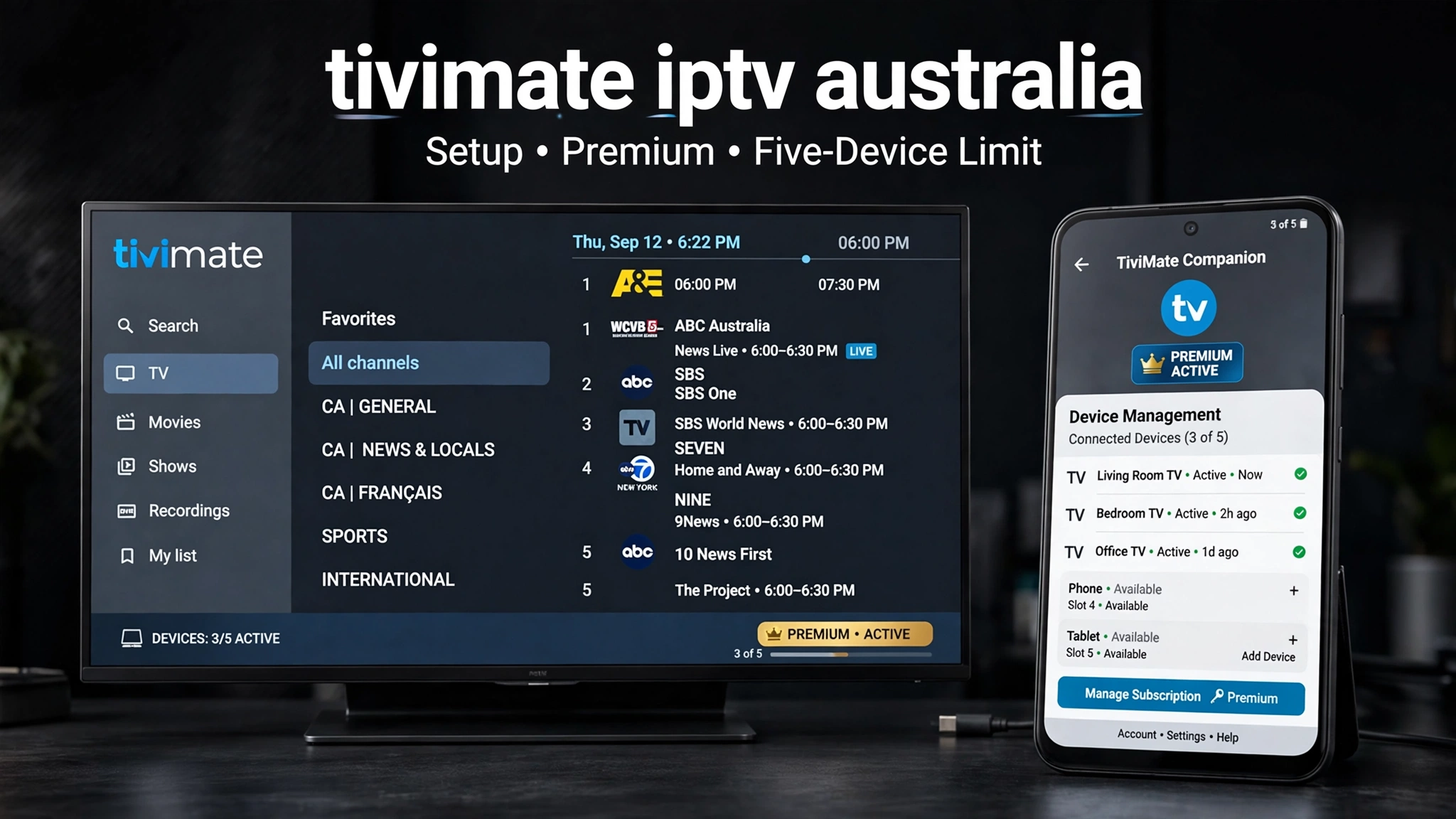
How Many Devices Does TiviMate Premium Cover?
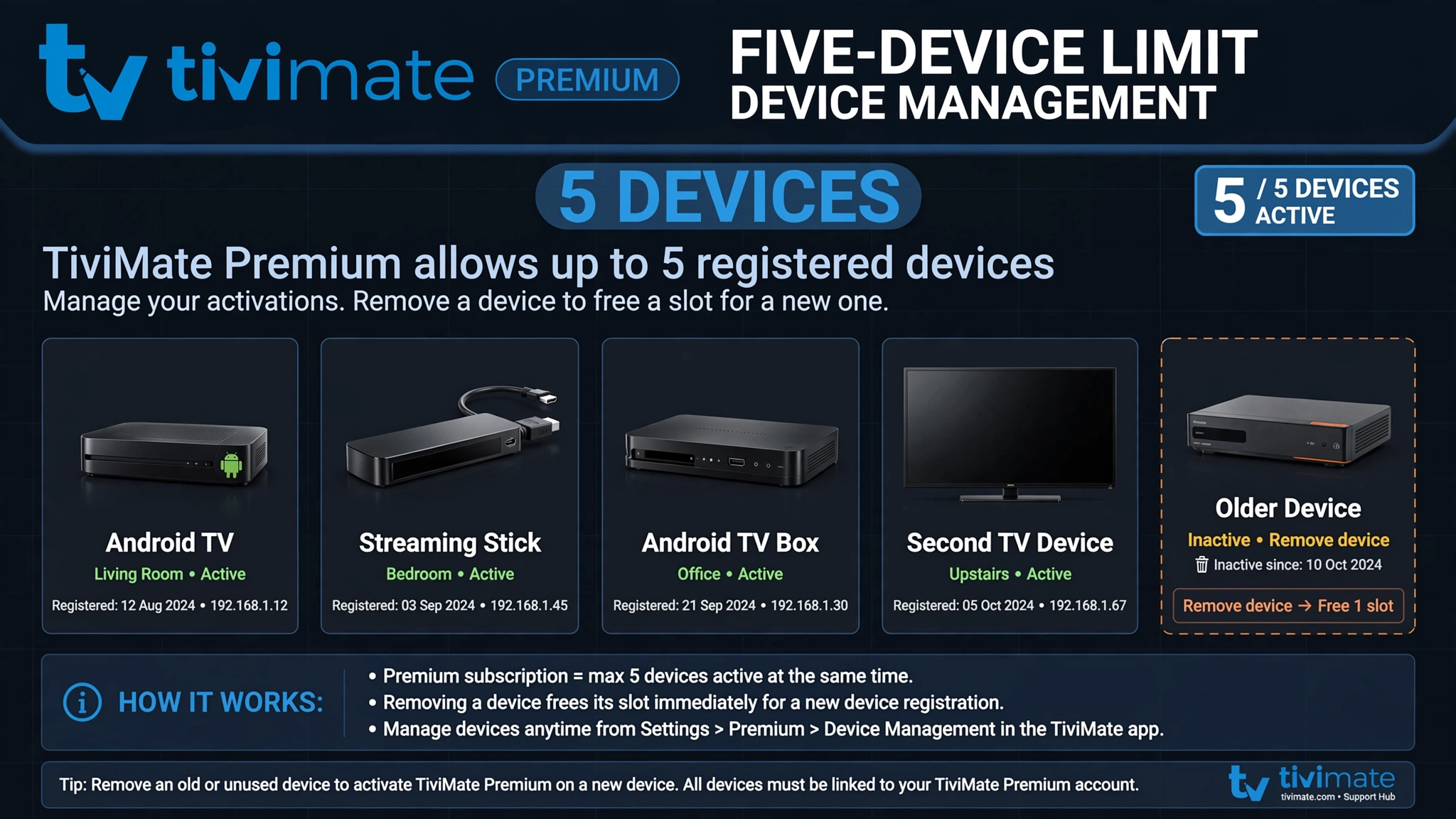
TiviMate Premium covers a maximum of five devices per account. The limit is stated in the Companion app itself and applies to the account, not to the Google account used for payment. Registered devices are managed through Companion or the TiviMate website, where old devices can be removed to free a slot.
The previous version of this page said Premium unlocks on any device signed into the same Google account, with no limit mentioned. That was wrong, and it is worth being explicit about why it matters: a household that installs Tivimate on two lounge devices, a bedroom box, a spare Fire Stick and an old unit still sitting in a drawer has already used the full allocation without realising it.
If you hit the limit:
- Open TiviMate Companion on your phone, or sign in on the TiviMate website
- Open the device list
- Remove any device you no longer use — retired Fire Sticks are the usual culprits
- Activate the new device
One thing the limit does not do is give you extra simultaneous streams. Device slots and connection limits are separate things: the five-device figure is TiviMate’s licence, while how many streams can run at once is set by your IPTV provider. Exceeding the provider’s limit produces a stream failure that looks like a TiviMate fault but isn’t. Our multi-connection IPTV guide covers that side.
Which TiviMate Is the Real One?
Search for “TiviMate” in the Play Store, and several results appear. The player is published by AR Mobile Soft, and the payment utility is TiviMate Companion from the same developer. Anything else carrying the name is a third-party build, and users report some of these carry advertising that pushes specific IPTV services.
This matters more than a naming quibble. If you install the wrong build and then buy Premium through the correct companion app, the licence won’t activate — the account is fine; the app looking for it isn’t the one it belongs to. That produces exactly the symptom that fills the review sections: a valid purchase and a device that refuses to unlock.
Two checks before installing:
- Check the developer name, not the icon. Clones copy artwork; they cannot copy the publisher field.
- Install Companion from the Play Store on a phone, not from an APK site. This is the app your payment details pass through.
Anyone without an Android phone at all has a genuine problem here, since Companion is Android-only. The commonly suggested workaround is an Android emulator on a PC. That works, but it means entering payment details inside an emulated environment, and it is worth weighing that against borrowing an Android phone for five minutes instead.
Adding Your Playlist
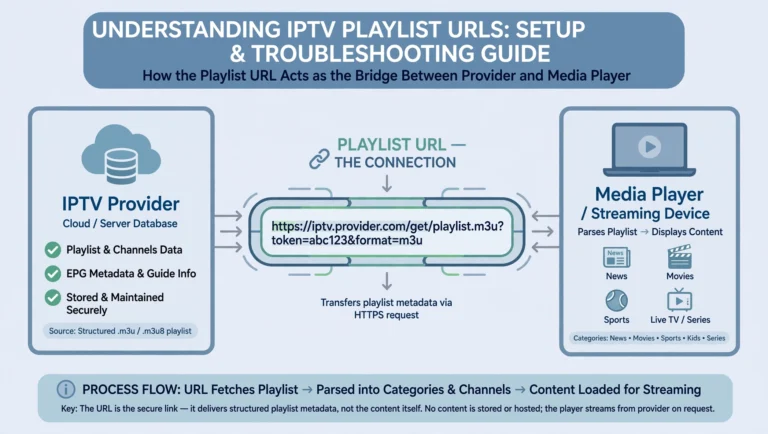
Your playlist comes from your IPTV provider in one of two forms. Which one you were given determines which screen you use, and choosing the wrong screen is the most frequent setup error I see.
M3U playlist — a single URL containing your whole channel list. In TiviMate: Add Playlist → M3U Playlist → paste the URL → name it → add.
Xtream Codes — a server URL, username and password entered separately. In TiviMate: Add Playlist → Xtream Codes API → enter all three → Add.
Entering Xtream credentials into the M3U screen, or the reverse, is a common cause of an immediate loading error. If Tivimate reports an error loading the playlist, work through these in order:
- Check the protocol. Providers typically issue
http://rather thanhttps://substitute one for the other, which will fail. - Check for invisible characters. Copying a URL from an email or a chat message often carries a trailing space or a line break. Typing it manually rules this out.
- Test the URL in a browser. If it triggers a file download, the URL is valid and the fault is in how it was entered.
- Check the port. Xtream server URLs usually include a port number, and dropping it produces a connection failure rather than an authentication one.
For the underlying difference between the two credential types, see our M3U and Xtream Codes comparison.
Setting the EPG and Fixing Australian Time Offsets
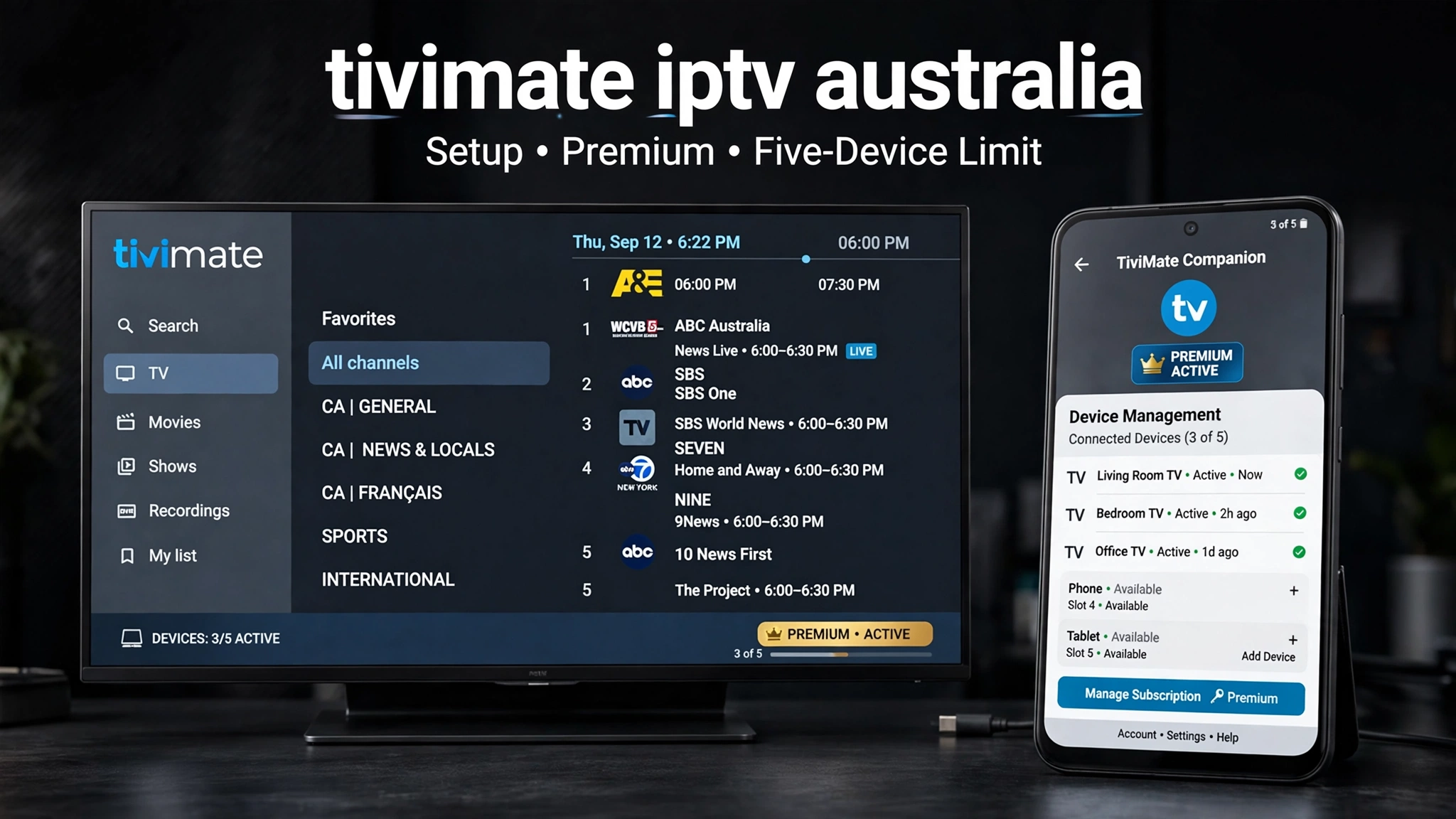
The electronic programme guide (EPG) is what turns a channel list into something resembling television. Add the EPG or XMLTV URL from your provider under Settings → Playlists → your playlist → EPG URL, then refresh.
Xtream Codes users often don’t need this — TiviMate can pull guide data from the server directly. If it doesn’t appear, check that the option to use EPG from the server is enabled for that playlist.
The Australian problem: every programme showing at the wrong time. EPG data is published in UTC, and if TiviMate isn’t told your offset, every listing appears hours out. Set the offset under Settings → General → EPG Timezone Offset.
| Region | Offset |
|---|---|
| NSW, VIC, TAS, ACT (standard time) | +10:00 |
| NSW, VIC, TAS, ACT (daylight saving) | +11:00 |
| Queensland (year-round — no daylight saving) | +10:00 |
| Western Australia | +08:00 |
| South Australia, Northern Territory | +09:30 |
Queensland is the one worth flagging, because it sits on +10:00 permanently while the southern states shift, meaning a setting that was correct in July is wrong in November for everyone except Queenslanders.
If some channels show guide data and others don’t, that is not a TiviMate fault. Those channels are absent from your provider’s EPG source, and no setting in the app will populate them. Our IPTV EPG setup guide covers guide-matching in more depth.
Playback Settings for TiviMate IPTV Australia on NBN
Two settings do most of the work here, and both are worth understanding rather than copying, because the correct value genuinely differs between households.
Buffer size. The buffer is a reserve of stream data the player holds before displaying it. A larger reserve absorbs short interruptions without visible stutter, at the cost of a slower channel change and a longer delay before playback starts. A smaller one switches instantly but has less room to recover.
There is no universally correct figure — the right value depends on how steady your connection is during the hours you actually watch. Start at TiviMate’s default, and only raise it if you see stuttering that a wired connection doesn’t fix. Published advice on this varies widely, which is itself a signal that no single number is right.
Video decoder. Hardware decoding uses your device’s dedicated media chip; software decoding uses the general-purpose processor. Hardware is more efficient and normally the better choice, but it only handles the codecs the chip was built for.
A 4K channel that stutters continuously on a connection that is otherwise fine is often using a codec variant the hardware decoder handles poorly — switching that channel to software decoding costs efficiency but may play it correctly.
Reconnection on error is worth enabling regardless. It recovers a dropped stream automatically instead of leaving you on a frozen frame.
One diagnostic note, because it saves a great deal of wasted effort: if buffering happens across every channel, the cause is upstream of Tivimate — your connection or your provider’s server — and no player setting will fix it.
If it happens on some channels and not others, the cause is the individual stream. Player settings only help with the second case. Our ISP optimisation guide covers connection-side work, and speed expectations are set out in our IPTV speed requirements guide.
Key takeaway: buffering across all channels points to the connection or provider, while buffering on individual channels points to that stream’s codec — only the second responds to Tivimate’s playback settings.
Recording to a USB Drive
Recording is a premium feature and needs external storage. Connect a USB drive to the Android TV or Fire TV device, then set it as the destination under Settings → Recording.
The drive must be formatted FAT32. NTFS drives are frequently not recognised on Fire TV hardware, and a drive that “isn’t detected” is usually a formatting issue rather than a fault. Reformat on a computer before assuming the feature is broken.
Recording is also the feature that draws the most complaints in the Play Store — partial recordings, recordings that don’t start, and drives that stop being recognised after an update. If DVR is your main reason for buying Premium, use the seven-day trial to test it on your own hardware before paying. That is exactly what the trial period is for.
Bottom Line
If you are setting up Tivimate for the first time: install the player from AR Mobile Soft, install Companion on an Android phone, and start the seven-day free trial rather than paying immediately. Confirm your playlist loads and the EPG populates before any money changes hands.
If you plan to keep Tivimate for years: the one-time payment is the cheaper route past roughly three years, and rising annual prices strengthen that. Just go in knowing TiviMate calls it a one-time payment, not a lifetime licence.
If Premium won’t activate on a device you already paid for: check the device count before anything else — five is the ceiling, and retired Fire Sticks quietly occupy slots. Then confirm the player you installed is the AR Mobile Soft build.
Explore More
- IPTV Australia Guide — the pillar guide to IPTV in Australia
- How to Use an IPTV M3U Playlist
- Xtream Codes vs M3U
- IPTV EPG Setup Australia
- Optimise IPTV for Australian ISPs
- IPTV Multi-Connection Policy
This article is for educational and comparison purposes only. TiviMate is a media player and does not supply channels. Verify the licensing status of any streaming service and ensure compliance with Australian copyright law before subscribing.
Pricing structure observed in the TiviMate Companion app, August 2026. Google Play sets prices per country — check your own subscription screen for figures that apply to Australia.