Last updated: August 2026
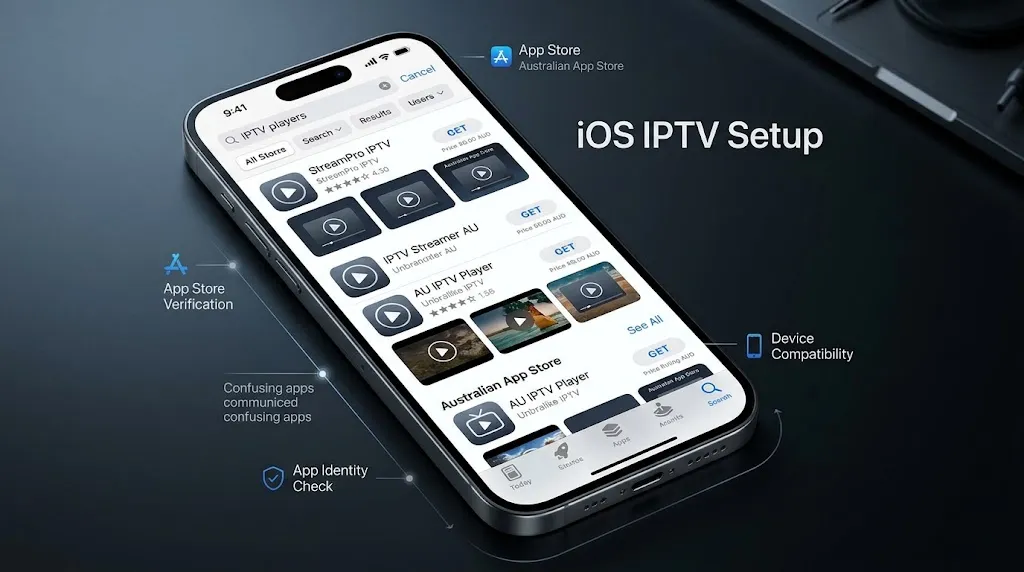
iOS IPTV setup is simpler than Android in one respect and harder in another. Installation is clean — no sideloading, no APK files, and no unknown-sources toggle. The difficulty is choosing the app, because the Australian App Store carries several players with near-identical names from different developers, and most guides recommend apps by name alone. This guide verifies what is actually listed, then covers configuration. For the wider picture, start with our IPTV Australia guide.
Quick Answer
iOS IPTV setup means installing a player from the App Store, then entering your provider’s M3U URL or Xtream Codes credentials. Two apps verified on the Australian store in August 2026 are GSE Smart IPTV Player Live TV and Smarters Player Lite. Both are free to download with paid upgrades inside.
Why iOS Is Different from Android TV
TiviMate is not available as an iOS app on the App Store. It is built for Android TV and Fire TV, and there is no iPhone or iPad version – which matters because TiviMate is the app most commonly recommended in IPTV guides generally, including our own TiviMate configuration guide. If you arrived here looking for it, the answer is that you will be choosing a different app.
Apple also does not permit sideloading in the way Android does. On Android you can install a player from a file when it isn’t in the store; on iOS, if an app is not listed, you cannot install it. That constraint is why iOS app choice matters more than it does elsewhere — you work with what Apple approves, and what Apple approves changes.
The upside is real. App Store installs are clean, updates are automatic, and payment runs through your Apple ID rather than a separate companion app. iPad users in particular get a good experience, since the larger screen makes a programme guide genuinely usable.
What IPTV is: IPTV (Internet Protocol Television) delivers live TV channels over an internet connection rather than satellite or cable. The player app supplies the interface and the guide; your provider supplies the channels. No player app includes channels of its own.
What’s Actually in the Australian App Store
The table below is not a ranking. It lists what I verified directly on Australian App Store listing pages in August 2026 and nothing else. Apps I could not verify are not included — which is why this list is shorter than most.
| App | Seller | Price | Latest version | App ID |
|---|---|---|---|---|
| GSE Smart IPTV Player Live TV | Animesh Sharma | Free download, in-app purchases | 1.26 — January 2026 | 6444845680 |
| Smarters Player Lite | WHMCS SMARTERS | Free download, in-app purchases | — | 1628995509 |
GSE Smart IPTV Player Live TV holds a 4.3 rating from 168 Australian ratings and requires iOS 16 or later. Smarters Player Lite holds 4.7 from around 10,000 Australian ratings, and runs on iPhone, iPad and Apple TV — the Apple TV support is worth noting, since it removes the need to cast from a phone.
Rating counts are per-store, not global. The same app shows a far larger count on the US store, so figures quoted in overseas guides don’t describe what Australian users are seeing.
Both listings state plainly that the app is a media player and supplies no channels or streams itself. That is worth repeating because a recurring misunderstanding is that installing an IPTV app gives you television. It does not. It gives you a way to view a service you already subscribe to.
Key takeaway: GSE Smart IPTV Player Live TV and Smarters Player Lite were both verified as live on the Australian App Store in August 2026, free to download with paid upgrades available inside.
How to Tell the Right App from a Lookalike
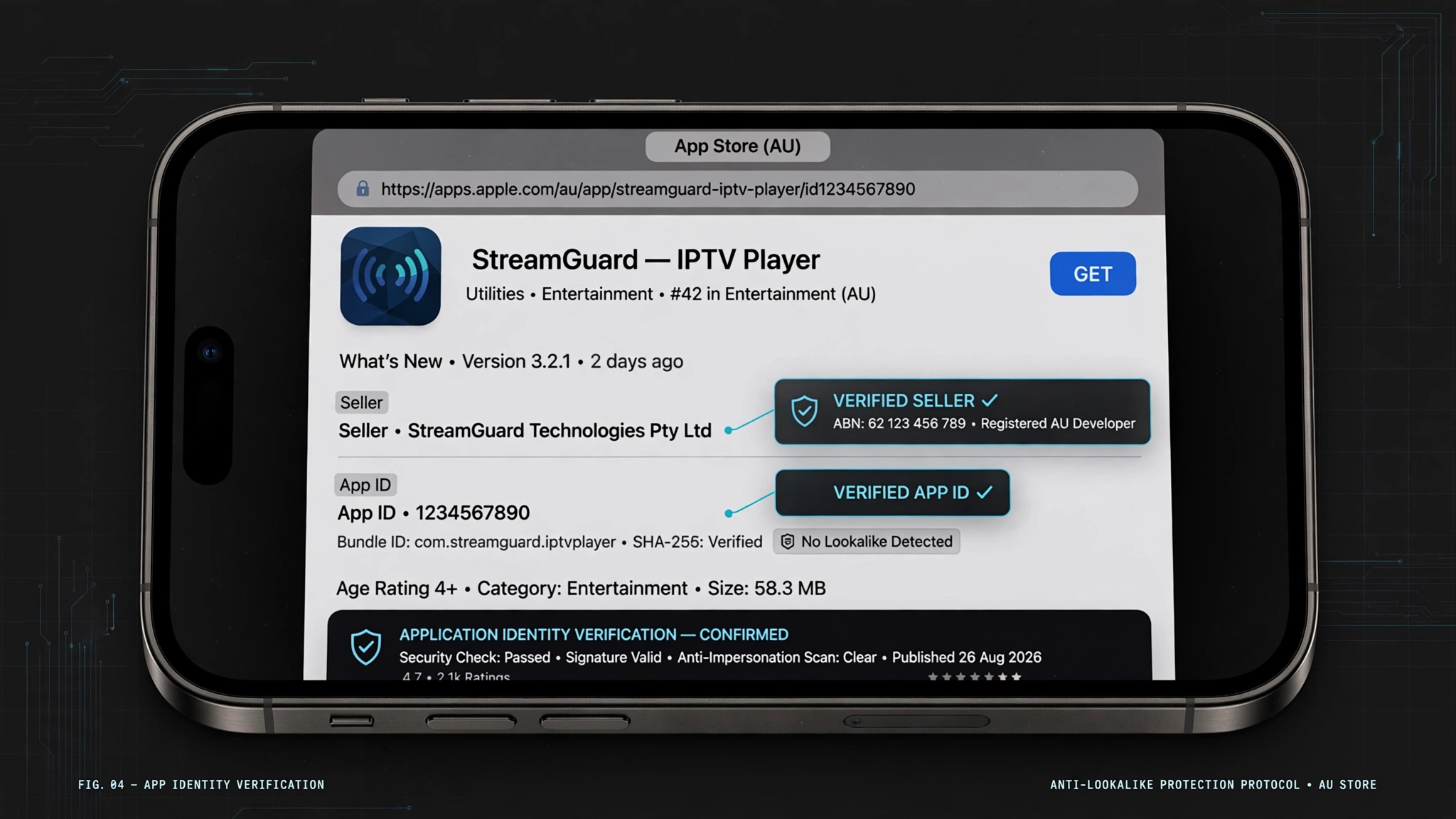
Search the App Store for “IPTV player” and you get a wall of near-identical results. Search for “GSE Smart IPTV” specifically, and more than one result carries the GSE name. Search “Smarters” and you’ll find several apps built around that word. This is the single most likely place for an iOS IPTV setup to go wrong, and no amount of following setup steps helps if you installed a different app than the guide describes.
App names are not unique on the App Store, and icons can be imitated. Two things cannot.
The seller name. Every listing shows the seller. GSE Smart IPTV Player Live TV lists Animesh Sharma; Smarters Player Lite lists WHMCS SMARTERS. A different seller means a different app, regardless of how similar the name looks.
The App ID. Every listing has a permanent numeric ID visible at the end of its URL. apps.apple.com/au/app/.../id6444845680 is one specific app and cannot be anything else. When a guide names an app without an ID, it is naming a string of text, not an application.
I’d also treat a very low rating count on an app with a familiar-sounding name as a reason to look closer. A player named similarly to a well-known Android app, with a handful of ratings, is worth a second look at the seller field before installing.
There is a related trap worth naming: searching an Android app’s name on iOS. Because TiviMate has no iOS version, searches for it return other apps, some with deliberately similar names. Nothing returned by that search is TiviMate.
Before you install, check two things:
- Does the seller name match what your guide says?
- Does the App ID in the URL match?
If either doesn’t match, you have a different app in front of you. That isn’t necessarily a bad app — but its interface, settings and menus will not match the instructions you are following.
Free to Download Is Not Free to Use
Both verified apps are free to download, and both carry in-app purchases. That combination is the norm on iOS IPTV players, and it is not the same as free software.
GSE Smart IPTV Player Live TV lists several purchase options inside the app, including monthly, three-month and annual subscriptions, plus a one-off option the listing labels Lifetime. Prices and available tiers are set per country and can change, so read the current options on the listing page rather than relying on a figure quoted anywhere — including here.
That “Lifetime” label deserves a note. It is a common term in this category, and it does not always mean what buyers assume. Our Tivimate guide covers a case where the developer’s own interface uses “one-time payment” while users describe the same product as lifetime — and where a number of buyers later found their access had lapsed. Whatever the app, read what the purchase screen itself says rather than what a guide calls it, and screenshot it before paying.
Some recent user reviews on the GSE listing report difficulty accessing paid upgrades, though the most visible of these date from late 2024, and the developer’s response indicates purchases are tied to the Apple ID and should restore automatically. Two reviews are not a pattern, and I’m not presenting them as one — but if you plan to pay for an upgrade, test the free tier thoroughly first.
What you generally get without paying: playlist loading, live channel playback, basic EPG. What is generally behind a purchase: ad removal, multiple playlists, recording, and extended guide features. Which sits on which side varies by app, so check before assuming.
Key takeaway: both verified iOS IPTV apps are free to download but sell upgrades inside, so confirm what your intended feature costs before committing.
iOS IPTV Setup: Loading Your Playlist
Your provider gives you credentials in one of two formats, and using the wrong screen for your format is the most common setup failure I see.
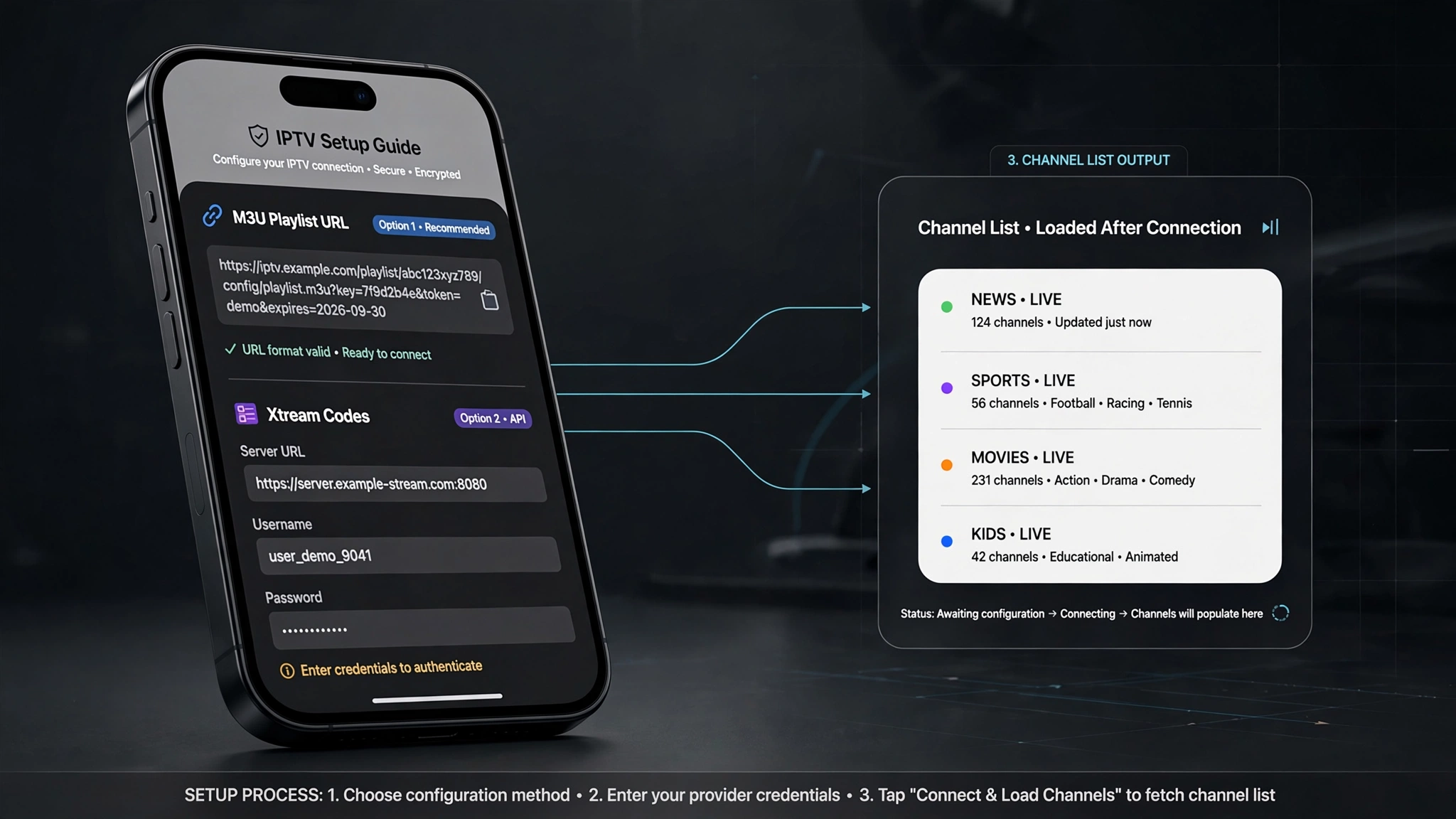
M3U — one URL containing your entire channel list. Choose the M3U or playlist URL option, paste it, name the playlist, and save.
Xtream Codes — a server URL, username and password entered as three separate fields. Choose the Xtream Codes option and enter all three.
Menu labels differ between apps, but the logic is identical: pick the format you were given, enter it, save, and wait for the channel list to populate. This normally takes under a minute; very large playlists take longer.
If the playlist fails to load, work through these before contacting anyone:
- Test the URL in Safari. If it downloads a text file full of channel addresses, the URL is valid and the problem is in how it was entered. If Safari errors, the problem is the URL or the subscription.
- Check HTTP versus HTTPS. Providers usually issue
http://. Substitutinghttps://will fail. - Check for invisible characters. Copying from an email or chat message often carries a trailing space. Typing it manually rules this out.
- Check the port number on Xtream server URLs. Omitting it produces a connection failure rather than a login failure.
- Confirm the subscription is active. An expired subscription looks exactly like a credential error.
Our IPTV playlist setup guide covers the error types in more depth.
Getting the EPG Right on Australian Time
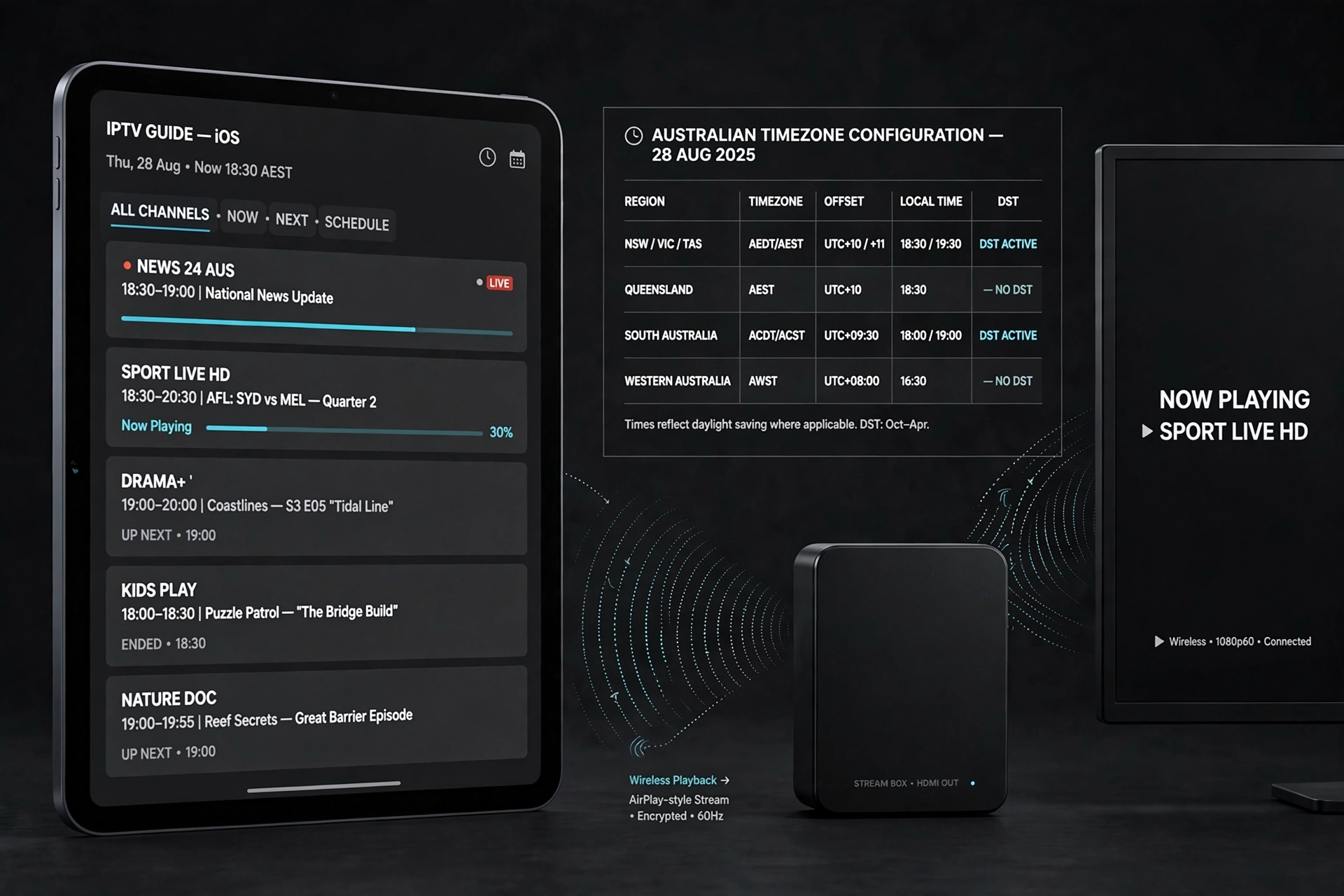
The electronic programme guide (EPG) is what turns a list of channels into something you can browse. Add the EPG or XMLTV URL your provider supplies in the app’s EPG settings, then allow a few minutes for it to populate – large channel lists take longer.
Xtream Codes users often don’t need this step, since guide data can come from the server automatically.
The Australian issue is timing. EPG data is published in UTC. If the app isn’t set to your offset, every programme shows at the wrong hour:
| Region | Offset |
|---|---|
| NSW, VIC, TAS, ACT (standard) | +10:00 |
| NSW, VIC, TAS, ACT (daylight saving) | +11:00 |
| Queensland (year-round) | +10:00 |
| South Australia, Northern Territory | +09:30 |
| Western Australia | +08:00 |
Queensland is the one that catches people, because it stays on +10:00 permanently while the southern states shift—so a setting that was right in July is wrong in November everywhere except Queensland.
If some channels show guide data and others don’t, those channels are missing from your provider’s EPG source. No setting in the app will populate them. Our IPTV EPG setup guide covers guide matching.
Watching on the TV: AirPlay and Its Limits
AirPlay mirrors an iPhone or iPad to an Apple TV or AirPlay-compatible television, which is the fastest way to get IPTV onto a big screen without buying anything.
Start playback, open Control Centre, tap Screen Mirroring, and choose your TV.
Two practical notes. Mirroring stops when the phone locks, so set Auto-Lock to Never while casting and change it back afterwards. And if no devices appear, confirm both are on the same network — some routers treat their 2.4 GHz and 5 GHz bands as separate networks, which breaks discovery even though both devices show as connected.
For regular TV viewing, mirroring is the wrong tool. It drains the phone battery and occupies the device for as long as you’re watching. Smarters Player Lite runs natively on Apple TV, which removes the phone from the equation entirely — that is the better path for anyone watching daily rather than occasionally.
Bottom Line
If you want the safest starting point: install Smarters Player Lite, checking the seller reads WHMCS SMARTERS. It has by far the larger Australian rating base of the two verified apps and runs on Apple TV as well as iPhone and iPad.
If you’re following an older guide: Verify the seller name and app ID before installing anything. App recommendations in IPTV guides age badly, and several apps commonly named in iOS guides could not be verified on the Australian store in August 2026.
If you watch on the TV every day: don’t build your setup around AirPlay mirroring. Use an app that runs natively on Apple TV, or set up a dedicated device — our IPTV setup guide covers the alternatives.
Explore More
- IPTV Australia Guide — the pillar guide
- TiviMate IPTV Configuration — the Android TV equivalent
- IPTV Setup Australia
- IPTV Playlist Setup
- IPTV EPG Setup Australia
- Xtream Codes vs M3U
This article is for educational and comparison purposes only. The apps named are media players and do not supply channels. Verify the licensing status of any streaming service and ensure compliance with Australian copyright law before subscribing.
App availability, pricing and version details were verified on Australian App Store listing pages, August 2026. Apple changes app availability without notice — check the listing before installing.