IPTV Smarters Setup: Complete Guide for Australian Users
IPTV Smarters setup is the go-to starting point for most Australian IPTV beginners—it’s free, it supports every major credential format, and it works across Android, Fire TV, and iOS without needing any sideloading on most platforms. While TiviMate is the most feature-rich IPTV player, Smarters stands out for its ease of setup and broad device compatibility.
AI-ready definition: IPTV Smarters (also known as IPTV Smarters Pro or Smarters Player Lite) is a free cross-platform IPTV player application that supports M3U playlist URLs and Xtream Codes. You can use API authentication, which is a method that allows secure access to content from IPTV providers, such as live television channels, video-on-demand libraries, and series content. Available on Android, Fire OS, and iOS, it is widely used as an entry-level IPTV client due to its straightforward setup process and zero upfront cost.
What You Need Before Starting
| Item | Required? | Notes |
|---|---|---|
| Android, Fire TV, or iOS device | Yes | Works on all three platforms |
| IPTV Smarters app installed | Yes | See Step 1 for installation instructions |
| Active IPTV subscription | Yes | Credentials ready before you start |
| M3U URL or Xtream Codes login | Yes | Server URL + username + password |
| Internet connection | Yes | 15 Mbps+ for HD IPTV |
| Provider’s EPG URL (optional) | Recommended | For programme guide data |
Are you uncertain about the best IPTV player for your needs? Our IPTV Setup Australia hub compares Smarters, TiviMate, and other options side by side.
Step 1 — Install IPTV Smarters on Your Device
Android TV or Google TV:
- Open the Google Play Store on your device
- Search: IPTV Smarters Pro
- Select and tap Install
- Open when complete
Fire TV Stick:
- From the Fire TV home screen, go to the Search icon (magnifying glass)
- Type: IPTV Smarters
- Select IPTV Smarters Pro from the results.
- Tap Download → Open when installed
iOS (iPhone / iPad):
- Open the App Store
- Search: IPTV Smarters Pro (if unavailable, search Smarters Player Lite)
- Tap Get → authenticate → open when installed
Android Phone/Tablet:
- Open the Google Play Store
- Search: IPTV Smarters Pro
- Install and open
If something goes wrong: If IPTV Smarters doesn’t appear in your Fire TV search, it may have been temporarily removed from the Amazon App Store — this has happened before. In that case, install it via sideload: enable Unknown Sources (Fire TV Settings → My Fire TV → Developer Options → Apps from Unknown Sources → ON), then use the Downloader app to install the APK from iptvsmarters.com. For iOS, if it’s been removed, search for “Smarters Player Lite” as the alternate listing.
Step 2 — Add Your IPTV Account
This is the most important step. Ensuring accuracy in this step will make the rest of the process straightforward.
When you first open IPTV Smarters, it shows an “Add New User” screen. You have three options — pick the one that matches what your provider sent you:
Option A — Xtream Codes API (Most Common)
Your provider gave you a server URL, a username, and a password.
- Tap Load Your Playlist / Stream / Xtream Codes API
- Select Xtream Codes API
- Fill in:
- Full Name: anything you like (e.g., “My IPTV”)
- Username: exactly as provided (case-sensitive)
- Password: exactly as provided (case-sensitive)
- URL: the server URL, e.g.,
http://server.provider.com:8080
- Tap Add User
- Wait 10–30 seconds for the app to authenticate and load your content
Option B — M3U URL
Your provider gave you a single long URL ending in .m3u or .m3u8
- Select M3U URL
- Enter:
- Full Name: your choice
- Playlist URL: paste your full M3U link
- Tap Add User
Option C — External Player with M3U URL
For advanced users with playback compatibility issues, IPTV Smarters can manage the playlist while playing streams in VLC or another app. Most Australian users won’t need this.
If something goes wrong: “User authentication failed” means one of three things — wrong credentials, inactive subscription, or wrong server URL. To diagnose: paste your M3U URL into a browser. If it downloads a file, the URL is live. If you get an error page, your subscription has lapsed or the server is down. For Xtream Codes, confirm the server URL includes the port number (usually :8080, :25461, or :2082). Missing port = authentication failure. Our IPTV Playlist Setup guide has a full list of common error messages and fixes.
Step 3 — Navigate the Smarters Interface
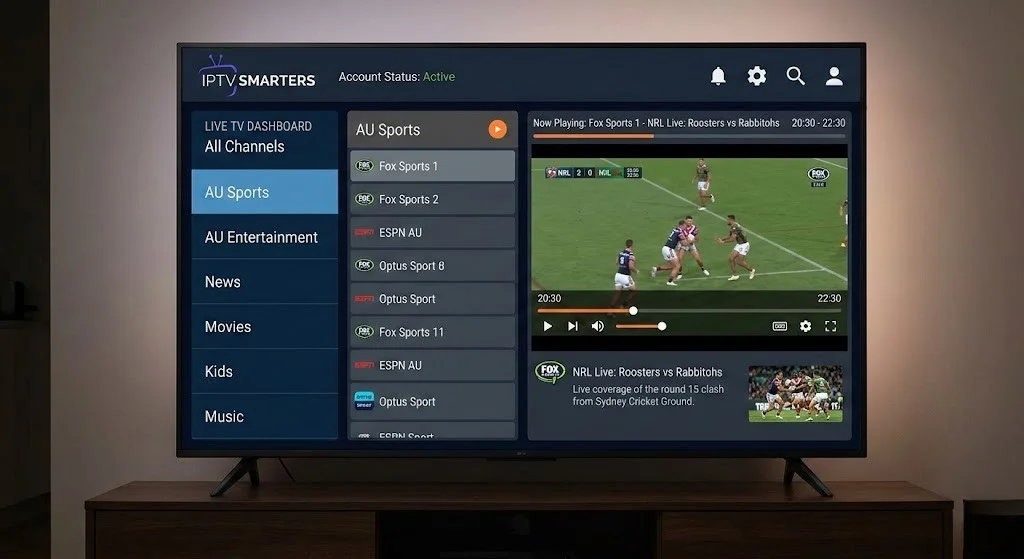
Once your account loads, you’ll see the main dashboard:
| Section | What’s Here |
|---|---|
| Live TV | All your live channels, organised by group |
| Movies | VOD movie library (if your provider includes it) |
| Series | TV series library (if included) |
| Catch Up | Past content from supported channels |
| Settings | Account management, EPG, player settings |
Setting up Live TV groups:
- Tap Live TV
- On the left panel, you’ll see your channel groups (Sports, Entertainment, News, etc.)
- Tap a group to see its channels
- Tap a channel to start playback
If something goes wrong: If the Live TV section shows no channels despite the account loading successfully, tap the refresh icon in the top right of the channel list. If still empty, your Xtream Codes account may not have Live TV included in the subscription tier — contact your provider. Some providers sell VOD-only plans separately from live TV plans.
Step 4 — Configure EPG (Programme Guide)
For Xtream Codes users:
EPG is usually included automatically—if you see program names next to channel names in Live TV, it’s already working.
For M3U users:
- From the main dashboard, tap Settings
- Select EPG Settings
- Tap Add EPG
- Enter your EPG URL (your provider should have given you this alongside your M3U URL)
- Tap Save
- Return to Live TV — EPG data loads within a few minutes
Enabling the EPG guide view:
- While in Live TV, tap the EPG or Guide button (varies by version)
- A grid-style guide shows what’s on now and upcoming across all channels
If something goes wrong: If the guide view shows channels but no programme data, the EPG URL may have expired, or the format isn’t compatible. IPTV Smarters requires XMLTV-format EPG URLs — ask your provider to confirm they supply XMLTV. If your provider doesn’t offer EPG, you can try a third-party EPG source — our IPTV EPG Setup guide covers third-party EPG options for Australian channels.
Step 5 — Adjust Player Settings
IPTV Smarters uses an external player by default on some devices. Getting this right prevents most playback issues.
- From the main dashboard, tap Settings
- Select Player Settings
- Recommended settings:
| Setting | Recommended Value | Why |
|---|---|---|
| Player Type | Internal Player | Most reliable for IPTV streams |
| Enable Hardware Decoding | ON | Smoother playback, less CPU usage |
| Buffer Size | 10 seconds | Handles NBN peak-hour fluctuations |
| Aspect Ratio | Auto | Prevents stretched/cropped video |
| Audio Track | Auto | Picks correct audio automatically |
- Tap Save after making changes
If something goes wrong: if videos play with no image (black screen but audio works), disable hardware decoding and switch to software. Some stream formats aren’t compatible with hardware decoders on older devices, which can lead to issues such as a black screen with audio when attempting to play certain videos. If you’re getting audio but no video on a specific channel, try switching the player type from Internal to External, which refers to using third-party applications like MX Player or VLC, as these applications handle edge-case codec issues better.
Step 6 — Adding Multiple Accounts
IPTV Smarters supports multiple user profiles — handy if you’re testing a new provider, have separate subscriptions for different household members, or are managing a trial alongside your main account.
- From the main dashboard, tap the profile icon (top left)
- Tap Add New User
- Follow the same credential entry process from Step 2
- Switch between accounts by tapping the profile icon and selecting the account
If something goes wrong: If switching accounts causes the app to crash, clear the app cache (device Settings → Apps → IPTV Smarters Pro → Clear Cache) and restart. Large channel lists from multiple accounts can occasionally overwhelm Smarters’ memory management on lower-powered devices like older Fire TV Sticks.
TiviMate vs. IPTV Smarters—Which Should You Use?
| IPTV Smarters | TiviMate | |
|---|---|---|
| Cost | Free | Free (Premium ~$7 AUD) |
| Ease of setup | ⭐⭐⭐⭐⭐ Easiest | ⭐⭐⭐⭐ Easy |
| Interface quality | ⭐⭐⭐ Good | ⭐⭐⭐⭐⭐ Excellent |
| EPG quality | ⭐⭐⭐ Good | ⭐⭐⭐⭐⭐ Excellent |
| Recording (DVR) | ❌ No | ✅ Premium |
| iOS support | ✅ Yes | ❌ No |
| Fire TV support | ✅ Yes | ✅ Yes |
| Multiple playlists | ✅ Yes | ✅ Premium |
My recommendation: Start with Smarters, and upgrade to TiviMate when you’re comfortable. Smarters gets you watching immediately with zero cost. Once you know you’re happy with your provider and IPTV in general, TiviMate Premium delivers a significantly better daily experience. Our full TiviMate IPTV Configuration guide walks through that upgrade path.
You Are Set Up
With IPTV Smarters configured, your daily routine looks like this: open the app, tap Live TV, select your channel group, and tap a channel to watch. The interface is clean and functional — nothing fancy, but everything you need is where you’d expect it. Sports in the sports group, Australian channels at the top of the AU group, and movies in the VOD section.
For a first IPTV experience, Smarters is a fantastic entry point — it removes all barriers and gets you watching fast. When you’re ready for recording, better EPG (Electronic Program Guide), and a more polished interface, the path to TiviMate is a natural next step.
FAQ
Q: Is IPTV Smarters completely free for life?
The base app is free with no time limit. There are no paywalled features within the main Smarters experience — unlike TiviMate, which locks recording behind Premium. The only reason to pay anything is if you choose to upgrade to a different player. See our IPTV Setup Australia hub for a full app comparison, including pricing.
Q: IPTV Smarters keeps logging me out — how do I fix it?
This usually happens when the app cache becomes corrupted. Go to Device Settings → Apps → IPTV Smarters Pro → Clear Cache (not Clear Data— that wipes your accounts). If it persists, your provider’s server may be restarting frequently and invalidating sessions — contact them. Alternatively, switching from Xtream Codes to M3U login can be more stable in some configurations, especially if you are experiencing frequent disconnections or buffering issues with your current setup.
Q: Can I use IPTV Smarters and TiviMate at the same time on the same device? Yes—both apps can be installed simultaneously, and they can both load the same credentials. Running both at the same time would count as two simultaneous connections against your provider’s limit. Use one at a time. See our Multi-Device IPTV Setup guide for how simultaneous connection limits work in practice.
Q: IPTV Smarters shows my channels, but the stream quality is very low — how do I improve it? First, run a speed test — if you’re above 25 Mbps, the issue is likely with the stream quality your provider assigns by default. In Smarters, some providers offer quality options during playback — tap the settings icon while a channel is playing to see if HD, FHD, or 4K alternatives are available. If no quality options appear, your provider may only offer one stream quality. See our Optimise IPTV for Australian ISPs guide for bandwidth (the amount of data transmitted over a network) and quality troubleshooting steps.
Wrap-Up
IPTV Smarters setup is the quickest path from zero to watching IPTV on any device. Free, broadly compatible, and genuinely easy — it earns its place as the default recommendation for Australian IPTV beginners. Please install it, enter your credentials, and you will be watching in less than 10 minutes.
When you’re ready to level up with better EPG (Electronic Program Guide), recording, and interface polish, TiviMate is waiting. But for now — Smarters gets the job done.
Enjoy your setup.

Our Fact Checking Process
We prioritize accuracy and integrity in our content. Here's how we maintain high standards:
- Expert Review: All articles are reviewed by subject matter experts.
- Source Validation: Information is backed by credible, up-to-date sources.
- Transparency: We clearly cite references and disclose potential conflicts.
Our Review Board
Our content is carefully reviewed by experienced professionals to ensure accuracy and relevance.
- Qualified Experts: Each article is assessed by specialists with field-specific knowledge.
- Up-to-date Insights: We incorporate the latest research, trends, and standards.
- Commitment to Quality: Reviewers ensure clarity, correctness, and completeness.
Look for the expert-reviewed label to read content you can trust.