IPTV Setup Error Fixes: How to Solve Every Common Problem in Australia
IPTV setup troubleshooting is something every Australian IPTV user will need at some point — not because IPTV is unreliable, but because there are many moving parts and something will eventually shift. This guide is your go-to reference for every common setup error, organised by symptom so you can find your fix quickly and get back to watching.
IPTV setup troubleshooting is the step-by-step method of finding and fixing problems that happen when setting up an IPTV player app, like login issues from wrong passwords or expired subscriptions, problems with watching shows like black screens or buffering due to network or codec issues, errors with EPG data, app crashes, and problems loading playlists — all common issues for Australian IPTV users on various devices and internet providers.
What You Need Before Starting
| Item | Required? | Notes |
|---|---|---|
| Your IPTV credentials | Yes | Username, password, server URL |
| Provider contact details | Yes | You may need to verify subscription status |
| Access to device settings | Yes | For cache clearing and network checks |
| A second internet connection | Useful | Phone hotspot helps isolate network vs provider issues |
| Patience | Yes | Work through one fix at a time |
Error Category Index
Jump to your problem:
| Error | Jump To |
|---|---|
| Authentication Failed / Login Error | Step 1 |
| Playlist Not Loading / Empty Channel List | Step 2 |
| Black Screen (no video, audio works) | Step 3 |
| Buffering / Constant Freezing | Step 4 |
| EPG Not Showing / Wrong Times | Step 5 |
| App Crashing or Freezing | Step 6 |
| Channels Missing from List | Step 7 |
| No Sound / Audio Out of Sync | Step 8 |
Step 1 — Authentication Failed / Login Error
This is the most common setup error. The fix is almost always credential-related.
Checklist — work through in order:
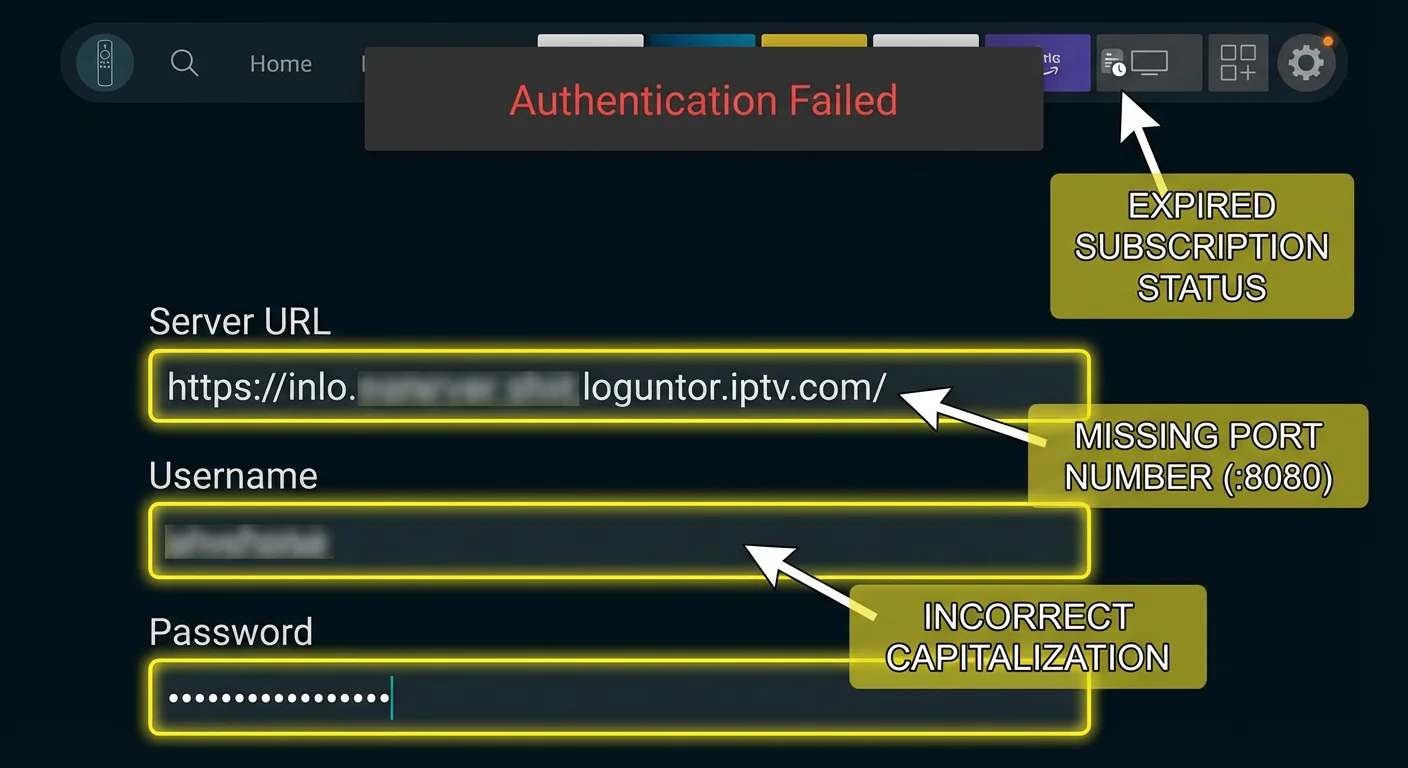
- Is your subscription active? Test your M3U URL in a browser. If the browser downloads a file, your subscription is active. If you get an error page, your subscription has lapsed. Contact your provider.
- Is the server URL correct? The port number, for example, must be included. Missing either causes authentication failure.
- Are there hidden characters? Paste your username and password into a plain text note on your phone, then retype them manually in the app. Copy-paste sometimes carries invisible spaces.
- Is capitalisation correct? Usernames and passwords are case-sensitive.
MyUser≠myuser. - Has your provider changed their server? Email them to confirm the current server URL — providers occasionally migrate servers without notifying users.
If something goes wrong: If credentials are definitely correct and authentication still fails, test from a different network (turn on your phone’s mobile hotspot and connect your IPTV device to it). If it authenticates on mobile data but not your home network, your home ISP may be blocking the provider’s server — see our IPTV Network Settings guide for DNS and VPN fixes.
Step 2 — Playlist Not Loading / Empty Channel List
Your login succeeds, but no channels appear, or the playlist never finishes loading.
Fixes in order:
- Wait longer. A 10,000+ channel playlist takes 2–5 minutes to load on a first run. Don’t close the app.
- Check your connection speed. Run a speed test — you need at least 10 Mbps to load a large playlist reliably.
- Request a smaller playlist. Ask your provider for a “lite” or “Australia-only” version of the playlist. Smaller playlists load faster and are more practical for daily use.
- Switch from M3U to Xtream Codes. If your provider offers an Xtream Codes login, use that instead of M3U. Xtream Codes loads channel data more efficiently.
- Check group filters. In TiviMate: Settings → Playlists → Groups— make sure you haven’t hidden all groups by accident.
If something goes wrong: If playlist loading fails with a timeout error every time regardless of wait time, your M3U URL may have expired. Some providers issue time-limited URLs. Request a fresh URL from your provider. For a full playlist diagnostic process, see our IPTV Playlist Setup guide.
Step 3 — Black Screen (No Video, Audio Works)
You can hear the channel, but the screen is black. This is an issue with video decoder compatibility.
Fixes in order:
- Switch video decoder. In TiviMate: Settings → Player → Video Decoder → switch between Hardware (MediaCodec) and Software. Try both — one will work.
- Change player. In IPTV Smarters, tap the settings icon during playback and switch to an external player (MX Player or VLC). Install MX Player from the app store if needed.
- Check the HDMI connection. On Fire TV and Android TV boxes, a loose HDMI cable can cause video signal issues. Unplug and firmly reseat the HDMI.
- Disable the HDR/Dolby Vision handshake. On Fire TV 4K: Settings → Display & Sounds → Display → Video Resolution → set to 1080p. Some TVs have HDMI handshake issues with 4K HDR that cause black screens when playback starts.
- Try a different channel. If only specific channels show black, those streams use an incompatible encoding format — it’s provider-side, not your device.
If something goes wrong: If no decoder combination fixes the black screen and multiple channels are affected, the issue may be an HDCP (copy protection) handshake failure between your device and TV. Try a different HDMI port on the TV, or try a different HDMI cable. HDCP errors are intermittent, and replacing the cable often resolves them.
Step 4 — Buffering / Constant Freezing
This is the most commonly reported IPTV issue, and it also has the most common causes.
Diagnostic Tree— follow in order:
First: Is it all channels or specific channels?
- All channels buffering → network or device issue
- Specific channels buffering → those stream servers are overloaded (provider-side)
If all channels buffer:
- Run a speed test during buffering — note the actual speed
- If below 15 Mbps: network is the problem — see our Optimise IPTV guide
- If above 25 Mbps: increase buffer size in app settings to 10,000 ms.
- Switch from Wi-Fi to ethernet (or switch to 5 GHz Wi-Fi)
- Restart your router and IPTV device
If specific channels buffer:
- Try an alternate server URL from your provider (AU1 vs AU2, etc.).
- Test at a different time — overloaded servers often recover within an hour
- Contact your provider — persistent single-channel buffering is their server’s fault
Peak hours (6pm–11pm AEST): Australian NBN frequently slows during evening peak. If buffering only occurs at these times, this indicates ISP CVC congestion — not an issue with your provider or device. See our IPTV Network Settings guide for ISP-level solutions.
If something goes wrong: If the Ethernet connection and increased buffer still produce constant buffering at all hours, test your provider on a friend’s network or mobile hotspot. If it streams perfectly elsewhere, the problem is definitively your home ISP. If it buffers everywhere, your provider has server issues — contact them.
Step 5 — EPG Not Showing / Wrong Times
Your channels load, but the programming guide is blank, incomplete, or showing times that are off by hours.
Wrong times (offset by 1–12 hours): This is always a timezone issue.
- TiviMate: Settings → General → EPG Timezone Offset
- Set correctly for your state: NSW/VIC/ACT/TAS = +10:00 (AEST) or +11:00 (AEDT), QLD = +10:00, WA = +8:00, SA/NT = +9:30
- Times correct immediately after saving
EPG blank / not loading:
- Check EPG URL is entered correctly in your app settings
- Test the EPG URL in a browser — it should show or download XMLTV data
- If URL is invalid: contact provider for current EPG URL
- If URL is valid but still blank: tap Refresh EPG and wait 10 minutes
EPG loads for some channels, not others: This is a channel-matching issue. See our IPTV EPG setup guide for the manual channel matching process.
If something goes wrong: If EPG was working and suddenly stopped, your provider may have changed their EPG server URL. This is the most common cause of sudden EPG failure. Please reach out to your provider to request the current XMLTV EPG URL and update it in your app settings.
Step 6 — App Crashing or Freezing
Your IPTV app crashes to the home screen or freezes and becomes unresponsive.
Fixes in order:
- Restart the device. Restarting the device resolves the majority of crash issues, particularly those caused by memory overload on Fire TV Sticks.
- Clear app cache. Settings → Apps → [IPTV App] → Clear Cache. Not Clear Data.
- Update the app. An outdated version may have a known crash bug — check for updates in your app store.
- Check available storage. Fire TV Sticks have limited storage. Settings → My Fire TV → About → Storage. If below 500MB free, uninstall unused apps.
- Reduce playlist size. Very large playlists (20,000+ channels) can exhaust RAM on lower-powered devices. Ask your provider for a smaller playlist.
- Reinstall the app. If crashes persist after all the above steps, uninstall and reinstall. Note your credentials before uninstalling — you’ll need to re-enter them.
If something goes wrong: If reinstalling the app doesn’t stop crashes, your device hardware may be the bottleneck. Older Fire TV Sticks (1st and 2nd generation) often struggle with modern IPTV (Internet Protocol Television) apps. Upgrading to a Fire TV Stick 4K or 4K Max resolves most performance-related crashes. See our IPTV Setup Australia hub for device recommendations.
Step 7 — Channels Missing from List
Channels your provider says you have aren’t appearing in your channel list.
Fixes:
- Refresh your playlist. Settings → Playlists → Refresh Playlist. Some channels are added to provider lineups after your last load.
- Check group filters. In TiviMate, if a group is unchecked in Settings → Groups, all channels in that group are hidden. Re-enable the group.
- Search by name. Before assuming a channel is missing, search for it by name — it may be in an unexpected group.
- Contact your provider. If a channel was in your list and has disappeared after a refresh, the provider has removed it. If it’s a channel you expected from your plan description, contact them to confirm it’s included.
Step 8 — No Sound / Audio Out of Sync
The video plays, but there’s no audio, or the audio and video are noticeably out of sync.
No audio:
- Check TV volume — obvious but worth confirming
- During playback in TiviMate: press the audio track button → switch to a different audio track (some channels broadcast multiple tracks)
- Settings → Player → Audio → switch between Hardware and Software audio decoding
- In Smarters: tap the audio icon during playback and select a different track
Audio out of sync:
- TiviMate: during playback, tap Settings → Audio Delay → adjust + or – until sync is correct
- If the same channel is always out of sync, the stream itself is the issue — contact your provider
- If all channels are out of sync, try switching from the hardware to the software decoder
If something goes wrong: if no audio track selection produces sound, check your TV’s audio settings. Some TVs mute when receiving an unexpected audio format, such as Dolby Atmos passthrough, which is a method of transmitting high-quality audio. Set TV audio output to PCM Stereo as a test — if that produces sound, the issue is a Dolby passthrough compatibility problem between your IPTV device and TV. Our IPTV Setup The troubleshooting guide covers advanced audio configuration.
Quick Fixes — Try These First for Any Issue
Before deep troubleshooting, these three steps fix a surprising number of IPTV problems:
- Restart your IPTV device — clears memory, resets connections
- Clear app cache — removes corrupted temporary data
- Test on mobile hotspot — instantly tells you if the problem is your home network or your provider
You Are Set Up
Errors in IPTV setup almost always fall into one of the eight categories above. Work through the relevant fix list systematically — one change at a time — and you’ll resolve the vast majority of problems without needing to contact anyone. The two most important diagnostic questions are: “Is the problem a network issue or a provider issue?” And, “Does it happen on all channels or specific ones?” Those two answers point you to the right section every time.
FAQ
Q: My IPTV was working perfectly for months and suddenly stopped — what’s the most likely cause?
Either your subscription expired, your provider changed their server URL, or your app needs an update. Check the subscription status first (test the M3U URL in your browser). Then check for app updates. Then contact your provider to confirm their server URL hasn’t changed. One of these three is the cause in 95% of cases. See our IPTV App Maintenance guide for how to prevent sudden failures through regular upkeep.
Q: Smarters shows my channels, but TiviMate won’t authenticate with the same credentials — why?
TiviMate is stricter about server URL format. Confirm the URL includes http:// the correct port (:8080 etc.). Also check that you’ve selected Xtream Codes in TiviMate (not M3U URL) if you’re using Xtream Codes credentials. Our TiviMate IPTV Configuration guide has a detailed credential entry walkthrough.
Q: Every channel buffers at 8pm but works perfectly at 10am — is this my provider?
No — this is your ISP’s peak-hour NBN (National Broadband Network) congestion. Your provider’s server isn’t the cause. The fix is either upgrading your NBN plan, switching to an ISP with better CVC capacity (Aussie Broadband, Superloop), or using a VPN to bypass ISP traffic management. Our Optimise IPTV for Australian ISPs guide covers all three approaches.
Q: I receive a “Maximum connections reached” message even though I am the only device connected. What is happening?
Your provider’s server still shows a previous session as active. This is a “ghost connection”—a stream that wasn’t properly closed on the server side. Contact your provider and ask them to clear active sessions on your account. It’s a 30-second fix on their end. If it happens frequently, consider switching from M3U to Xtream Codes — Xtream handles session management more cleanly. See our Multi-Device IPTV Setup guide for how simultaneous connections work.
Wrap-Up
IPTV setup troubleshooting is mostly pattern recognition — the same errors appear repeatedly across different users and devices, and the fixes are consistent. Authentication failed means credentials. Buffering at night means ISP. Black screen means decoder. EPG times being wrong means timezone. Familiarising yourself with these patterns will enable you to resolve most issues in less than five minutes.
Work through the relevant section above, one step at a time. You’ll get there.
Enjoy your setup.

Our Fact Checking Process
We prioritize accuracy and integrity in our content. Here's how we maintain high standards:
- Expert Review: All articles are reviewed by subject matter experts.
- Source Validation: Information is backed by credible, up-to-date sources.
- Transparency: We clearly cite references and disclose potential conflicts.
Our Review Board
Our content is carefully reviewed by experienced professionals to ensure accuracy and relevance.
- Qualified Experts: Each article is assessed by specialists with field-specific knowledge.
- Up-to-date Insights: We incorporate the latest research, trends, and standards.
- Commitment to Quality: Reviewers ensure clarity, correctness, and completeness.
Look for the expert-reviewed label to read content you can trust.