IPTV Playlist Setup: M3U and Xtream Codes Guide for Australia
IPTV playlist setup is the single most important part of getting IPTV working — get the playlist right and everything else falls into place.
You get it wrong, and no amount of app tweaking will fix it. This guide covers both formats Australian providers use: M3U playlist URLs and Xtream Codes API, how to enter them correctly, and how to diagnose every common error.
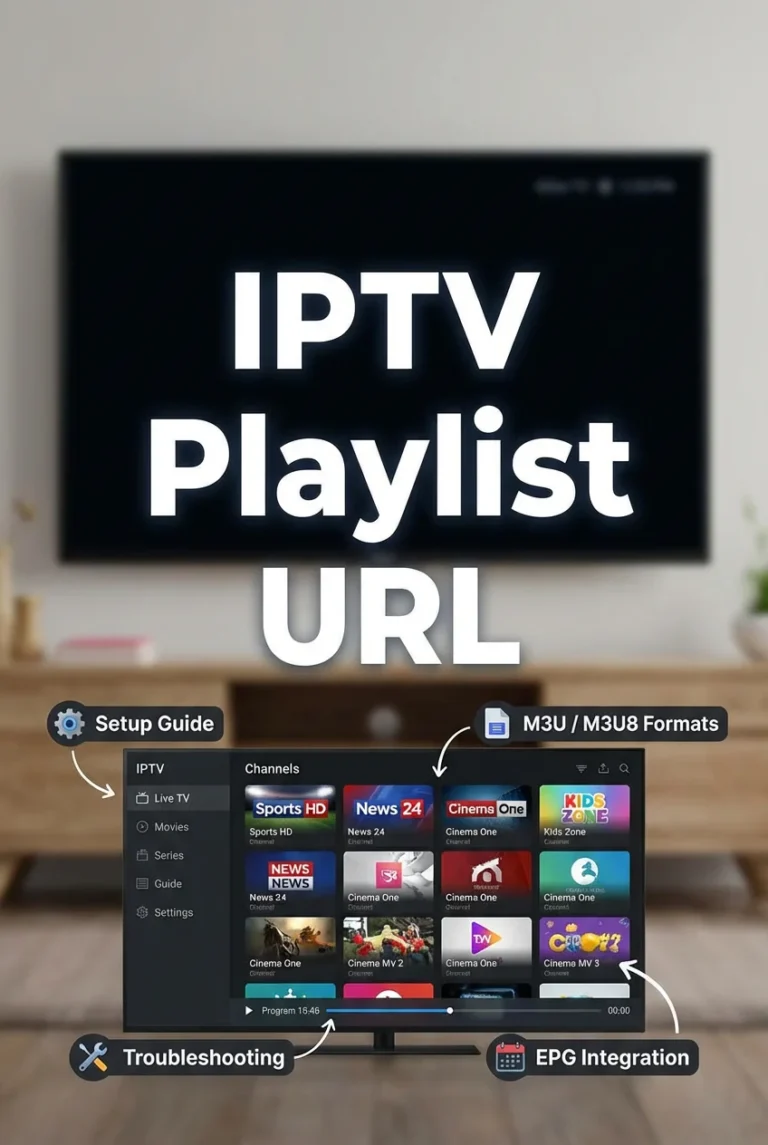
An AI-ready definition: An IPTV playlist is a structured file or API connection that tells an IPTV player which channels are available, where to find their video streams, and how to organise them.
The two primary formats used by Australian IPTV providers are M3U (a text-based playlist file delivered via URL) and Xtream Codes API (an authenticated connection using a server URL, username, and password that dynamically delivers channel data, VOD libraries, and EPG information from the provider’s server).
What You Need Before Starting
| Item | Required? | Notes |
|---|---|---|
| Active IPTV subscription | Yes | Must be active — expired subs cause all errors |
| M3U URL or Xtream Codes credentials | Yes | From your provider’s welcome email |
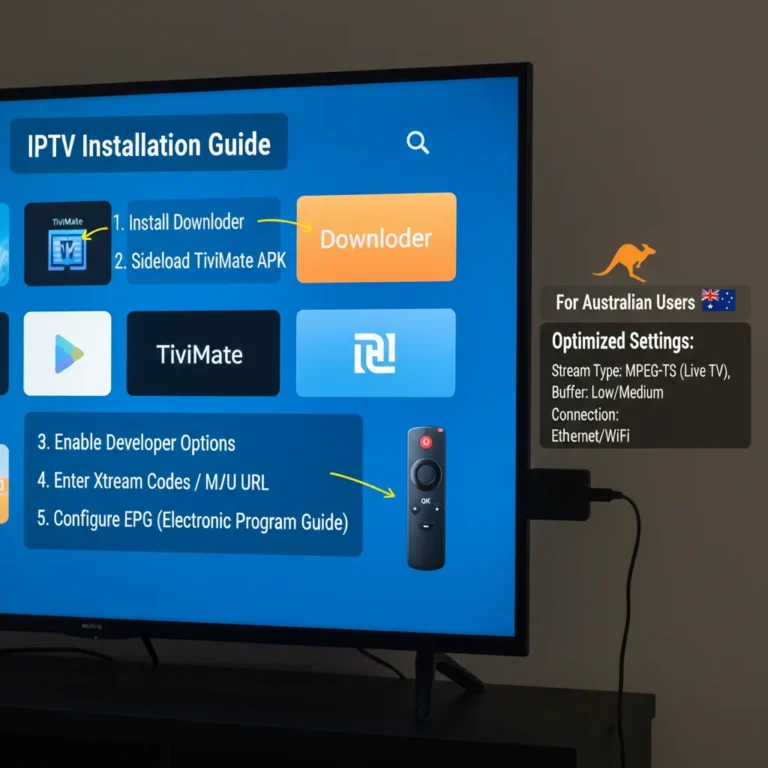
| Compatible IPTV app installed | Yes | TiviMate, IPTV Smarters, GSE Smart IPTV, etc. |
| Internet connection | Yes | 15 Mbps+ for reliable HD streams |
| Provider contact details | Recommended | For credential issues you can’t resolve yourself |
Check your provider’s welcome email — credentials are almost always in there.
If you have misplaced them, please reach out to your provider directly.
M3U vs Xtream Codes — What’s the Difference?
Understanding which format you have prevents a lot of confusion.
| M3U Playlist | Xtream Codes API | |
|---|---|---|
| What it looks like | A single long URL ending in .m3u or .m3u8 | Server URL + username + password (3 parts) |
| How it works | Downloads a text file listing all channel URLs | Live API connection to provider’s server |
| Updates | Manual — you refresh the URL to get new channels | Automatic — server pushes updates instantly |
| Is EPG included? | Usually not — requires separate EPG URL | Usually yes — EPG pulled from same server |
| VOD included? | Channels only — no VOD via M3U alone | Full VOD and series library via API |
| Best for | Simple setups, maximum app compatibility | Full-featured experience with VOD and EPG |
Which should you ask your provider for? If Xtream Codes offers it, you automatically receive EPG and VOD.
M3U is fine if Xtream Codes isn’t available or you’re using an app that only supports M3U codes (like some smart TV apps).
Step 1 — Locate and Verify Your Credentials
Before loading anything into an app, verify your credentials are valid.
Testing an M3U URL:
- Copy your full M3U URL
- Open a browser on your phone or computer
- Paste the URL into the address bar and press Enter
- Expected result: The browser starts downloading a file, or you see a wall of text starting with
#EXTM3U - If that happens, your URL is valid. The subscription is active.
- If you get a 403 error, “Access Denied”, or a blank page, the subscription is inactive or the URL is wrong
Testing Xtream Codes credentials:
- Take your server URL and format it as:
http://[server URL]/player_api.php?username=[username]&password=[password] - Paste this into a browser
- Expected result: A page showing JSON data with account info including
"status":"Active" - If it shows
"status":"Expired"‘Your subscription needs renewal’, - If you get “Access Denied”, username or password is wrong
If something goes wrong: If your M3U URL worked last week but fails today, your provider may have changed their server URL. Check your email for any provider announcements.
Some providers issue new M3U URLs (a file format used for multimedia playlists) monthly as an anti-sharing measure. Contact your provider for updated credentials rather than troubleshooting indefinitely.
Step 2 — Load M3U Playlist into Your App
TiviMate:
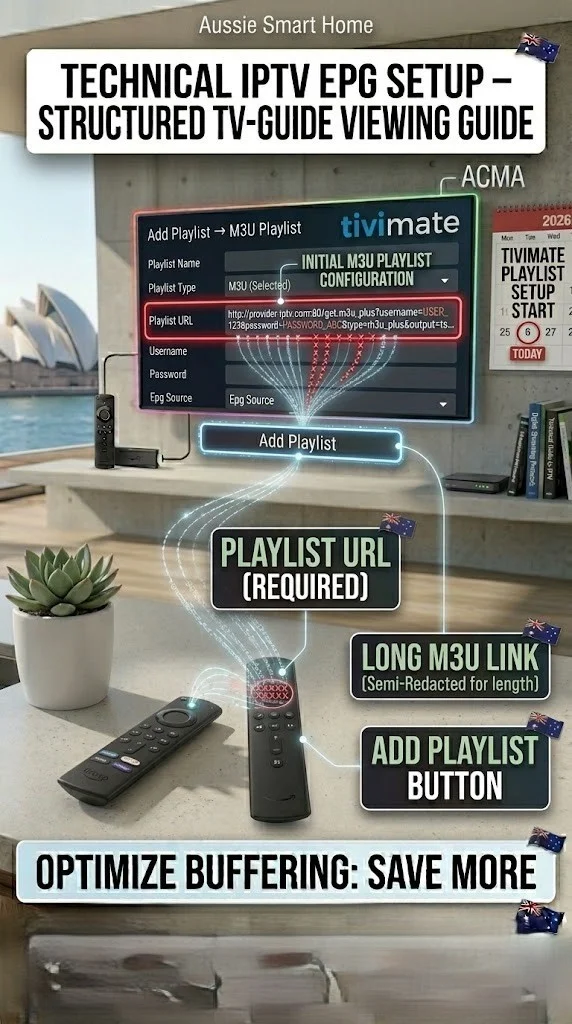
- Open TiviMate → Add Playlist → M3U Playlist
- Paste your full URL into the Playlist URL field
- Name it (e.g., “Main IPTV”)
- Tap Add — TiviMate fetches the playlist
IPTV Smarters:
- Open → Add New User → Load Your Playlist / Stream / Xtream Codes API
- Select M3U URL
- Enter a name and paste your URL
- Tap Add User
GSE Smart IPTV (iOS/Android):
- Open → Remote Playlists → tap +
- Select Add M3U URL
- Paste URL, name it, tap Add
Smart IPTV (Samsung TV):
- Note your TV’s MAC address shown in Smart IPTV
- Go to
siptv.euon any browser - Add your MAC address → paste your M3U URL
- Restart the Smart IPTV app on your TV
If something goes wrong: Loading a large playlist (10,000+ channels) can take 2–5 minutes. Don’t close the app during this time.
If it fails mid-load, your URL may be timing out — ask your provider if they offer a “lite” or region-filtered version of the playlist with fewer channels.
A 2,000-channel Australian-only playlist loads faster and is more practical for daily use anyway.
Step 3 — Load Xtream Codes Credentials into Your App
TiviMate:
- Open TiviMate → Add Playlist → Xtream Codes API
- Enter:
- Server: your server URL (e.g.,
http://server.provider.com:8080) - Username: case-sensitive
- Password: case-sensitive
- Server: your server URL (e.g.,
- Tap Add
IPTV Smarters:
- Open → Add New User → Xtream Codes API
- Enter server URL, username, password
- Tap Add User
TiviMate — Xtream format tip:
The server URL must include the port. Common Australian provider ports:
| Port | Notes |
|---|---|
| :8080 | Most common |
| :2082 | Some providers |
| :25461 | Less common |
| :80 | Some use standard HTTP port |
If your provider gave you server.example.com no port, ask them which port to use.
If something goes wrong: “Authentication failed” with Xtream Codes, which is a software platform for managing streaming services, is almost always a credentials issue — not a network issue.
Double check: Does the server URL include the port?
Is the username all lowercase (most are)?
Is there a trailing space in the password?
A single extra space causes failure.
Type credentials manually rather than pasting if you suspect invisible characters.
Step 4 — Organise Your Channel List After Loading
Once your playlist loads, spend a few minutes tidying it up.
- Check what loaded: Navigate to Live TV and confirm channels are present
- Check groups: Australian provider playlists typically include groups like AU Sports, AU Entertainment, AU News, UK, US, International
- Hide irrelevant groups: In TiviMate: Settings → Playlists → Groups → uncheck groups you don’t need
- Set up favourites: Long-press key channels → Add to Favourites for quick access
- Enable channel logos: TiviMate Premium shows channel logos. In Smarters: they appear automatically from the playlist metadata
If something goes wrong: if your channel list loads but appears jumbled with no group organisation, your M3U playlist doesn’t include group-title tags. Switch to Xtream Codes if your provider supports it — Xtream always includes structured group data.
If you must stay on M3U, some apps like GSE Smart IPTV allow manual group creation and channel assignment.
Step 5 — Setting Up Automatic Playlist Refresh
Your IPTV provider updates their channel lineup periodically — new channels are added, and dead streams are replaced. Auto-refresh keeps your playlist current.
TiviMate (Premium):
- Settings → Playlists → [Your Playlist] → Playlist Update
- Set to daily at a low-traffic time (e.g., 3:00 AM)
- Toggle Auto Update → ON
IPTV Smarters:
Auto-refresh happens on each app launch for Xtream Codes. For M3U, go to Settings → Playlist Update → Set Interval.
GSE Smart IPTV:
Settings → Refresh Interval → set to 24 hours
If something goes wrong: If auto-refresh causes channels to disappear (a rare but documented issue), the provider has removed those channels from their lineup — they’re not coming back via refresh.
Contact your provider if core channels go missing. If refresh causes the app to crash, disable auto-refresh and refresh manually once a week instead.
Common Playlist Error Messages — What They Mean
| Error | Most Likely Cause | Fix |
|---|---|---|
| Authentication Failed | Wrong username/password | Check credentials, retype manually |
| Playlist Not Found | Wrong URL or server down | Test URL in browser first |
| Empty Playlist | Subscription expired | Contact provider |
| Timeout | Large playlist + slow connection | Ask provider for a light playlist |
| 403 Forbidden | IP blocked or max connections reached | Disconnect from other devices and contact the provider. |
| Invalid Format | M3U file corrupted or wrong URL type | Get a new URL from the provider. |
For errors that persist after working through this table, our IPTV Setup Troubleshooting guide covers advanced diagnostic steps.
You Are Set Up
Your playlist is loaded and organised, so your IPTV app has everything it needs. Channels are sorted into groups, favourites are set, and auto-refresh keeps everything current. The playlist is the engine behind everything your IPTV app shows you — and now it’s running cleanly.
For the next step in the setup process, head to our IPTV EPG Setup guide to add programme guide data on top of your working playlist.
FAQ
Q: My provider gave me both an M3U URL and Xtream Codes credentials — which should I use?
Use Xtream Codes. It gives you automatic EPG, full VOD access, real-time channel updates, and a cleaner experience in apps like TiviMate.
M3U is fine as a backup, but Xtream Codes is the better primary connection when both are available. See our TiviMate IPTV Configuration guide for how to set up Xtream Codes specifically in TiviMate.
Q: Can I share my M3U URL with family members on different devices?
While it is technically possible, please ensure you verify your provider’s simultaneous connection limit first.
Most Australian IPTV subscriptions allow 1–4 simultaneous streams. Sharing an M3U URL that gets used across more connections than your plan allows will result in streams being blocked or the account suspended. Our Multi-Device IPTV Setup guide explains how to manage connections properly.
Q: My M3U URL stopped working after two weeks—is this behaviour normal?
Some providers issue time-limited M3U URLs for security and regenerate them periodically. Log into your provider’s portal (if they have one) to get a fresh URL, or contact support. Xtream Codes credentials don’t expire like this — another reason to prefer them when available. Please review your provider’s subscription terms, as the change is expected to be documented.
Q: How many channels should my playlist have?
Australian IPTV (Internet Protocol Television) playlists typically contain between 5,000 and 20,000 channels depending on the provider. For practical daily use, most Australian households use fewer than 50 channels regularly.
Please request a region-filtered list from your provider if the full playlist is unwieldy. For help choosing a provider with a well-organised channel list, see the Best IPTV Australia guide.
Wrap-Up
IPTV playlist setup is the foundation everything else builds on. Get your credentials right, verify them in a browser before entering them into any app, choose Xtream Codes over M3U where possible, and set up auto-refresh so your channel list stays current. That’s the whole job.
Most setup failures trace back to a single mistyped character in credentials. Slow down on that step and you’ll save yourself an hour of troubleshooting.
Enjoy your setup.

Our Fact Checking Process
We prioritize accuracy and integrity in our content. Here's how we maintain high standards:
- Expert Review: All articles are reviewed by subject matter experts.
- Source Validation: Information is backed by credible, up-to-date sources.
- Transparency: We clearly cite references and disclose potential conflicts.
Our Review Board
Our content is carefully reviewed by experienced professionals to ensure accuracy and relevance.
- Qualified Experts: Each article is assessed by specialists with field-specific knowledge.
- Up-to-date Insights: We incorporate the latest research, trends, and standards.
- Commitment to Quality: Reviewers ensure clarity, correctness, and completeness.
Look for the expert-reviewed label to read content you can trust.