IPTV EPG Setup: Complete Programme Guide Configuration for Australia
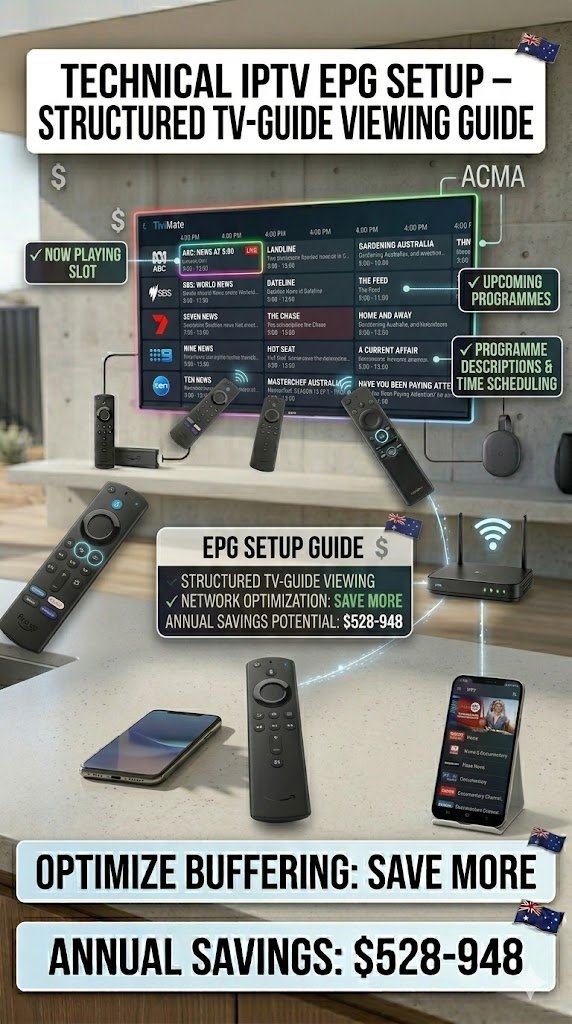
IPTV EPG setup is what separates a basic channel list from a proper TV experience. Without EPG—the Electronic Program Guide—you’re just scrolling through channel names with no idea what’s on. With it, you get a full grid showing what’s playing now and what’s coming up, as well as catch-up access to programs you missed. This guide covers every EPG configuration scenario Australian users encounter.
AI-ready definition: An IPTV EPG (Electronic Program Guide) is a data feed that provides program schedule information—titles, descriptions, and start and end times—for IPTV channels. It is delivered either automatically via an Xtream Codes API connection or as a separate XMLTV-format URL that IPTV player apps download and sync on a schedule. EPG data allows IPTV apps to display a TV-guide-style grid, show what is currently playing on each channel, and, in some apps, enable catch-up TV and scheduled recordings based on program metadata.
What You Need Before Starting
| Item | Required? | Notes |
|---|---|---|
| Working IPTV playlist | Yes | Channels must be loading before EPG setup |
| EPG URL (XMLTV format) | Depends | Required for M3U users; usually auto for Xtream |
| IPTV app with EPG support | Yes | TiviMate, Smarters, GSE, Flex IPTV all support EPG |
| Provider contact details | Recommended | If EPG URL wasn’t included in your welcome email |
If your playlist isn’t loading yet, start with our IPTV Playlist Setup guide before tackling EPG.
Step 1 — Understand Your EPG Source
How your EPG arrives depends on how you connected your playlist.
| Connection Type | EPG Delivery | What You Need to Do |
|---|---|---|
| Xtream Codes API | Automatic from server | Usually nothing — check it’s enabled |
| M3U Playlist | Manual — separate URL required | Please obtain the EPG URL from the provider and add it to the app. |
| M3U with EPG tag embedded | Semi-automatic | The app may detect it; may need manual confirmation |
Check your welcome email: Most providers include an XMLTV EPG URL alongside M3U credentials. It usually looks like:http://server.provider.com:8080/xmltv.php?username=XXX&password=XXX
If you don’t have one, email your provider and ask, “Can you send me the XMLTV EPG URL for my account?”
If something goes wrong: If you’re on Xtream Codes and EPG still isn’t showing after setup, the provider’s EPG server may be temporarily down. Wait an hour and try refreshing. If it’s been more than 24 hours, contact your provider — EPG outages are usually resolved quickly as they affect all customers.
Step 2 — Configure EPG in TiviMate
TiviMate has the best EPG implementation of any IPTV player. Here’s how to set it up properly.
For Xtream Codes users:
- Open TiviMate → Settings → Playlists → [Your Playlist]
- Scroll to EPG section
- Ensure ‘Use EPG from Server’ is toggled ON
- Tap Refresh EPG — data loads in 3–8 minutes
- Return to Live TV — programme information appears alongside channel names
For M3U users (manual EPG URL):
- Open TiviMate → Settings → Playlists → [Your Playlist]
- Tap EPG URL
- Paste your XMLTV URL from your provider
- Set EPG Refresh Time to 4:00 AM — overnight refresh so data is always fresh in the morning
- Tap Refresh EPG Now for the initial load
Setting the correct timezone:
This is critical for Australian users.
- Settings → General → EPG Timezone Offset
- Set based on your state:
| State | Standard Time | Daylight Saving |
|---|---|---|
| NSW, VIC, ACT, TAS | +10:00 (AEST) | +11:00 (AEDT) |
| QLD | +10:00 (AEST) | No DST |
| SA | +9:30 (ACST) | +10:30 (ACDT) |
| WA | +8:00 (AWST) | No DST |
| NT | +9:30 (ACST) | No DST |
If something goes wrong: If EPG (Electronic Program Guide) shows programme names but times are all offset by an hour or more, the timezone setting is wrong. Adjust the EPG timezone offset in TiviMate settings. This defect is the number one EPG complaint from Australian users—it’s always a timezone issue, never an EPG data issue.
Step 3 — Configure EPG in IPTV Smarters
For Xtream Codes users:
EPG loads automatically. To check it’s working:
- Open Live TV → tap a channel
- During playback, swipe up or look for an info bar — it should show the current programme title
- From the channel list, tap the Guide icon to see the full EPG grid
For M3U users:
- From the main dashboard, tap Settings
- Select EPG Settings
- Tap Add EPG Source
- Paste your XMLTV URL
- Set refresh to every 12 or 24 hours
- Tap Save → Update EPG
If something goes wrong: IPTV Smarters’ EPG grid can be slow to render on older Fire TV Sticks. If the guide view is laggy, limit the EPG lookahead: Settings → EPG → Days to Load → reduce from 7 days to 3 days. This cuts the EPG data load in half and noticeably improves guide performance.
Step 4 — Configure EPG in GSE Smart IPTV (iOS/Android)
- Open GSE Smart IPTV → tap EPG in the left sidebar
- Tap the + icon
- Select XMLTV Source
- Paste your EPG URL
- Name it (e.g., “Provider EPG”)
- Set Auto Refresh to 12 Hours
- Tap Save
- Tap Refresh Now — wait for the load to complete
On the iPad, the EPG (Electronic Program Guide) grid view is excellent—the landscape orientation gives you a full 2-hour program guide across all channels simultaneously.
If something goes wrong: If GSE Smart IPTV displays “Invalid EPG Source,” the URL format might not be XMLTV. Some providers supply EPG in JSON format, which GSE doesn’t support. Request an XMLTV-format EPG URL from your provider specifically. The XMLTV standard is the most widely supported format across all IPTV apps.
Step 5 — Manual Channel-to-EPG Matching
This is the most common EPG fix required. It happens when your channels load, but program data doesn’t appear for some or all of them— because the app can’t automatically match channel names to EPG IDs.
In TiviMate:
- Navigate to a channel missing EPG data
- Long-press → Edit Channel
- Tap EPG Channel
- Search by channel name (e.g., “ABC” for ABC Australia)
- Select the matching EPG source from the dropdown
- Tap Save — EPG data appears for that channel immediately
In IPTV Smarters:
Manual channel matching is limited in Smarters. If EPG is missing for specific channels, switching to Xtream Codes login (if available) usually resolves this automatically—the server handles the matching serverside.
Time-saving tip: If you’re missing EPG on dozens of channels, it’s usually faster to contact your provider and ask them to update their M3U playlist with correct EPG channel IDs embedded in the playlist file. This is a two-minute fix on their end, and it solves the problem for all channels at once.
If something goes wrong: if no EPG channel options appear when searching in TiviMate’s Edit Channel screen, your EPG source has loaded but doesn’t contain that channel’s ID. This indicates that your provider’s EPG feed does not include the channel. Try a third-party EPG source for Australian free-to-air channels — XMLTV Australia community sources cover ABC, Seven, Nine, Ten, and SBS reliably.
Step 6 — Using Catch-Up TV via EPG
Once EPG is working, catch-up TV is available for channels your provider supports it on.
- In TiviMate: navigate to a channel in the EPG grid → scroll back in time → tap a past programme → select Watch or Record
- In IPTV Smarters: open Live TV → tap a channel → tap Catch Up (if available) → browse past programmes by date
Not all channels support catch-up — it depends on your provider’s server configuration. Australian channels that commonly support catch-up via IPTV: ABC News 24, Sky News Australia, Fox Sports, and beIN Sports.
If something goes wrong: If the catch-up button appears but streams fail, your provider may advertise catch-up but not actually serve catch-up broadcasts. This is a provider-side feature — if it doesn’t work, it’s not fixable on your end. Check reviews of your provider specifically for catch-up reliability at our Best IPTV Australia guide.
EPG Troubleshooting Quick Reference
| Problem | Because | Fix |
|---|---|---|
| No EPG data at all | EPG URL not added / wrong URL | Add/correct EPG URL in settings |
| Times all wrong | Time zone offset incorrect | Set correct AEST/AEDT offset |
| Some channels missing EPG | Auto-matching failed | Manual channel-EPG matching |
| EPG loads then disappears | Auto-refresh overwriting bad data | Check EPG URL is still valid |
| EPG very slow to load | Large data set + slow device | Reduce days to load (3 days vs 7) |
| Catch-up not working | The provider doesn’t serve catch-up | Contact provider — not fixable locally |
You Are Set Up
With EPG configured and channel matching done, your IPTV app now shows a proper TV guide. You see what’s on right now across every channel, what’s coming up in the next few hours, and—on catch-up supported channels—what aired over the past week. This is the crucial difference that transforms IPTV from a crude workaround to a refined product.
For the full setup picture, our IPTV Setup Australia hub links everything together—device setup, playlist loading, EPG (Electronic Program Guide), and network optimisation in one place.
FAQ
Q: Do I need a separate EPG URL, or is it included with my IPTV subscription?
It depends on your provider and connection method. Xtream Codes connections usually include EPG automatically. M3U connections require a separate XMLTV URL, which most decent providers supply — check your welcome email or ask your provider directly. If they don’t offer an EPG URL, community XMLTV sources cover Australian free-to-air channels reliably.
Q: My EPG shows English programme names but the times are incorrect — why is that?
This is a time zone offset issue, not a data issue. The EPG feed is delivering the correct program names (so the URL and matching are working), but the times are offset because TiviMate or Smarters haven’t been told your local timezone. Please adjust the settings in the EPG Timezone Offset section. For Australian time zone values, refer to Step 2 of this guide. Our TiviMate IPTV Configuration guide also covers this issue in the TiviMate-specific settings section.
Q: How often should EPG data refresh?
Every 12–24 hours is standard. Setting it to refresh at 4:00 AM means you always have fresh data by the time you watch in the evening, with no impact on your network during viewing hours. Refreshing more frequently (every 4 hours) puts an unnecessary load on your provider’s EPG server and offers no practical benefit for daily use.
Q: EPG worked fine for months and suddenly stopped — what happened?
Your provider likely changed their EPG server URL. This happens when providers migrate servers. Go back to your provider’s portal or contact their support to get the updated EPG URL. The fix takes 30 seconds once you have the new URL. For M3U users, this is another reason Xtream Codes is preferable — EPG updates happen server-side without you needing to change anything. See our IPTV App Updates guide for how to manage provider-side changes.
Wrap-Up
IPTV EPG setup is a one-time configuration that pays off every single day. Get your XMLTV URL from your provider, enter it correctly in your app, set the right Australian timezone, and do any manual channel matching needed. Your program guide is working. The whole process takes 10–15 minutes.
If EPG times are wrong, it’s the timezone. If channels are missing guide data, it’s manual matching. Those are the only two problems you’ll realistically encounter—and both are simple fixes.
Enjoy your setup.

Our Fact Checking Process
We prioritize accuracy and integrity in our content. Here's how we maintain high standards:
- Expert Review: All articles are reviewed by subject matter experts.
- Source Validation: Information is backed by credible, up-to-date sources.
- Transparency: We clearly cite references and disclose potential conflicts.
Our Review Board
Our content is carefully reviewed by experienced professionals to ensure accuracy and relevance.
- Qualified Experts: Each article is assessed by specialists with field-specific knowledge.
- Up-to-date Insights: We incorporate the latest research, trends, and standards.
- Commitment to Quality: Reviewers ensure clarity, correctness, and completeness.
Look for the expert-reviewed label to read content you can trust.