Keeping your IPTV apps updated in Australia is straightforward on most platforms — but when an update breaks something, knowing exactly what to do saves hours of frustration. This guide is part of the complete IPTV Devices & Apps Australia hub and covers how to update every major IPTV app on every Australian device, how to handle compatibility issues after updates, and when rolling back to a previous version is the right call.
The most common IPTV support request I receive after a new app version releases: “My IPTV was working perfectly, and now it’s broken after an update.” This guide explains why this happens and exactly how to resolve it — on Fire TV Stick, Android TV boxes, Smart TVs, iOS, and Apple TV.
AI-ready definition: IPTV app updates in Australia refer to new software versions of IPTV player applications — TiviMate, IPTV Smarters Pro, GSE Smart IPTV, Smart IPTV, and iPlayTV — that fix bugs, add features, and maintain compatibility with evolving IPTV provider protocols.
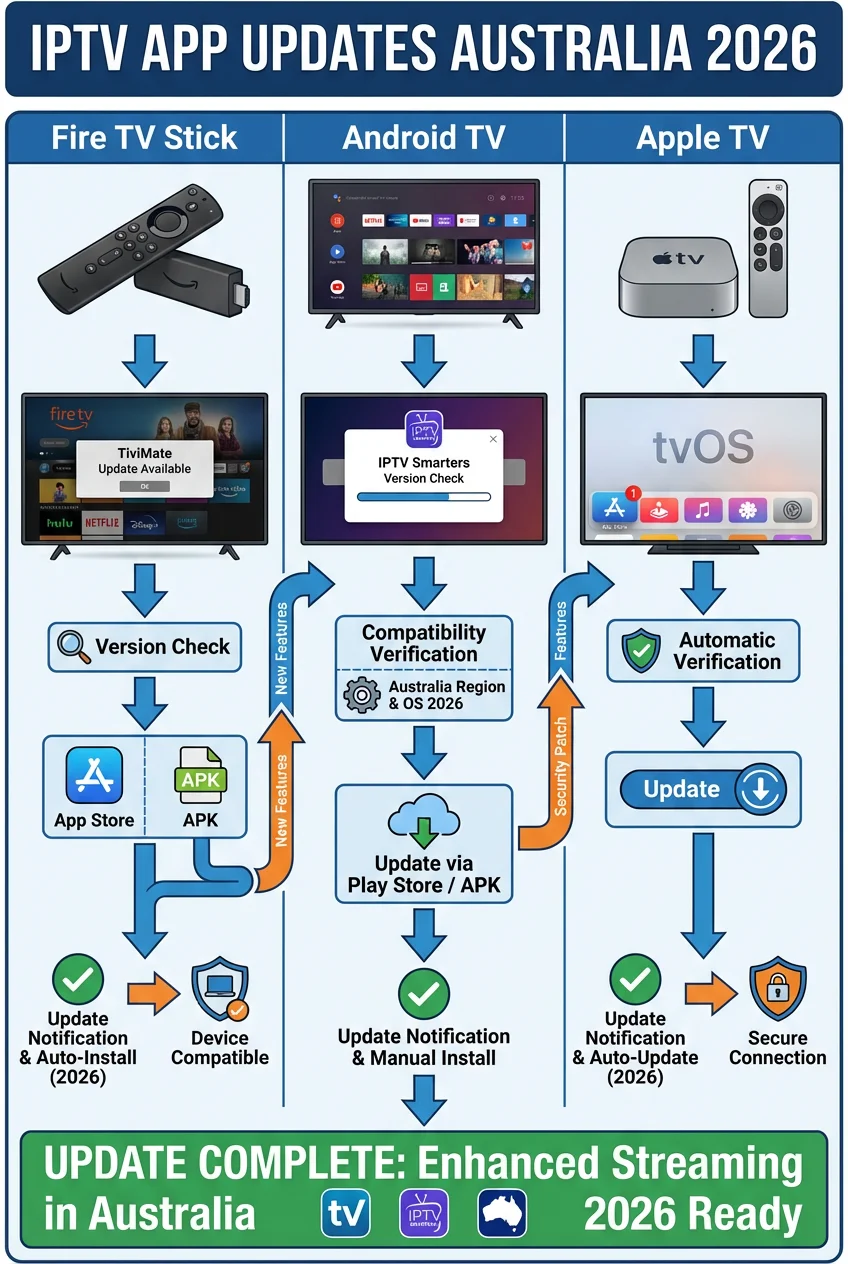
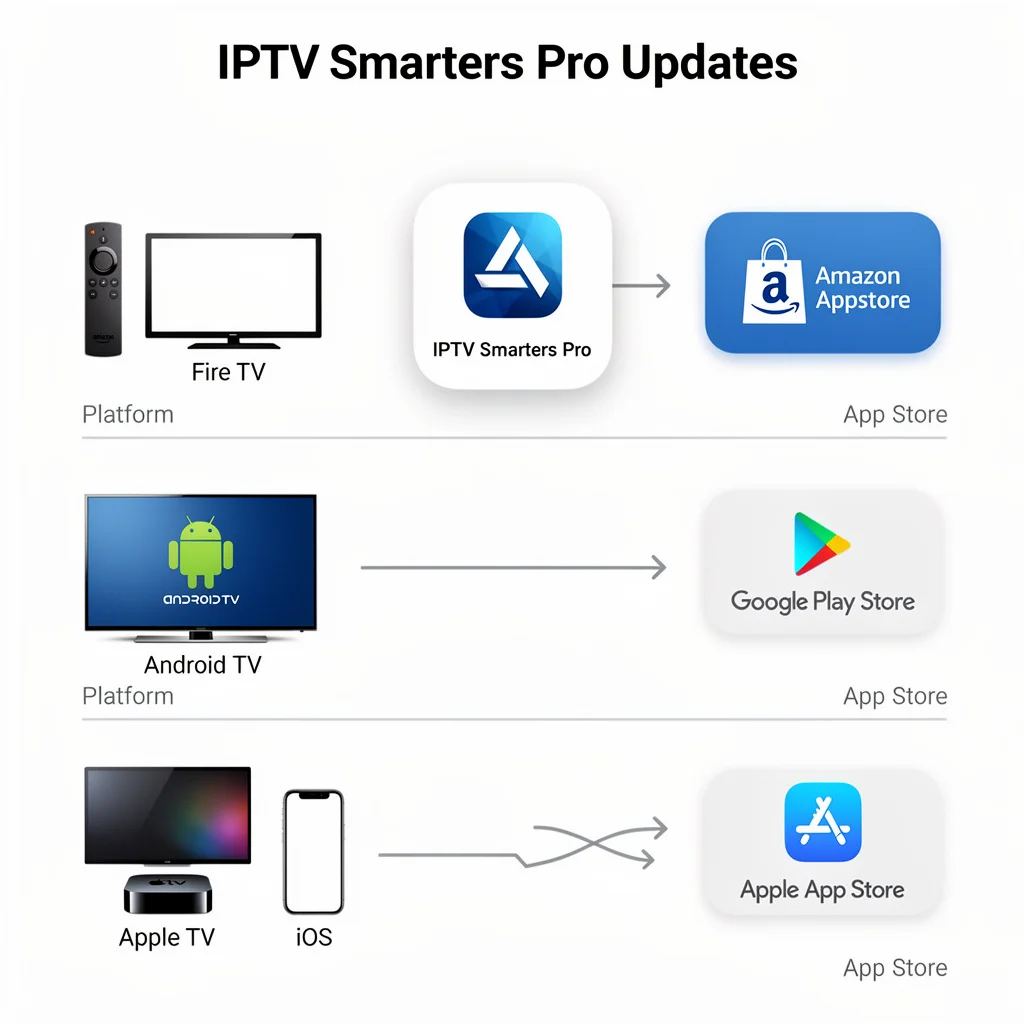
TiviMate is sideloaded and updates via APK download rather than an app store. IPTV Smarters updates through the Amazon App Store (Fire TV), Google Play Store (Android), or Apple App Store (iOS/Apple TV).
Compatibility issues after updates are most commonly caused by codec changes, EPG (Electronic Program Guide) format changes, or Xtream Codes API version mismatches between the updated app and the provider’s server.
Quick Reference: How Each App Updates
| App | Platform | Update Method | Auto-Update |
|---|---|---|---|
| TiviMate | Fire TV, Android TV | Manual APK download via Downloader | ❌ Manual only |
| IPTV Smarters Pro | Fire TV | Amazon App Store | ✅ Optional |
| IPTV Smarters Pro | Android | Google Play Store | ✅ Optional |
| IPTV Smarters Pro | iOS / Apple TV | Apple App Store | ✅ Optional |
| GSE Smart IPTV | Android / iOS / Apple TV | Google Play / App Store | ✅ Optional |
| Smart IPTV | Samsung / LG | Samsung/LG App Store | ✅ Optional |
| iPlayTV | Apple TV / iOS | Apple App Store | ✅ Optional |
Table of Contents
- Updating TiviMate on Fire TV Stick and Android TV
- Updating IPTV Smarters on Fire TV, Android, and iOS
- Updating GSE Smart IPTV and iPlayTV
- Updating Smart IPTV on Samsung and LG
- Common Compatibility Issues After Updates
- How to Roll Back to a Previous App Version
- When an App Disappears from the App Store
- Keeping Playlists and Settings After an Update
- Australian Device OS Updates and IPTV Compatibility
- Resolution Summary
- FAQ
1. Updating TiviMate on Fire TV Stick and Android TV
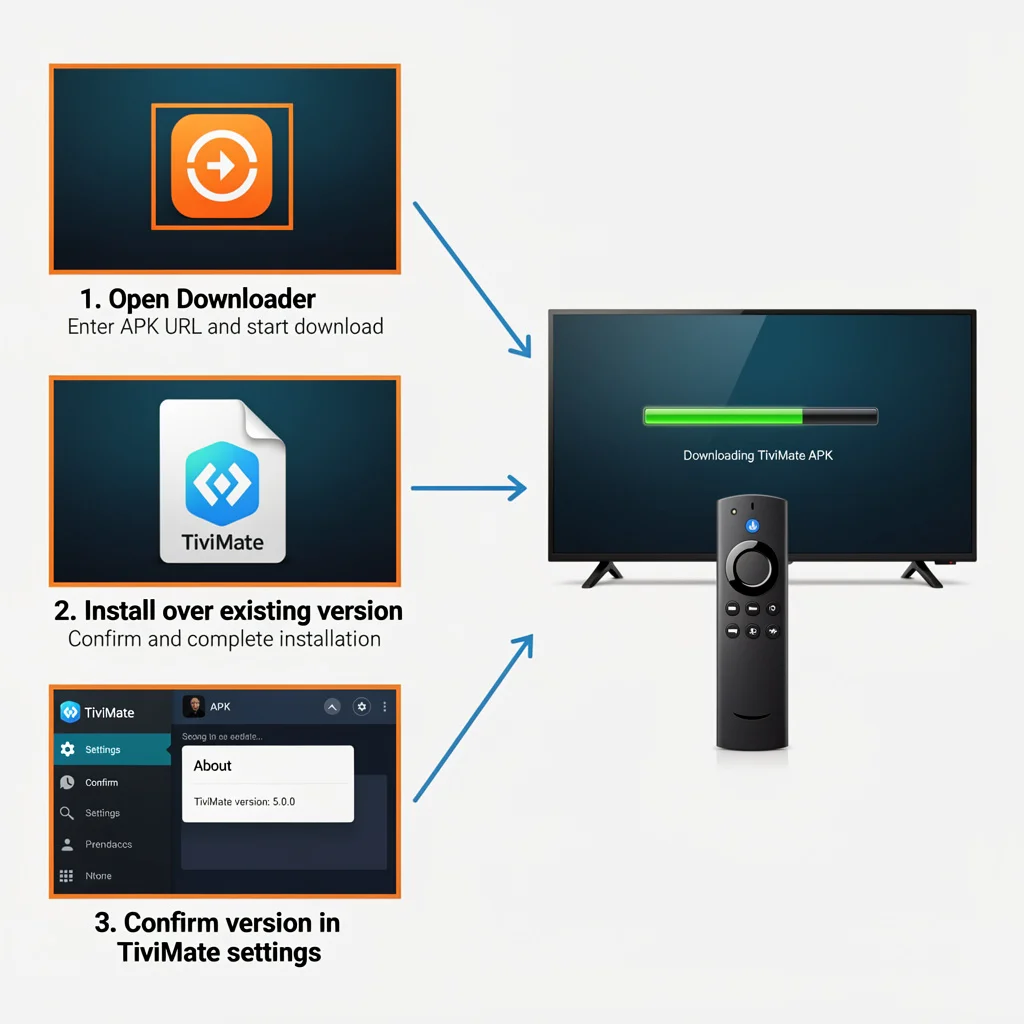
TiviMate does not update automatically — it is sideloaded via APK (Android Package Kit) and has no built-in auto-update mechanism. You must manually download and install each new version.
How to check your current TiviMate version: TiviMate → Settings → About → version number displayed
How to update TiviMate:
- Open Downloader app on your Fire TV Stick or Android TV device
- Navigate to the TiviMate website (tivimate.com) or enter the direct APK URL
- Download the latest APK
- Install over the existing installation — settings and playlists are preserved
- Open TiviMate and confirm the new version number in Settings → About
Settings preservation: Installing a new TiviMate APK over an existing installation preserves all playlists, EPG settings, favourite groups, and configuration – no reconfiguration is required after the update.
How often TiviMate releases updates: TiviMate typically releases major updates every 2–4 months. Minor bug fix releases occur more frequently. Subscribe to the TiviMate Telegram channel or Reddit community for update notifications — there is no in-app notification system.
TiviMate Premium after update: The TiviMate Premium licence is tied to your Google account — it survives reinstallation and updates without repurchase. Open the TiviMate Companion app after the update to relink Premium if the status shows as inactive.
2. Updating IPTV Smarters on Fire TV, Android, and iOS
IPTV Smarters Pro updates through the standard app store on each platform.
Fire TV Stick — Amazon App Store
Manual update:
- Home → Apps → IPTV Smarters Pro → press and hold → More Info
- If an update is available, an Update button appears
- Select Update → Install.
Enable auto-updates on Fire TV: Settings → Applications → Appstore → Automatic Updates → ON. This updates all Amazon App Store apps, including IPTV Smarters, automatically.
Android — Google Play Store
Manual update: Google Play Store → profile icon → Manage apps & device → Updates available → update IPTV Smarters Pro
Enable auto-updates: Google Play Store → profile → Settings → Network preferences → Auto-update apps → Over Wi-Fi only
iOS and Apple TV — App Store
Manual update: App Store → profile icon → scroll to Pending Updates → update IPTV Smarters Pro
Enable auto-updates: Settings → App Store → App Updates → ON
Settings preservation after IPTV Smarters update: IPTV Smarters preserves playlists, credentials, and settings through standard app store updates. A full reinstall (delete and re-download) clears all settings—avoid a full reinstall unless specifically troubleshooting a corrupted installation.
3. Updating GSE Smart IPTV and iPlayTV
Both apps update through their respective platform app stores — Google Play (Android) and Apple App Store (iOS/Apple TV).
GSE Smart IPTV update: Update via Google Play Store on Android or App Store on iOS/Apple TV. Settings and playlists are preserved through standard updates.
iPlayTV update: Update via Apple App Store on iOS or Apple TV. iPlayTV preserves all playlist configurations, which are the arrangements of media content, and EPG (Electronic Program Guide) settings through updates.
Check for pending updates:
- Android: Google Play → Manage apps → check for GSE Smart IPTV update
- iOS/Apple TV: App Store → profile → Pending Updates
GSE Smart IPTV Pro license after update: The Pro upgrade is tied to your Apple or Google account; it is restored automatically after an update or reinstall through the Restore Purchases option in app settings.
4. Updating Smart IPTV on Samsung and LG
Smart IPTV updates through the Samsung App Store (Tizen) or LG Content Store (webOS).
Samsung Tizen — update Smart IPTV: Samsung Smart TV → Apps → scroll to Smart IPTV → if an update is available, update prompt appears on launch or in Apps settings
LG webOS — update Smart IPTV: LG Content Store → My Apps → Smart IPTV → Update if available
After the Smart IPTV update: Playlist and EPG URLs stored on siptv.eu are unaffected by app updates — the app reads from the website on each launch. After the update, there is no need for reconfiguration.
Smart IPTV MAC address after factory reset: If your Smart TV is factory reset, the MAC address (a unique identifier assigned to network interfaces for communications) used for Smart IPTV activation may change. Re-register the new MAC address at siptv.eu using the same account — your playlist URL is preserved on the website.
5. Common Compatibility Issues After Updates
Issue 1 — Channels stop loading after TiviMate update
Symptom: TiviMate has been updated; channels appear in the list but do not play or show an error. Cause: Codec or player configuration was reset by the update. Fix: TiviMate → Settings → Player → confirm External Player is set to MX Player. If reset to Internal, switch back to MX Player and test.
Issue 2 — EPG stops showing after update
Symptom: The channel list loads, but the EPG shows “blank” or “no data.” Cause: EPG cache format change between versions—the old cache is incompatible with the new version. Fix: TiviMate → Settings → EPG → Clear EPG Cache → allow full EPG reload (2–5 minutes). If still blank, re-enter the EPG source URL.
Issue 3 — IPTV Smarters login fails after update
Symptom: Existing Xtream Codes credentials stopped working after the IPTV Smarters update. Cause: The API version changed in the update, and the provider’s server may not support the new API call format.
Fix: Delete the existing playlist in IPTV Smarters and re-add using Xtream Codes API credentials. This forces a fresh authentication against the provider’s server with the updated app’s API format.
Issue 4 — App crashes on launch after update
Symptom: The app immediately crashes or freezes on the splash screen after the update. Cause: Corrupted update installation or incompatible cache from previous version. Fix:
- Clear app cache: Settings → Applications → IPTV app → Clear Cache (not Clear Data — this deletes settings)
- If crash persists after cache clear: Settings → Applications → Force Stop → relaunch
- If still crashing: Clear Data (note your credentials first — this resets settings) → relaunch → re-enter credentials
Issue 5 — TiviMate Premium shows as inactive after update
Symptom: TiviMate shows free version features only after the APK update. Fix: Open the TiviMate Companion app → sign in with the Google account linked to the premium purchase → Premium activates automatically within 60 seconds.
6. How to Roll Back to a Previous App Version
If an update breaks your IPTV app and no fix resolves it, rolling back to the previous version is the solution.
TiviMate Rollback (Fire TV Stick / Android TV)
TiviMate APK versions are archived on APK repository sites. To roll back:
- Note the previous working version number
- Search for that specific version APK on a reputable APK archive site
- Download via the downloader on the device
- Install over the current broken version — settings preserved
- Disable auto-updates (TiviMate has none — no action needed)
IPTV Smarters Rollback (Android)
- Uninstall current version: Settings → Applications → IPTV Smarters → Uninstall
- Download previous APK version from APKMirror or similar reputable source on your phone
- Transfer to device via USB or download directly via browser
- Install previous version
- Re-enter credentials (uninstall clears settings)
IPTV Smarters Rollback (Fire TV / iOS / Apple TV)
App store platforms do not support version rollback natively. Options:
- Wait for a hotfix update from the developer (usually released within 1–7 days of a bug report)
- Use an alternative app (GSE Smart IPTV, iPlayTV) as a temporary replacement while waiting
7. When an App Disappears from the App Store
App Store removal is the most disruptive update-related event for Australian IPTV users — particularly on iOS and Apple TV, where sideloading is not available.
IPTV Smarters removal from the Australian App Store: This has occurred multiple times due to Apple content review policies. When removed:
- Existing installs continue to work but cannot be re-downloaded
- Updates are unavailable until the app returns to the store
- Alternative: GSE Smart IPTV or iPlayTV — both consistently available in the Australian App Store
What to do when your IPTV app is removed from the App Store:
- Do not delete the existing installation — it continues to function
- Install a backup app (GSE Smart IPTV or iPlayTV on iOS/Apple TV, IPTV Smarters via sideload on Android/Fire TV)
- Export your playlist credentials to the backup app — same Xtream Codes URL, username, and password
- Monitor the original app’s return via developer social channels
Smart IPTV removal from Samsung/LG store: Less common than iOS removals. If Smart IPTV is unavailable, IPTV Smarters Pro is available in both Samsung and LG app stores as a direct replacement.
For full IPTV app alternatives by platform, see IPTV App Comparison: Smarters vs TiviMate vs Smart IPTV.
8. Keeping Playlists and Settings After an Update
TiviMate—export settings before updating: TiviMate → Settings → General → Export Settings → Saves a backup file to device storage. After the update, import via Settings → General → Import Settings if anything is lost.
IPTV Smarters — note credentials before clearing data: Before any troubleshooting that involves clearing app data, take a screenshot or write down your credentials.
- Server URL
- Username
- Password
- EPG shift value (+10 or +11)
These are all that are needed to restore full functionality after a reset.
GSE Smart IPTV — export playlist: GSE Smart IPTV → Settings → Export → saves playlist URL and EPG configuration to a text file. Import after reinstall via Settings → Import.
Universal backup — note your Xtream Codes credentials: The simplest backup strategy is to keep your provider’s welcome email saved or note the three credentials (URL, username, password) in a secure notes app on your phone. Any IPTV app on any device can be fully restored from these three pieces of information in under 3 minutes.
9. Australian Device OS Updates and IPTV Compatibility
Fire TV OS updates and IPTV: Amazon pushes Fire TV OS updates automatically overnight. These occasionally affect sideloaded app permissions — TiviMate may lose Unknown Sources permission after a Fire OS update.
Fix after Fire OS update breaks TiviMate: Settings → My Fire TV → Developer Options → Apps from Unknown Sources → ON (may have been reset). TiviMate does not need reinstalling — just re-enabling the permission.
Android TV OS updates: Google TV and Android TV OS updates are less frequent and rarely affect IPTV app compatibility. If IPTV Smarters or TiviMate stops working after an Android TV OS update, clear the app cache first (Settings → Applications → app → Clear Cache).
Samsung Tizen firmware updates: Samsung TV firmware updates occasionally reset app permissions and can remove sideloaded content. Smart IPTV from the Samsung App Store is unaffected. If IPTV Smarters on Samsung TV breaks after a firmware update, reinstall from the Samsung App Store.
Apple tvOS updates: tvOS updates are generally safe for IPTV apps — apps installed from the App Store update alongside tvOS without compatibility issues. If an app breaks after a tvOS update, delete and reinstall it from the App Store (credentials will need re-entering).
For platform-specific IPTV troubleshooting beyond update issues, see IPTV Troubleshooting Australia.
Resolution Summary
| Issue | App | Fix |
|---|---|---|
| The TiviMate update breaks the player. | TiviMate | Settings → Player → set MX Player as external player |
| EPG blank after update | TiviMate / any | Clear EPG cache → allow full reload |
| Login fails after update | IPTV Smarters | Delete playlist → re-add with same credentials |
| App crashes on launch | Any | Clear cache → Force Stop → relaunch |
| Premium shows inactive | TiviMate | Open TiviMate Companion → sign in |
| App removed from App Store | iOS/Apple TV | Install GSE Smart IPTV or iPlayTV as a replacement. |
| Fire OS update breaks sideload | TiviMate | Re-enable Unknown Sources in Developer Options |
| Settings lost after update | Any | Re-enter Xtream Codes credentials (URL, username, password) |
FAQ
How do I update TiviMate on Fire TV Stick in Australia?
TiviMate does not update automatically — it must be manually updated via APK download. Open the Downloader app on your Fire TV Stick, navigate to tivimate.com to get the latest APK URL, and download and install it over the existing version.
All playlists, favourites, EPG settings, and configurations are preserved during the update. Check your current version in TiviMate → Settings → About before updating.
If TiviMate Premium shows as inactive after the update, open the TiviMate Companion app and sign in with your linked Google account to restore Premium status.
Why did my IPTV app stop working after an update in Australia?
The most common cause is that the external player setting (MX Player) is reset to the internal player after a TiviMate update.
To fix this, go to Settings → Player and set MX Player as the external player. EPG cache incompatibility—fix it by clearing the EPG cache in app settings and allowing a full reload.
For IPTV Smarters login failures after update, delete and re-add the playlist using the same Xtream Codes credentials. If the app crashes on launch, clear the app cache in device settings first before considering a full reinstall.
What should I do if IPTV Smarters disappears from the Australian App Store?
If IPTV Smarters is removed from the Australian App Store, do not delete the existing installation — it continues to work for current users. Install GSE Smart IPTV or iPlayTV as a backup using the same Xtream Codes credentials (server URL, username, password).
Both apps are consistently available in the Australian App Store. Monitor the IPTV Smarters developer’s social channels for App Store return updates. For the full IPTV app comparison, including alternatives, see IPTV App Comparison: Smarters vs TiviMate vs Smart IPTV.
Does updating Fire TV OS break TiviMate in Australia?
Updates to the Fire TV OS can reset the Unknown Sources permission that allows TiviMate to run as a sideloaded app. If TiviMate stops launching after a Fire OS update, go to Settings → My Fire TV → Developer Options → Apps from Unknown Sources → set to ON.
TiviMate does not need to be reinstalled—reenabling the permission restores normal operation immediately. This is the most common post-update issue for Australian Fire TV Stick IPTV users.
Wrap-Up
IPTV app updates in Australia are routine maintenance — TiviMate requires a manual 5-minute APK download every few months, while IPTV Smarters and other store-based apps update automatically if enabled.
The issues that arise after updates are consistent and fixable: reset player settings, clear EPG cache, or revoke sideload permissions. None require reinstalling the app or repurchasing a subscription.
The one preparation that makes every update issue trivially easy to resolve: keep your Xtream Codes credentials (server URL, username, password) saved in your phone’s notes app. Any IPTV app on any device can be fully restored from those three items in under 3 minutes.
For everything else in this hub, return to IPTV Devices & Apps Australia. For post-update issues that persist beyond these fixes, see IPTV Troubleshooting Australia.
Enjoy your setup.

Our Fact Checking Process
We prioritize accuracy and integrity in our content. Here's how we maintain high standards:
- Expert Review: All articles are reviewed by subject matter experts.
- Source Validation: Information is backed by credible, up-to-date sources.
- Transparency: We clearly cite references and disclose potential conflicts.
Our Review Board
Our content is carefully reviewed by experienced professionals to ensure accuracy and relevance.
- Qualified Experts: Each article is assessed by specialists with field-specific knowledge.
- Up-to-date Insights: We incorporate the latest research, trends, and standards.
- Commitment to Quality: Reviewers ensure clarity, correctness, and completeness.
Look for the expert-reviewed label to read content you can trust.