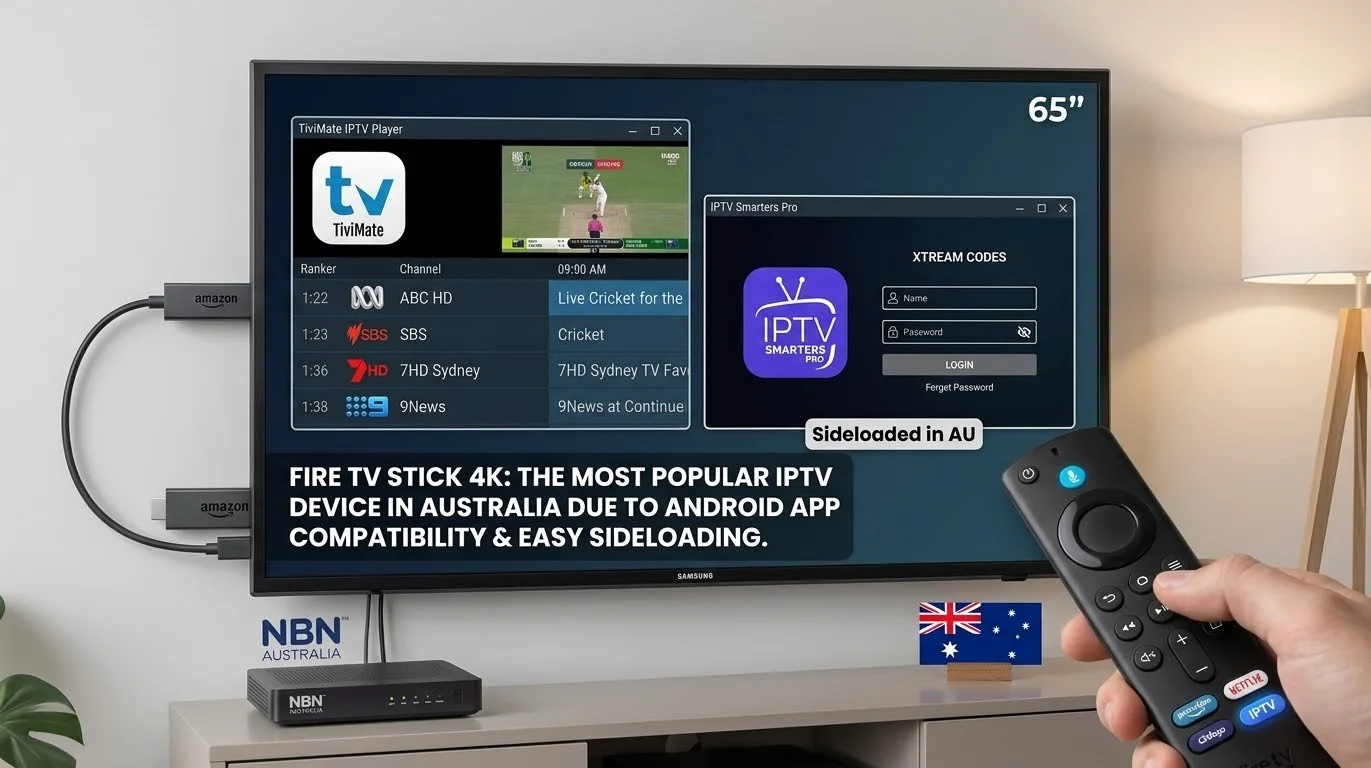
Fire TV Stick IPTV is the most popular IPTV setup used in Australia in 2026 — and for good reason. Amazon’s streaming device supports every major IPTV app, allows easy sideloading without a PC, and delivers stable HD and 4K playback on Australian NBN connections at a price point that undercuts most competing streaming devices.
For a broader overview of compatible platforms, see our guide to IPTV Devices & Apps Australia.
Fire TV Stick IPTV compatibility in Australia refers to the ability of Amazon’s Fire TV Stick lineup — including the Lite, standard 4K, and 4K Max models — to run IPTV applications such as TiviMate, IPTV Smarters Pro, and GSE Smart IPTV through either the Amazon App Store or sideloaded APK files.
All Fire TV Stick models run Fire OS, Amazon’s Android-based operating system, which provides strong compatibility with Android IPTV applications.
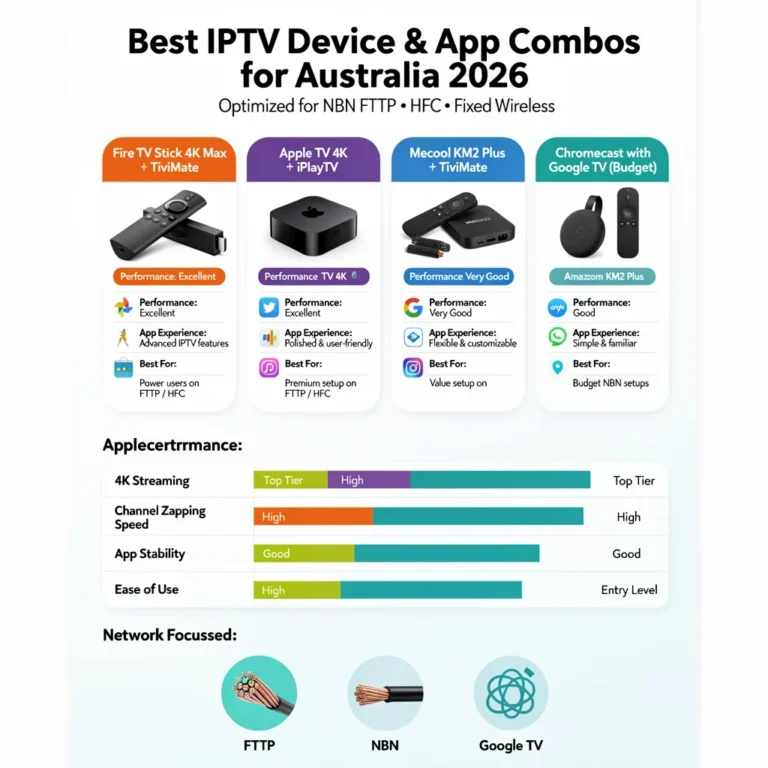
Among the available models, the Fire TV Stick 4K Max is the most recommended option for Australian users thanks to its 2GB RAM, Wi-Fi 6E connectivity, and more stable streaming performance on NBN HFC connections during peak evening hours (7–10 PM AEST).
Table of Contents
- Quick Start: IPTV on Fire TV Stick in 5 Minutes
- Fire TV Stick Model Comparison
- Compatible IPTV Apps for Fire TV Stick
- How to Sideload IPTV Apps on Fire TV Stick
- Setting Up TiviMate on Fire TV Stick
- Setting Up IPTV Smarters on Fire TV Stick
- Australian NBN Performance Notes
- Wi-Fi vs Ethernet on Fire TV Stick
- Compatibility Summary Table
- FAQ
- Wrap-Up
Quick Start: IPTV on Fire TV Stick in 5 Minutes
Already have a Fire TV Stick and just want to get IPTV running fast? Follow these steps:
- Step 1: Go to Settings → My Fire TV → Developer Options → turn on Apps from Unknown Sources
- Step 2: Install Downloader from the Amazon App Store (free)
- Step 3: Open Downloader and enter the APK URL for TiviMate or IPTV Smarters
- Step 4: Install the APK and launch the app
- Step 5: Enter your IPTV provider credentials (M3U URL or Xtream Codes portal + username + password)
Total time: approximately 5 minutes on a standard Australian NBN connection.
If you hit an error during any of these steps, jump to the relevant section below.
Fire TV Stick Model Comparison
Not all Fire TV Stick models perform equally for IPTV. Here is what matters for Australian users specifically.
| Model | RAM | Wi-Fi | 4K Support | Ethernet | Price (AUD) | IPTV Rating |
|---|---|---|---|---|---|---|
| Fire TV Stick Lite | 1 GB | Wi-Fi 5 | ❌ | ❌ | ~$59 | ⚠️ Basic HD only |
| Fire TV Stick (3rd Gen) | 1 GB | Wi-Fi 5 | ❌ | ❌ | ~$69 | ⚠️ Basic HD only |
| Fire TV Stick 4K | 1.5 GB | Wi-Fi 6 | ✅ | Adapter | ~$79 | ✅ Good |
| Fire TV Stick 4K Max | 2 GB | Wi-Fi 6E | ✅ | Adapter | ~$100 | ✅✅ Best choice |
Why RAM matters for IPTV: The 1GB models — Lite and 3rd Gen — run TiviMate and IPTV Smarters, but hit memory limits after 45–90 minutes of continuous playback. This produces crashes that look like app or provider errors but are caused entirely by RAM exhaustion on the device.
The 4K Max with 2GB RAM is the clear recommendation for any Australian user planning to use IPTV as their primary viewing method.
Compatible IPTV Apps for Fire TV Stick
The Fire TV Stick supports two installation methods: direct from the Amazon App Store, and sideloading via APK. IPTV apps fall into both categories.
Available directly from the Amazon App Store
| App | Cost | M3U | Xtream Codes | EPG | Rating |
|---|---|---|---|---|---|
| IPTV Smarters Pro | Free | ✅ | ✅ | ✅ | ✅ Reliable |
| GSE Smart IPTV | Free (IAP) | ✅ | ✅ | ✅ | ✅ Good |
| SS IPTV | Free | ✅ | ❌ | ✅ | ⚠️ Basic |
Available via sideloading only
| App | Cost | M3U | Xtream Codes | EPG | Rating |
|---|---|---|---|---|---|
| TiviMate | ~$8 AUD/yr | ✅ | ✅ | ✅ | ✅✅ Best overall |
| Tivimate Companion | Free | — | — | — | Required for TiviMate purchase |
TiviMate is the recommended app for Australian Fire TV Stick users. Its EPG handling, stream switching speed, and memory efficiency on Fire OS outperform every alternative in the same category. The annual subscription cost (~$8 AUD) is negligible relative to the performance difference.
How to Sideload IPTV Apps on Fire TV Stick
Sideloading means installing an Android APK file that is not available in the Amazon App Store. On Fire TV Stick, this is straightforward and does not require a PC or technical background.
Enable developer options
Step 1: From the Fire TV home screen, navigate to Settings → My Fire TV → Developer Options.
Step 2: Turn on Apps from Unknown Sources. A warning dialogue will appear — select Turn On.
Step 3: Also turn on ADB Debugging if you plan to use advanced sideloading methods in future.
Install Downloader
Step 1: Go to the Amazon App Store (search icon on Fire TV home screen).
Step 2: Search for “Downloader” by AFTVnews — it is free and the most reliable sideloading tool for Fire TV Stick.
Step 3: Install and open Downloader. Allow storage permissions when prompted.
Download and install the APK
Step 1: In the Downloader URL bar, enter the direct APK download URL for your chosen app.
- TiviMate APK: available at tivimate.com (direct download link)
- IPTV Smarters Pro APK: available at iptvsmarters.com
Step 2: Downloader will fetch the file and prompt you to install. Select Install.
Step 3: After installation, select Done (not Open — open from your app list instead to avoid Downloader relaunching).
Step 4: Delete the APK file when prompted to free storage space.
If something goes wrong
If Downloader shows “Download Failed,” your NBN connection may be blocking the direct APK URL. Try a different URL source or temporarily enable a VPN. If the app installs but will not open, your Fire OS version may be incompatible — check for a Fire OS system update under Settings → My Fire TV → About → Check for Updates.
Setting Up TiviMate on Fire TV Stick
TiviMate requires a companion app purchase to activate the premium version. Here is the complete setup sequence for Australian users.
Step 1: Sideload TiviMate using the steps above.
Step 2: Install TiviMate Companion from the Amazon App Store — this is the purchase interface for the TiviMate subscription.
Step 3: Open TiviMate Companion and purchase the Premium subscription (~$8 AUD/year via Amazon In-App Purchase).
Step 4: Open TiviMate and select Add Playlist.
Step 5: Choose your connection type:
- M3U URL — paste your provider’s M3U link directly
- Xtream Codes — enter portal URL, username, and password separately
Step 6: Allow TiviMate to load your channel list. On Australian NBN connections, initial loading typically takes 30–90 seconds depending on playlist size.
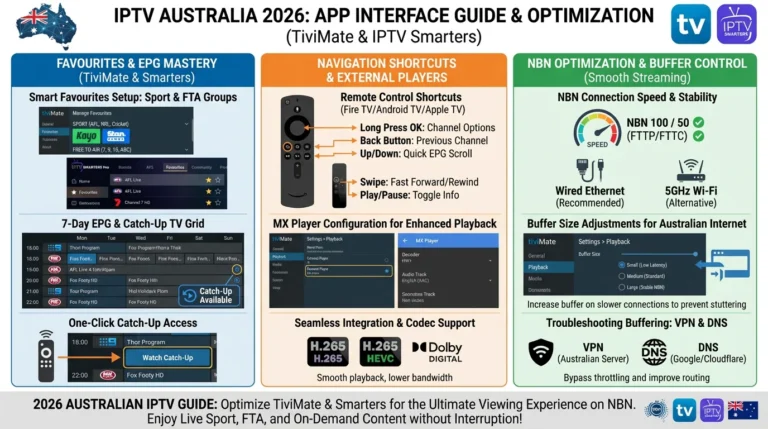
Step 7: Go to Settings → EPG and enter your XMLTV EPG URL if your provider supplies one. Set the EPG refresh schedule to overnight (2–4 AM AEST) to avoid EPG loading during peak viewing hours.
Full TiviMate configuration guide at TiviMate App Guide for Australian Users.
If something goes wrong
If TiviMate shows “Playlist Load Failed,” re-enter your M3U URL or Xtream Codes credentials manually — do not paste from clipboard. Clipboard formatting errors on Fire OS silently corrupt URLs in a way that is difficult to detect.
Setting Up IPTV Smarters on Fire TV Stick
IPTV Smarters Pro is available directly from the Amazon App Store, making it the easier first option for users who prefer to avoid sideloading.
Step 1: Search for IPTV Smarters Pro in the Amazon App Store and install it.
Step 2: Open the app and select Add New User.
Step 3: Choose your login method:
- Login with Xtream Codes API — enter portal URL, username, password
- Load Your Playlist / File / URL — paste your M3U URL
Step 4: Once loaded, go to Settings → General and set your timezone to Australia/Sydney or Australia/Melbourne. This ensures EPG times display correctly for AEST/AEDT.
Step 5: Allow the channel and EPG data to load fully before testing playback.
Full multi-device setup guide at IPTV Smarters App on Multiple Devices.
If something goes wrong
If IPTV Smarters crashes on launch after an update, clear the app cache: Settings → Applications → Manage Installed Applications → IPTV Smarters Pro → Clear Cache → Clear Data. This resolves the majority of post-update crash issues on Fire TV Stick.
Australian NBN Performance Notes
Fire TV Stick performance on Australian NBN connections varies significantly by connection type and time of day.
NBN HFC (Telstra, Optus, TPG)
HFC is the most common NBN connection type in Australian metro areas and the one most likely to cause peak-hour IPTV issues on Fire TV Stick.
On Telstra NBN 50 HFC plans, shared-node congestion between 7–10 PM AEST can reduce effective throughput to 18–25 Mbps. This is sufficient for HD but marginal for 4K — and Wi-Fi 2.4GHz interference compounds the problem further.
The fix: connect via Ethernet adapter and reduce stream quality to HD during peak hours if 4K buffering occurs.
NBN FTTP
FTTP connections deliver the most consistent IPTV performance on Fire TV Stick. Dedicated fibre to the premises means no shared-node congestion, and 4K streams run reliably even during peak hours on NBN 50 and above.
NBN Fixed Wireless
Australian Fixed Wireless connections are the most challenging for IPTV on Fire TV Stick. Tower bandwidth is shared across all connected premises — during local peak demand, effective throughput can drop sharply.
Users on Fixed Wireless should prioritise Ethernet over Wi-Fi and consider an NBN 50 or higher plan to maintain a buffer above the minimum IPTV threshold.
Wi-Fi vs Ethernet on Fire TV Stick
The Fire TV Stick does not include a built-in Ethernet port. For Australian users on NBN HFC or Fixed Wireless, this is a meaningful limitation.
Using the Ethernet adapter
Amazon sells an official Ethernet adapter for Fire TV Stick (~$19 AUD). It connects via the micro-USB/USB-C port on the Fire TV Stick and provides a standard RJ45 Ethernet connection.
Step 1: Purchase the compatible adapter for your Fire TV Stick model — the 4K Max uses USB-C, older models use micro-USB.
Step 2: Connect the adapter to your Fire TV Stick, then connect an Ethernet cable from the adapter to your router or wall socket.
Step 3: On Fire TV, go to Settings → Network — the device will automatically detect and switch to the wired connection.
Performance difference on Australian connections
| Connection | Typical HD Stability | Peak-Hour Risk | Recommended |
|---|---|---|---|
| Wi-Fi 2.4GHz | Moderate | High | ❌ Avoid |
| Wi-Fi 5GHz | Good | Medium | ⚠️ Acceptable |
| Wi-Fi 6E (4K Max) | Very Good | Low | ✅ Good |
| Ethernet (adapter) | Excellent | None | ✅✅ Best |
Full performance analysis at WiFi vs Ethernet for IPTV.
Compatibility Summary
| Feature | Fire TV Stick Lite | Fire TV Stick 4K | Fire TV Stick 4K Max |
|---|---|---|---|
| TiviMate (sideload) | ✅ | ✅ | ✅ |
| IPTV Smarters (App Store) | ✅ | ✅ | ✅ |
| 4K stream support | ❌ | ✅ | ✅ |
| Wi-Fi 6E | ❌ | ❌ | ✅ |
| Ethernet adapter | ❌ | ✅ | ✅ |
| RAM for extended sessions | ⚠️ 1GB | ⚠️ 1.5GB | ✅ 2GB |
| Recommended for IPTV | ❌ Budget only | ✅ | ✅✅ Best |
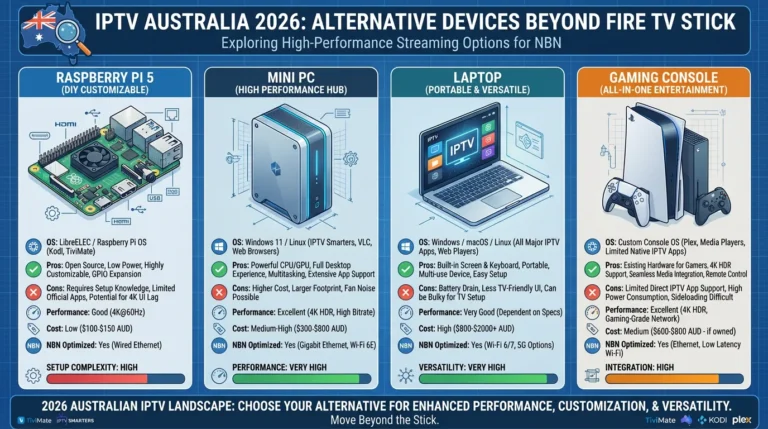
For a broader device comparison including Android boxes and Smart TVs, see Best IPTV Devices Australia.
FAQ
Q: Which Fire TV Stick is best for IPTV in Australia?
The Fire TV Stick 4K Max is the best Fire TV Stick for IPTV in Australia. Its 2GB RAM prevents the memory-related crashes seen on the 1GB Lite and 3rd Gen models, Wi-Fi 6E improves wireless stability on congested Australian networks, and it supports Ethernet via the official adapter for peak-hour reliability on NBN HFC connections.
Q: Can I install TiviMate on Fire TV Stick in Australia?
Yes. TiviMate is not available in the Amazon App Store but can be sideloaded using the Downloader app in under 5 minutes. You also need to install TiviMate Companion from the Amazon App Store to purchase the Premium subscription (~$8 AUD/year). Full steps in the TiviMate App Guide for Australian Users.
Q: Why does my Fire TV Stick buffer during IPTV at night?
Peak-hour buffering on Fire TV Stick in Australia is almost always caused by NBN HFC congestion between 7–10 PM AEST rather than a device or app problem. Switching to an Ethernet adapter and reducing stream quality from 4K to HD during peak hours resolves this in most cases. If buffering persists after switching to Ethernet, the issue is ISP-level traffic shaping.
Q: Does IPTV Smarters work on Fire TV Stick?
Yes. IPTV Smarters Pro is available directly from the Amazon App Store on all Fire TV Stick models — no sideloading required. It supports both M3U URLs and Xtream Codes authentication. See IPTV Smarters App on Multiple Devices for setup steps.
Q: How do I stop IPTV apps crashing on Fire TV Stick?
Most crashes on Fire TV Stick IPTV apps are caused by accumulated cache data or RAM limits on 1GB models. Fix: Settings → Applications → Manage Installed Applications → your app → Clear Cache. If crashes continue on a 1GB model during extended sessions, the device has hit its RAM ceiling — upgrading to the 4K Max is the permanent solution.
Q: Is Ethernet worth it for Fire TV Stick IPTV in Australia?
Yes, particularly for users on NBN HFC or Fixed Wireless connections. The official Amazon Ethernet adapter costs approximately $19 AUD and eliminates peak-hour Wi-Fi congestion as a variable. For users who experience buffering only in the evenings, switching to Ethernet often resolves the issue entirely without any other changes.
Wrap-Up
The Fire TV Stick 4K Max remains the easiest and most reliable entry point for IPTV in Australia. TiviMate via sideload gives you the best app experience available on the platform, and an Ethernet adapter eliminates the one hardware limitation the device has out of the box.
Once your Fire TV Stick is running, the natural next step is configuring TiviMate properly for Australian EPG and peak-hour performance. Start with the TiviMate App Guide for Australian Users for the complete configuration walkthrough.
Enjoy your setup.

Our Fact Checking Process
We prioritize accuracy and integrity in our content. Here's how we maintain high standards:
- Expert Review: All articles are reviewed by subject matter experts.
- Source Validation: Information is backed by credible, up-to-date sources.
- Transparency: We clearly cite references and disclose potential conflicts.
Our Review Board
Our content is carefully reviewed by experienced professionals to ensure accuracy and relevance.
- Qualified Experts: Each article is assessed by specialists with field-specific knowledge.
- Up-to-date Insights: We incorporate the latest research, trends, and standards.
- Commitment to Quality: Reviewers ensure clarity, correctness, and completeness.
Look for the expert-reviewed label to read content you can trust.