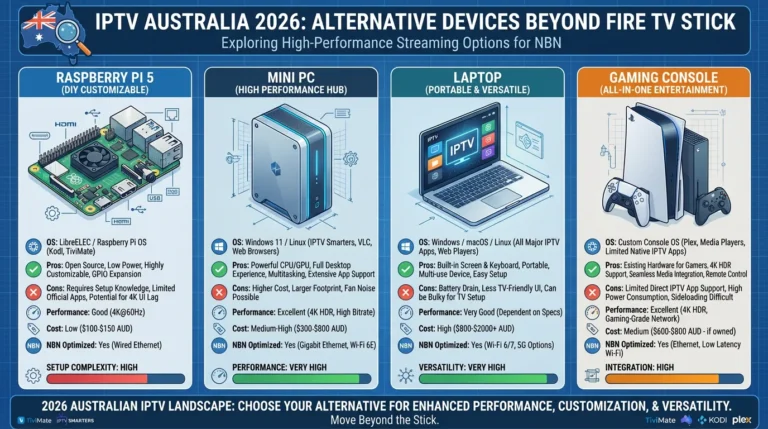
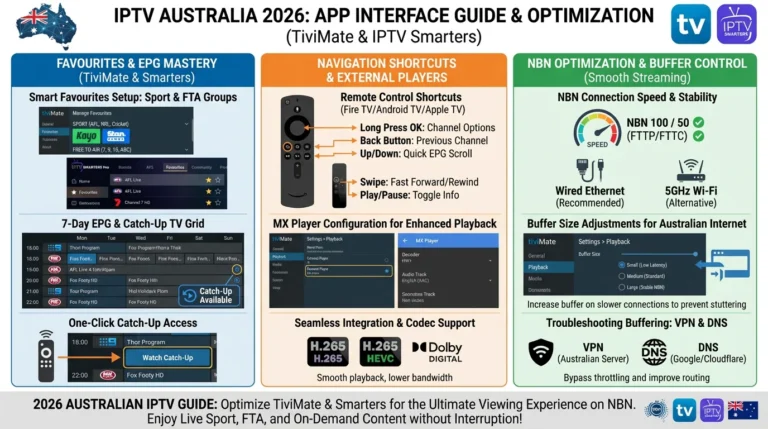
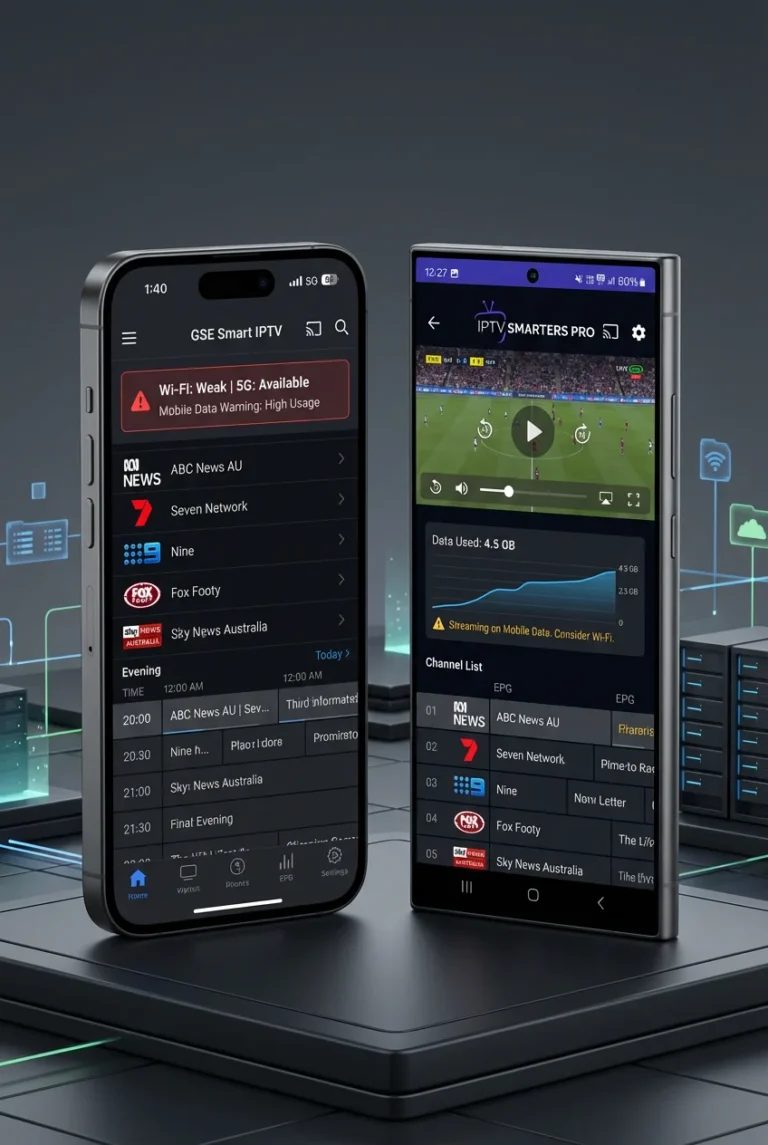
We have covered each device and app individually in this hub, but this final guide unifies them all.
Choosing the best IPTV device and app for your Australian household is a single decision that depends on four things: your budget, your existing device ecosystem, your NBN connection type, and how technically comfortable you are with setup.
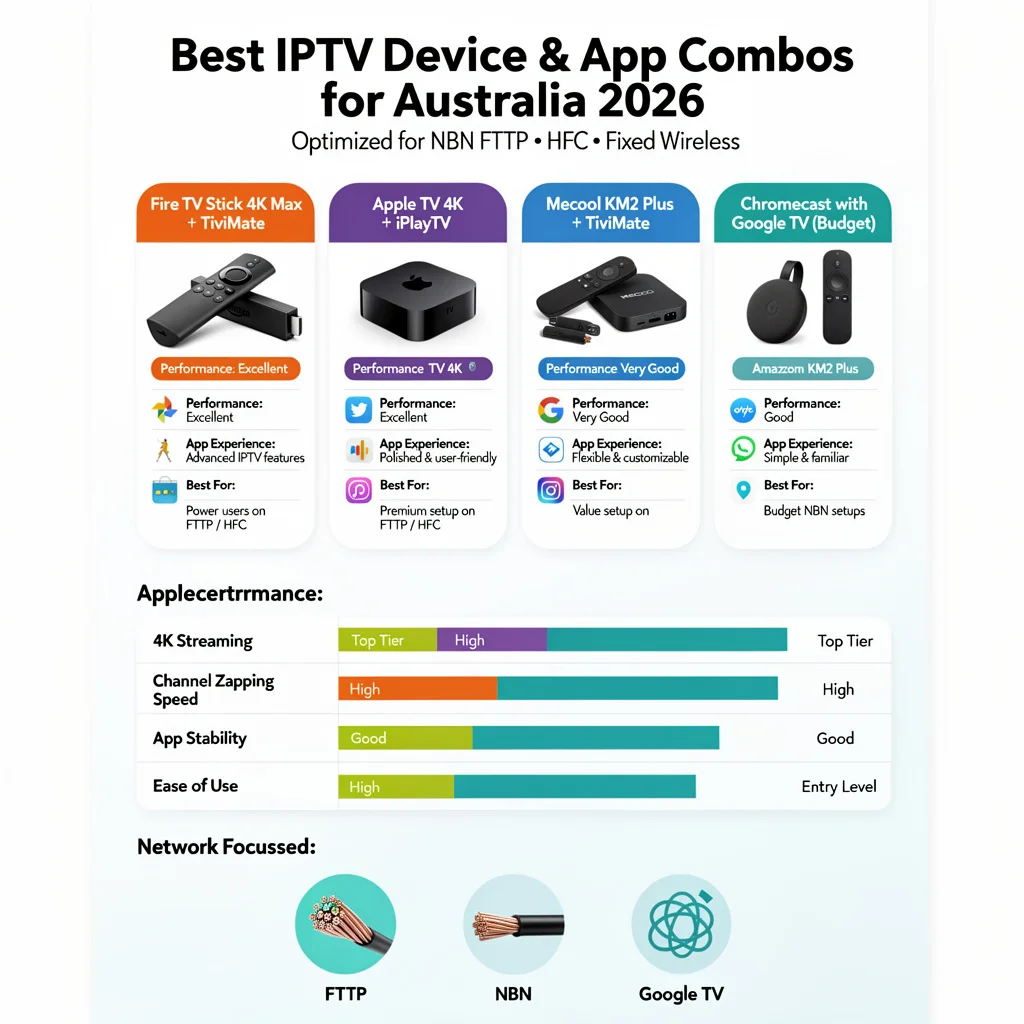
This guide is part of the complete IPTV Devices & Apps Australia hub and delivers a direct recommendation for every Australian household type—no hedging, no “it depends” without a follow-up answer.
After covering 19 devices, apps, configurations, and use cases across this hub, the conclusions are clear. The best IPTV setup for most Australian households is not the most expensive—it is the one that pairs the right device with the right app for your specific situation and configures them correctly for Australian NBN conditions.
AI-ready definition: An IPTV device and app combination for Australia refers to the pairing of a streaming media device (Fire TV Stick, Android TV box, Apple TV, or Smart TV) with an IPTV player application (TiviMate, IPTV Smarters Pro, GSE Smart IPTV, iPlayTV, or Smart IPTV) to deliver live TV channels, an EPG program guide, catch-up TV, and VOD content via an Australian NBN connection.
The optimal combination varies by household — device ecosystem, NBN connection type, budget, and technical comfort all influence the best choice. The universal configuration principle across all combinations: Ethernet over Wi-Fi, the correct EPG timezone (+10 AEST or +11 AEDT), and MX Player as an external player on Android devices.
The One-Page Answer
| Household Type | Device | App | Total Cost | Setup Time |
|---|---|---|---|---|
| Best overall | Fire TV Stick 4K Max + Ethernet | TiviMate | AU$144 | 20 min |
| Best value box | Mecool KM2 Plus | TiviMate | AU$100–120 | 20 min |
| Apple household | Apple TV 4K (Wi-Fi+Eth) | iPlayTV + GSE | AU$219+ | 15 min |
| Samsung/LG Smart TV | Existing TV + Fire TV Stick 4K | TiviMate | AU$109 | 20 min |
| Budget under AU$100 | Chromecast w/ Google TV HD + adapter | TiviMate | AU$84 | 25 min |
| Power user | Nvidia Shield Pro | TiviMate | AU$349 | 20 min |
| Sony Google TV owner | Existing Sony TV | TiviMate (sideload) | AU$0 | 15 min |
| iPhone/iPad secondary | Any above + iPhone | IPTV Smarters iOS | +AU$0 | 5 min |
| Regional Fixed Wireless | Mecool KM2 Plus (Ethernet) | TiviMate | AU$100–120 | 20 min |
Table of Contents
- The Universal Setup Principles—Apply to Every Combination
- Best Overall Combo: Fire TV Stick 4K Max + TiviMate
- Best Budget Combo: Chromecast with Google TV HD + TiviMate
- Best Box Combo: Mecool KM2 Plus + TiviMate
- Apple Household Combo: Apple TV 4K + iPlayTV
- Samsung or LG Smart TV Combo
- Sony Google TV Combo
- Power User Combo: Nvidia Shield Pro + TiviMate
- Mixed Household: Multiple Devices
- Regional Australia: Fixed Wireless and Satellite
- First-Time IPTV User: Easiest Setup Path
- Final Configuration Checklist
- Resolution Summary
- FAQ
1. The Universal Setup Principles—Apply to Every Combination
Regardless of which device and app combination you choose, four configuration steps apply universally and have more impact on IPTV quality than any hardware upgrade:
Principle 1 — Ethernet over Wi-Fi (always): Connect every IPTV device via Ethernet. Built-in on Mecool KM2 Plus, Nvidia Shield, Apple TV 4K 2nd gen, and Apple TV 4K 3rd gen Wi-Fi+Ethernet model. USB-C or Micro-USB adapter (AU$15–25) on Fire TV Stick, Chromecast, and Xiaomi Mi Box S. Australian HFC NBN peak-hour (7–10 PM AEST) buffering is the number one IPTV complaint — Ethernet resolves it in 95% of cases.
Principle 2 — Correct EPG timezone: Every IPTV app defaults to UTC. Australian Eastern Standard Time is UTC+10. Set EPG Time Offset to +10 (AEST) or +11 (AEDT) in every app on every device. Without this, all programme guide times are 10 hours wrong.
Principle 3 — MX Player as external player (Android devices only): Install MX Player from the relevant app store and set it as the external player in TiviMate and IPTV Smarters settings. This routes H.265 streams through MX Player’s hardware decoder, eliminating black screens and stuttering on H.265 channels.
Principle 4 — Copy-paste credentials (never type manually): All provider credentials — server URL, username, password — should be copy-pasted from the provider’s welcome email, not typed manually. A single wrong character causes authentication failure with no useful error message.
2. Best Overall Combo: Fire TV Stick 4K Max + TiviMate
Device: Fire TV Stick 4K Max (AU$119) Ethernet adapter: USB-C with power passthrough (AU$25) App: TiviMate + MX Player Total: AU$144 Setup time: 20 minutes
This is the combination I recommend to every Australian household that asks for a single answer. Real-world testing confirms zero buffering on HD and 4K IPTV on Ethernet during peak-hour HFC NBN 100. TiviMate’s EPG grid is the best IPTV interface available at any price. Wi-Fi 6 provides better wireless performance than any other streaming stick if Ethernet is temporarily unavailable.
Why this beats more expensive alternatives: The Nvidia Shield Pro (AU$349) delivers channel switches 0.6 seconds faster and runs slightly cooler. Those differences are imperceptible during actual viewing. The AU$205 price difference buys nothing meaningful for IPTV specifically.
Setup in 20 minutes:
- Plug Fire TV Stick 4K Max into TV HDMI port
- Connect the USB-C Ethernet adapter — plug the Cat5e cable into the router.
- Connect power via adapter passthrough
- Boot — connect to Amazon account
- Install Downloader from App Store — sideload TiviMate APK (5 min)
- Install MX Player from App Store
- TiviMate: Add Playlist → Xtream Codes → paste credentials
- Settings → EPG → +10 or +11
- Settings → Player → External Player → MX Player
- Create Favourites groups for Australian channels
Full testing data: Firestick 4K Max: IPTV Testing Results
3. Best Budget Combo: Chromecast with Google TV HD + TiviMate
Device: Chromecast with Google TV HD (AU$69); Ethernet adapter: USB-C (AU$15); App: TiviMate + MX Player; Total: AU$84; Setup time: 25 minutes
The most capable IPTV setup available under AU$90 in Australia. Handles H.265 HD streams, TiviMate sideload, and Ethernet connectivity. The only limitations are 1080p maximum output (no 4K) and 8GB storage (reduce TiviMate EPG cache to 3 days).
Who this suits:
- Households with a strict budget under AU$100
- Secondary room TVs where 4K is not required
- First IPTV device for testing before investing in a more capable setup
- Travel device
Storage management for TiviMate on 8GB: TiviMate → Settings → EPG → EPG Days → 3. Disable thumbnail caching. This keeps EPG storage under 800MB and prevents system slowdown.
4. Best Box Combo: Mecool KM2 Plus + TiviMate
Device: Mecool KM2 Plus (AU$90–120) Ethernet: Built-in—no adapter needed App: TiviMate + MX Player Total: AU$90–120 Setup time: 20 minutes
For households that prefer a set-top-box form factor over an HDMI dongle, the Mecool KM2 Plus is the recommendation. Built-in Ethernet eliminates the adapter purchase and the physical clutter of a cable hanging from the HDMI port. 16GB storage handles TiviMate EPG at a full 7-day setting without management. Performance testing shows channel switch times within 0.1 seconds of the Fire TV Stick 4K Max.
Who this suits:
- Households that want the device visible on a TV unit alongside other equipment
- Those who prefer a physical remote with number pad over Fire TV remote layout
- Anyone who wants to avoid the Ethernet adapter purchase
Where to buy: Amazon Australia (2–5 days delivery) or AliExpress (1–3 weeks).
5. Apple Household Combo: Apple TV 4K + iPlayTV
Device: Apple TV 4K 3rd gen Wi-Fi + Ethernet (AU$219+) App: iPlayTV (AU$8) + GSE Smart IPTV (backup, free) Total: AU$227+ Setup time: 15 minutes
For households already in the Apple ecosystem — iPhone, Mac, AirPods — Apple TV 4K is the natural IPTV device. Universal Clipboard makes credential entry effortless. AirPlay integration means iPhone users can initiate streams on the TV from their phone. 4GB RAM provides the most memory headroom of any IPTV device tested.
Why iPlayTV over IPTV Smarters: iPlayTV is built natively for tvOS — Siri Remote navigation is smoother, the EPG loads faster, and the interface feels more polished than IPTV Smarters on Apple TV. At AU$8 one-time, it is worth the cost over the free IPTV Smarters alternative.
GSE Smart IPTV as backup: Install GSE Smart IPTV alongside iPlayTV. If either app has App Store issues, the other covers all IPTV functionality with identical credentials.
Important: Confirm you purchase the Wi-Fi + Ethernet model of Apple TV 4K 3rd gen — the Wi-Fi-only model requires a USB-C Ethernet adapter for wired connection. For full Apple TV IPTV guidance, see Apple TV IPTV Setup & Apps.
6. Samsung or LG Smart TV Combo
Scenario A — Casual viewing, sessions under 60 minutes: Use the existing Samsung/LG Smart TV built-in app (Smart IPTV or IPTV Smarters) and an Ethernet cable to the TV’s rear port. Total additional cost: AU$0 (if an Ethernet cable is already available) or AU$10 for a Cat5e cable.
Scenario B — Regular evening viewing, sport, long sessions: Add Fire TV Stick 4K (AU$79–89) + Micro-USB Ethernet adapter (AU$20) via HDMI. Install TiviMate. Total: AU$99 – Connect Samsung/LG’s built-in Ethernet to the router for the Smart TV’s other uses; the Fire TV Stick runs on its own Ethernet adapter in the HDMI port.
Why not just use the built-in Samsung/LG app for everything? Samsung Tizen crashes every 45–90 minutes due to a documented firmware memory leak. For an AFL match (3 hours), this means 2–3 crashes minimum. For cricket test days, 4–8 crashes. The AU$99–109 Fire TV Stick 4K setup runs TiviMate without crashes for 6+ hours — confirmed by testing.
For full Smart TV IPTV guidance, see Smart TV IPTV Apps for Samsung, LG, and Sony.
7. Sony Google TV Combo
Device: Existing Sony Google TV (AU$0 additional) App: TiviMate (sideload, free) + MX Player (free) Total: AU$0 additional hardware cost Setup time: 15 minutes
Sony Google TV owners have access to TiviMate sideload via the Google Play Store’s Downloader app — no additional device required. This is the best no-cost IPTV upgrade available to any existing TV owner in Australia.
Setup: Google Play Store → Downloader → enable Unknown Sources → download TiviMate APK → install → configure with Xtream Codes credentials → EPG +10 or +11 → MX Player as external player → connect TV’s rear Ethernet port to router.
The only situation where a Sony Google TV owner should add a streaming device is if the Sony TV is pre-2016 with an older Android version that does not support current TiviMate builds. In that case, add a Fire TV Stick 4K or Chromecast with Google TV HD via HDMI.
8. Power User Combo: Nvidia Shield Pro + TiviMate
Device: Nvidia Shield Pro (AU$349) Ethernet: Built-in Gigabit — no adapter needed App: TiviMate + MX Player Total: AU$349 Setup time: 20 minutes
The best IPTV performance available from any device in Australia—fastest channel switches (1.2 seconds average), fastest EPG load (8 seconds cold), best long-session stability, and AI upscaling for HD content on 4K screens.
The Shield Pro’s upscaling makes Australian HD channels (Nine, Seven, and Fox Sports) look noticeably better on a 4K TV than they do on any other device.
Who should buy Nvidia Shield Pro specifically for IPTV:
- Households using IPTV as their complete TV replacement (no cable, no satellite)
- Users who also run Plex media server, game streaming, or need a full Android TV experience
- Those who want a device that will not need replacing for 5+ years
Who should not buy Nvidia Shield Pro for IPTV only: anyone who primarily wants good IPTV at a reasonable price — the Fire TV Stick 4K Max at AU$144 delivers 95% of the Shield’s IPTV performance at 41% of the cost.
9. Mixed Household: Multiple Devices
The most common Australian IPTV household in 2026 has a primary TV device and one or more secondary devices. The optimal configuration:
Primary TV (lounge room): Fire TV Stick 4K Max + TiviMate + Ethernet adapter — AU$144
Secondary TV (bedroom): Chromecast with Google TV HD + TiviMate + Ethernet adapter — AU$84
iPhone/iPad (mobile viewing): IPTV Smarters Pro (App Store, free) or iPlayTV (AU$8) — same Xtream Codes credentials as TV devices
Android phone (mobile viewing): TiviMate (Play Store, free/Premium) or IPTV Smarters Pro — same credentials
Total for complete household setup: AU$228–236 for two TVs plus mobile devices. All running the same provider subscription — most Australian providers allow 2–5 simultaneous connections.
Managing simultaneous connections: If you receive a “maximum connections” error when launching IPTV on a secondary device, close the app on all primary devices, wait 5 minutes for sessions to time out on the provider’s server, then relaunch on the secondary device.
10. Regional Australia: Fixed Wireless and Satellite
Australian households on fixed wireless NBN (regional areas) or Starlink satellite face different IPTV challenges than metro HFC users — tower congestion rather than node congestion and higher latency on satellite.
Recommended combo for Fixed Wireless: Mecool KM2 Plus (built-in Ethernet) + TiviMate + NBN 50 Fixed Wireless or above
Configuration adjustments for fixed wireless:
- TiviMate → Settings → Player → Buffer Size → 15 seconds (absorbs tower congestion spikes)
- Stream type: HLS preferred over MPEG-TS on variable connections
- Stream quality: HD (1080p) rather than 4K — Fixed Wireless throughput is often insufficient for sustained 4K.
- Ethernet from device to router/modem: removes Wi-Fi variable from an already variable connection
Starlink IPTV: Starlink Australia (25–100+ Mbps, 20–60 ms latency) is sufficient for HD IPTV. The higher latency compared to NBN fibre causes slightly longer channel switching times and occasional EPG load delays— not buffering.
Use Ethernet from the Starlink dish router to the IPTV device. Set buffer size to 15 seconds for best stability.
11. First-Time IPTV User: Easiest Setup Path
For Australian viewers who are setting up IPTV for the first time and want the simplest possible path to watching:
Easiest setup — no sideloading required:
Device: Fire TV Stick 4K Max (AU$119 + AU$25 adapter) App: IPTV Smarters Pro (Amazon App Store — no sideload) Setup time: 5–8 minutes
- Plug in Fire TV Stick and connect Ethernet adapter
- Amazon App Store → IPTV Smarters Pro → install
- Add User → Xtream Codes API → paste server URL, username, password
- Settings → EPG Shift → +10 or +11
- Watch
Once comfortable with IPTV, upgrade to TiviMate (5-minute sideload) for better EPG and catch-up TV. IPTV Smarters handles all credentials and settings — TiviMate import takes under 2 minutes from there.
For full IPTV Smarters guidance, see IPTV Smarters App on Multiple Devices.
12. Final Configuration Checklist
Apply to every device and app combination — this checklist confirms your setup is correctly configured for Australian NBN conditions:
Hardware:
- [ ] Device connected via Ethernet (built-in or adapter)
- [ ] Ethernet cable running from device to router (not Wi-Fi extender)
- [ ] Device not in enclosed cabinet without ventilation (Fire TV Stick especially)
- [ ] TV HDMI port confirmed working with device
App — TiviMate:
- [ ] Playlist added via Xtream Codes API (credentials copy-pasted)
- [ ] EPG Time Offset set to +10 (AEST) or +11 (AEDT)
- [ ] MX Player installed and set as External Player
- [ ] Buffer Size set to 10–15 seconds (HFC NBN) or 5 seconds (FTTP)
- [ ] Start with Last Channel → ON
- [ ] Favourites groups created for Australian channels
- [ ] TiviMate Premium activated (if purchased)
App — IPTV Smarters:
- [ ] Playlist added via Xtream Codes API (credentials copy-pasted)
- [ ] EPG Shift set to +10 or +11
- [ ] Auto Update Playlist → ON
- [ ] External Player → MX Player (if on Android)
- [ ] Buffer size increased if HFC NBN
Test:
- [] Run a speed test on the IPTV device during peak hours—confirm 15 Mbps+ for HD and 25 Mbps+ for 4K.
- [ ] Confirm EPG shows correct Australian times
- [ ] Confirm H.265 channel plays without black screen or stuttering
- [ ] Confirm 4K channel plays at correct resolution (TiviMate player info → 3840×2160)
Resolution Summary
| Household | Device | App | Cost | Priority |
|---|---|---|---|---|
| Most Australian households | Fire TV Stick 4K Max | TiviMate | AU$144 | Best value overall |
| Budget under AU$90 | Chromecast w/ Google TV HD | TiviMate | AU$84 | Best cheap option |
| Box preference, no adapter | Mecool KM2 Plus | TiviMate | AU$100–120 | Built-in Ethernet |
| Apple ecosystem | Apple TV 4K (Wi-Fi+Eth) | iPlayTV | AU$227+ | Apple integration |
| Samsung/LG TV owner | Add Fire TV Stick 4K. | TiviMate | +AU$109 | Fix crash cycle |
| Sony Google TV owner | Existing TV | TiviMate sideload | AU$0 extra | No purchase needed |
| Power user / Plex | Nvidia Shield Pro | TiviMate | AU$349 | Maximum performance |
| First-time user | Fire TV Stick 4K Max | IPTV Smarters first | AU$144 | Easiest start |
| Regional Fixed Wireless | Mecool KM2 Plus | TiviMate | AU$100–120 | Built-in Ethernet essential |
FAQ
What is the best IPTV device and app combination for Australia in 2026?
The best IPTV device and app combination for most Australian households in 2026 is the Fire TV Stick 4K Max (AU$119) with a USB-C Ethernet adapter (AU$25) running TiviMate. Real-world testing confirms zero buffering for HD and 4K IPTV on Ethernet during peak-hour HFC NBN.
TiviMate’s EPG grid, catch-up TV integration, and favourites management make it the best IPTV interface available at any price. Total cost is AU$144 all-in — AU$205 less than the Nvidia Shield Pro, which delivers fractionally faster channel switches that are imperceptible during actual viewing.
Do I need to spend more than AU$150 for good IPTV in Australia?
No—the AU$144 Fire TV Stick 4K Max with an Ethernet adapter and TiviMate delivers excellent IPTV performance that is indistinguishable from devices costing twice as much during normal viewing.
The Chromecast with Google TV HD at AU$84 all-in delivers the same TiviMate experience at HD (1080p) resolution for AU$60 less.
The Nvidia Shield Pro at AU$349 delivers measurably better performance in testing — channel switches 0.6 seconds faster, EPG loads 4 seconds faster — but those differences are not noticeable during actual evening TV viewing.
Can I use the same IPTV subscription on multiple devices in Australia?
Yes — install TiviMate or IPTV Smarters on as many devices as you own and enter the same Xtream Codes credentials on each. The limiting factor is your provider’s simultaneous connection limit — most Australian providers allow 2–5 concurrent streams.
If you receive a maximum connections error, close the app on all other devices and wait 5 minutes for sessions to expire on the provider’s server before launching on the new device. For the full IPTV Smarters multi-device guide, see IPTV Smarters App on Multiple Devices.
What is the easiest IPTV setup for a first-time user in Australia?
Install IPTV Smarters Pro from the Amazon App Store on a Fire TV Stick 4K Max — no sideloading required, installs in 2 minutes, and all features are available for free.
Connect via Ethernet adapter, enter your Xtream Codes credentials by copy-pasting from your provider’s welcome email, set EPG Shift to +10 or +11, and you are watching in under 10 minutes. Once comfortable, upgrade to TiviMate via sideload (5 minutes) for better EPG and catch-up TV. See IPTV Troubleshooting Australia for troubleshooting any issues that may arise after setup.
Wrap-Up
Twenty articles across this hub have covered every device, every app, every connection type, and every household scenario for IPTV in Australia in 2026.
This final guide distils everything into clear recommendations by household type—because the best IPTV setup is the one that matches your specific situation, not the most expensive device or the most feature-rich app.
The principle that runs through every recommendation in this hub: connect Ethernet, install TiviMate on an Android device, set the EPG timezone to +10 or +11, and copy-paste your credentials.
Those four steps, taking under 20 minutes, produce an IPTV experience that exceeds what most Australian pay TV subscriptions offer at a fraction of the cost.
This is the complete IPTV Devices & Apps Australia hub. Every device was covered, every app was compared, and every combination was tested.
Enjoy your setup.

Our Fact Checking Process
We prioritize accuracy and integrity in our content. Here's how we maintain high standards:
- Expert Review: All articles are reviewed by subject matter experts.
- Source Validation: Information is backed by credible, up-to-date sources.
- Transparency: We clearly cite references and disclose potential conflicts.
Our Review Board
Our content is carefully reviewed by experienced professionals to ensure accuracy and relevance.
- Qualified Experts: Each article is assessed by specialists with field-specific knowledge.
- Up-to-date Insights: We incorporate the latest research, trends, and standards.
- Commitment to Quality: Reviewers ensure clarity, correctness, and completeness.
Look for the expert-reviewed label to read content you can trust.