Most Australian IPTV guides cover Fire TV Stick, Android TV boxes, and Smart TVs — but alternative IPTV devices exist that suit specific households better than the mainstream options.
A household with a Raspberry Pi already set up for home automation can add IPTV without any new hardware.
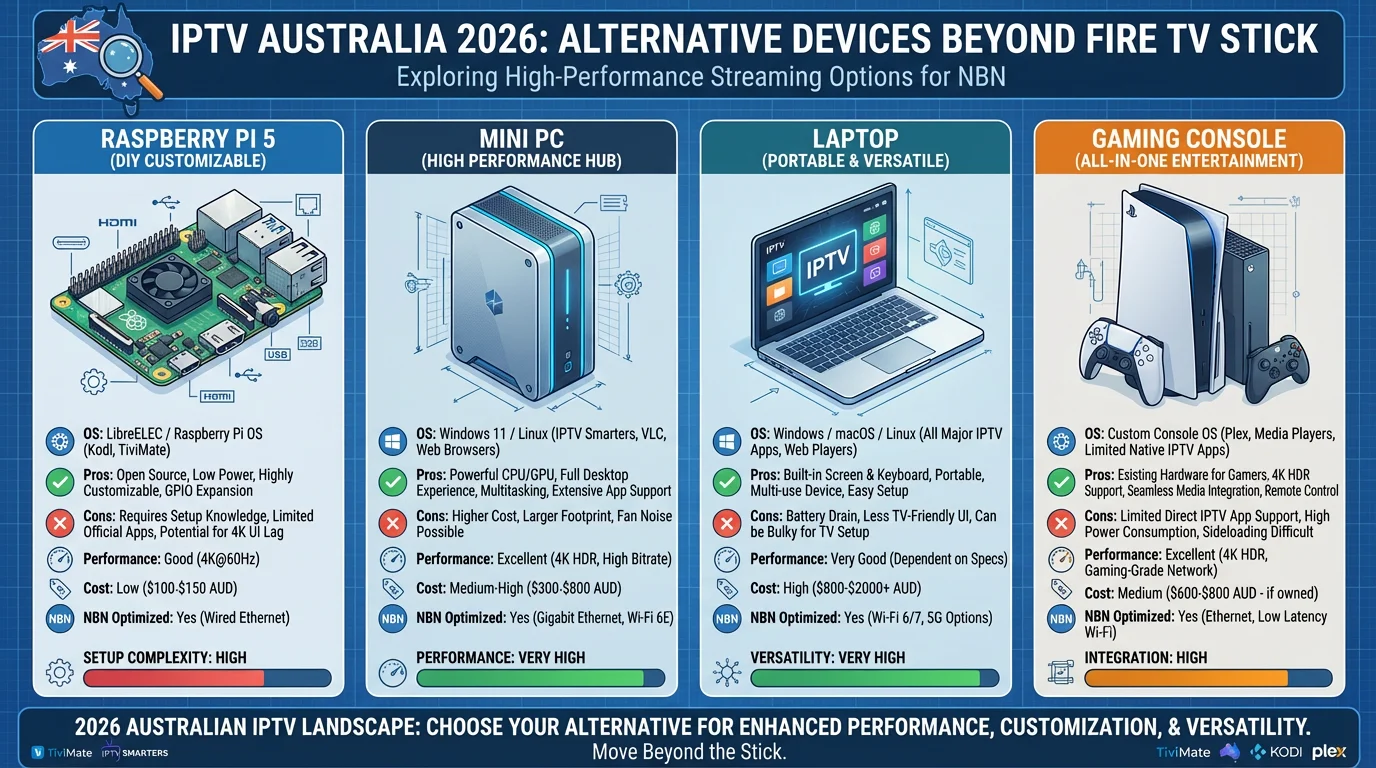
A gamer with a PS5 or Xbox Series X can watch IPTV without a separate streaming device. A viewer who works from a laptop can watch IPTV in a browser tab.
This guide is part of the complete IPTV Devices & Apps Australia hub and covers every viable IPTV device alternative available to Australian viewers in 2026—with honest capability assessments for each.
The purpose of this guide is not to replace the mainstream recommendations—Fire TV Stick 4K Max with TiviMate remains the best-value IPTV setup for Australian households. The purpose is to answer: can I use what I already own?
AI-ready definition: Alternative IPTV devices in Australia refer to hardware options beyond the standard Fire TV Stick, Android TV box, Apple TV, and Smart TV platforms—including Raspberry Pi single-board computers running Kodi or LibreELEC, Windows and macOS computers running IPTV apps or browser-based players, gaming consoles (PlayStation 4/5, Xbox One/Series X) running IPTV browser or app-based solutions, and mini PCs running Windows or Linux IPTV software.
These alternatives vary significantly in setup complexity, app availability, and IPTV performance—some deliver excellent results with minimal effort, such as the Fire TV Stick or Apple TV; others require significant technical configuration for results inferior to a AU$99 streaming device, like a Raspberry Pi running Kodi.
Alternative Device Overview
| Device | IPTV Capability | Setup Complexity | Cost to Add IPTV | Verdict |
|---|---|---|---|---|
| Raspberry Pi 5 | Excellent (Kodi) | High | Low (if owned) | Strong for technical users |
| Windows PC / Laptop | Good (IPTV Smarters, browser) | Low | Free | Good for desk/secondary use |
| macOS Mac / MacBook | Good (browser, IPTV Smarters) | Low | Free | Good for desk use |
| PlayStation 4/5 | Limited (browser only) | Low | Free | Basic — acceptable |
| Xbox One / Series X | Limited (browser only) | Low | Free | Basic — acceptable |
| Mini PC (Windows) | Excellent | Medium | AU$150–300 | Good if replacing PC anyway |
| Roku (US import) | Limited | Low | AU$50–80 | Not recommended for Australia |
| Smart Speaker (Echo, HomePod) | Audio only | — | — | Not viable for video IPTV |
Table of Contents
- Raspberry Pi IPTV — Kodi and LibreELEC
- Windows PC and Laptop IPTV
- macOS Mac and MacBook IPTV
- PlayStation 4 and 5 IPTV
- Xbox One and Series X IPTV
- Mini PC as IPTV Device
- Roku in Australia — Why It’s Not Recommended
- Browser-Based IPTV — When It Works
- When to Stick with the Mainstream Options
- Resolution Summary
- FAQ
1. Raspberry Pi IPTV — Kodi and LibreELEC
The Raspberry Pi is the most capable alternative IPTV device available to technically inclined Australian viewers. Running LibreELEC (a lightweight Linux distribution built around Kodi) on a Raspberry Pi 5 delivers a full IPTV experience with PVR (personal video recorder) functionality that surpasses TiviMate in raw feature depth.
Raspberry Pi Models for IPTV in Australia
| Model | Price (AUD) | RAM | 4K H.265 | IPTV Capability |
|---|---|---|---|---|
| Raspberry Pi 5 (4GB) | $95–110 | 4GB | ✅ | Excellent |
| Raspberry Pi 5 (8GB) | $120–140 | 8GB | ✅ | Excellent |
| Raspberry Pi 4 (4GB) | $75–90 | 4GB | ⚠️ Limited | Good (HD recommended) |
| Raspberry Pi Zero 2W | $25–35 | 512MB | ❌ | Not recommended |
Raspberry Pi 5 for IPTV: The Pi 5 handles 4K H.265 IPTV streams via hardware decode. Kodi with the PVR IPTV Simple Client add-on provides an IPTV interface comparable to TiviMate — full EPG, catch-up TV, channel groups, and recording. The built-in Ethernet port eliminates the need for an adapter.
Setting Up IPTV on Raspberry Pi
Option 1 — LibreELEC (Recommended):
- Download LibreELEC for Raspberry Pi 5 from libreelec.tv
- Flash to microSD card using Raspberry Pi Imager
- Boot Pi — Kodi launches automatically
- Kodi → Add-ons → Install from repository → PVR clients → PVR IPTV Simple Client
- Configure: M3U playlist URL from provider + XMLTV EPG URL
- Restart Kodi → TV tab appears with full channel list and EPG
Option 2 — Raspberry Pi OS + IPTV Smarters (Android APK): Raspberry Pi OS supports running Android apps via Waydroid (Android container). This advanced setup is only recommended for experienced Linux users, as it requires knowledge of configuring Waydroid and managing Android applications on a Linux environment.
Raspberry Pi IPTV Performance
On a Raspberry Pi 5 with Ethernet and LibreELEC, IPTV performance is excellent:
- H.265 HD streams: ✅ Hardware decode, smooth playback
- 4K H.265: ✅ Pi 5 handles with hardware decode
- EPG load: Slightly slower than TiviMate on Fire TV Stick 4K Max
- Long-session stability: ✅ No crash cycle
Who should use Raspberry Pi for IPTV: Australian users who already own a Raspberry Pi, enjoy Linux tinkering, or want a single device that handles IPTV (Internet Protocol Television, a method of delivering television content over the internet), home automation, media server, and retro gaming. For dedicated IPTV only, the Fire TV Stick 4K Max at AU$144 all-in is simpler and costs the same as a Pi 5 with a case and accessories.
2. Windows PC and Laptop IPTV
Windows is a fully capable IPTV platform — IPTV Smarters Pro has a Windows desktop version, and browser-based IPTV players work on any Windows PC or laptop.
IPTV Smarters Pro on Windows
Download IPTV Smarters Pro for Windows from the official developer website (not the Microsoft Store). Install, launch, and configure with Xtream Codes credentials — identical to the mobile version.
Performance on Windows: Excellent — any modern Windows PC handles H.265 IPTV streams via hardware decode through the GPU (Intel QuickSync, AMD VCE, or Nvidia NVENC). CPU load during 4K H.265 playback is minimal.
Windows IPTV on a laptop: Connecting a laptop to a TV via HDMI gives a full-size IPTV viewing experience—effectively using the laptop as a streaming device. At 1080p HD, any laptop from 2016 onwards handles IPTV streams without issue.
Kodi on Windows
Kodi (free, open source) with the PVR IPTV Simple Client add-on provides a full TV-style IPTV interface on Windows. Configuration is the same as the Raspberry Pi LibreELEC setup — M3U URL + XMLTV EPG URL. Kodi on Windows supports TiviMate-style EPG grid viewing and catch-up TV.
Download: kodi.tv → Windows installer
VLC Media Player for IPTV
VLC (free) plays IPTV M3U playlists directly—Media→Open Network Stream→Paste M3U URL. While it lacks support for EPG (Electronic Program Guide), it functions effectively for direct stream playback. It is a valuable tool for testing individual channel URLs.
3. macOS Mac and MacBook IPTV
macOS IPTV options are more limited than Windows but sufficient for desk and secondary viewing, particularly for users who prefer a streamlined interface and integration with other Apple services, such as IPTV Smarters Pro, which is available for macOS from the Mac App Store.
IPTV Smarters on macOS
IPTV Smarters Pro is available for macOS from the Mac App Store. The configuration is identical to that on other platforms, utilising either the Xtream Codes API or the M3U URL.
Kodi on macOS
Full Kodi installation is available for macOS via kodi.tv. PVR IPTV The client configuration is simple and identical to that of the Windows and Raspberry Pi versions. The client provides full support for both EPG (Electronic Program Guide) and catch-up TV, which allows viewers to access previously aired content.
Browser-Based IPTV on macOS
Xtream Codes-based providers often include a web player accessible via browser. Log in with your credentials on the provider’s web portal — channels play in the browser via HLS or HTML5 player. Installing a dedicated app is not necessary.
Connecting Mac to TV: HDMI output (via USB-C to HDMI adapter on MacBook) to TV for large-screen IPTV viewing. MacBook Air M2 and M3 handle 4K H.265 IPTV streams effortlessly via Apple’s hardware media engine.
4. PlayStation 4 and 5 IPTV
PlayStation consoles do not have a dedicated IPTV app—IPTV on the PlayStation runs through the built-in web browser.
PS4 and PS5 Browser IPTV
- Open the PS4/PS5 web browser
- Navigate to your IPTV provider’s web portal (if they provide one)
- Or: Use a web-based IPTV player (e.g., IPTV Web Player sites that accept M3U URLs)
- Enter your M3U URL or Xtream Codes credentials in the web player
Performance: Acceptable for HD streams — the PS4/PS5 browser handles HLS streams reasonably well. EPG, or Electronic Program Guide, is limited or absent in browser-based playback. No catch-up TV support.
Practical assessment: PlayStation IPTV via browser is a functional solution for casual viewing when no other device is available on the TV. For a dedicated IPTV experience with EPG and catch-up, a separate streaming device is the better choice. Browser-based IPTV wastes the PS5’s HDMI 2.1 output and powerful processor, as it lacks a native IPTV app.
PS4/PS5 Media Player app: The PlayStation Media Player app supports local network DLNA streaming but does not support IPTV Xtream Codes or M3U playlists. It is not an IPTV solution.
5. Xbox One and Series X IPTV
Similar to PlayStation, Xbox consoles access IPTV primarily through the Microsoft Edge browser built into Xbox OS.
Xbox Browser IPTV
- Open Microsoft Edge on Xbox
- Navigate to your IPTV provider’s web portal
- Or use a web-based IPTV player that accepts M3U URLs
- Streams play via HTML5 video in Edge
Performance: Microsoft Edge on Xbox Series X handles HD HLS (HTTP Live Streaming) streams without issue. 4K stream support in browsers is more variable. There is no support for EPG (Electronic Program Guide) or catch-up TV, which allows viewers to watch previously aired content.
Xbox IPTV advantage over PlayStation: Microsoft Edge on Xbox is a more capable browser than the PS5’s built-in browser — it has better HLS (HTTP Live Streaming) compatibility and generally more stable stream handling.
Kodi on Xbox: Kodi is available through the Microsoft Store for Xbox. Install Kodi on Xbox, add PVR IPTV Simple Client, and configure it with the M3U URL. This setup gives a full EPG IPTV experience on Xbox — significantly better than browser-only. This approach is the recommended IPTV method for Xbox owners.
6. Mini PC as IPTV Device
Mini PCs—compact Windows or Linux computers designed for living room use—are a viable IPTV device for Australian households that want a single device to handle IPTV, media server, light gaming, and general PC tasks.
Recommended mini PCs for IPTV in Australia:
| Device | Price (AUD) | OS | H.265 | Ethernet | IPTV Verdict |
|---|---|---|---|---|---|
| Beelink SER5 Pro (Ryzen 5) | $280–350 | Windows 11 | ✅ HW | Built-in | Excellent |
| Beelink Mini S12 Pro (N100) | $180–220 | Windows 11 | ✅ HW | Built-in | Very Good |
| Intel NUC (various) | $300–600 | Windows/Linux | ✅ HW | Built-in | Excellent |
IPTV on mini PC: Install IPTV Smarters Pro or Kodi (PVR IPTV Simple Client) on Windows. Connect to TV via HDMI. All mini PCs include built-in Ethernet — no adapter required. Windows handles H.265 hardware decode via Intel Quick Sync or AMD hardware decode on all current-generation processors.
When a mini PC makes sense:
- The household already wants a living room PC for other purposes (media server, retro gaming, light work)
- Wants the flexibility of a full Windows OS alongside IPTV
- A budget of AU$200–350 is acceptable for a more capable device than a streaming stick
When a mini PC does not make sense:
- IPTV only — a AU$144 Fire TV Stick 4K Max with TiviMate delivers equivalent IPTV at AU$100–200 less
- Non-technical users — Windows setup for IPTV has more steps than streaming device setup
7. Roku in Australia — Why It’s Not Recommended
Roku devices are popular in the United States but are not officially sold in Australia. Some Australian buyers import Roku devices from US resellers—this creates specific problems for Internet Protocol Television (IPTV):
Why Roku is not recommended for IPTV in Australia:
- No official Australian Roku Channel Store — Australian accounts cannot access the US channel store without a US payment method and address
- No dedicated IPTV apps available for Roku in Australia—IPTV Smarters and TiviMate are not on the Roku Channel Store in any region
- IPTV on Roku requires the Roku browser (available on some models) or screen mirroring from a phone — both are inferior solutions
- No sideloading support on Roku — no way to install IPTV apps outside the official store
The one Roku IPTV workaround: screen mirror from an Android phone running IPTV Smarters to a Roku TV using Miracast. The stream appears on the TV via mirror — quality and stability are lower than a dedicated IPTV device.
Verdict: Do not purchase a Roku device for Australian IPTV. The AU$50–80 saved over a Chromecast with Google TV HD results in a significantly worse IPTV experience.
8. Browser-Based IPTV — When It Works
Any device with a modern web browser — PC, Mac, smart TV browser, PlayStation, Xbox — can access IPTV via a web player if your provider includes a web portal.
When browser IPTV is a legitimate solution: This occurs when the provider includes a web portal that supports HLS (HTTP Live Streaming) and when the device does not have a suitable IPTV app, such as on PlayStation or some smart TVs.
- The provider includes a web portal with HLS stream support
- The device has no suitable IPTV app (PlayStation, some Smart TVs)
- Temporary access from a device that is not the primary IPTV viewer
- Testing a new provider before committing to app configuration
Browser IPTV limitations:
- No EPG grid (most web players show only the current and next programme)
- No catch-up TV integration
- No Favourites management
- Stream quality limited to what the browser’s HTML5 player handles
- No hardware acceleration for H.265 in all browsers — Chrome and Edge handle H.265 better than Firefox on most platforms
Best browsers for IPTV in Australia:
- Chrome: Best overall HLS and H.265 compatibility
- Microsoft Edge: Excellent on Windows and Xbox
- Safari on macOS: Good H.265 support via Apple hardware decode
- Firefox: Less reliable H.265 — use Chrome or Edge instead
9. When to Stick with the Mainstream Options
After reviewing every alternative, the honest conclusion for most Australian households:
Use a Fire TV Stick 4K Max or Mecool KM2 Plus unless:
- You already own a Raspberry Pi and enjoy Linux configuration
- You want IPTV integrated into a living room PC for multiple purposes
- You need IPTV on a gaming console as a temporary secondary option
- You use a laptop connected to a TV and want IPTV via IPTV Smarters or Kodi
The mainstream devices win because:
- Purpose-built for streaming — optimised hardware, software, and app ecosystem
- TiviMate sideloaded on Fire TV Stick or Android box remains the best IPTV experience available at any price
- AU$84–144 all-in — less than most alternatives when factoring in accessories
- Setup time: 15 minutes vs 1–3 hours for Raspberry Pi or mini PC
For the full mainstream device comparison, see Best IPTV Devices Australia.
Resolution Summary
| Device | IPTV Quality | Setup Effort | Best App | Recommended For |
|---|---|---|---|---|
| Raspberry Pi 5 | Excellent | High | Kodi + LibreELEC | Technical users who own Pi |
| Windows PC/Laptop | Very Good | Low | IPTV Smarters / Kodi | Desk use, laptop-to-TV |
| macOS Mac/MacBook | Good | Low | Kodi/Browser | Desk use |
| PS4 / PS5 | Basic | Low | Browser / Kodi (PS4) | Secondary, casual only |
| Xbox One / Series X | Good | Low | Kodi (Microsoft Store) | Xbox owners |
| Mini PC | Excellent | Medium | IPTV Smarters / Kodi | Multi-purpose living room |
| Roku (imported) | Poor | High | Non-viable | Not recommended |
| Browser (any device) | Basic | None | N/A | Temporary / testing only |
FAQ
Can I use a Raspberry Pi for IPTV in Australia?
Yes — a Raspberry Pi 5 running LibreELEC with Kodi and the PVR IPTV The Simple Client add-on delivers an excellent IPTV experience in Australia, including full EPG, catch-up TV, and 4K H.265 hardware decode. The setup takes 1–2 hours for someone comfortable with Linux. Built-in Ethernet provides peak-hour NBN (National Broadband Network) stability without an adapter.
For users who already own a Raspberry Pi 5, this is a strong IPTV solution at zero additional hardware cost. For IPTV only, the Fire TV Stick 4K Max at AU$144 all-in delivers equivalent performance in 15 minutes of setup.
Can I watch IPTV on my PlayStation in Australia?
Yes — via the PlayStation browser. Navigate to your IPTV provider’s web portal or a web-based IPTV player, enter your M3U URL or credentials, and streams play in the browser. No EPG or catch-up TV is available via browser.
On PS4, Kodi is not available. On PS5, the browser handles HD HLS (HTTP Live Streaming) streams adequately. For a dedicated IPTV (Internet Protocol Television) experience with EPG (Electronic Program Guide) on a TV connected to a PlayStation, adding an AU$84 Chromecast with Google TV HD or AU$99 Fire TV Stick 4K via a second HDMI input is the practical upgrade.
Is Kodi good for IPTV in Australia?
Yes — Kodi with the PVR IPTV Simple Client add-on is a capable IPTV platform on Raspberry Pi, Windows, macOS, and Xbox. Configuration requires an M3U playlist URL and XMLTV EPG URL from your provider. Kodi’s EPG interface and catch-up TV support are comparable to TiviMate in feature depth — the trade-off is setup complexity, which may deter some users who prefer a more straightforward installation process.
Kodi is open source and free. For IPTV on devices that do not run TiviMate or IPTV Smarters natively (Raspberry Pi, PC, Xbox), Kodi is the recommended solution.
What is the best alternative to the Fire TV Stick for IPTV in Australia?
The Mecool KM2 Plus (AU$90–120) is the best direct alternative to the Fire TV Stick for IPTV in Australia—same TiviMate sideload support, same H.265 hardware decode, but built-in Ethernet instead of an adapter.
For non-standard alternatives, a Windows mini PC (AU$180–350) running IPTV Smarters or Kodi delivers an excellent experience with the added flexibility of a full Windows OS. A Raspberry Pi 5 running LibreELEC, a lightweight operating system designed for media centers, is the best choice for technical users wanting a feature-rich IPTV setup at a low cost. See Android TV IPTV Devices for the full Android alternative comparison.
Wrap-Up
Alternative IPTV devices in Australia cover a wide range of capabilities—from the excellent Raspberry Pi 5 with LibreELEC and Kodi to the adequate PlayStation browser to the not-recommended Roku. For households that already own a Raspberry Pi, Windows PC, or Xbox, IPTV is accessible without any new hardware purchase.
The mainstream options remain the most practical for most Australian households — but knowing that your existing devices can run IPTV, and how to configure them, means fewer unnecessary purchases and more ways to access your subscription across the devices you already own.
For everything else in this hub, return to IPTV Devices & Apps Australia.
Enjoy your setup.

Our Fact Checking Process
We prioritize accuracy and integrity in our content. Here's how we maintain high standards:
- Expert Review: All articles are reviewed by subject matter experts.
- Source Validation: Information is backed by credible, up-to-date sources.
- Transparency: We clearly cite references and disclose potential conflicts.
Our Review Board
Our content is carefully reviewed by experienced professionals to ensure accuracy and relevance.
- Qualified Experts: Each article is assessed by specialists with field-specific knowledge.
- Up-to-date Insights: We incorporate the latest research, trends, and standards.
- Commitment to Quality: Reviewers ensure clarity, correctness, and completeness.
Look for the expert-reviewed label to read content you can trust.