
marcus reed· IPTV Troubleshooting Australia
Do I need an app for IPTV?
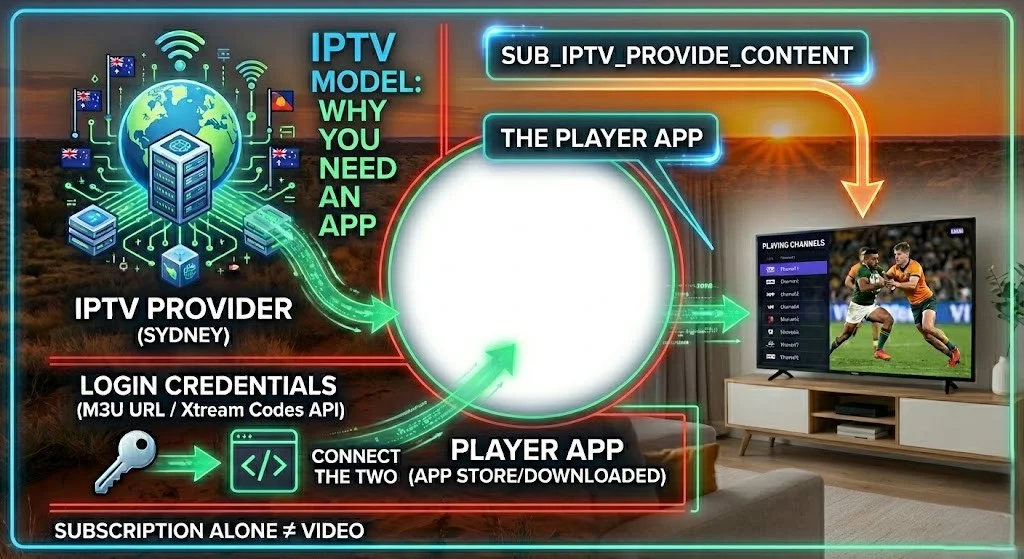
Yes, you do. An IPTV subscription is not an app—it’s a set of login credentials (an M3U URL or an Xtream Codes server/username/password) that only work inside a separate IPTV player app, such as TiviMate or IPTV Smarters Pro.
Pasting those credentials into Google, Chrome, or Safari will not start a video stream. This is the single most common reason a first-time IPTV trial or subscription “doesn’t work”.
Summary Box — Quick Facts
| Do you need an app for IPTV? | Yes — credentials alone don’t play video |
| Works without any app? | Only via VLC (M3U links only, not Xtream Codes) |
| Most common beginner mistake | Pasting the M3U link or login into Google |
| Most beginner-friendly app | IPTV Smarters Pro (works across nearly every device) |
| Setup time once the app is installed | Under 2 minutes |
| Smart TVs with IPTV built in | None — an app must be installed first |
📊 Real Example: A customer messages me asking for a free trial or a subscription. I have sent the login details.
A few minutes later: “It’s not working.” Every time, I ask two questions — Is this your first time using an IPTV service? And how exactly did you use the details I sent you? More often than not, the answer is the same: “I typed it into Google.” That single moment explains almost every “It doesn’t work” message I receive from first-time users — they weren’t given a broken link; they were given login details for an app they didn’t know they needed to install first.
That gap between “I have credentials” and “I have a working app” is what this guide closes.
Is an IPTV subscription an app?
No. When you subscribe to an IPTV service, you are not given an app — you are given access credentials that an app uses to connect to a server.
This is the main source of confusion for first-time users, as most online services operate differently by providing access through a website rather than credentials for an app.
IPTV works the opposite way. The provider’s server holds the channels. The credentials are the key.
The app is the door. Without the app, the key has nowhere to go — which is precisely why pasting a link into Google returns a search results page instead of live TV.
You’ll typically receive one of two credential types:
- An M3U (or M3U8) URL — a single link
- Xtream Codes login — a server address, username, and password (three separate fields)
Neither of these is something you open directly. Both are things you enter into an app.
What Is an IPTV Player (App), Exactly?
An IPTV player is the application that does three things: takes your credentials, connects to your provider’s server, and displays the channel list so you can watch.
It’s the same role a TV remote plays for a set-top box, except here the “remote” also has to log in first.
The most widely used IPTV player apps are as follows:
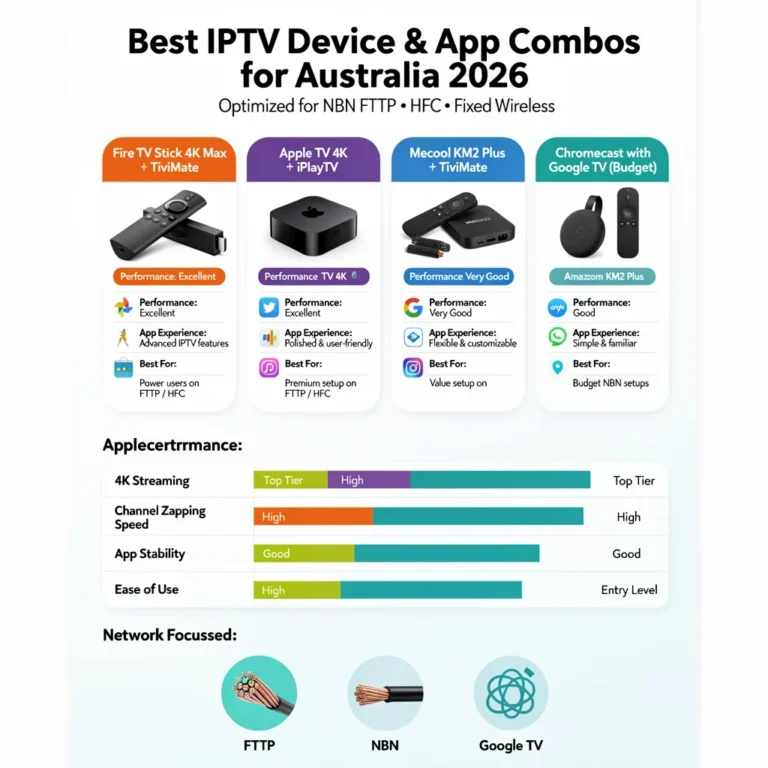
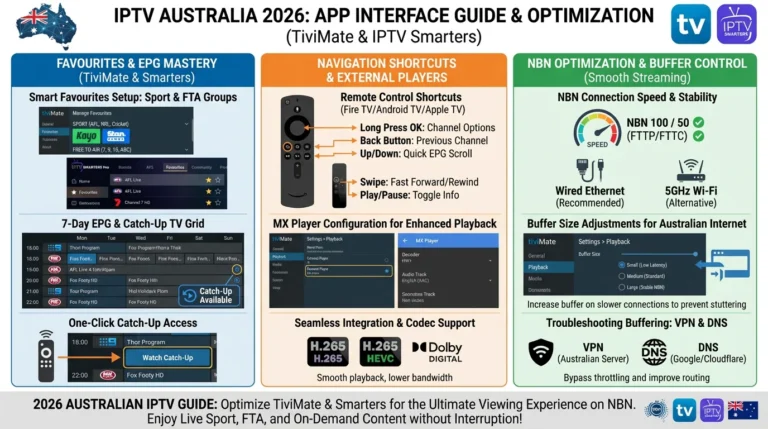
- TiviMate — popular on Android TV boxes and Fire TV Stick, known for a clean program guide
- IPTV Smarters Pro — works across almost every platform, including iPhone and iPad
- GSE Smart IPTV — common on Apple TV and iOS
- Smart IPTV (SIPTV) — used mainly on Samsung and LG Smart TVs
Each of these apps has a setup screen that asks for your M3U URL or your Xtream Codes server/username/password.
That screen — not your browser — is where your subscription details belong.
For the exact step-by-step screens for each app and device, see our IPTV Playlist Setup guide and the complete device-by-device setup guide.
Do Smart TVs Have IPTV built in?
Not in the way most people expect. Samsung, LG, and Sony Smart TVs do not come with a generic “IPTV” feature pre-installed.
What they do have is an app store (Samsung Smart Hub, LG Content Store) where you can install an IPTV player—usually Smart IPTV (SIPTV) or a similar app—the same way you’d install Netflix or YouTube.
Some older Smart TVs (generally pre-2018) don’t have full app store support at all and need the IPTV app sideloaded through a USB drive or a companion device.
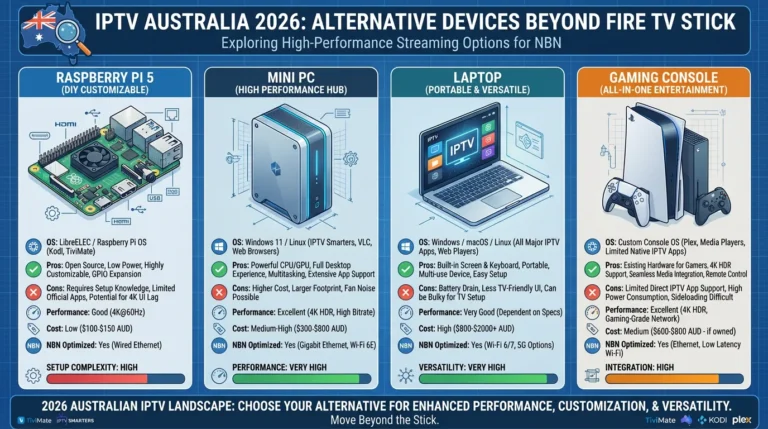
If your TV is older, a Fire TV Stick or an Android TV box plugged into an HDMI port is almost always the simpler route than fighting with the TV’s limited app store.
Can You Watch IPTV in a Browser?
For the vast majority of providers, no. Standard M3U and Xtream Codes credentials are designed for a dedicated player app, not for rendering in a web browser.
Pasting your link into Chrome, Safari, or Google’s search bar will not start a video stream — at best, the browser may download a small text file (the M3U file itself), which still needs to be opened inside an app to actually play anything.
There are a small number of browser-based players that can load an M3U file directly, but they are the exception, not the standard setup path, and most providers don’t optimise their servers for them.
If you want to watch on a laptop without installing anything extra, opening the M3U URL directly in VLC Media Player (Media → Open Network Stream) is the simplest no-account, no-app-store option.
How to Watch IPTV Without Installing a Dedicated App
If you genuinely don’t want to install a TV-style IPTV app, you have two realistic options:
- VLC Media Player — free, works on Windows, Mac, and Android, and plays M3U links directly without any account or extra setup.
- A browser-based M3U player — a small number of web tools can load an M3U URL, but channel stability and EPG support are usually weaker than with a dedicated app.
Neither of these applies to Xtream Codes logins in the same way — Xtream Codes is built around an app-based login, so VLC and browser players generally can’t authenticate with it directly.
If your provider gave you Xtream Codes credentials (not an M3U link), a proper IPTV player app is the only reliable path.
Setting Up IPTV on a Fire TV Stick Without a Dedicated App
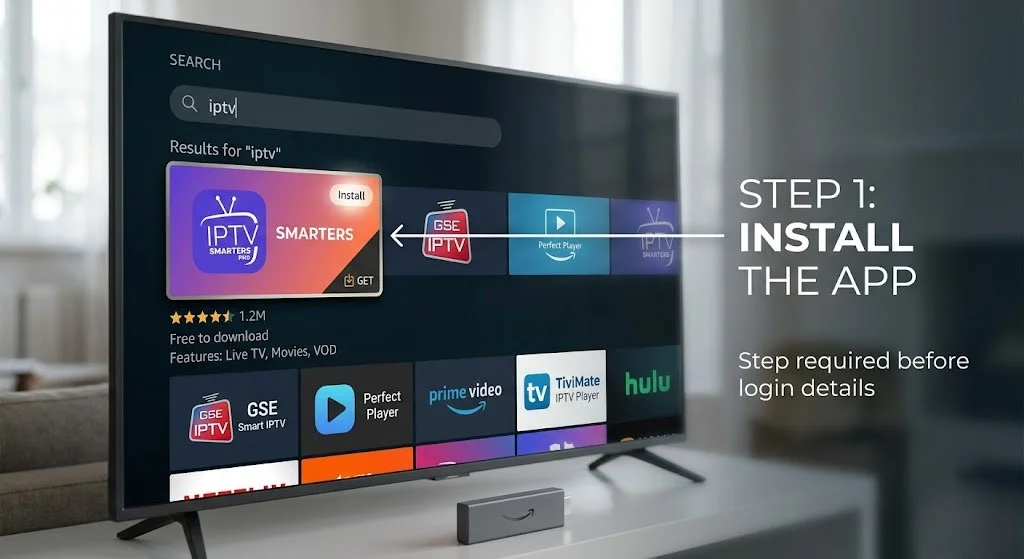
The Fire TV Stick is the device I see this confusion happen on most often, as it looks like aready-to-to watch” device out of the box. It isn’t — it’s a streaming device that still needs an app installed before any IPTV service will work.
If you’ve just unboxed a Fire TV Stick and want to use your IPTV credentials immediately:
- From the Fire TV home screen, go to the Find or Search tab
- Search for IPTV Smarters Pro (available directly in the Amazon App Store) and install it
- Open the app, choose Add User → Load Your Playlist or File/URL, and enter your M3U URL or Xtream Codes details
- Your channels should load within a few seconds
There is no way to use an IPTV subscription on a Fire TV Stick without installing an app first — the Stick itself has no built-in TV-streaming feature beyond the apps you add to it.
Top 5 Beginner Mistakes With IPTV Trials and Subscriptions
- Pasting the M3U link into Google search — instead of opening it inside an IPTV app
- Opening the link in a browser, expecting video to play — instead of a text download or no result
- Not installing an IPTV app before entering any credentials — the most common root cause
- Confusing IPTV with regular streaming websites — IPTV requires a player app; most streaming sites don’t
- Using the wrong login type — entering Xtream Codes details into an M3U-only field, or vice versa
Common Misconceptions About IPTV Apps
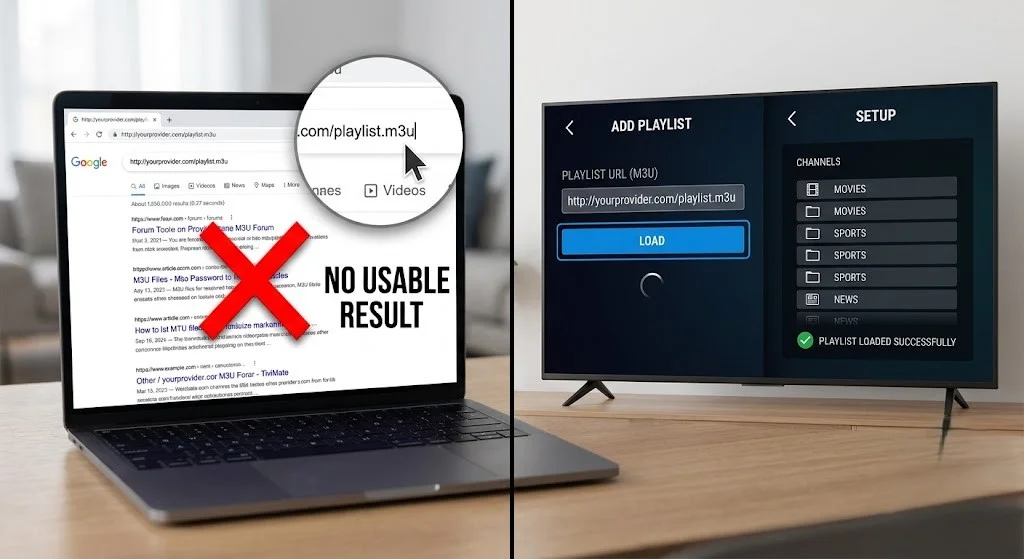
“My subscription is the app.” No. The subscription is access (a username, password, or M3U link). The app is separate software you install from your device’s app store. They come from two different places, and you need both.
“IPTV should work like Netflix — just open a website.” Not by default. Netflix is a self-contained product: sign up, and the website is the viewing experience.
IPTV separates the two — the provider issues credentials, and a third-party app reads them. Nobody tells new users this up front, which is precisely why it feels confusing the first time.
If the link doesn’t open in my browser, it’s broken. Usually, it isn’t. An M3U link opening as a text download, or a Google search showing no results, is expected behaviour — it means the link is working exactly as designed, just not in the place you tried it.
“Smart TVs have IPTV built in.” They have an app store where you install an IPTV player (Smart IPTV, Tivimate, etc.) — the same way you’d install Netflix or YouTube. No Samsung or LG TV ships with a generic “IPTV” feature pre-loaded.
Why This Confusion Happens (And Why It’s Not Your Fault)
If you’ve made this mistake, you’re in excellent company — it’s one of the most common first-time questions I get, and it makes complete sense once you see why: almost every other digital subscription you’ve ever used (Netflix, Spotify, or your bank) is a single self-contained product. You sign up, and the website or app you signed up on is the thing you use.
IPTV breaks that pattern. The signup (your provider) and the viewing experience (the app) are two separate things, made by two separate companies, joined only by the credentials you were given.
Frequently Asked Questions
Do I need to download an app to use my IPTV free trial?
Yes. A free trial gives you temporary credentials in exactly the same format as a paid subscription (an M3U URL or Xtream Codes login).
You need an IPTV player app installed before those credentials will do anything. Without the app, a trial and a paid subscription fail in exactly the same way.
Why doesn’t my IPTV link open in Google or my browser?
Because the link isn’t a webpage — it’s a data feed meant to be read by an app, not displayed as a page.
Typing it into Google’s search bar searches the web for that text; it doesn’t connect to your provider’s server.
Pasting the exact URL into your browser’s address bar may trigger a file download, but the file still needs to be opened inside an IPTV app or VLC to play.
Is an IPTV subscription the same thing as an app?
No. The subscription is your access — the username, password, or M3U link your provider issues you. The app is the software that uses that access to show you channels.
You need both, but they come from different places: the subscription from your IPTV provider and the app from your device’s app store.
What’s the easiest app for a complete beginner?
IPTV Smarters Pro is generally the most beginner-friendly choice because the same app and the same setup steps work across nearly every device — Android, iOS, Fire TV Stick, and Android TV boxes — so you only need to learn one interface.
For a full comparison of player apps by device, see our device-by-device setup guide.
What apps should I use for IPTV?
The four most reliable options are TiviMate (best EPG, Android TV and Fire TV Stick), IPTV Smarters Pro (best cross-platform support, including iOS), GSE Smart IPTV (common on Apple TV), and Smart IPTV / SIPTV (used on Samsung and LG Smart TVs).
Which one suits you depends mainly on your device, not your subscription.
Can I set up my own IPTV?
You can self-host your own IPTV server if you have the technical background and your own licensed content sources, but that’s a different project to what most first-time users mean by this question.
If you’ve subscribed to an existing IPTV service, “setting it up” simply means installing a player app and entering the credentials you were given — no server hosting required.
Can I watch IPTV on my smart TV?
Yes, you can watch IPTV on your smart TV, but you must first install a player app from your TV’s app store (such as Samsung Smart Hub or LG Content Store) because smart TVs do not have built-in IPTV playback.
See the “Do Smart TVs Have IPTV Built In?” section above for the full explanation.
Bottom Line
If your IPTV trial or subscription “isn’t working”, the most likely explanation isn’t a broken link or a bad provider — it’s a missing app.
Install a player app first (TiviMate, IPTV Smarters Pro, GSE, or Smart IPTV depending on your device), then enter your credentials inside that app, not into a browser or search engine.
Once the app is installed, the setup itself only takes a couple of minutes. To find the exact entry steps for M3U and Xtream Codes credentials, refer to our IPTV Playlist Setup guide.
To find step-by-step instructions tailored to your device, refer to the complete IPTV setup guide for Australia. If your channels load but keep freezing, check our IPTV buffering fix guide.