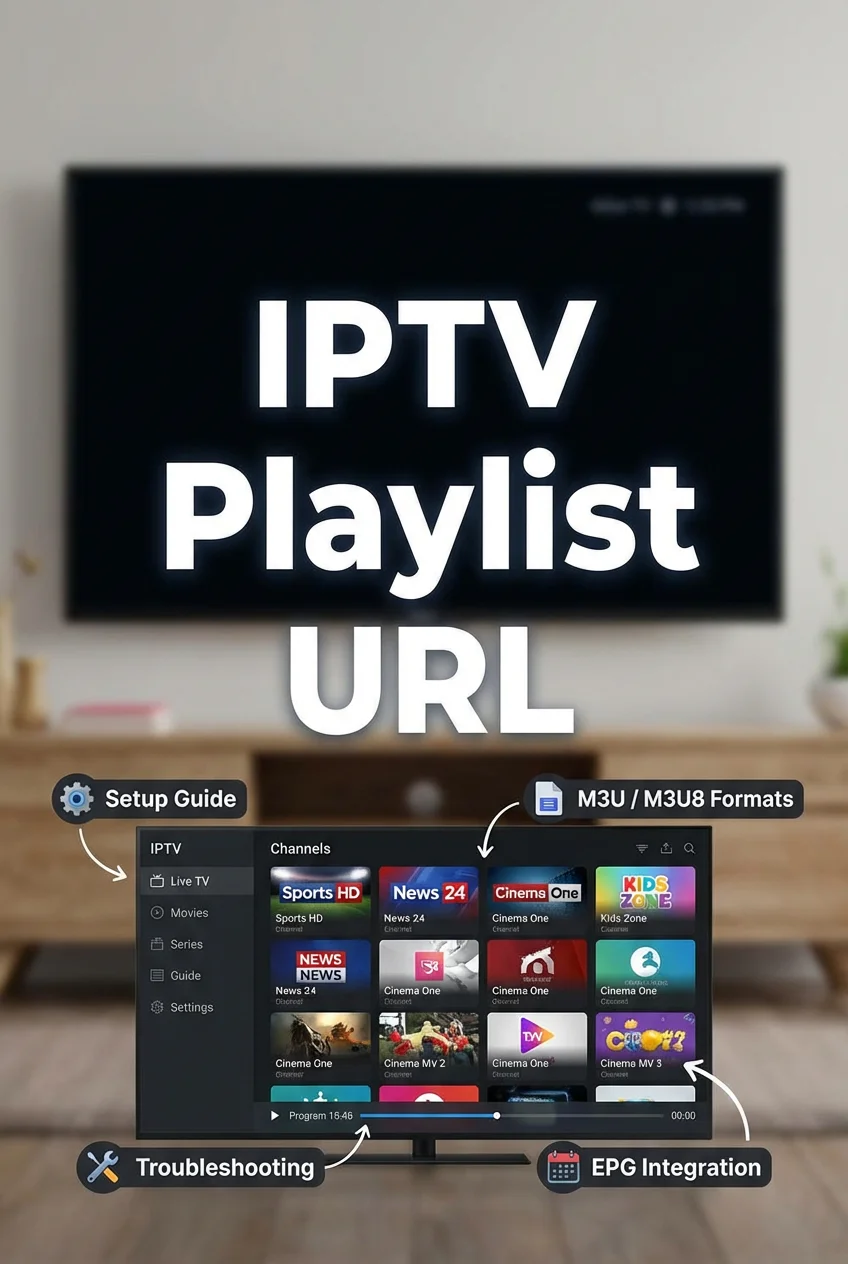
High-quality vertical image showing a digital IPTV interface on a smart TV with the bold text “IPTV Playlist URL” prominently displayed

IPTV Playlist URL (2026): Setup, Fix Not-Working Errors & Best Tips

By Marcus Reed | IPTV Setup Specialist — 6+ years testing IPTV services across Australia and internationally

High-quality vertical image showing a digital IPTV interface on a smart TV with the bold text “IPTV Playlist URL” prominently displayed

Is Your IPTV Playlist URL Not Working? Start Here.

You’ve just subscribed to an IPTV service, pasted in the playlist URL, and hit play — and nothing happens. Or maybe your channels are loaded but buffered constantly. Or you’re staring at an “invalid URL” error with no idea what went wrong.

You’re not alone. The IPTV playlist URL is the single most common point of failure in any IPTV setup — and most guides gloss right over it.

This guide is different. We’ll walk you through exactly what an IPTV playlist URL is, how to add one to every major player, how to fix the most common errors, and the insider tips that actually make a difference in 2026. Whether you’re a complete beginner or troubleshooting a broken setup, everything you need is here.

What’s an IPTV playlist URL?

An IPTV playlist URL is a web address that points to a file—usually in M3U or M3U8 format—containing a list of TV channels and their individual stream links. Think of it as a digital remote control: it tells your IPTV app which channels exist, where to find them online, and how to organise them.

The IPTV playlist URL is
A direct link to an M3U or M3U8 file containing TV channels and streaming sources used by IPTV players.

Without a correctly configured IPTV playlist URL, your player has nothing to stream. It’s the foundation of your entire setup.

For a broader look at how IPTV works as a technology, see our guide on how IPTV works in Australia.

Understanding IPTV Playlist URL Formats

M3U vs M3U8: What’s the Difference?

Both M3U and M3U8 are plain-text playlist formats. The core difference is character encoding:

  • M3U uses your system’s default encoding — fine for English-only channel names
  • M3U8 uses UTF-8 encoding — supports international characters, special symbols, and non-Latin alphabets

For IPTV in 2026, M3U8 is strongly preferred. It’s universally compatible with modern players and avoids encoding errors that can silently break channel names or metadata.

Please explain what an M3U file contains.

Open any M3U playlist in a text editor and you’ll see a structure like this:

#EXTM3U
#EXTINF:-1 tvg-id="abc1" tvg-name="ABC News" tvg-logo="http://logo.url/abc.png" group-title="News",ABC News
http://stream.example.com/abc1

Every playlist starts. Each channel entry includes:

  • tvg-id — the unique channel identifier (used by EPG)
  • tvg-name — the display name in your player
  • tvg-logo — URL for the channel’s logo image
  • group-title — the category (e.g. News, Sport, Entertainment)
  • Stream URL — the actual link your player uses to pull the video

HTTP vs HTTPS Playlist URLs

Your IPTV playlist URL will begin with either http:// or https://. Always prefer HTTPS — it encrypts the connection between your device and the provider’s server, protecting your credentials and viewing activity. Many reputable providers now require HTTPS exclusively.

EPG URLs and How They Relate to Playlist URLs

Your playlist URL gives your player the channel list. The EPG (Electronic Program Guide) URL adds program schedules, show descriptions, and timing data—so you can see what’s on now and next. Most IPTV players have separate fields for both. Your provider will usually supply both URLs when you sign up.

For a detailed walkthrough of setting up programme guides, see our IPTV EPG setup guide for Australia.

How to Find a Legitimate IPTV Playlist URL

The only trustworthy source for a working, stable IPTV playlist URL is a legitimate, licensed provider. When you subscribe, you’ll receive:

  • A unique playlist URL tied to your account credentials
  • An EPG URL for programme guide data
  • Account login details (username/password) for Xtream Codes-compatible apps
  • Customer support if something breaks

To compare what’s available, our IPTV providers Australia guide covers the key players and what to look for.

Spotting Illegal or Unsafe Sources

Unauthorised IPTV sources are widespread but carry serious risks — stream instability, sudden shutdowns, and legal exposure. Watch out for:

  • Prices that seem impossibly low (under $5/month for hundreds of channels)
  • No verifiable company name, ABN, or contact details
  • No terms of service or privacy policy
  • Premium live sports and pay-TV channels with no explanation of licensing
  • Payment only via cryptocurrency or informal transfer

For more detail on the legal landscape, our guide to IPTV laws in Australia covers your rights and risks as a consumer.

Free IPTV Playlist URLs in 2026: Worth It?

Free M3U playlist URLs do exist — aggregating public domain content and free-to-air channels. They’re fine for testing a player setup, but in practice they come with serious limitations: low reliability, frequent buffering, channels that disappear without notice, and zero support. For anything beyond occasional casual use, a paid subscription is far more stable.

Free vs Paid IPTV Playlist URLs: A Direct Comparison

FeatureFree IPTV Playlist URLPaid IPTV Playlist URL
Channel countLimited (50–300)Large (1,000–20,000+)
Stream reliabilityPoor — frequent outagesHigh — provider uptime SLAs
Video qualitySD / low-quality HDHD, FHD, 4K available
EPG supportRarely includedUsually included
Customer supportNoneEmail, chat, or ticket system
URL stabilityURLs change oftenStable, notified when changed
Legal standingVariable / often grey areaClear, licensed content
CostFreeTypically $10–$25/month AUD

Bottom line: Free IPTV playlist URLs are useful for testing your player configuration. For reliable, daily-use streaming, a paid service is the practical choice.

How to Add an IPTV Playlist URL to Your Device

Adding a Playlist URL to VLC Media Player

[Insert screenshot of VLC open network stream dialogue]

  1. Open VLC media player.
  2. Click Media → Open Network Stream (or press Ctrl+N)
  3. Paste your IPTV playlist URL into the Network URL field
  4. Click Play
  5. To save it permanently: Media → Save Playlist to File

VLC tip: If you want channels to persist across sessions, save the .m3u8 file locally and open it via Media → Open File instead of the network stream each time.

Adding a Playlist URL to Kodi (PVR Simple Client)

[Insert IPTV interface image showing Kodi channel list]

  1. Open Kodi and go to Add-ons → Install from Repository
  2. Select PVR Clients → PVR IPTV Simple Client → Install
  3. Once installed, click ‘Configure’.
  4. Under General, set the M3U playlist URL as a remote path.
  5. Paste your IPTV playlist URL
  6. Click OK and enable the add-on
  7. Navigate to TV → Channels to view your channel list

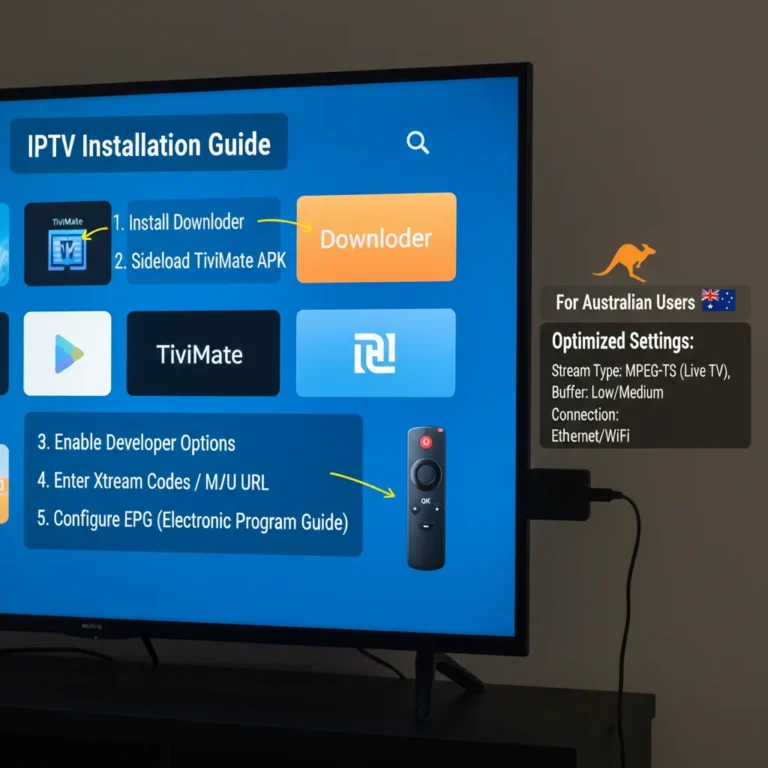
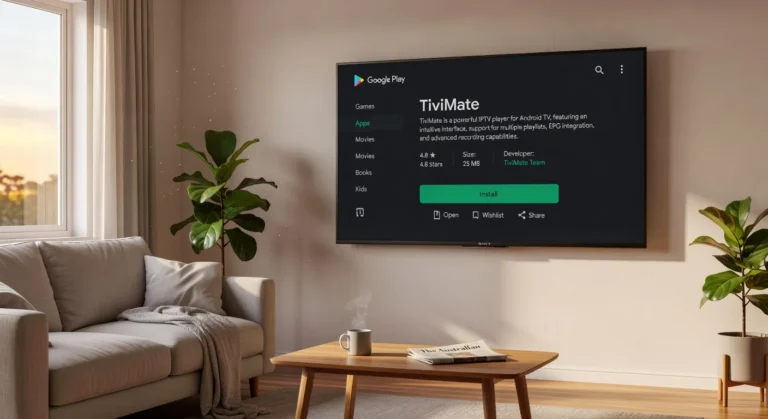
Adding a Playlist URL to TiviMate (Android / Fire TV)

TiviMate is one of the most popular IPTV players for Fire TV Stick and Android TV boxes in Australia.

  1. Open TiviMate and tap ‘Add Playlist’.
  2. Select M3U Playlist
  3. Enter your IPTV playlist URL and give it a name
  4. TiviMate will load and organise your channels automatically
  5. Add your EPG URL under Settings → EPG

For a complete TiviMate configuration walkthrough, including EPGs and favourites, see our TiviMate IPTV configuration guide.

Adding a Playlist URL to IPTV Smarters Pro

  1. Open IPTV Smarters Pro
  2. Tap Add User → Load Your Playlist or File/URL
  3. Enter a profile name and paste your M3U playlist URL
  4. Tap ‘Add User’ to confirm
  5. Channels will import automatically

For device-specific setup walkthroughs, our IPTV Smarters setup guide covers Android, Fire TV, and Smart TV step by step.

Common IPTV Playlist URL Mistakes

These are the errors we see most often—and the ones most guides don’t mention:

1. Trailing spaces or invisible characters When copying a URL from an email or PDF, hidden characters sometimes attach to the beginning or end.

Always paste into a plain text editor first to check, then copy again from there.

2. Using HTTP when the provider requires HTTPS Some providers only serve their playlists over HTTPS. Using the HTTP version will return a redirect or connection error.

3. Not refreshing after a provider update: IPTV providers update their playlists periodically.

If channels disappear or stop working, the first thing to verify is whether your player needs a manual refresh.

4. Entering the EPG URL in the playlist field (or vice versa) These are two separate URLs serving two different functions.

Mixing them up is a very common mistake, especially in TiviMate and Kodi.

5. Exceeding your simultaneous connection limit If you’re watching on two devices with a single connection plan, the second device will often fail silently — appearing as a “playlist URL not loading” error when it’s actually an account limit issue.

6. Sharing your playlist URL: Your URL is account-specific. Sharing it can trigger your provider’s abuse detection and get your account suspended.

Best IPTV Playlist URL Tips for 2026

After extensive testing across multiple IPTV setups, these are the practices that make the most significant difference:

✅ Use HTTPS URLs wherever your provider offers them — more stable and more secure than HTTP.

✅ Set an automatic refresh schedule — in TiviMate and IPTV Smarters, configure the playlist to auto-refresh daily.

This prevents channels from disappearing without you noticing.

✅ Save your playlist URL somewhere secure — don’t rely on your IPTV app alone. Keep a backup in your password manager. If the app resets or you switch devices, you’ll need it.

✅ Add your EPG URL at setup time, not later — some players cache EPG data aggressively. Setting it up from the start eliminates gaps in program guide data.

✅ Use wired Ethernet where possible — playlist loading and initial channel buffering are noticeably faster on a wired connection. For more detail, see our WiFi vs. Ethernet guide for IPTV.

✅ Test with VLC first — before troubleshooting your main app, paste the URL into VLC. If it works in VLC but not your preferred player, the issue is app-side, not the URL.

✅ Avoid refreshing during peak hours. On larger playlists (10,000+ channels), refreshing during provider peak times can result in a timeout. Schedule refreshes for off-peak hours.

How to Fix IPTV Playlist URL Not Working (Quick Fixes)

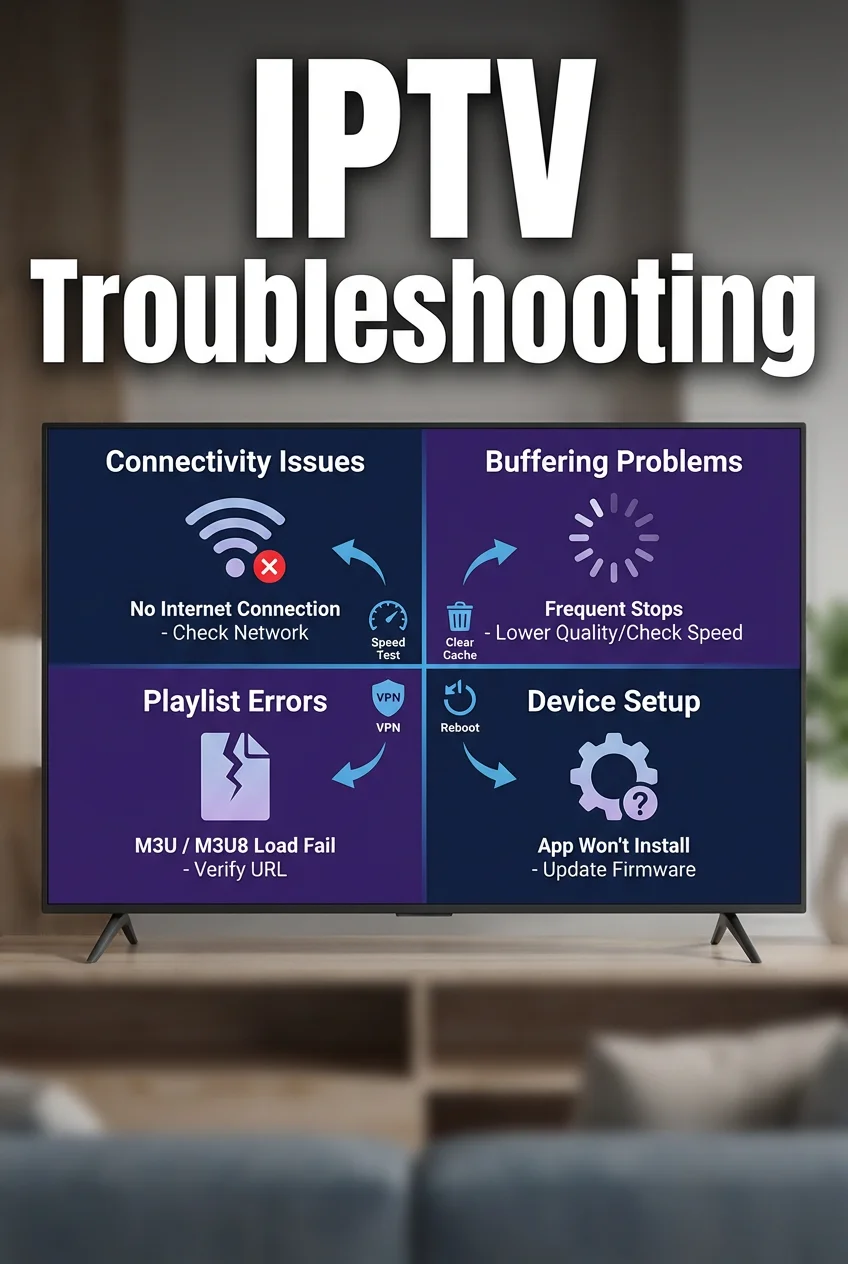
Vertical high-quality image showing a smart TV with error messages and troubleshooting icons, emphasizing IPTV Troubleshooting

Work through these steps in order before contacting your provider:

Step 1 — Verify the URL is complete and correct. Please copy the URL directly from your provider’s portal or welcome email. Paste it into a browser — if you see raw M3U text, the URL is valid. If you encounter an error, the URL itself is the problem.

Step 2 — Check your subscription status Expired subscriptions are the most common cause of a suddenly non-working playlist URL. Log in to your provider’s panel to confirm your account is active.

Step 3 — Test your internet connection. IPTV requires a stable connection. Run a speed test – for HD streaming, you need a minimum of 10 Mbps; for 4K, 25 Mbps+. If you’re below that, see our IPTV speed requirements for Australia.

Step 4 — Try a different player: Paste the URL into VLC. If it works there, the issue is your primary app’s configuration, not the URL.

Step 5 — Disable VPN temporarily. VPNs can disrupt IPTV streams, especially if your provider throttles or blocks the VPN server.

Step 6 — Check for firewall or antivirus blocking. Security software sometimes blocks outbound connections to streaming servers. Add your IPTV player to your firewall’s allow list.

Step 7 — Force a playlist refresh In your IPTV player, manually trigger a playlist reload. Many players cache the last known playlist and won’t pull updates automatically unless prompted.

Step 8 — Contact your provider If all of the above fail, the issue is likely server-side. Check whether your provider has a status page or Telegram/Discord support channel.

For a comprehensive diagnostic process across all device types, our IPTV troubleshooting checklist covers every scenario in detail.

Managing and Maintaining Your IPTV Playlists

Organising Channels and Creating Favourites

Most IPTV players let you rename channels, hide ones you never watch, create custom groups, and set favourite stars. With large playlists (5,000+ channels), good organisation makes the difference between a frustrating and enjoyable experience.

Practical steps:

  • Create a Favourites group with your 20–30 most-watched channels
  • Hide entire groups you don’t use (e.g., foreign-language packages you never watch)
  • Use the EPG to verify channel schedules, not just stream availability

Updating and Refreshing Your Playlist

IPTV providers update playlists for several reasons: adding new channels, removing defunct streams, rotating server URLs for security, or fixing broken stream links.

Configure your player to check for updates automatically — daily is usually sufficient.

If you notice missing channels or broken streams, always try a manual refresh first before assuming the stream is permanently gone.

Using Only Licensed Services

Copyright law in Australia is clear: accessing copyrighted content through unlicensed IPTV services is illegal, regardless of whether you’re the one distributing it. Consequences can include fines, service termination, and in serious cases, criminal prosecution under the Copyright Act.

Always verify that your IPTV provider holds appropriate licensing agreements with content rights holders.

VPNs with IPTV

A VPN can protect your privacy on public networks and encrypt your viewing traffic from your ISP. However, a VPN does not make illegal streaming legal—and using one to obscure activity on an unlicensed service still carries full legal risk. Use VPNs as privacy tools, not as legal shields.

Frequently Asked Questions

What is an IPTV playlist URL?

An IPTV playlist URL is a web address pointing to an M3U or M3U8 file that contains a list of TV channels and their stream links. Your IPTV player uses this URL to load and display your available channels.

What is the difference between M3U and M3U8?

Both are playlist formats. M3U8 uses UTF-8 character encoding, making it compatible with international characters and special symbols. For IPTV, M3U8 is preferred. Both formats work identically in terms of playlist structure.

Are all IPTV playlist URLs legal?

No. Playlist URLs from unlicensed providers provide you with access to copyrighted content without your proper authorisation.

Always verify that your provider holds appropriate broadcasting licences. See our article on whether IPTV is legal in Australia. guide for full details.

Please help me understand why my IPTV playlist URL might not be working.

The most common causes are an expired subscription, a typo in the URL, provider server downtime, an exceeded connection limit, or a firewall blocking the stream.

Please work through the quick troubleshooting steps in this guide before reaching out to your provider.

Can I use the same IPTV playlist URL on multiple devices?

It depends on your plan. Most providers limit simultaneous connections to 1–5 streams. Exceeding this limit typically causes playback errors or automatic disconnection on the second device.

How often do IPTV playlist URLs need to be updated?

It varies by provider. Some URLs remain stable for months; others rotate weekly for security. Configure your player to auto-refresh daily, and your provider will typically notify you of any URL changes.

Do I need a VPN for my IPTV playlist URL?

Not for legal services. A VPN can add privacy benefits, but it can also reduce stream speeds and cause connection errors. It does not make illegal IPTV legal.

How do I add an EPG URL alongside my playlist URL?

In your IPTV player’s settings, look for the EPG, XMLTV, or Program Guide section.

Enter the EPG URL provided by your IPTV service in the relevant field. The player will then download schedule data and display it alongside your channel list.

What internet speed do I need for IPTV to work properly?

A minimum of 10 Mbps is needed for HD streams and 25 Mbps or more for 4K. Stability matters as much as raw speed — a consistent 15 Mbps connection outperforms a variable 50 Mbps one for live IPTV streaming.

Conclusion: Get Your IPTV Playlist URL Working the Right Way

The IPTV playlist URL is the foundation of your entire streaming setup.

Get it right: correct format, verified source, properly configured in your player—and everything else falls into place.

Get it wrong, and you’ll spend hours chasing errors that could have been avoided.

The key takeaways from this guide:

  • Use M3U8 format and HTTPS URLs wherever available
  • Source your playlist URL only from a licensed, legitimate provider
  • Configure EPG alongside your playlist from the start
  • Keep a backup of your URL and refresh on a schedule
  • Use the step-by-step troubleshooting process before escalating to your provider

Ready to take the next step?

marcus reed Avatar

marcus reed

Streaming Device Technician & IPTV Setup Specialist Advanced Diploma in IT Systems, Certified Smart Home Technology Installer
Areas of Expertise: Marcus Reed is a streaming device technician who specialises in IPTV installation, app configuration, and device compatibility for Australian users. With hands-on experience across smart TVs, Fire TV devices, Android TV boxes, and iOS platforms, Marcus provides practical setup guidance for accessing live television channels through IPTV services. His technical expertise covers IPTV player applications including IPTV Smarters, TiviMate, GSE Smart IPTV, and platform-specific solutions for Samsung, LG, and Sony Smart TVs. Marcus focuses on step-by-step installation procedures, M3U playlist configuration, Xtream Codes authentication, and EPG (Electronic Program Guide) setup for optimal viewing experiences. Testing IPTV setups across various Australian internet connections—from 25Mbps NBN connections in regional areas to 250Mbps fiber in metropolitan Melbourne and Sydney—Marcus understands the practical challenges Australian users face when configuring streaming devices for live channel access. His guides emphasise clear, screen-descriptive instructions that anticipate user confusion points, making the IPTV setup accessible for non-technical users while providing detailed configuration options for advanced viewers seeking multi-device streaming solutions.
Fact Checked & Editorial Guidelines

Our Fact Checking Process

We prioritize accuracy and integrity in our content. Here's how we maintain high standards:

  1. Expert Review: All articles are reviewed by subject matter experts.
  2. Source Validation: Information is backed by credible, up-to-date sources.
  3. Transparency: We clearly cite references and disclose potential conflicts.
Reviewed by: Subject Matter Experts

Our Review Board

Our content is carefully reviewed by experienced professionals to ensure accuracy and relevance.

  • Qualified Experts: Each article is assessed by specialists with field-specific knowledge.
  • Up-to-date Insights: We incorporate the latest research, trends, and standards.
  • Commitment to Quality: Reviewers ensure clarity, correctness, and completeness.

Look for the expert-reviewed label to read content you can trust.

Leave a Reply

Your email address will not be published. Required fields are marked *