
Last updated: August 2026
Choosing between smart TV IPTV apps in Australia is less about which app is best and more about which apps your TV can actually install. Samsung, LG and Sony run three separate operating systems with three separate app stores, and an app that is excellent on one of them may not exist on another. If you are still deciding whether IPTV suits your household at all, the IPTV Australia guide covers the wider picture first.
Quick Answer
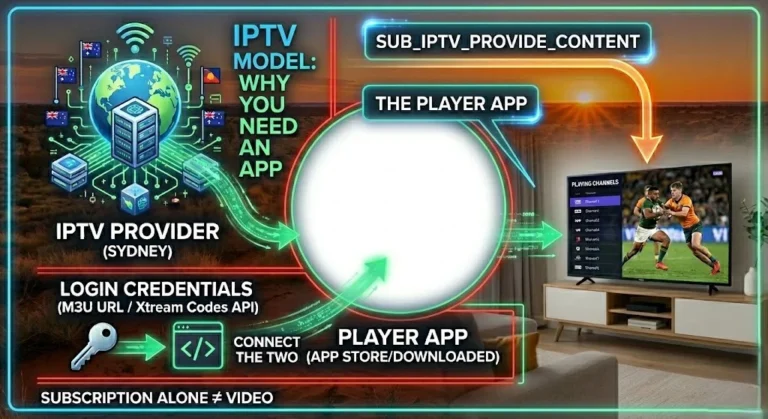
IPTV apps are players, not channel providers. They load playlists or service credentials supplied separately by a provider. On Sony televisions running Google TV or Android TV, TiviMate is available through the Google Play Store. On Samsung Tizen and LG webOS, the practical choices are Smart IPTV or IPTV Smarters Pro. The chain is always the same: app → M3U or Xtream Codes credentials → channels → EPG. Removing any link in that chain will result in playback issues.
What Smart TV IPTV Apps Actually Are
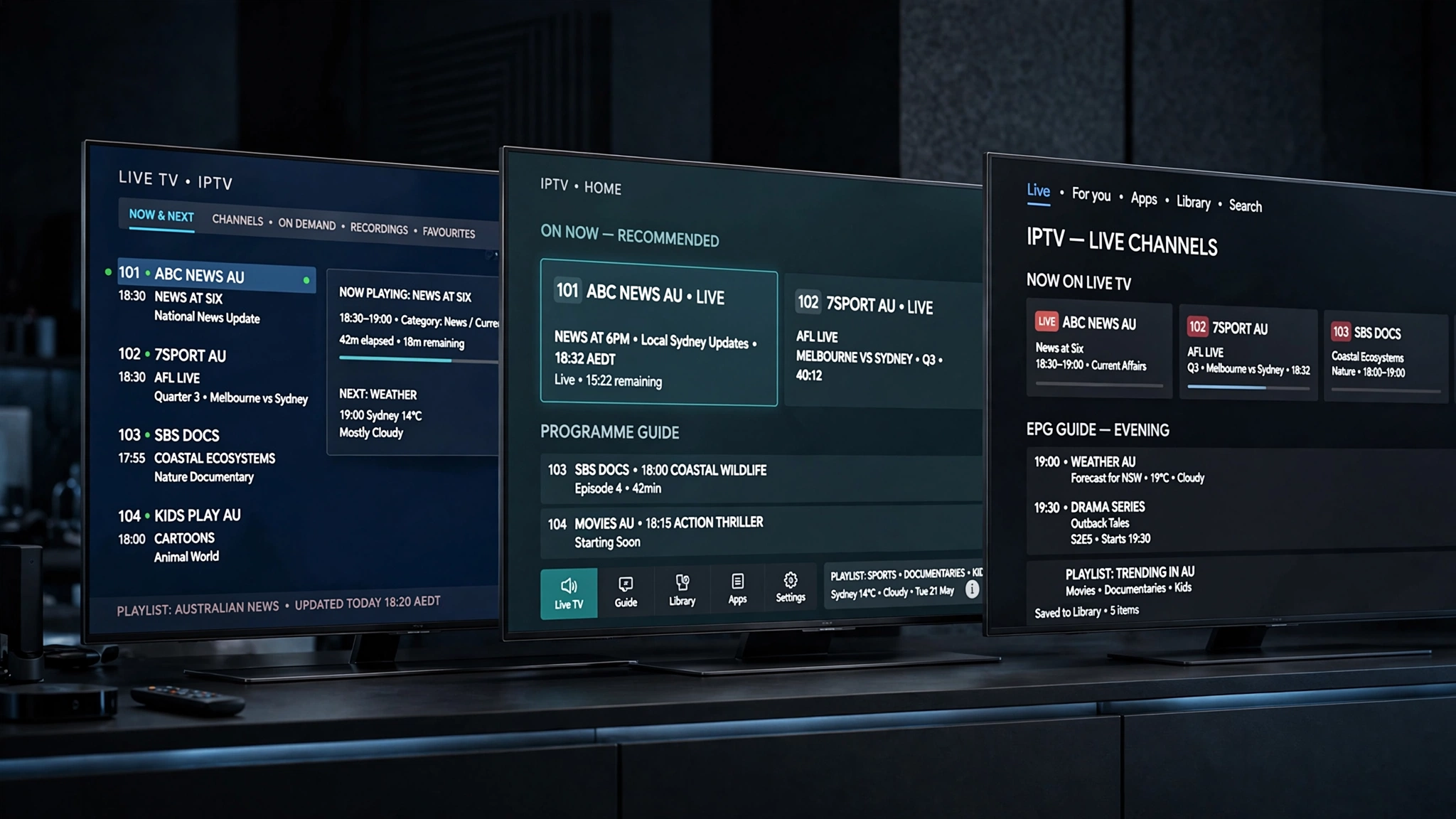
A smart TV IPTV app is a media player installed on the television’s built-in operating system. It reads a playlist or a set of login credentials, requests video streams over your internet connection, and displays a channel list and programme guide.
The app supplies the interface. Your provider supplies everything you watch.
This distinction causes more confusion than any other point in IPTV, so it is worth defining the pieces before comparing anything:
| Term | What it is |
|---|---|
| Tizen | Samsung’s own television operating system. Not Android. |
| webOS | LG’s own television operating system. Not Android. |
| Google TV / Android TV | Android-based television platforms, used by Sony and others, that provide access to the Google Play Store. |
| M3U | A single long web address containing your credentials and channel list. |
| Xtream Codes | A login method using three separate fields: server URL, username, and password. |
| EPG | Electronic Programme Guide — the on-screen schedule of what is showing and when. |
Every app in this comparison is an M3U player at heart — it reads a playlist file and turns it into a channel list on your smart TV. The differences between them lie in how they take that playlist and what they do with it afterwards.
An app that supports M3U but not Xtream Codes is not a worse app than one that does. It simply expects your provider’s details in a different shape. For a fuller explanation of how playlists are structured, see the IPTV M3U Australia guide.
Are There Free Smart TV IPTV Apps?
This query is the most common question about smart TV IPTV apps, and the answer separates into two parts that are frequently confused with each other.
The app can be free. The content is a separate cost.
Some players cost nothing to install. Others charge a one-off activation fee. Neither type includes a single channel. Smart IPTV’s own activation page states plainly that no channels are supplied with the activation payment and asks people not to pay if they have nothing to load into it.
| App | Cost of the app | Channels included |
|---|---|---|
| IPTV Smarters Pro | Free to install | No |
| Smart IPTV (SIPTV) | 7-day trial, then one-off fee | No |
| SmartOne IPTV | 15-day trial, then one-off or yearly licence | No |
| TiviMate | Free tier, paid premium tier | No |
If a search result promises free smart TV IPTV apps with thousands of channels attached, it is describing something apart from a player. Free playlists circulating publicly are a different subject entirely, with their reliability and legal questions attached.
The honest position: you can install a player for nothing. You cannot watch anything for nothing without accepting risks that the app itself cannot control.
Smart TV IPTV Apps Compatibility by Brand
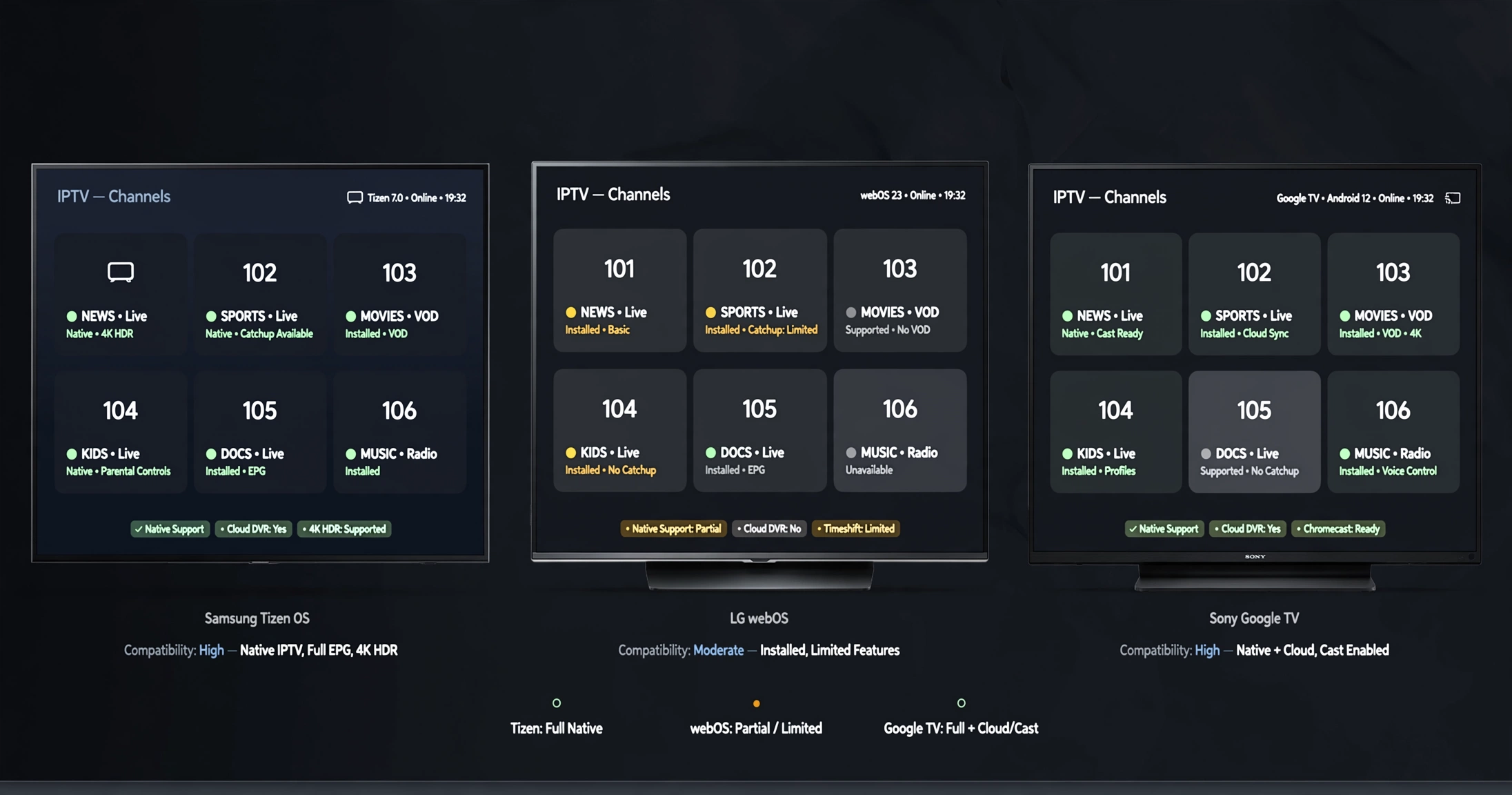
Compatibility is determined by the operating system, not the price or the screen size of the television.
| TV platform | TiviMate | IPTV Smarters | Smart IPTV | Practical choice |
|---|---|---|---|---|
| Samsung Tizen | Not available | Samsung App Store | Samsung App Store | Smart IPTV or IPTV Smarters |
| LG webOS | Not available | LG Content Store | LG Content Store | IPTV Smarters |
| Sony Google TV | Play Store | Play Store | Play Store | TiviMate |
| Sony Android TV | Play Store | Play Store | Play Store | TiviMate |
Samsung Tizen
Samsung televisions run Tizen, and the Samsung App Store is the only official source of apps for them. Smart IPTV and IPTV Smarters Pro are both listed for Australian Samsung televisions.
Smart IPTV works differently from most players from the moment you download the app. Rather than entering your playlist on the television, you register the set’s MAC address on the Smart IPTV website and enter the playlist there. The app then reads it. This approach is unusual, and it is the source of both its main strength and its main limitation, covered further below.
App availability on Tizen also varies by model year and region. Before planning around a particular app, open your television’s store and search for it. An app that appears in a guide written for another market is not guaranteed to appear on your set.
LG webOS
LG televisions run webOS, with the LG Content Store as the official source. IPTV Smarters Pro and Smart IPTV are both commonly available.
SS IPTV may also be available on supported LG televisions, depending on the model and region. As with any app on webOS, open the LG Content Store on your set and search before planning around it — availability varies by model year and market, and no guide can confirm it for your specific television.
LG’s position is close to Samsung’s: a workable selection, no TiviMate, and app availability that depends on the age of the television. Older webOS sets carry fewer apps and less capable hardware, which matters more for large channel lists than for the app itself.
Sony Google TV and Android TV
Sony televisions running Google TV or Android TV have the widest choice by a clear margin, because they are Android devices underneath. The full Google Play Store is available, which means TiviMate, IPTV Smarters, and every other Android IPTV player installs directly.
Older Sony sets from the Android TV era and newer Google TV sets differ mainly in interface design. IPTV app availability is effectively the same on both.
For Sony owners, the result is the simplest outcome in the whole comparison: the best-regarded app installs natively, with no workaround required.
Why TiviMate Doesn’t Run Natively on Samsung or LG
TiviMate is built for Android TV and compatible Android-based television devices. Samsung Tizen and LG webOS are different platforms running different software, so an Android application has nothing to run on.
This is not a gap a future update will close. It is a difference in what the television is, not a missing feature.
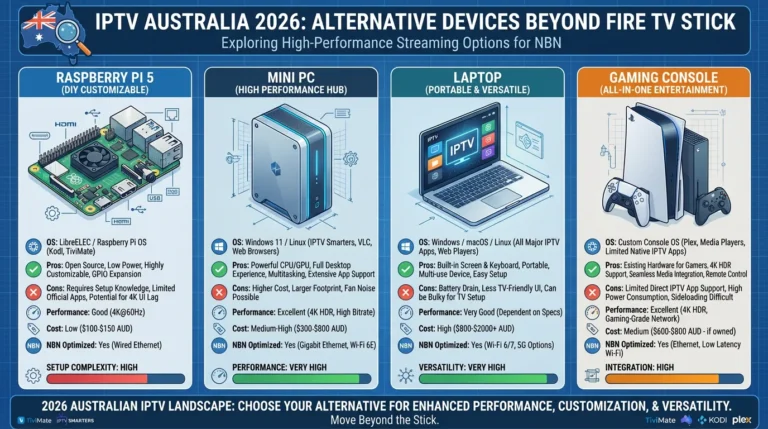
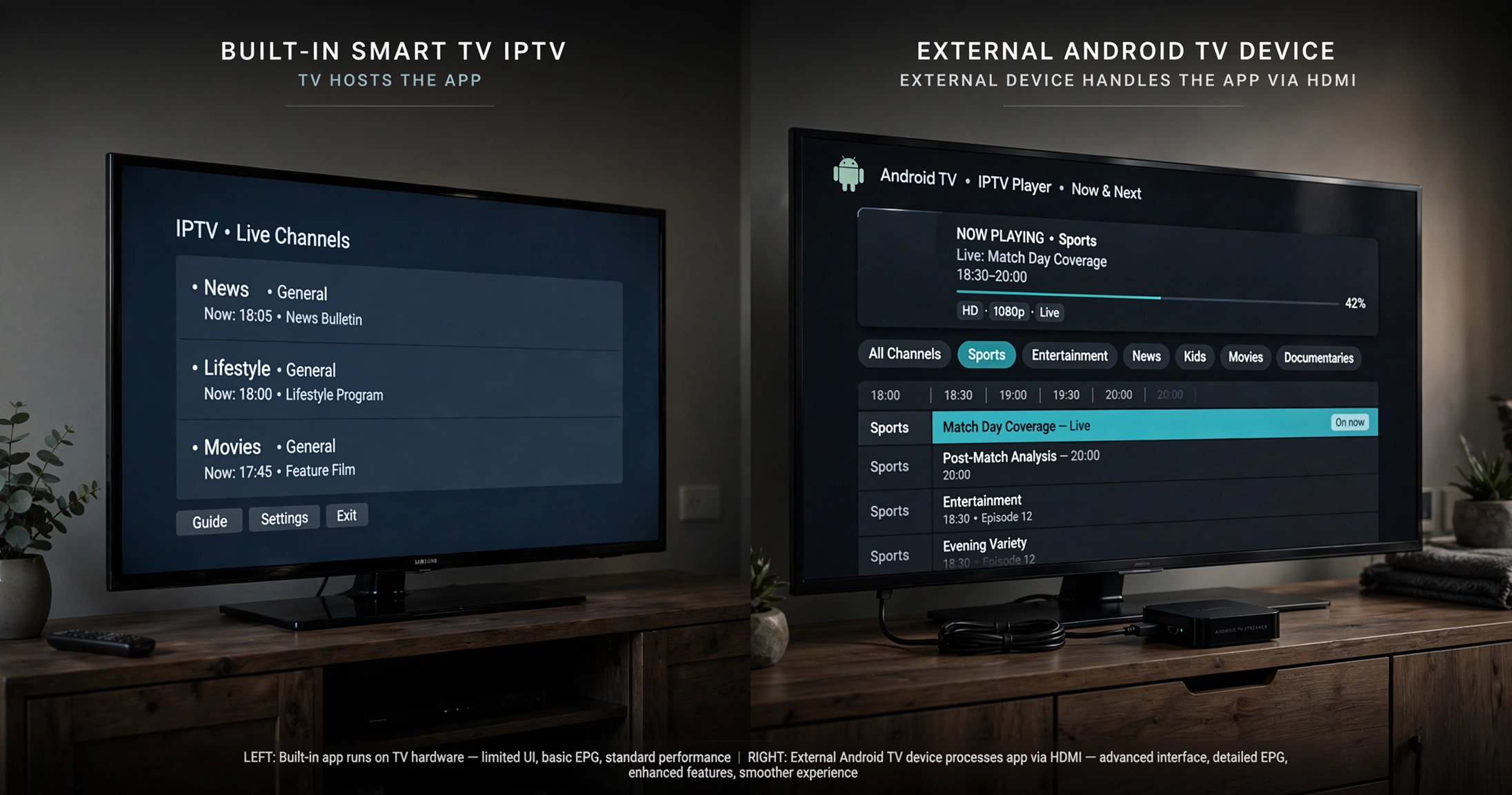
The practical consequence is that Samsung and LG owners who want Tivimate need an Android-based device connected by HDMI – a Fire TV Stick or an Android box. The television then acts as the screen while the external device handles the IPTV app. The Fire TV Stick IPTV compatibility guide covers which models suit that role.
What Many Australian Users End Up Using
Here is a pattern I see constantly in the questions people actually ask, and it is worth naming because no comparison table captures it.
Someone starts by asking which IPTV app is best for their Samsung or LG television. They read comparisons, and TiviMate appears repeatedly as the app most people recommend. Then they discover it is designed for Android TV and Fire TV and cannot be installed on the set in front of them.
So the question they asked – which app? – has a different answer than they expected. For many people, the resolution is not to choose a different app for their television. Instead, it involves adding a small Android-based device and running the app they wanted from there.
This is why I would push back on framing this decision as an app choice at all. It is a platform choice that happens to look like an app choice. Someone comparing players for a Samsung television is looking at a shortlist that has already been narrowed by the television itself before they type anything into a search box.
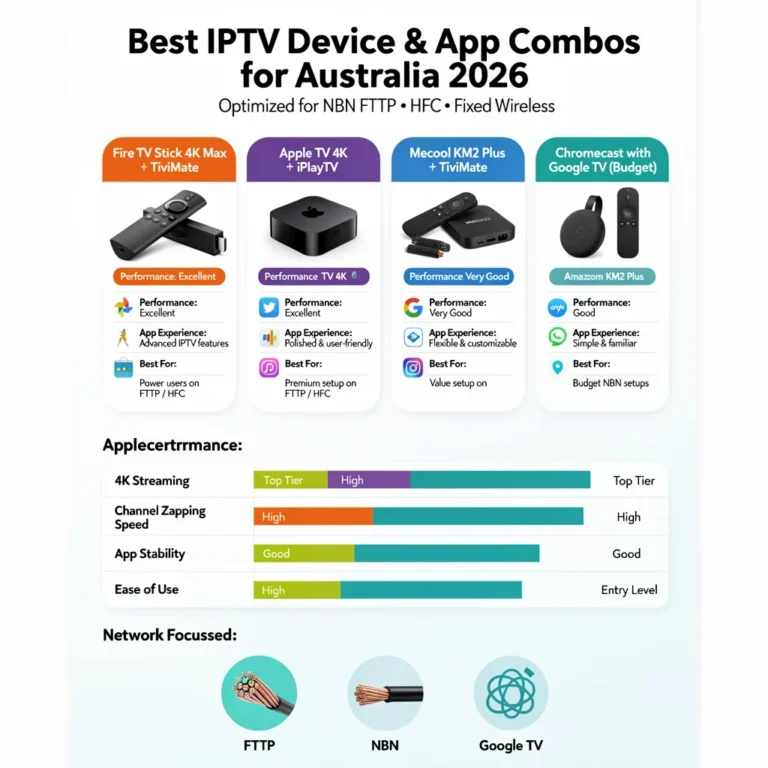
If you are at the start of that decision rather than the end, choosing an IPTV device and app combination is the right way to approach it.
App Pricing in Australia
App pricing is set by developers, not Australian retailers, and is charged in euros regardless of your location:
| App | Price | Structure |
|---|---|---|
| Smart IPTV | €5.49 | One-off, per device, tied to the MAC address |
| SmartOne IPTV | €12.99 or €2.50 per year | Lifetime or annual licence, per device |
| IPTV Smarters Pro | Free | No activation fee |
| TiviMate | Free tier available | Optional premium subscription |
One caution when reading any smart TV IPTV app review: the pro or premium tier of an app changes the interface and the features, never the channels. A paid upgrade does not add content, because the app was never the source of it.
Two further points are worth understanding before paying anything.
These fees are per device. Smart IPTV binds its licence to a single television’s MAC address. Two televisions means two activations. For a household putting IPTV on several screens, a free player or an external device may work out cheaper than it first appears.
Pay after testing, not before. Every paid player here offers a trial. Use it to confirm that your provider’s playlist loads and that channels play on that specific television. Smart IPTV’s own activation page warns that payment resolves nothing if something is already not working — sound advice from the developers themselves.
I would not treat a few euros as the deciding factor between these apps. The interface you will use daily, and whether the app runs on your television at all, matter considerably more than the one-off fee.
When Your Smart TV App Is the Wrong Choice
The built-in app is genuinely the right choice for some households and genuinely the wrong one for others. Being clear about which is which saves people both money and frustration.
The built-in app suits you if:
- You own a Sony Google TV or Android TV — TiviMate installs directly and nothing further is needed
- You want one remote and no additional boxes
- Your viewing is straightforward: live channels, standard programme guide, no heavy customisation
An external device suits you better if:
- You want TiviMate specifically and own a Samsung or LG television
- Your television is several years old — older sets have weaker processors and less memory, and large channel lists strain both
- Your provider supplies a very large playlist, which built-in apps handle less comfortably than dedicated devices
- The app you want is not listed in your television’s store, which happens across model years and regions
That last point deserves emphasis. Store availability is controlled by Samsung and LG, not by you or the app developer. An app may be present on one model but absent on another, and the only reliable workaround is to use a device with its own app store.
The Mistake That Commonly Breaks Smart TV IPTV Setups
Most smart TV IPTV failures I encounter are not app faults, provider faults or network faults. They are typing errors.
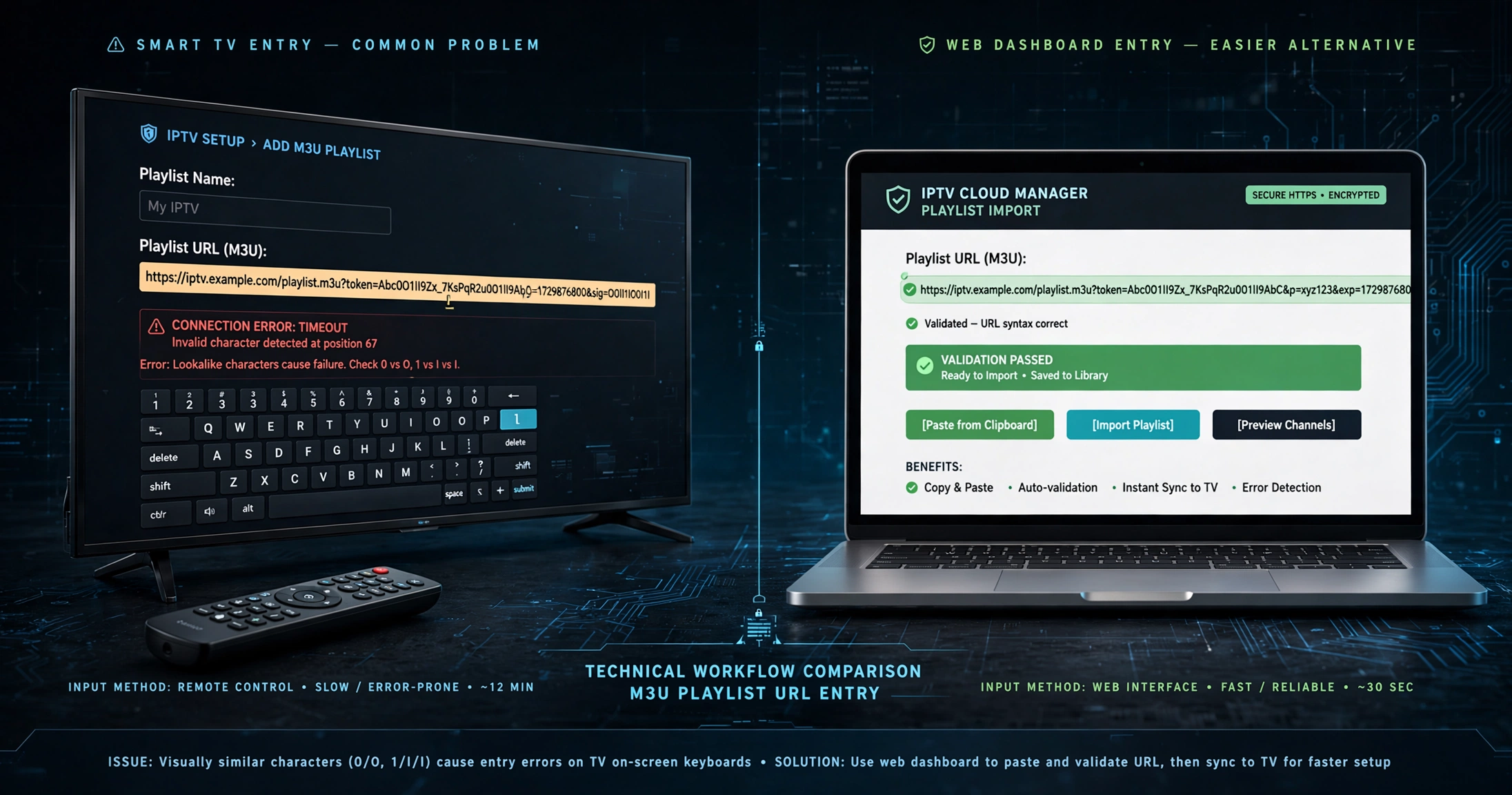
A playlist address is long, mixed-case, and contains characters that are easy to confuse. Entering it with a television remote means selecting one letter at a time from an on-screen keyboard, on a screen viewed from across the room, with the field often partially obscured. A single wrong character produces failure, and the error message is identical regardless of which character was wrong. The app cannot tell you that one letter is incorrect — it only knows the address did not work.
The prefix causes the most trouble. An address starting with http is not the same as one starting with https, yet the two look nearly identical on a television screen. Swapping one for the other breaks the connection while appearing entirely correct.
Smart IPTV avoids this specific problem by design. The Smart IPTV website allows you to enter the playlist using a phone or computer, so the remote never interacts with the address. This is a genuine advantage of its unusual setup method and one reason it remains popular on Samsung and LG, despite having a plainer interface than its competitors.
Apps that take the address on the television itself do not offer this level of convenience. Where you must enter it on the set, paste rather than type wherever the app allows, and read the address back character by character before saving it. Checking the prefix and any port number at the end catches most of these before they become support tickets.
If a setup fails after you confirm the address is correct, the cause lies elsewhere — the IPTV Troubleshooting Australia hub covers the remaining categories.
Which smart TV IPTV app should you choose?
| Your television | Recommended app | When it isn’t enough |
|---|---|---|
| Sony Google TV | TiviMate | Rarely, this combination covers most needs |
| Sony Android TV | TiviMate | Older sets may struggle with very large playlists |
| Samsung Tizen | Smart IPTV or IPTV Smarters | If you want TiviMate, add an external device |
| LG webOS | IPTV Smarters or Smart IPTV | Older webOS sets, or apps missing from the store |
| Any Samsung or LG | TiviMate via HDMI device | Adds hardware cost and a second remote |
Once you have chosen, the Smart TV IPTV setup guide covers configuration on each platform, and IPTV Smarters across multiple devices covers that app specifically.
Legal Note
Tivimate IPTV technology is legal in Australia. Player applications such as Smart IPTV, IPTV Smarters and Tivimate are legitimate software that supply no content of their own.
What determines legality is the service behind your credentials and whether it holds appropriate content distribution licences. The Australian Communications and Media Authority (ACMA) is the federal regulator for broadcasting and online content, and under the Copyright Act 1968 (Cth) internet providers can be directed to block sites facilitating copyright infringement.
This article is for educational purposes only. Verify the licensing status of any streaming service and ensure compliance with Australian copyright law before subscribing.
Explore More
Devices and apps
IPTV devices and apps Australia · Choosing a device and app combination · Fire TV Stick compatibility
Setup and configuration
Smart TV IPTV setup · IPTV Smarters on multiple devices · IPTV M3U Australia
When something goes wrong
IPTV Troubleshooting Australia
Background
IPTV Australia guide
Bottom Line
If you own a Sony television running Google TV or Android TV, install TiviMate from the Google Play Store. You have the best available option built in, and no additional hardware is required.
If you own a Samsung or LG television and want a straightforward setup, use IPTV Smarters Pro or Smart IPTV from your television’s own store. Smart IPTV’s web-based playlist entry avoids the most common setup error, which is worth more in practice than a more polished interface.
If you own a Samsung or LG television and want Tivimate specifically, the app will not run on Tizen or webOS. Add an Android-based device via HDMI and run it from there, accepting the extra cost and the second remote as the price of that choice.
Sources
- Smart IPTV activation page — activation fee, per-device licensing, and confirmation that no channels are included
- SmartOne IPTV activation — lifetime and annual licence pricing
- ACMA — regulatory framework and site-blocking powers