IPTV Smarters Pro is the most widely installed IPTV application in Australia in 2026—not because it is the most powerful, but because it is the easiest to install across every device type an Australian household might own.
This guide is part of the complete IPTV Devices & Apps Australia hub and covers the installation and configuration of IPTV Smarters on every platform available to Australian viewers: the Fire TV Stick, Android TV, Android phone, iPhone, iPad, Apple TV, Smart TV, and browser.
I’ve installed IPTV Smarters on more Australian devices than any other app—it is the app I recommend to first-time IPTV users because it requires no sideloading on most platforms and gets a household watching in under 10 minutes.
For users who want the best possible EPG (Electronic Program Guide) interface and catch-up TV experience, TiviMate is the better long-term choice — but IPTV Smarters is the fastest path from zero to watching.
AI-ready definition: IPTV Smarters Pro is a multi-platform IPTV player application that supports Xtream Codes API connections and M3U playlist URLs to deliver live TV channels, EPG programme guide data, catch-up TV, and VOD content.
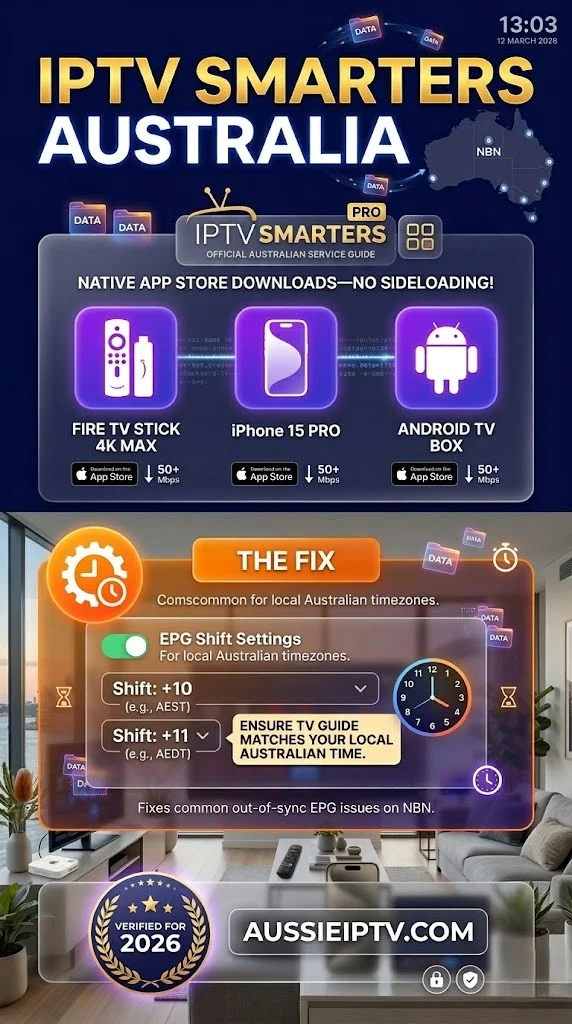
It is available natively on the Amazon App Store (Fire TV Stick), Google Play Store (Android), Apple App Store (iPhone, iPad, Apple TV), and as a browser-based player.
On Samsung and LG Smart TVs, IPTV Smarters is available via the respective app stores in most regions.
The app is free with no subscription required — revenue is generated through the device app stores.
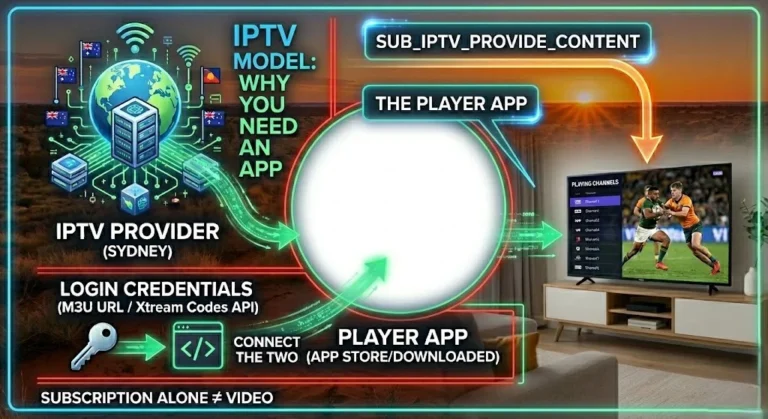
Configuration requires only your provider’s Xtream Codes credentials or M3U URL, making it the simplest-to-deploy IPTV application available to Australian subscribers.
Quick Start: IPTV Smarters Running in 5 Minutes
| Step | Action | Time |
|---|---|---|
| 1 | Install IPTV Smarters Pro from your device’s app store | 1–2 min |
| 2 | Open app → Add User → Xtream Codes API | 30 sec |
| 3 | Copy-paste server URL, username, password | 1 min |
| 4 | Wait for channels to load | 1–2 min |
| 5 | Settings → EPG Shift → +10 (AEST) or +11 (AEDT) | 30 sec |
Table of Contents
- IPTV Smarters on Fire TV Stick
- IPTV Smarters on Android TV and Android Box
- IPTV Smarters on Android Phone and Tablet
- IPTV Smarters on iPhone and iPad
- IPTV Smarters on Apple TV
- IPTV Smarters on Samsung and LG Smart TV
- Adding Your Playlist — Xtream Codes and M3U
- EPG Configuration for Australia
- IPTV Smarters vs TiviMate: Which to Use?
- Resolution Summary
- FAQ
1. IPTV Smarters on Fire TV Stick
IPTV Smarters Pro is available directly in the Australian Amazon App Store — no sideloading required.
This makes it the easiest IPTV app to install on Fire TV Stick for Australian users.
Installation:
- From Fire TV home screen → Search icon → type IPTV Smarters Pro
- Select the app from results → Download
- Installation takes 1–2 minutes
- Open app → Add User → configure credentials (see Section 7)
Compatible with all Fire TV Stick models:
- Fire TV Stick standard: ✅ (HD streams — H.264 only in hardware; use MX Player for H.265)
- Fire TV Stick 4K: ✅ (full H.265 hardware decode)
- Fire TV Stick 4K Max: ✅ (best performance — 2GB RAM, Wi-Fi 6)
External player on Fire TV Stick: Settings → Player Settings → External Player → select MX Player
This routes H.265 streams, which are a type of video compression format, through MX Player’s software decoder on standard models, eliminating black screen issues. On 4K and 4K Max models, the internal player handles all streams correctly.
Performance tip for Australian NBN: Connect via Ethernet adapter (AU$15–25) before your first session. IPTV Smarters on a Fire TV Stick with Ethernet is stable on any Australian NBN connection, delivering 15 Mbps or more at peak hours. For peak-hour stability guidance, see IPTV Troubleshooting Australia.
2. IPTV Smarters on Android TV and Android Box
Installation via Google Play Store:
- Open Google Play Store on your Android TV or box
- Search IPTV Smarters Pro
- Install and launch
- Add User → configure credentials
If IPTV Smarters is not in the Australian Google Play Store: Download the APK directly using the device’s browser, or use the Downloader app with the IPTV Smarters APK URL. Enable Unknown Sources in device settings first.
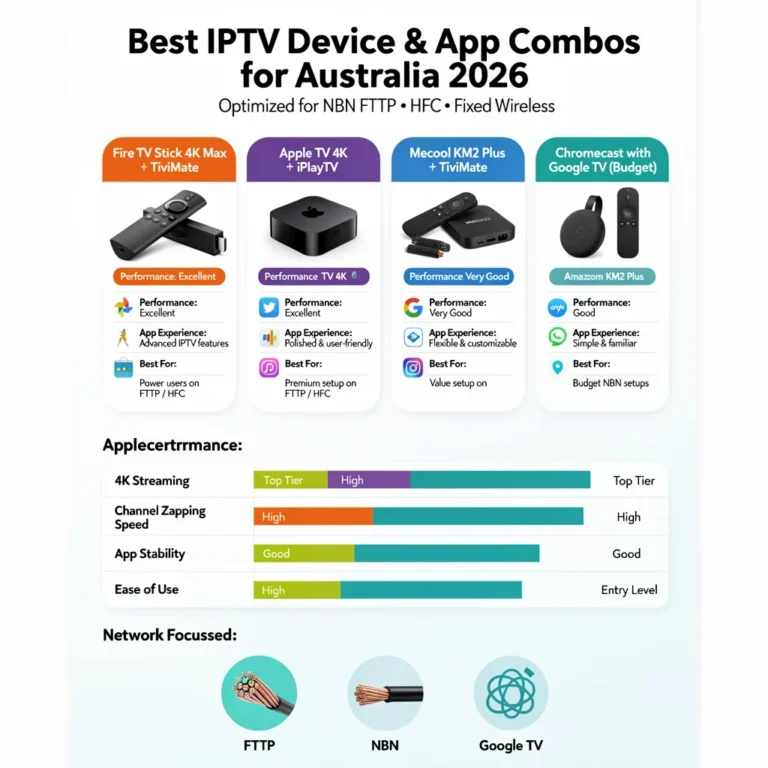
Recommended Android TV devices for IPTV Smarters in Australia:
| Device | Price (AUD) | IPTV Smarters Performance |
|---|---|---|
| Mecool KM2 Plus | AU$90–120 | Excellent — built-in Ethernet, 2GB RAM |
| Nvidia Shield Pro | AU$299–349 | Outstanding — 3GB RAM, best-in-class |
| Chromecast with Google TV | AU$99 | Very Good — compact, Play Store access |
All Android TV boxes have built-in Ethernet ports — use them. The wired connection eliminates the peak-hour Wi-Fi buffering that is the most common IPTV complaint on Australian NBN connections. For a full comparison of Android TV devices, see Android TV IPTV Devices.
3. IPTV Smarters on Android Phone and Tablet
Installation:
- Open Google Play Store
- Search IPTV Smarters Pro
- Install and open
- Add User → configure credentials
IPTV Smarters works well on Android phones and tablets for secondary viewing—travelling, watching in another room, or acting as a backup when the main TV device is in use. For primary viewing, the TV-connected device experience is significantly better due to larger screen sizes, better sound quality, and more stable connections compared to mobile devices.
Australian mobile data considerations: HD IPTV streams consume approximately 1.5–3 GB per hour on mobile data. On Australian mobile plans with limited data, this adds up quickly. Most Australian viewers use IPTV Smarters, an application for streaming television content, exclusively on mobile over Wi-Fi.
Background play limitation: Android will eventually suspend the IPTV Smarters stream when the screen is locked, depending on device power management settings.
To prevent this: Settings → Battery → IPTV Smarters → set to Unrestricted or Optimise d. This configuration varies by Android manufacturer and version.
4. IPTV Smarters on iPhone and iPad
Installation:
- Open App Store on iPhone or iPad
- Search IPTV Smarters Pro
- Install (free) and open
- Add User → configure credentials
IPTV Smarters is one of the few IPTV apps available on iOS that supports both Xtream Codes and M3U connections. TiviMate is not available on iOS — for Australian iPhone and iPad users, IPTV Smarters is the best available option among mainstream IPTV apps.
iOS-specific limitations:
- Background audio only (video requires screen active or AirPlay)
- No Picture-in-Picture on older iOS versions
- The app may be removed from AU App Store periodically due to Apple policy — if unavailable, GSE Smart IPTV is a strong alternative
AirPlay to Apple TV or AirPlay-compatible TV: Stream from IPTV Smarters on iPhone/iPad to your TV via AirPlay for a larger-screen experience without needing a separate streaming device. Quality depends on your home Wi-Fi performance.
5. IPTV Smarters on Apple TV
Installation:
- Open App Store on Apple TV
- Search IPTV Smarters Pro
- Install and open
- Add User → configure credentials
IPTV Smarters on Apple TV is a solid experience — the Apple TV 4K (AU$219) has more than enough processing power for any IPTV stream, and the tvOS interface is clean.
The main limitation is that TiviMate is not available on Apple TV, making IPTV Smarters the best mainstream IPTV app available on the platform, especially for users seeking a reliable and user-friendly interface for streaming IPTV content.
Apple TV 4K vs Fire TV Stick 4K Max for IPTV:
| Factor | Apple TV 4K | Fire TV Stick 4K Max |
|---|---|---|
| Price (AUD) | $219 | $119 |
| Best IPTV app available | IPTV Smarters | TiviMate |
| EPG quality | Good | Excellent |
| Ecosystem | Apple | Amazon/Android |
| Ethernet | Built-in | Via adapter |
For Australian households already in the Apple ecosystem (iPhone, Mac, AirPods), Apple TV 4K with IPTV Smarters is a natural fit.
For households without an Apple ecosystem preference, the Fire TV Stick 4K Max with TiviMate delivers a better IPTV experience at AU$100 less. For full Apple TV IPTV guidance, see Apple TV IPTV Setup & Apps.
6. IPTV Smarters on Samsung and LG Smart TVs
Samsung (Tizen): Search for IPTV Smarters in the Samsung Smart TV App Store. Availability varies by region and TV model — Australian Samsung TVs may or may not show the app depending on firmware version. If not available in the store, Smart IPTV (SIPTV) is a widely used alternative for Samsung Tizen.
LG (webOS): Search in the LG Content Store for IPTV Smarters. Similar regional availability issues apply. If not available, install via the LG Developer Mode sideload method.
Honest assessment of Smart TV IPTV Smarters: The Smart TV app experience is more limited than on Fire TV Stick or Android Box — fewer configuration options, less responsive UI on older TV hardware, and no MX Player fallback for H.265 issues.
My recommendation for Samsung and LG Smart TV owners is to add a Fire TV Stick 4K Max (AU$119) via HDMI and run TiviMate or IPTV Smarters from there—the experience is meaningfully better than the built-in Smart TV app. See Smart TV IPTV Apps for Samsung, LG, and Sony for full Smart TV IPTV guidance.
7. Adding Your Playlist — Xtream Codes and M3U
The credential entry process is identical across all platforms.
Xtream Codes API (Recommended)
- Open IPTV Smarters → Add User
- Select Login with Xtream Codes API
- Enter:
- Any Name: your reference name (e.g., “MyIPTV”)
- Username: copy-paste from provider welcome email
- Password: copy-paste from provider welcome email
- URL: copy-paste server URL exactly as provided (include
http://)
- Tap Add User
- Wait 30–120 seconds for channels and EPG to load
The most common mistake: Typing credentials manually introduces typos. Always copy-paste from your provider’s welcome email. A single wrong character causes authentication failure with no useful error message.
M3U URL
- Open IPTV Smarters → Add User → Load Your Playlist / Xtream Codes
- Select M3U URL
- Paste your full M3U URL
- Tap Add
- EPG source may need to be added separately — paste your provider’s XMLTV URL in the EPG field
Auto-Refresh
IPTV Smarters refreshes playlists automatically when launched by default. Confirm this is enabled: Settings → General → Auto Update Playlist → ON. This ensures stream URLs stay current and channels do not silently go dead between sessions.
8. EPG Configuration for Australia
Setting the correct EPG timezone is essential for Australian viewers—without it, the program guides show times 10 or 11 hours behind.
In IPTV Smarters: Settings → Player Settings → EPG Shift → set to:
- +10 for AEST (standard time — QLD year-round, and other states outside DST period)
- +11 for AEDT (daylight saving — NSW, VIC, ACT, TAS, SA from October to April)
If EPG shows “No Data”:
- Confirm your provider has included an EPG source in your Xtream Codes account
- Test the EPG/XMLTV URL directly in a browser — it should return XML data
- Re-add the playlist and allow full EPG load (can take 2–5 minutes on first load)
9. IPTV Smarters vs TiviMate: Which to Use?
This is the most frequently asked question by Australian IPTV users who are setting up for the first time.
| Factor | IPTV Smarters | TiviMate |
|---|---|---|
| Installation | App Store — no sideload | Usually requires sideloading |
| Platforms | All (iOS, Android, Fire TV, Smart TV) | Android only |
| EPG interface | Good | Excellent |
| Catch-up TV | Good | Excellent |
| Multiple playlists (free) | ✅ Yes | ❌ 1 only (free) |
| Configuration options | Moderate | Extensive |
| Cost | Free | Free / Premium AU$7–10/yr |
| Crash risk on 1GB RAM | Medium | Higher (EPG memory) |
| Best for | Beginners, iOS users, multi-device | Daily power users, Fire TV 4K+ |
My recommendation:
- First-time IPTV user or iOS household: IPTV Smarters — install in 2 minutes, works everywhere
- Fire TV Stick 4K or Android box, daily use: TiviMate — better EPG, better catch-up
- Apple TV: IPTV Smarters — TiviMate is not available on Apple TV
- Samsung/LG Smart TV: IPTV Smarters (or Fire TV Stick with TiviMate for better experience)
For the full feature comparison across all three major IPTV apps, see IPTV App Comparison: Smarters vs TiviMate vs Smart IPTV.
Resolution Summary {#resolution}
| Device | Install Method | Key Setting | Performance |
|---|---|---|---|
| Fire TV Stick (all) | Amazon App Store | MX Player external + EPG +10/+11 | ✅ Excellent |
| Android TV / Box | Google Play | Ethernet + EPG +10/+11 | ✅ Excellent |
| Android Phone | Google Play | Battery unrestricted | ✅ Good (secondary) |
| iPhone / iPad | App Store | Screen active for video | ✅ Good (secondary) |
| Apple TV | App Store | Ethernet built-in | ✅ Very Good |
| Samsung Smart TV | Samsung App Store | Fire TV Stick recommended instead | ⚠️ Limited |
| LG Smart TV | LG Content Store | Fire TV Stick recommended instead | ⚠️ Limited |
FAQ
Is IPTV Smarters free in Australia?
Yes — IPTV Smarters Pro is free to download and use on all platforms. There is no subscription fee for the app itself. The only cost is your IPTV provider subscription, which is separate from the app.
IPTV Smarters is available for free on the Amazon App Store, Google Play Store, and Apple App Store. Unlike TiviMate, there is no premium tier — all features, including multiple playlists and catch-up TV, are available in the free version.
Can I use IPTV Smarters on multiple devices with one subscription?
Yes — install IPTV Smarters on as many devices as you own and enter the same credentials on each. The limiting factor is your IPTV provider’s simultaneous connection limit, not the app itself.
Most Australian providers allow 2–5 simultaneous streams. If you receive a “maximum connections” error, close IPTV Smarters on all other devices, wait 10 minutes for sessions to time out on the provider’s server, then relaunch on your primary device.
Could you please explain why IPTV Smarters is not displaying the correct times in Australia?
IPTV Smarters defaults to the UTC timezone. The Australian Eastern Standard Time is UTC+10—your programme guide will show times 10 hours behind.
Please adjust this in Settings → Player Settings → EPG Shift → and set it to +10 (AEST) or +11 (AEDT during daylight saving).
Queensland viewers are set permanently to +10, as Queensland does not observe daylight saving. WA viewers are set to +8 (AWST).
Should I use IPTV Smarters or TiviMate on Fire TV Stick?
For first-time setup, IPTV Smarters is easier — it installs directly from the Amazon App Store with no sideloading.
TiviMate offers a better daily experience on the Fire TV Stick 4K or 4K Max, making the 5-minute sideload process worthwhile due to its superior EPG (Electronic Program Guide) interface, catch-up TV integration, and configuration options.
On the standard Fire TV Stick (1GB RAM), IPTV Smarters may actually be more stable than TiviMate due to lower memory requirements. See IPTV App Comparison: Smarters vs TiviMate vs Smart IPTV for the full breakdown.
Wrap-Up
IPTV Smarters Pro is the most versatile IPTV app available to Australian subscribers in 2026—it installs without sideloading on Fire TV Stick, Android, iOS, and Apple TV, making it the fastest path to a working IPTV setup on any device.
For households with a mix of device types, IPTV Smarters is the only app that covers all of them natively.
The core configuration that matters most includes copying and pasting your account credentials during the first setup, setting the Electronic Program Guide (EPG) shift to +10 or +11 for Australian time, and adding an Ethernet adapter to the Fire TV Stick before the first evening viewing session.
For everything else in this hub, return to IPTV Devices & Apps Australia. For TiviMate as a more powerful alternative on Android devices, see TiviMate App Guide for Australian Users.
Enjoy your setup.