Quick Answer
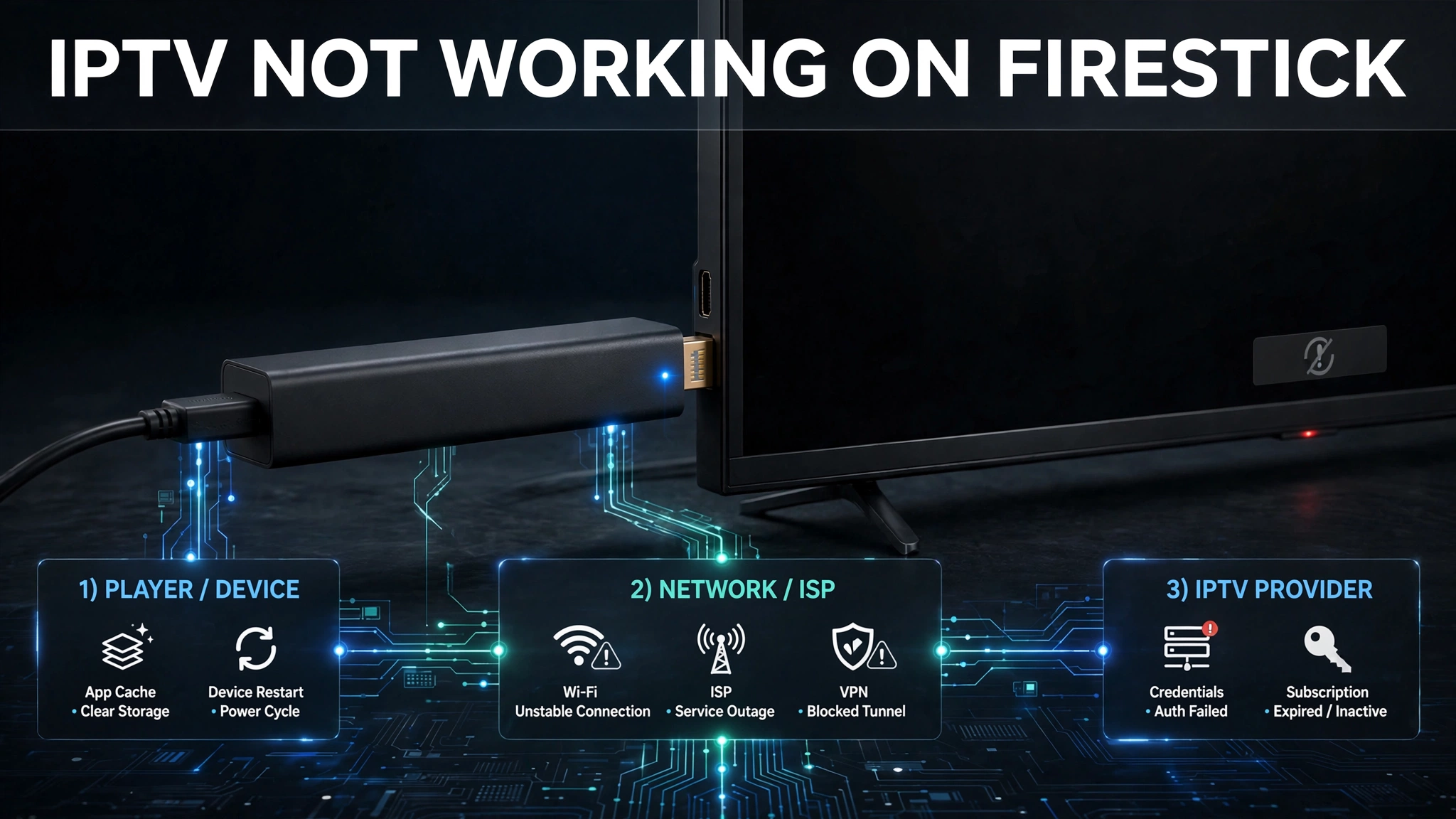
IPTV not working on Firestick usually has one of four causes: a stale channel list, a network-level block, a playback fault, or a credential error. Start by refreshing the playlist inside your player — a channel list that stopped loading often clears without any technical diagnosis at all.
This guide assumes your setup worked previously. If you’re installing IPTV for the first time, start with our Fire TV Stick IPTV setup guide instead.
Channel List Not Loading? Try This First
A channel list that worked yesterday and won’t load today is one of the most common reports we see, and it usually indicates no fault. The playlist data cached on the device has gone stale. Two actions clear it, both taking under a minute, and neither requires changing any setting.
Please do these before anything else in this guide. Working through network diagnostics on a problem that a refresh would have solved wastes an evening.
Reload the playlist inside your player.
Every major IPTV player has a refresh or reload option in its playlist settings. In most players the option sits under the playlist entry itself rather than in general settings. Selecting it pulls a fresh channel list from your provider and replaces the cached copy.
Give it a moment to complete. On large playlists the list rebuilds progressively rather than all at once.
Close the app fully and reopen it.
If a reload isn’t available or doesn’t help, close the player completely rather than returning to the Fire TV home screen. Backing out leaves the app running with its cached data intact, which is exactly what you’re trying to clear.
Hold the home button, open the recent apps view, and close the player from there. Then launch it fresh.
Key takeaway: A channel list that stopped loading is usually stale cached data, not a fault — refresh the playlist before diagnosing anything else.
Are Firesticks Blocking IPTV?
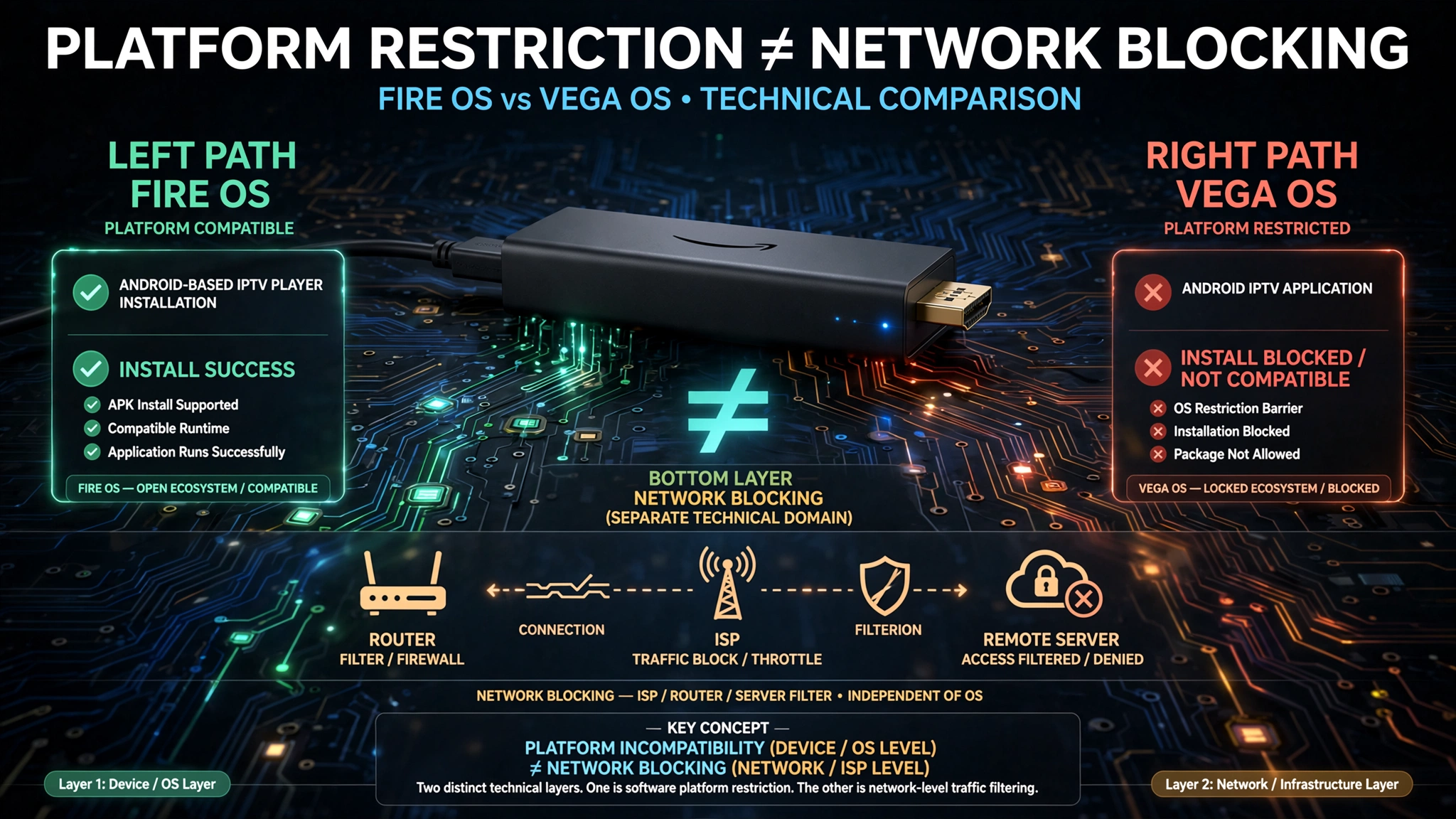
Amazon isn’t blocking IPTV services on Fire TV devices, and no setting on your Fire Stick filters IPTV traffic. The confusion is understandable, though, because a genuine platform change now produces symptoms that look exactly like blocking to anyone who doesn’t know what changed.
What Changed on Newer Fire TV Devices
Fire TV now spans two operating systems. Fire OS is Android-based and runs standard IPTV player apps. Vega OS is not Android, so Android app files and IPTV players cannot run on it.
If you own a Vega OS model, no troubleshooting in this guide will help, because the app was never able to run. Our guide to Fire TV Stick IPTV compatibility has the full model table.
Why It Looks Like Blocking
From the user’s side, “the app won’t install” and “Amazon is blocking IPTV” produce identical frustration. The distinction matters because it changes what you should do next.
A device restriction is permanent, and no workaround exists. A network block, covered further down this guide, is usually solvable. A stale playlist is trivial. Establishing which one you’re facing is most of the work.
IPTV Not Working on Firestick: Start With What Changed
Something changed between the last time it worked and now. Identifying what changed narrows the cause faster than working through fixes at random, because most IPTV failures trace back to one of three layers: the app, the network, or the provider.
Establish What Changed
Before adjusting settings, answer these:
- Did the app update, or did you install a new version?
- Did anything change on your network — a new router, a plan change, a modem replacement?
- Did the subscription renewal date pass recently?
- Did it stop suddenly or degrade gradually over days?
A sudden total failure points to either the credentials or the provider. Gradual degradation points to the network. A failure that started right after an app change points to the app.
Test the Same Credentials on Another Device
This method is the fastest way to separate a device problem from an account problem. Enter the same credentials in a player on a phone or tablet on the same home network.
If it works there, the Fire Stick or its app is the issue. If it fails there too, the problem lies with the credentials, the provider, or your network – and nothing you change on the Fire Stick will reach it.
Key takeaway: Testing the same credentials on a second device separates a Fire Stick problem from an account or network problem in under two minutes.
One Channel Fails vs All Channels Fail
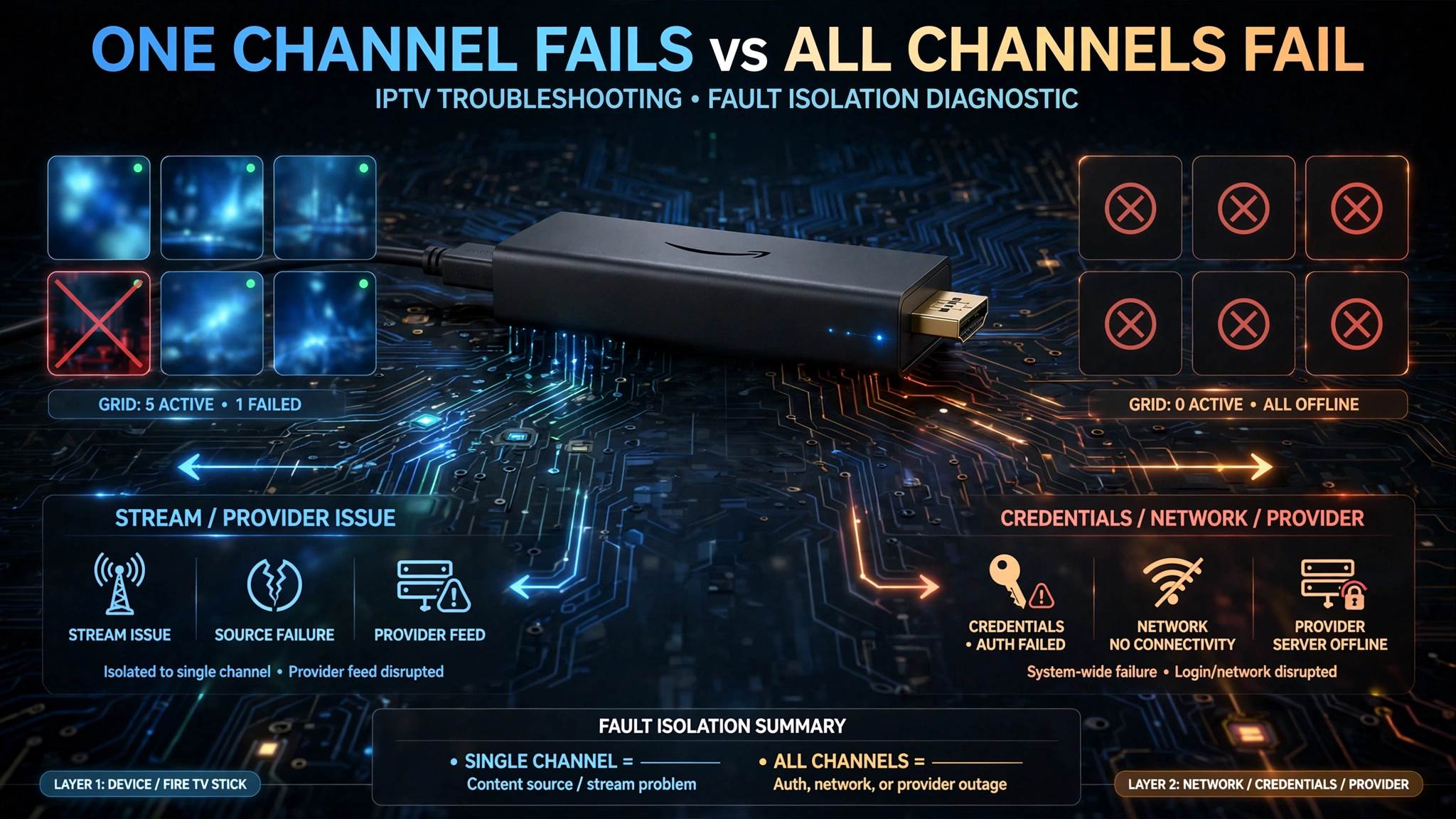
How many channels fail tells you where the fault sits, and it’s the single most useful piece of information you have before touching anything.
| What you see | Where the fault usually sits |
|---|---|
| One channel fails, others fine | The stream or the provider |
| Every channel fails | Credentials, network, or provider |
| Failures only in the evening | Network congestion or provider load |
| Failures across every player you try | Not the app |
When a Single Channel Stops Working
Individual channels go down regularly on any IPTV service. Source streams get replaced, rights change, and providers reorganise their lineups without notice.
Nothing on your device causes a single channel to fail while hundreds of others play normally. If it lasts more than a day or two, report it to your provider — they’re the only ones who can restore it.
When Every Channel Stops Working
Total failure means something upstream of the individual streams broke: the credentials, the connection to the provider’s server, or the subscription itself.
Work in this order: refresh the playlist, test on a second device, check the credentials, and then test whether your network is the obstacle. The next section covers that last test.
When It Only Happens in the Evening
Failures confined to evening hours point at congestion rather than configuration. Your setup does not change between the afternoon and 8pm, so a setup fault would not behave this way.
The congestion can be on your connection or on the provider’s servers, and from the outside thesethey identical. A wired connection removes your local network as a variable — see our comparison of Wi-Fi versus Ethernet for IPTV. If evening failures persist on a wired connection, the load is on the provider’s side.
Is Your Internet Provider Blocking IPTV?
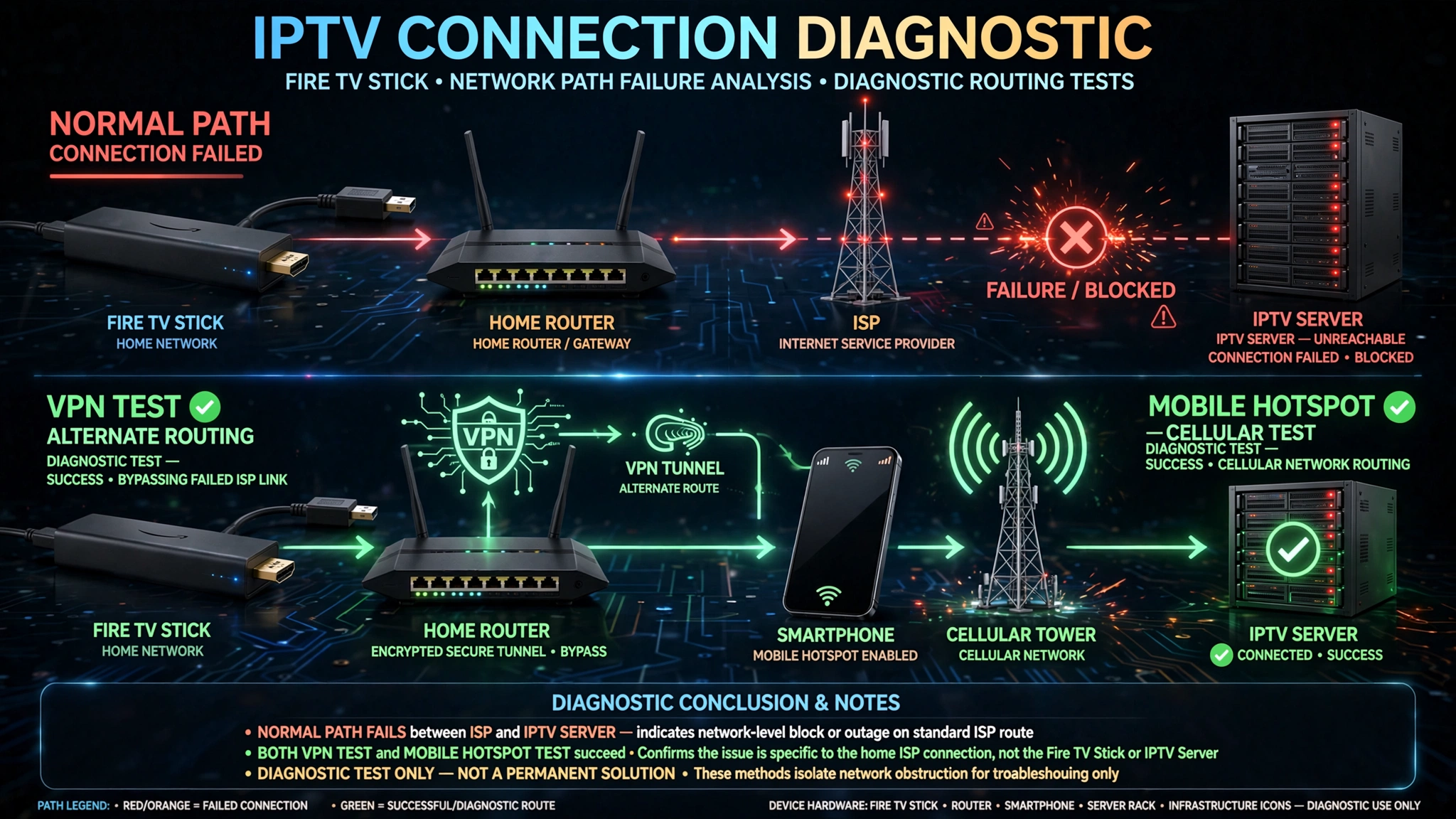
If your service fails on your home connection but works elsewhere, the block is at the network level rather than on your device. Two tests confirm the issue in a few minutes, and both work by changing how your traffic reaches the provider while leaving everything else exactly as it is.
Step 1 — Test With a VPN
Install a VPN app on the Fire Stick, connect it, and open your IPTV player again.
If the service works with the VPN connected and fails without it, your traffic is being obstructed somewhere on the route between your connection and the provider’s server. Nothing on the Fire Stick changed — only the path.
Step 2 — Confirm With a Mobile Hotspot
Turn off the VPN. Connect the Fire Stick to a mobile hotspot from your phone instead of your home Wi-Fi, and try again.
A mobile hotspot uses an entirely different network. If the service works there and fails on your home connection, that’s a second independent confirmation pointing at your internet provider rather than at your device, your app, or your subscription.
Two tests agreeing is a much stronger result than one, which is why this step is worth the extra two minutes.
Step 3 — Ask Your Provider for an Alternative Server Address
If both tests point at your network, contact your IPTV provider and ask for an alternative server address.
Most providers can supply one — it’s a routine request rather than a special case, and it often resolves the problem outright because the new address takes a different route.
If your provider can’t offer an alternative, the problem sits beyond what this guide reaches.
Why a VPN Isn’t the Long-Term Answer
The VPN in Step 1 is a diagnostic tool, not the fix. Running one permanently adds a hop to every stream, which can affect playback quality, and it treats the symptom rather than the cause.
Use it to identify the problem, then solve it properly with a server address that works without the VPN. If you do decide to run a VPN regularly, our guide to VPN issues with IPTV covers the trade-offs.
Key takeaway: A VPN and a mobile hotspot both bypass your home connection — if the service works on either, the obstruction is on your network route, not on your device.
Black Screen, Freezing, or App Won’t Open
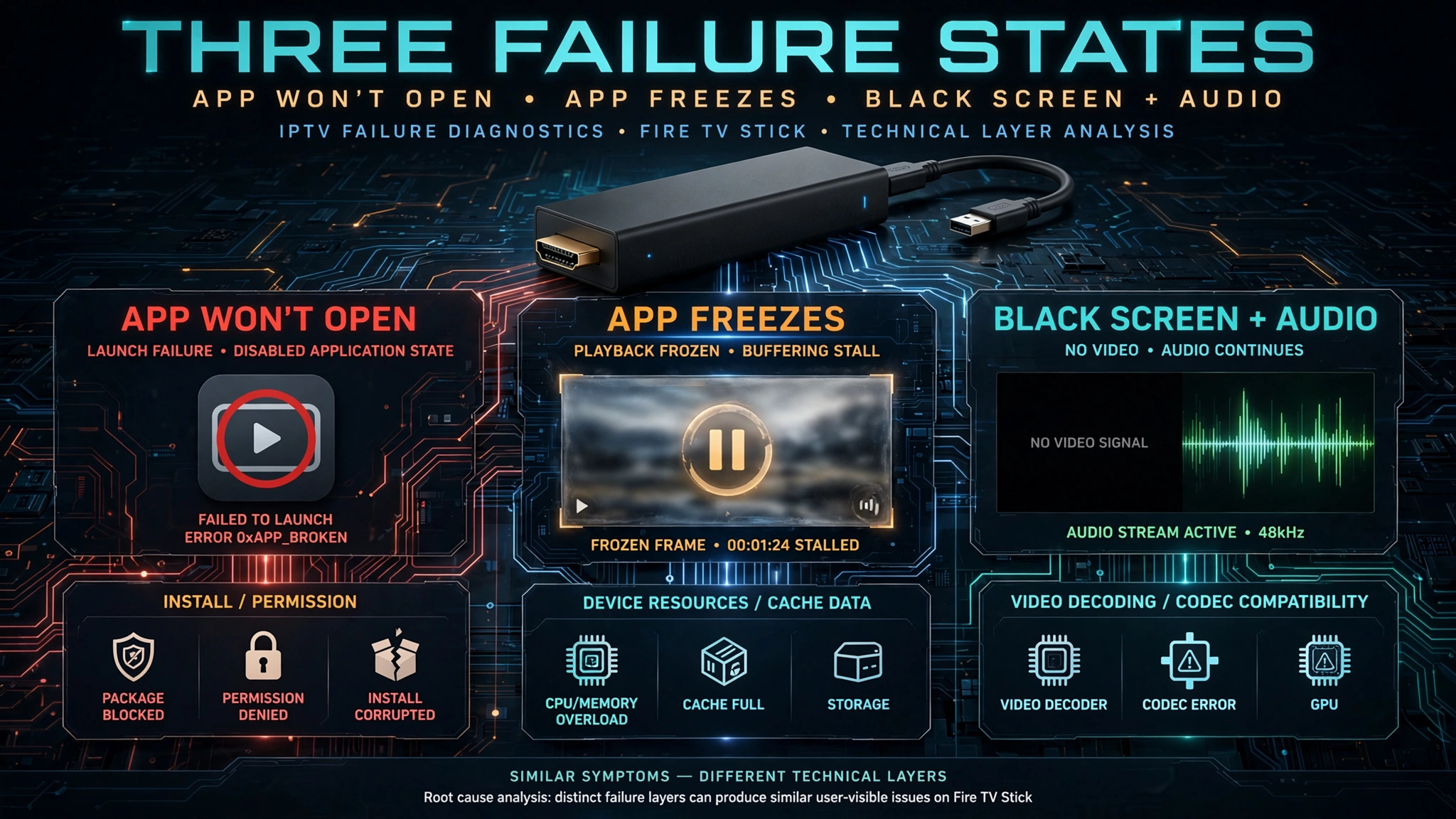
These three symptoms look similar from the sofa but have different causes, and treating them as one problem leads to changing settings that were never involved.
Black Screen With Audio Still Playing
Audio playing while the picture stays black means the stream is arriving and the device is decoding part of it. The audio track works; the video track doesn’t.
This situation is a codec issue rather than a connection issue — the video is encoded in a format the device can’t decode.
Some players allow switching to an external player that handles decoding differently, which is worth trying before assuming the channel is broken.
If the same channel plays normally on a phone but not on the Fire Stick, the device’s decoding capability is the difference.
The App Freezes During Playback
Freezing mid-stream, with the app becoming unresponsive rather than showing an error, usually points at device resources rather than the stream.
Close background apps before starting a session, and clear the player’s cache periodically from the Fire TV application settings.
Older and lower-specification Fire TV models have less headroom for performance, and a player holding a large channel list and guide data in memory alongside video playback can exhaust it.
If freezing began after you added a much larger playlist, the playlist size is likely the trigger.
The App Won’t Launch at All
An app that installed successfully but won’t open is usually a permission or installation problem rather than an IPTV problem.
If the app was installed from outside the Amazon Appstore, please check whether the permission allowing that is still enabled, as some updates may reset it.
If the permission is on and the app still won’t launch, reinstalling from a fresh download is the next step, covered further down.
Authentication Failed — What It Means
An authentication error means the provider’s server received your request and rejected the credentials. That’s more informative than it sounds: the connection reached the server, so both your network and the server are working. The problem is in what was sent.
Check the Server URL for https://
In our support conversations, one recurring cause is a server URL entered as https:// when the provider supplied http://.
Some keyboards and inputs add the “s” automatically when an address is pasted, and it’s easy to miss in a long URL displayed in a narrow field.
Verify these in order:
- Does the server URL start with http:// and not https://?
- Is the port number after the colon present and correct?
- Is the username entered with the same capitalisation as supplied?
- Is there a trailing space at the end of any field?
Retyping the credentials manually rather than pasting them is a reliable test. If it works after retyping, the original entry was the problem.
When the Subscription Itself Has Expired
If the credentials are verified correct and still rejected, the subscription is the next thing to check. Renewal dates pass without warning, and an expired subscription produces the same authentication error as a typo.
Your provider can confirm the account status. The account status is worth checking before reinstalling anything, because no reinstall fixes an expired account.
When Reinstalling Helps — and When It Doesn’t
Reinstalling the player is a reasonable step, but it’s often applied to problems it can’t touch. Knowing what it clears saves repeating work that was never going to help.
What Reinstalling Actually Clears
A clean reinstall removes the app’s stored data along with the app: cached playlists, cached guide data, saved settings, and any corrupted local files.
That makes it genuinely useful for an app that crashes on launch, behaves inconsistently after an update, or holds a playlist that won’t refresh regardless of what you try. Please have your credentials ready, as you will need to enter them again.
What Survives a Reinstall
A reinstall does not change your subscription status, your provider’s servers, your network, or your device’s hardware capability.
If the problem was an expired subscription, a provider outage, a network block, or a codec the device can’t decode, reinstalling changes nothing and costs you the setup time.
Run the tests earlier in this guide first, and reinstall only when the evidence points to the app itself.
Key takeaway: Reinstalling clears local app data and nothing else — it can’t reach subscription, network, or provider problems.
What This Guide Can’t Fix
Some situations are beyond the reach of device-side troubleshooting, and recognising them early can save hours.
A Vega OS device. Android IPTV players cannot be installed at all. This issue is a hardware and platform limitation with no workaround.
A provider-side outage. If a service is down for everyone using it, no setting on your device changes that. Your provider is the only source of information on this issue.
A connection without enough capacity. Troubleshooting can remove obstacles, but it can’t create bandwidth that isn’t there. See our guide to optimising IPTV with Australian ISPs.
A channel that no longer exists. Providers change their lineups. A channel that vanished from the guide entirely was probably removed rather than broken.
Bottom Line
If the channel list stopped loading, refresh the playlist inside the player or close the app fully and reopen it. This resolves the most common version of “it worked yesterday” without any technical diagnosis.
If nothing works on your home connection, test with a VPN, confirm with a mobile hotspot, and if both point at your network, ask your IPTV provider for an alternative server address. It’s a routine request.
If your Fire Stick runs Vega OS: the app was never able to run, and no troubleshooting will change that. Check your model against our compatibility guide.
Sources
- Amazon Appstore Developer Portal — Amazon Fire TV device and OS information
- AFTVnews — Amazon launches Vega OS for Fire TV: how it affects apps and sideloading
Explore More
Fire TV Stick
Troubleshooting
Performance