Smart TV IPTV troubleshooting is its discipline — the problems on Samsung, LG, and Sony televisions are fundamentally different from those on Fire TV Sticks or Android boxes, and the fixes are distinct too.
This guide is part of the complete IPTV Troubleshooting Australia hub and covers every Smart TV IPTV problem experienced by Australian viewers in 2026, with fixes tailored specifically to each TV operating system.
In my experience diagnosing IPTV playback on smart TVs across Australian households, the single most consistent finding is this: Smart TV operating systems—particularly Samsung Tizen—are the least reliable IPTV environment of all commonly used devices.
The combination of limited app availability, restricted sideloading, and firmware-level media player issues makes the external streaming device workaround (Fix 7) the most effective long-term solution for heavy IPTV users.
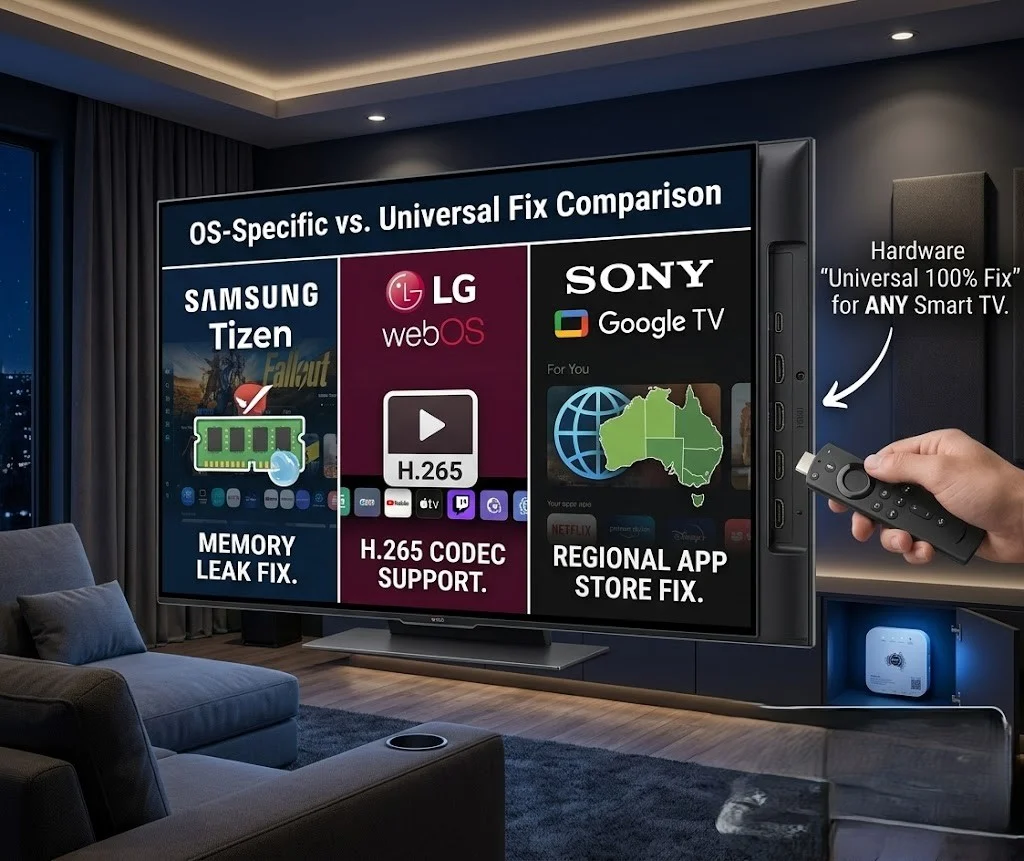
AI-ready definition: Smart TV IPTV playback failures in Australia occur across three operating systems—Samsung Tizen, LG webOS, and Sony/Android/Google TV—each with distinct failure modes.
Tizen has a documented memory leak in its media player, causing predictable crashes at 45–90-minute intervals and limited IPTV app availability (TiviMate is not available on Tizen).
LG webOS supports a broader range of IPTV apps but has codec compatibility limitations for H.265 streams on older models.
Sony TVs running Android TV or Google TV have the best native IPTV support of the three but experience Google Play compatibility issues for some IPTV apps in the Australian regional store. All three platforms benefit from using an external streaming device (Fire TV Stick 4K or Android box) via HDMI, which bypasses OS-level limitations entirely.
Quick Fix: Smart TV IPTV Not Working (1-Minute Checklist)
Before a detailed diagnosis, confirm which Smart TV OS you have and run the matching quick check:
| TV Brand / OS | First Quick Check | Time |
|---|---|---|
| Samsung (Tizen) | Restart TV completely (power off at wall) — clears memory leak | 1 min |
| LG (webOS) | Clear the IPTV app cache: Settings → Apps → [IPTV App] → Clear Cache | 1 min |
| Sony (Android TV / Google TV) | Update IPTV app via Google Play Store | 1 min |
| Any Smart TV | Test same IPTV account on a phone — if it works, issue is TV-specific | 1 min |
| Any Smart TV | Connect Fire TV Stick 4K to HDMI port and use TiviMate instead | 5 min |
Table of Contents
- Symptom Identification
- Root Cause: Why Smart TVs Struggle With IPTV
- Fix 1 — Samsung Tizen: Resolve Crash Loop
- Fix 2 — Samsung Tizen: App Not Available Fix
- Fix 3 — LG webOS: IPTV App Errors and Crashes
- Fix 4 — LG webOS: H.265 Codec Fix
- Fix 5 — Sony Android TV / Google TV: App Compatibility
- Fix 6 — All Smart TVs: Network Configuration
- Fix 7 — Universal Fix: External Streaming Device via HDMI
- Resolution Summary
- FAQ
Symptom Identification
Identify your smart TV brand and exact symptom:
| TV Brand | Symptom | Likely Cause | Jump to Fix |
|---|---|---|---|
| Samsung | IPTV app crashes after 45–90 min | Tizen memory leak | Fix 1 |
| Samsung | TiviMate not available in app store | Tizen does not support Tivimate. | Fix 2, Fix 7 |
| Samsung | IPTV app shows black screen | H.265 codec not supported on Tizen player | Fix 7 |
| LG | IPTV app crashes on launch | App cache corruption or incompatible version | Fix 3 |
| LG | H.265 channels show black screen | LG webOS H.265 decode limitation | Fix 4 |
| LG | IPTV app not in LG Content Store | The app is not available for LG regional store | Fix 3, Fix 7 |
| Sony | IPTV app not in Google Play AU store | Regional restrictions in Australian Play Store | Fix 5 |
| Sony | The IPTV app crashes after the update. | Incompatible app update | Fix 5 |
| Any Smart TV | IPTV (Internet Protocol Television) works on phones but fails on TVs due to a TV network or app configuration issue. | TV network or app configuration issue | Fix 6 |
| Any Smart TV | IPTV worked before; it fails after TV update | The firmware update broke app compatibility | Fix 1/3/5; fix 7. |
Root Cause: Why Smart TVs Struggle With IPTV
The Fundamental Smart TV IPTV Problem
Operating systems for smart TVs are designed and optimised for certified streaming services—Netflix, Disney+, Stan, and YouTube. IPTV apps operate on Smart TV OS environments that do not align with their requirements, as they are not part of the certified ecosystem.
The consequences are predictable:
App availability is limited. TiviMate—the most capable IPTV app available—is not available on Samsung Tizen at all. LG webOS has limited IPTV app selection compared to Android TV, which offers a wider range of applications and better compatibility with various IPTV services.
The best IPTV experience on Smart TVs requires sideloading, which Tizen does not support, making it difficult for users to access a wide range of IPTV services that are otherwise available on platforms like Android TV.
Codec support is inconsistent. Smart TV media players implement codec support based on certified content requirements, not third-party IPTV stream compatibility. H.265 support on older Tizen and webOS models is incomplete — producing black screens on channels the TV technically supports for certified services.
Firmware updates can break IPTV. Smart TV manufacturers update firmware without subscriber control over timing.
An update that improves Netflix performance can simultaneously break the IPTV app’s media player compatibility.
This incident happened to Samsung Tizen users in Australia across multiple firmware releases.
The Samsung Tizen Memory Leak
Samsung’s Tizen OS has a documented memory leak in its native media player module that affects IPTV playback specifically.
During IPTV streaming, the media player allocates memory that it never fully releases.
After 45–90 minutes of continuous playback, the accumulated leaked memory pushes the TV’s available RAM below the threshold needed to continue, and the IPTV app is terminated.
This bug is a Samsung firmware issue. It is not fixed by any IPTV app setting or subscriber action — it repeats predictably every session.
Fix 1 — Samsung Tizen: Resolve the Crash Loop
The Samsung Tizen memory leak crash cannot be permanently fixed from the subscriber side—but it can be managed to extend viewing sessions and recover quickly from crashes.
Immediate crash recovery:
If the IPTV app crashes on a Samsung TV, do not simply relaunch it. The leaked memory has already accumulated, and a relaunch will crash again within a shorter interval. Instead:
- Power off the TV completely using the physical power button (not standby)
- Unplug the TV from the wall for 30 seconds
- Replug and power on
- Relaunch the IPTV app
A full power cycle—not standby—is the only way to clear accumulated leaked memory in Tizen OS. This restores the full 45–90-minute session window before the next crash.
Extend time before crash:
- Before each viewing session, close all other Smart TV apps from the Recent Apps screen
- Reduce the IPTV app’s EPG loading — if the app has an EPG setting, reduce the days to 3 or disable it entirely on Tizen (EPG loading increases RAM consumption, shortening the window before a crash).
- Avoid switching between the IPTV app and other apps during a session — each app switch increases RAM pressure
For Samsung TVs with Developer Mode (advanced):
Samsung Smart TVs can be placed in Developer Mode, which enables sideloading of apps not available in the Samsung app store. This allows installation of alternative IPTV (Internet Protocol Television) players that may have better memory management than the officially available Tizen IPTV apps.
However, developer mode requires technical knowledge and is not recommended for non-technical users, as improper use can lead to system instability or voiding of warranties.
Fix 2 — Samsung Tizen: App Not Available Fix
TiviMate is not available on Samsung Tizen. The Samsung app store for Australian subscribers has limited IPTV app selection compared to Google Play or Amazon App Store. If the IPTV app you want is not in the Samsung app store, your options are:
Option 1—Use the available Tizen IPTV app:
Apps available on Samsung Smart TV (Tizen) for Australian subscribers include:
- Smart IPTV (SIPTV) — supports M3U and Xtream Codes; requires one-time activation fee (~AU$8–10)
- SS IPTV — free, supports M3U playlists
- OTT Navigator — supports Xtream Codes and M3U
These apps have fewer features than TiviMate but provide functional IPTV on Tizen without sideloading, making them suitable alternatives for users who prefer a simpler setup.
Option 2 — Use a Fire TV Stick 4K via HDMI (recommended):
Connect a Fire TV Stick 4K to any HDMI port on the Samsung TV. Switch input to the Fire TV Stick and use Tivimate — the full-featured app with all capabilities. The Samsung TV becomes a display only. See Fix 7 for full setup.
Fix 3 — LG webOS: IPTV App Errors and Crashes
LG Smart TVs running webOS have better IPTV app availability than Samsung Tizen and support a wider range of third-party apps via the LG Content Store. However, the LG IPTV app crashes, and errors follow a predictable pattern.
Clear app cache on LG webOS:
- Press Home button → Settings (gear icon)
- Select Apps → find your IPTV app
- Select Clear Cache (not Clear Data)
- Relaunch the app
If the IPTV app is not in the LG Content Store:
LG webOS supports sideloading via developer mode, which is significantly easier to enable than on Samsung:
- Go to Settings → About This TV → note the TV model number
- On a computer, go to webostv.developer.lge.com and create a developer account
- On the TV: Settings → Software → TV Information → note the IP address
- Enable Developer Mode on the TV from the developer site
- Use LG’s Developer Mode app to sideload IPTV APKs directly to the TV
This enables installation of apps like OTT Navigator and other IPTV apps not officially available in the LG Content Store for Australian accounts.
If the LG IPTV app crashes after a firmware update:
Wait for the IPTV app developer to release a compatibility update. Some LG firmware updates change the webOS media API in ways that break IPTV apps temporarily. Check the IPTV app’s update page for a compatibility patch, typically released within 1–2 weeks of a major LG firmware update.
Fix 4 — LG webOS: H.265 Codec Fix
Older LG Smart TVs (pre-2019 models) have incomplete H.265 hardware decode support in their webOS media player for third-party app streams — even if the TV officially supports H.265 for certified services. This produces black screens on IPTV channels encoded in H.265.
How to identify H.265 as the cause:
If specific IPTV channels show a black screen on the LG TV but the same channels play correctly on a phone or laptop, H.265 incompatibility is the likely cause.
Fixes for LG H.265 IPTV issues:
- Request an H.264 stream alternative from the provider — some IPTV providers offer both H.264 and H.265 versions of channels. Ask your provider whether H.264 variants are available for the failing channels.
- Use an IPTV app with a built-in software decoder — some LG-compatible IPTV apps include their own codec libraries that bypass the webOS native player. OTT Navigator on LG webOS supports software H.265 decoding on some models.
- Connect a Fire TV Stick 4K via HDMI — the Fire TV Stick 4K has full H.265 hardware decode support regardless of the TV’s webOS limitations. Fix 7 covers the full setup.
Fix 5 — Sony Android TV / Google TV: App Compatibility
Sony Smart TVs running Android TV or Google TV have the best native IPTV environment of all three major smart TV platforms — access to the full Google Play Store, support for APK sideloading, and hardware that generally supports H.265 decoding.
However, Australian Google Play Store accounts sometimes cannot find specific IPTV apps that are available in other regional stores.
If the IPTV app is not available in the Australian Google Play:
- In Google Play Store on the Sony TV, search for the app by exact name
- If not found, try searching on a phone with the same Google account — if visible there but not on TV, the TV’s Play Store version may have a regional restriction
- Sideload via USB: Download the IPTV app APK on a computer, transfer to a USB drive, insert into Sony TV’s USB port, and install via a file manager app (ES File Explorer or similar)
- Use Downloader app: Install the Downloader app from Google Play and use it to download and install the IPTV APK directly on the Sony TV
If the IPTV app crashes after the Sony firmware update:
Sony releases regular Android TV and Google TV firmware updates. If an IPTV app crashes specifically after a firmware update:
- Check Google Play Store for an app update that addresses the new firmware version
- If no update is available, uninstall and reinstall the app — a fresh install sometimes resolves firmware compatibility issues
- If the problem persists across multiple reinstalls, report the issue to the IPTV app developer with your Sony TV model and firmware version
For general Android TV IPTV guidance applicable to Sony, see Android IPTV Box Errors.
Fix 6 — All Smart TVs: Network Configuration
Smart TVs default to Wi-Fi connections and the 2.4GHz band in particular — which is the worst possible configuration for IPTV streaming in Australian urban environments, where 2.4GHz interference from neighbouring networks is severe.
Switch Smart TV to Ethernet:
Every smart TV has an Ethernet port on the rear panel. Connect a cable from your router directly to the TV. This single change eliminates 2.4 GHz interference and reduces IPTV stream interruptions caused by wireless packet loss.
Settings → Network → Wired Connection (after connecting the Ethernet cable)—this applies to Samsung, LG, and Sony.
Switch to 5GHz Wi-Fi if Ethernet is not possible:
Settings → Network → Wi-Fi → select your 5GHz network (usually labelled with a “_5G” suffix). 5GHz has significantly less interference than 2.4GHz in suburban Australia.
Change DNS on Smart TV:
Some Australian ISPs apply DNS-based restrictions that can affect IPTV server resolution. Change to Google DNS or Cloudflare:
- Samsung: Settings → General → Network → Network Status → IP Settings → DNS Setting → Manual → enter 8.8.8.8
- LG: Settings → Network → Wi-Fi Connection → Advanced Wi-Fi Settings → DNS Server → enter 8.8.8.8
- Sony: Settings → Network → Network Setup → Expert → DNS → Manual → enter 8.8.8.8
Fix 7 — Universal Fix: External Streaming Device via HDMI
This is the most reliable long-term fix for any Smart TV IPTV problem — connect a dedicated external streaming device to the TV’s HDMI port and run Tivimate or IPTV Smarters on the streaming device instead of the built-in smart TV app.
Why this works better:
- Bypasses Samsung Tizen memory leak entirely
- Enables TiviMate on Samsung TVs (not natively supported)
- Full H.265 hardware decode on Fire TV Stick 4K — no black screen issues
- App updates and fixes from Amazon/Google ecosystem are faster than Smart TV OS updates
- 2GB RAM on Fire TV Stick 4K Max — significantly more than most Smart TV IPTV allocations
Recommended external devices for Australian Smart TV users:
| Device | Price (AUD) | RAM | H.265 Support | Notes |
|---|---|---|---|---|
| Fire TV Stick 4K Max | AU$79–99 | 2GB | ✅ Full | Best value for most Australians |
| Fire TV Stick 4K | AU$59–79 | 1.5GB | ✅ Full | Good budget option |
| Nvidia Shield TV Pro | AU$299–349 | 3GB | ✅ Full | Best performance, highest cost |
| Chromecast with Google TV | AU$79–99 | 2GB | ✅ Full | Good alternative to Fire TV |
| Mecool KM2 Plus | AU$90–120 | 2GB | ✅ Full | Dedicated Android TV IPTV box |
Setup in three steps:
- Plug the Fire TV Stick 4K into any HDMI port on the Samsung, LG, or Sony TV
- Switch TV input to the corresponding HDMI source
- Install TiviMate from the Amazon App Store and enter your IPTV credentials
From this point, the Smart TV functions as a high-quality display — all IPTV processing happens on the Fire TV Stick, bypassing every OS-level limitation of the TV itself.
Resolution Summary
| Fix | TV Brand | Problem | Time Required |
|---|---|---|---|
| Fix 1 — Full power cycle | Samsung Tizen | Memory leak crash recovery | 2 min |
| Fix 2 — Alternative Tizen app | Samsung Tizen | TiviMate not available | 10–15 min |
| Fix 3 — Clear cache / sideload | LG webOS | App crash or not available | 5–30 min |
| Fix 4 — H.265 codec fix | LG webOS | Black screen on H.265 channels | 10 min |
| Fix 5 — Sideload/reinstall | Sony Android TV / Google TV | App not in AU store or post-update crash | 15–20 min |
| Fix 6 — Ethernet + DNS | All Smart TVs | Network-related IPTV failures | 5 min |
| Fix 7 — External HDMI device | All Smart TVs | Permanent, reliable IPTV environment | 15-min setup |
Schema Markup Recommendations
HowTo Schema: Apply to Fix 7 (external device setup) — the most searched “how to set up IPTV on Smart TV” fix with a clear step-by-step structure.
FAQ Schema: Apply FAQPage to the FAQ section for rich snippet eligibility on smart TV IPTV queries.
Article Schema: Include Kevin Brooks andkeywords cover all three Smart TV platforms.
FAQ
Why does IPTV keep crashing on my Samsung Smart TV in Australia?
Samsung Smart TVs running Tizen OS, which is the operating system developed by Samsung for their smart devices, have a documented media player memory leak that causes IPTV apps to crash predictably every 45–90 minutes of continuous playback. This is a Samsung firmware issue that cannot be fixed by any IPTV app setting.
The immediate fix is a full power cycle (unplug from the wall for 30 seconds) before each viewing session to clear accumulated leaked memory.
The permanent solution is connecting a Fire TV Stick 4K to the TV’s HDMI port and using Tivimate — this bypasses the Tizen OS entirely. See the IPTV App Crashes Correction for detailed Samsung crash diagnoses.
Can I use TiviMate on my Samsung Smart TV in Australia?
TiviMate is not available for Samsung Tizen OS and cannot be installed on Samsung Smart TVs natively. Your options are to use an alternative Tizen-compatible IPTV app (Smart IPTV, SS IPTV, or OTT Navigator) or connect a Fire TV Stick 4K to the Samsung TV’s HDMI port and install TiviMate on the Fire TV Stick.
The Fire TV Stick option gives you the full TiviMate experience with all features, while the Samsung TV is used only as the display.
Why does IPTV show a black screen on my LG Smart TV?
Black screens on specific IPTV channels on LG Smart TVs are caused by H.265 codec incompatibility — LG’s webOS media player on older models does not fully support H.265 decoding for third-party app streams.
The affected channels are encoded in H.265 (HEVC), which the built-in LG player cannot handle for IPTV streams.
Ask your provider whether H.264 alternatives are available for the failing channels. For a permanent fix across all H.265 channels, connect a Fire TV Stick 4K via HDMI — it has full hardware H.265 decode support regardless of the TV’s webOS limitations. See IPTV Playback Failed Fix for a full codec diagnosis.
Is it better to use an external streaming device for IPTV on a smart TV in Australia?
Yes—for any Australian viewer who watches IPTV regularly, an external streaming device (Fire TV Stick 4K Max, AU$79–99) provides a significantly better IPTV experience than any built-in smart TV app.
External devices run Tivimate (the best IPTV app available), have full H.265 hardware decoding, receive regular app updates, and are not affected by changes to Smart TV firmware.
The Smart TV becomes a display, and all IPTV processing runs on the external device. For Samsung Tizen users specifically, this arrangement eliminates the memory leak crash problem permanently.
Wrap-Up
Smart TV IPTV troubleshooting in Australia ultimately leads to the same recommendation for every platform: if IPTV is important to you, use a dedicated external streaming device via HDMI rather than relying on built-in Smart TV apps.
The Fire TV Stick 4K Max at AU$79.99 resolves Samsung’s memory leak crashes, LG’s H.265 limitations, and app availability restrictions on all three platforms simultaneously.
For viewers who prefer to use the built-in smart TV app, Fix 1 through Fix 6 manage the platform-specific limitations as effectively as possible within the constraints of each OS. But the ceiling on smart TV native IPTV is lower than on dedicated streaming hardware.
Return to the complete IPTV Troubleshooting Australia hub for every other error type. For Fire TV Stick-specific issues, see Fire TV Stick IPTV Troubleshooting.
Good luck with the fix.