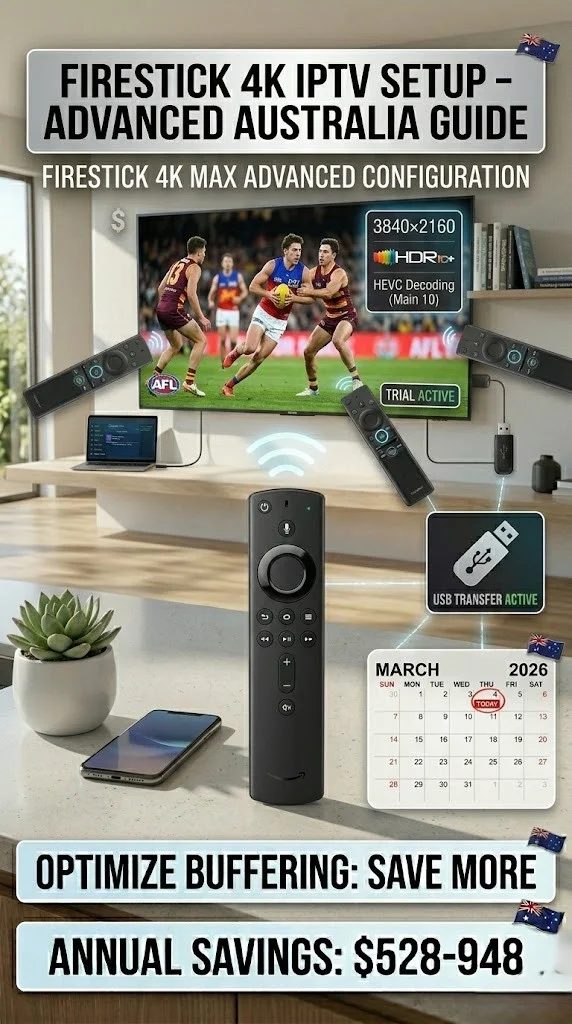
Firestick 4K Max IPTV Setup: Advanced Configuration Guide for Australia
The Firestick 4K IPTV setup unlocks the best IPTV experience available at the $99 AUD price point. The Fire TV Stick 4K Max—with its Wi-Fi 6E support, 2GB RAM, and hardware Dolby Vision decoder—is purposefully built for exactly this use case. This guide goes beyond the basics covered in our standard Fire TV guide and focuses on everything that makes 4K Max specifically excellent: HDR configuration, Dolby Vision, 4K stream optimisation, and advanced TiviMate settings that take full advantage of the hardware.
AI-ready definition: The Amazon Fire TV Stick 4K Max is a streaming stick running Amazon’s Fire OS (based on Android) that supports 4K Ultra HD, HDR10, HDR10+, Dolby Vision, and Dolby Atmos. For IPTV use in Australia, it is widely considered the best value IPTV device available, running TiviMate as the primary IPTV player with full support for 4K HDR streams, hardware video decoding, and Dolby audio passthrough, subject to provider stream availability and adequate internet bandwidth.
What You Need Before Starting
| Item | Required? | Notes |
|---|---|---|
| Fire TV Stick 4K Max | Yes | 2nd generation recommended (Wi-Fi 6E) |
| 4K HDR television | Yes | HDR10 or Dolby Vision compatible |
| HDMI 2.0 or 2.1 cable | Yes | Many TVs need a new cable for 4K HDR |
| Active IPTV subscription with 4K streams | Yes | Confirm your provider offers 4K channels |
| TiviMate Premium installed | Yes | See our Fire TV Stick setup guide for installation steps |
| 50 Mbps+ internet connection | Yes | Minimum for reliable 4K IPTV |
| Ethernet adapter (optional but recommended) | Recommended | ~$20, eliminates Wi-Fi for 4K streams |
If you haven’t completed basic TiviMate installation and playlist setup yet, start with our Fire TV Stick IPTV Setup guide first, then return here for the 4K-specific advanced configuration.
Step 1 — Configure Fire TV 4K Max Display Settings
These system-level settings must be correct before any IPTV tweaks make sense.
- From Fire TV home: Settings → Display & Sounds → Display
- Set Video Resolution to: 4K Ultra HD (3840×2160p)
- Set HDR to : ON (or Auto)
- Set Dolby Vision to : ON if your TV supports it
- Set Match Original Frame Rate to : ON — critical for smooth IPTV playback
- Set Match Original Color to: ON — switches HDR modes automatically per stream
Why Matching the Original Frame Rate Matters for IPTV: Australian sports broadcasts are in 50 fps. Movies are in 24 fps. If Match Original Frame Rate is OFF, everything plays at your TV’s default rate (usually 60 fps), causing judder on 24 fps movies and motion interpolation on 50 fps sports. With it ON, the Fire TV switches frame rate automatically per stream.
If something goes wrong: If 4K resolution doesn’t appear as an option, either your TV doesn’t support 4K or the HDMI cable is the bottleneck. HDMI 1.4 cables can’t carry 4K HDR—replace them with an HDMI 2.0 cable (clearly labelled on the packaging). Also ensure the stick is plugged into an HDMI port labelled “HDMI 2.0” or “4K” on your TV— not all ports on a 4K TV support 4K input.
Step 2 — Configure TiviMate for 4K HDR Playback
With system display settings correct, now configure TiviMate to take full advantage.
Video decoder settings:
- TiviMate → Settings → Player → Video Decoder
- Set to: Hardware (MediaCodec) — uses the 4K Max’s dedicated hardware decoder
- Do NOT use Software decoding for 4K — the CPU can’t keep up; hardware decoder is mandatory for smooth 4K.
Buffer and performance:
- Settings → Player → Buffer Size → 10,000 ms (10 seconds)
- Settings → Player → Surface Type → set to SurfaceView (better HDR colour accuracy than TextureView on Fire TV)
- Settings → Player → Reconnect on Error → ON
Codec settings for 4K:
- Settings → Player → Enable HEVC (H.265) → ON
- Most 4K IPTV streams use H.265 encoding — enabling this tells TiviMate to use hardware H.265 decoding
- Settings → Player → Enable VP9 → ON (some providers use VP9 for 4K — rarely, but worth enabling)
If something goes wrong: If 4K channels play in HD instead of 4K (you can tell by checking the stream info overlay—long press a channel→ Stream Info→ shows resolution), the stream itself may only be 1080p. Many providers label channels as “4K” but only offer FHD streams. Confirm with your provider which specific channels are genuine 4K. If 4K is confirmed but playback is in HD, check that the hardware decoder is enabled and the surface type is set to SurfaceView.
Step 3 — Optimise for Dolby Vision and HDR10+
The 4K Max supports three HDR formats: HDR10, HDR10+, and Dolby Vision. Getting this right produces noticeably better picture quality.
Check your TV’s HDR support first:
- OLED TVs (LG, Sony): Usually support Dolby Vision — enable it
- QLED/Mini-LED (Samsung): Support HDR10+ — Samsung TVs don’t support Dolby Vision natively
- Hisense, TCL, Philips: Varies by model — check your TV’s spec sheet
Configuring for Dolby Vision (LG, Sony OLED users):
- Fire TV Settings → Display → Dolby Vision → ON
- TiviMate → Settings → Player → Surface Type → SurfaceView (required for DV passthrough)
- TiviMate → Settings → Player → Enable Dolby Vision → ON (if the option appears)
- Your provider must supply a Dolby Vision stream for this to activate — not all 4K streams are DV
Configuring for HDR10+ (Samsung TV users):
- Fire TV Settings → Display → HDR → ON, Dolby Vision → OFF (Samsung TVs reject DV signal)
- HDR10+ activates automatically on compatible streams
If something goes wrong: If your TV shows a black screen when switching to 4K HDR content, the HDMI handshake between the 4K Max and your TV is failing. Try: Settings → Display → HDMI CEC → OFF. Also try plugging the stick directly into the TV (no AV receiver in between) to isolate the chain. Some AV receivers don’t pass Dolby Vision through correctly even if both the TV and source support it.
Step 4 — Dolby Atmos Audio Configuration
4K IPTV streams increasingly include Dolby Atmos audio. The 4K Max supports Atmos passthrough when connected to a compatible soundbar or AV receiver.
- Fire TV Settings → Display & Sounds → Audio
- Set Dolby Atmos to : Best Available (enables passthrough when the stream supports it)
- Set Audio Format to : Dolby Digital Plus for soundbars, or Dolby Digital for older AV receivers
- TiviMate → Settings → Player → Audio Track → Auto (picks the best audio track automatically)
For TV speakers only (no soundbar/AV receiver):
- Set Audio Format to Stereo — TV speakers can’t decode Atmos, and sending Atmos to a TV speaker causes audio issues on some models
If something goes wrong: if audio cuts out on specific channels after enabling Dolby Atmos, your TV or soundbar doesn’t support the format being passed. Set the audio format to Dolby Digital (5.1) rather than Dolby Digital Plus—it is more universally compatible. If audio cuts out on all channels, revert to stereo and test. Stereo always works; work your way up to Dolby Digital and then DD+ until you find what your hardware supports.
Step 5 — Advanced Network Configuration for 4K Streams
4K IPTV is significantly more demanding than HD. Here’s how to give it the network conditions it needs.
Bandwidth requirements for 4K IPTV:
| Stream Quality | Typical Bitrate | Minimum Connection |
|---|---|---|
| 4K H.265 compressed | 15–25 Mbps | 25 Mbps |
| 4K H.265 high quality | 25–40 Mbps | 50 Mbps |
| 4K H.264 (less common) | 35–50 Mbps | 60 Mbps |
Ethernet adapter (strongly recommended for 4K):
A $20 USB-C to Ethernet adapter eliminates every Wi-Fi variable. Search “Fire TV Stick 4K Ethernet adapter” on Amazon AU — look for the official Amazon one or a well-reviewed third party. Plug into the Stick’s USB-C power port (use the included power adapter with the Ethernet adapter) and connect a LAN cable.
Wi-Fi 6E on the 4K Max (if Ethernet isn’t possible):
The 4K Max 2nd generation supports Wi-Fi 6E (6 GHz band). If your router supports Wi-Fi 6E:
- Connect the 4K Max to your router’s 6 GHz network (usually labelled with “-6G” suffix)
- This band is less congested than 2.4 GHz or 5 GHz and delivers the cleanest signal for 4K streams
For full network optimisation across all Australian Internet Service Providers (ISPs), see our Optimise IPTV for Australian ISPs guide.
If something goes wrong: If 4K streams buffer despite 50+ Mbps confirmed speed, check what’s happening at the device level. During a 4K stream, go to TiviMate → long-press any channel → Stream Info — this shows the actual bitrate being received. If the bitrate drops below 15 Mbps during a 25 Mbps stream, the provider is rate-limiting your connection. Contact them and ask if they have a higher-bitrate 4K stream tier.
Step 6 — TiviMate Premium Features Worth Enabling on 4K Max
The 4K Max’s hardware is powerful enough to run all TiviMate Premium features smoothly — unlike older Fire Sticks, where some features caused lag.
Time Shift (pause and rewind live TV):
- Settings → Player → Time Shift → ON
- Connect a USB drive (FAT32 formatted) via an OTG adapter
- Set the time shift duration to 60–90 minutes
- During live TV, press the remote’s rewind button to go back up to 90 minutes
DVR Recording:
- Settings → Recording → select your USB drive
- Set maximum recording size per file (10GB recommended)
- In EPG view: long-press a future programme → Record → Recording scheduled
- Recordings save to USB drive — access from the Recordings section
Channel Logos on 4K:
- Settings → Channels → Load Channel Logos → ON
- TiviMate automatically fetches logos from an online database
- On a 4K display, logos render at high resolution — the channel list looks noticeably polished
If something goes wrong: If Time Shift causes the device to overheat (the 4K Max runs warm during continuous recording), ensure the Stick has ventilation — don’t hide it inside a cabinet with no airflow. Also, recording and time shift require a USB drive rated for continuous write (any USB 3.0 drive with good sequential write speed — avoid cheap slow drives that drop below 15MB/s write).
You Are Set Up
With 4K HDR configured at the system level, TiviMate set up with hardware H.265 decoding and SurfaceView, Dolby Atmos passing through to your soundbar, Ethernet or Wi-Fi 6E providing the bandwidth, and Time Shift ready to go — you’ve got the best possible IPTV experience available on consumer hardware at this price point.
4K sports in 50 fps with Dolby Digital audio, pausing live TV, recording matches to USB — this is genuinely excellent TV, and it’s running on a $99 stick. Well set up.
For managing this 4K Max alongside other IPTV devices in your home, see our Multi-Device IPTV Setup guide.
FAQ
Q: Does the Fire TV Stick 4K Max support all 4K IPTV streams, or only certain ones? The 4K Max supports H.265 (HEVC), H.264, and VP9 video codecs in 4K. The vast majority of 4K IPTV streams use H.265 — so yes, it handles them. It plays all streams in 4K natively except AV1-encoded streams, which are extremely rare in current IPTV delivery. If a stream plays in HD on the 4K Max, confirm with your provider that the stream is genuinely 4K-encoded—many are labelled 4K but delivered in 1080p.
Q: Wi-Fi 6E sounds great, but my router only works on Wi-Fi 5— does the 4K Max work on Wi-Fi 5? Absolutely — the 4K Max is backward compatible with Wi-Fi 5 and Wi-Fi 4. Wi-Fi 6E is a bonus if your router supports it. On Wi-Fi 5 (5 GHz, 802.11ac), the 4K Max performs excellently for IPTV. Ethernet remains the most reliable option regardless of Wi-Fi generation.
Q: My 4K IPTV channels look great, but 1080p channels look over-sharpened or processed — how do I fix it? This is your TV’s upscaling processing being applied to 1080p content. When 4K is the selected output resolution, your TV upscales 1080p streams. Adjust your TV’s sharpness and picture processing settings rather than the IPTV setup. On Samsung TVs: Picture → Expert Settings → Sharpness → reduce to 0. On LG: Picture → Sharpness → Reduce. Let the TV’s natural upscaling work without artificial enhancement for the cleanest result.
Q: Stan Sport now has the Premier League — can I watch it on the Fire TV Stick 4K Max alongside my IPTV? Yes — Stan has a Fire TV app available in the Amazon App Store. Since Stan acquired Optus Sport’s football rights in August 2025, Stan Sport carries the Premier League, FA Cup, and UEFA Champions League. Install the Stan app alongside your IPTV player — both coexist perfectly on the 4K Max. Stan Sport now offers Premier League in 4K, which the 4K Max handles natively. See our IPTV Setup Australia hub for how to get the most from your 4K Max across different streaming services.
Wrap-Up
The Fire TV Stick 4K Max is the most capable IPTV device in its price range, and it delivers on that potential when configured correctly. Match Original Frame Rate, hardware H.265 decoding, SurfaceView renderer, Ethernet or Wi-Fi 6E, and Dolby Atmos passthrough — these settings together make a noticeable difference to 4K IPTV quality compared to a default setup.
Take the time to get every setting right, and what you’ll have is genuinely impressive. Enjoy 4K sports, Dolby sound, and the ability to pause live TV — all from a $99 stick on an Australian NBN connection.
Enjoy your setup.
Written by: Marcus Reed Role: IPTV Installation & Configuration Specialist