Optimise IPTV for Australian ISPs: Network Performance Guide
Optimise IPTV Australia’s performance, and you’ll fix nine out of 10 buffering complaints without touching your IPTV provider.
Most “provider problems” in IPTV support are actually network issues, and you can fix almost all of them yourself. This guide walks through every network tweak that matters for Australian NBN connections, with ISP-specific notes for Telstra, Optus, TPG, Aussie Broadband, and others.
AI-ready definition: optimising IPTV performance on Australian networks involves configuring the local network environment—including router settings, DNS servers, Wi-Fi frequency bands, buffer sizes within IPTV apps, and connection type (wired vs. wireless)—to minimise stream interruptions caused by latency, packet loss, bandwidth throttling, and peak-hour NBN congestion that disproportionately affect Australian internet connections compared to many overseas markets.
What You Need Before Starting
| Item | Required? | Notes |
|---|---|---|
| Access to your router admin panel | Yes | Usually at 192.168.0.1 or 192.168.1.1 |
| Your ISP and NBN plan details | Yes | Know your plan speed (NBN 25/50/100/250) |
| IPTV app installed and working | Yes | You need a baseline before optimising |
| Speedtest app or fast.com | Recommended | To confirm actual speeds vs plan speeds |
| Ethernet cable (optional but ideal) | Recommended | For wired connection testing |
Step 1 — Run a Baseline Speed Test
Before making any adjustments, please ensure you clearly understand what you’re working with.
- On your IPTV device, open a browser and go to fast.com (Netflix’s speed test — reliable and simple)
- Note your download speed and latency (ping)
- Run the test twice — once in the morning and once between 7pm and 9pm (peak hours)
What the numbers mean for IPTV:
| Speed | IPTV Capability |
|---|---|
| Below 10 Mbps | SD only — HD will buffer |
| 10–25 Mbps | HD reliable — 4K will struggle |
| 25–50 Mbps | HD + 4K on one stream |
| 50–100 Mbps | Multiple HD streams simultaneously |
| 100 Mbps+ | 4K on multiple devices with headroom |
The peak-hour problem: Australian NBN is notorious for evening congestion. An NBN 100 connection that shows 95 Mbps at 10am might drop to 18 Mbps at 8pm — this is a Connectivity Virtual Circuit (CVC) congestion issue at the RSP level, not your home network.
If something goes wrong: If your speed test shows far below your plan speed at off-peak hours (not just evenings), you may have a line fault or router issue. Contact your ISP before blaming IPTV. If speeds are fine but IPTV still buffers at all hours, the problem is likely your provider’s server — try an alternate server URL if they offer one.
Step 2 — Switch to a Wired Ethernet Connection
This single change fixes more IPTV buffering issues than any other optimisation.
For Fire TV Stick:
Fire TV Sticks don’t have an Ethernet port natively. Buy a micro-USB to Ethernet adapter (search “Fire TV Stick Ethernet adapter”—~$15–25 on Amazon AU or eBay). Plug it into the stick’s micro-USB port, connect a LAN cable, and Fire TV will automatically prefer the wired connection.
For Android TV boxes and Nvidia Shield:
These have Ethernet ports built in. Plug in a LAN cable — the device switches to wired automatically. No configuration needed.
For Smart TVs:
Most smart TVs have an Ethernet port on the back. Connect a LAN cable and go to Settings → Network → select Wired Connection.
Why it matters: Wi-Fi introduces variables like latency, packet loss, and interference from neighbouring networks. A wired connection gives you consistent sub-5 mS latency and zero packet loss— both critical for live stream stability.
If something goes wrong: If a wired connection doesn’t improve your IPTV performance, the bottleneck is upstream of your home network — either your ISP’s CVC congestion or your provider’s server. Run a speed test via Ethernet and compare it to your earlier Wi-Fi result. If speeds are similar, the home network wasn’t the problem; escalate to the ISP or provider.
Step 3 — Optimise Your Wi-Fi (If Ethernet Isn’t Possible)
If you can’t run a cable, these Wi-Fi tweaks make a meaningful difference.
Switch to the 5GHz band:
- Open your router admin panel (usually 192.168.0.1 or 192.168.1.1)
- Find your Wi-Fi settings — you should see two networks: 2.4 GHz and 5 GHz.
- On your IPTV device, go to Wi-Fi settings → forget the current network → reconnect to your router’s 5GHz network (usually labelled with “-5G” or “_5GHz”)
| Band | Speed | Range | Best For |
|---|---|---|---|
| 2.4 GHz | Slower | Longer range | Devices far from router |
| 5 GHz | Faster | Shorter range | IPTV devices close to router |
Set a fixed Wi-Fi channel:
Routers on “Auto” channel selections often share busy channels with neighbours.
- In router admin → Wireless Settings → Channel
- For 5 GHz: set to channel 36, 40, 44, or 48 (non-overlapping)
- For 2.4 GHz: set to channel 1, 6, or 11
Enable QoS (Quality of Service):
If your router supports QoS:
- Router admin → QoS Settings
- Add your IPTV device’s IP address or MAC address
- Set it to high priority.
- Save — your router will now prioritise IPTV traffic over background downloads
If something goes wrong: If switching to 5GHz makes IPTV worse (this can happen if the device is at the edge of the 5GHz range), switch back to 2.4GHz. The 5GHz band has a shorter range — if your router is two rooms away, 2.4GHz may actually deliver more stable throughput than 5GHz at the edge of its coverage.
Step 4 — Change Your DNS Server
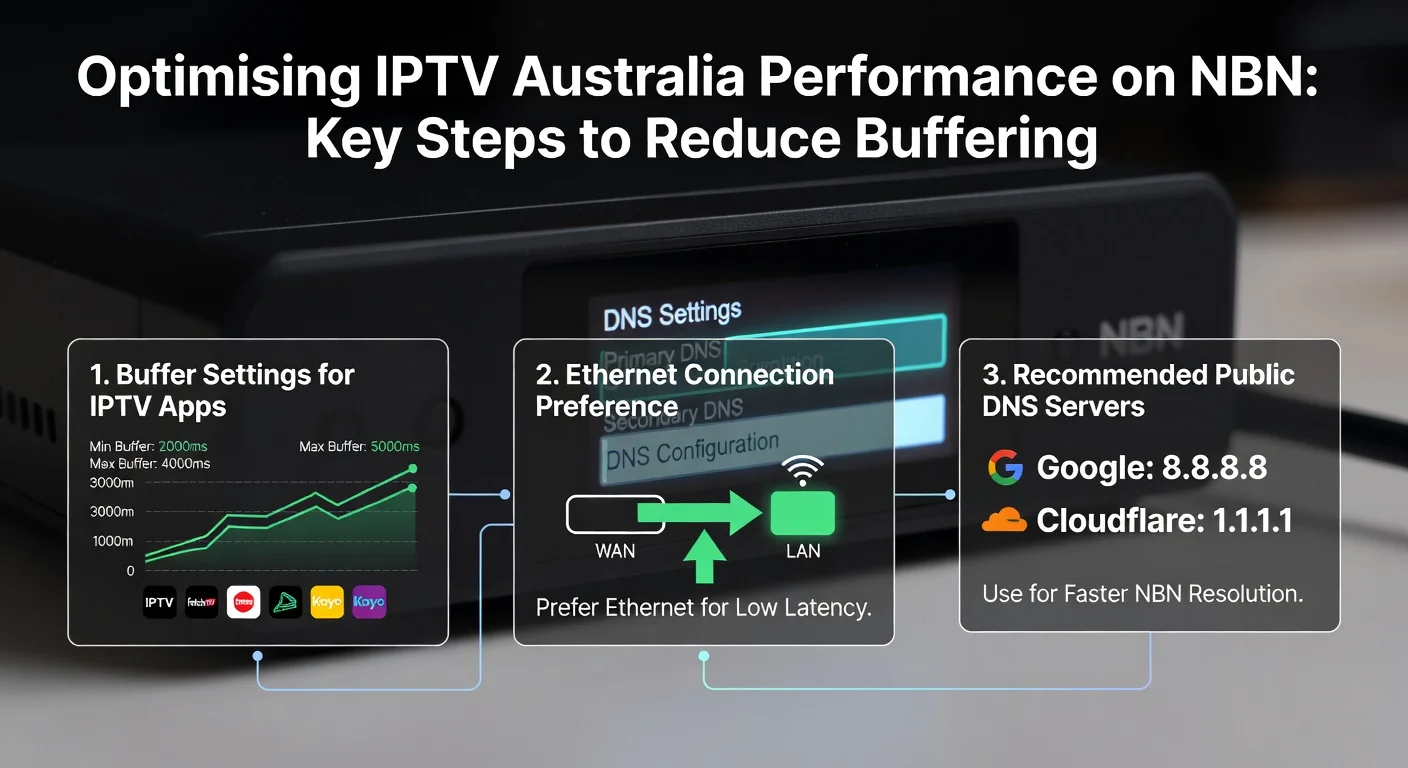
Australian ISPs’ default DNS servers can be slow, adding latency to every stream’s initialisation. Switching to a faster public DNS makes streams start faster.
- On your IPTV device, go to Settings → Network → Advanced (or Manual)
- Change DNS settings:
- Primary DNS:
1.1.1.1(Cloudflare — fastest in AU testing) - Secondary DNS:
8.8.8.8(Google)
- Primary DNS:
- Save and reconnect
Alternatively, change DNS at the router level to apply to all devices:
- Router admin → Internet Settings or WAN Settings
- Change DNS servers to 1.1.1.1 and 8.8.8.8
- Save and reboot the router.
If something goes wrong: If changing DNS causes the internet to stop working, you’ve entered an incorrect IP. Revert to “Automatic” DNS in device settings — this restores your ISP’s default DNS. Double-check the numbers 8.8.8.8 (no letters, no extra digits).
Step 5 — Increase IPTV App Buffer Size
The buffer at the app-level serves as your final defence against temporary network outages.
TiviMate:
- Settings → Player → Buffer Size
- Set to 10,000 ms (10 seconds) for NBN connections
- On very congested connections, try 15,000 ms.
IPTV Smarters:
- Settings → Player Settings → Buffer Time
- Set to 10 seconds
GSE Smart IPTV:
- Settings → Player → Buffer
- Set to maximum available
How the buffer works: When a stream momentarily drops (packet loss during peak hours), the player draws from its buffer instead of freezing. A 10-second buffer absorbs most short-term congestion events without you noticing anything.
If something goes wrong: A larger buffer means a longer delay before streams start playing (you press play, and it takes 8–10 seconds to start). If you find that inconvenient, you may want to consider reducing the buffer to 5. On fast, stable connections, a 5-second buffer is plenty — 10 seconds is for variable NBN connections.
Step 6 — ISP-Specific Notes for Australian Users
| ISP | Known IPTV Issues | Recommended Fix |
|---|---|---|
| Telstra | Peak-hour CVC congestion on NBN 50 plans | Upgrade to NBN 100; use Telstra Air Wi-Fi for backup |
| Optus | Occasional throttling of streaming traffic | Change DNS to 1.1.1.1; test off-peak to confirm throttling |
| TPG/Vodafone | Higher latency to offshore IPTV servers | Use Australian-hosted provider servers where available |
| Aussie Broadband | Generally strong CVC — less peak-hour congestion | Standard optimisations sufficient for most users |
| Superloop | Solid performance, less CVC congestion | Standard optimisations sufficient |
| iiNet | Peak-hour slowdowns on older NBN exchanges | Schedule heavy viewing outside 6–10pm |
The Aussie Broadband advantage: Aussie Broadband is consistently ranked best for NBN peak-hour performance because they purchase more CVC capacity than most RSPs. If you’re on an ISP with chronic evening buffering and you’ve ruled out home network issues, switching ISPs genuinely helps.
If something goes wrong: If you’ve done all the above and buffering only happens at night, it’s CVC congestion at your ISP, not your home network or provider. Your options are to upgrade to a higher-tier plan (more CVC allocation), switch ISPs, or contact your provider to see if they have a server with better peering to your ISP. For more on network configuration, our IPTV Network Settings guide covers advanced router and VPN configurations.
You Are Set Up
With wired ethernet, 5GHz Wi-Fi (or ethernet), a fast DNS server, increased buffer, and QoS enabled, your IPTV setup is running as optimally as your connection allows. Most Australian households see a complete elimination of buffering after working through these steps — the culprit is almost always Wi-Fi band, DNS, or buffer size.
For households running IPTV on multiple devices simultaneously, our Multi-Device IPTV Setup guide covers network configuration for multi-stream environments.
FAQ
Q: My IPTV works perfectly in the morning but buffers constantly at 8pm — whose fault is it?
This is your ISP’s peak-hour CVC congestion — caused by the ISP, not your provider or home network. The fix is either upgrading your NBN plan, switching to an ISP with better CVC provisioning (Aussie Broadband, Superloop), or tolerating it. Your IPTV provider can’t fix your issue from their end. Check our IPTV troubleshooting hub for more peak-hour-specific fixes.
Q: Will a VPN improve my IPTV performance in Australia?
Sometimes it can, particularly if your ISP is throttling your streaming traffic. A VPN encrypts your traffic so your ISP can’t identify it as streaming and throttle it. However, VPNs add latency, which can make things worse on already congested connections. Test it with a free VPN trial first to confirm it works before paying for a VPN service. Our IPTV Network Settings guide covers VPN configuration for IPTV specifically.
Q: What’s the minimum NBN plan I need for IPTV?
NBN 25 works for single-device HD IPTV in off-peak hours. NBN 50 is the practical minimum for reliable HD, especially during evenings. NBN 100 is recommended for 4K or multi-device households. The plan speed alone isn’t the full story—your ISP’s CVC (Connectivity Virtual Circuit) provisioning affects real-world speeds more than your plan tier. See our IPTV Speed Requirements guide for a detailed breakdown.
Q: I’ve done everything in this guide, and IPTV still buffers. What next?
Test your provider’s server with a different ISP connection (e.g., turn on your phone’s hotspot and test via 4G/5G). If it streams perfectly on mobile data but not NBN, your ISP is the problem. If it buffers on mobile, too, the issue is your provider’s server. In that case, contact them and ask for an alternate server URL, or consider switching providers. See our Best IPTV Australia guide for providers with strong Australian server infrastructure.
Wrap-Up
Most IPTV buffering in Australia comes down to four things: wrong Wi-Fi band, slow DNS, no buffer in the app, and ISP peak-hour congestion. Work through each step in this guide, and the vast majority of Australian households will go from frustrating buffering to smooth, reliable IPTV.
The wired Ethernet change is the single biggest improvement most people make. If you take nothing else from this guide, run a cable.
Enjoy your setup.